


To fix a Western Digital external drive not showing up, reconnect it directly to your computer, check its power, then find it in Windows Disk Management or Mac Disk Utility. A detected drive may need a drive letter, mounting, or its password before you can access files. Start with those checks before attempting repairs or formatting.
The Windows steps use Windows 11 menus, and the Mac steps cover directly connected external drives. If the drive contains files you need, do not initialize, format, or erase it to make it appear. Back up accessible files before attempting file-system repairs.
The short version
- Check the connection: Try a direct USB connection, another compatible data cable, and another port.
- Find the physical drive: Use Disk Management on Windows or Disk Utility on Mac to distinguish detection problems from access problems.
- Restore access: Bring an offline disk online, assign a missing drive letter, mount a Mac volume, or unlock a protected drive.
- Protect existing files: Reserve initialization for genuinely new, empty disks and formatting for storage whose files you have recovered or backed up.
| Check or fix | When to use it | Main caution |
|---|---|---|
| Direct connection and another cable or port | Drive is not detected | Use a compatible data cable |
| Power checks | Power may be insufficient | Use a compatible power adapter |
| Another computer | Connection checks do not help | Check its disk utility too |
| Bring the disk online | Windows shows Offline | Identify the correct disk first |
| Add or change a drive letter | An accessible Windows volume needs a letter | Choose an unused letter |
| Restart and recheck | Windows shows Unreadable | Recheck before further changes |
| Approve the accessory | An Apple silicon Mac laptop requests approval | Unlock the Mac first |
| Mount the Mac volume | Disk Utility detects an unmounted volume | Select the volume beneath the device |
| WD Unlocker | A protected drive exposes its unlocker | The correct password is required |
| WD Security | A supported drive needs unlocking | Check model and system compatibility |
| Windows updates | Storage drivers need updating | Restart and reconnect afterward |
| Device reinstallation | The affected device appears in Device Manager | Target only the problematic device |
| Driver rollback | Trouble followed a driver update | A previous driver must be available |
| macOS update | A compatible update is offered | Restart when requested |
| CHKDSK | Windows recognizes a supported file system | Back up before repair |
| Disk Utility First Aid | Mac detects a volume needing repair | Back up before repair |
| WD Drive Utilities diagnostics | A supported drive is detected | Keep a Mac awake during the Complete Drive Test |
| File-system compatibility check | The drive moved between Windows and Mac | Copy files off before reformatting |
| Disk initialization | The disk is genuinely new and empty | Never use it to recover files |
| New volume creation | Unallocated space is intentionally empty | Recover existing files first |
| Windows formatting | A detected volume needs a new format | Formatting erases its contents |
| Mac erasure and formatting | A detected device needs a new format | Erasure removes its files |
| Recovery or replacement | The drive fails or remains inaccessible | Arrange needed recovery first |
Check the USB connection and power
Safely eject the drive if you can access it, then disconnect it. Reconnect it directly to your computer without a USB hub. Try the supplied cable, another compatible data cable, and another USB port before changing disk settings.
For an externally powered desktop drive, connect its original power adapter directly to a wall outlet. Test a compatible replacement adapter if necessary. For a USB-powered portable drive, test another computer port; after trying a direct connection, you can also test a reputable powered hub or dock when insufficient USB power is suspected.
Connect the drive to another computer and check Disk Management on Windows or Disk Utility on Mac. Detection on the second computer helps separate a problem with your original computer from a drive, enclosure, cable, or power problem. If neither computer detects it, focus on those physical checks before attempting a volume repair.
Find the drive in Windows Disk Management
Right-click Start and select Disk Management. Compare the listed disk capacities and partitions to identify your WD drive before changing anything. Check here even when the drive is missing from File Explorer.
For a disk marked Offline, right-click the WD disk and select Online. Check File Explorer again afterward. Apply this only to the disk you have identified as your external drive.
For an accessible data volume that needs a drive letter, open Disk Management with administrator permissions. Right-click the volume and select Change Drive Letter and Paths, then select Add for a missing letter or Change to replace an existing assignment. Choose Assign the following drive letter and pick an unused letter. Select OK, then Yes.
For a disk marked Unreadable, restart the computer and check its status again before further troubleshooting. If a previously used drive shows unallocated space or requests initialization, do not treat it as a new empty disk when you need its files.
Approve and mount the drive on Mac
On a Mac laptop with Apple silicon, unlock your Mac, reconnect the drive, and click Allow when asked to approve the accessory. Complete this approval before continuing in Disk Utility.
Open Disk Utility and choose View > Show All Devices. Locate the physical WD device and inspect the volumes beneath it. Select an unmounted volume and click Mount, then check Finder for access.
If mounting does not make the volume accessible, disconnect and reconnect the external device, then check again. When the device remains listed but its volume will not mount, continue to the file-system repair steps below. When the physical device is missing entirely, return to the cable, power, port, and second-computer checks.
Unlock a password protected WD drive
On a supported password-protected drive that exposes its unlocker, open WD Unlocker in File Explorer or Finder, then open WD Drive Unlock. Click Yes on Windows or OK on macOS, enter the drive password, and click Unlock Drive. Click Close when finished.
You can also open WD Security, select the connected supported drive, enter its password, and click Unlock Drive. If you need the app, get it from the official WD Security download page and check the model and system compatibility list first. WD lists Windows 11 and macOS 14 Sonoma, 15 Sequoia, and 26 Tahoe for the app.
Update your computer and redetect the device
On Windows, search for Update, open Check for updates, and select Check for updates. Install available updates, restart, sign in, and reconnect the drive. WD says storage drivers arrive through Windows updates, and ordinary storage operation does not require WD software.
When the affected drive or USB device appears in Device Manager, you can remove and redetect that device. Right-click Start, select Device Manager, then right-click the problematic device and select Uninstall device. Select Uninstall, then restart Windows or choose Action > Scan for hardware changes.
If the trouble began after a driver update and a previous driver is available, use an administrator account to open Device Manager, right-click the affected device, and select Properties. Select Driver > Roll Back Driver, choose the applicable reason, and select Yes. Restart if requested, then reconnect the drive.
On Mac, open the Apple menu > System Settings > General > Software Update. Install the offered compatible update and restart as requested. Recheck the drive in Disk Utility afterward.
Repair a detected volume
Use file-system repair only after the computer detects the drive, and back up accessible files first. On Windows, CHKDSK can inspect a recognized local volume with a supported file system. It cannot restore a USB device that Windows does not detect.
Open Command Prompt using Run as administrator. Replace X: with the actual WD volume letter in this inspection command:
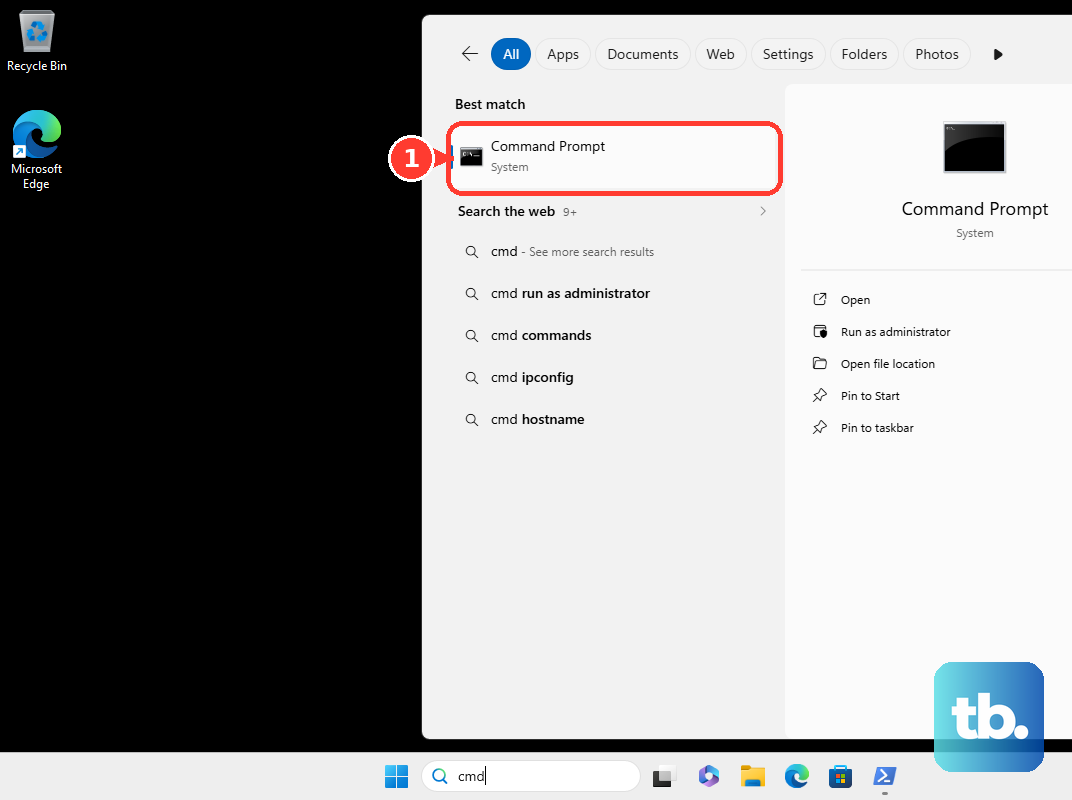
chkdsk X:If logical repairs are needed, evaluate the risk to your files before proceeding and close files open on the drive. To request a repair, run:
chkdsk X: /fFor a Mac drive detected in Disk Utility, choose View > Show All Devices. Select a volume, click First Aid, select Run, and click Done when it finishes. Repeat for each volume, then each container, and finally the physical storage device. Replace a drive that Disk Utility reports as failing.
Check the health of a supported WD drive
For a detected, supported model, get the app from the official WD Drive Utilities page after checking its model list. WD lists Windows 11 and macOS 14 Sonoma, 15 Sequoia, and 26 Tahoe for the app. Open WD Drive Utilities, select the drive, and click Diagnose.
Run Drive Status Check or Quick Drive Test; Complete Drive Test checks every sector. WD recommends replacement after a failed test, so arrange recovery first if you need files without a backup. On a Mac, Complete Drive Test can report a false failure if the Mac or drive sleeps during the test, so keep the Mac awake and retest, or test the drive with Disk Utility, before treating it as failed. For supported models, use WD Drive Utilities instead of the retired Data Lifeguard Diagnostic for Windows.
Handle incompatible formats or genuinely empty drives
A drive moved between Windows and Mac may have a file-system compatibility problem. Windows cannot natively access APFS or Mac OS Extended volumes, while an NTFS volume being read-only on Mac is different from undetected hardware. Use a compatible computer to copy the files off first; for use on both platforms, reformat to exFAT and then restore the files.
Initialize a disk only when it is genuinely new and empty, never to recover an existing data disk. In Windows Disk Management, right-click the correct uninitialized disk and select Initialize Disk. Choose GPT for a modern system and select OK. Some USB disks do not support initialization.
For intentionally empty unallocated space, or after recovering its files, open Disk Management with administrator permissions, right-click the unallocated area, and select New Simple Volume. Select Next, set the size, and select Next again. Assign a letter, select Next, choose the formatting settings, then select Next and Finish.
Formatting an existing Windows volume erases its contents, so recover or back up its files first. In Disk Management, right-click the correct volume and select Format. Choose the required file system, select OK, and select OK again.
To erase a detected drive on Mac after protecting its files, open Applications > Utilities > Disk Utility, then choose View > Show All Devices. Select the physical WD device and click Erase. Set Scheme to GUID Partition Map, choose the appropriate Format, and enter a name. Click Erase, then Done.
Arrange recovery before replacing the drive
If the drive remains inaccessible and holds files you need without a backup, contact a WD-listed Data Recovery Partner before arranging replacement. Initialization and formatting are not recovery steps.
Find the drive's serial number and use Warranty Status Check. To request warranty replacement, sign in to the WD Support Portal and submit your request with purchase evidence and product-label details. Eligibility varies by drive and warranty status.
Frequently Asked Questions
Why does the drive disappear after it sits idle?
If your supported drive disappears after idle time, you can test its sleep timer in WD Drive Utilities. Select the drive, open Settings, and turn off Sleep Timer or choose a different interval. This is a diagnostic option, not a proven repair for an undetected device. WD excludes models named My Passport SSD, My Passport Go, My Passport Pro, My Book Thunderbolt Duo, and My Book Studio II from this feature.
What if the drive works in Finder but one Mac app cannot access it?
Check that app's file-access permission when the drive is accessible in Finder. Open the Apple menu > System Settings > Privacy & Security > Files & Folders, find the app, and enable access to the relevant location if the corresponding permission is offered.
Does uninstalling WD Security remove the drive password?
No, removing the application does not remove the drive password. To remove protection from a supported drive, open WD Security, connect the drive, select Remove Password, enter the correct password, and click Update Security Settings. Click Close when finished.
Should you disable USB selective suspend?
Microsoft recommends leaving USB selective suspend enabled. WD separately recommends testing without computer power-saving modes, but that is not a guaranteed USB-power repair.
Should you change the RAID mode on a WD dual drive enclosure?
Do not change the RAID configuration to troubleshoot valuable files because changing the mode reformats both drives. On a supported RAID-capable enclosure, open WD Drive Utilities, select the enclosure, and choose RAID Management > RAID Status to inspect the array and individual drives.











