To fix a Wacom tablet that is not connecting, turn it on, connect it directly to your computer by USB, then check its Bluetooth pairing or Wacom driver if it still does not respond. Bypass docks and hubs for the USB check, and follow your model’s cable arrangement. A pen display with a blank screen also needs its video connection checked separately.
The short version
- Start with USB: Connect directly to the computer and check the tablet’s power light.
- Match the model: Bluetooth pairing steps differ by model.
- Check the driver: Run Wacom Center’s driver check and install a driver compatible with your exact tablet and operating system.
- Separate video from input: A powered pen display showing No Input Signal needs its video connection checked.
| Fix | When to use it | What to check |
|---|---|---|
| Direct USB connection | Tablet is not detected or has no power | Cable, power light, and direct computer connection |
| Bluetooth pairing | USB works but wireless does not | Charge, model-specific pairing, and computer Bluetooth |
| Driver check and update | Wacom software cannot communicate with the tablet | Driver restart and exact product compatibility |
| Mac access permissions | Mac blocks tablet data or driver access | Accessory approval and version-specific permissions |
| Display connection checks | Pen display has no picture | Video, USB data, and power connections |
| Preference reset | Corrupted Wacom settings are suspected | Back up settings before resetting |
| Driver reinstallation | Driver errors persist | Remove and reinstall compatible tablet software |
| Diagnostics and support | Connection or hardware failure continues | Device status, logs, and repair assessment |
Check the USB connection and power
Turn the tablet on and connect its USB cable directly to your computer. Bypass docks, hubs, and USB ports on keyboards or monitors, using the cable arrangement required by your model. On Windows, wait for device installation to finish before testing the tablet.
For a USB-powered Intuos or Intuos Pro, check the power light while it is connected directly. If the light stays off, test another compatible USB cable. Contact Wacom for a hardware assessment if the tablet still has no power.
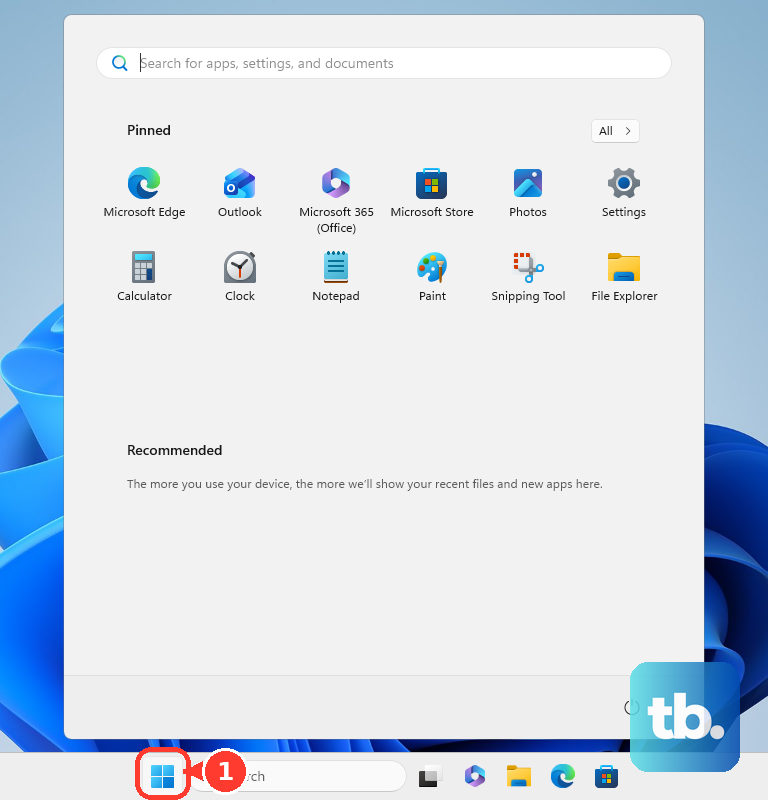
If Windows reports a device-installation error, disconnect the tablet and install available Windows updates before continuing with driver troubleshooting. On Windows 11, open Start > Settings > Windows Update and select Check for updates. After installing the updates, restart and reconnect the tablet.
Restore the Bluetooth connection
Connect a rechargeable Bluetooth tablet by USB to charge it and test wired operation. On supported models with a Power/Bluetooth button, press that button to wake the tablet. Disconnect USB before attempting Bluetooth pairing, then use the procedure for your exact model.
For Intuos CTL-4100WL and CTL-6100WL, turn on your computer’s Bluetooth and hold the tablet’s power button until the blue LED flashes slowly. Select the tablet in the computer’s Bluetooth settings and complete pairing. The LED becomes steady when connected; this procedure applies to the wireless models, not their USB-only variants.
For Intuos Pro PTH-460, PTH-660, and PTH-860, follow the Bluetooth pairing steps in your model’s manual, found in the Manual & Warranty section of Wacom’s driver download page, then select the tablet in the computer’s Bluetooth settings. On Windows with the PTH-660 or PTH-860, choose BT Intuos Pro rather than LE IntuosPro M/L. The redesigned Intuos Pro uses a different connection selector.
On an Intuos Pro with a USB/BT1/BT2 selector, move it to BT1 or BT2, enable Bluetooth on the computer, and press the tablet’s power button until its blue LED flashes slowly. Select the Wacom device to complete pairing. Use the selector’s USB position for a wired connection, since only the selected connection is active.
For Wacom One CTC4110WL and CTC6110WL, press and hold the Power/Bluetooth button until the blue LED blinks slowly, then select Wacom One S or Wacom One M in the computer’s Bluetooth settings. To wake one after sleep, hold its left-side power button until the blue LED lights, then release immediately and test. Basic Bluetooth pairing for these models does not require the desktop Wacom driver.
If the tablet stays missing on Windows 11, open Start > Settings > Bluetooth & devices, turn Bluetooth off, wait briefly, and turn it on again. Open the taskbar’s Network, Sound, or Battery quick settings and turn Airplane mode off. Check any physical Bluetooth switch on your computer.
If the tablet is absent from the Windows 11 pairing list, open Start > Settings > Bluetooth & devices > Devices. Under Device settings, change Bluetooth devices discovery to Advanced. Search again with the tablet in pairing mode.
Removing a saved Bluetooth device removes its existing pairing, so you will need to pair it again. On Windows 11, open Start > Settings > Bluetooth & devices > Devices, open the tablet’s More options, select Remove device, and select Yes. Put the tablet into pairing mode and add it again.
Forgetting the tablet on a Mac removes its saved pairing, so you will need to reconnect it. Open Apple menu > System Settings > Bluetooth, hold Control while clicking the tablet, and click Forget. Put it into pairing mode, find it again, and click Connect.
For an Intuos or Intuos Pro that connects unreliably, move it closer to the computer and remove obstacles. If Windows 11 Bluetooth still fails, open Start > Settings > System > Troubleshoot > Other troubleshooters. Next to Bluetooth, select Run and follow the prompts.
Check and update the Wacom driver
Open Wacom Center > Global settings and, under Troubleshooting options, click Driver check. After the check, use the offered action to restart the driver. Test the tablet again even if the check reported no error.
Next, open Wacom Center > Global settings > General settings. Under Software updates, look for Driver update and click Install update. Install any applicable device-firmware update offered there, following its instructions. If a firmware update in Wacom Center will not run on Windows, leave Wacom Center open, open Start > Wacom Tablet > Wacom Update Utility, then click Install update in Wacom Center again and follow the on-screen instructions.
If you need the driver installer, visit Wacom’s driver download page and search for the model name or number printed on your tablet. Select the matching product and check its supported operating systems and compatible products, including compatibility with your computer’s processor architecture. Click Download Windows Driver or Download Mac Driver, run the installer, finish the installation wizard, and restart the computer.
On macOS, complete the privacy permissions required by your compatible driver. For macOS 15 and macOS 27, Wacom says these permissions must be added within the first 30 minutes after installing the driver; if that window has passed, uninstall and reinstall the driver before repeating the permission steps. If Windows displays The tablet driver is not running, restart the computer first. If the error returns, uninstall and reinstall the compatible driver using the steps below.
Allow the tablet and driver on your Mac
A Mac that requires accessory approval can supply power to a tablet while blocking its data connection. Unlock the Mac, reconnect the tablet, and select Allow when accessory approval appears. On macOS 27, review this setting under System Settings > Privacy & Security > Accessories > Allow accessories to connect.
If you use an organization-managed Apple-silicon Mac laptop running macOS 13 or later, accessory approval may be controlled by your administrator. Ask the administrator to review the USB accessory policy if it prevents your tablet from connecting.
For macOS 27, Wacom specifies driver 6.4.14-2 or newer; select Allow when macOS requests access during installation. Open Apple menu > System Settings > Privacy & Security > Accessibility and enable the installed Wacom components. Then open Input Monitoring, enable WacomTabletDriver, select Quit and Reopen, and restart the Mac.
On macOS 15, removing stale Wacom permission entries removes their existing Accessibility permissions. Open System Settings > Privacy & Security > Accessibility, remove stale Wacom entries with the minus button, and restart. In Finder, press Command + Shift + G and open /Library/PrivilegedHelperTools/. Add com.wacom.IOManager.app to Accessibility and enable it.
If Input Monitoring access is missing on macOS 15, click + there and open Applications > Wacom Tablet. Press Shift + Command + Period and select the driver inside the hidden .Tablet folder. Restart after granting access.
Background permissions also matter on macOS 27. Open System Settings > General > Login Items & Extensions and, under Allow in the Background, turn on Wacom and any other Wacom entries. Restart the Mac afterward.
For a driver synchronization error on macOS 13 and later, open System Settings > General > Login Items and use + under Open at login to add Wacom Center. Enable Wacom and Wacom Technology Corp under Allow in the background, then restart. Newer macOS releases may call the page Login Items & Extensions.
Check video separately on a pen display
If your powered pen display shows No Input Signal, check its video connection. Try a direct connection or a different compatible display cable and adapter, and check the model’s power adapter and power button. The Wacom driver is not required merely to display your computer’s video.
For the 2025 Cintiq 16 and 24, use the supplied USB-C cable with a DisplayPort Alt Mode port, or connect HDMI-to-Mini-HDMI plus a separate USB data connection. The Cintiq 16 needs its power adapter if the computer cannot supply 15 W. The Cintiq 24 always needs its power adapter connected.
With Wacom One 12 DTC121 or Wacom One 13 touch DTH134, connect USB-C to a computer port that supports video output. If the LED flashes rapidly or the screen stays blank, connect the power adapter to the display’s second USB-C port. When using the 3-in-1 cable instead, connect both HDMI and USB-A to the computer and the power connection to the adapter.
On Windows 11, press Windows + P and select Extend. If an established display setup suddenly stops showing a picture, press Windows + Ctrl + Shift + B to reset graphics output. Restart if needed, then test another video port, cable, or computer if the screen remains blank.
On a Mac, open Apple menu > System Settings > Displays, hold Option, and click Detect Displays. If detection fails, reconnect the display, sleep and wake the Mac, and check that your Mac supports the number of connected displays. For a detected Wacom display, select it and use Use as to choose its desktop role. If its resolution is unsuitable, set Resolution to Default.
Reset Wacom preferences
Resetting Wacom settings resets preferences for every configured Wacom device, including disconnected devices, so back up your settings first. Open Wacom Center > Global settings > Backup & restore > New backup, enter a Name, and click Save. Then open General settings and click Reset all settings. Test the tablet before restoring a backup to check whether it works with the reset settings.
Reinstall the tablet software
Uninstalling removes the Wacom tablet software, so back up your preferences using the steps above before proceeding. On Windows, save your work and disconnect the tablet’s USB cable and wireless receivers, or turn off the tablet and Bluetooth. Wacom pen computers skip the external-tablet disconnection step.
Open Control Panel > Programs and Features and uninstall the Tablet, Wacom Tablet, or Bamboo entries. Restart, install the correct compatible Wacom driver, and restart again. Reconnect the tablet directly and test before restoring your preferences.
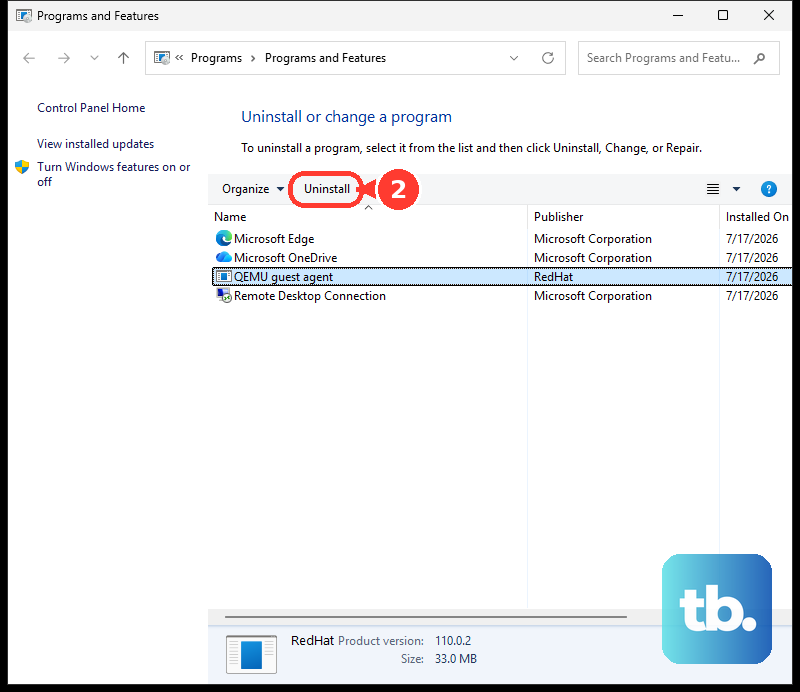
Uninstalling on macOS removes the tablet software, so back up your preferences before continuing. Disconnect the tablet, then in Finder open Applications > Wacom Tablet > Wacom Tablet Utility. Under Tablet Software, click Uninstall and authenticate when requested.
Restart the Mac, install the compatible driver, and restart again. Reconnect the tablet directly and restore its required macOS permissions. Test before restoring your saved preferences.
Collect diagnostics and contact Wacom
If the device appears in Wacom Center but still behaves incorrectly, select it and open Advanced > Diagnostics to inspect device and pen status. If it does not appear, proceed to collecting support logs. Open Global settings > Troubleshooting, turn Driver logging on, reproduce the fault, select Package log files, and turn logging off.
Contact Wacom when connection failures persist, connectors are damaged, or the tablet still has no power. In Wacom’s support article, select Create a Ticket or Submit a request. Provide your model, serial number, proof of purchase, computer and operating system details, symptoms, and the troubleshooting you have already completed. Wacom determines whether repair or a return authorization is appropriate.
Frequently Asked Questions
Why does my Intuos Pro turn off when I stop using it?
On Intuos Pro 2025 models, wireless timeout can turn off an idle tablet. Open the device’s Advanced settings and turn Wireless timeout off if that idle shutdown is being mistaken for a connection failure.
Why does my connected Wacom pen fail to click on macOS 26?
For UI-click failures and delayed initial drawing input on macOS 26.0 through 26.2, update to macOS 26.3 or later and install Wacom driver 6.4.13 or later. Wacom recommends keeping the latest compatible operating system and driver together.
Does One by Wacom need a driver on a Chromebook?
You do not need to install a Wacom driver for One by Wacom on a compatible Chromebook. Connect it directly to the Chromebook; that compatibility applies specifically to One by Wacom.
How should I connect a Wacom tablet to Android?
Compatible Intuos CTL-4100, CTL-4100WL, CTL-6100, and CTL-6100WL models can connect through an appropriate USB OTG adapter, while their wireless models can use Bluetooth on Android 14 and later. One by Wacom CTL-472 and CTL-672 use USB through an OTG adapter on Android 14 or later. Wacom One CTC4110WL and CTC6110WL support USB-C and Bluetooth on compatible Android devices.
Why is Intuos input distorted after connecting to Android?
Your compatible Intuos tablet may need its operating mode changed. Hold the two outermost ExpressKeys together for 3 to 4 seconds. Android 14 and later use PC mode, shown by a bright LED. Android 6 through 13 use Android mode, shown by a dim LED, with the Android device held vertically.