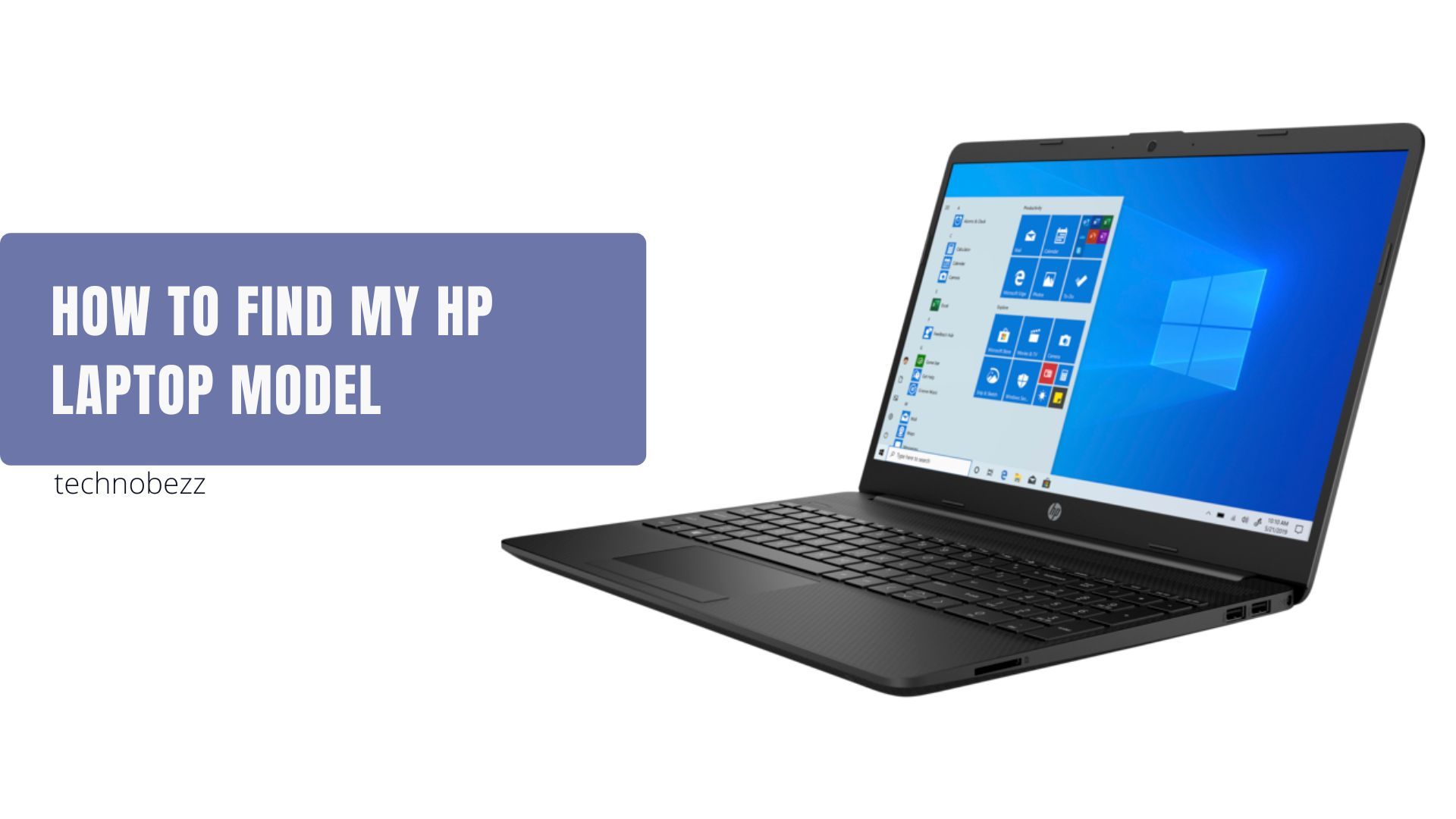
You need your HP laptop model number to download the right drivers, check warranty status, order matching parts, or get accurate support. The trouble is that HP prints three different numbers on every machine, and it is easy to grab the wrong one. This guide walks through 7 reliable ways to find your exact model in 2026, starting with the quickest path in Windows and ending with the methods that work even when the laptop will not boot.
Every method below has been checked against current Windows 11 and Windows 10 behavior and HP's own tools. Pick whichever fits your situation using the quick-reference table, then follow the numbered steps.
Quick Reference Table
Use this table to choose the fastest method for your situation. The model name appears in most of these places, but the product number and serial number that HP support asks for live in only a few of them.
| Method | Where to find it | Best when | Difficulty |
|---|---|---|---|
| Windows Settings | Settings > System > About | You just want the model name fast | Easy |
| Physical label | Sticker on the bottom or back | The laptop will not turn on | Easy |
| HP shortcut (Fn + Esc) | HP System Information window | You want all three HP numbers at once | Easy |
| System Information | System Summary > System Model | You prefer a built-in Windows tool | Easy |
| PowerShell | Win32_ComputerSystem query | You want a copyable, scriptable result | Medium |
| BIOS | System Information screen | Windows will not start | Medium |
| HP Support Assistant | App home screen | The app is already installed | Easy |
Find It in Windows Settings
The fastest method on a working laptop is the Settings app, and it works the same in Windows 11 and Windows 10. Go to Settings > System > About. You can also right-click the Start button, choose Settings, then select System and pick About.
On the About page, the device name appears at the top with the model name shown just below it. Scroll to the Device specifications section to confirm the processor, installed RAM, and whether you are running 64-bit Windows, which is handy when checking driver or upgrade compatibility.
If you prefer a shortcut, press Windows key + I to open Settings directly, then go to System > About. This is the path HP support agents usually point to first because it needs no extra software.
Check the Physical Label
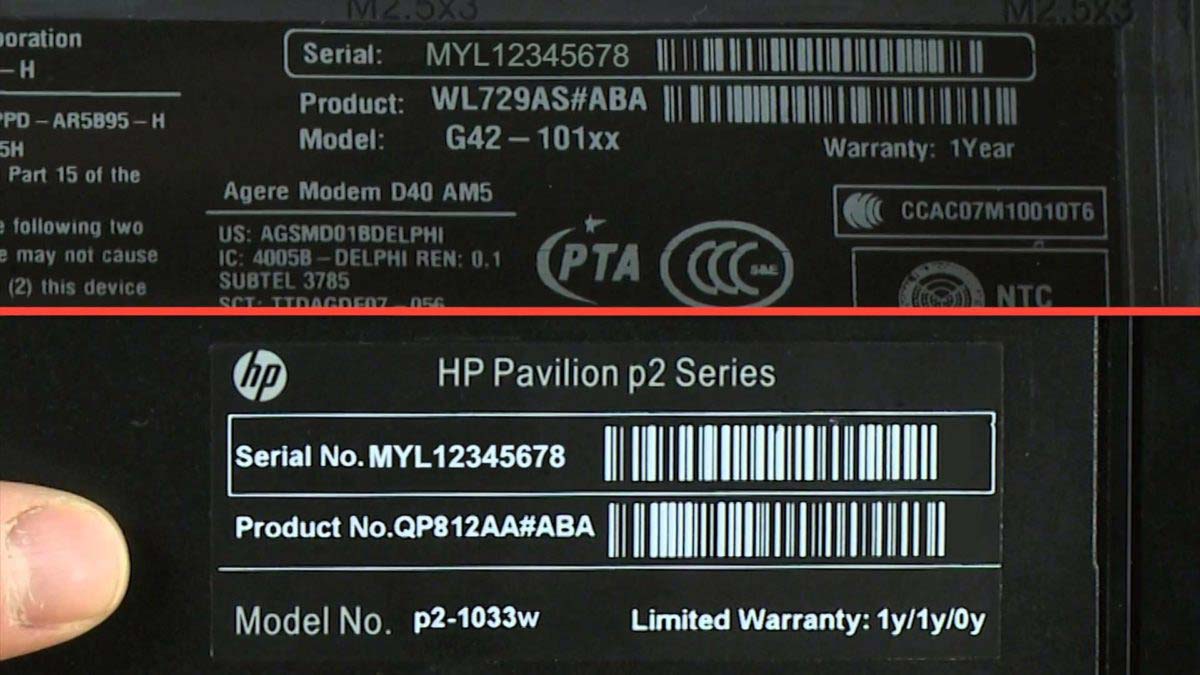
If your HP laptop will not turn on, the printed label is the most reliable way to identify it. Look for a sticker on the bottom of the chassis, and on some models on the back or along the side. The label lists the product name, the product number, and the serial number together.
The model name is usually printed as Product or Product name and sits near the serial number. On a few older models the sticker is hidden under a removable battery, so you may need to slide the battery out to read it.
This label is the original source HP uses, so it is the number to trust if a software tool ever shows something that looks generic or incomplete.
Use the HP Fn and Esc Shortcut
HP laptops include a built-in tool that shows all three identifiers in one window. Press Fn + Esc at the same time while in Windows, and the HP System Information window opens directly.
The window displays the product name, product number, serial number, and other system details such as the BIOS version. This is the single fastest way to read every number HP support might request without hunting through menus.
One catch worth knowing: this shortcut does not work when you are typing on an external keyboard through a docking station or USB hub. Use the laptop's own keyboard, or open HP System Information from the Start menu search box instead.
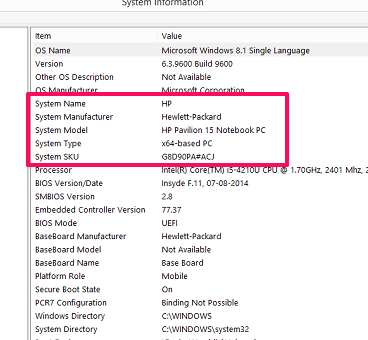
Open System Information in Windows
Windows ships with a System Information tool that reports your model regardless of the manufacturer. It is a good cross-check if the Settings page looks unclear.
- 1.Open the Start menu and search for System Information
- 2.Select the top result to open the app
- 3.Click System Summary in the left panel
- 4.Find your laptop listed next to System Model
The same screen shows the System Manufacturer as HP and the BIOS Version/Date, which together confirm you are reading the correct hardware. To open this tool instantly, press Windows key + R, type msinfo32, and press Enter.
Use PowerShell
PowerShell gives you a clean, copyable result and is the method Microsoft now recommends for command-line lookups. Open the Start menu, search for PowerShell, and open it.
To see the manufacturer and model, run this command:
Get-CimInstance -ClassName Win32_ComputerSystem | Select-Object Manufacturer, ModelTo pull the serial number, which HP reads from the BIOS, run:
Get-CimInstance -ClassName Win32_BIOS | Select-Object SerialNumberIf you have seen older guides use wmic csproduct get name in Command Prompt, note that the WMIC tool is being retired. It is disabled by default in Windows 11 versions 23H2 and 24H2, removed on upgrade to version 25H2, and will be dropped entirely in a later 2026 Windows update. The PowerShell commands above return the same information and will keep working, so use them going forward.
Read It From the BIOS
When Windows will not start, the BIOS still holds your model and serial number. This method needs no operating system at all.
- 1.Turn the HP laptop off completely
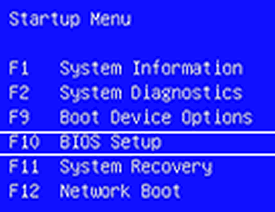
- 2.Press the power button, then immediately tap the Esc key once per second until the Startup Menu appears
- 3.Press F10 to enter BIOS Setup
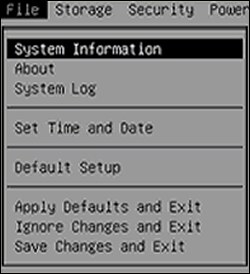
- 4.Open the System Information screen to view the product name, serial number, BIOS version, and date
On many HP models you can skip the Startup Menu and tap F10 on its own right after pressing the power button. The boot window is short, so if you miss it, fully shut down and try again.
The BIOS System Information screen lists the manufacturer, product name, SKU number, and serial number, which is everything you need to register the device or order a replacement part.
Use HP Support Assistant
If HP Support Assistant is installed, it shows your laptop model, product number, and serial number on its home screen automatically. Search Windows for HP Support Assistant and open it, or click its icon in the taskbar.
Beyond identifying the machine, the app matches your exact model to available driver updates, warranty status, and support articles, so you do not have to type any numbers yourself. If it is not already on your laptop, you can download the current version from the HP Support Assistant page.
Model Number vs Product Number vs Serial Number
HP prints three different identifiers, and mixing them up is the most common reason people download the wrong driver. Knowing what each one means saves a lot of back and forth with support.
The model name or model number describes the broad family, such as a Pavilion or Envy line, and tells you the general design and features. The product number narrows that down to your specific configuration within the series, and many laptops can share the same product number.
The serial number is unique to your individual laptop, like a fingerprint, and is what HP uses to confirm warranty coverage and ownership. For driver downloads and parts, HP usually wants the product number or serial number rather than the broad model name, so the HP System Information window or the physical label are your most useful sources.
Frequently Asked Questions
Where is the model number on an HP laptop?
The model name is printed on a sticker on the bottom of the laptop, and on some models on the back or side, usually labeled as Product or Product name near the serial number. In Windows you can also find it under Settings > System > About, where the model appears just below the device name.
Is the model number the same as the serial number?
No. The model number describes the laptop family and configuration and can be shared by many units, while the serial number is unique to your individual machine. HP uses the serial number to verify warranty and ownership, so keep both handy when contacting support.
How do I find my HP model without turning it on?
Check the printed label on the bottom or back of the chassis, which lists the product name, product number, and serial number. On some older models the sticker sits under a removable battery, so you may need to slide the battery out to read it.
How do I find my HP model in the BIOS?
Turn the laptop off, press the power button, then tap Esc repeatedly until the Startup Menu appears and press F10 to enter BIOS Setup. Open the System Information screen to see the product name, serial number, and BIOS version, even when Windows will not load.
What is the fastest way to see all three HP numbers at once?
Press Fn + Esc on the laptop's own keyboard to open the HP System Information window, which shows the product name, product number, and serial number together. This shortcut does not work through a docking station or external keyboard, so use the built-in keys.
Does the Settings method work on Windows 10 and Windows 11?
Yes. On both Windows 10 and Windows 11 you go to Settings > System > About to see the device name and model. The layout is nearly identical, and you can jump straight there by pressing Windows key + I and selecting System, then About.