You try to open a website and instead of the page you get a blunt message: "The requested URL was rejected. Please consult with your administrator," usually followed by a long support ID. It looks alarming, but it almost never means your computer is broken.
This error is not generated by your browser. It comes from a security layer in front of the website, and most of the time you can clear it from your end in a couple of minutes. The fixes below are ordered from fastest to most involved, so start at the top and stop as soon as the page loads.
Why You See This Error
The message is produced by a web application firewall (WAF) sitting in front of the site, most commonly an F5 BIG-IP ASM appliance. When an incoming request trips one of the site's security rules, the firewall blocks it and returns this generic page instead of the real content.
The most frequent trigger on your side is a corrupted or stale cookie that the firewall reads as suspicious. Other common causes are an overloaded request from too many cookies, a VPN or proxy whose IP address is on a block list, or a browser extension that alters the request.
Every rejection comes with a unique support ID. You cannot decode it yourself, but it is the exact reference the site's administrator needs to find the blocked request in their logs, so copy it before you start.
Quick Fixes to Try First
Before changing any settings, run through these fast checks. One of them clears the error in a large share of cases.
- Reload the page with a hard refresh that bypasses the cache. Press Ctrl + F5 on Windows or Cmd + Shift + R on a Mac.
- Close the browser completely, including every window, then reopen it and try again.
- Restart your computer to clear any temporary system or network glitch.
- Restart your modem and router so your connection picks up a fresh IP address.
- Confirm the site is not down by opening it on your phone over mobile data.
If the page works on another device or network but not your main one, the problem is local to that device, and the cookie and extension steps below are your best next move.
Clear Cookies for the Specific Site
A single corrupted cookie for one site is the most common cause, so target that site first instead of wiping everything. This logs you out of just that one site and forces it to issue a clean cookie.
In Chrome or Edge, open the site, then click the tune or padlock icon to the left of the address bar. Choose the cookies or site data option, then delete the data stored for that site and reload the page.
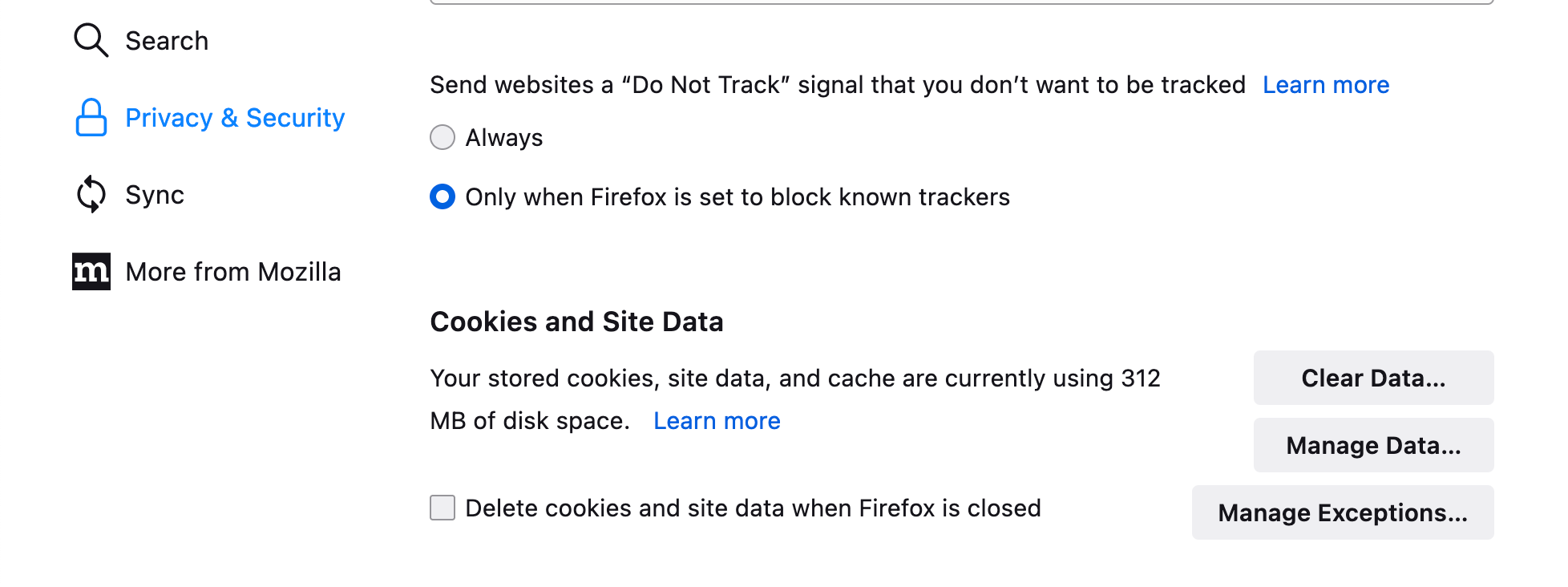
You can also manage one site directly. In Chrome type chrome://settings/content/all in the address bar, search for the site, open it, and click Delete data. In Firefox go to Settings > Privacy & Security > Cookies and Site Data > Manage Data, find the site, and remove it.
Clear All Cookies and Cache
If clearing one site does not help, clear your full cookie and cache store. Choose the All time range so old data is removed.
- 1.Google Chrome: type chrome://settings/clearBrowserData, set the range to All time, tick Cookies and other site data plus Cached images and files, then click Clear data.
- 2.Microsoft Edge: type edge://settings/clearBrowserData, set the range to All time, tick the same two boxes, then click Clear now.
- 3.Mozilla Firefox: go to Settings > Privacy & Security, scroll to Cookies and Site Data, click Clear Data, tick both options, and click Clear.
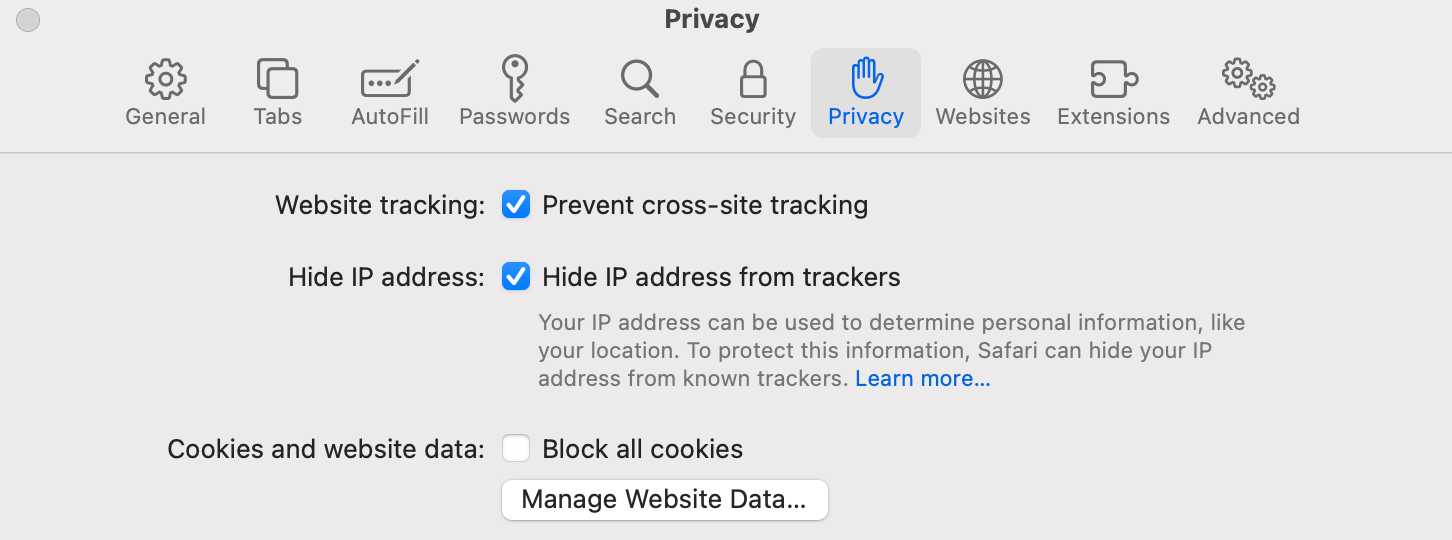
- 4.Apple Safari: open Settings > Privacy, click Manage Website Data, then Remove All.
Open the Site in a Private Window
A private or incognito window starts with no cookies and disables most extensions, so it is the fastest way to confirm whether your saved data is the problem. If the site loads here, the cause is a cookie or an extension in your normal window.
Open a private window with these shortcuts. Use Ctrl + Shift + N in Chrome and Edge, Ctrl + Shift + P in Firefox, and Cmd + Shift + N in Safari. On a Mac, swap Ctrl for Cmd in Chrome.
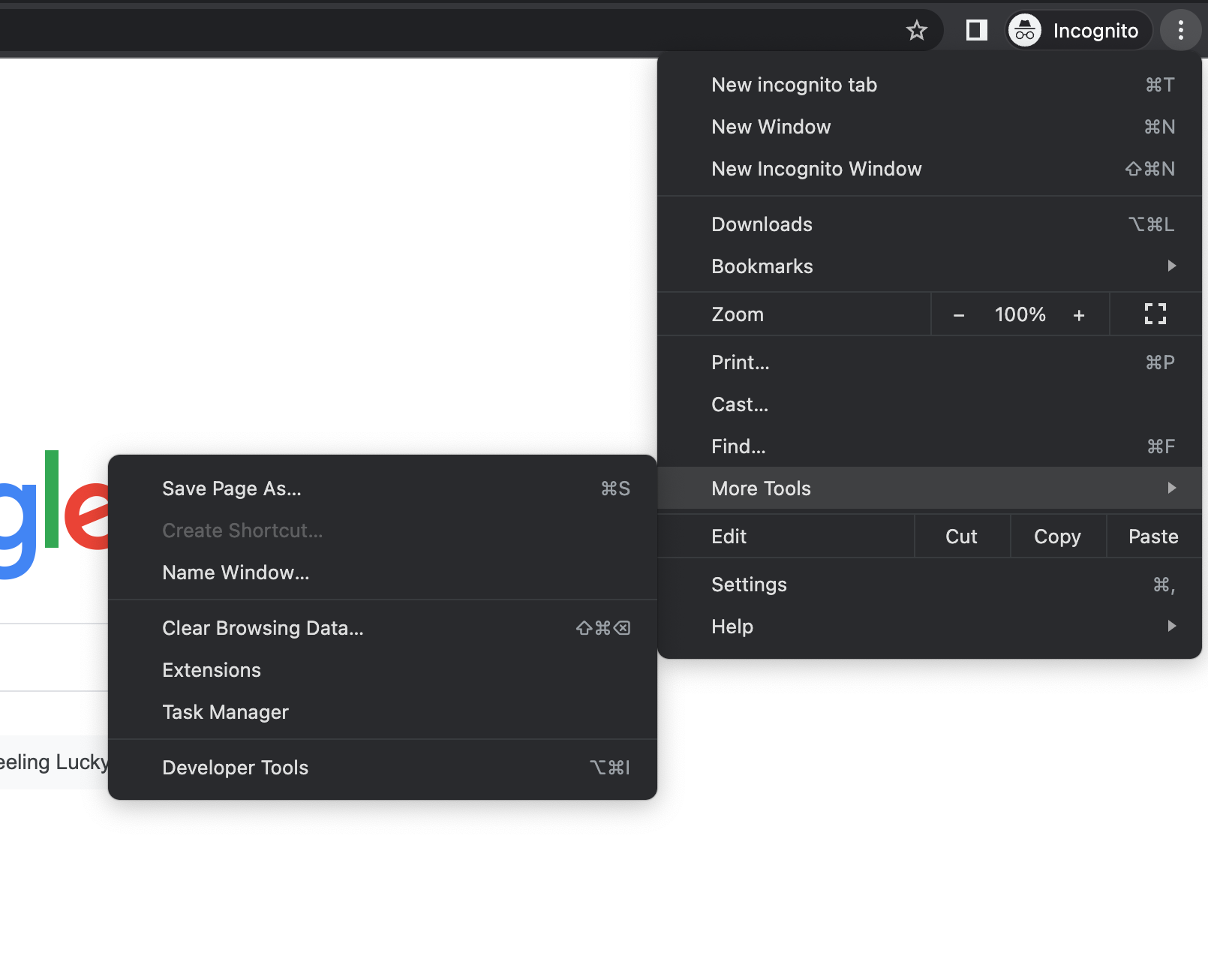
You can also open one from the menu. In Chrome click the three-dot menu and choose New Incognito window. In Edge choose New InPrivate window.
Turn Off VPN and Proxy
VPNs and shared proxies route you through IP addresses that many websites flag or block, which is a frequent cause of this rejection. Disconnect any VPN, then reload the page.
Also check for a system proxy you may not have set on purpose. On Windows go to Settings > Network & Internet > Proxy and turn off both Automatically detect settings and any manual proxy unless your workplace requires it.
On a Mac open System Settings > Network, select your active connection, click Details, then Proxies, and switch off any proxy you are not using. Reload the site after each change.
Switch Between Wi-Fi and Mobile Data
Some networks, especially public, school, or office connections, sit behind their own filters that can trigger this error. Switching networks tells you whether the block is tied to where you are connecting from.
On a phone, turn off Wi-Fi and load the page over mobile data, or do the reverse. On a computer, connect to a different Wi-Fi network or use your phone as a hotspot.
If the site loads on one network but not the other, the blocking network is the cause and there is nothing to fix on your device. Use the working connection or contact whoever runs the network that blocks it.
Disable Browser Extensions
Ad blockers, privacy tools, and security extensions can change a request in ways the firewall rejects. Turn them off to rule them out.
In Chrome go to the three-dot menu, then More tools, then Extensions, and toggle each one off. In Edge open the three-dot menu, choose Extensions, then Manage extensions. In Firefox open the menu and choose Add-ons and themes.
Disable everything, reload the site, then re-enable extensions one at a time until the error returns so you can pin down the culprit.
Flush the DNS Cache
A stale DNS entry can point your browser at the wrong place and contribute to load failures. Clearing it forces a fresh lookup.
On Windows, open Command Prompt and run ipconfig /flushdns. On a Mac, open Terminal and run sudo dscacheutil -flushcache; sudo killall -HUP mDNSResponder, then enter your password.
You can also clear the browser's own DNS cache. In Chrome open a new tab, type chrome://net-internals/#dns, and click Clear host cache. Edge uses edge://net-internals/#dns the same way.
Check Your Device Date and Time
A wrong clock can break the secure connection a site relies on, which sometimes surfaces as a rejected request. Setting the time automatically is the safe fix.
On Windows go to Settings > Time & language > Date & time and turn on Set time automatically and Set time zone automatically. On a Mac open System Settings > General > Date & Time and enable Set time and date automatically.
After the clock corrects itself, reload the page.
Try Another Browser
If the error sticks in your usual browser even after clearing data, open the site in a different one. Loading it in Chrome, Edge, Firefox, or Safari quickly shows whether the issue is tied to one browser's profile or settings.
If it works elsewhere, your original browser holds the bad data, and a full reset of that browser is the next step. If it fails in every browser, the cause is your network or the website itself.
Reset Your Browser
When clearing cookies and extensions has not helped, resetting the browser returns it to defaults while keeping your bookmarks and saved passwords. This clears any deeper setting causing the conflict.
In Chrome type chrome://settings/reset and choose Restore settings to their original defaults. In Edge type edge://settings/reset and pick Restore settings to their default values.
In Firefox type about:support in the address bar and click Refresh Firefox. Reload the site once the browser restarts.
Contact the Website Administrator
If the error appears on every browser, device, and network, the block is on the website's side and only its administrator can lift it. This is the legitimate last step, not a workaround.
Copy the full error message including the support ID and send it to the site's support team or contact page. That ID lets them locate the exact blocked request in their firewall logs and tell you why it was rejected.
Avoid any third-party tool that promises to remove a firewall block for you. The only people who can change the rule are the ones who run the site.
Frequently Asked Questions
What does "The requested URL was rejected" mean
It means a security firewall in front of the website, usually an F5 BIG-IP ASM appliance, blocked your request because it matched one of the site's protection rules. The page you see is the firewall's standard rejection notice, not an error from your browser.
Is it a problem with my computer or the website
It can be either. A corrupted cookie, VPN, or extension on your side is the most common cause, but a network block or a rule on the website's side can also do it. If the page fails on every device and network, the cause is on the website's end.
Will a VPN fix this error or cause it
A VPN usually causes it rather than fixes it, because websites often block the shared IP addresses VPNs use. Disconnect your VPN and reload the page. If you only see the error while connected, the VPN is the trigger.
What is the support ID in the error message
The support ID is a unique reference the firewall assigns to your blocked request. You cannot decode it, but the website's administrator can use it to find the request in their logs and explain why it was rejected, so include it when you contact them.
Why does clearing cookies fix this error
The firewall often rejects requests carrying a corrupted or expired cookie. Deleting the cookie for that site forces the site to issue a fresh, clean one on your next visit, which usually passes the security check.
Can I get past the block on my own if it is server-side
No. If the website's firewall is blocking you and the error shows up across every browser, device, and network, only the site's administrator can adjust the rule. Send them the support ID and wait for them to resolve it.
First published October 12, 2025. Last updated June 4, 2026.