A Lenovo laptop camera that goes dark before a video call is usually a software or privacy block, not a broken part. Lenovo machines stack several layers of camera control, including a physical shutter, a keyboard toggle, Windows permissions, Lenovo Vantage, and even a firmware switch. Working through them in order finds the cause quickly.
It takes seconds to confirm the camera works with an online quick webcam test. If the preview stays black there too, keep reading, because the steps below target exactly that.
Start with the fastest physical checks, then move into Windows settings, drivers, and the Lenovo-specific controls. Test the camera in the Windows Camera app after each step so you know the moment it comes back.
Quick Checks That Fix It Fast
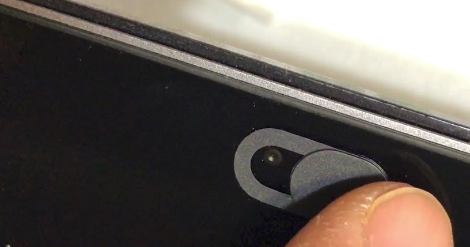
Many Lenovo laptops ship with a physical privacy cover called a ThinkShutter, a tiny slider built into the display bezel right next to the lens. When it is closed you may see a colored or striped marker over the camera, and the camera will look offline in every app. Slide it open and retest.
Lenovo uses different privacy designs across ThinkPad, IdeaPad, Yoga, Legion, and Slim models, so the switch will not look the same on every machine. If you do not see a slider near the lens, your model may not have one, and the block is elsewhere.
Many models also have a keyboard camera toggle, often the F8 key or Fn plus F8, marked with a camera icon that has a line through it. This mapping is model-dependent, so check your F-row for the camera symbol rather than assuming a specific key. A quick restart also clears temporary glitches that freeze the camera, so reboot if a key press does not help.
Windows Camera Access and Permissions
Windows 11 has a master privacy switch that can silently keep every app from using the camera. Open it and confirm access is allowed at each level.
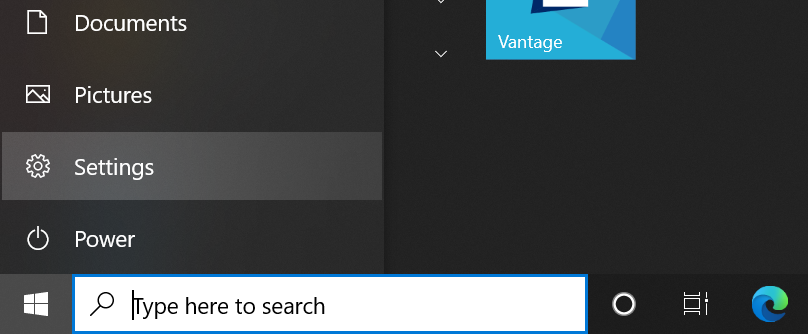
> Settings > Privacy & security > Camera
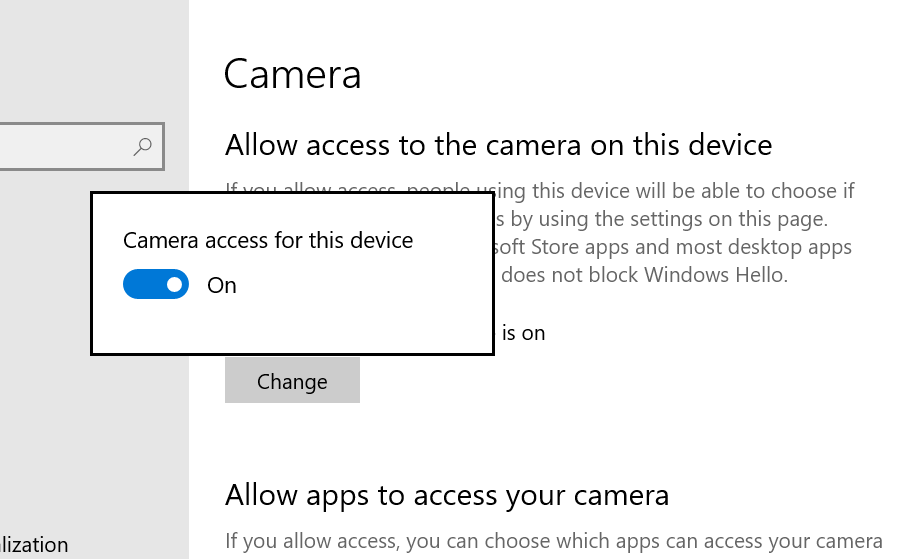
Turn on Camera access, then turn on Let apps access your camera. The first toggle controls the whole device and the second controls apps, so both must be on.
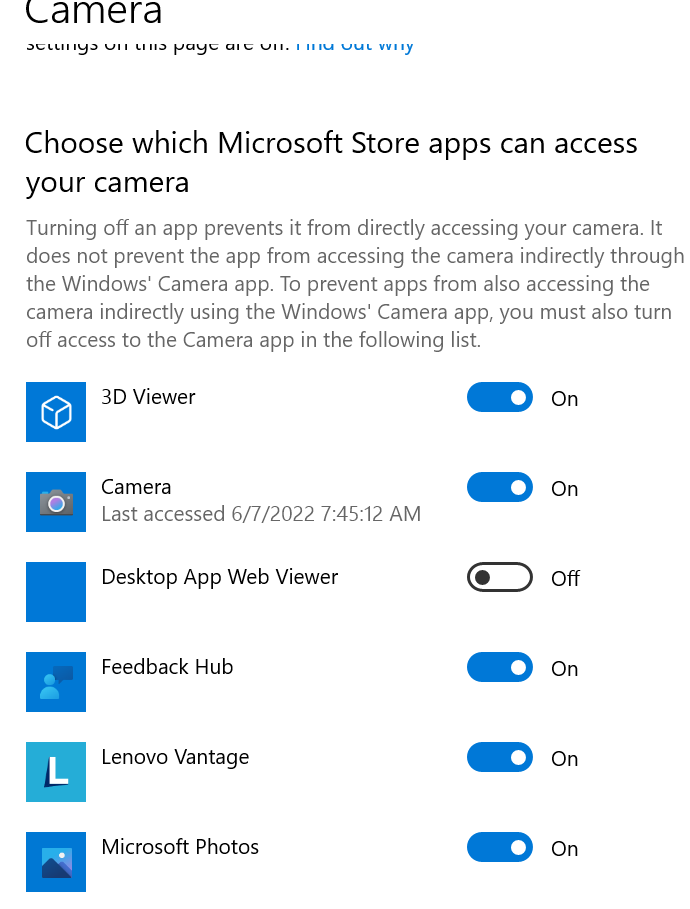
Scroll the app list and make sure your video tools, such as Zoom, Microsoft Teams, Google Meet, or the Camera app, are switched on. Only Microsoft Store apps appear individually in this list.
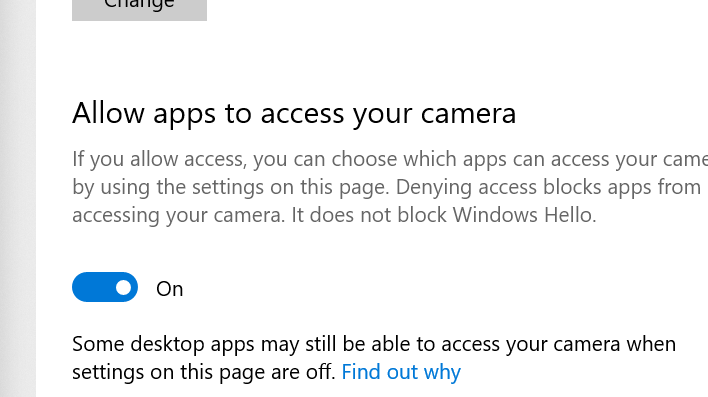
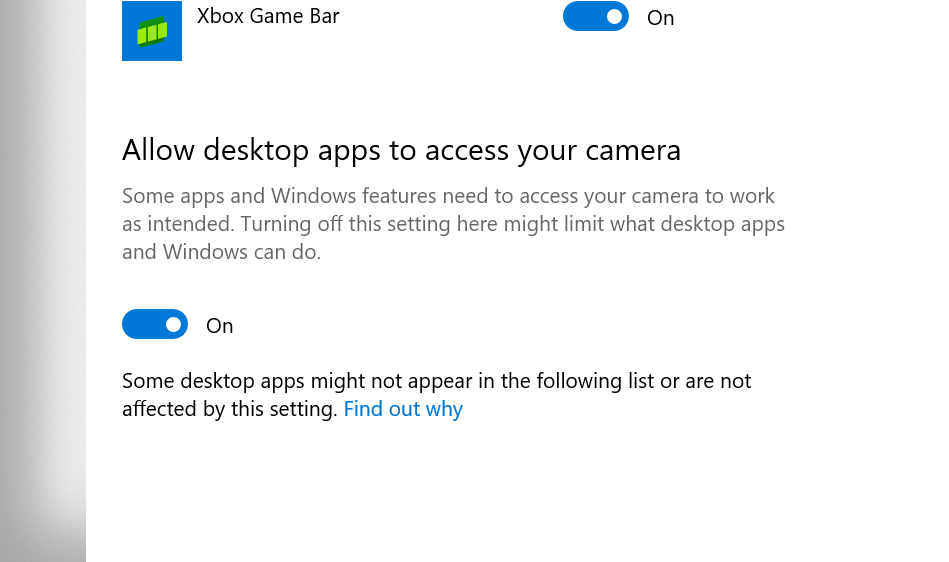
Most desktop video apps are not Store apps, so they are governed by a separate switch at the bottom of the page. Turn on Let desktop apps access your camera or those programs stay blocked even when everything above looks correct.
Run the Windows Camera Troubleshooter
Windows 11 includes an automated camera repair tool that checks permissions, services, and driver state in one pass. It is the fastest way to catch a problem you might miss by hand.
Open the Get Help app from the Start menu, search for the camera troubleshooter, and follow the prompts. It can reset stuck settings and point you to the exact remaining issue if it cannot fix it outright.
Update or Reinstall the Camera Driver
A missing or corrupted driver, often left behind by a recent Windows update, is the most common reason a Lenovo camera stops being detected. Device Manager lets you refresh, roll back, or fully reinstall it.
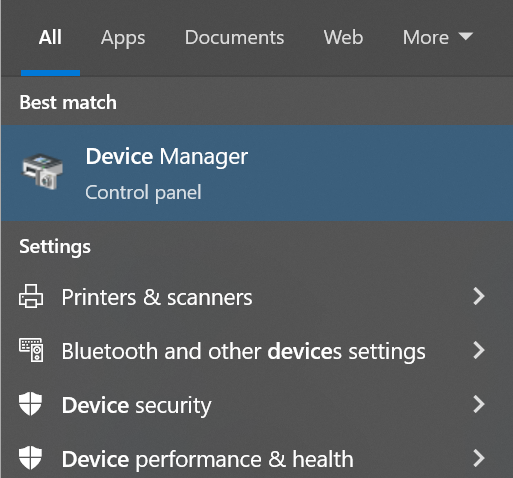
Open Device Manager from the search bar and expand the Cameras section. If you do not see Cameras, open the Action menu and choose Scan for hardware changes so Windows re-detects the device.
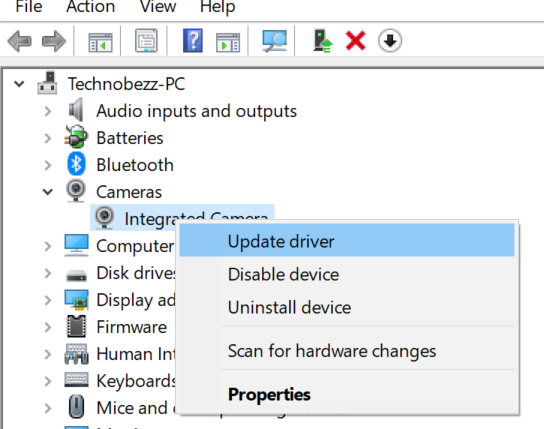
Right-click your camera, choose Update driver, then Search automatically for drivers. If the camera broke right after an update, open the camera's Properties, go to the Driver tab, and use Roll Back Driver if it is available.
If neither helps, right-click the camera and choose Uninstall device, tick Attempt to remove the driver for this device if it appears, then restart. Windows reinstalls a clean driver on startup, which clears most corruption.
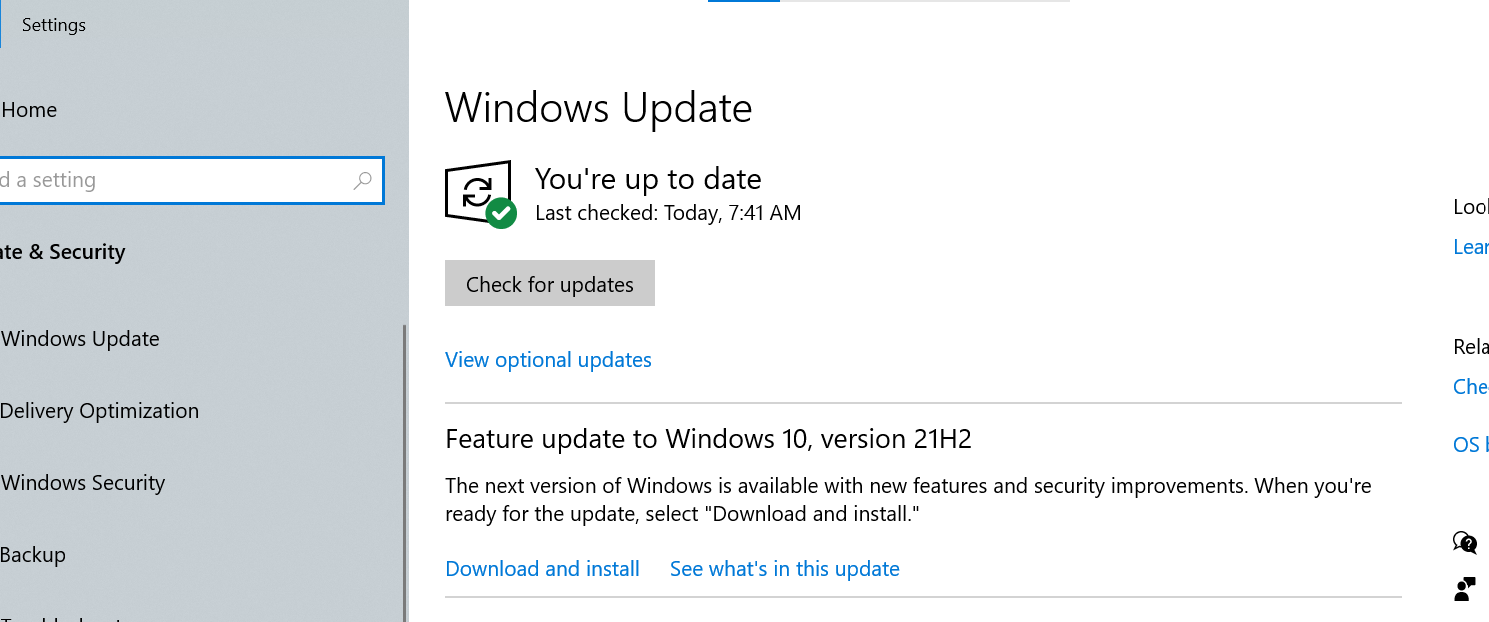
Install Windows and Lenovo Updates
Pending system updates often carry camera and webcam driver fixes, and Lenovo ships model-specific camera drivers of its own. Check both sources before assuming a hardware fault.
> Settings > Windows Update > Check for updates
Install anything offered, then open Advanced options and check Optional updates, where camera driver updates are sometimes listed separately. For the most reliable match, download the latest camera or imaging driver for your exact model from Lenovo support at support.lenovo.com.
Lenovo Vantage Privacy Mode
Lenovo Vantage and Commercial Vantage include their own Camera Privacy Mode that blocks the lens independently of Windows. If it is on, the camera fails even with every Windows permission enabled.
Open the Vantage app and go to Device, then Display & Camera, and turn Camera Privacy Mode off.
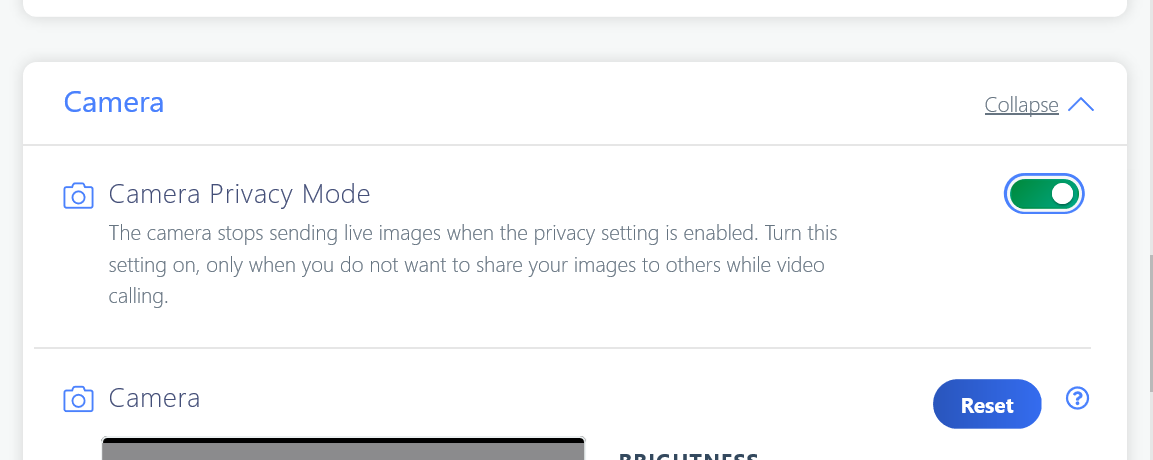
On laptops with an infrared camera or Windows Hello face sign-in, Lenovo may hide or remove this toggle, since Hello manages the camera instead. If the option is missing and your camera still will not work, move on to the firmware check below rather than hunting for it.
Check Antivirus and the BIOS Switch
Some security suites include webcam protection that blocks apps from the camera. Open your antivirus settings, look for a webcam or privacy section, and allow your video apps, or briefly disable protection to test, then re-enable it.
If the camera does not appear in Device Manager at all, it may be turned off in firmware. Restart, press F1 or Fn plus F1 at the Lenovo logo to enter BIOS, open the Security tab, find I/O Port Access, and confirm Integrated Camera is set to Enabled, then press F10 to save and exit.
Test the camera with more than one app, such as the Windows Camera app plus a video call, to tell whether the fault is app-specific or system-wide. If the camera works in the Camera app but not in one program, the problem lives in that program's settings.
When It Is a Hardware Fault
If you have opened the shutter, cleared every permission, reinstalled the driver, disabled Vantage privacy, and confirmed the BIOS setting, a camera that still will not appear may have a loose connector or a failed module. At that point the issue is physical, not software.
Contact Lenovo support for a hardware diagnosis, especially while the laptop is under warranty, since an internal webcam repair is not a do-it-yourself job. Note which steps you already tried so support can skip them.
Frequently Asked Questions
Why does my Lenovo camera show a black screen instead of an error
A black screen almost always means the lens is physically covered. Check that the ThinkShutter privacy slider next to the camera is open, since it blocks video at the hardware level even when apps have permission.
Which key turns the camera on and off on a Lenovo laptop
Many Lenovo models use F8 or Fn plus F8, but the mapping varies by model. Look along the F-row for a camera icon with a line through it and press that key, or Fn plus that key, to toggle the camera.
Why is Camera Privacy Mode missing in Lenovo Vantage
If your laptop has an infrared camera or uses Windows Hello face sign-in, Lenovo often hides or removes the Vantage privacy toggle because Windows Hello manages the camera instead. In that case, control the camera through Windows settings rather than Vantage.
My camera stopped working right after a Windows update, what now
Open Device Manager, expand Cameras, right-click your camera, open Properties, and use Roll Back Driver on the Driver tab. If that is greyed out, uninstall the device and restart so Windows reinstalls a fresh driver.
The camera is not listed in Device Manager at all
First open the Action menu and choose Scan for hardware changes. If it still does not appear, restart into BIOS, open Security, and confirm Integrated Camera under I/O Port Access is Enabled, since a firmware-disabled camera is invisible to Windows.
How do I know if it is a hardware problem
If the camera fails in every app after you have opened the shutter, fixed permissions, reinstalled the driver, and checked Vantage and BIOS, the cause is likely a loose connector or failed module. Contact Lenovo support for a hardware check, especially under warranty.
First published October 12, 2025. Last updated June 4, 2026.