Siri can interrupt when you press a button, say something that sounds like its wake phrase, or receive a notification through your headphones. On iOS 27, a single control in Settings turns it off completely. If only one behavior bothers you, use the controls below to stop it while keeping Siri available.
Turn Siri off completely
The iOS 27 master control disables both Siri Classic and Siri AI.
Open Settings.
Tap Siri.
Tap Turn Off Siri at the bottom of the screen.
Tap Turn Off Siri again to confirm.
Stop voice and button activation
To stop Siri from responding to “Siri” or “Hey Siri,” open Settings > Siri > Requests.
Select Off. This stops wake-phrase activation while leaving other activation methods available.
For the phone’s button, open Settings > Accessibility > Side Button, or Home Button on an iPhone with that button.
Under Press and Hold to Speak, select Off. The Classic Voice Control option enables another voice interface instead.
Use the complete shutdown above for full deactivation, because the button setting leaves headset controls active and disabling these two triggers leaves other Siri AI entry points available.
If you only want Siri blocked while locked
Use this option to block Siri on a passcode-protected iPhone’s lock screen. Siri remains available after you unlock.
Open Settings > Face ID & Passcode, or Touch ID & Passcode on a Touch ID iPhone.
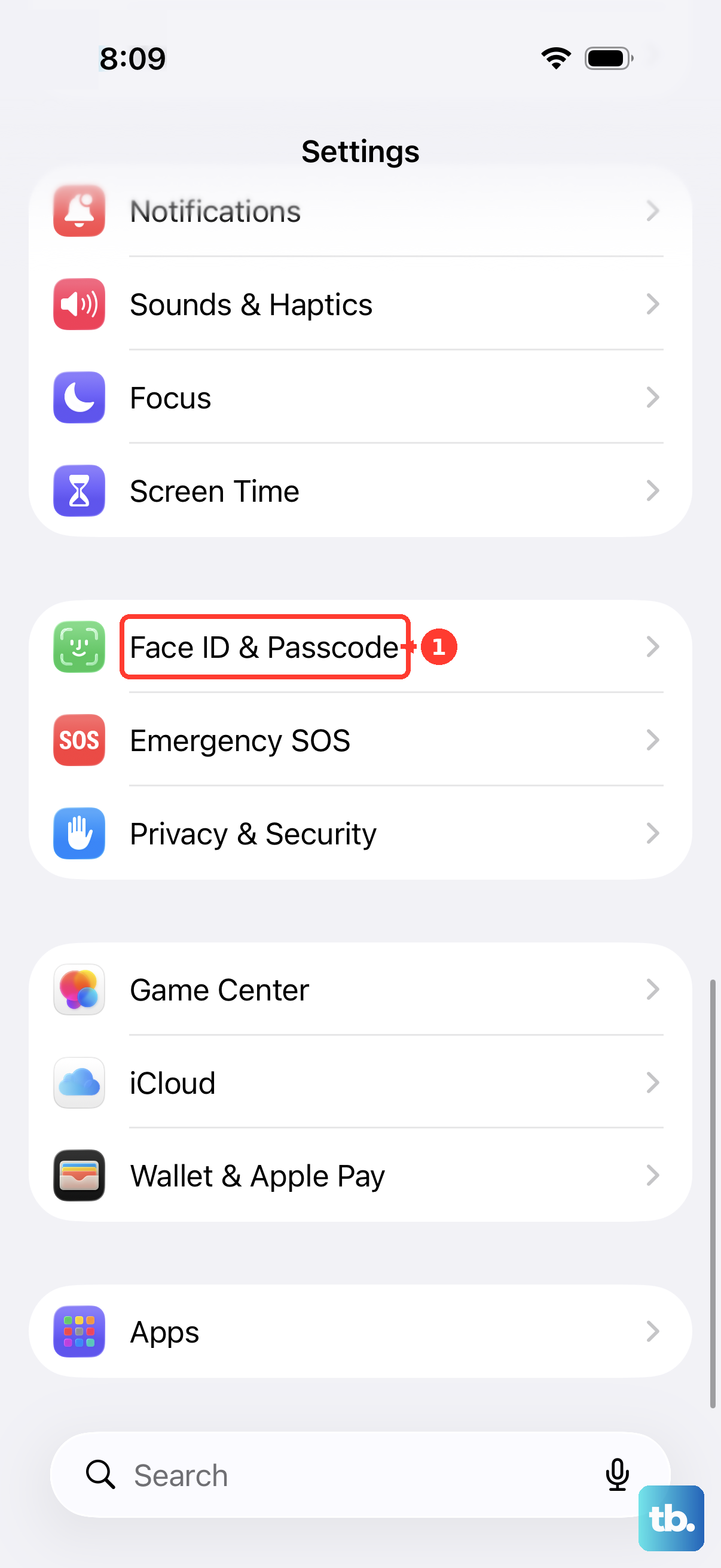
Enter your passcode.
Under Allow Access When Locked, turn off Siri.
Silence incoming notification announcements
The Announce Notifications feature makes Siri read incoming alerts through supported AirPods or Beats.
Open Settings > Notifications > Announce Notifications.
Turn off Announce Notifications. Siri stays available for your requests.
For messages announced in your car, open Settings > Notifications > Announce Notifications > CarPlay.
Turn off Announce Messages.
To stop an ongoing sequence of headphone announcements immediately, remove one earbud or take off your headphones. This interrupts the announcements temporarily; the setting above makes the lasting change.
Use Screen Time to restrict Siri
On iOS 27, Screen Time has a dedicated Siri restriction.
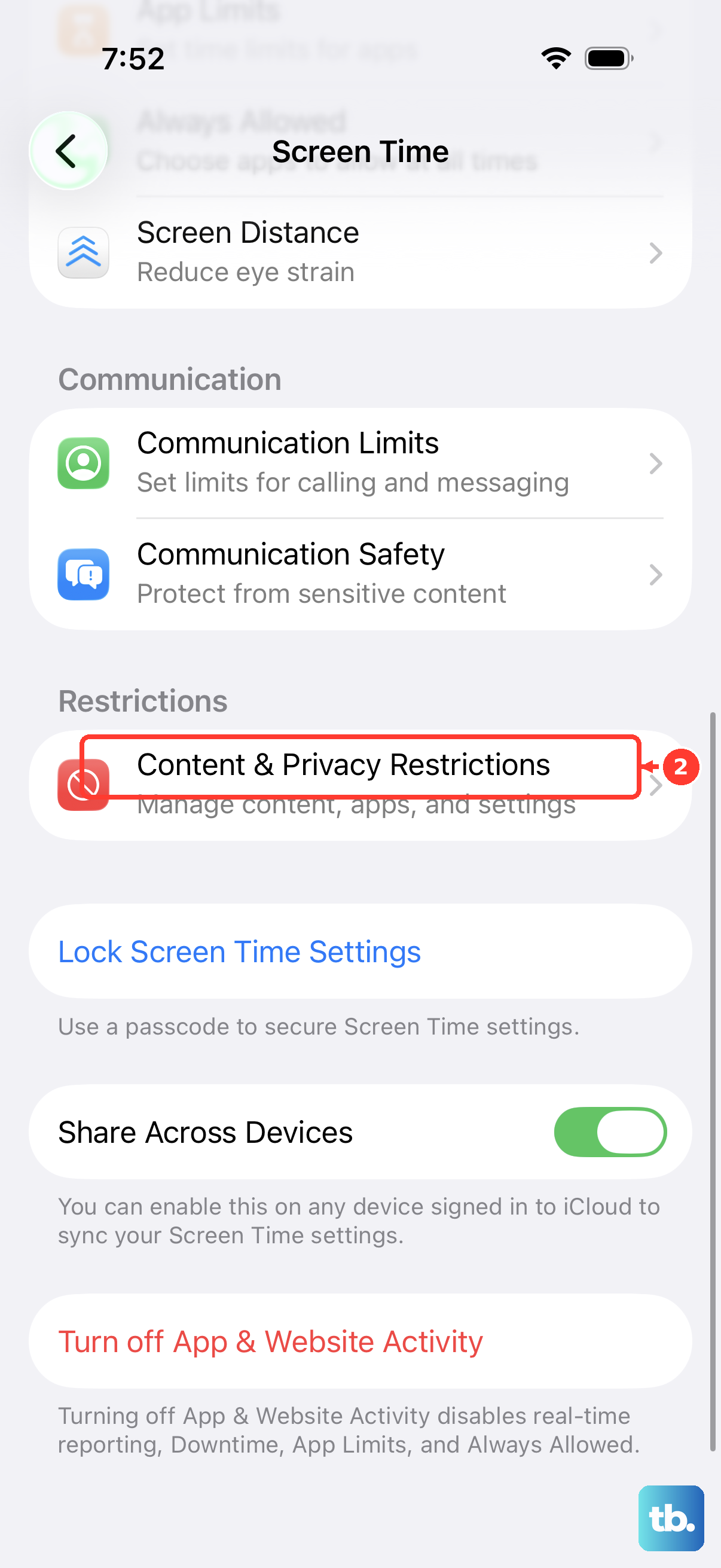
- 1.Open Settings > Screen Time.
- 2.Tap Content & Privacy Restrictions.
- 3.Enable Content & Privacy Restrictions if restrictions are off.
- 4.Open Siri.
- 5.Select Don’t Allow Siri.
Remove Siri suggestions from everyday screens
Suggestions have separate controls, so switching off voice and button activation leaves those suggestion surfaces enabled.
Open Settings > Siri > Suggestions.
Turn off Suggest Apps Before Searching to stop app suggestions before a search.
Turn off Allow Notifications to stop suggestion notifications.
Turn off Show in App Library to remove suggestions there.
Turn off Show When Sharing to stop sharing suggestions.
Turn off Show Listening Suggestions to stop listening suggestions.
To disable the assistant itself, open Settings > Siri.
Tap Turn Off Siri.
Tap Turn Off Siri again to confirm.
Frequently Asked Questions
Does turning off Siri also turn off keyboard Dictation?
Dictation has its own control. Open Settings > General > Keyboard. Turn off Enable Dictation.
Does deleting Siri history turn Siri off?
No. To delete the history, open Settings > Siri > Siri & Dictation History. Tap Delete Siri & Dictation History. Siri remains enabled. Audio sharing is separate: open Settings > Privacy & Security > Analytics & Improvements. Turn off Improve Siri & Apple Intelligence or Improve Siri & Dictation, depending on which appears, to opt out.
Can I turn off Siri AI and keep Siri Classic?
Yes. On iOS 27 with Siri AI enabled, open Settings > Siri. Tap Turn Off Siri. Confirm with Turn Off Siri again. Then select Turn On Siri. Choose Use Siri Classic to retain the Classic version.
Can I disable Siri on my child’s iPhone remotely?
Yes, through Family Sharing. On your iPhone or iPad, open Settings > Family. Select your child’s name. Open Content & Privacy Restrictions > Siri. Select Don’t Allow Siri. Apple requires the family’s devices to use software version 27 or later for all documented parental-control features.
Why do older instructions show different Siri controls?
Earlier interfaces used separate voice and button activation controls and a combined Siri & Dictation restriction. iOS 27 replaces those complete-disable procedures with the Turn Off Siri master control and a dedicated Siri restriction in Screen Time.