

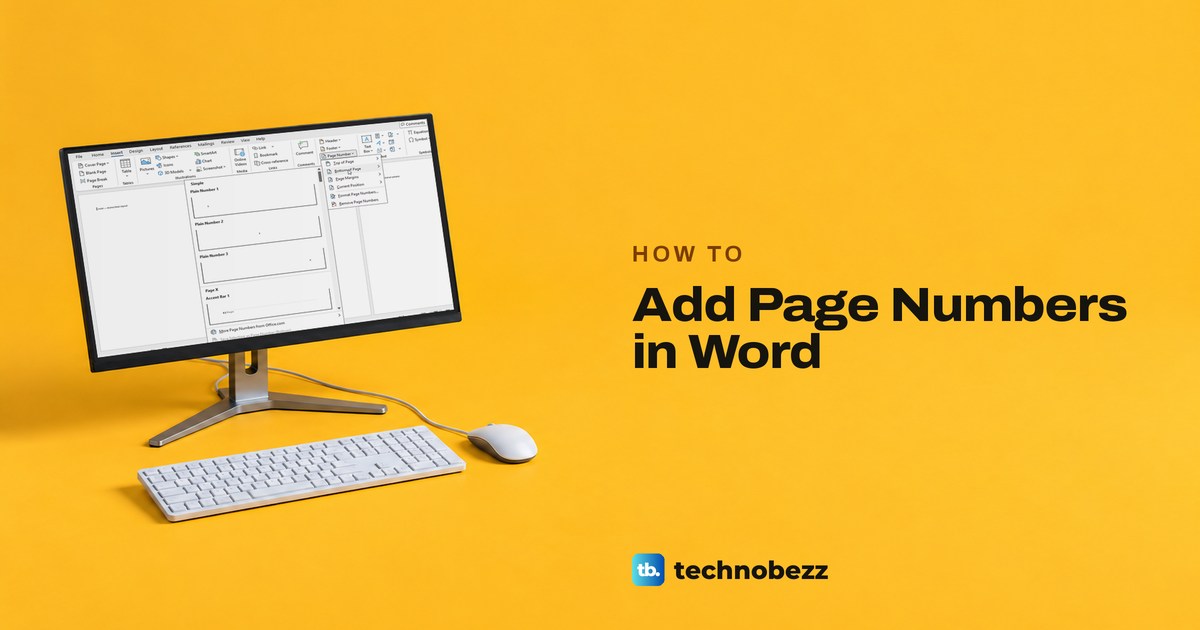
To add page numbers in Word, select Insert > Page Number, point to Bottom of Page or Top of Page, and click a style such as Plain Number 2. Word opens the footer or header and puts in a number that changes by itself on every page. Select Close Header and Footer to get back to your text, and the numbers stay.
The cover page is where most people get stuck. Different First Page hides the number on page 1, but page 2 still reads 2, so set Start at to 0 if the page after the cover should read 1. To start counting later than that, you need a section break, not an ordinary page break. Our sample report below has a cover, an introduction and a findings page, so you can see exactly what happens to the cover number.
The short version
- Every page: select Insert > Page Number > Bottom of Page and pick a style.
- From the keyboard: press Alt, N, N, U to open the Page Number menu.
- Blank cover: tick Different First Page in the footer, and page 2 still reads 2.
- Page 2 reads 1: Page Number > Format Page Numbers > Start at 0.
- Start later: add Layout > Breaks > Next Page, turn off Link to Previous, then Start at 1.
- Word for the web: switch to Editing and use Insert > Page Numbers.
Choose the page numbering you need
Find what you want in the first column, then use the section below it for the clicks. Every path is in desktop Word unless the row names Word for the web.
| What you want | Where to go | What you get |
|---|---|---|
| A number on every page | Insert > Page Number > Bottom of Page or Top of Page | 1, 2, 3 in the footer or header |
| The same menu from the keyboard: Alt, N, N, U | Opens Page Number, then a letter picks the position | The Page Number menu without the mouse |
| A number after text in the footer | Double-click the footer, then Page Number > Current Position | Your text followed by the page number |
| A blank cover, with page 2 reading 2 | Header & Footer tab > Different First Page | No number on page 1, then 2, 3 |
| A blank cover, with page 2 reading 1 | Different First Page, then Format Page Numbers > Start at 0 | No number on page 1, then 1, 2 |
| Numbering that starts on a later page | Layout > Breaks > Next Page, Link to Previous off, Start at 1 | A new run of numbers from that section |
| Roman numerals | Format Page Numbers > Number format | i, ii, iii |
| The page and the total | Bottom of Page > Page X of Y > Bold Numbers | Page 1 of 3, Page 2 of 3 |
| Different odd and even pages | Header & Footer tab > Different Odd & Even Pages | A separate footer for each |
| Numbers in Word for the web | Insert > Page Numbers, in Editing | 1, 2, 3, or 1 of 3 with Include Page Count |
Add page numbers in desktop Word
Open the document and select the Insert tab. In the Header & Footer group, select Page Number to open a menu with Top of Page, Bottom of Page, Page Margins and Current Position, plus Format Page Numbers and Remove Page Numbers. One of Microsoft's help pages calls this button Page Numbering, but on our ribbon it read Page Number.
Point to Bottom of Page for a number in the footer or Top of Page for one in the header. The gallery starts with a Simple group, where Plain Number 1, 2 and 3 put a bare number at the left, centre or right. Fancier groups such as Page X follow further down.
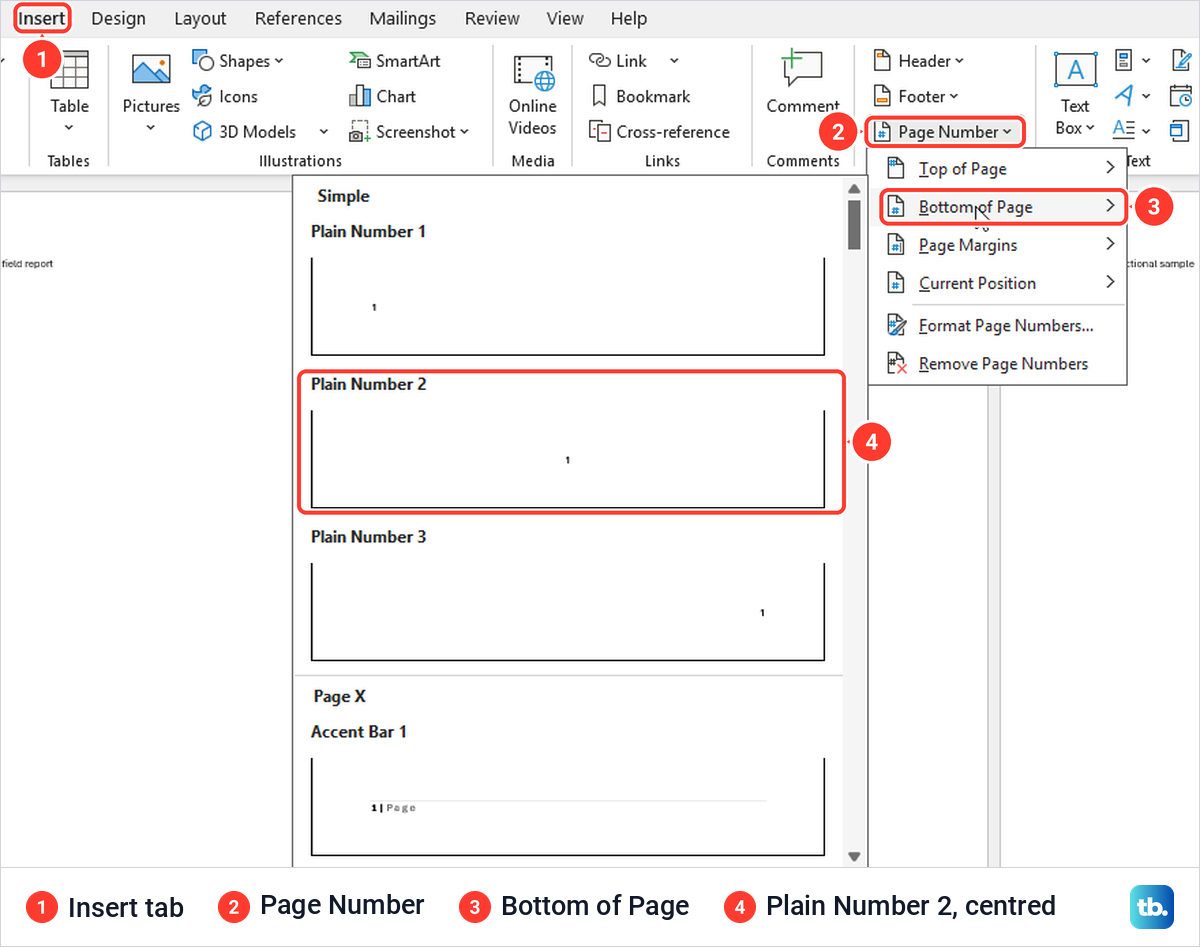
We clicked Plain Number 2. Word opened the footer for editing, showed a new Header & Footer tab and put a centred number on each page, so our three pages read 1, 2 and 3. Microsoft describes page numbers as fields that update automatically, which is why you never type the numbers yourself.
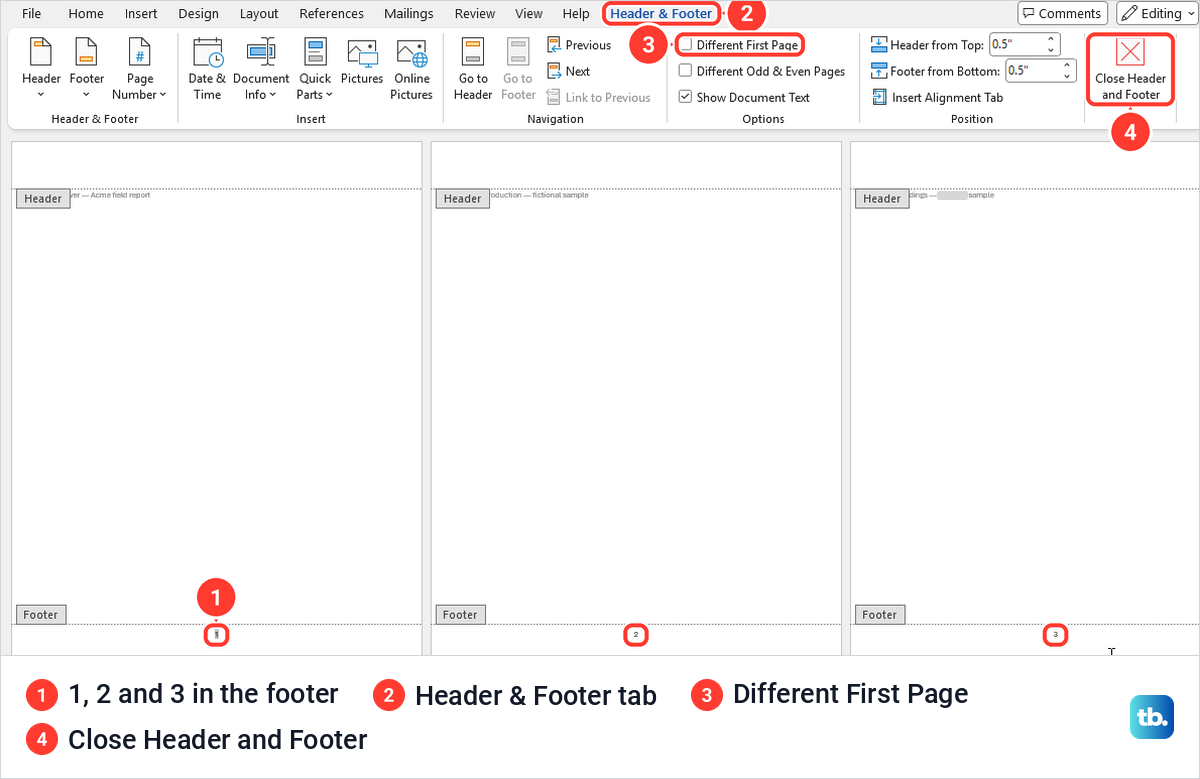
Select Close Header and Footer at the right end of that tab when you are done. Our numbers stayed in place after the footer closed, and Microsoft says pressing Esc closes it as well.
Top of Page works the same way. Our Plain Number 3 choice from that gallery put 1, 2 and 3 at the top right of the three pages. If the ribbon is new to you, the Word for beginners guide explains where each tab sits before you start changing headers and footers.
Put the number next to text in the footer
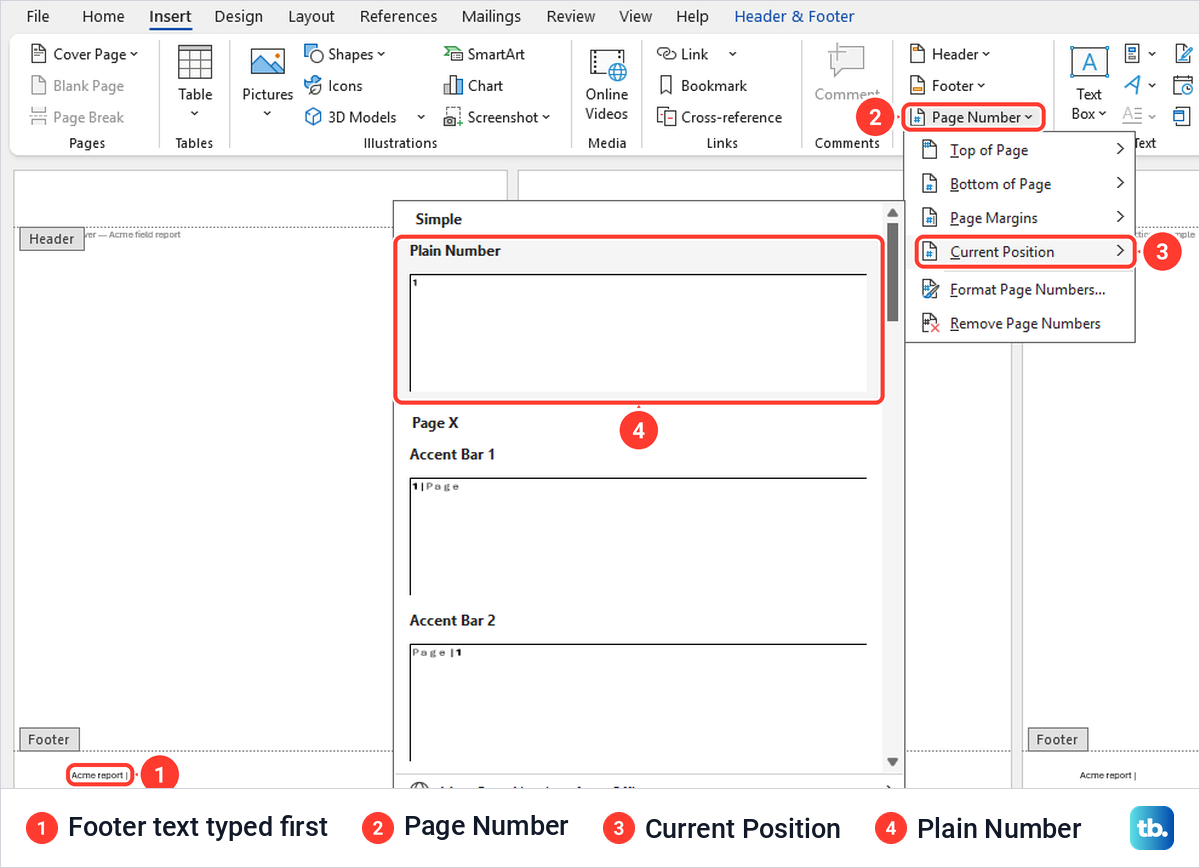
If your footer already holds text, such as a report name, use Current Position to put the number exactly where the cursor is. Double-click the footer, type your text and leave the cursor at the end. We typed Acme report, a space, a vertical bar and another space.
Then select Page Number > Current Position and pick Plain Number from the Simple group. Our footers read Acme report | 1, Acme report | 2 and Acme report | 3, because the typed text repeats on every page and only the number changes.
Do it from the keyboard
With the cursor in the footer, press Alt, then N for the Insert tab. On our ribbon the key tip on Page Number was NU, so N and then U opened the menu, C opened Current Position and Enter inserted Plain Number. To leave the footer, press Alt, J, H, C, the sequence Microsoft gives for closing the Header & Footer tab, which worked on our PC too.
Insert a page field with Quick Parts
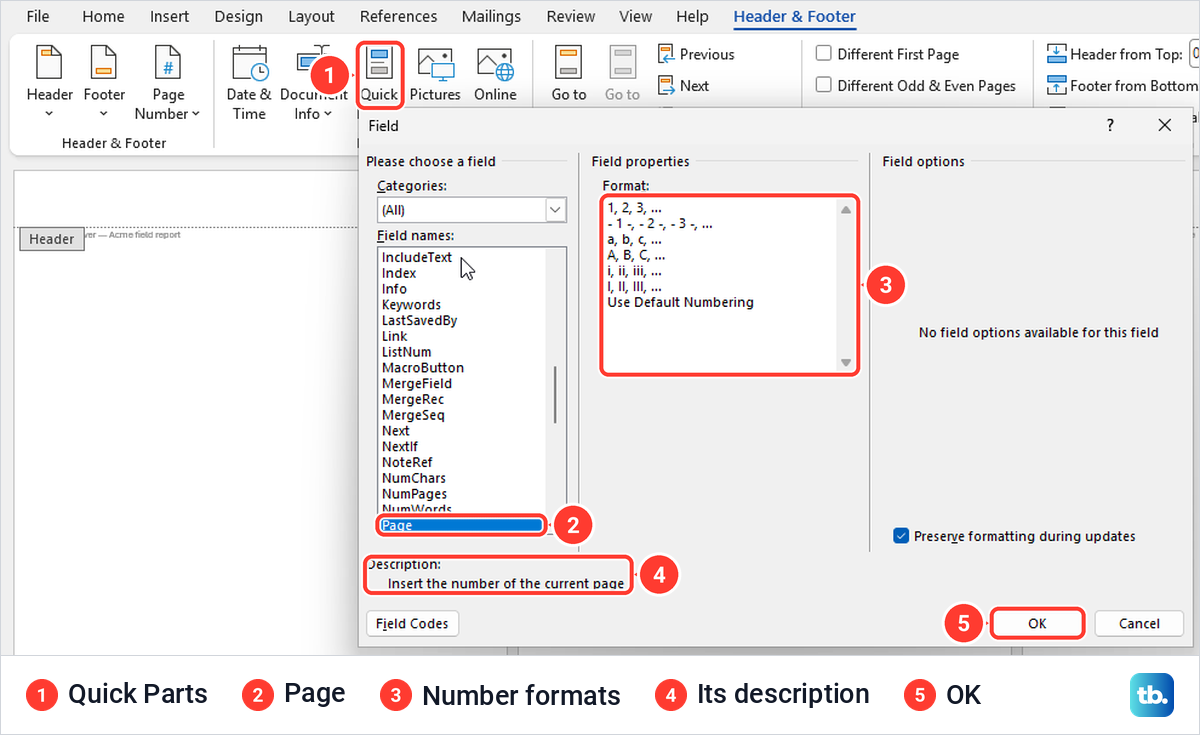
Word's Page field does the same job and lets you pick the number style as you insert it. With the footer open, select Quick Parts > Field on the Header & Footer tab, choose Page under Field names and select OK.
The Field box describes Page as Insert the number of the current page and lists formats such as 1, 2, 3, a, b, c and i, ii, iii. Our field read 1, 2 and 3 on the three pages. Microsoft's Mac steps use a Field button on the Header & Footer tab, but on our Windows ribbon Field sat inside Quick Parts.
Leave the cover page without a number
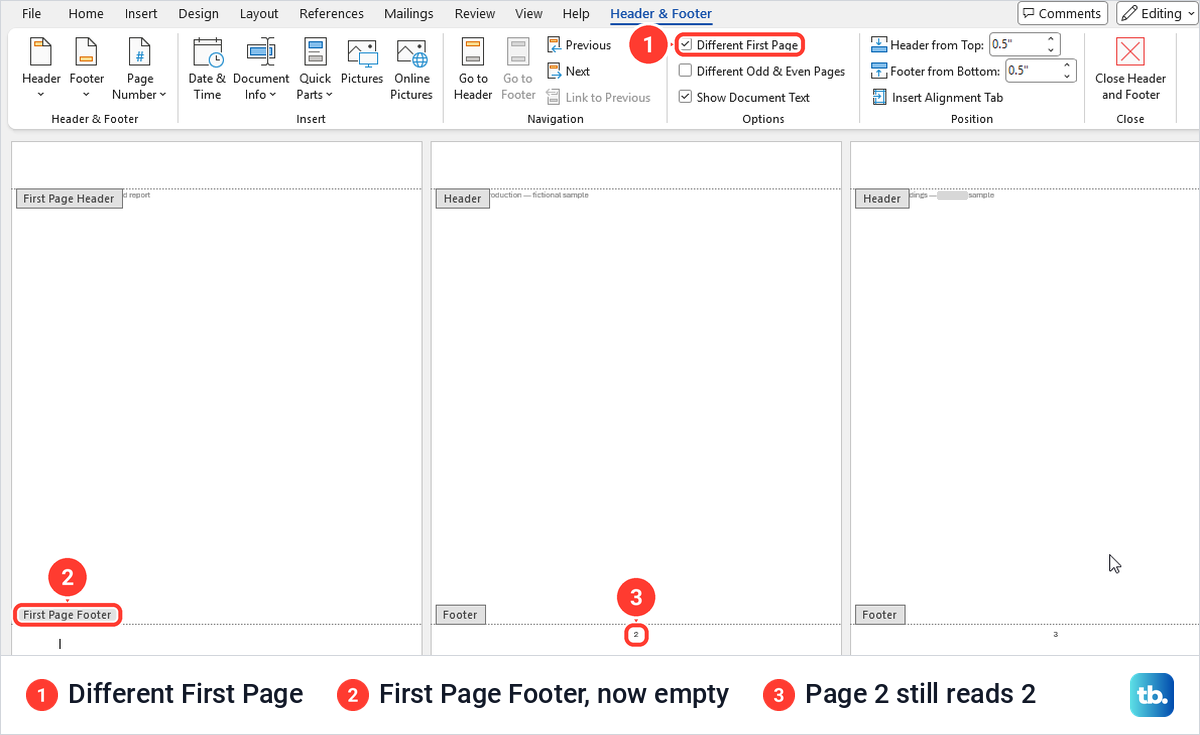
Double-click the footer and tick Different First Page on the Header & Footer tab. Word relabels the first page's areas First Page Header and First Page Footer and clears the number from that footer.
Hiding a number is not the same as renumbering. On our report page 2 still read 2 and page 3 read 3, which is right when the cover counts as page 1. If you only wanted the cover blank, you are done.
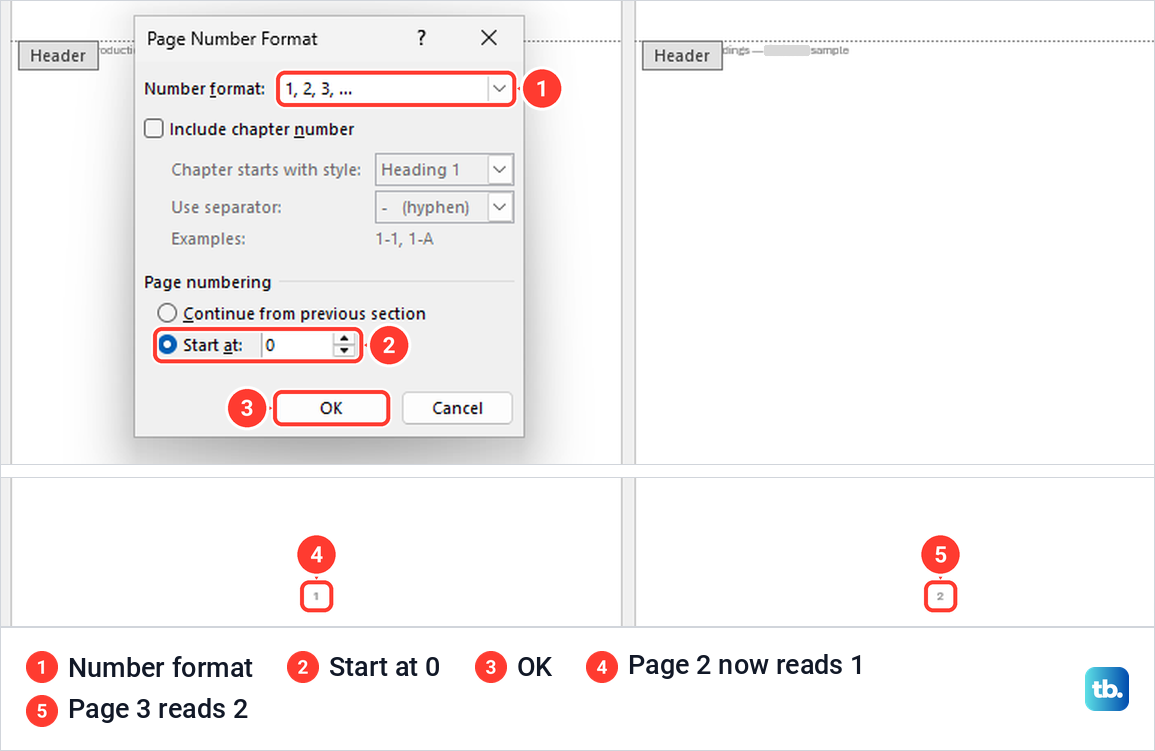
If the page after the cover should read 1, select Page Number > Format Page Numbers on the same tab, which opens a dialog titled Page Number Format. Under Page numbering, choose Start at, type 0 and select OK.
Word now treats the cover as page 0, which Different First Page keeps hidden. On the report we used, page 2 changed to 1 and page 3 to 2, which is what a school paper or report with a title page usually needs.
Microsoft notes that Different First Page belongs to a section, not only to page 1 of the document. If the first page of a later section loses its number, check whether that box is ticked in that section's footer.
Start page numbers on a later page
To start at 1 on page 3 or later, or to number the body separately from front matter, Word needs a section break before the page where the new numbering begins. An ordinary page break is not enough. Before you change a long report, make a copy of the Word document so you can compare the result.
Our sample showed why. With only ordinary page breaks between the pages, Link to Previous stayed greyed out in the page 2 footer, because the whole document was still one section. Microsoft's help gives the same clue, telling you to check that a section break was created if the control is dimmed.
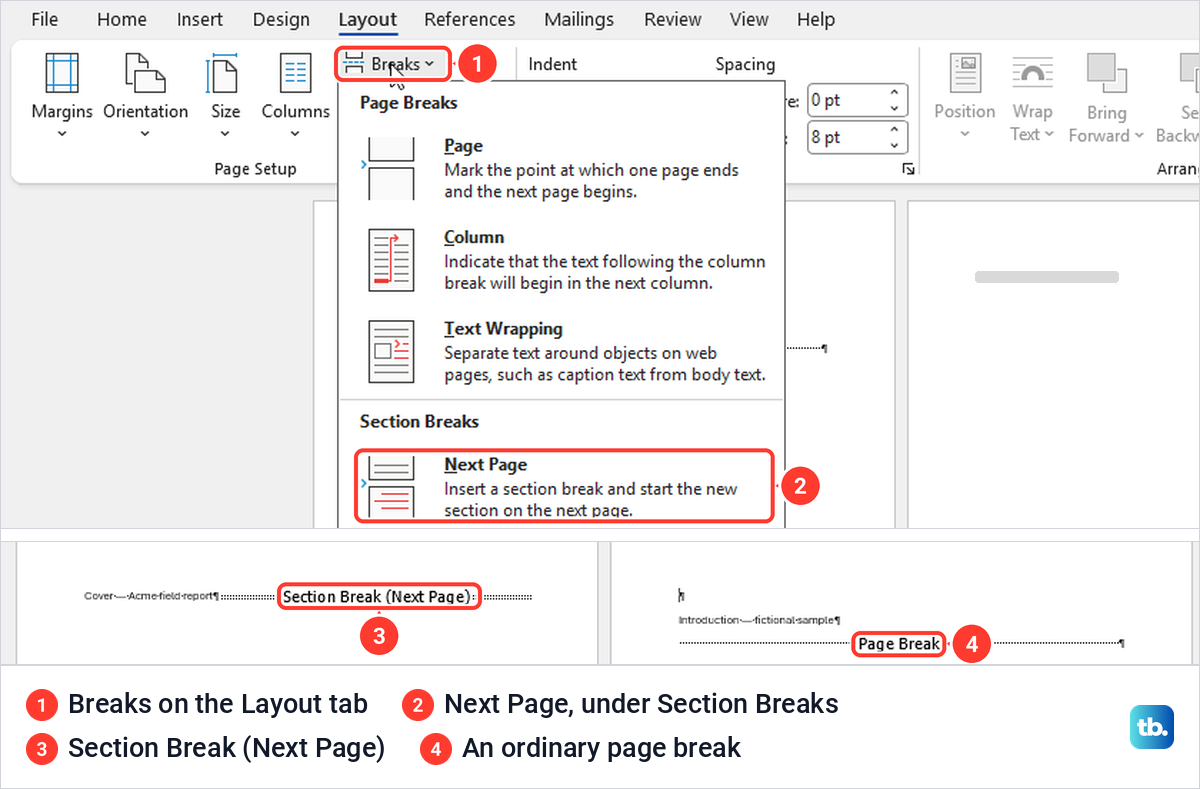
Put the cursor where the earlier part ends, then select Layout > Breaks and choose Next Page under Section Breaks. On our report we deleted the ordinary page break after the cover and put a Next Page section break in its place.
Select Home > Show/Hide to check the result. A line reading Section Break (Next Page) should end the earlier part, where an ordinary break reads Page Break. Once you have found it, you can hide paragraph marks in Word again with the same button.
Now double-click the footer of the first page after the break. Ours was labelled Footer -Section 2- with a Same as Previous tag, and Link to Previous was now usable and highlighted. Select it to turn it off, and the Same as Previous tag disappears from that footer.
Headers and footers are linked separately. When we unlinked the footer, the section 2 header still said Same as Previous, so turn off the link for whichever one holds your number, as Microsoft's help also advises.
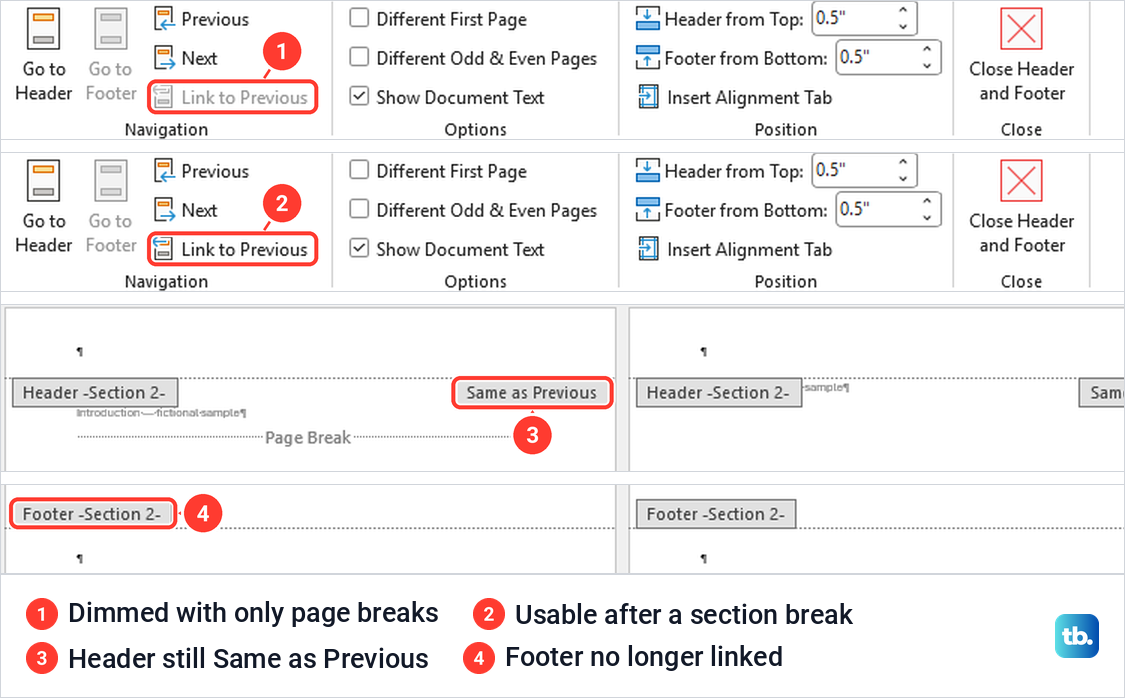
With the footer of the new section still open, add a number from Page Number > Bottom of Page, then open Format Page Numbers, choose Start at and type 1. Our new section's pages read 1 and 2. When we then added a number to the cover's own footer in section 1, it read 1 and the new section kept its 1 and 2.
If the earlier part already has numbers you do not want, open its footer, select the number and press Delete. Because the footers are no longer linked, the later section keeps its numbers.
Section breaks carry layout settings, which is why deleting one can change the pages around it. If an old break is in the wrong place, read how to remove a section break in Word before you take it out. A wide page in the middle of a report often sits in its own section for the same reason, as the steps to make one page landscape in Word show.
Use Roman numerals or letters
Open the footer, select Page Number > Format Page Numbers and open the Number format list. Ours started with 1, 2, 3, then - 1 -, a, b, c, A, B, C and lower-case Roman numerals, and it scrolls for more.
We chose i, ii, iii and the footers read i, ii and iii. The format belongs to the section, so in a document with one section every page switches to the new style.
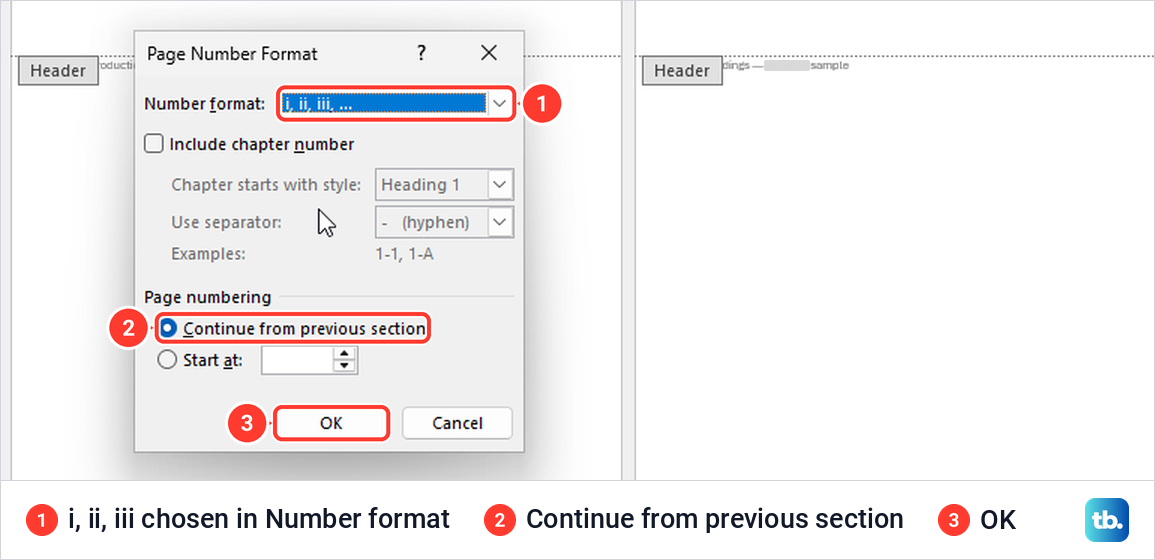
For Roman numerals on the front matter and 1, 2, 3 on the body, put a Next Page section break between them and unlink the body's footer as described above. Then set i, ii, iii in the front section and 1, 2, 3 with Start at 1 in the body, the way Microsoft's own example does it. If the front matter holds a contents page, create a table of contents in Word once the numbering is set, so its page numbers match the footers.
Show the page number and the total
Desktop Word has ready-made styles that show the current page and the total. Open Insert > Page Number > Bottom of Page and scroll the gallery past the Page X group to Page X of Y, which offers Bold Numbers 1, 2 and 3.
We picked Bold Numbers 2, and the centred footers read Page 1 of 3, Page 2 of 3 and Page 3 of 3. The total is the number of pages in the file. In Word for the web, hiding the cover's number left page 2 reading 2 of 3, so there a hidden number did not shrink the total.
Use separate footers on odd and even pages
Word can give odd and even pages separate footers, so each can hold its own number in its own position. Microsoft says that by default the headers and footers in Word are the same on each page, so open the footer and tick Different Odd & Even Pages first.
Word relabels the footers Odd Page Footer and Even Page Footer. On our report the odd pages kept their Page 1 of 3 and Page 3 of 3, while the even page's footer went empty. We clicked into it, selected Page Number > Bottom of Page and chose Plain Number 3, which put the even number on the right without changing the odd pages.
Fix page numbers that are missing or will not go away
Remove Page Numbers sits at the bottom of the Page Number menu, but it does not always clear the whole document. With different odd and even pages on our report and the cursor in the even footer, it removed only the even page's number. Both odd pages still read Page 1 of 3 and Page 3 of 3.
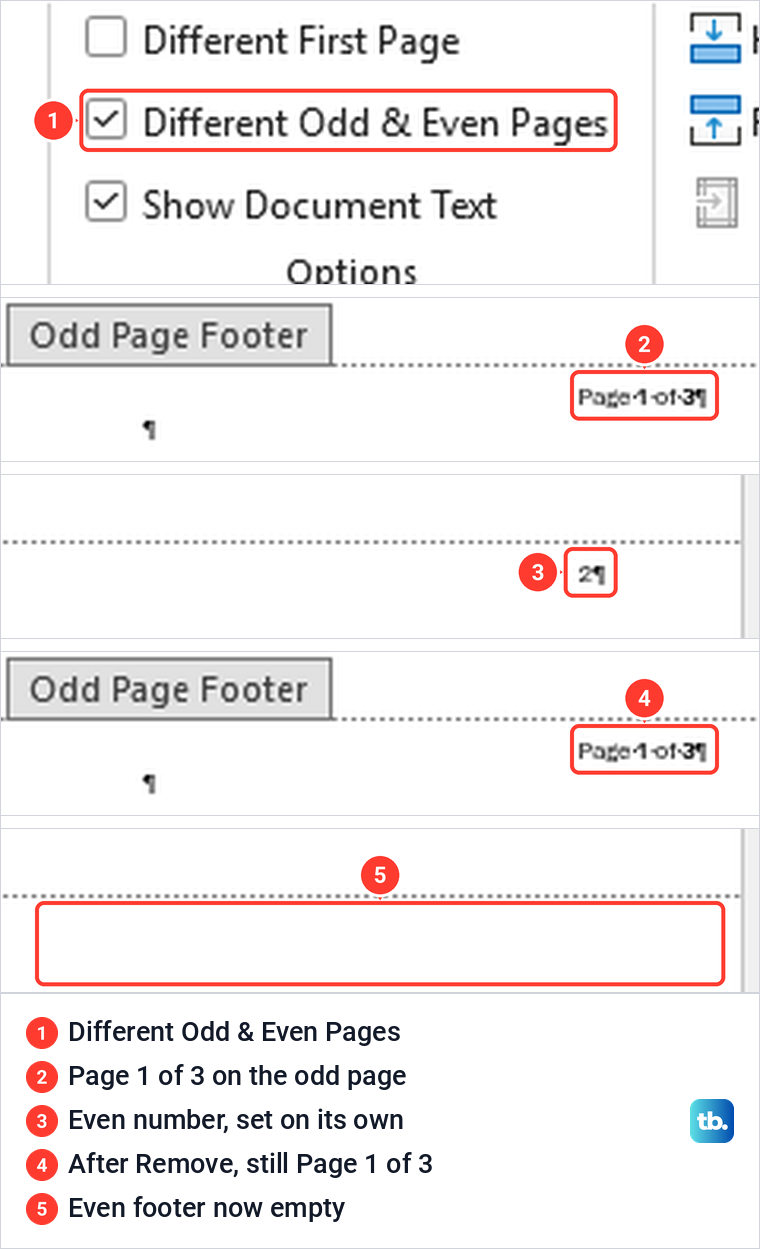
Microsoft warns that this can happen in documents with several sections or different odd and even pages. Double-click a footer that still shows a number, select the number and press Delete, then do the same in any odd, even, first-page or section footer that still has one. We selected the leftover line in the odd footer, deleted it, and no page showed a number after that.
If page 1 is blank but later pages are numbered, check Different First Page in that section's footer. If a change in one part also changes another, check whether the footers are still linked, and turn off Link to Previous in the later section. If Link to Previous is greyed out, check that you are in a new section with a section break before it.
If a break leaves an extra blank sheet, remove an unwanted page in Word only after checking which section that page belongs to. Small raised numbers next to the text are a different feature, so use the guide to add footnotes in Microsoft Word if those are the numbers you meant.
Once the footers look right, save the Word document as a PDF and check a few pages before you share it. The PDF shows the numbers the way your readers will see them.
Add page numbers in Word for the web
Word for the web has a simpler version of the same tool. With the document in Editing, select Insert > Page Numbers, with an s, to open a gallery headed Add to Header or Footer.
The gallery has six layouts for the top or bottom of the page at the left, centre or right, an Include Page Count box, Manage Page Number and Remove Page Numbers. We chose the bottom centre layout, and the footers read 1, 2 and 3 in the editor and in View > Reading View.
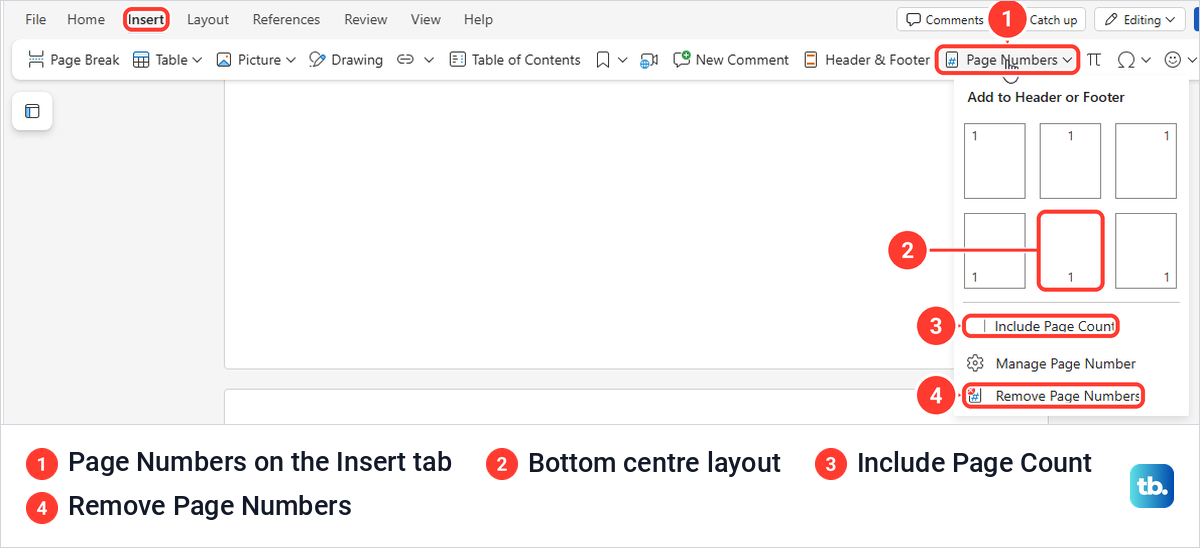
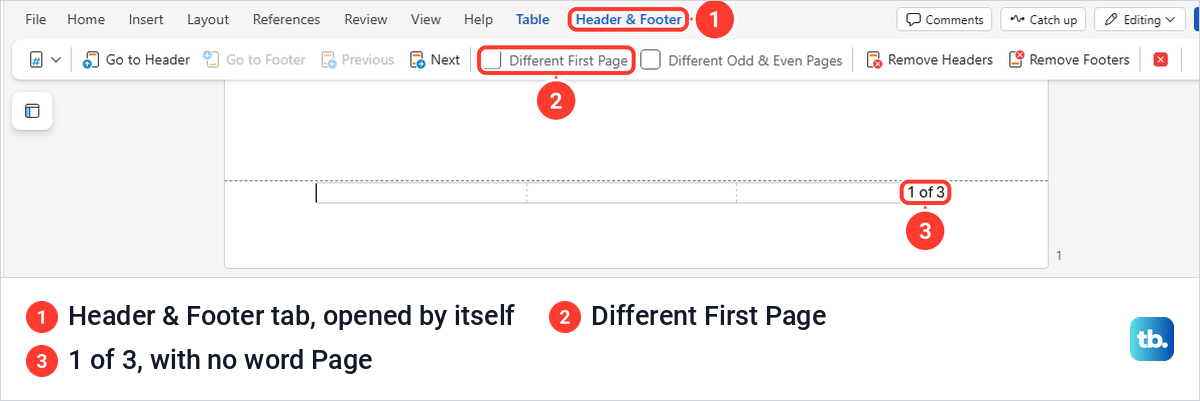
To show the total, tick Include Page Count before you pick a layout. The previews changed to 1 of 1, and after we picked the bottom right layout this time, our footers read 1 of 3, 2 of 3 and 3 of 3. Microsoft's page gives the result as Page 3 of 10, but our footers had no word Page, unlike the desktop Page X of Y style.
After the count went in, Word for the web opened the footer by itself with a Header & Footer tab. It holds Different First Page and Different Odd & Even Pages as tick boxes, plus Remove Headers and Remove Footers. The numbers sit in a three-cell table across the footer, which shows only while the footer is open.
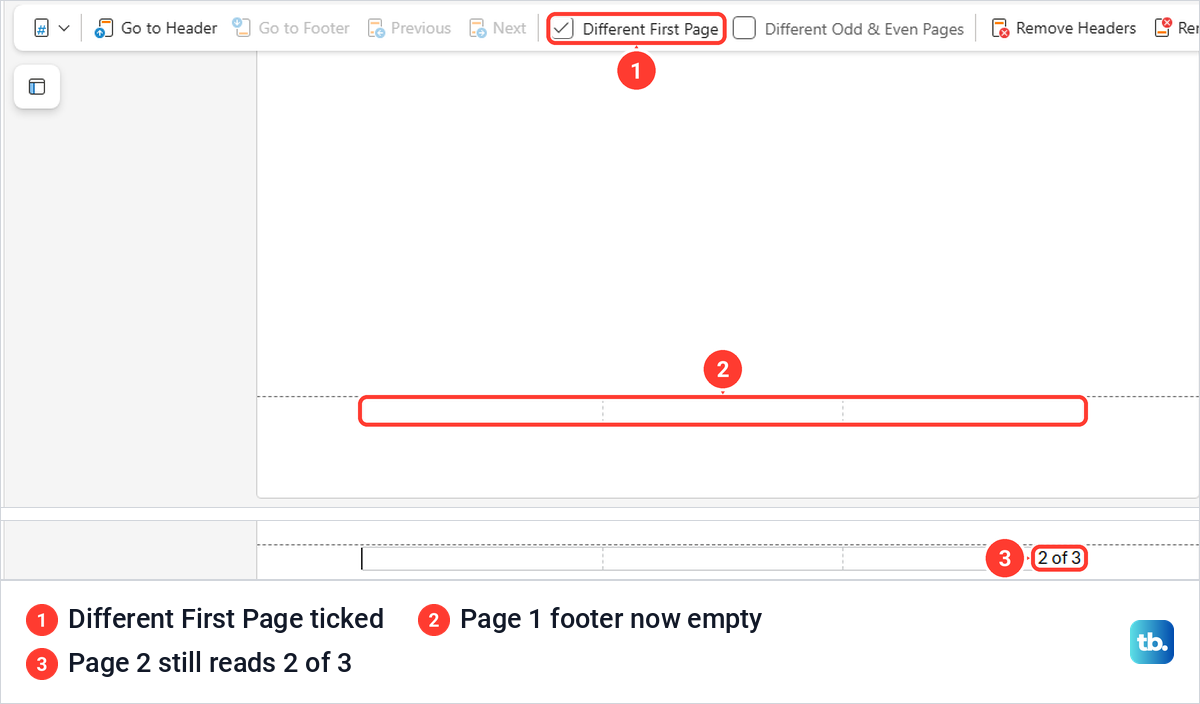
Ticking Different First Page on that tab left page 1's footer empty while page 2 still read 2 of 3, the same split as in desktop Word. The hidden cover still counts toward the total.
To take the numbers out, select Insert > Page Numbers > Remove Page Numbers. Our footers emptied, though the blank footer table stayed behind.
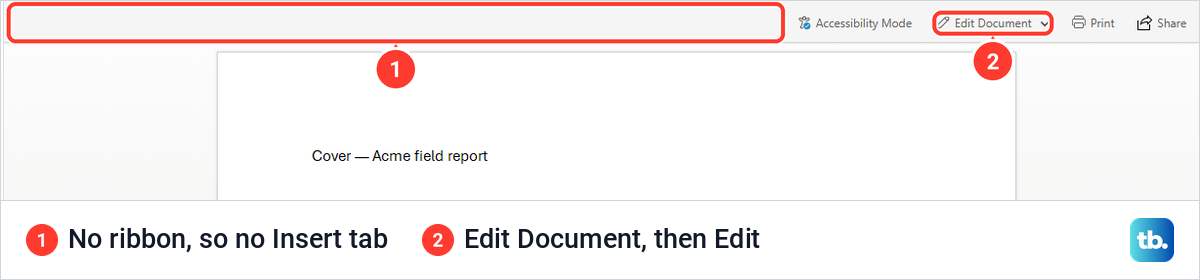
If the Insert tab is missing, check whether the document is open in Viewing. In that mode we saw no ribbon at all, only Accessibility Mode, Edit Document, Print and Share. Select Edit Document > Edit, and Insert > Page Numbers is back.
If Edit is not offered, Microsoft says to request edit permission or open the document in desktop Word to change the restrictions. Desktop Word is also where Microsoft sends you for numbering that differs between sections, such as Roman numerals on the front matter and 1, 2, 3 on the body.
How we tested this guide
We tested this in Word for Microsoft 365 on Windows 11, version 25H2, and in Word for the web in Microsoft Edge, numbering a three-page sample report and then removing the numbers.
Frequently Asked Questions
How do I add page numbers to every page in Word?
Select Insert > Page Number, point to Bottom of Page or Top of Page and pick a style. Word puts a changing number in every footer or header, and Close Header and Footer takes you back to the text.
How do I remove the page number from the cover page?
Open the footer and tick Different First Page on the Header & Footer tab. The cover goes blank, but the next page still reads 2 until you change the starting number.
How do I make the second page show page 1?
Tick Different First Page, then select Page Number > Format Page Numbers, choose Start at and type 0. On our report page 2 then read 1 and page 3 read 2.
How do I start page numbers on page 3?
Put a Next Page section break before page 3 with Layout > Breaks, open the footer of the new section and turn off Link to Previous. Then add a number and set Start at to 1 in Format Page Numbers.
Why is Link to Previous greyed out?
Check for a section break before that page first, because without one the page is still in the same section as the page before it. On our report, adding Layout > Breaks > Next Page made the button usable in the new section's footer.
Why are some page numbers still there after Remove Page Numbers?
The document probably has different odd and even pages or more than one section, and the command cleared only one of the footers. Open each footer that still shows a number, select it and press Delete.
How do I add page numbers in Word on a Mac?
Microsoft's Mac steps add a number with Insert > Page Number and a style. To change its alignment, open the footer and go to Header & Footer > Page Number > Page Number, and to leave the first page blank, Microsoft says to clear Show number on first page.
Can I add page numbers in Word for the web?
Yes. In Editing, select Insert > Page Numbers and pick a layout, and tick Include Page Count first if you want 1 of 3 style totals.