
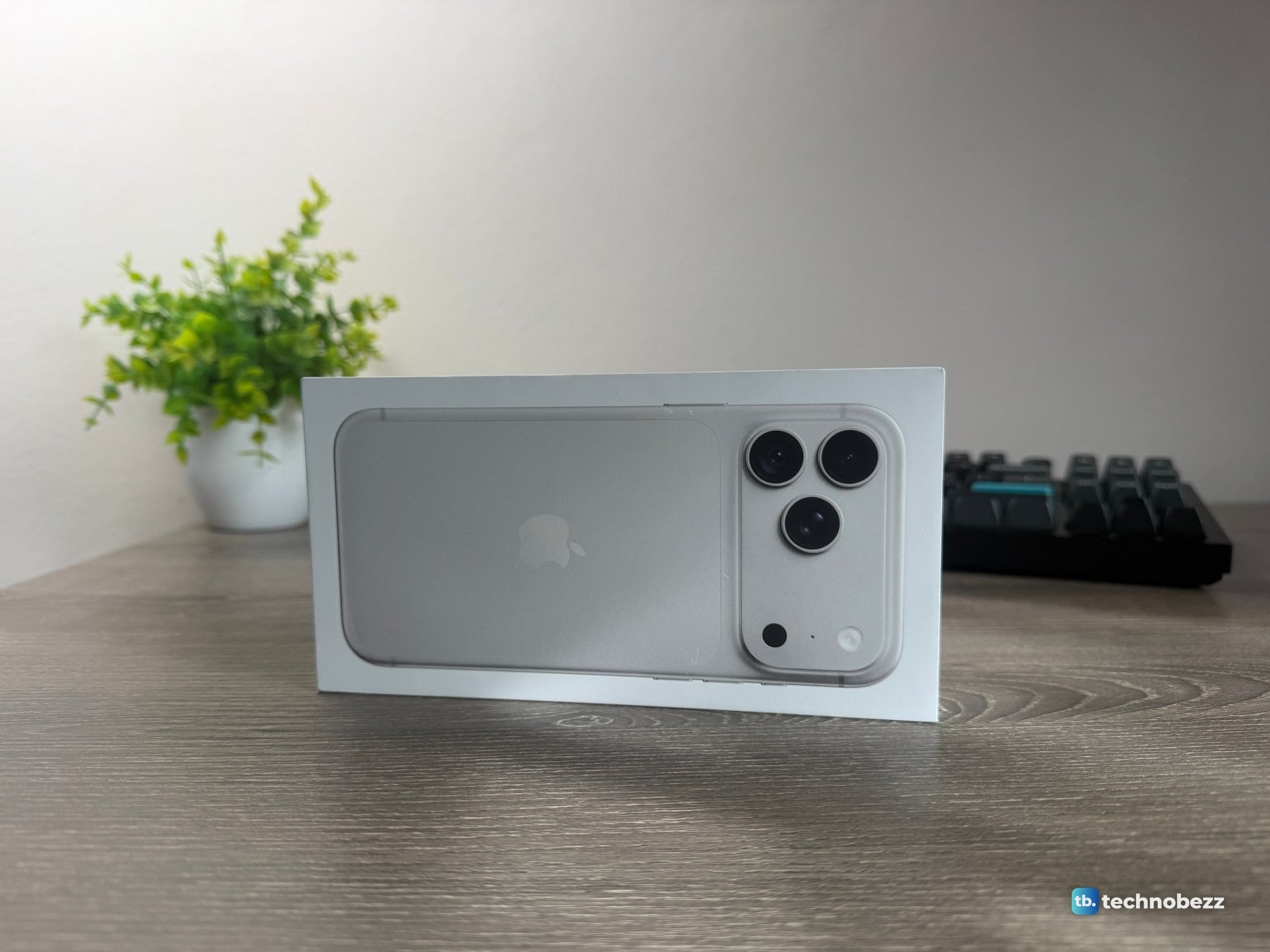
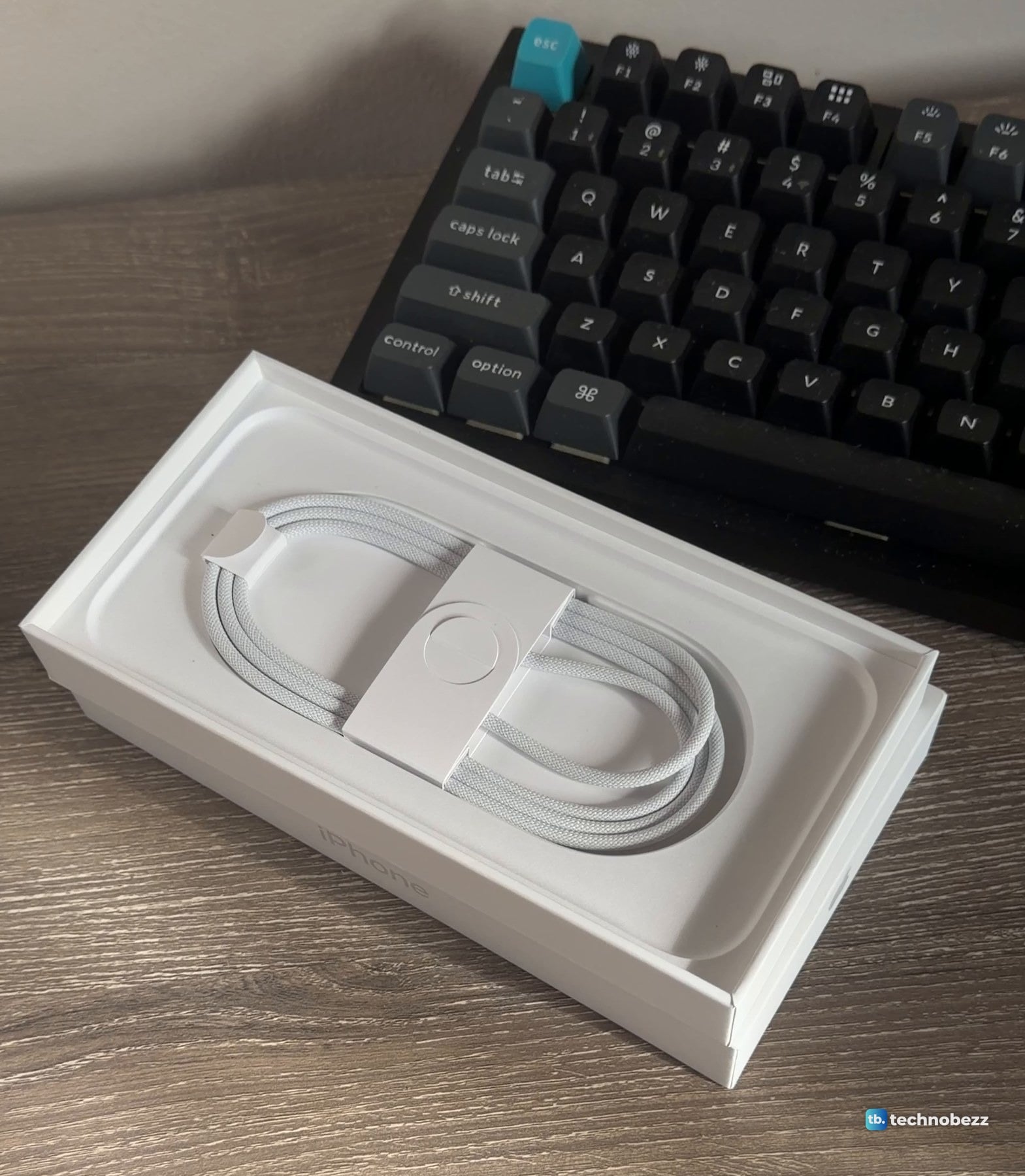
The iPhone 18 Pro Max box holds two things: the phone and a USB-C cable. There is no charger in it. I opened a Silver 256GB unit at my desk, and the label on the box settles the question: "Includes iPhone 18 Pro Max and USB-C Charge Cable. Requires eSIM."
Technobezz is supported by its audience. We may get a commission from retail offers. Reviews ethics statement.
iPhone 18 Pro Max Unboxing and What Comes in the Box
The iPhone 18 Pro Max box holds the phone and a USB-C cable, no charger. My unboxing photos, a first look at the hardware and the setup screens.
Updated October 14, 2026Oct 14, 2026
•11 min read

Credit: Technobezz
Get Deals Like These in Your Inbox
The best prices, checked by our editors.
In This Review
Apple iPhone 18 Pro Max
Display6.9-inch all-screen OLED
Height6.43 in (163.4 mm)
Width3.07 in (78.0 mm)
Depth0.34 in (8.75 mm)
Weight8.78 oz (249 g)
Main camera48MP Fusion Main with variable aperture
The short version
- In the box: the iPhone 18 Pro Max and a USB-C Charge Cable, which Apple lists at 1 m.
- No charger and no earphones. Bring your own USB-C power adapter.
- The phone lies face down in the tray, so the camera bar is the first thing you see.
- It requires eSIM. Apple says it is not compatible with physical SIM cards.
- Setup offered two ways to move my data: iCloud, or a direct transfer it estimated at about an hour.
What comes in the iPhone 18 Pro Max box
The list is short enough to fit on the label, which is where I read it.
| Item | In the box? | Notes |
|---|---|---|
| iPhone 18 Pro Max | Yes | Mine is Silver, 256GB |
| USB-C Charge Cable | Yes | White, woven, wound into a paper tray under the phone. Apple lists it as 1 m |
| Charger (power adapter) | No | Not on the label. Apple sells adapters separately |
| Earphones | No | Not on the label |
Apple's own list agrees. The "In the Box" section of Apple's spec page has two lines: "iPhone with iOS 27" and "USB-C Charge Cable (1 m)".
The label is also the quickest place to check the exact model, color and storage. If your box is long gone, there are other ways to know what iPhone you have.
Does the iPhone 18 Pro Max come with a charger?
No. You get the cable and nothing to plug it into.
Apple's spec page quotes up to 50 percent charge in around 15 minutes "when using 60W-capable adapter or higher with Adjustable Voltage Supply (available separately) paired with USB-C charging cable". Wireless is listed at up to 25W over MagSafe or Qi2, and that charger is also sold separately. I have not tested charging speed, so those figures are Apple's.
What you see when you lift the lid
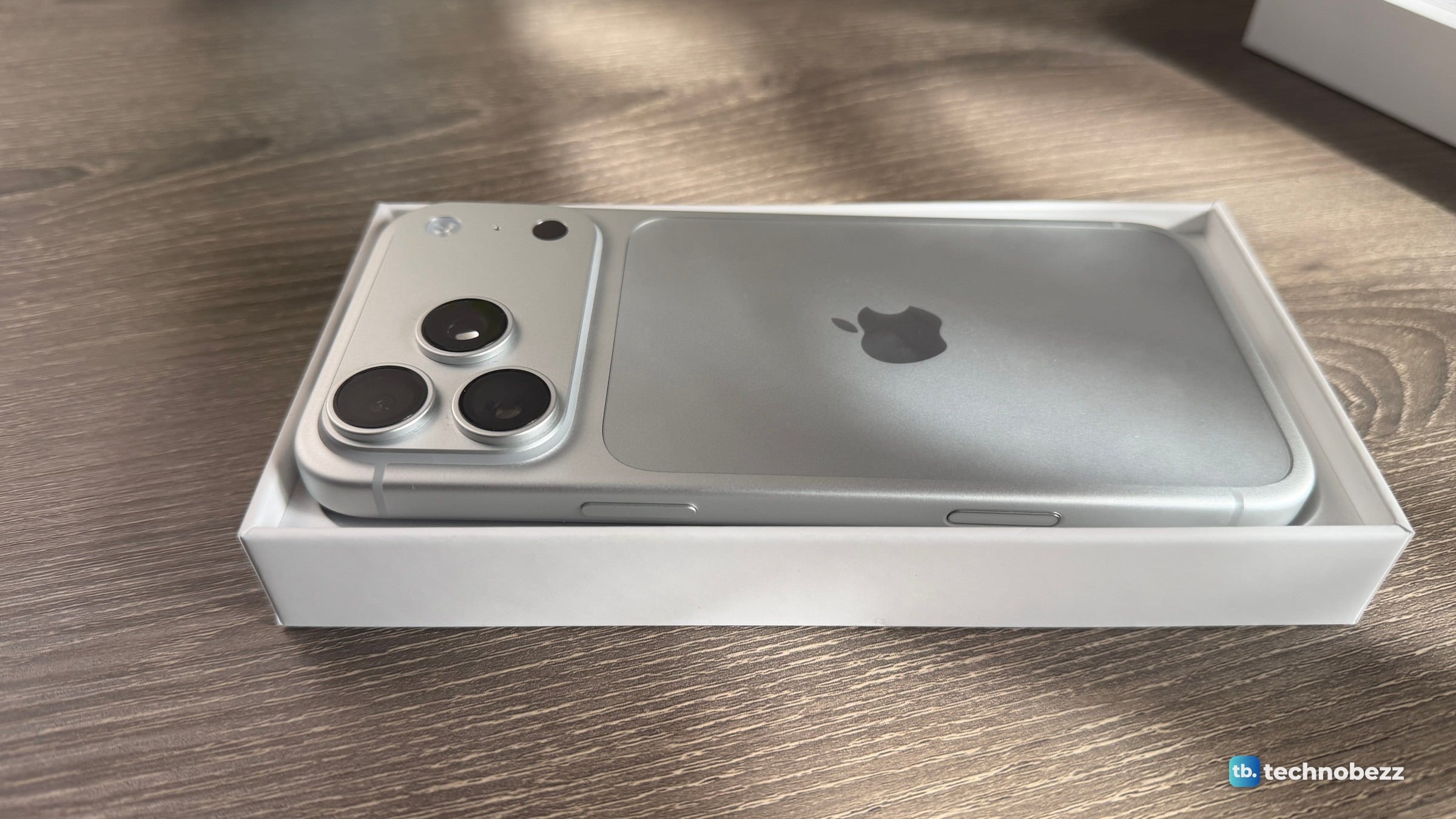
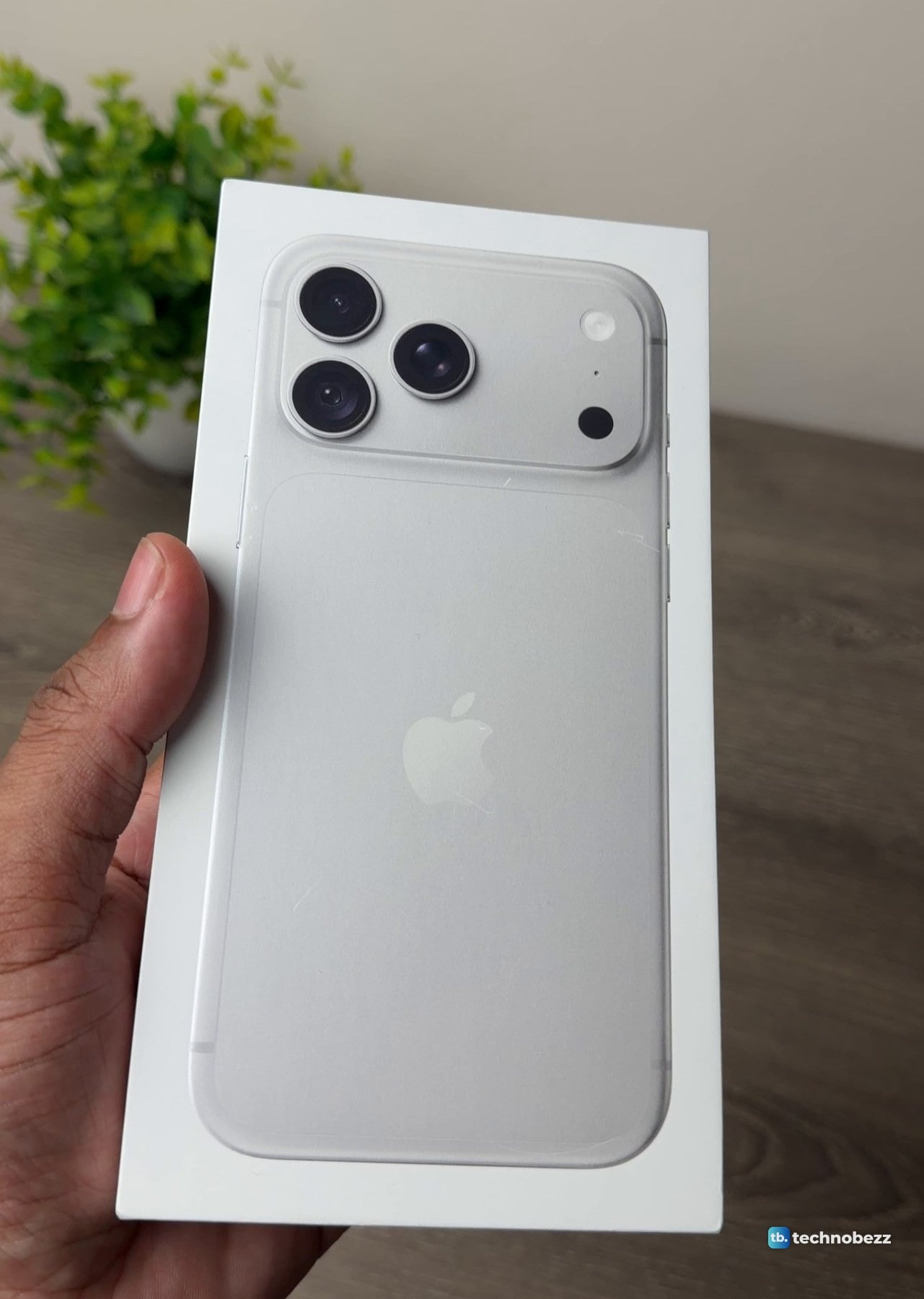
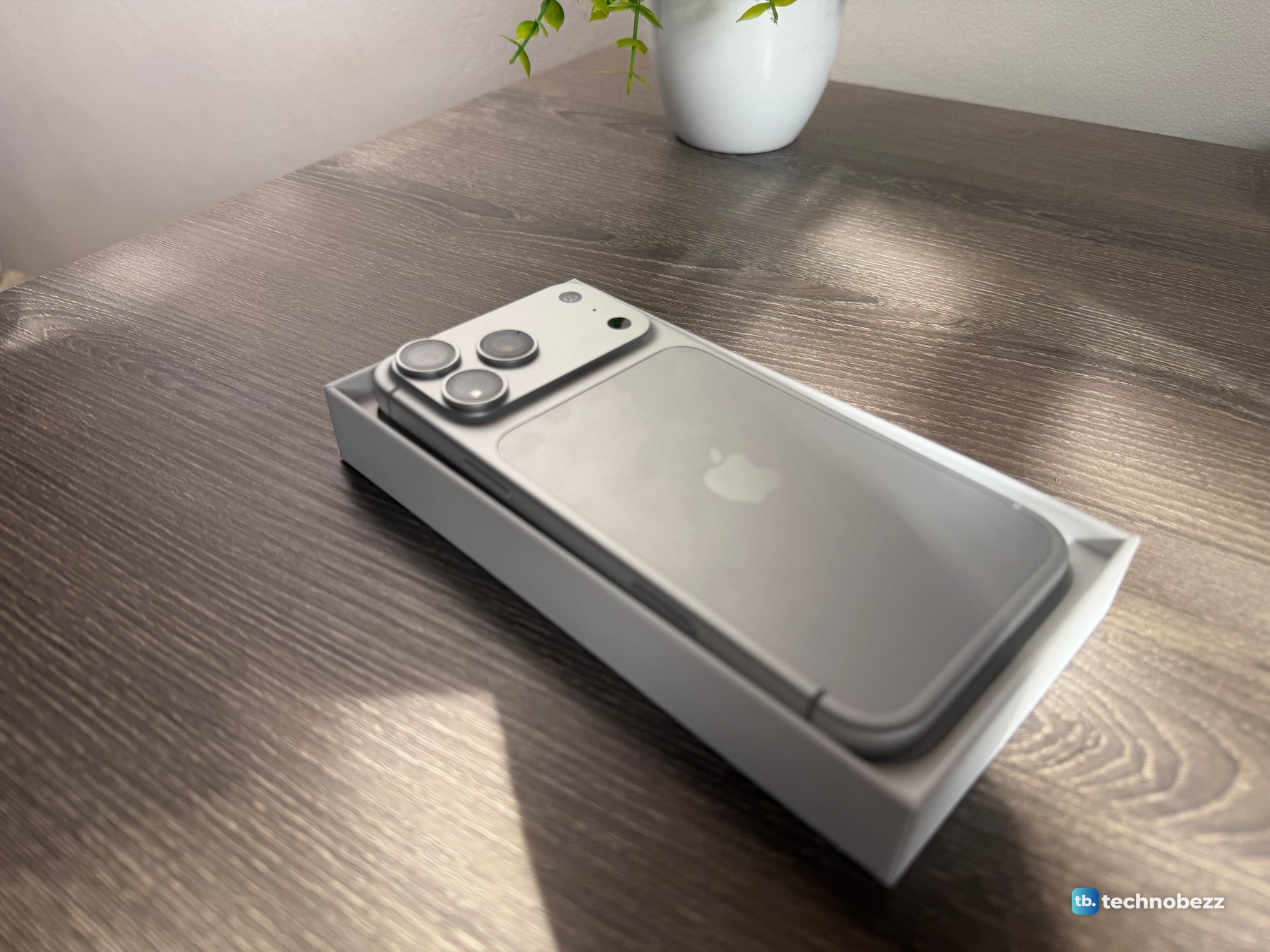
Lift the lid and the phone is lying face down, so the first thing you see is the camera bar running all the way across the back.
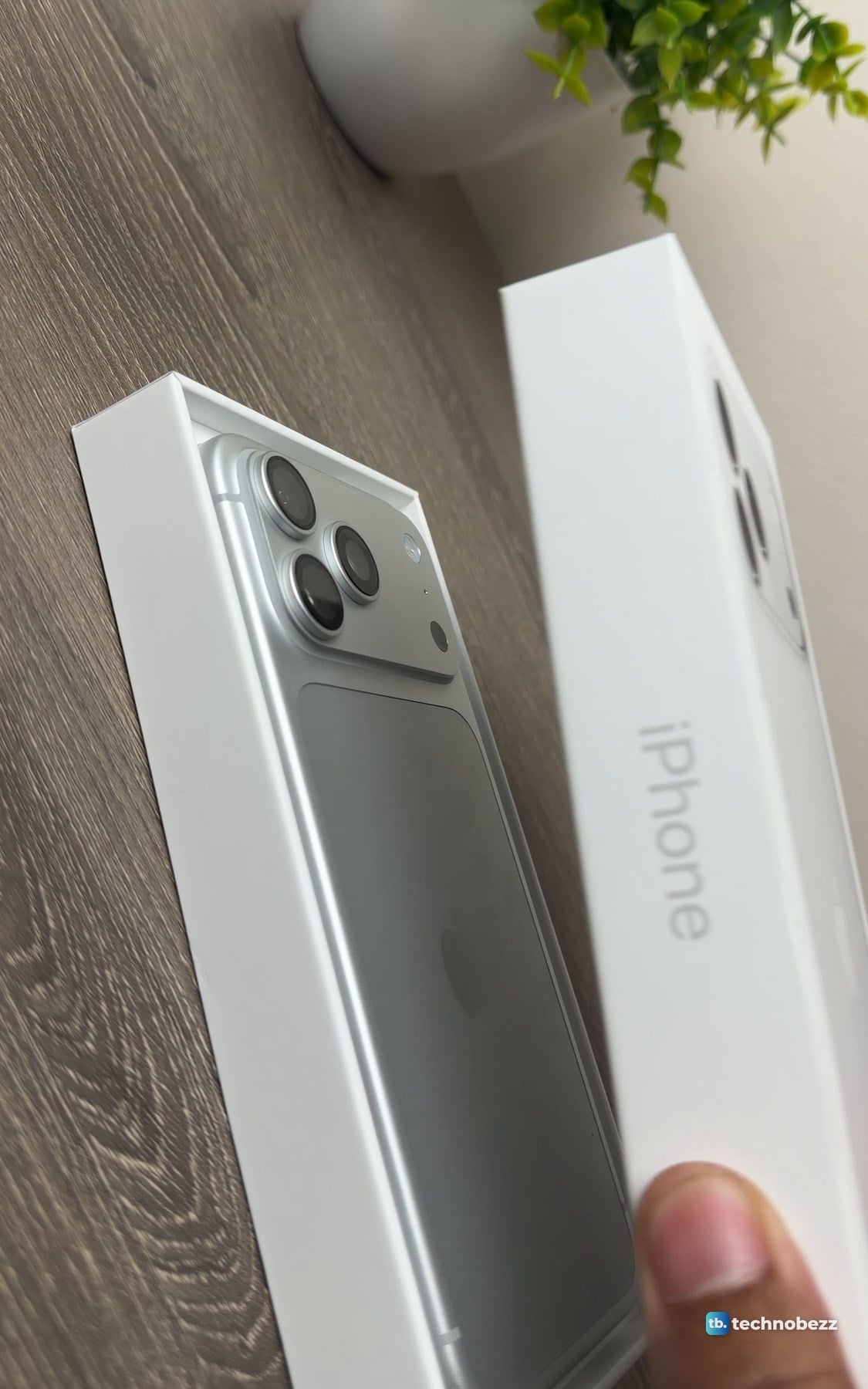
The tray is only a little bigger than the phone. I put the lid down next to it, which makes a handy comparison: the printed phone and the real one.
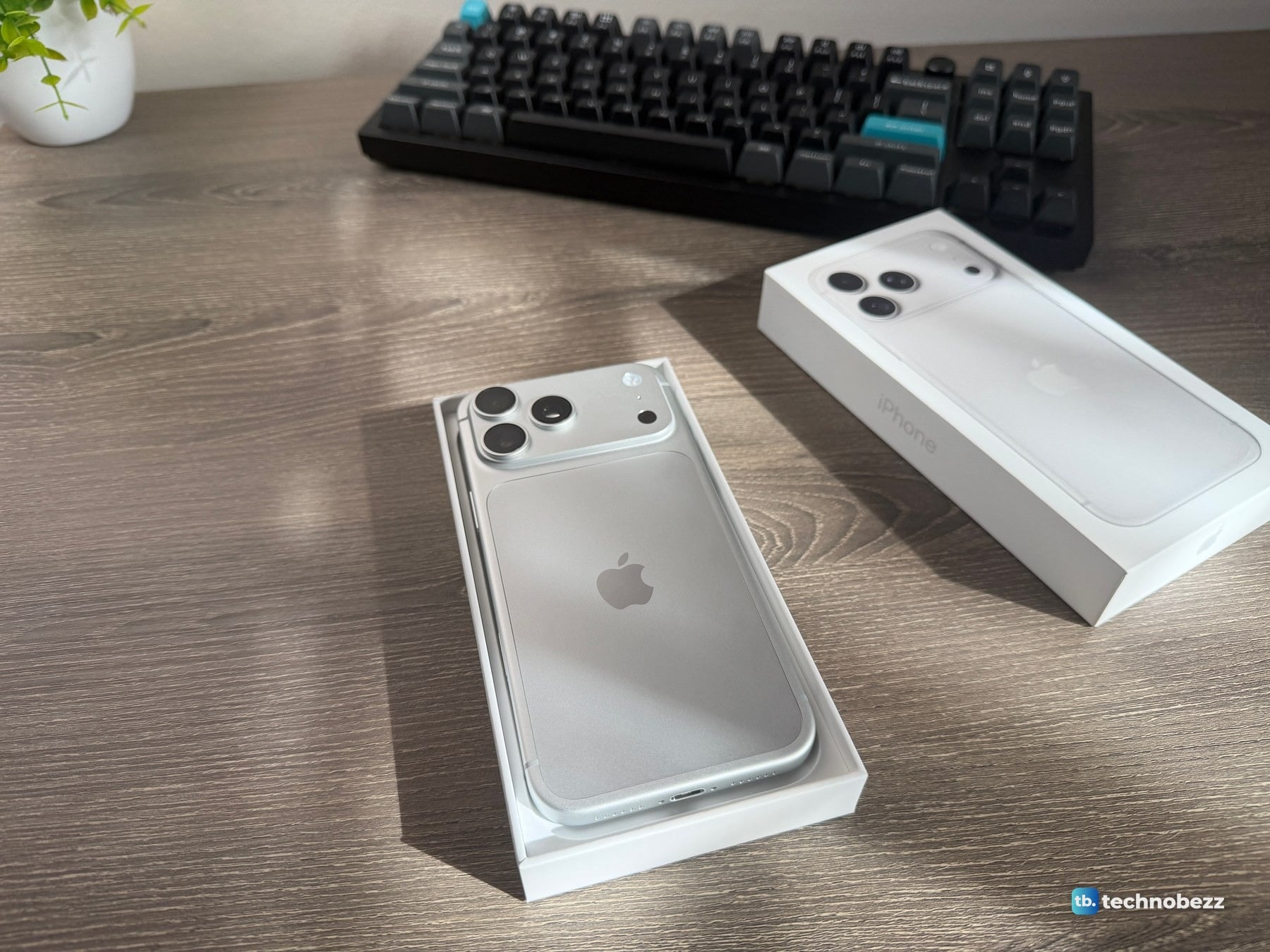
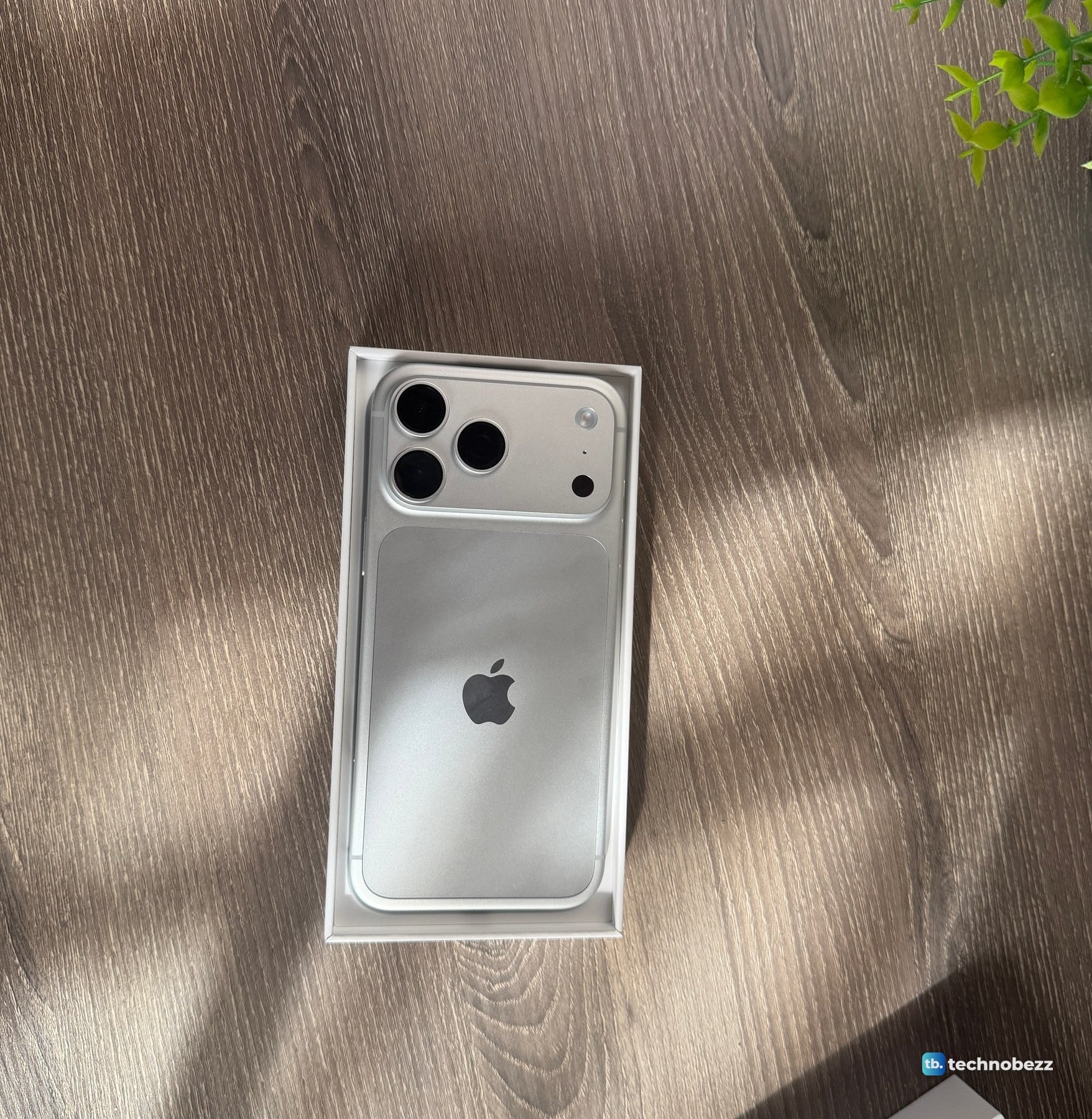
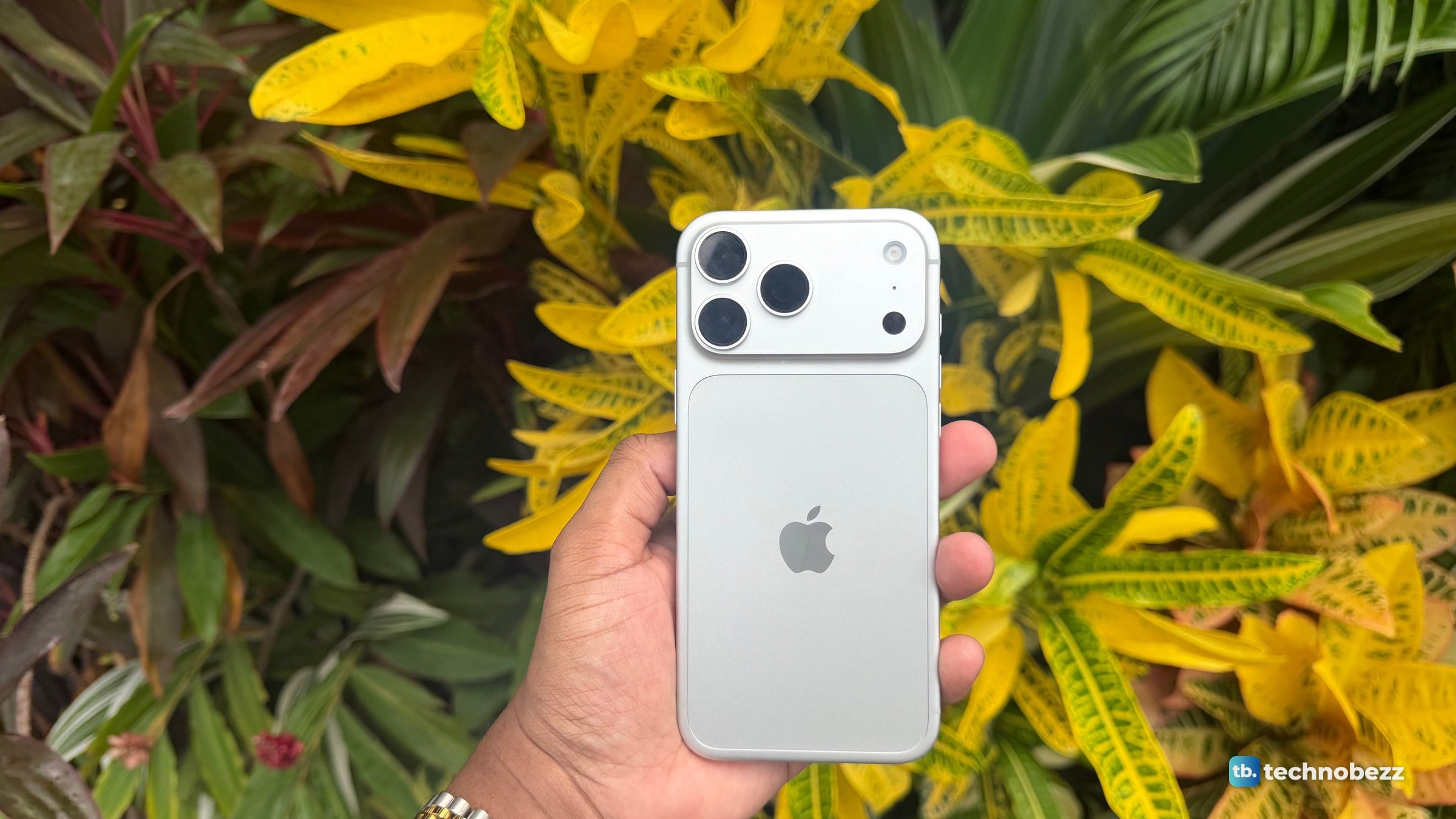
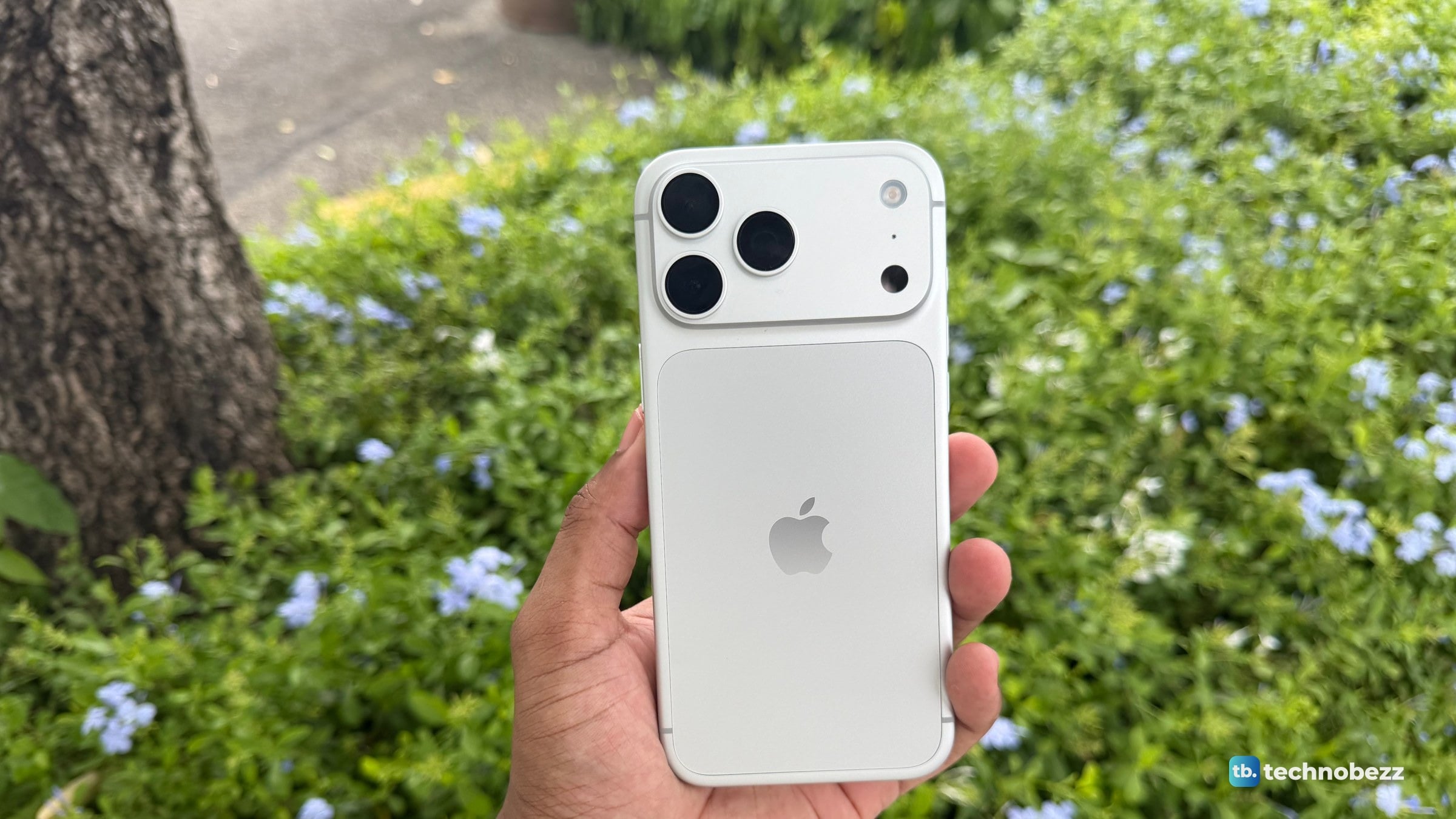
From straight above you can see how the back is laid out: the raised camera bar across the top, and below it a large inset panel with rounded corners that carries the Apple logo.
Under the phone there is a USB-C cable, and that is the whole box. The cable is white with a woven jacket. It comes coiled in a molded paper tray, held down by a paper band.
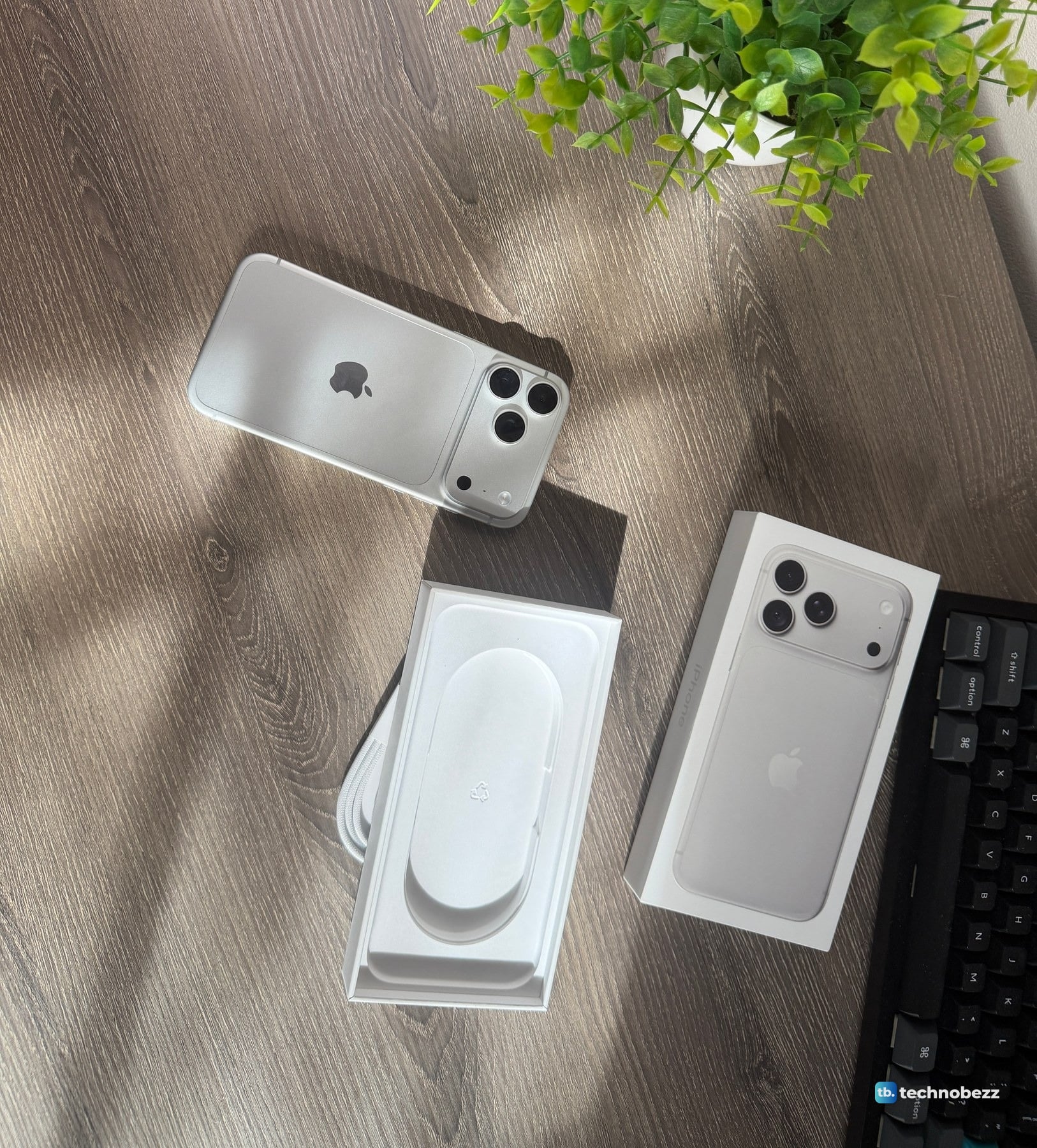
Here is all of it on the desk at once: the phone, the cable tray turned over, and the lid.
The 32-second Short below shows the same unboxing in motion: the lid coming off, the cable tray, and the silver finish shifting between white and gray as the light changes.
First look at the iPhone 18 Pro Max hardware
A viewer of my first Short on this phone asked, "Is it small?" It is not. Apple lists the iPhone 18 Pro Max at 6.43 inches tall, 3.07 inches wide and 0.34 inch thick, with a weight of 8.78 ounces (249 grams) and a 6.9-inch display.
The finish is Silver, one of four colors on Apple's spec page along with Black, Glacier and Burgundy. In daylight at my desk it reads almost white.
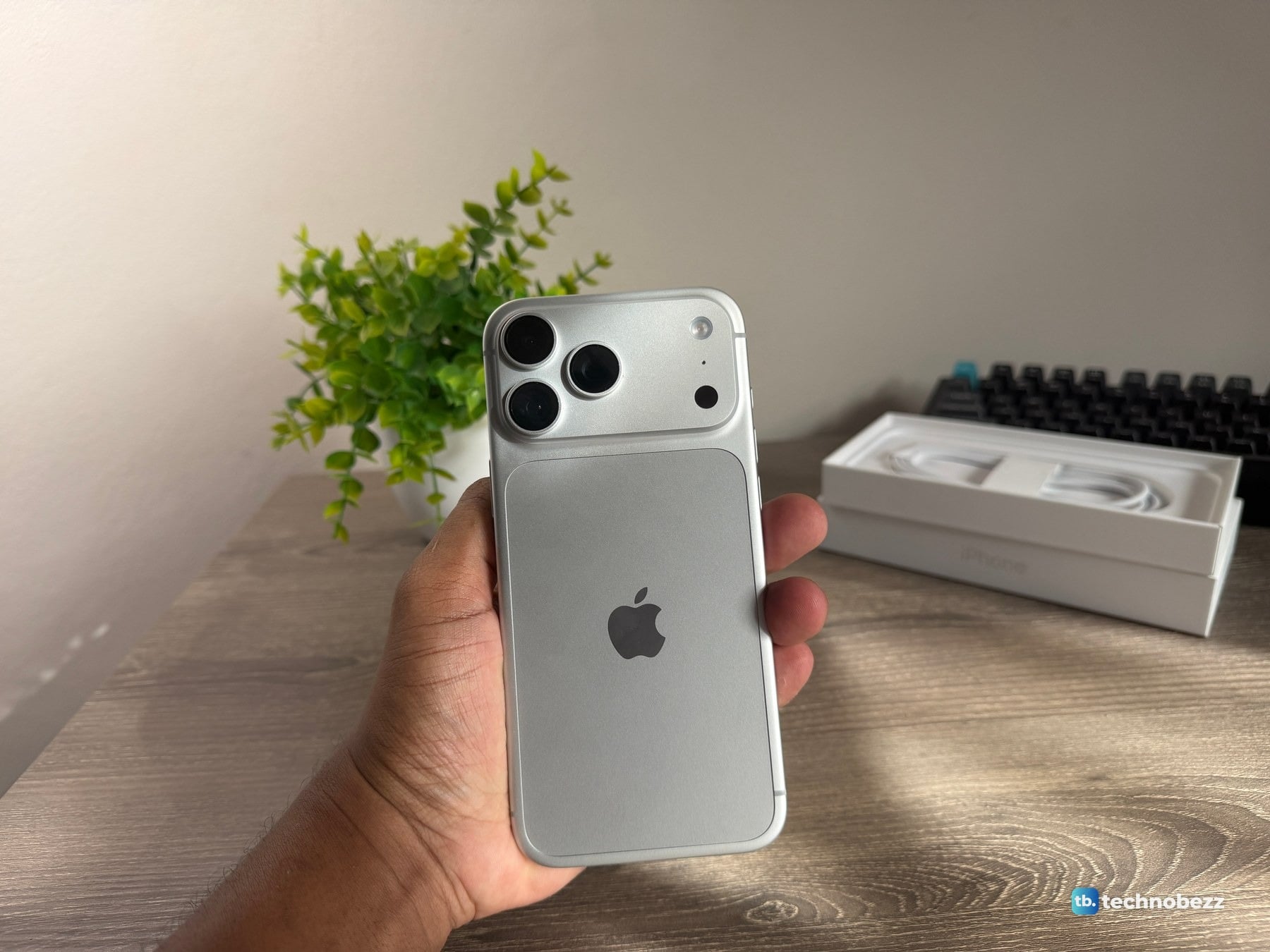
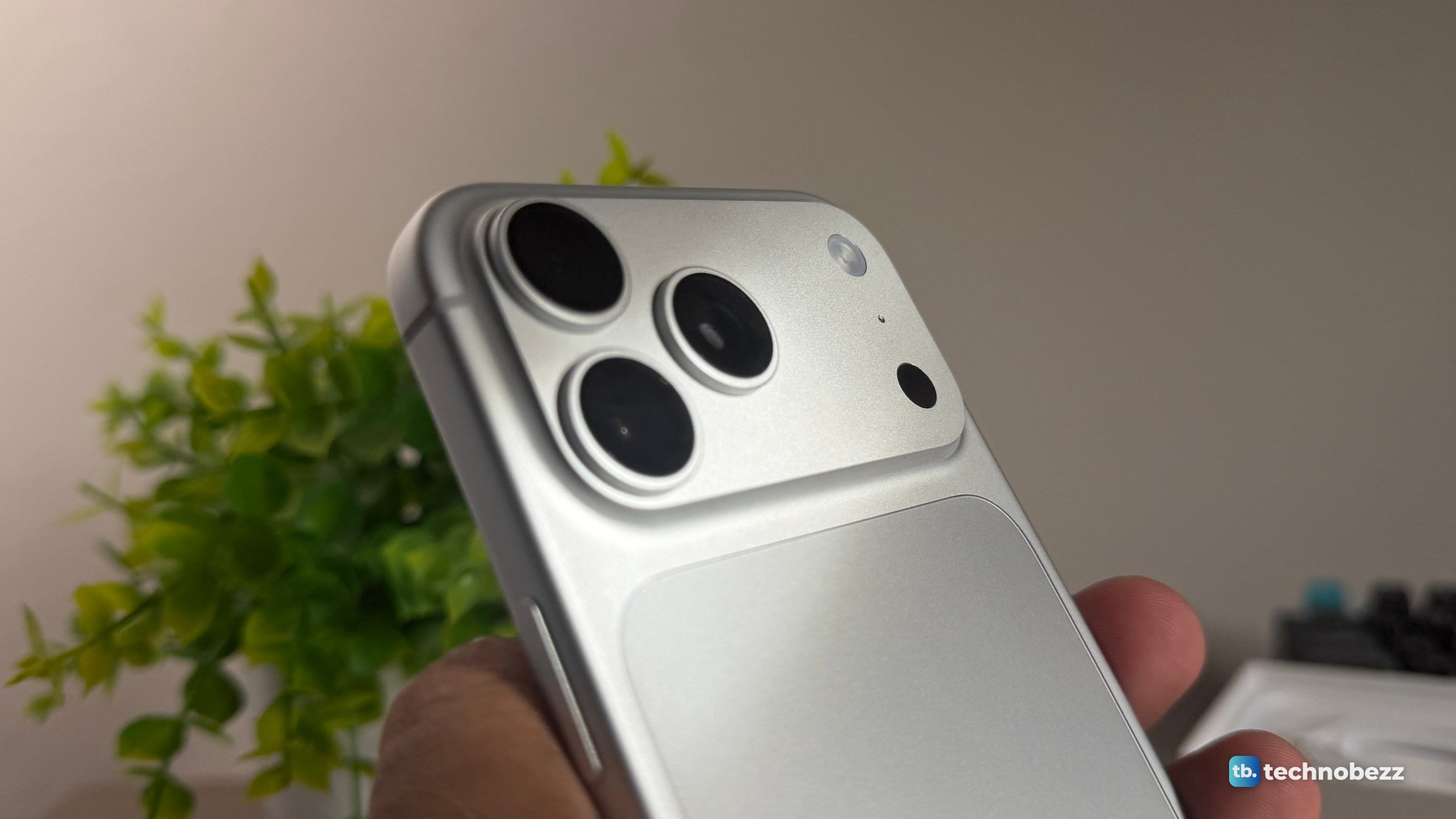
The camera bar is what sets this back apart. It stands proud of the rest of the phone and holds three lenses in a triangle on one side, with the flash, a pinhole and a dark round window on the other. Apple calls the main camera a 48MP Fusion Main, and it has the variable aperture Apple announced at launch. This article is not a camera test.
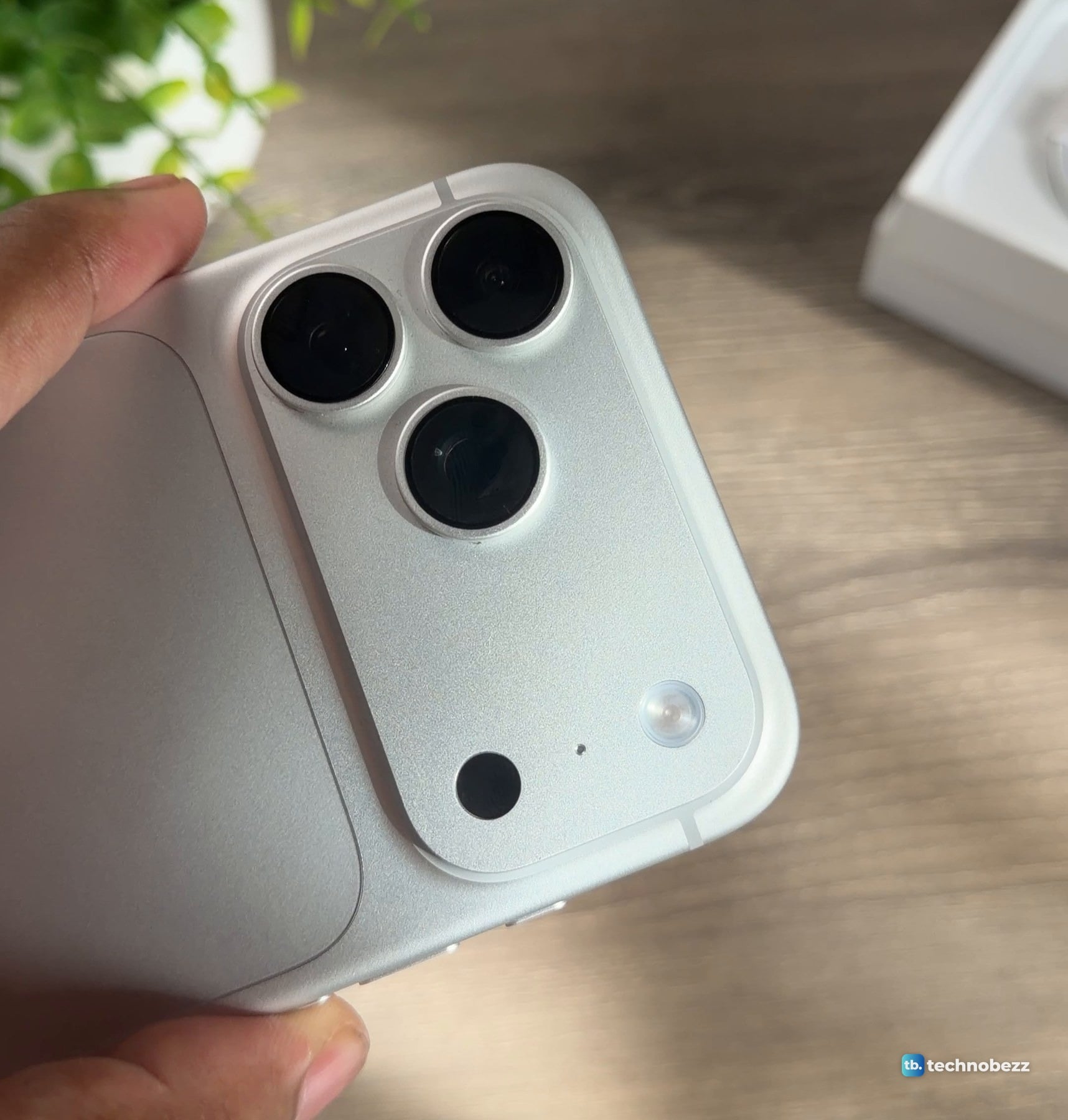
Tilt the phone out of the light and the silver goes steel gray. The next photo is the same phone in the same tray, shot against the light.
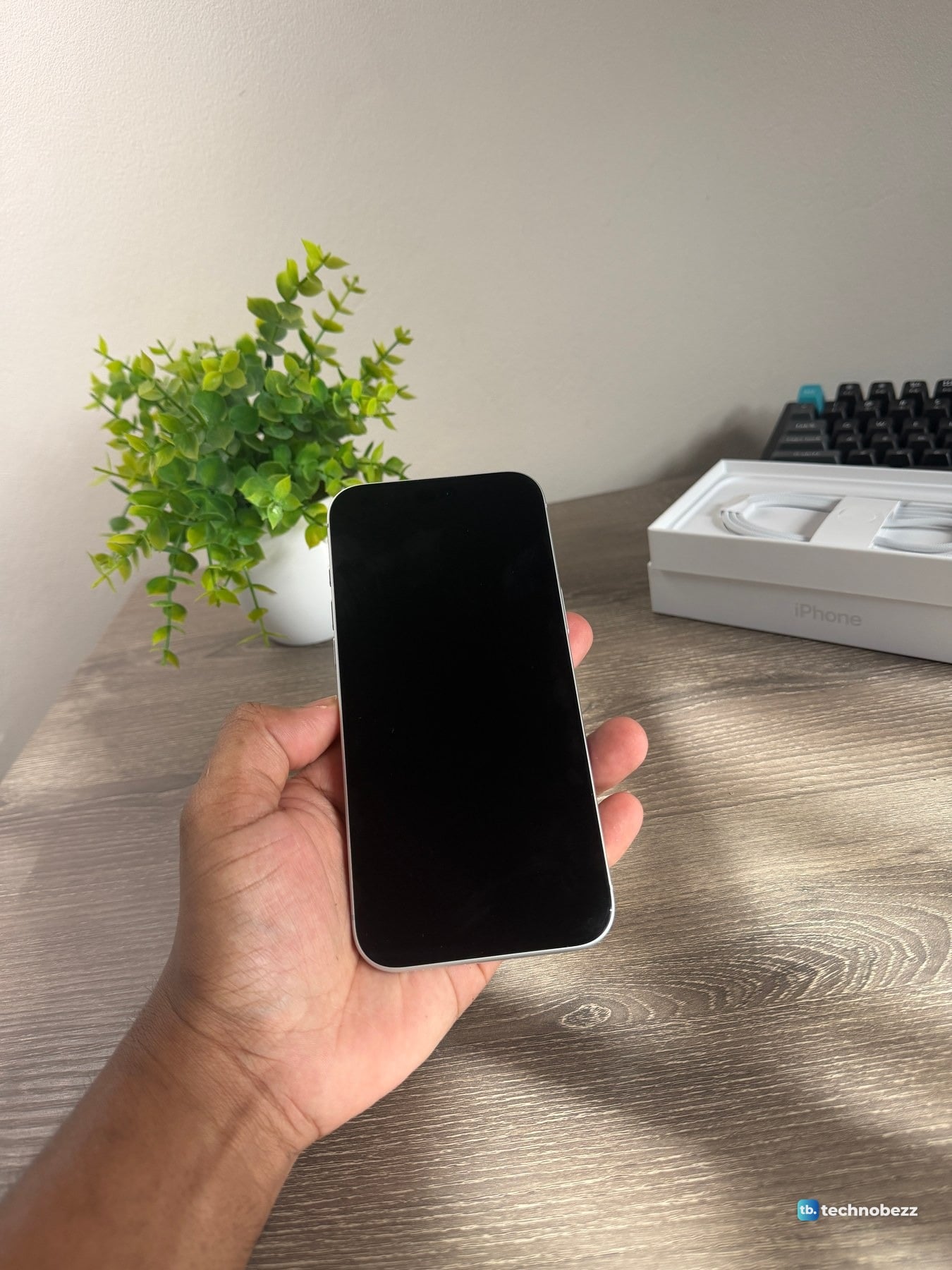
With the screen off, the front is a plain black slab, with the silver frame just showing at the edges.
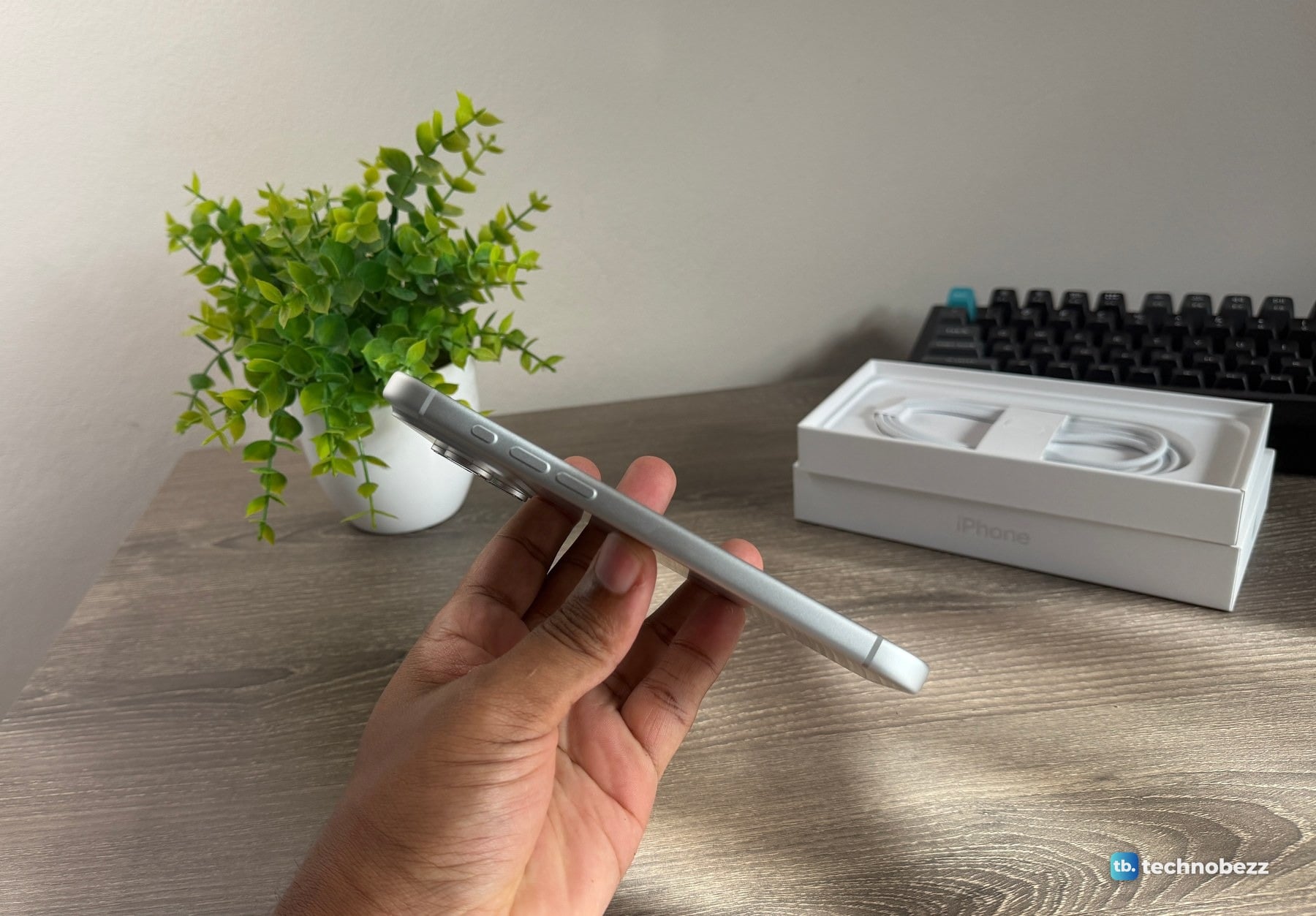
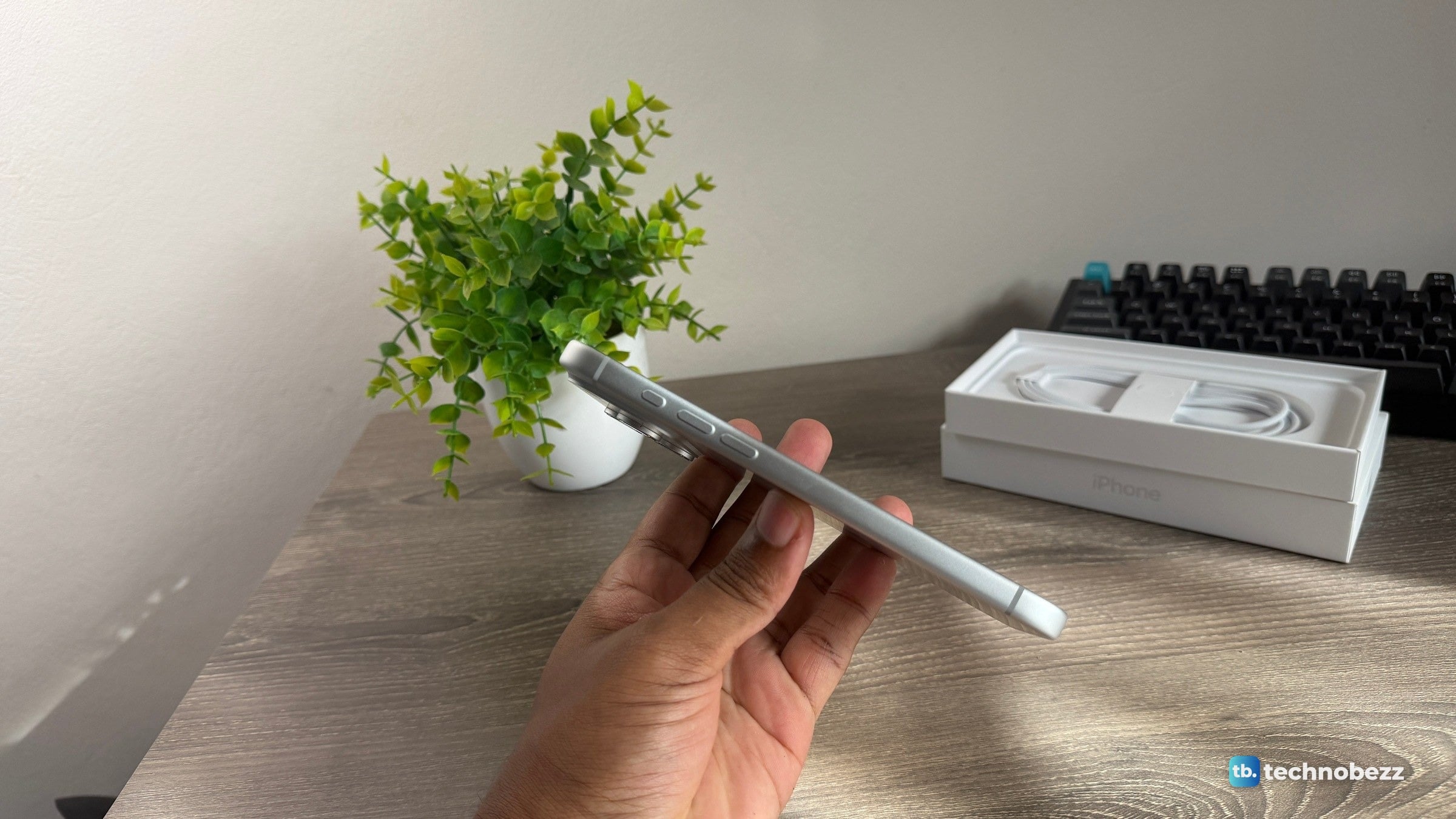
The buttons are split between the two long edges. One edge has three, a short one nearest the top and two longer ones below it. The other edge has two. Apple's spec page names five controls in all: volume up, volume down, the Action button, Camera Control and the side button.
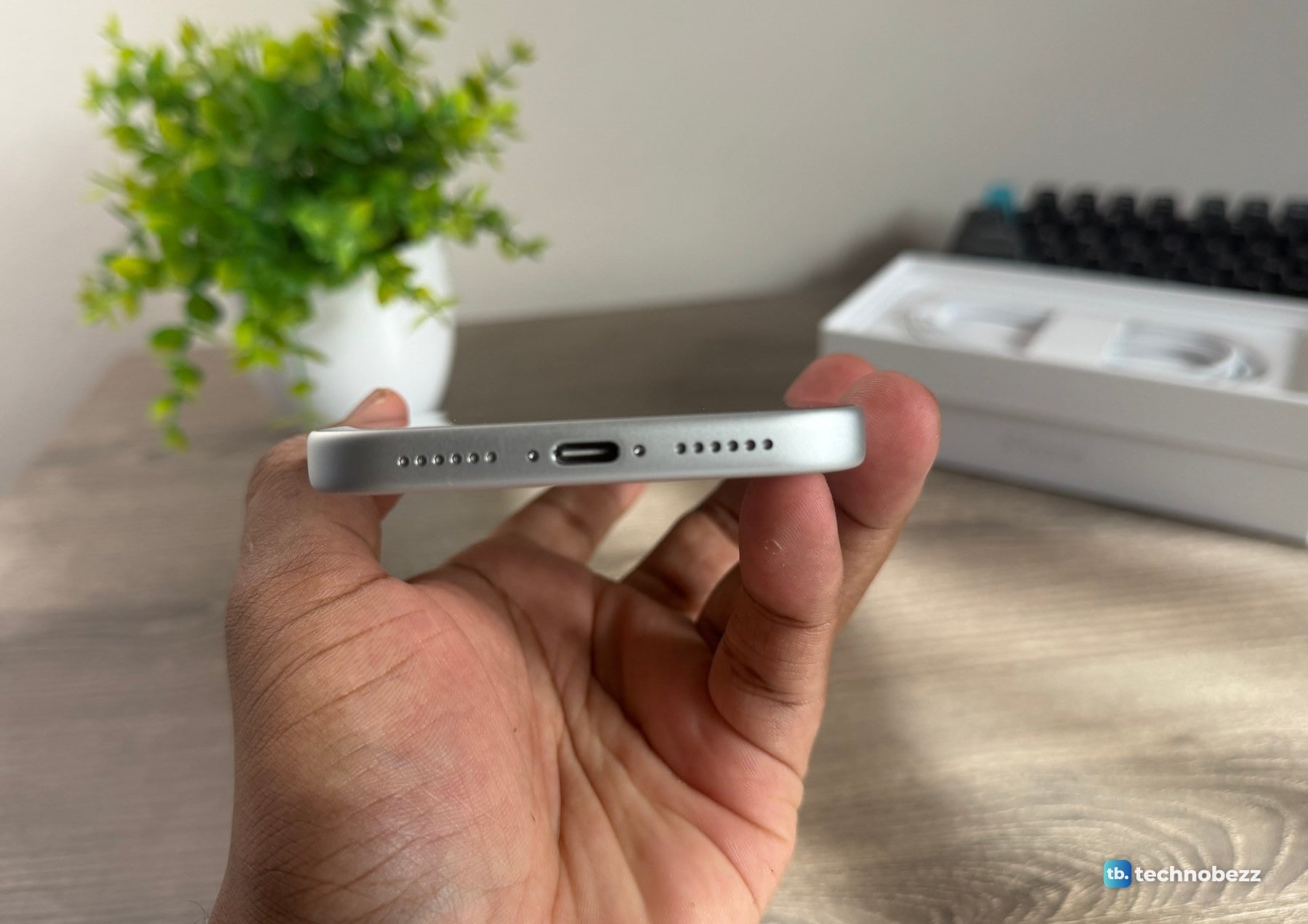
The bottom edge has the USB-C port in the middle and a row of small holes on each side of it.
What this article does not cover: cases, how the finish holds up to scratches, and charging speed. None of that is in my unboxing photos, so none of it is here.
iPhone 18 Pro Max setup screens
I filmed the setup as I went. These are the four screens worth slowing down for.
Face ID
The Face ID screen says the iPhone can recognize the three-dimensional features of your face to unlock automatically, use Apple Pay, make purchases or subscribe to services from Apple. There are two buttons, Continue and Set Up Later. This is a look at the screen, not a test of Face ID.
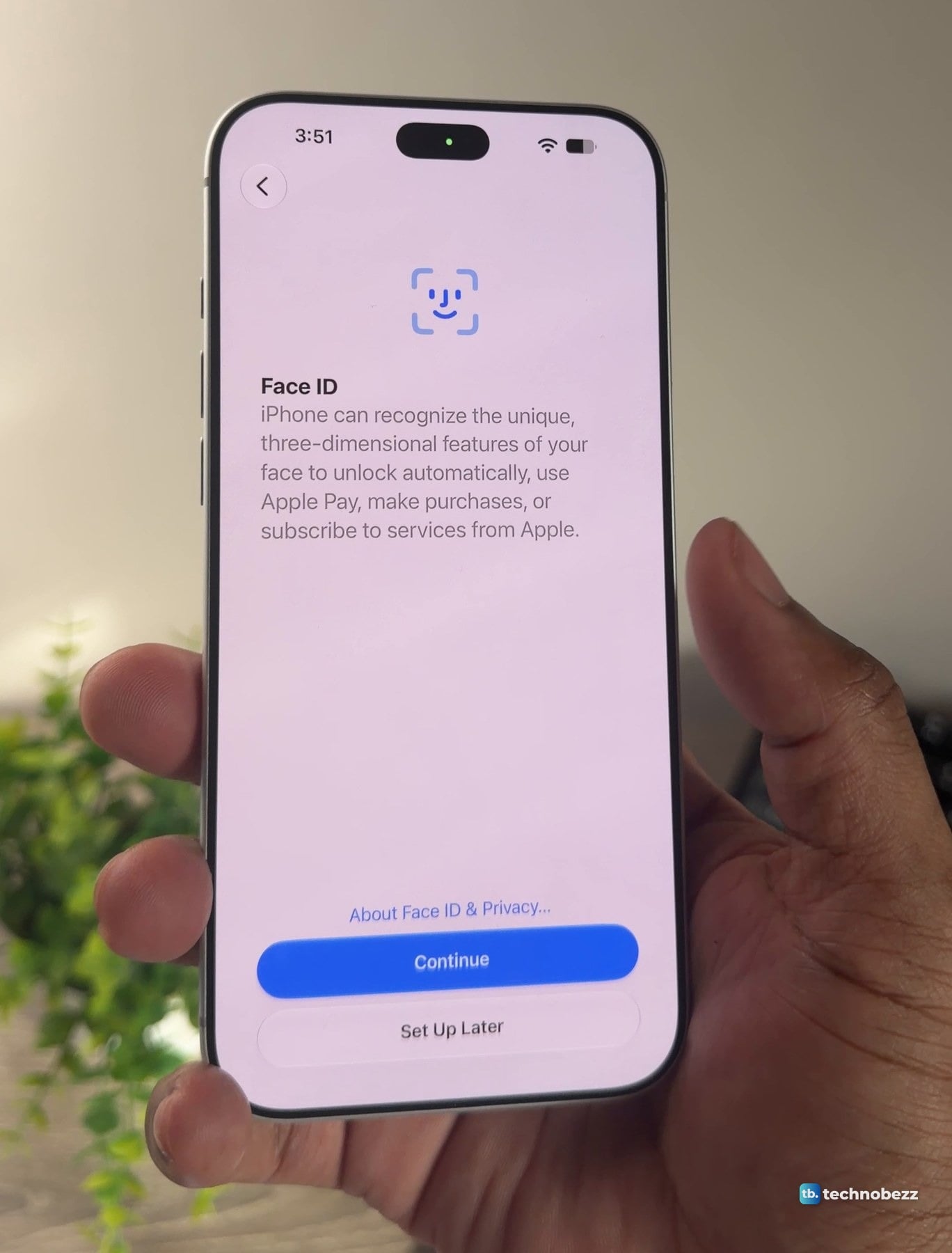
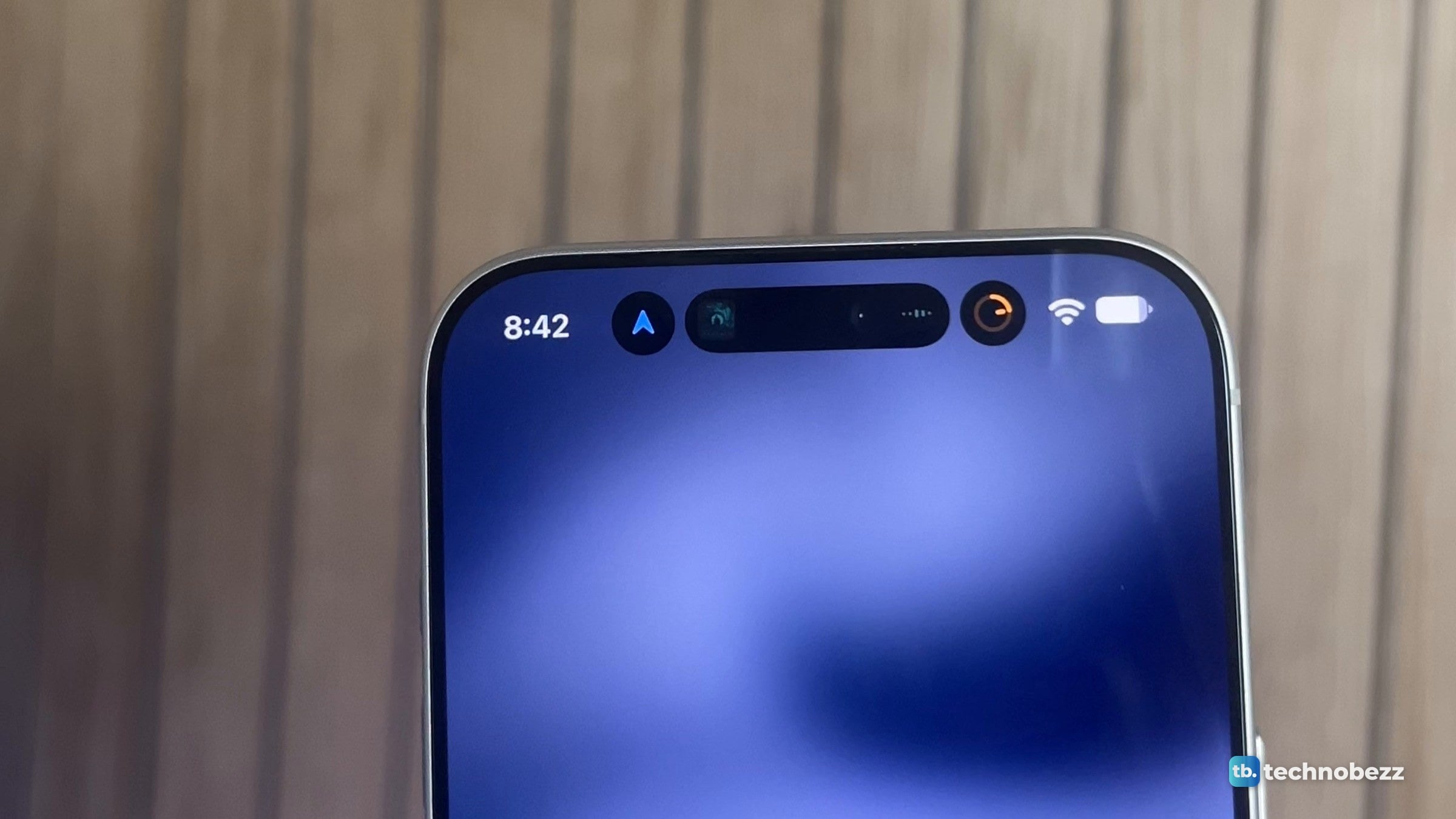
That frame is also a first look at the Dynamic Island with the screen on. A report in March said it would shrink by 35 percent. Measured across its width in one of my own photos, with nothing running, it is about 24 percent narrower than the island on my iPhone 17 Pro.
Transfer Your Data
At 3:53 on the status bar, the phone showed the Transfer Your Data screen. It offered two routes. "Download from iCloud" said I could start using the iPhone in about 15 minutes, with my data downloading later over Wi-Fi. "Transfer from iPhone" said it would transfer directly so the phone would be ready with my data when I finished setting up, and it put the time at "About 1h".
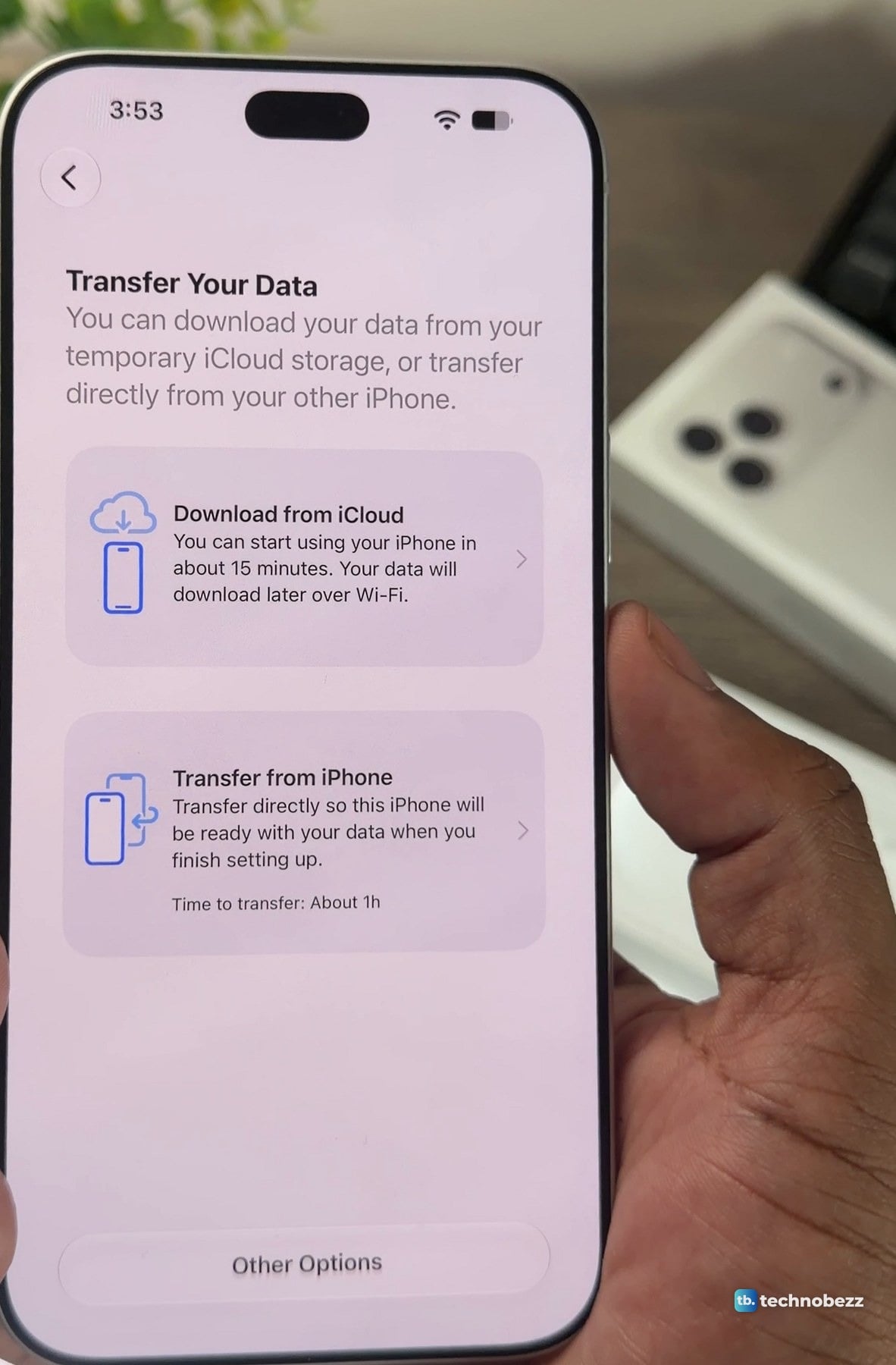
I moved my data across directly from my older iPhone. Apple's Quick Start page says to keep both phones near each other and plugged in to power until it finishes, and that you have to wait for the transfer to complete on both before you can use them.
Action Button
The Action Button prompt shows a rendering of the phone's edge with the button lit orange, and two choices: Customize or Not Now. My setup clip then shows several of the Action button options. Silent Mode is orange and Camera is yellow.
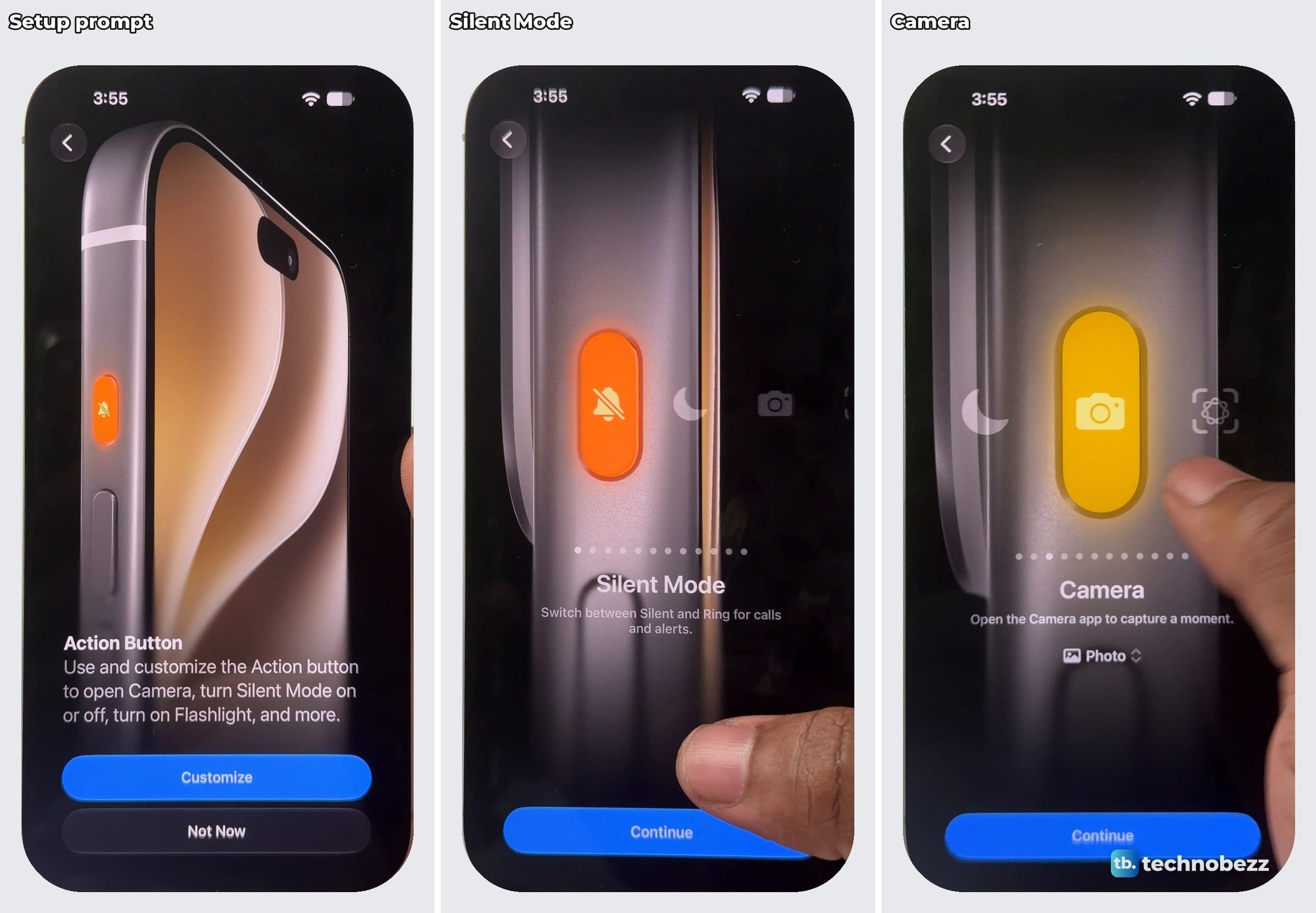
Apple's spec page lists twelve things the button can do: Silent Mode, Focus, Camera, Visual Intelligence, Flashlight, Voice Memo, Recognize Music, Translate, Magnifier, Controls, Shortcut or Accessibility.
Liquid Glass, clear or tinted
The last screen here is a slider titled Liquid Glass. It reads, "Slide from clear to tinted to reveal content beneath or add more opacity." Above the slider is a sample card with a search bar floating over it. With the slider near the clear end, the card's text shows through the search bar. Near the tinted end the bar turns frosted and hides the text behind it.
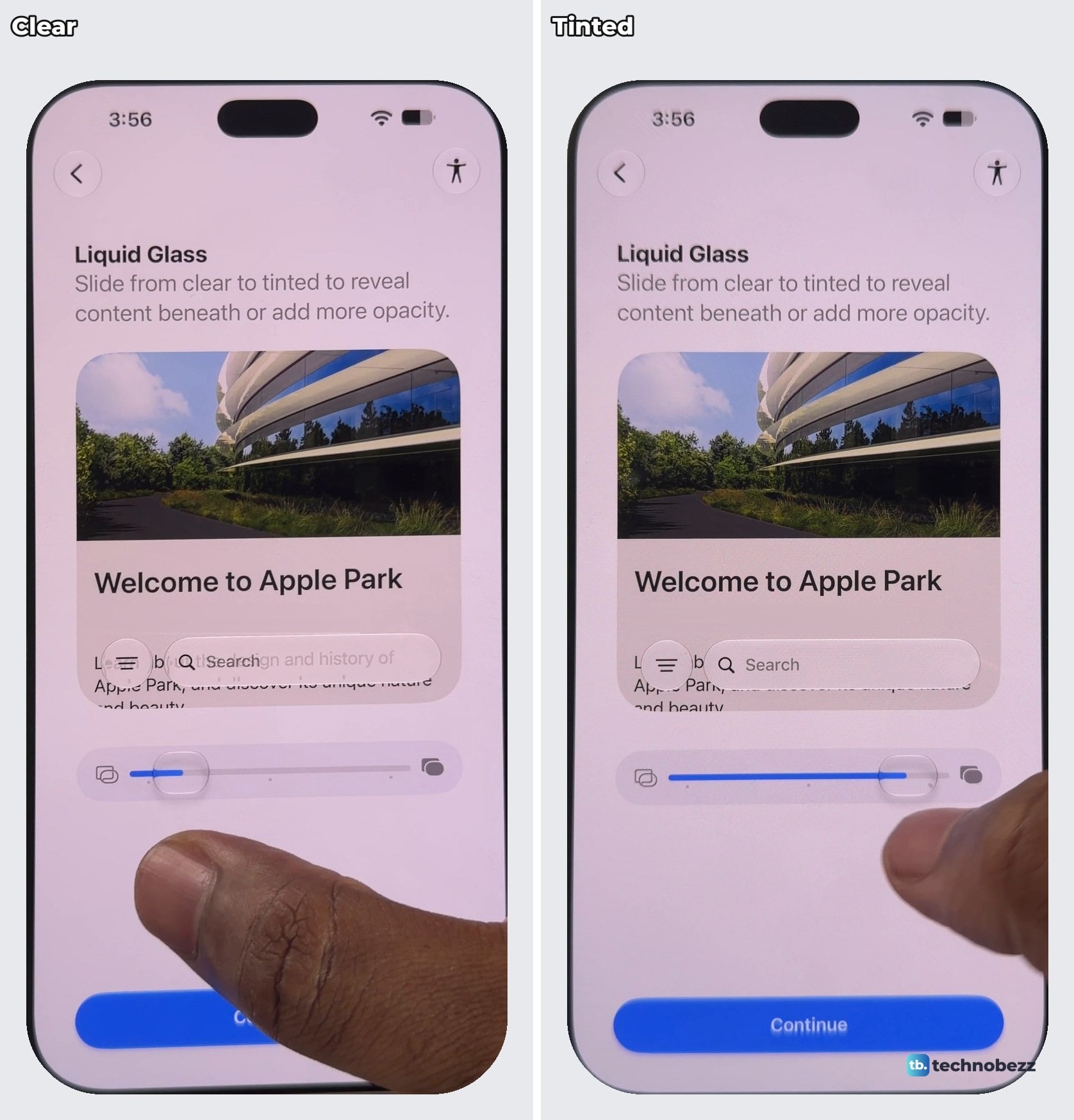
By the status bar, the stretch from the Face ID screen (3:51) to this one (3:56) took about five minutes. The transfer is the part to plan around.
What to have ready before you open the box
- A USB-C charger. There is none in the box, so the cable needs one you already own or buy separately.
- Your old phone, nearby. Apple says to keep both phones plugged in during a direct transfer. One cable does not stretch to two phones, so line up a second charger and cable for the old one. For the steps, the closest guide we have is how to transfer data to an iPhone 17.
- Wi-Fi. The iCloud route downloads your data over Wi-Fi after setup. Apple's Quick Start steps also begin with the old phone connected to Wi-Fi and Bluetooth turned on.
- A carrier that supports eSIM. The label says "Requires eSIM", and Apple's spec page says the phone is not compatible with physical SIM cards. The eSIM step itself is not covered in this article.
- Your own earphones. There are none in the box. If yours are AirPods, here is how to pair AirPods with an iPhone.
The old phone is the last job. Before you sell it or hand it on, erase the old iPhone properly.
More from my iPhone 18 Pro Max testing
- iPhone 18 Pro Max in silver
- iPhone 18 Pro Max size, thickness and weight
- iPhone 18 Pro Max hands-on
- iPhone 18 Pro Max Dynamic Island
This product was provided to Technobezz for review. We independently select what we review. The manufacturer had no input on this article and did not see it before publication. All opinions are our own.
Share this article
More in News
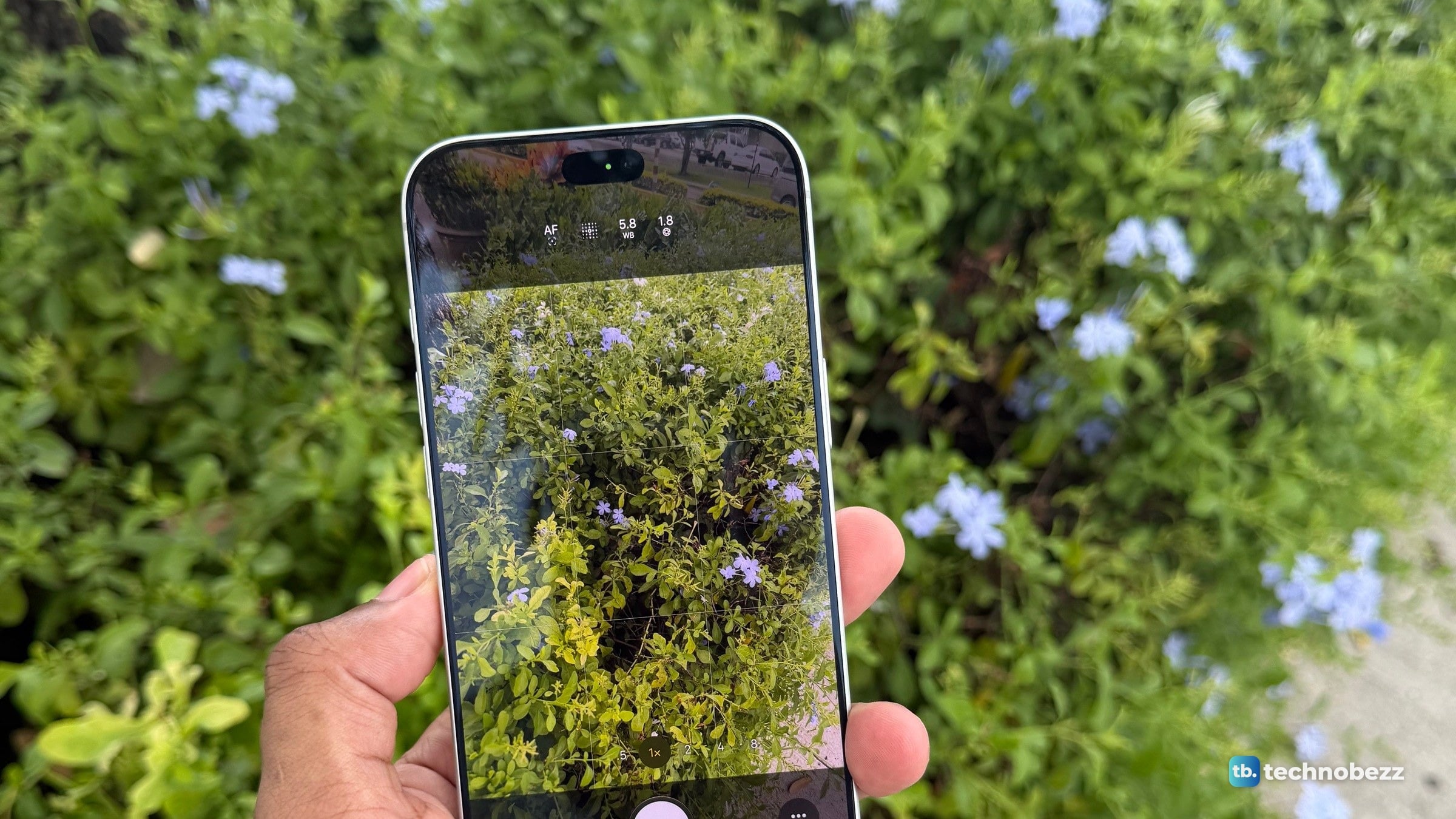
iPhone 18 Pro Max vs iPhone 17 Pro Camera Comparison in Daylight
The same scenes on the iPhone 18 Pro Max and iPhone 17 Pro in daylight: photo pairs, matched 4K video and skin tones, with the data.
4 min read
iPhone 18 Pro Max Variable Aperture Explained With Real Photos
Daylight and indoor photos show how the iPhone 18 Pro Max's four aperture settings change close-up detail, background sharpness and brightness.
4 min read
iPhone 18 Pro Max Hands-On After Two Days, What Stood Out and What I Still Need to Test
An early hands-on with the silver iPhone 18 Pro Max. A narrower Dynamic Island, an aperture change you can see up close, and what is still untested.
3 min read
iPhone 18 Pro Max Dynamic Island Is Smaller and Shows Three Things at Once
I put the iPhone 18 Pro Max next to my iPhone 17 Pro. Its Dynamic Island is about 24 percent narrower in my photo and shows three things at once.
4 min read
iPhone 18 Pro Max Size, Thickness and Weight in Real Life
4 min read
iPhone 18 Pro Max Silver in Real Life, From White to Blue
5 min read

iPhone 18 Pro Max Camera Samples From One Afternoon Outdoors
5 min read
Sennheiser HD 490 PRO Leads 3 Headphone Deals All Under $346.40
3 min read
TP-Link Archer BE12000 Tri-Band Wi-Fi 7 Router on sale for $229.99
5 min read
OSCOO 2TB PCIe 4.0 NVMe SSD slips to $269.99
4 min read
Razer Moray in-Ear Monitor dips to $99.99
4 min read
TCL 75-inch F7D QLED 4K UHD HDR sees price cut to $599.99
3 min read