


To see which iPhone you have, open Settings > General > About and read Model Name. If you need its A number, tap the value beside Model Number to reveal it. When you cannot open Settings, choose an Apple Account, computer, packaging or hardware check below.
The short version
- Phone working: read Model Name in Settings > General > About.
- Exact model number: tap the part number beside Model Number, then match the A number with Apple's model list.
- Phone elsewhere: open its entry in your Apple Account device list.
- Phone off: read the A number printed on the phone, or take the serial number from the original box and enter it on Apple's Check Coverage page.
- Need support identifiers: use the serial number, EID or IMEI rather than substituting the model name.
| Method | What it does | Time | Use it when |
|---|---|---|---|
| Settings | Shows model name and A number | Under a minute | You can open Settings |
| Apple Account | Opens the device record | A few minutes | The phone is elsewhere |
| Computer | Shows connected device details | A few minutes after installing the app | You have a cable and can approve access |
| Setup screen | Shows device identifiers | Under a minute after startup | The phone shows Hello |
| Original box | Provides serial and cellular identifiers | Under a minute with the box ready | You kept the packaging |
| Hardware markings | Provides the A number | A few minutes | Settings is unavailable |
| Check Coverage | Shows basic product details and coverage for a serial number | A few minutes | You have the serial number but not a working phone |
| Work or school IT | Requests the managed device record | A minute to send the request | The organization manages the phone |
Check the model name and number in Settings
Open Settings, tap General, then tap About. Read Model Name and keep the full name, including any Pro, Plus or Max wording. Use that name when an accessory listing or support form asks which iPhone you own.
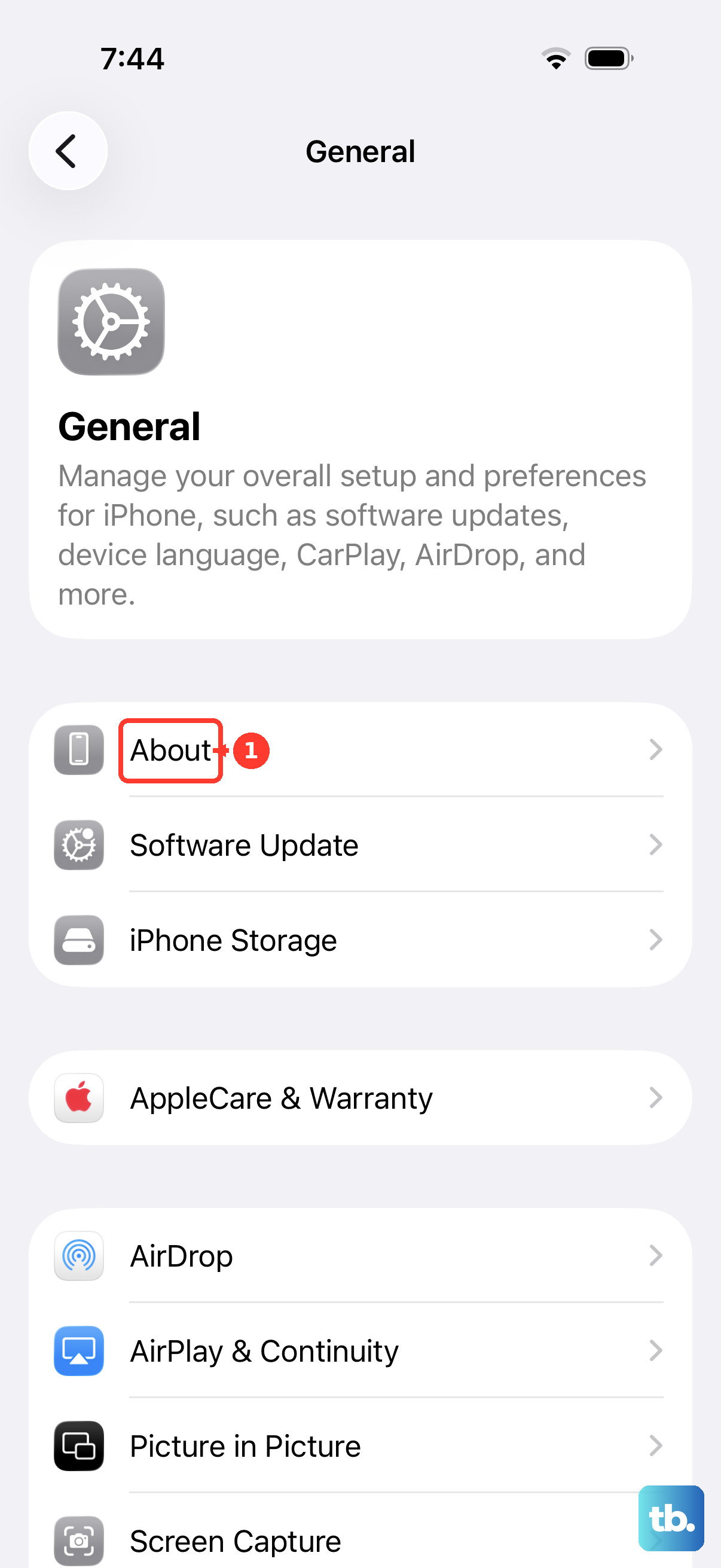
The Model Number row initially displays a part number. Tap that value to reveal the model number beginning with A. These are different identifiers, so do not copy the first value if someone specifically asks for the A number.
Match that A number with Model numbers in Apple's iPhone model identification list. Read the matching model's heading, then use its capacity options, colors and physical details as a cross-check. The list also separates model numbers by country or region where applicable.
Stay on About if you also need the iOS software version, serial number or storage capacity. Capacity and available space are separate entries, so record capacity when you need the phone's storage size. Touch and hold a serial number or other identifier to bring up Copy rather than typing it again.
Open your Apple Account device list
Use this route when the iPhone is elsewhere but you can sign in to the Apple Account used on it. On another signed-in iPhone or iPad, open Settings and tap your name. Scroll down to the device list, then tap the iPhone's name to open its information.
On macOS Ventura 13 or later, open the Apple menu and choose System Settings. Click your name, scroll to the device list and click the iPhone. Read the model and serial number in the device information.
On macOS Monterey 12, open the Apple menu, choose System Preferences, then click Apple ID. Select the iPhone in the sidebar to review its model and serial number.
In a browser, sign in at account.apple.com and select Devices. If the list is not visible, select View Details and authenticate, then choose the iPhone. Look for the model and serial number in the device details. If the model is not listed, use one of the routes below.
If several phones appear, check the serial number before using a record for a repair request. If the phone is missing and you also need to locate it, use Find My iPhone on a computer.
Read the details on a Mac or Windows PC
Connect the iPhone to your computer with a USB cable. When asked to approve access, enter the iPhone's passcode, select the device in Finder or Apple Devices, then select Trust. Confirm Trust on the iPhone as well. With iTunes, the computer's approval button is Continue.
On a Mac with macOS Catalina 10.15 or later, open Finder and select the iPhone in the sidebar. Open the General tab to see its details.
On Windows, open Apple Devices and select the connected iPhone in the app's sidebar. If you need the app, open Microsoft Store, search for Apple Devices, select the app and choose Get. Allow extra time for the download before following the identification steps.
Read the model name shown beneath the device name. Click the model name to display the serial number, or click Phone Number to find the EID, IMEI/MEID and ICCID. Use the identifier the support form requests rather than choosing one at random.
On a Mac with macOS Mojave or earlier, use iTunes instead of Finder. Apple also retains an iTunes route for Windows PCs that use it. If a damaged screen prevents entering the passcode or approving access, use the account, box or hardware route rather than relying on the computer.
Check an iPhone before setup
On an iPhone that has not been set up, turn it on and wait for the Hello screen. If needed, hold the power button until the Apple logo appears. Tap the Info button in the bottom right to view the device identifiers before completing setup.
This route gives you identifiers for support, rather than the Model Name row found in Settings. Use the hardware method below if you need the A number at this stage. If the phone stays black, work through turning on an iPhone that will not start, or choose a method that does not require powering it on.
Read the label on the original box
Find the barcode label on the iPhone's original packaging. Apple documents this as a place to find the serial number, EID and IMEI/MEID. Copy the identifier you need and keep its label with it so you do not confuse the different numbers.
If you can also open the phone's account record or Settings, compare the serial number before relying on the box. If the phone will not turn on, take the box's serial number to Apple's Check Coverage page using the steps below. That lookup shows basic product details as well as coverage, so the box can still help you identify the phone.
Look for the model number on the iPhone
On an iPhone 7 or earlier, look for the model number on the back. On an iPhone 8 or later that has a SIM tray, remove the tray and look inside the slot. The model number is inside the phone, so inspect the opening rather than treating a number on the removable tray as the model number.
Use bright overhead light and look at the upper side of the slot, the side facing the display. If the iPhone has no SIM tray, look inside its USB-C or Lightning connector instead. The model number is on the upper side facing the display there too.
Match the complete A number with the Apple model list linked above. On iPhone 13 and earlier, an IMEI/MEID may also be engraved on the SIM tray or the back, so read the number that starts with A. iPhone 14 models and later have no IMEI/MEID engraving. For those cellular identifiers, use Settings, the setup screen, your account record, a computer or the original packaging.
Check coverage with a serial number
If you have the serial number but cannot use the iPhone, for example from the original box or your account record, enter it on Apple's Check Coverage page. The lookup shows basic product details as well as coverage, giving you another route when the phone is unavailable.
Choose your country or region if prompted. Enter the number in Enter a serial number, type the characters shown in the CAPTCHA box into Enter CAPTCHA, then select Submit. Read the product details returned for that serial number.
If the lookup does not accept the number, compare it with the original source before submitting again. Apple serial numbers avoid letters that look like 0 or 1, so read those characters as digits. If a barcode scan added a leading S, remove that extra character because it is not part of the serial number. Avoid replacing the serial number with an IMEI or part number.
Ask IT about a managed iPhone
For an iPhone managed by your workplace or school, send the IT team a request for its model name and serial number. Apple's device management queries can return both fields, along with model, hardware model and product name. This is an organization record lookup rather than another menu on your personal iPhone.
Ask for the plain model name if you are choosing an accessory. If IT supplies a value labeled model number, have them clarify which identifier it is before using it in an A number lookup. The documented management field can contain a part number, so its label alone is not enough.
Frequently Asked Questions
What is the fastest way to tell which iPhone I have?
Open Settings > General > About and read Model Name. Copy the full name, including any suffix, when checking an accessory listing or filling in a support form.
Why does my iPhone show a part number instead of an A number?
The Model Number row shows the part number first. Tap that value to reveal the A number, then match it with Apple's iPhone model list.
Can I identify an iPhone without turning it on?
Yes, use the A number printed on the phone or its Apple Account device record. You can also take the serial number from the original box or account record and enter it on Apple's Check Coverage page to see basic product details. The setup screen's Info button requires the phone to be on.
Where is the model number on iPhones without a SIM tray?
Look inside the USB-C or Lightning connector under bright overhead light. Read the upper side of the connector, the side facing the display, and match the number with Apple's model list.
How do I check the storage size of my iPhone?
Open Settings > General > About and read Capacity. Keep that separate from available storage, which is also shown on the About screen.
Can a computer identify my iPhone if its screen is broken?
Try the computer route if the phone can connect and grant the required access. If you cannot enter its passcode or approve Trust, use the account record, box serial number with Check Coverage, or hardware markings instead.