The best way to send large files is to upload the file to a cloud drive and share a view-only link. Use Google Drive, OneDrive, iCloud Drive, or Dropbox if you already have one of those accounts.
The caveat is purpose. A video meant only for viewing, a nearby transfer, a sensitive work file, and a one-time delivery to someone without an account all point to different methods.
Email still works as the note around the file, but not as the file container once the attachment gets large. Gmail and Outlook.com both document a 25 MB attachment limit, which is why their large-file paths use Drive or OneDrive links instead.
Use a cloud link as the default
This fixes the usual large-file problem: sending the full file without shrinking it or clogging email.
- 1.Upload the file or folder to a cloud drive you already use. In Google Drive, go to drive.google.com > New > File upload or Folder upload. In OneDrive, upload through the web app. In iCloud Drive or Dropbox, upload the file or folder to your account.
- 2.Open the sharing controls for that item. In Google Drive, right-click it and choose Share. In OneDrive, select the item and choose Share. In Dropbox, hover over the item and choose Share. In iCloud Drive, select the item and use Share.
- 3.Set the permission before copying the link. Choose view-only access when the recipient only needs to read, watch, or download. Use edit access only when collaboration is the point.
- 4.Send the link through email, text, chat, or the channel the recipient already uses.
- 5.Change or revoke access later if the file should not stay available.
- 6.Use specific-recipient sharing for private files. Anyone-with-the-link sharing is convenient, but the link can be forwarded.
Send an email link instead of an attachment
Use the built-in cloud attachment option when the message belongs in email but the file is too large for email itself.
In Gmail on a computer, use Compose > Insert files using Drive > select file > choose Drive link or Attachment where offered > Insert > Send; in Outlook, use New email > Attach File > Browse This PC > attachment menu > Upload to OneDrive.
In Apple Mail on Mac, iPhone, or iPad, attach the file and use Send > Mail Drop when prompted; Apple documents Mail Drop for attachments up to 5 GB, with links available for 30 days.
This keeps the note in email while moving delivery to Drive, OneDrive, or iCloud; Outlook.com documents OneDrive linked attachments up to 2 GB.
Use a delivery link for transfers
Choose a delivery link when you are sending a finished file package, not collaborating on a folder.
For WeTransfer, follow WeTransfer's sending instructions, add the files, and choose either an email transfer or a link transfer.
Add recipient details for an email transfer, or choose the link option if you want to paste the link yourself.
Then send the transfer or copy the link.
Use a cloud drive instead if you need long-term access control, shared editing, or a folder that stays current over time.
Before sending, check the limit. WeTransfer documents free accounts at up to 3 GB per transfer and up to 10 transfers or 3 GB total in a rolling 30-day period; other account types have different limits.
Use Dropbox Transfer instead of a normal shared folder when it is enabled in Dropbox and the goal is delivery. Transfer size and password or expiration controls vary by plan.
Handle large videos by purpose
Use YouTube when the recipient only needs to watch the video, not download the original file.
Upload through YouTube Studio > Create > Upload videos > Visibility > Private or Unlisted; verified channels can upload videos longer than 15 minutes, up to 256 GB or 12 hours, whichever is less.
YouTube re-encodes video, so use a cloud link, iCloud Photos link, Dropbox Transfer, USB cable, or external drive when the recipient needs the original file.
A Google Photos link works too, but only when the item was backed up in Original quality: Google's Storage saver setting resizes photos larger than 16 MP and drops videos above 1080p down to 1080p.
Use photo library links for phone videos
This fixes the phone video problem: the clip is too large for a message thread but already sits in your photo library.
On iPhone, open Photos, tap the video, tap Share, choose Options, then choose Copy iCloud Link.
Next, paste the iCloud link into Messages, Mail, or another app. Apple says iCloud Links expire after 30 days.
On a Mac, open Photos > Library, select the video, choose Share, then Copy iCloud Link.
For Google Photos, open photos.google.com or the mobile app, select the photo, album, or video, choose Share, then create or get a link.
Treat photo links as view-sharing links. Google Photos link sharing lets anyone with the shared link view the item.
Transfer nearby without uploading
Use AirDrop when both devices are nearby Apple devices.
On iPhone or iPad, open the content, tap Share, choose AirDrop, and select the recipient.
On Mac, use the Share button, choose AirDrop, and select the nearby device.
Use Quick Share for nearby Android devices, and for Android-to-Windows transfers when Quick Share for Windows is installed and configured.
Open the file, tap Share, choose Quick Share, then select the nearby device.
Use Windows Nearby sharing for Windows-to-Windows transfers.
Enable it through Start > Settings > System > Nearby sharing, then right-click a file in File Explorer, choose Share, and select the nearby Windows device.
Use Bluetooth file transfer on Windows only when the better nearby options are not suitable. It is practical for smaller files, but slower than Wi-Fi or cloud methods for very large files.
Finally, confirm the recipient is discoverable and ready to accept. These methods depend on proximity, device support, Bluetooth or Wi-Fi, and the recipient accepting the transfer.
Use a cable or drive for sensitive files
For Android to Windows or Chromebook, unlock the phone, connect a USB data cable, tap the Charging this device via USB notification, choose File Transfer, then drag files on the computer.
For iPhone or iPad file sharing by cable, use the Apple Devices app on Windows or Finder on supported macOS, then move files through apps that support File Sharing.
For Mac to external storage, connect a Thunderbolt, USB, USB-C, or card-reader storage device, drag the files onto it, eject it, then hand it to the recipient.
For compatible USB-C iPhone models, connect external storage, open Files > Browse, and copy files to the storage device with a supported app such as Files.
For very large or sensitive files, physical transfer avoids public links, and exFAT is the practical format when a drive needs to work on both Mac and Windows.
Compress only when it helps
This fixes two narrower problems: a file is just over a limit, or many files need to travel as one bundle.
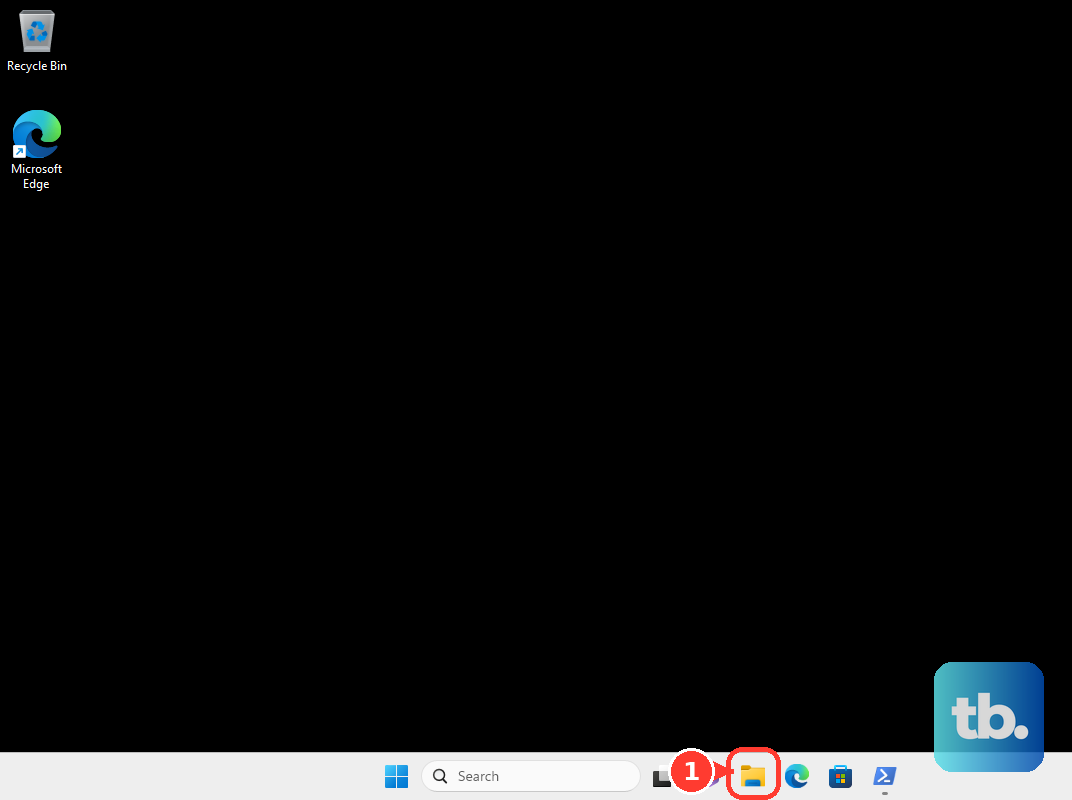
On Windows, open File Explorer, right-click the file or folder, then choose Compress to ZIP file or Send to > Compressed zipped folder, depending on the Windows version and menu.
On macOS, Control-click the item in Finder or on the desktop, then choose Compress.
On iPhone, open Files, tap More, tap Select, choose the files, then tap More in the lower right and tap Compress.
On iPad, open Files, tap Select, choose the files, then tap More and tap Compress.
After that, use the ZIP file as the item you upload or share.
Skip compression for already-compressed videos and photos when quality matters, because they often shrink very little.
Choose the safer sharing setting
Use specific-recipient access when the file is private or sensitive.
Use view-only permission unless the recipient must edit or upload into the folder.
Use password or expiration options when the transfer method and plan include them, especially for delivery-style transfers.
Use a file request when someone needs to send files to you without seeing the destination folder contents. Dropbox file requests support this upload-only flow; OneDrive file requests apply to OneDrive for Business and SharePoint, not ordinary OneDrive personal, and depend on organization settings.
Use a physical drive or USB transfer for files that should not be exposed through a public internet sharing link.
Expect limits on managed accounts. Google Workspace and Microsoft 365 admins can restrict external Drive, SharePoint, or OneDrive sharing.
Expect limits on managed Apple devices. Supervised devices can have AirDrop or document sharing restricted by device management.
Avoid Firefox Send. Mozilla says Firefox Send was discontinued on September 17, 2020, so it is not a current large-file sharing method.
Frequently Asked Questions
Should I send a large file as a document in WhatsApp or Telegram?
Use chat apps only when the file fits their limits and convenience matters more than access control. WhatsApp documents are limited to 2 GB. Telegram free users can send files up to 2 GB each, while Premium users can send files up to 4 GB each.
What is the best method when someone else needs to send large files to me?
Use a file request when available. Dropbox file requests let uploaders send files without seeing folder contents. OneDrive file requests work with OneDrive for Business and SharePoint, depending on organization settings.
Is an unlisted YouTube video the same as sending the video file?
No. YouTube is good when the recipient only needs to watch the video. It re-encodes uploads, so use a cloud link, local transfer, or external drive when the recipient needs the original file.
Should I still use Firefox Send for encrypted large files?
No. Mozilla says Firefox Send was discontinued on September 17, 2020, and users can no longer upload or receive files with it.