The best free photo editor for most people is Canva. It runs almost everywhere, keeps the basic photo workflow simple, and gives you crop, enhance, effects, filters, text, background tools, and export without making the first edit feel like a class project.
That does not make every other editor a second choice. GIMP is the desktop pick for deeper raster editing, Photopea is the easiest way to open a Photoshop-like editor in a browser, Snapseed is the mobile editor to keep on a phone, and the built-in Apple, Google, and Microsoft tools are exactly right when your photos already live there.
At a Glance
| Best for | Software | Standout | Free tier |
|---|---|---|---|
| Most people | Canva | Fast web and app editing with crop, enhance, filters, text, background tools, and export | Free plan at no cost, with Pro content and tools outside the free tier |
| Desktop raster editing | GIMP | Open-source editing with crop, rotate, scale, color, filter, heal, and clone tools | Free open-source app with no watermark, export, time, or seat limits identified |
| Free pro desktop suite | Affinity | Develop Studio and Pixel Studio controls for photo and RAW editing | Free for individuals, with optional Canva AI and Premium integrations |
| Windows simplicity | Paint.NET | Layers, adjustments, effects, tools, history, and editable .pdn files | Free classic installer with no watermark, export, or time limits identified |
| Browser-based advanced editing | Photopea | Photoshop-like menus and exports to JPG, PNG, SVG, PDF, and more | Free account available, with Premium removing ads |
| Quick Adobe-style web edits | Adobe Express | Filters, text, animation, adjustments, uploads, and downloads in a web or mobile editor | Free plan at no cost with basic tools and limited generative AI credits and assets |
| Google library editing | Google Photos | Markup, filters, crop, adjust, actions, and supported AI removal tools | Google account includes 15 GB shared storage at no cost, with some tools limited by device, account, age, or region |
| Mobile fine-tuning | Snapseed | More than 30 tools and filters, smart masking, batch editing, and export choices | Free mobile app with no subscriptions, purchases, ads, or watermarks |
| Built-in Windows edits | Microsoft Photos | Crop, adjustment, filter, markup, save options, and supported background blur features | Free Microsoft Photos app for current Windows builds |
| Built-in Apple edits | Apple Photos | Adjust, filters, crop, markup, Clean Up where available, and copy or paste edits on Mac | Free built-in Apple app, with iCloud storage beyond the free allocation handled separately |
How we chose
We prioritized editors that make the free version feel complete: useful crop and adjustment controls, clear export paths, strong platform fit, and limits that do not swallow the recommendation. We cut candidates when save restrictions, unclear official availability, deprecated status, or free-tier friction made them weaker than the options here.
Canva
Key highlights
- Standout: Fast web and app editing with crop, enhance, filters, text, background tools, and export
- Free tier: Free plan at no cost, with Pro content and tools outside the free tier
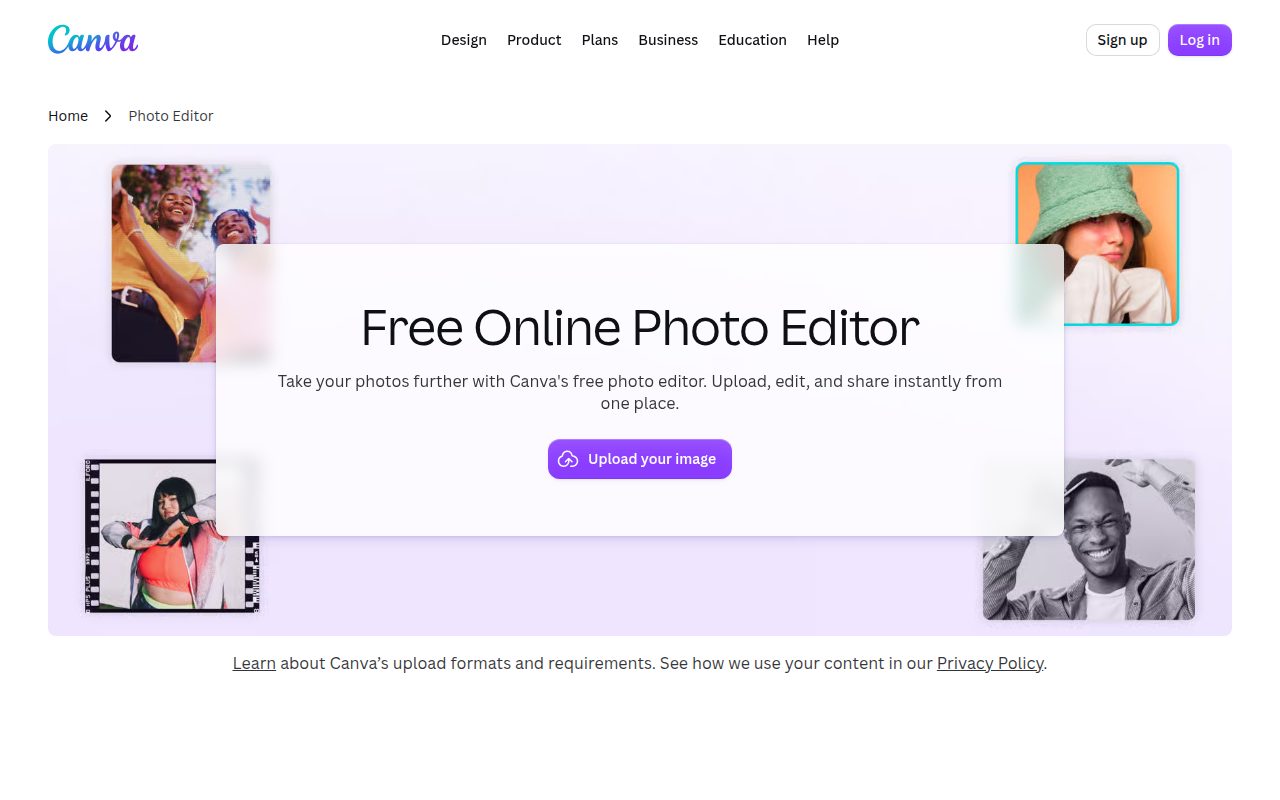
Canva is the editor most people should open first because it makes common photo work quick without shrinking into a toy. Upload a photo, crop it, enhance it, add text, use filters or effects, adjust the background, and export from the same web workflow.
Its spot comes from reach as much as ease. Canva works on the web, Windows, macOS, iOS, Android, and Chromebook, so it fits a home laptop, a work browser, and a phone without asking you to learn a different editor on each screen.
The free plan is enough for everyday image edits, but the line is clear: Pro content, premium tools, and some AI features sit outside it, and free users can see watermarks when they use Pro content.
Pros
- It is the easiest first pick for quick photo edits.
- It works across web, desktop, mobile, and Chromebook.
- It includes crop, enhance, effects, filters, text, and background tools.
- It has a free plan at no cost.
Cons
- A Canva account is part of normal saved and export workflows.
- Pro content can add watermarks for free users.
- Premium tools and some AI features are outside the free tier.
Most people who want a free editor for fast photo edits, social images, simple text layouts, and exports across devices.
You want a dedicated desktop raster editor with deeper clone, heal, and color work.
GIMP
Key highlights
- Standout: Open-source editing with crop, rotate, scale, color, filter, heal, and clone tools
- Free tier: Free open-source app with no watermark, export, time, or seat limits identified
GIMP belongs on this list because it is the serious free desktop editor for raster photo work. It is free and open-source, runs on Windows, macOS, and GNU/Linux, and gives you traditional editing tools instead of a template-first workspace.
The standout is the depth of the desktop toolset. Crop, rotate, scale, colors, filters, heal, and clone tools give GIMP the range to handle detailed image edits, especially when you want the file on your computer and the workflow inside a full application.
Choose it when control matters more than speed. GIMP is the pick for people who want a no-cost desktop app and do not need a browser account or mobile-first editor.
Pros
- It is free and open-source.
- It runs on Windows, macOS, and GNU/Linux.
- It includes heal and clone tools for detailed raster editing.
- There are no stated watermark, export, time, or seat limits.
Cons
- It is desktop software, so it is not the fastest phone or browser choice.
- The traditional interface asks for more patience than Canva or Photos.
Desktop users who want a free open-source photo editor with real raster tools for crop, color, filters, heal, and clone work.
You want an editor centered on templates, cloud saves, or quick mobile exports.
Affinity
Key highlights
- Standout: Develop Studio and Pixel Studio controls for photo and RAW editing
- Free tier: Free for individuals, with optional Canva AI and Premium integrations
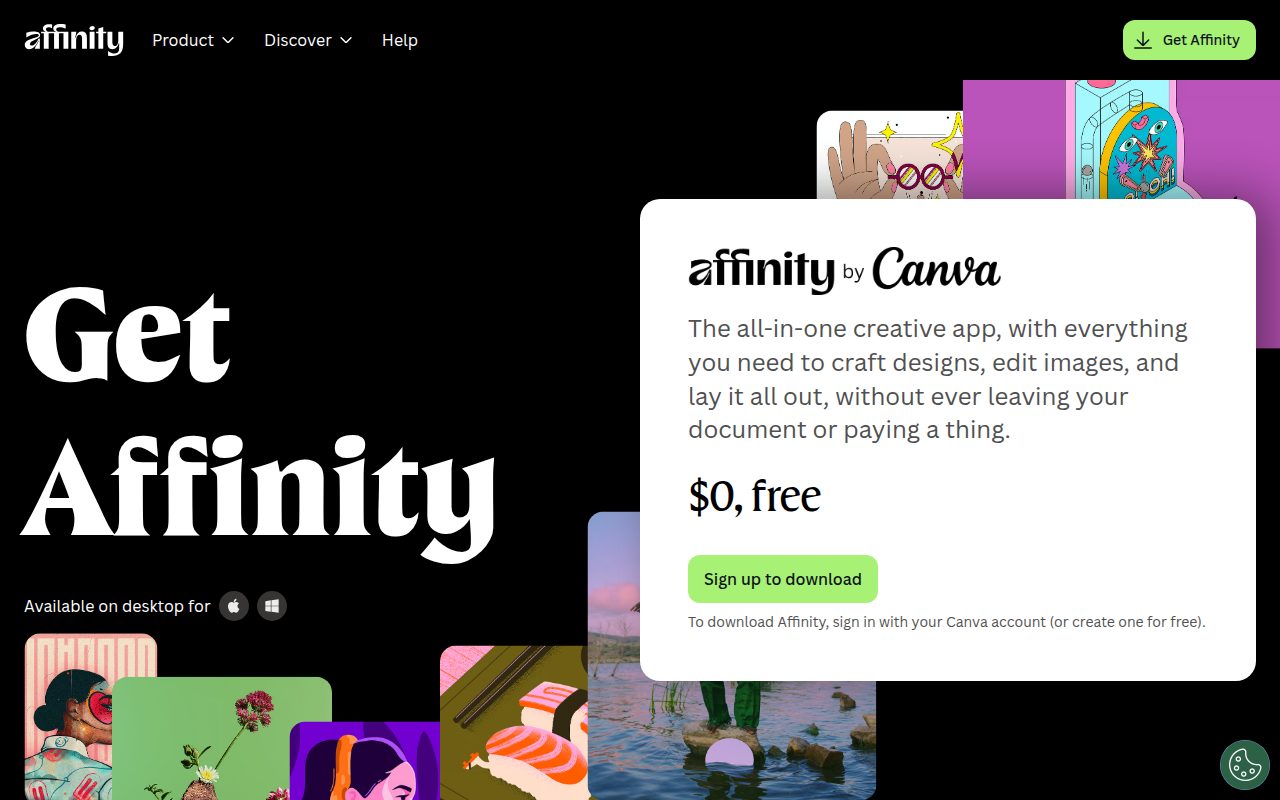
Affinity is the unusual entry here: a professional desktop creative app from Canva that is free for individuals. For photo editing, it earns its place because Develop Studio and Pixel Studio give photographers a more production-minded workspace than a quick online editor.
It is desktop-only for macOS and Windows, which keeps the recommendation focused. Open an image or RAW file, work through the photo controls, then export from the same application.
The current Affinity direction also matters. It replaces the older separate Affinity Photo, Designer, and Publisher model for new users, so this is the version to choose now.
Pros
- It is free for individuals.
- It supports photo and RAW editing workflows.
- Develop Studio and Pixel Studio give it a professional desktop feel.
- It runs on macOS and Windows.
Cons
- It is not available as a mobile editor.
- It does not run on Linux.
- Canva AI and Premium integrations are optional extras outside the core free app.
Mac and Windows users who want a free professional desktop suite for photo and RAW edits.
You need Linux support, phone editing, or a browser-only workflow.
Paint.NET
Key highlights
- Standout: Layers, adjustments, effects, tools, history, and editable .pdn files
- Free tier: Free classic installer with no watermark, export, or time limits identified
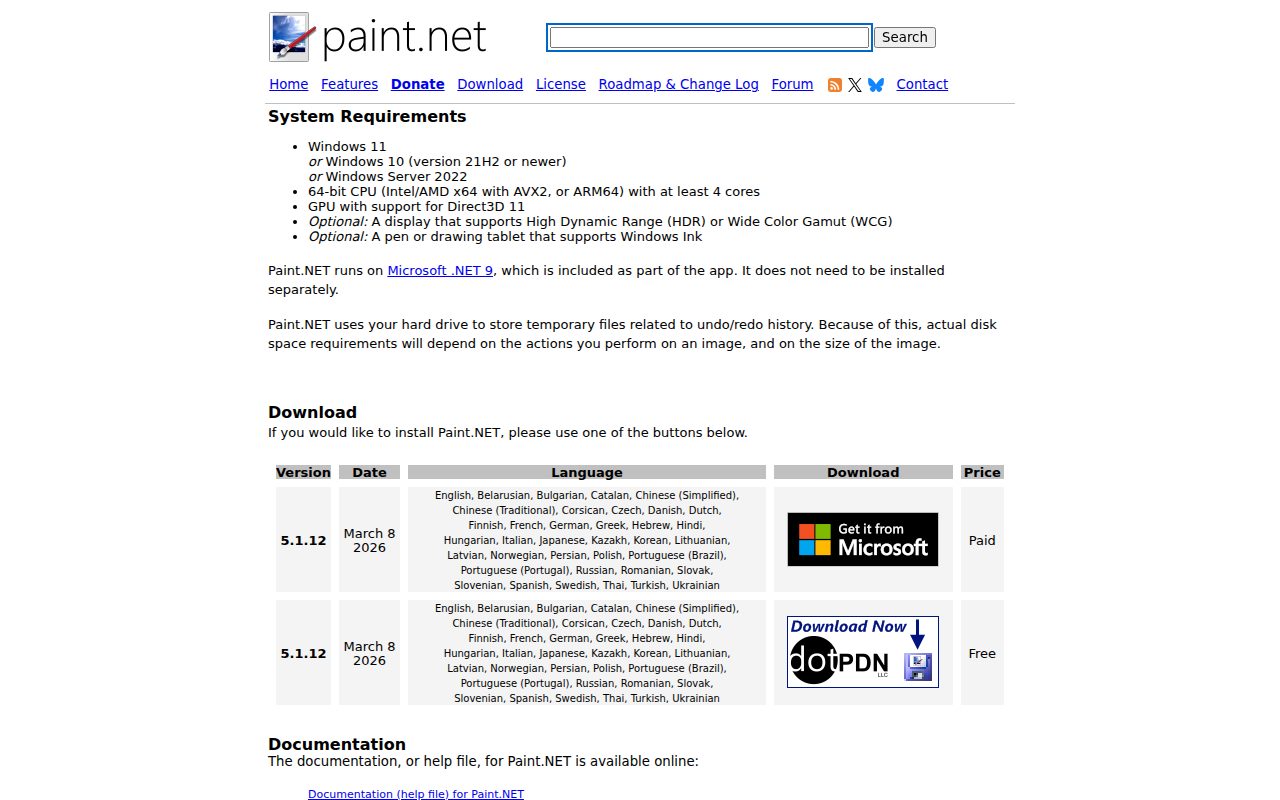
Paint.NET keeps the Windows experience focused and familiar without stripping out the tools that make an editor useful. It is a free Windows photo editor from dotPDN with a classic installer, and the current requirements are Windows 11, Windows 10 version 21H2 or newer, or Windows Server 2022, on a 64-bit CPU with at least four cores (x64 with AVX2, or ARM64) and a GPU that supports Direct3D 11.
Its strongest feature is the balanced workspace: adjustments, effects, layers, tools, and history are all present, and the editable .pdn format keeps project work separate from exported image files. That makes it more capable than a bare built-in editor while staying lighter than GIMP.
Pick Paint.NET when you want a Windows editor that gets out of the way. It is especially good for users who need layers and history without a full professional suite.
Pros
- It has a free classic installer for Windows.
- It includes layers, adjustments, effects, tools, and history.
- It can save editable .pdn files.
- There are no stated watermark, export, or time limits.
Cons
- It is Windows-only.
- It requires Windows 11, Windows 10 version 21H2 or newer, or Windows Server 2022, with a four-core x64 AVX2 or ARM64 CPU and a Direct3D 11 GPU.
- It is less platform-flexible than Canva, GIMP, or Photopea.
Windows users who want a simple free editor with layers, history, effects, and clean save options.
You work on macOS, Linux, Chromebook, or a phone.
Photopea
Key highlights
- Standout: Photoshop-like menus and exports to JPG, PNG, SVG, PDF, and more
- Free tier: Free account available, with Premium removing ads
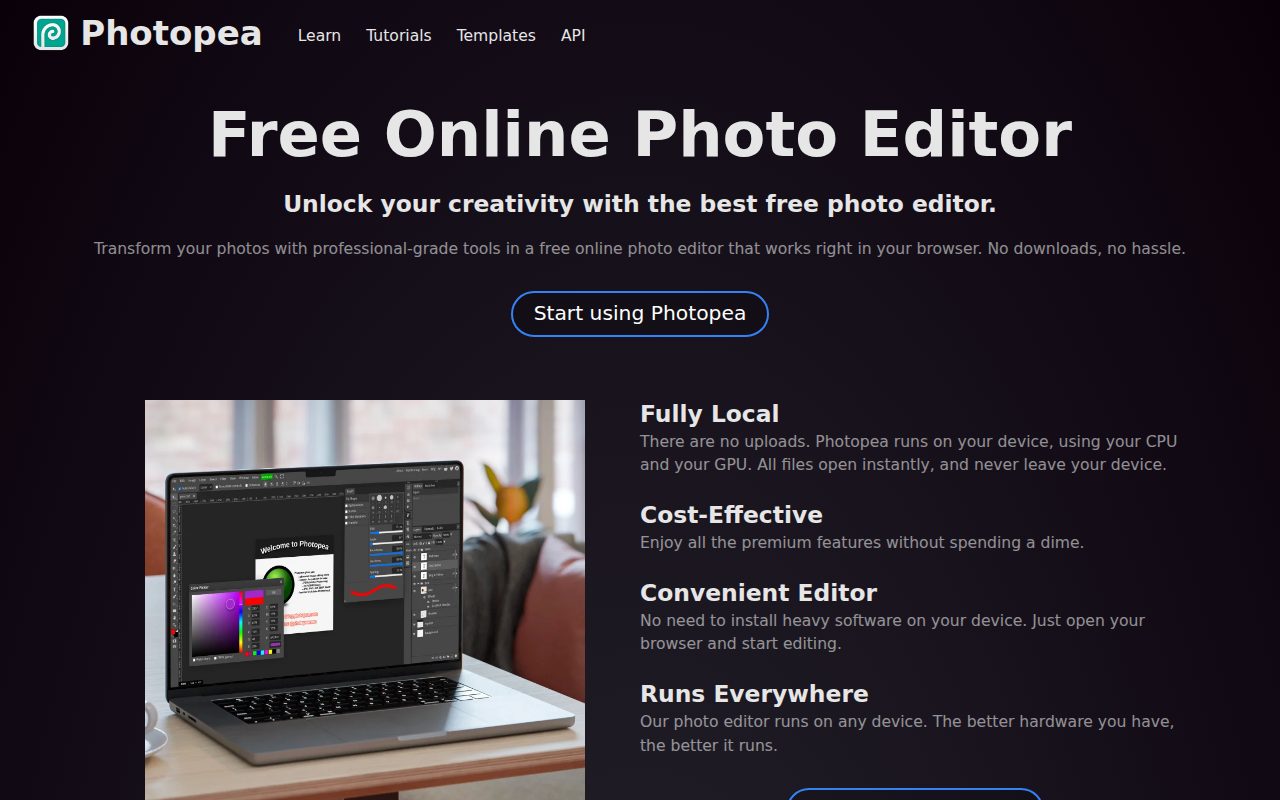
Photopea is the browser editor to use when you want a Photoshop-like workspace without installing anything. Open the site, start using Photopea, drag in an image or choose File Open, and the editor runs in a modern desktop browser.
It earns the browser slot because it feels closer to a full image editor than a quick crop page. The menus and tools are Photoshop-like, and the export options cover JPG, PNG, SVG, PDF, and other formats.
The free account keeps Photopea accessible, while Premium removes ads. For people moving between computers, that browser-first setup is the point.
Pros
- It runs in a modern desktop browser.
- It does not require a desktop install.
- It has Photoshop-like menus and tools.
- It exports to JPG, PNG, SVG, PDF, and more.
Cons
- The free version includes ads.
- It is best suited to desktop browsers, not phone-first editing.
Users who want advanced image editing in a browser, especially when installing desktop software is not the right fit.
You want an ad-free free tier or a mobile-first editor.
Adobe Express
Key highlights
- Standout: Filters, text, animation, adjustments, uploads, and downloads in a web or mobile editor
- Free tier: Free plan at no cost with basic tools and limited generative AI credits and assets
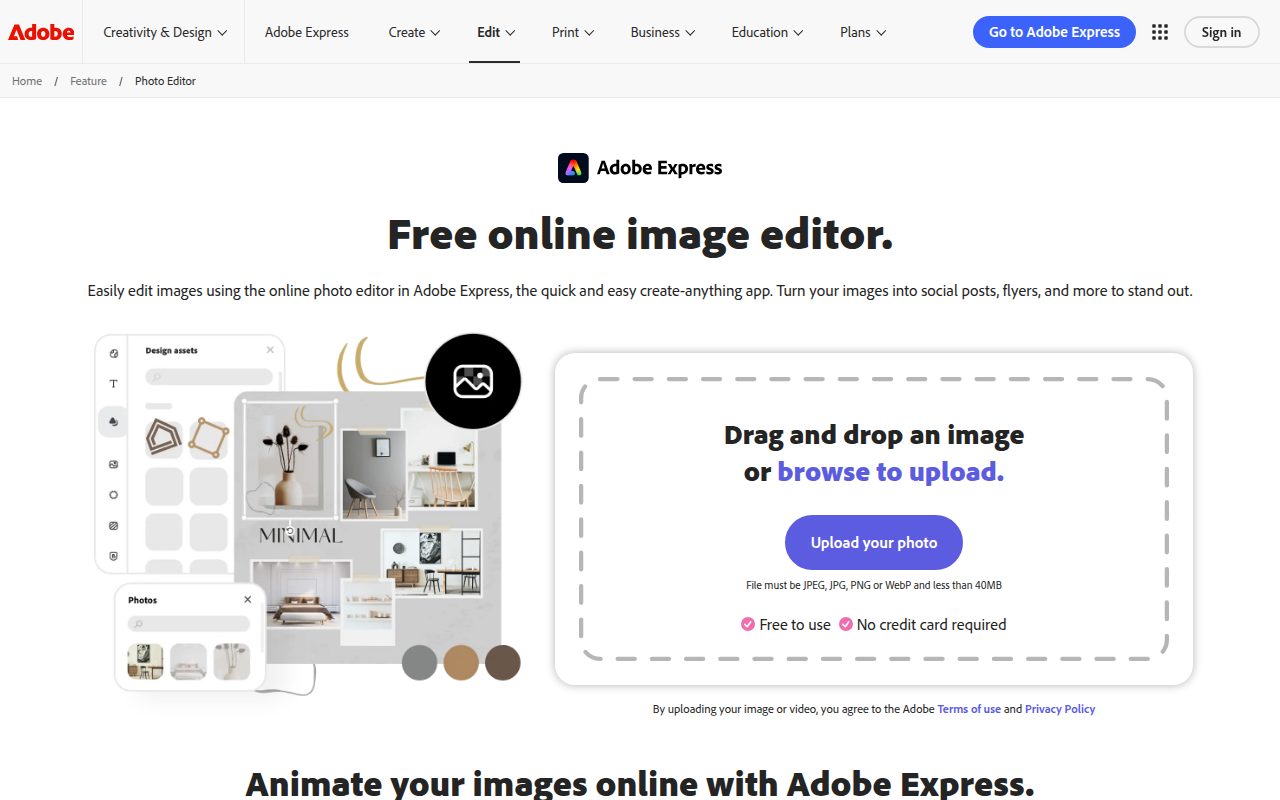
Adobe Express earns its place as the best free Adobe option for quick web and mobile photo edits. Upload a photo, select the image, and the editor gives you filters, text, animation, adjustments, and a download path.
The free plan is direct: no cost, no credit card, basic tools, limited generative AI credits, and limited assets. That makes Express a clean choice when you want Adobe’s lightweight editor rather than a full desktop application.
Use it for polished quick edits that need text, simple motion, or web-friendly output. It is not the deepest editor here, and it is not trying to be.
Pros
- It has a free plan at no cost with no credit card required.
- It works in desktop browsers and on mobile phones.
- It includes filters, text, animation, and adjustments.
- It supports uploads from a device and downloads from the editor.
Cons
- The free plan has limited generative AI credits and assets.
- Premium unlocks more tools, assets, and credits.
- It is less suited to detailed raster work than GIMP or Affinity.
Users who want a free Adobe web or mobile editor for quick photo edits, text, animation, and downloads.
You need a full desktop photo editor with deep pixel-level controls.
Google Photos
Key highlights
- Standout: Markup, filters, crop, adjust, actions, and supported AI removal tools
- Free tier: Google account includes 15 GB shared storage at no cost, with some tools limited by device, account, age, or region
Google Photos fits the person whose images already live in a Google account. Open a photo in the app, tap Edit, and the categories include Markup, Filters, Crop, Adjust, and Actions. On some layouts those categories sit under Edit > Tools.
The standout is convenience inside the library. Supported users can access AI and object removal paths such as Magic Eraser from the edit flow, while computer editing at photos.google.com covers supported tools for desktop access.
Its free tier is tied to the wider Google account: 15 GB of shared storage at no cost, with Google One storage separate. Some mobile editing tools and AI features depend on device specs, Pixel status, region, account, or age.
Pros
- It is built around the Google Photos library.
- It works on Android, iOS, and the web for supported tools.
- It includes Markup, Filters, Crop, Adjust, and Actions editing areas.
- A Google account includes 15 GB of shared storage at no cost.
Cons
- Some editing tools require Android 8.0 or later and 3 GB RAM.
- Some AI features are limited by device, region, account, or age.
- Storage beyond the included Google account allocation uses Google One.
Google Photos users who want editing, markup, supported AI tools, and library management in the same place.
You want an editor that is independent from a cloud photo library.
Snapseed
Key highlights
- Standout: More than 30 tools and filters, smart masking, batch editing, and export choices
- Free tier: Free mobile app with no subscriptions, purchases, ads, or watermarks
Snapseed still feels purpose-built for phone editing. It is Google’s mobile photo editor for Android and iOS or iPadOS, and its store listing describes more than 30 tools and filters.
Its standout is how complete the free mobile package is. Smart masking, batch editing, and export choices sit alongside Looks and Tools, so the app fits quick edits and more deliberate phone-based adjustments.
The free tier is unusually clean. The listing describes no subscriptions, no purchases, no ads, and no watermarks.
Pros
- It is available for Android and iOS or iPadOS.
- It includes more than 30 tools and filters.
- It supports smart masking and batch editing.
- It has no subscriptions, purchases, ads, or watermarks.
Cons
- It is a mobile editor, not a desktop app.
- It is less connected to desktop export workflows than Canva or Photopea.
Phone and tablet users who want a complete free editor with filters, tools, masking, batch editing, and clean exports.
You want a desktop workspace or a browser editor.
Microsoft Photos
Key highlights
- Standout: Crop, adjustment, filter, markup, save options, and supported background blur features
- Free tier: Free Microsoft Photos app for current Windows builds
Microsoft Photos covers the Windows edit you want to make without opening a separate creative app. Search for Photos, select an image, choose Edit image or press Ctrl + E, then use Crop, Adjustment, Filter, or Markup.
It earns a spot because built-in software matters when the job is simple. Microsoft’s Windows photo guidance also points to AI photo editing features such as background blur, making Photos more useful than a basic viewer on current Windows builds.
Choose Microsoft Photos when your edits stay inside Windows and you only need clean adjustments, crops, filters, markup, and save options. For layers or project files, Paint.NET is the better Windows pick.
Pros
- It is free on current Windows Photos app builds.
- It is built into the Windows photo workflow.
- It includes crop, adjustment, filter, and markup tools.
- It supports save options from the editor.
Cons
- It is limited to Windows.
- It is not built for layered project editing.
- Some AI photo editing features depend on current Windows app support.
Windows users who want a free built-in editor for quick crops, adjustments, filters, markup, and background blur where supported.
You need layers, editable project files, or a cross-platform editor.
Apple Photos
Key highlights
- Standout: Adjust, filters, crop, markup, Clean Up where available, and copy or paste edits on Mac
- Free tier: Free built-in Apple app, with iCloud storage beyond the free allocation handled separately
Apple Photos is the cleanest choice for Apple users who want to edit where their images already are. On iPhone, the Edit button opens Adjust, Filters, Crop, Markup, and Clean Up where available.
The Mac version gives the built-in editor more staying power. You can double-click a photo, choose Edit from the toolbar, compare with the M key, and use Image Copy Edits or Image Paste Edits for batch-style reuse.
The app is free from Apple, while iCloud storage beyond the free allocation is separate. Clean Up and Apple Intelligence features depend on eligible devices, supported languages, supported regions, and Apple Intelligence availability.
Pros
- It is built into iOS, iPadOS, and macOS.
- It includes adjust, filters, crop, markup, and Clean Up where available.
- The Mac app can copy and paste edits.
- It is free from Apple.
Cons
- Clean Up and Apple Intelligence features have device, language, region, and availability limits.
- iCloud storage beyond the free allocation is separate.
- It is best for Apple users, not mixed-platform editing teams.
iPhone, iPad, and Mac users who want free built-in editing, quick adjustments, markup, and Apple library integration.
You need the same editor on Windows, Android, Linux, and the web.
How to Choose
- Start with Canva. It is the best pick for most people because it handles common edits, text, backgrounds, and exports across nearly every major platform.
- Choose GIMP for desktop depth. It is the free open-source option for users who want crop, color, filters, heal, and clone tools in a real desktop app.
- Pick Affinity for free professional desktop work. It is the choice for Mac and Windows users who want Develop Studio and Pixel Studio controls, including RAW editing.
- Use Paint.NET on Windows. It is the clean Windows choice when layers, effects, history, and editable .pdn files matter more than cross-platform access.
- Open Photopea in the browser. It is the right call when you want Photoshop-like menus and broad export formats without installing software.
- Stay inside your photo library for quick edits. Google Photos, Microsoft Photos, and Apple Photos are best when your priority is editing images where they already live.
- Install Snapseed for phone editing. It is the strongest free mobile-only recommendation thanks to its tools, filters, masking, batch editing, and no ads or watermarks.











