The best DNS service for most people is Cloudflare 1.1.1.1. It is simple, fast to set up on almost anything, and gives you a clean choice between plain DNS, malware blocking, and family filtering without asking you to build a whole dashboard first.
That does not make every other option redundant. Google Public DNS is the straightforward pick for people who want a stable public resolver with familiar addresses, Quad9 is the security-first choice, NextDNS is the strongest configurable option, and services like OpenDNS, AdGuard, Control D, and CleanBrowsing earn their places when filtering matters more than simplicity.
At a Glance
| Best for | Software | Standout | Free tier |
|---|---|---|---|
| Most people | Cloudflare 1.1.1.1 | Standard, malware, and family resolver choices plus mobile apps | Free public DNS and free mobile app |
| Simple public DNS | Google Public DNS | Memorable IPv4 and IPv6 addresses with DoH and DoT support | Free public DNS |
| Security-first DNS | Quad9 | Malware-blocking secure service with broad encrypted setup guides | Free public DNS |
| Whole-home family filtering | OpenDNS | OpenDNS Home customization or FamilyShield preset adult-content blocking | OpenDNS Home and FamilyShield are free |
| Ad and family filters | AdGuard Public DNS | Default, non-filtering, and family protection resolvers | Free public resolvers |
| Custom DNS rules | NextDNS | Dashboard-generated profiles for DNS, DoH, DoT, apps, and routers | 300,000 queries per month with all features |
| Preset no-account filters | Control D Free DNS | Ready-made unfiltered, malware, ads, social, and family resolvers | Free ready-made resolvers |
| Simple family presets | CleanBrowsing Free DNS Filters | Family, Adult, and Security filter choices with IP, hostname, DoH, and DoT options | Three free preset filters |
How we chose
We prioritized DNS services with official setup paths for everyday devices, clear free availability, and enough resolver choices to make the recommendation useful beyond a single laptop. A service had to publish its own setup information, support common surfaces like routers, Windows, macOS, Android, iOS, or browser secure DNS, and avoid deprecated consumer paths.
We gave extra weight to services that make the first choice obvious: a plain resolver for speed and reliability, a malware-blocking option for security, or a family filter for homes. We left out candidates when the official URL was missing, the consumer offer was unclear, or the value depended on hardware, shopping decisions, retailer availability, or unverified performance claims.
Cloudflare 1.1.1.1
Key highlights
- Standout: Standard, malware, and family resolver choices plus mobile apps
- Free tier: Free public DNS and free mobile app
Cloudflare 1.1.1.1 is the DNS service most people should pick because it keeps the first decision clean. You can use the standard resolvers, switch to the malware-blocking pair at 1.1.1.2 and 1.0.0.2, or use the malware-plus-adult-content pair at 1.1.1.3 and 1.0.0.3 when a household filter is the goal.
It earns the top spot because the official setup coverage is broad without feeling heavy. Cloudflare documents manual DNS setup across Windows, macOS, iOS Wi-Fi, Android Private DNS, routers, gaming consoles, and encrypted DNS clients, and the 1.1.1.1 mobile app covers cellular connections on iOS and Android through its WARP connection toggle.
The standout detail is how easy it is to match the setting to the device. Android can use Private DNS hostnames like one.one.one.one, security.cloudflare-dns.com, or family.cloudflare-dns.com, while the app exposes 1.1.1.1 for Families through Advanced, Connection options, and DNS settings.
Pros
- It gives most users a simple standard resolver and two clear filtering levels.
- The official setup page covers major desktop, mobile, router, console, and encrypted DNS paths.
- The free mobile app covers iOS and Android connections beyond Wi-Fi-only manual DNS.
- The Families options are easy to remember and do not require a dashboard.
Cons
- It is less customizable than dashboard-based services such as NextDNS.
- iOS manual DNS applies to Wi-Fi only unless you use the app.
Most people who want a free DNS service that is quick to set up, easy to remember, and flexible enough for basic malware or family filtering.
You want detailed per-profile rules, logs, and configuration controls rather than preset resolver choices.
Google Public DNS
Key highlights
- Standout: Memorable IPv4 and IPv6 addresses with DoH and DoT support
- Free tier: Free public DNS
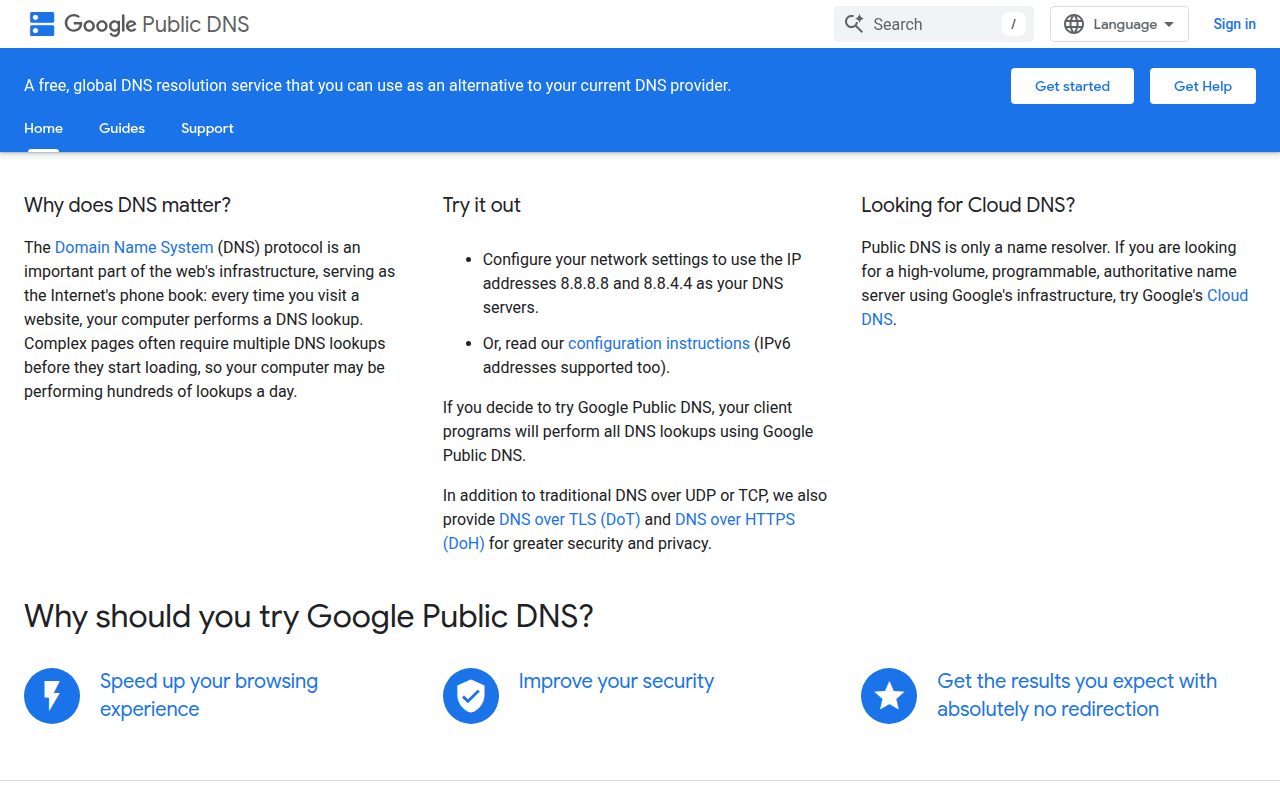
Google Public DNS is the cleanest choice for people who want a familiar public resolver and do not need filtering decisions at all. Its IPv4 addresses, 8.8.8.8 and 8.8.4.4, are easy to remember, and Google also publishes IPv6 addresses plus encrypted DNS endpoints including dns.google and a DNS-over-HTTPS URL.
It belongs here because it stays focused. The official setup paths cover Windows, macOS, Linux, ChromeOS, routers, iOS, and Android Private DNS, so it works well when you want a basic resolver that fits into normal network settings. Google publishes its DNS-over-HTTPS and DNS-over-TLS endpoints rather than browser setup steps, so for in-browser secure DNS you point your browser's own Secure DNS setting at Google.
The concrete standout is Android Private DNS support through the hostname dns.google. That makes it especially neat for someone who wants encrypted DNS on a phone without choosing blocklists, family categories, or account-based controls.
Pros
- It has memorable IPv4 addresses that are easy to enter correctly.
- It supports IPv6, DNS-over-HTTPS, and DNS-over-TLS endpoints.
- The official guidance covers common operating systems, routers, mobile devices, and Android Private DNS.
- It is a strong fit for users who want DNS without filtering features.
Cons
- It does not offer the built-in malware or family-filtering resolver choices found in several rivals.
- It is not the best choice for people who want customizable DNS policies.
People who want a no-fuss free public DNS resolver with easy-to-remember addresses and official encrypted DNS endpoints.
You want DNS-level blocking for malware, ads, adult content, or custom categories.
Quad9
Key highlights
- Standout: Malware-blocking secure service with broad encrypted setup guides
- Free tier: Free public DNS
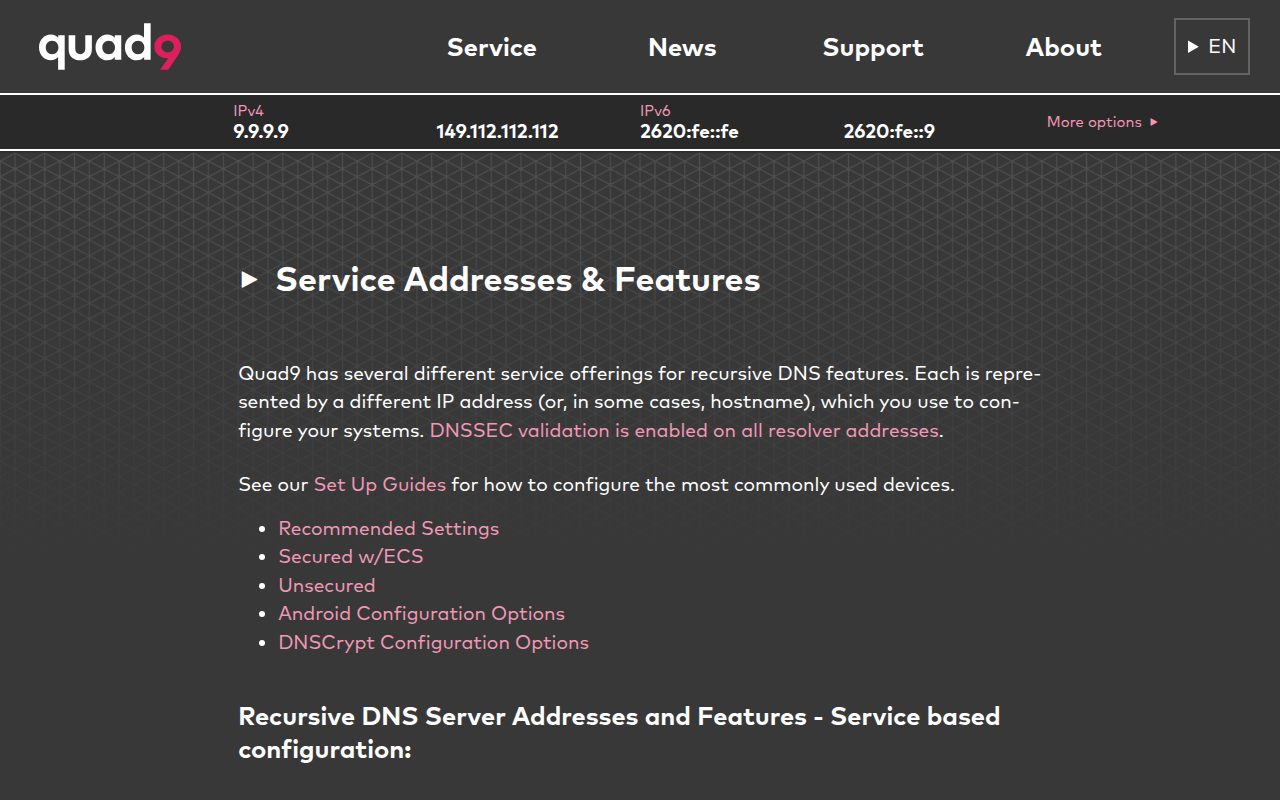
Quad9 is the DNS service to choose when malware blocking is the main reason you are changing resolvers. Its secure service uses 9.9.9.9 with 149.112.112.112 as the secondary address, and Quad9 publishes service addresses and encrypted setup guidance from the Swiss non-profit Quad9 Foundation.
It earns its place by making security the center of the product instead of an optional side setting. Quad9 publishes current setup guides for Android 9 and later, iOS 14 and later, macOS Big Sur and later, Windows 11 encrypted DNS, ChromeOS, routers, Linux, BSD, and router platforms including OpenWrt, pfSense, OPNsense, MikroTik, and IPFire.
The standout feature is its range of encrypted DNS options. Quad9 documents support for DoH, DoT, and DNSCrypt, which gives more technical users room to deploy it across modern clients without losing the malware-blocking focus.
Pros
- It puts malware-blocking DNS at the center of the service.
- The primary secure address is simple and memorable.
- It has official guides for modern desktop, mobile, router, and encrypted DNS setups.
- It supports several encrypted DNS methods for more technical environments.
Cons
- It is not built around family filtering or ad-blocking presets.
- It offers less consumer-facing customization than NextDNS or OpenDNS Home.
Security-minded users who want a free malware-blocking resolver with strong platform coverage and encrypted DNS support.
Your priority is family content categories, ad filtering, or a dashboard with custom rules.
OpenDNS
Key highlights
- Standout: OpenDNS Home customization or FamilyShield preset adult-content blocking
- Free tier: OpenDNS Home and FamilyShield are free
OpenDNS is the right pick for households that want DNS filtering at the router level. OpenDNS Home is the customizable option, while OpenDNS FamilyShield is the preconfigured choice for adult-content blocking, and both are still presented as free consumer services on the official home internet security page.
It earns this slot because it treats the home network as the main surface. The official setup guide starts by choosing a device type, but router-level setup is the strongest use case because one DNS change can apply across the home instead of repeating the same settings on every phone, laptop, console, and TV.
The standout is the split between OpenDNS Home and FamilyShield. OpenDNS Home suits people who want customizable settings after sign-up, while FamilyShield is for people who want a preset family filter without building a ruleset first.
Pros
- It offers both customizable OpenDNS Home and preset FamilyShield options.
- Router-level setup is well matched to whole-home coverage.
- The consumer page still presents Home and FamilyShield as free services.
- It works with routers and individual devices that allow manual DNS.
Cons
- OpenDNS Home requires sign-up for customizable settings.
- It is less direct than Cloudflare if you only want a quick resolver swap.
Families and shared households that want router-level DNS filtering, especially when adult-content blocking is a primary requirement.
You want a lightweight mobile-first setup or encrypted DNS guidance to be the main product experience.
AdGuard Public DNS
Key highlights
- Standout: Default, non-filtering, and family protection resolvers
- Free tier: Free public resolvers
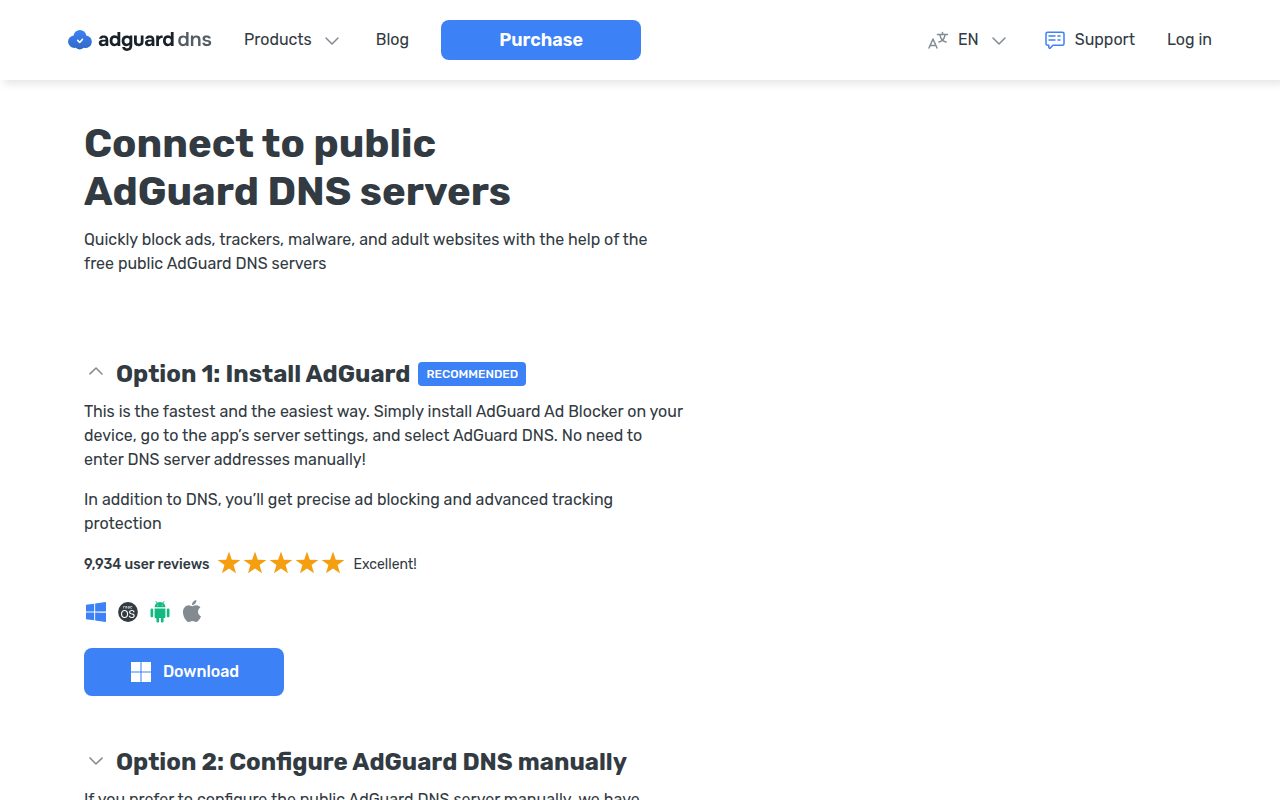
AdGuard Public DNS is the strongest pick here for people who want filtering choices that include ads and tracking. Its public DNS page exposes three free resolver families: Default, Non-filtering, and Family protection, so you can choose between filtered DNS, plain DNS, and a stricter household option.
It earns its place because the setup options are unusually complete for a public DNS service. AdGuard publishes manual IPv4 values, DNS-over-HTTPS URLs, DNS-over-TLS hostnames, and configuration profile flows for iOS and macOS, with support also extending to Android Private DNS, browsers, smart TVs, and game or TV devices listed by AdGuard.
The standout setting is the Family protection resolver at 94.140.14.15 and 94.140.15.16. For encrypted setups, AdGuard also publishes matching endpoints such as the family DNS-over-HTTPS URL and family DNS-over-TLS hostname.
Pros
- It includes Default, Non-filtering, and Family protection resolver choices.
- It publishes manual DNS values as well as DoH and DoT endpoints.
- It offers iOS and macOS configuration profile setup paths.
- It is a practical option when ad and tracking filtering matter.
Cons
- Managed personal and team account features live outside the free public resolver experience.
- It can be more decision-heavy than a plain resolver like Google Public DNS.
People who want free DNS-level filtering for ads, tracking, and family protection without starting from a fully custom dashboard.
You want the simplest possible public DNS address with no filtering choices.
NextDNS
Key highlights
- Standout: Dashboard-generated profiles for DNS, DoH, DoT, apps, and routers
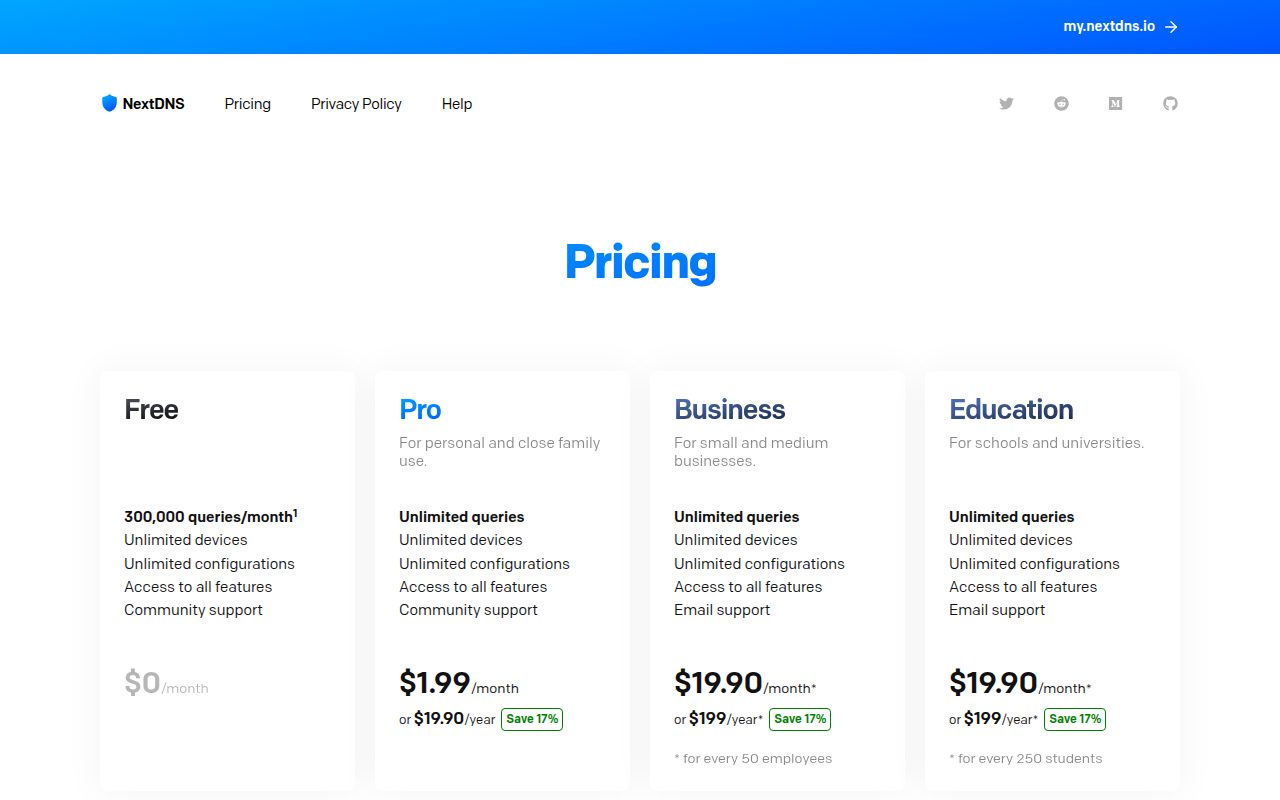
- Free tier: 300,000 queries per month with all features
NextDNS is the best choice when you want DNS to behave like a configurable firewall. It is not the default recommendation for most people because it asks you to work through a generated configuration, but that is exactly why it wins for users who want custom rules across devices and networks.
It earns its spot because the free tier is unusually complete before the query cap. The pricing page confirms 300,000 queries per month, unlimited devices, unlimited configurations, all features, community support, and a paid Pro tier when you need unlimited queries.
The standout detail is the profile-based setup. NextDNS gives each configuration its own setup values, including assigned DNS IPs and a DNS-over-HTTPS URL in the form of a profile-specific endpoint, and basic IPv4 use requires linking your public IP in the dashboard.
Pros
- It offers all features on the free tier up to 300,000 queries per month.
- It supports unlimited devices and unlimited configurations on the free tier.
- It works across Windows, macOS, Android, iOS, routers, browsers, and encrypted DNS clients.
- Its profile-based setup is well suited to custom policies.
Cons
- The free tier has a 300,000-query monthly limit.
- IPv4 setup requires linking your public IP to the configuration.
- It is more involved than choosing a shared public resolver address.
Power users, parents, and small networks that want fine-grained DNS rules, multiple configurations, and full-feature access before crossing the free query limit.
You want a set-and-forget public resolver that works without profiles, linked IPs, or dashboard decisions.
Control D Free DNS
Key highlights
- Standout: Ready-made unfiltered, malware, ads, social, and family resolvers
- Free tier: Free ready-made resolvers
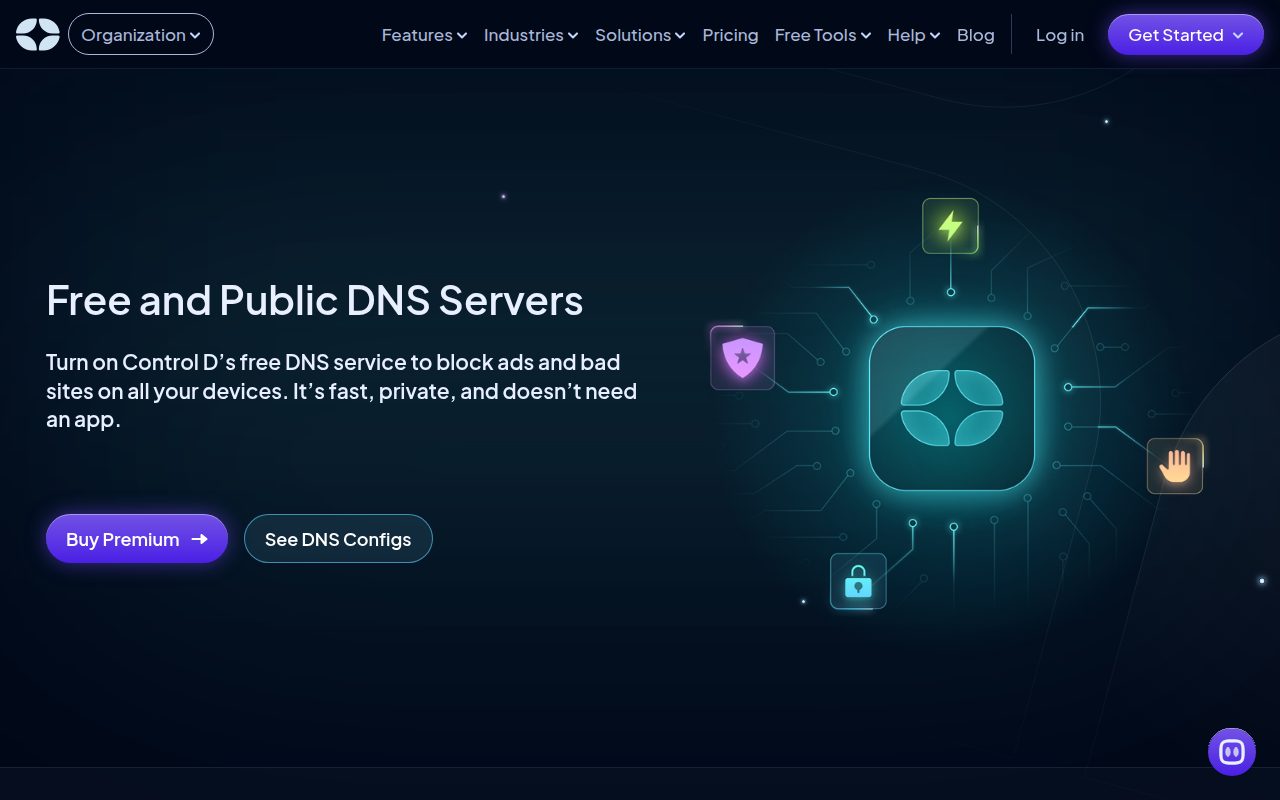
Control D Free DNS is the best fit when you want ready-made DNS filters but do not want to create an account or install an app. Its free DNS page offers quick setup choices for Unfiltered, Malware Protection, Ads and Tracking, Social, Family Friendly, and Advanced options.
It earns its place by making preset filtering broad and approachable. The official page generates legacy resolvers, secure resolvers, DNS-over-HTTPS or DNS-over-HTTP/3 URLs, and DNS-over-TLS or DNS-over-QUIC hostnames, so the same service can fit routers, operating systems, browsers, and Android Private DNS.
The standout is the combination of no logging, no required app, anycast, encrypted DNS protocols, and ready-made filters on the free surface. Custom and premium filtering moves into paid or trial product areas, but the free resolver menu is already useful for common categories.
Pros
- It offers several ready-made filter choices without requiring an app.
- The free DNS page says there is no DNS query logging.
- It supports legacy resolvers, secure resolvers, DoH, DoH3, DoT, and DoQ options.
- It is easy to match a preset to a specific network goal.
Cons
- Custom and premium filters belong to paid or trial product surfaces.
- The Advanced option can be less obvious than a simple named family or malware resolver.
Users who want no-account preset filters for malware, ads and tracking, social access, or family-friendly browsing across devices and routers.
You want a full custom filtering dashboard included in the free public resolver experience.
CleanBrowsing Free DNS Filters
Visit CleanBrowsing Free DNS Filters
Key highlights
- Standout: Family, Adult, and Security filter choices with IP, hostname, DoH, and DoT options
- Free tier: Three free preset filters
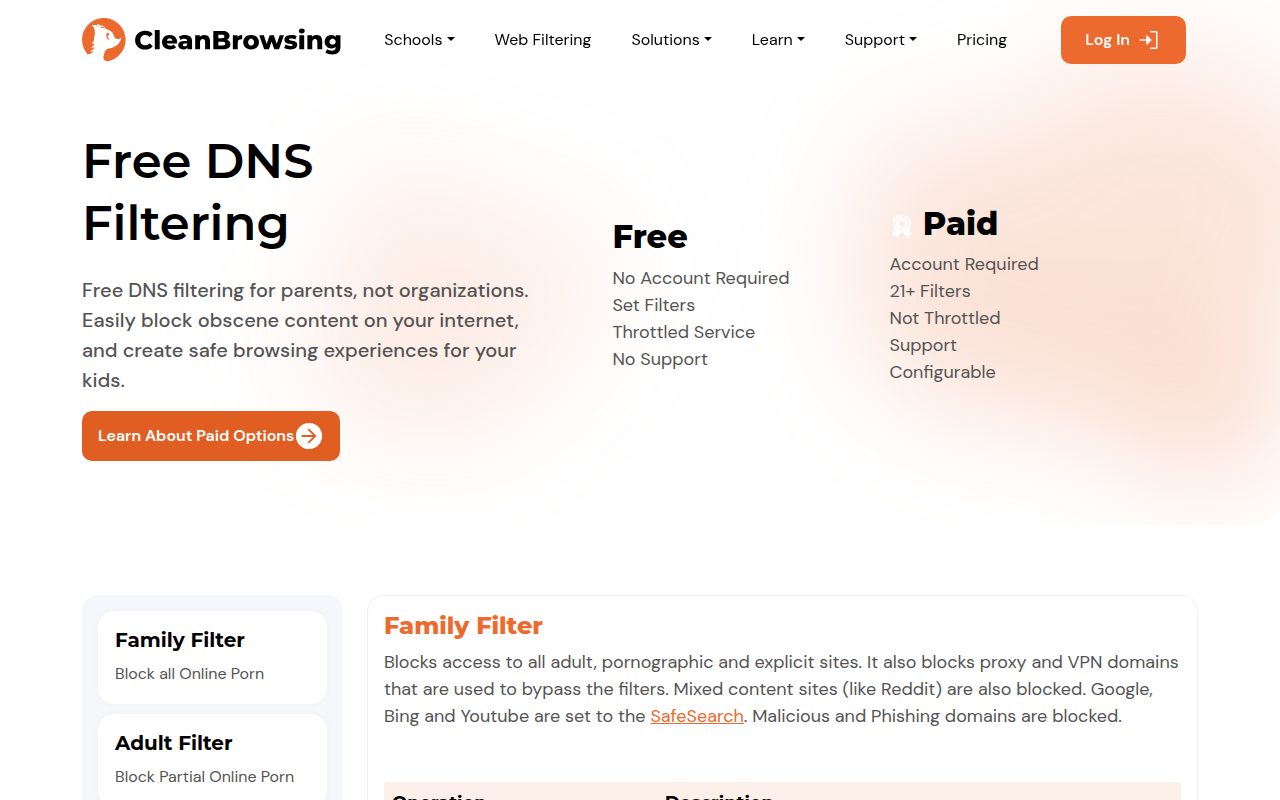
CleanBrowsing Free DNS Filters is the cleanest choice for people who want three clearly named presets and no account. The free filters are Family Filter, Adult Filter, and Security Filter, each with published DNS IPs, Android Private DNS hostnames, DNS-over-HTTPS URLs, and DNS-over-TLS hostnames.
It earns its place because the categories are direct. Family Filter is the household option, Adult Filter focuses on adult-content blocking, and Security Filter is the lighter security-oriented preset, with setup available through router or device DNS settings, browser DoH, Android Private DNS, or generated iOS and macOS profiles.
The standout feature is the completeness of each preset’s official connection details. For example, the Family Filter includes 185.228.168.168 and 185.228.169.168, the hostname family-filter-dns.cleanbrowsing.org, a DoH URL, and a DoT hostname.
Pros
- It offers three clear free presets: Family, Adult, and Security.
- Each preset includes IP addresses, a hostname, a DoH URL, and a DoT hostname.
- It supports routers, desktop systems, Android, iOS and macOS profiles, and browser DoH.
- It does not require an account for the free preset filters.
Cons
- The free service is throttled and comes without support.
- Paid plans are required for configurable filters, reporting, user profiles, groups, retention, and support.
Families and individuals who want a simple preset filter with published addresses for routers, phones, browsers, and Apple configuration profiles.
You need configurable categories, reporting, user profiles, groups, data retention, or support.
How to Choose
- Start with Cloudflare. Choose Cloudflare 1.1.1.1 if you want the strongest default recommendation: free public DNS, simple addresses, optional malware and family resolvers, and clear setup paths for common devices.
- Pick Google for plain DNS. Choose Google Public DNS when you want a simple resolver with memorable addresses and encrypted DNS endpoints, without filtering or policy decisions.
- Choose Quad9 for security. Choose Quad9 when malware blocking is the reason you are changing DNS and you want broad official setup coverage across modern systems.
- Use OpenDNS for the home network. Choose OpenDNS when router-level family filtering matters and you want either customizable OpenDNS Home settings or the preconfigured FamilyShield path.
- Choose AdGuard for ad and family filtering. Choose AdGuard Public DNS when filtering ads, tracking, and family content is more important than having the fewest possible settings.
- Use NextDNS for control. Choose NextDNS when you want custom profiles, multiple configurations, and full-feature DNS controls, and the 300,000-query free monthly limit is enough for your use.
- Choose Control D for preset variety. Choose Control D Free DNS when you want no-account filters for malware, ads and tracking, social, or family-friendly browsing.
- Choose CleanBrowsing for simple presets. Choose CleanBrowsing when three clearly named filters are enough and you do not need a dashboard, reporting, or support on the free tier.











