File Explorer search stops being useful when it misses files you know are there or returns old, incomplete results. The fix usually comes down to scope, hidden items, indexing, or a stuck Windows Search component.
Start with the quick checks, then move into indexing and repair only if File Explorer still refuses to find your files.
1. Start Searching From This PC
Search from the widest location first when you are not sure where the file is. Press Windows logo key + E to open File Explorer.

Select the folder, drive, Home, or This PC in the left pane, then type the file name in the search box at the top right. Open Search options and choose whether to search the current folder or all folders under it. Use filters such as Date modified, Kind, Size, System files, or Zipped files.
File Explorer searches the place you select. By default, File Explorer searches the folder you select and its subfolders, so open Search options and switch between Current folder and All subfolders to narrow or widen the scope. For a missing file, right-click Start, select File Explorer, choose This PC, then search from the Search This PC box.
2. Reveal Hidden Files
Open File Explorer, select View, then choose Show and select Hidden items. A file that is hidden from the normal folder view also looks missing in everyday browsing. Turn on hidden items, then search again from the folder or from This PC.
If the file appears after this, keep Hidden items enabled while you move, rename, or back up that file.
3. Check Indexing Status
Incomplete results often mean Windows is still building the search index. Open Start, go to Settings > Privacy & security > Searching Windows, then review Indexed status. If indexing is in progress, paused, reduced, waiting for idle, or paused to conserve battery, connect the PC to power and leave it on until indexing finishes.
On Copilot+ PCs, keep semantic indexing enabled and plug in the PC during initial indexing. Check its status from Settings > Privacy & security > Searching Windows.
4. Switch Indexing Mode
Windows 11 has two main file indexing modes. Classic indexes Documents, Pictures, Music, and Desktop by default. Enhanced indexes the entire PC, including user folders and files.
Open Start > Settings > Privacy & security > Search, find Find my files, then select Classic if your files live in the standard Windows folders. Select Enhanced if File Explorer misses files stored across many folders or drives.
Give Windows time to update the index after switching modes.
5. Add the Missing Folder to the Index
Add the problem folder to indexed locations when File Explorer search fails in one folder instead of indexing everything. Open Start > Settings > Privacy & security > Search. Under Find my files, select Classic, then select Customize search locations.
Select Modify, choose the folder Windows keeps missing, then select OK.
If indexing becomes slow or stalls, trim the index. Go back to Customize search locations > Modify, remove large locations you do not need indexed, then select OK. To exclude a problem folder, open Start > Settings > Privacy & security > Searching Windows > Add an excluded folder and choose that folder.
6. Restart Windows Search
- 1.Press Ctrl + Alt + Delete.
- 2.Select Task Manager.
- 3.Open the Details tab.
- 4.Right-click SearchHost.exe.
- 5.Select End task.
- 6.Select End process.
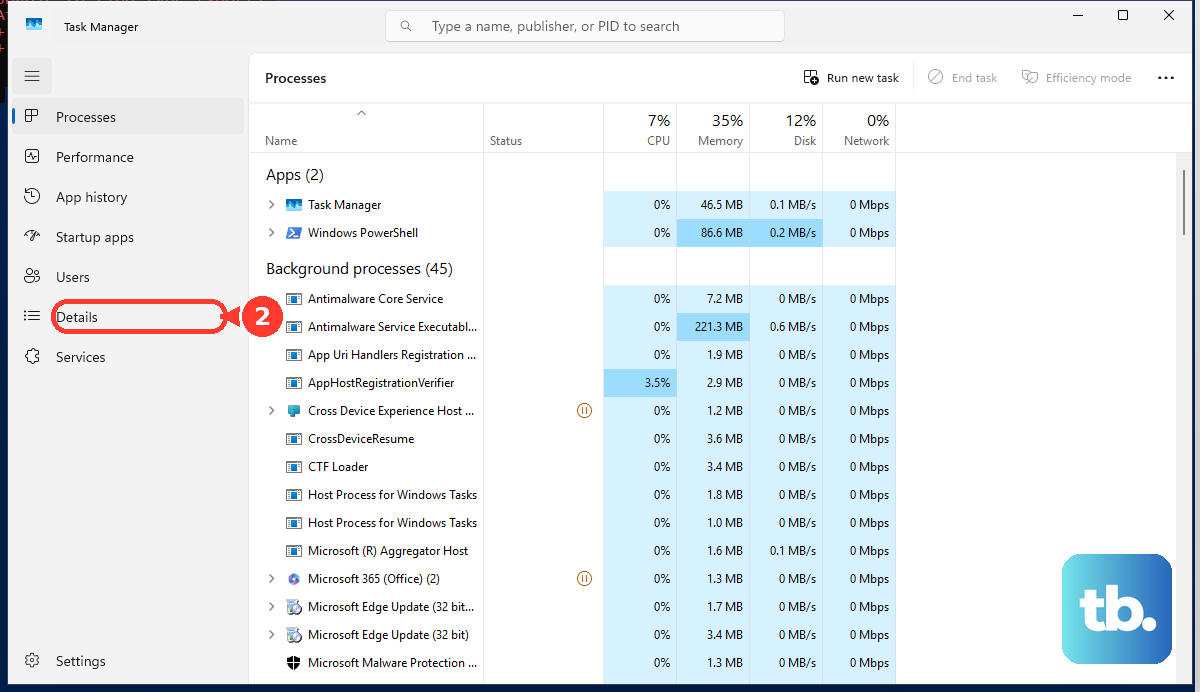
A stuck Windows Search process breaks results even when the files and indexing settings are correct. Windows Search starts again automatically the next time you search. If Search is still unavailable, restart the service too.
Press Windows logo key + R, type Services.msc, then select OK. Right-click Windows Search and select Properties.
Set Startup type to Automatic or Automatic (Delayed Start). If Service status is not running, select Start. Select OK.
7. Rebuild the Search Index
Rebuild the index when File Explorer finds some files but keeps showing stale, incomplete, or inconsistent results. Open Start > Settings > Privacy & security > Searching Windows, select Advanced indexing options, then select Advanced and Rebuild.
Allow up to 24 hours for the index database to rebuild. Keep the PC powered on while Windows completes the job.
If File Explorer finds file names but not words inside documents, change how Windows indexes that file type: open Start > Settings > Privacy & security > Search > Customize search locations, select Advanced, open File Types, select the file extension, choose Properties Only or Properties and File Contents, then select OK and Close.
8. Repair Windows Search Components
Install updates from Start > Settings > Windows Update > Check for updates, then restart when Windows asks.
Free storage from Start > Settings > System > Storage > Cleanup recommendations. Microsoft recommends more than 1 GB free for indexing to continue.
Open an elevated Command Prompt, run DISM.exe /Online /Cleanup-image /Restorehealth, then run sfc /scannow.
Use Microsoft’s official ResetWindowsSearchBox.ps1 PowerShell script from Microsoft’s download page when normal Search repairs fail.
If the problem started right after a Windows update, open Start > Settings > Windows Update > Update history > Uninstall updates, select the update, then choose Uninstall.
If the problem started right after a Windows upgrade, open Start > Settings > System > Recovery, then select Go back while the rollback option is available. Microsoft says you usually have 10 days to go back after upgrading.
For a deeper Windows 11 repair, open Start > Settings > System > Recovery, then under Fix problems using Windows Update, select Reinstall now. This option appears only on eligible Windows 11 builds - the 2022 annual update or later, with the February 2024 update or newer installed - and may be hidden on work or school PCs your organization manages; if it is missing, install pending updates first.
On a work or school PC, connect to power and check Settings for a group policy message. If Windows says Search or repair settings are managed by your organization, contact your organization admin.
If File Explorer search still fails after the index rebuild, move through Windows repair in order. Skip old fixes that tell you to install Windows Search 4.0, reset Cortana, run the System Maintenance troubleshooter, or treat the legacy Search and Indexing MSDT troubleshooter as a lasting fix.
Microsoft still documents that troubleshooter for Windows 10 and 11, but it is also retiring MSDT, so do not depend on it going forward. Microsoft documents current Windows 11 Search fixes through Settings, Search services, index rebuilds, Windows Update, and repair tools.
Frequently Asked Questions
Why does File Explorer search find file names but not text inside documents?
Windows is indexing only properties for that file type. Go to Settings > Privacy & security > Search > Customize search locations > Advanced > File Types, select the extension, and choose Properties and File Contents.
How long does rebuilding the Windows Search index take?
Microsoft says to allow up to 24 hours for the index database to rebuild. Keep the PC powered on while Windows finishes indexing.
Should I use Classic or Enhanced indexing in Windows 11?
Use Classic for Documents, Pictures, Music, and Desktop. Use Enhanced when you need Windows to index the entire PC, including user folders and files.
Why is Windows Search paused on my laptop?
Windows can pause or reduce indexing when the PC is on battery or conserving power. Connect the PC to power, then check Settings > Privacy & security > Searching Windows.
Should Windows 10 users follow these exact steps?
Use Windows 11 paths for current consumer troubleshooting. Microsoft consumer support for Windows 10 ended on October 14, 2025, so Windows 10 paths are treated as legacy.