If you're seeing "Unable to connect to Samsung server" errors on your TV, phone, or tablet, you're not alone. This connection issue can prevent you from accessing apps, games, and Samsung services. The good news is that most connection problems can be resolved with some basic troubleshooting steps.
Quick Fixes to Try First
Before diving into more complex solutions, try these simple steps that often resolve the issue:
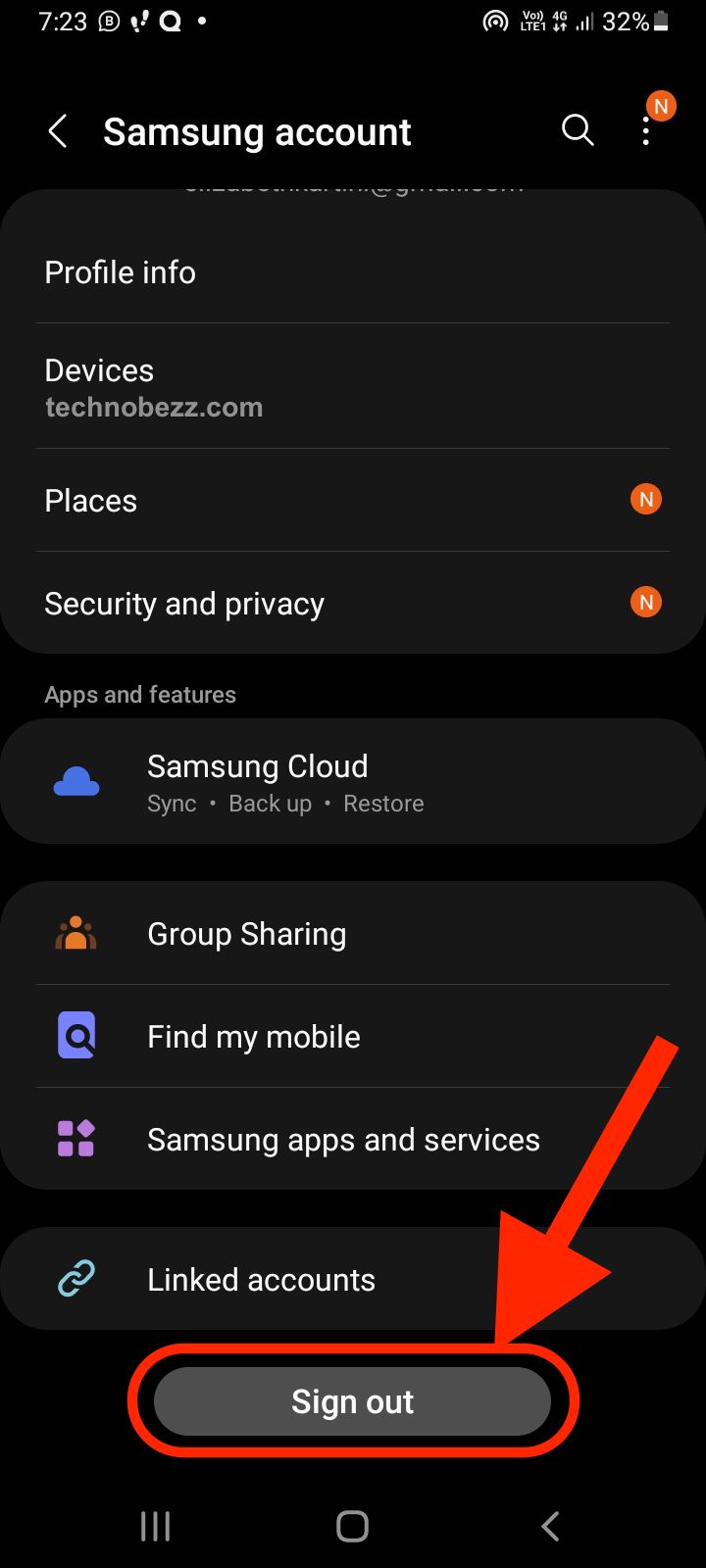
Restart your router and modem, then sign out and back into your Samsung account.
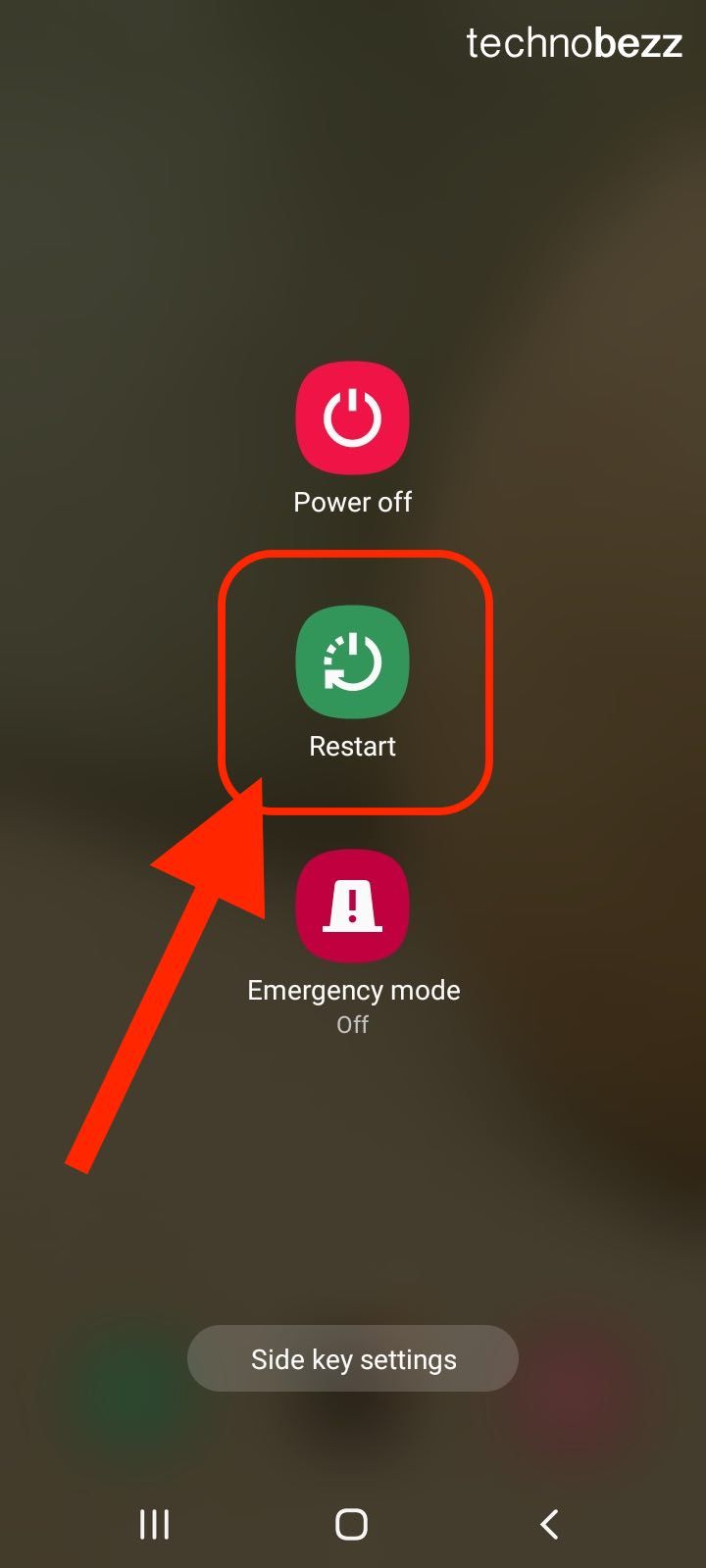
Restart your device completely . After that, check if Samsung servers are down (try again later).
Contact your internet provider or Samsung support if problems persist.
What "Unable to Connect to Samsung Server" Means
When your device can't connect to Samsung servers, it means the communication between your device and Samsung's network infrastructure has failed. This can affect everything from app downloads and game connectivity to system updates and account services.
Common symptoms include error messages when trying to log into games or apps, interrupted gameplay or app performance, and failed downloads or updates. You may also see "Internal server error" messages or apps that won't load or connect.
Common Causes and Solutions
Internet Connection Issues
Your internet connection is the most likely culprit. Start by checking these basics:
Test your internet speed on another device, then restart your router and modem. Check if other devices can connect to the internet, then try switching between Wi-Fi and mobile data. Move closer to your router if using Wi-Fi.
DNS Server Problems
DNS issues can prevent your device from finding Samsung servers. Here's how to fix DNS problems:
Method 1: Change DNS Settings on Samsung Devices
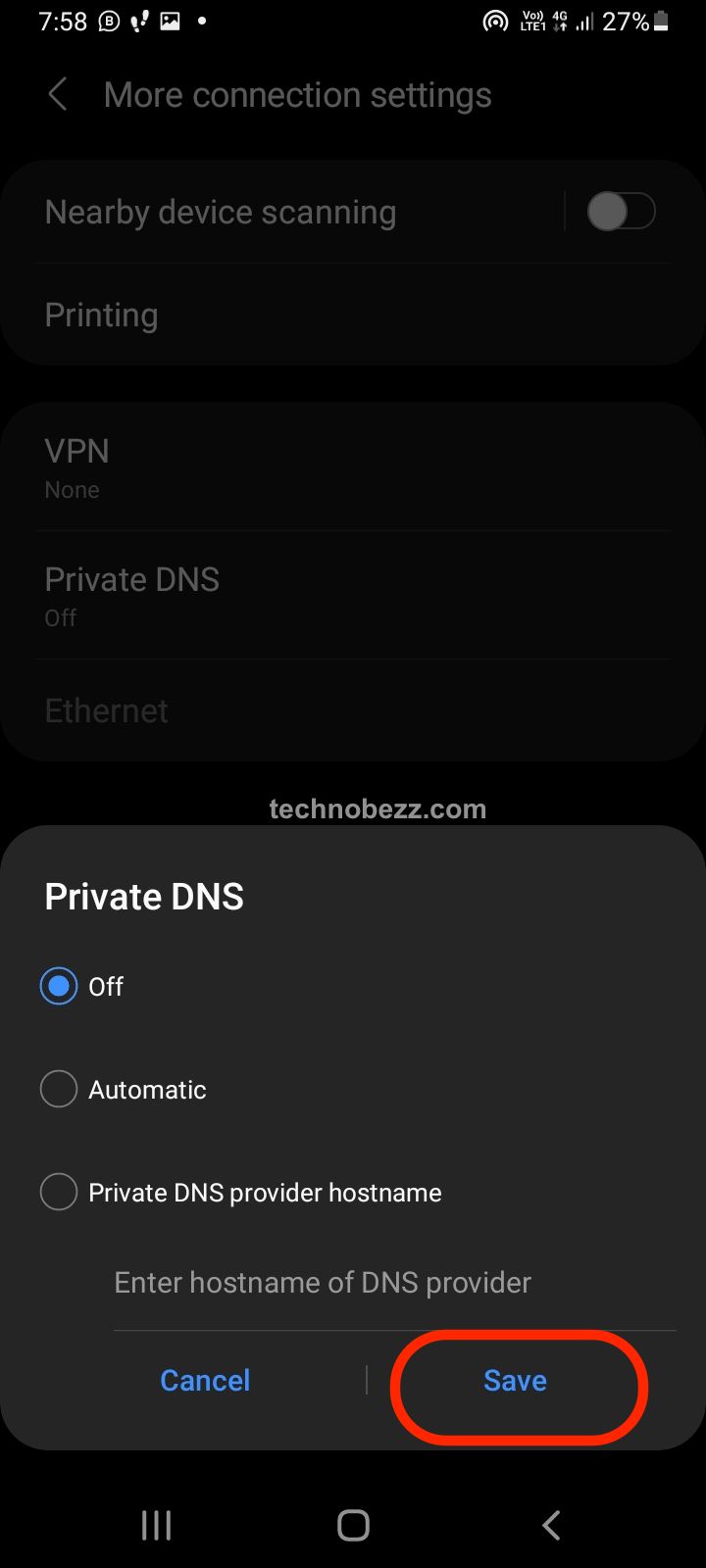
Go to Settings on your Samsung device, then tap Connection .
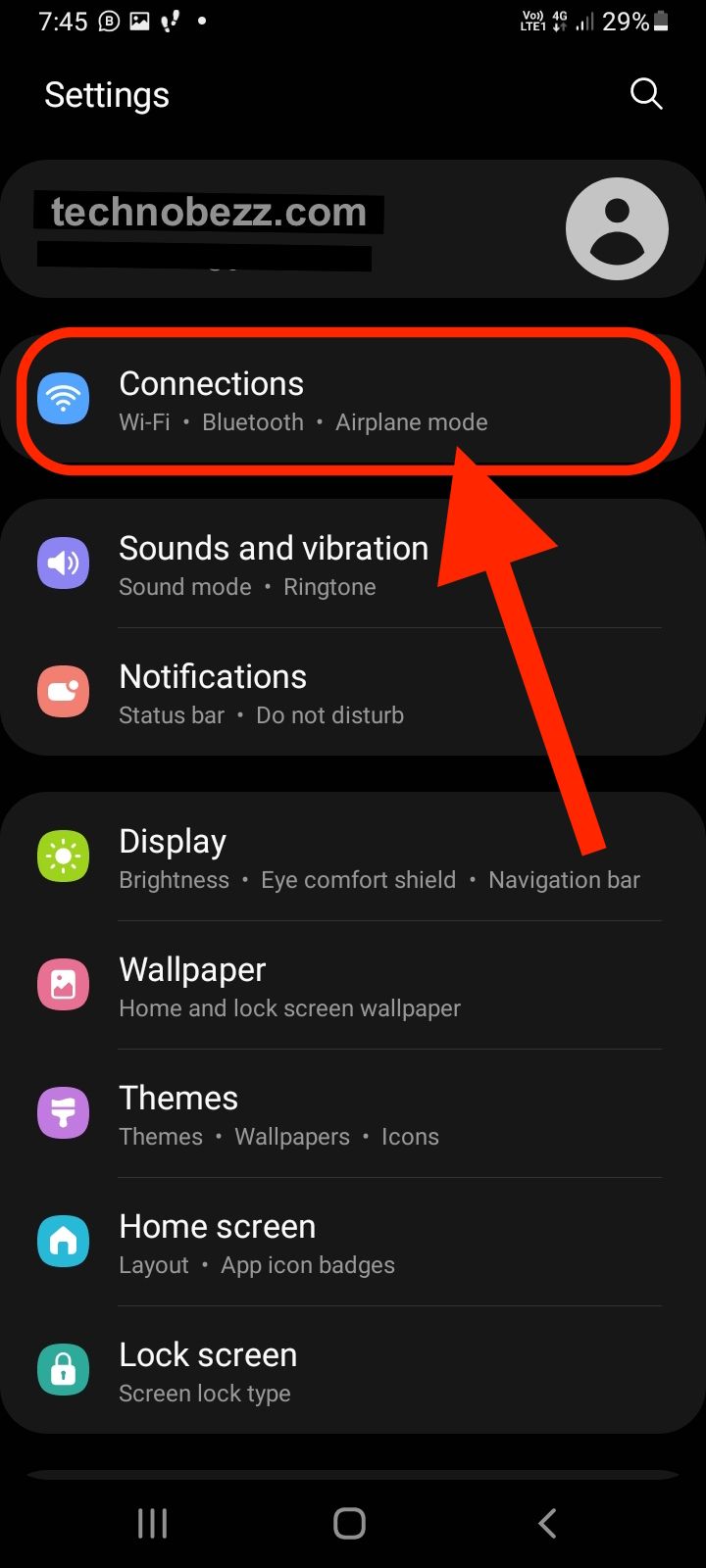
Look for "More connection settings" and tap it. Tap on "Private DNS", then choose "Automatic" or enter a DNS provider hostname. For manual DNS, try Google DNS (8.8.8.8) or Cloudflare (1.1.1.1). Tap Save to apply the changes.
Router and Network Configuration
Sometimes the issue lies with your network equipment:
Update your router's firmware. After that, check if your ISP is blocking Samsung servers. Try connecting through a different network, then temporarily disable any VPN or proxy services. Check firewall settings on your router.
Device-Specific Troubleshooting
For Samsung TVs:
Perform a power cycle (unplug for 30 seconds), then check for firmware updates. If other methods fail, try a factory reset. Use an Ethernet cable instead of Wi-Fi if possible.
For Samsung Phones and Tablets:
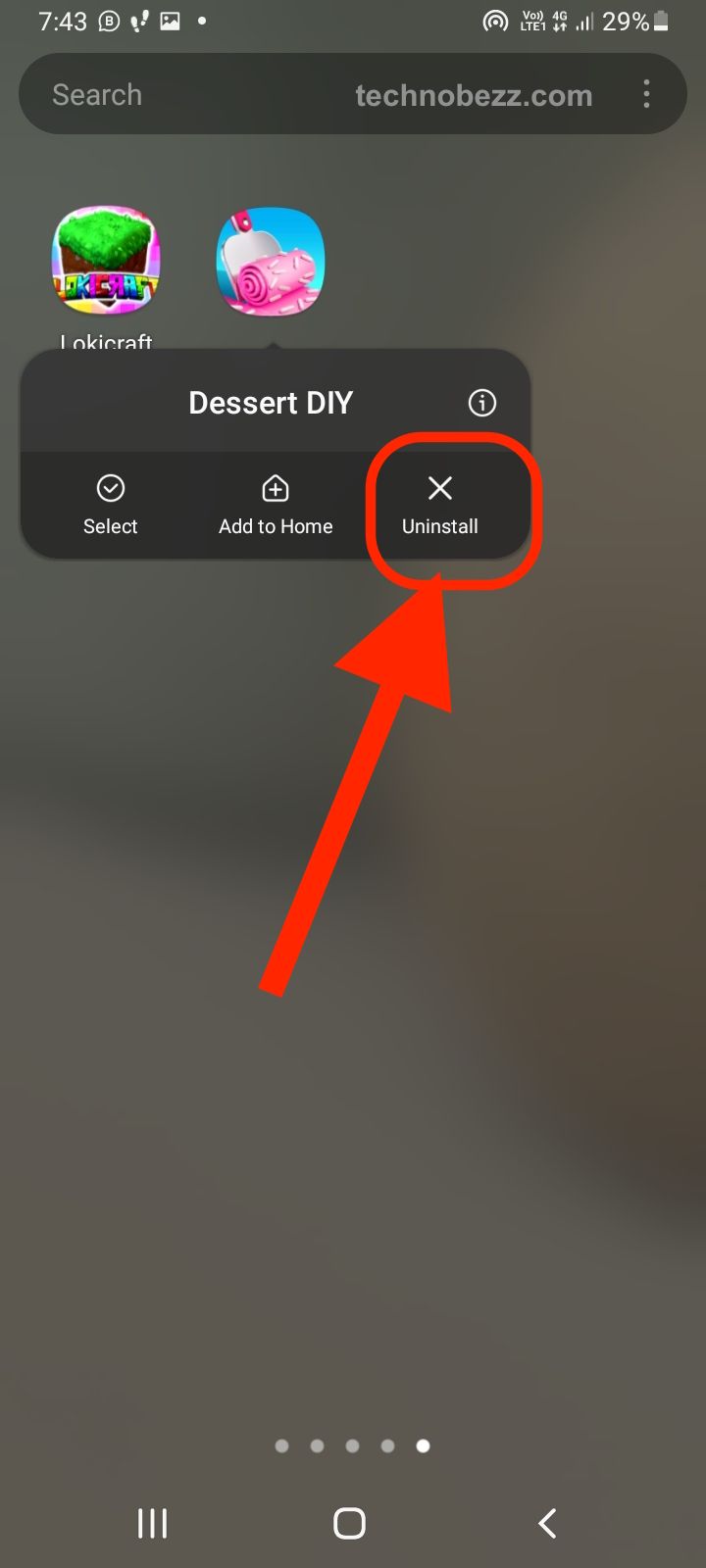
Clear app cache and data for problematic apps, then check for system updates. Reset network settings, then uninstall and reinstall problematic apps.
Advanced Solutions for Persistent Issues
If basic troubleshooting doesn't work, try these more advanced methods:
Check for ISP Blocking
Some internet providers may inadvertently block Samsung servers. Contact your ISP and ask if they're blocking connections to Samsung services.
You can also test this by connecting through a different network (like mobile hotspot). Another option is using a VPN to bypass potential blocks. Finally, try testing on a friend's or neighbor's network.
Factory Reset
As a last resort, a factory reset can resolve persistent connection issues:
- 1.Back up your important data first
- 2.Go to Settings > General Management > Reset
- 3.Select "Factory data reset"
- 4.Follow the on-screen instructions
Note: This will erase all your personal data and settings, so only use this method if other solutions have failed.
Preventing Future Connection Issues
To minimize future Samsung server connection problems:
Keep your device software updated, and regularly restart your router and devices. Use reliable DNS servers like Google DNS or Cloudflare, and avoid using restrictive firewall settings. Monitor Samsung's service status for outages.
Most Samsung server connection issues can be resolved with these troubleshooting steps. Start with the quick fixes and work your way through the more advanced solutions if needed. If you continue experiencing problems, contact Samsung support for device-specific assistance.