AI features now sit in search results, browser tabs, phone notifications and Windows apps. Some are on by default, some come preinstalled and others wait for you to opt in. The controls differ from one product to the next: some features have an off switch, while others only let you limit saved activity or change what you see.
Here are eight you can turn off or rein in today, with the data each one handles and the exact settings path. Menus can vary by device and software version, so check the version notes before you follow a path.
The short version
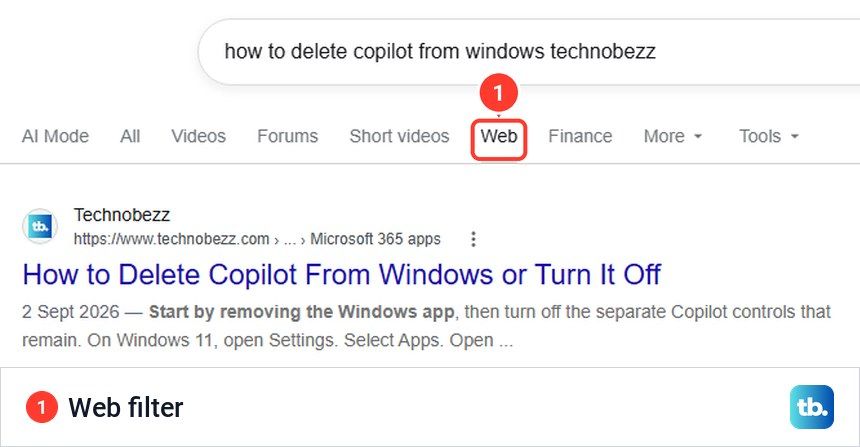
- Google Search has no AI Overviews off switch, but its Web filter shows links without them.
- You can remove the Copilot app from Windows 11 and stop Gemini from sharing your current Chrome tab by default.
- Gemini Keep Activity can be turned off, though Google still keeps new chats for up to 72 hours.
- Apple notification summaries, Samsung cloud processing and Recall snapshots have separate controls.
1. AI Overviews in Google Search on Phones and Browsers
What it does: Google Search can place an AI-generated summary above other results when its systems decide one would help with a query. The overview draws together information and provides links to explore it. You may see one while searching on a phone or in a desktop browser; you do not have to open AI Mode to encounter it.
Google says it uses interactions with Search and its AI features, including searches and feedback, to develop and improve generative AI. Human reviewers help evaluate results, and Google says the data they see is disconnected from user accounts. Its AI Overviews help page also says overviews cannot be turned off as a Search feature.
How to turn it off: There is no permanent off switch. After you run a Google search, select the Web filter above the results. That view shows text-based links without AI Overviews. You will need to select it when you want that view.
2. The Copilot App on Windows 11 PCs
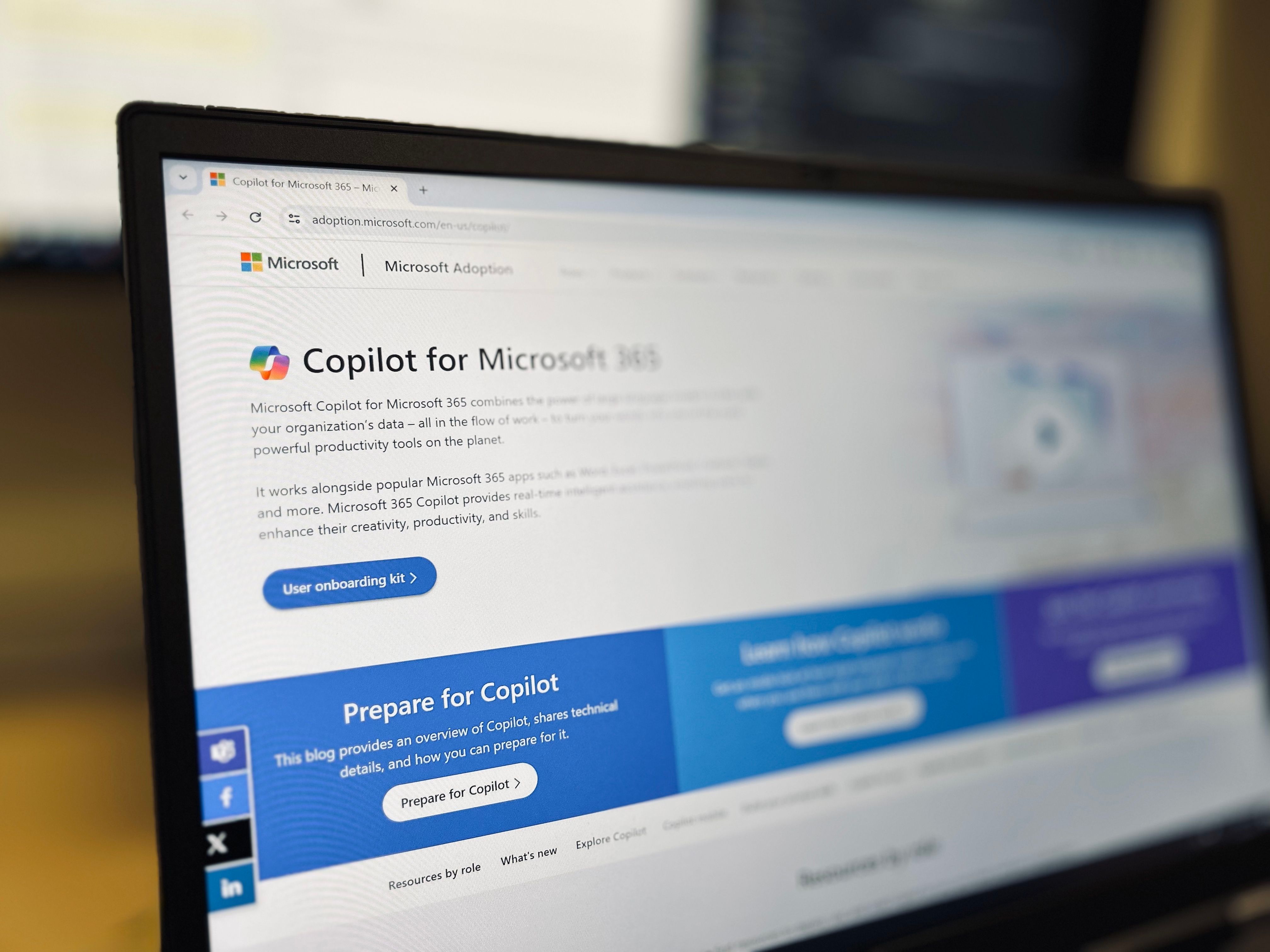
What it does: The Copilot app offers AI chat, image creation and other tools from the Windows desktop. New Windows 11 PCs should already have it installed. You can sign in with a personal Microsoft account, an Apple ID or a Google account.
For personal accounts in the updated app, Microsoft describes activity history as a record of your prompts and Copilot's responses. Microsoft says prompts, responses and file contents used in the app are not used to train foundation models. The controls for a work or school account differ from those for a personal account.
How to turn it off: On Windows 11, open Settings > Apps > Installed apps. Find Copilot, open More options, and choose Uninstall, as directed in Microsoft's app guide. This removes the Windows app. For more detail, see our step-by-step guide.
3. Gemini Keep Activity on Android and the Web

What it does: When you are signed in and Keep Activity is on, Google saves your Gemini prompts and other activity to your Google Account. The setting is on by default for adults. Saved activity can include uploads and, for Gemini Live, transcripts and media you choose to share.
Google's default auto-delete period is 18 months. It says chats reviewed by people, with related data, can be kept for up to three years even if you delete activity. Turning Keep Activity off stops future chats from appearing in Activity, but Google still saves them with your account for up to 72 hours to provide the service and process feedback.
How to turn it off: In the Android Gemini app, tap Menu > your profile picture or initial > Gemini Apps Activity. Near the top, tap On, then Turn off or Turn off and delete activity. On a computer at gemini.google.com, click Settings and help > Activity, then On and the same choice. See Google's activity instructions.
4. Apple Intelligence Notification Summaries on iPhone and Mac
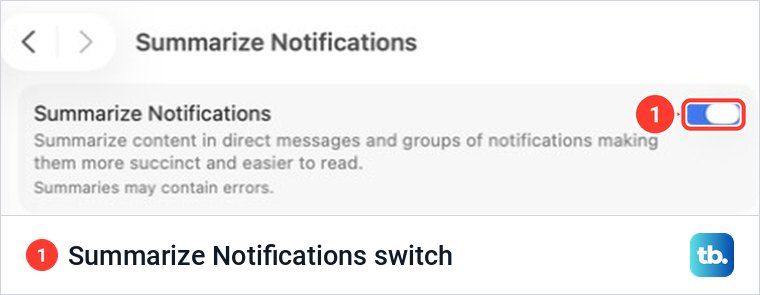
What it does: Apple Intelligence can condense long or stacked notifications so you can scan their main points. That changes the text you see in a notification summary; the original notification remains the source. It works on supported iPhones running iOS 27 and Macs running macOS 27, subject to language and region availability.
Apple says its intelligence models run on the device in many cases. More complex Apple Intelligence requests may use Private Cloud Compute, where Apple says relevant data is processed to answer the request and is not retained.
How to turn it off: On iPhone, open Settings > Notifications > Summarize Notifications, then turn off Summarize Notifications. On Mac, open System Settings > Notifications > Summarize notifications, then turn off Summarize Notifications. Apple's iPhone notification guide also explains how to change which apps are summarized if you want a narrower setting.
5. Galaxy AI Cloud Processing on Samsung Phones
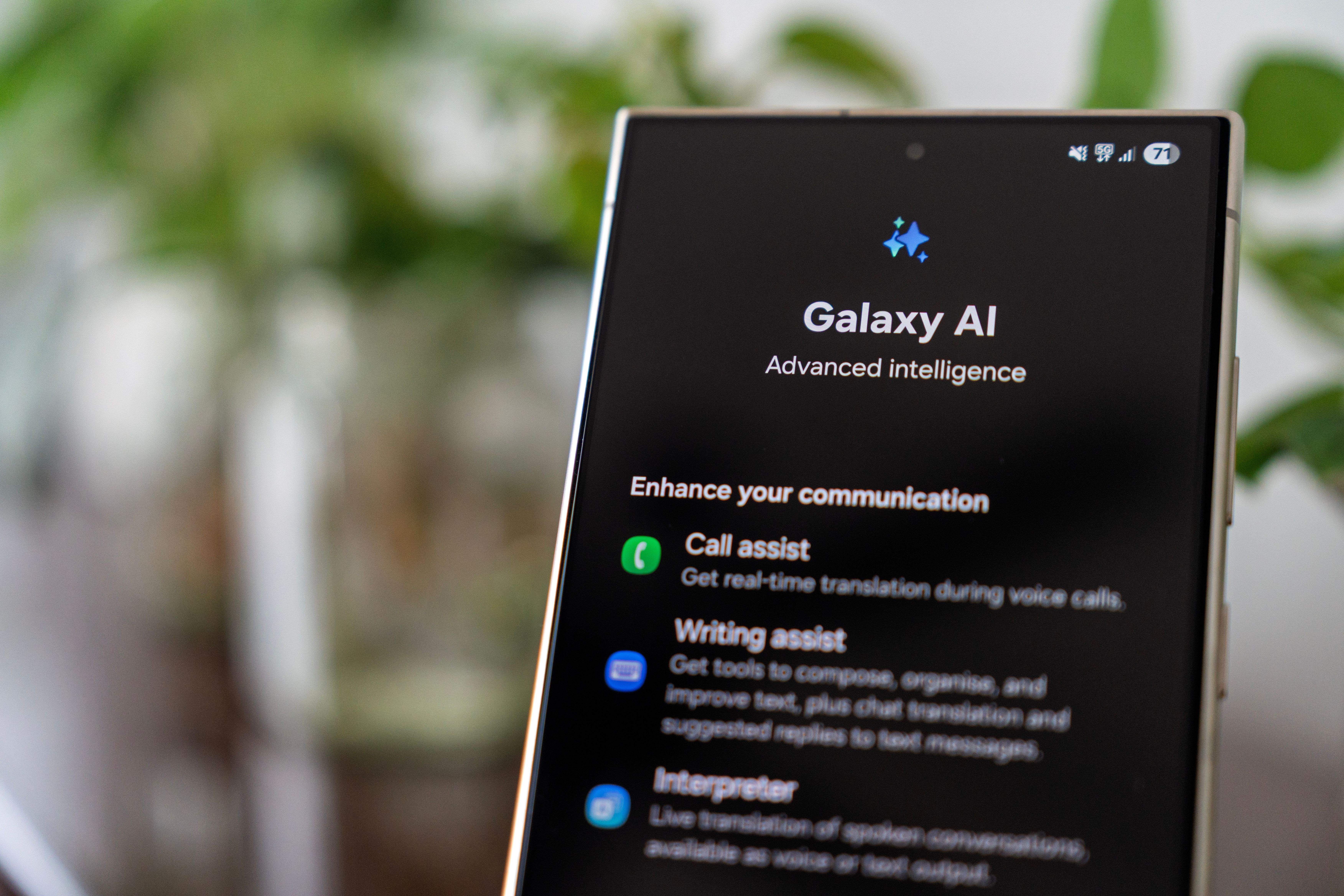
What it does: Galaxy AI includes tools for tasks such as formatting notes, summarizing text and editing images. Those functions can use cloud processing, while many translation functions run on the device. The available tools depend on your Galaxy model and software version, so the list in Settings may differ from another phone's.
Cloud-based functions include auto formatting, auto summarizing, auto corrections and image editing. Its device-only setting limits Galaxy AI to processing that can happen on your phone. That means a tool requiring an online service may no longer work. Samsung also says some AI features are integrated into the system and cannot be disabled individually.
How to turn it off: Open Settings > Galaxy AI and turn on Process data only on device, following Samsung's Galaxy AI instructions. On some models, the path starts at Settings > Advanced features, followed by Galaxy AI or Awesome Intelligence. To stop an available feature separately, open its submenu in Galaxy AI and turn off its switch.
6. Gemini in Chrome Tab Sharing on Mac and Windows
What it does: After you opt in to Gemini in Chrome, you can ask it about pages in your browser. It uses the current tab by default when you start a chat. You can also add other open tabs. The feature is rolling out and is available only to eligible signed-in Chrome users in supported regions.
Google says Gemini collects and processes the page content and URL of tabs shared with it. Information from sites visited with Gemini in Chrome is stored in Gemini Apps Activity when Keep Activity is on; page content is also logged temporarily to your Google Account.
How to turn it off: On a Mac or Windows computer, open Chrome and go to Settings > AI innovations > Gemini in Chrome. Under Permissions, turn off Share current tab by default. Under Preferences, you can also turn off Show Gemini at the top of the browser. These are the controls in Google's Chrome guide; hiding the icon does not disable Gemini itself. For more detail, see our step-by-step guide.
7. The ChatGPT Extension in Siri on iPhone and Mac
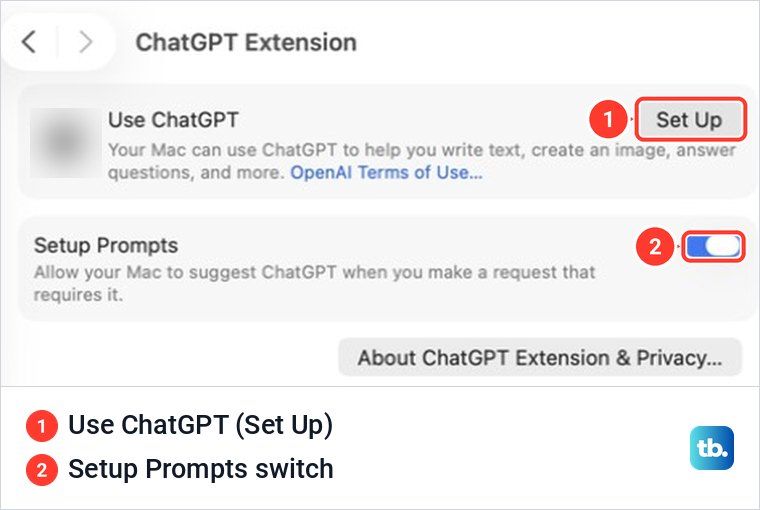
What it does: The optional ChatGPT extension lets Siri offer to send a request to ChatGPT when it may help answer you. You choose what content to send, and you are asked before information is shared.
A request, any attachments, and details such as time zone, country, device type and language are sent to ChatGPT. Without a ChatGPT account, Apple says OpenAI does not receive information tied to your Apple Account and must not store the request or response except where law requires it. If you sign in to ChatGPT, your account settings and OpenAI's policies apply.
How to turn it off: On an iPhone with iOS 27, open Settings > Siri > ChatGPT and turn off Use ChatGPT, then Setup Prompts so Siri stops suggesting it. On a Mac with macOS 27, use System Settings > Siri > ChatGPT; on macOS Tahoe 26, open System Settings > Apple Intelligence & Siri > ChatGPT. If you use Siri AI, open Extensions > ChatGPT and turn off Use Extension instead. See Apple's extension instructions.
8. Recall Snapshots on Copilot+ Windows PCs
What it does: Recall can save snapshots of your screen so you can search for things you previously saw in apps, websites and documents. It is available on Copilot+ PCs running Windows 11. Saving snapshots is off by default until each user opts in, so finding Recall on your PC does not mean it has recorded your screen.
Microsoft says Recall analyzes and stores snapshots locally, without using a cloud connection for that work. It says snapshots are always encrypted, Microsoft can't access or view them, and Recall doesn't share them with other users on the same PC. If you enabled saving, you can stop new snapshots and delete saved ones at any time.
How to turn it off: Open Settings > Privacy & security > Recall & snapshots and turn off Save snapshots. Windows asks you to confirm the change with Windows Hello. Use the same settings page to delete saved snapshots if you want to remove them. See Microsoft's Recall privacy guide and our step-by-step guide.