


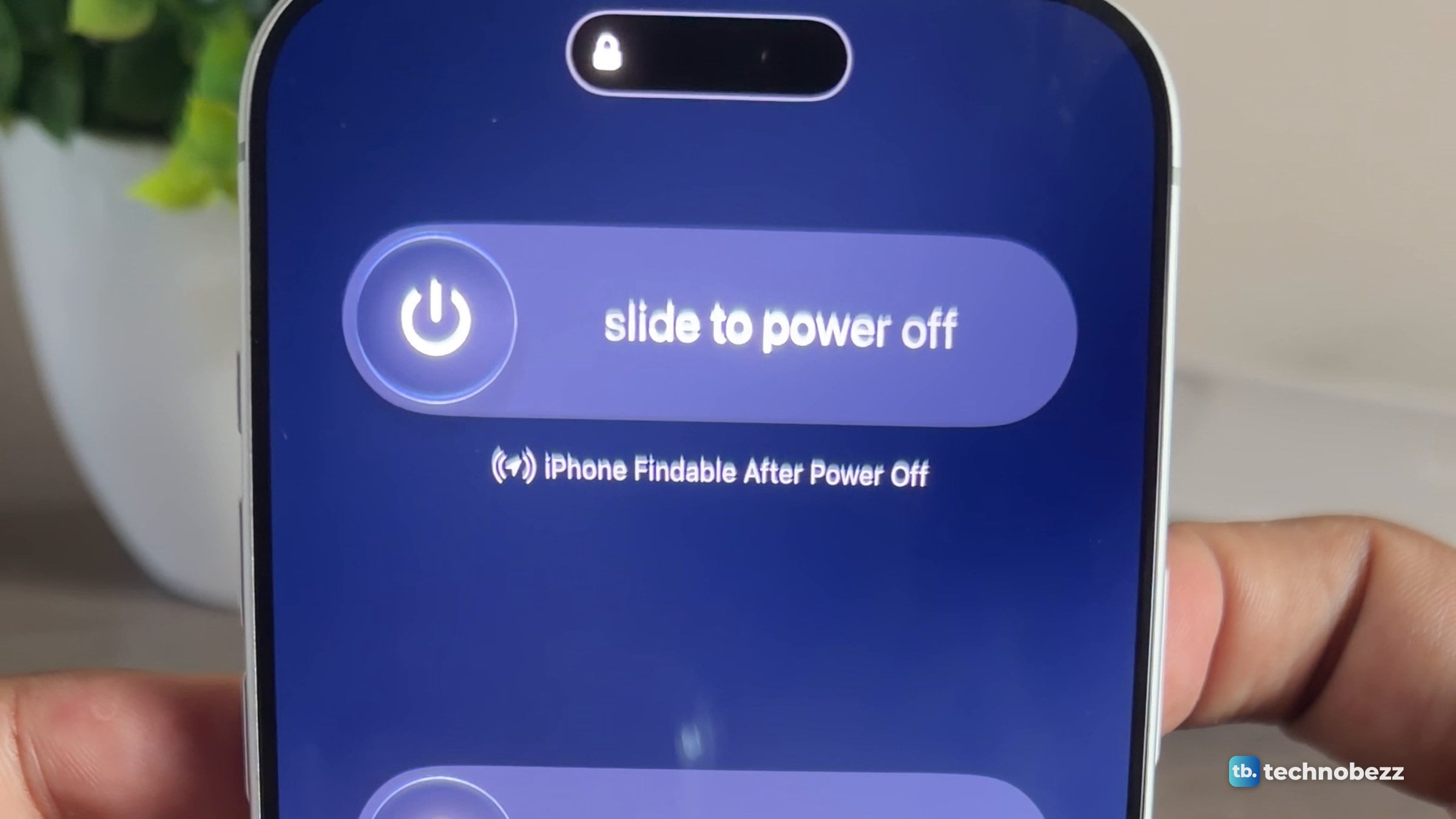
To turn off an iPhone with Face ID, press and hold the side button and either volume button until the sliders appear, then drag slide to power off to the right. Without the buttons, go to Settings > General > Shut Down, or touch and hold the power button at the top right of Control Center. To turn it back on, press and hold the side button until the Apple logo appears.
The short version
- Hold the side button and either volume button until the sliders appear, then drag the top slider.
- No buttons needed: Settings > General > Shut Down, or the power button in Control Center.
- Hold the side button until the Apple logo appears to turn it back on.
- The same buttons also reach Emergency SOS, so drag only the top slider.
- If the iPhone is frozen or unresponsive, force restart it instead.
Where the side button and volume buttons are
On an iPhone with Face ID, the side button is on the right edge and the volume buttons are on the left. On my iPhone 18 Pro Max, the side button is the upper of two controls on the right edge. The one further down is the Camera Control, and it plays no part here. On the left, the small button above the two volume buttons is the Action button, which you can customize in Settings > Action Button.
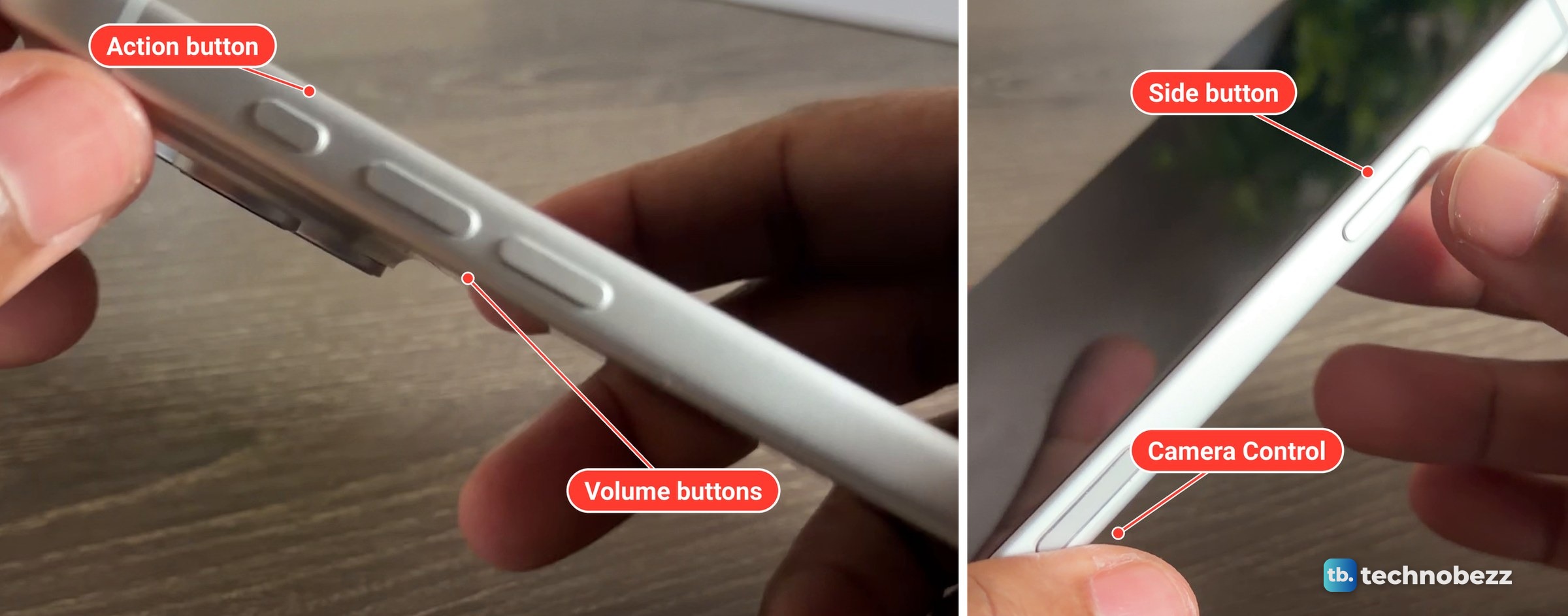
The steps below follow Apple's iPhone User Guide for iOS 27 (Turn iPhone on or off). The photos and screens are from my iPhone 18 Pro Max, the same silver phone as in my iPhone 18 Pro Max hands-on.
How to turn off iPhone with the buttons
These steps are for iPhone models with Face ID. Apple's restart article gives the same buttons for the iPhone X, 11, 12, 13 or later.
- 1.Press and hold the side button and either volume button at the same time.
- 2.Let go when the sliders appear.
- 3.Drag the top slider, slide to power off, all the way to the right.
- 4.Wait for the iPhone to shut down. Apple suggests allowing 30 seconds.
On my iPhone 18 Pro Max, the Lock Screen lit up first, and the slider screen replaced it about a second later. Keep holding through the Lock Screen, then let go.
Emergency SOS uses the same button combination, so drag only the top slider when the sliders appear. Its button shortcuts, such as Call with Hold and Release, are set in Settings > Emergency SOS. A quick press and release of the side button and volume up is different again. That takes a screenshot.
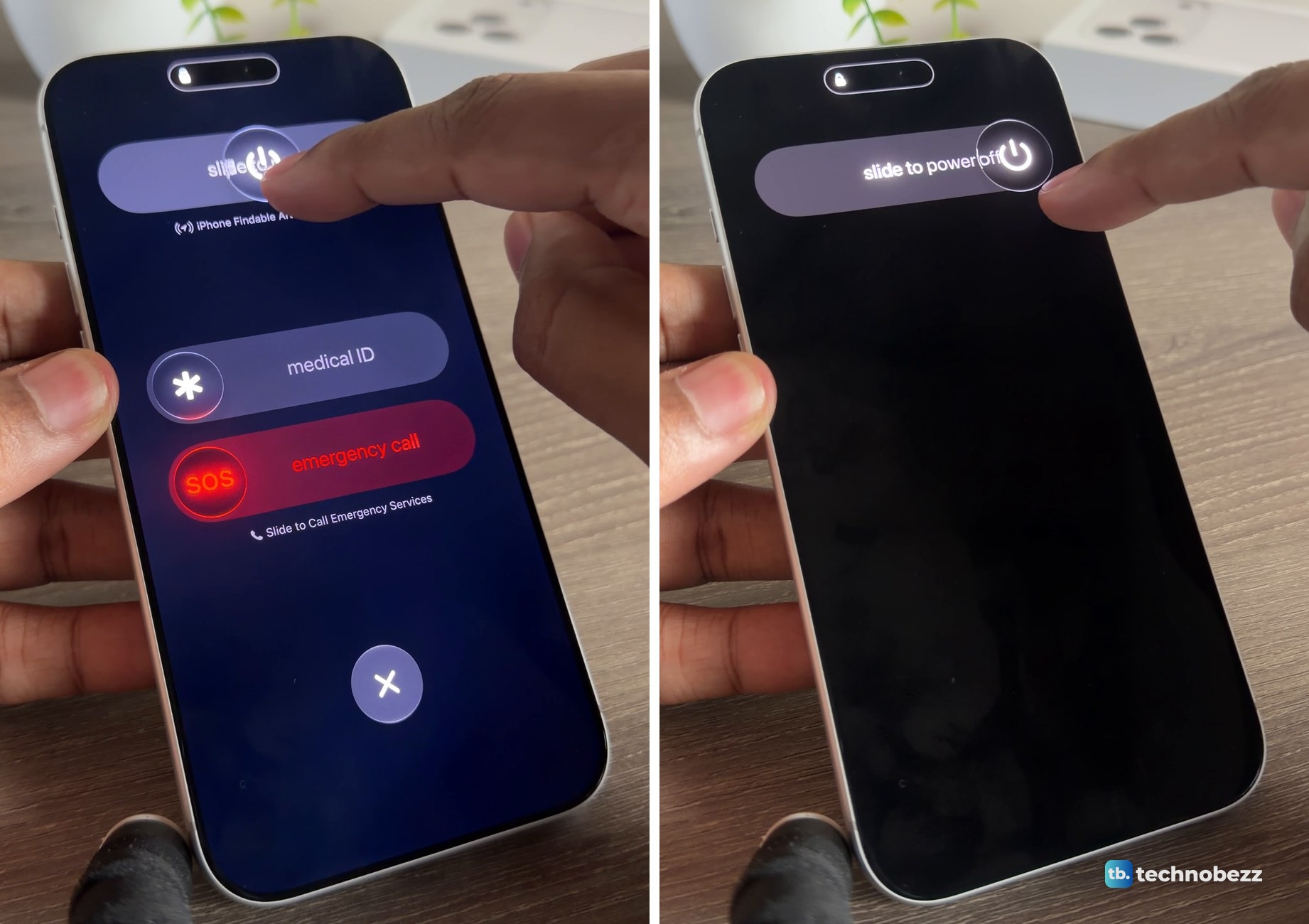
As I dragged the power button across, the medical ID and SOS sliders dimmed. At the end of the track they faded away, then the power off slider faded too and the screen went black.
What the slider screen shows
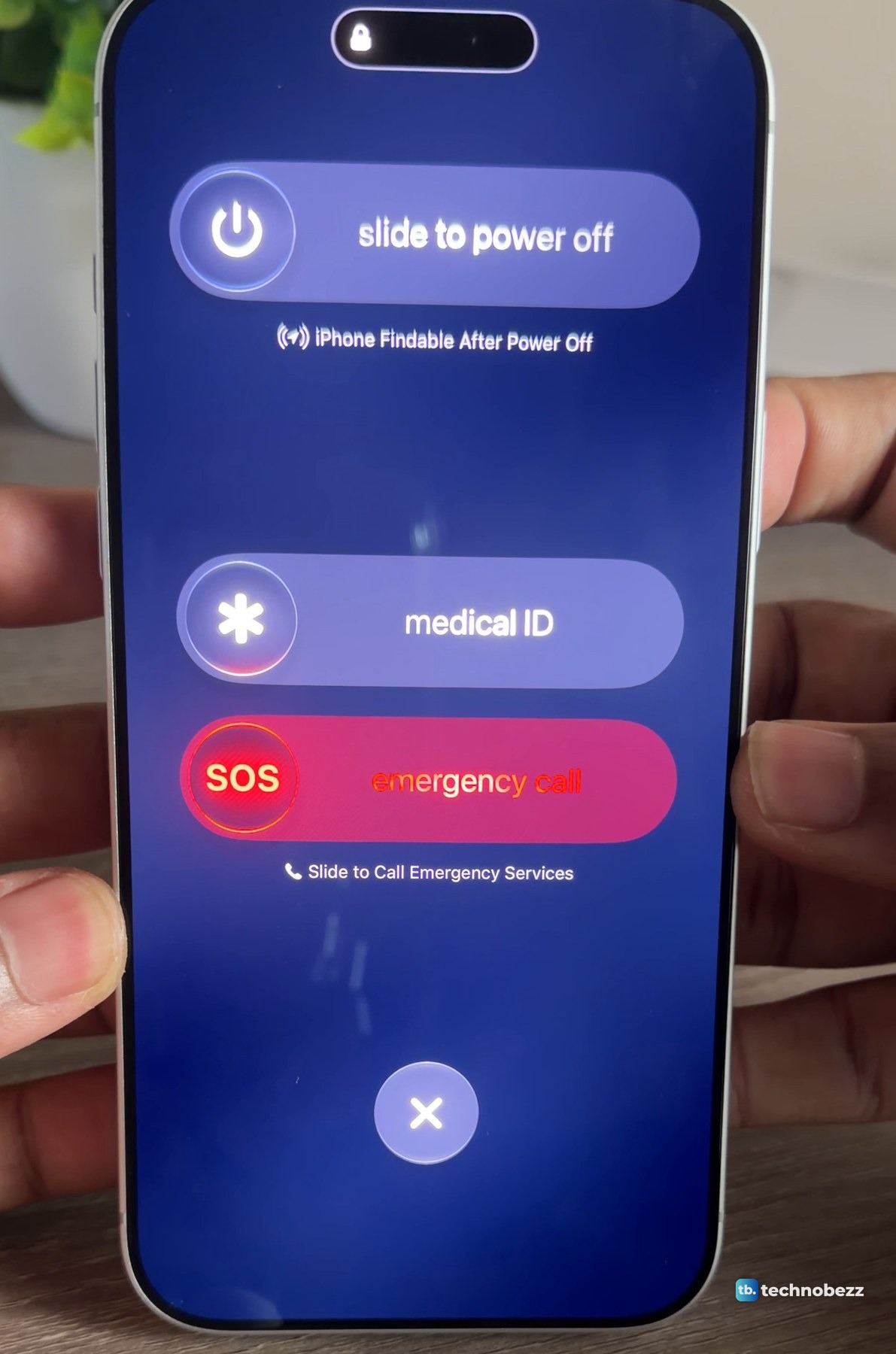
On my iPhone 18 Pro Max the slider screen showed these, top to bottom.
| On the screen | What it is |
|---|---|
| slide to power off | Turns the iPhone off. Drag the power button to the right. |
| iPhone Findable After Power Off | A note under the power off slider. Apple says a supported iPhone with the Find My network turned on can be located for up to 24 hours after it is turned off. |
| medical ID | A slider for your Medical ID, the emergency details such as allergies, medical conditions and emergency contacts that you set up in the Health app. |
| SOS, emergency call | A red slider with Slide to Call Emergency Services under it. Leave it alone unless you need help. |
If you do call emergency services by mistake, Apple's advice is not to hang up. Wait until a responder answers, then explain that you don't need help.
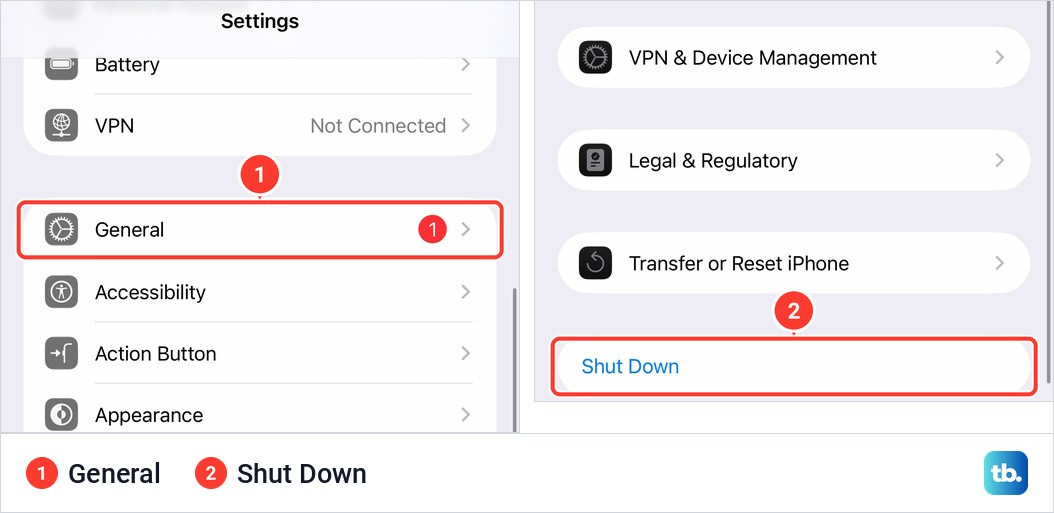
How to turn off iPhone in Settings
- 1.Open the Settings app.
- 2.Tap General.
- 3.Scroll to the bottom and tap Shut Down.
- 4.Drag the slider to turn off the iPhone.
This route needs no buttons, which helps if your volume buttons aren't working. On my iPhone 18 Pro Max, Shut Down is the last item in General, in blue text on its own, right below Transfer or Reset iPhone. If wiping the phone is the real goal, see how to erase an iPhone before selling or resetting it.
How to turn off iPhone from Control Center
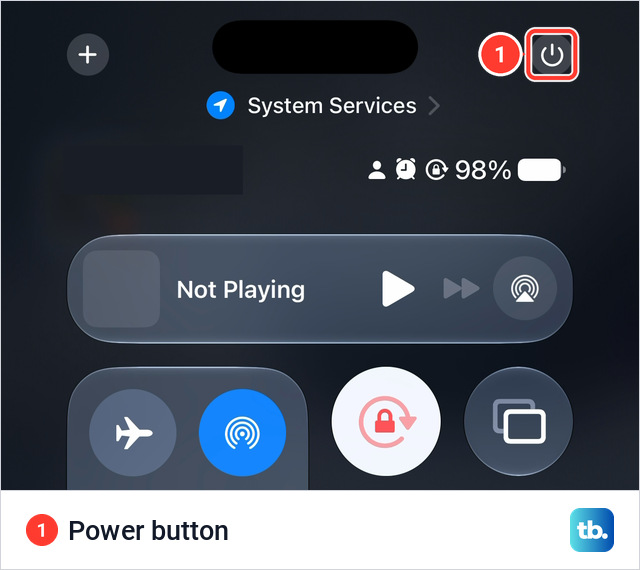
- 1.Swipe down from the top-right corner of the screen to open Control Center.
- 2.Touch and hold the power button in the top-right corner until you feel a vibration.
- 3.Drag the slider to turn off the iPhone.
On my iPhone 18 Pro Max, the power button is a round icon level with the Dynamic Island, across from a plus button at the top left. On an iPhone with a Home button, Apple says to open Control Center by swiping up from the bottom of the screen instead.
How to turn your iPhone back on
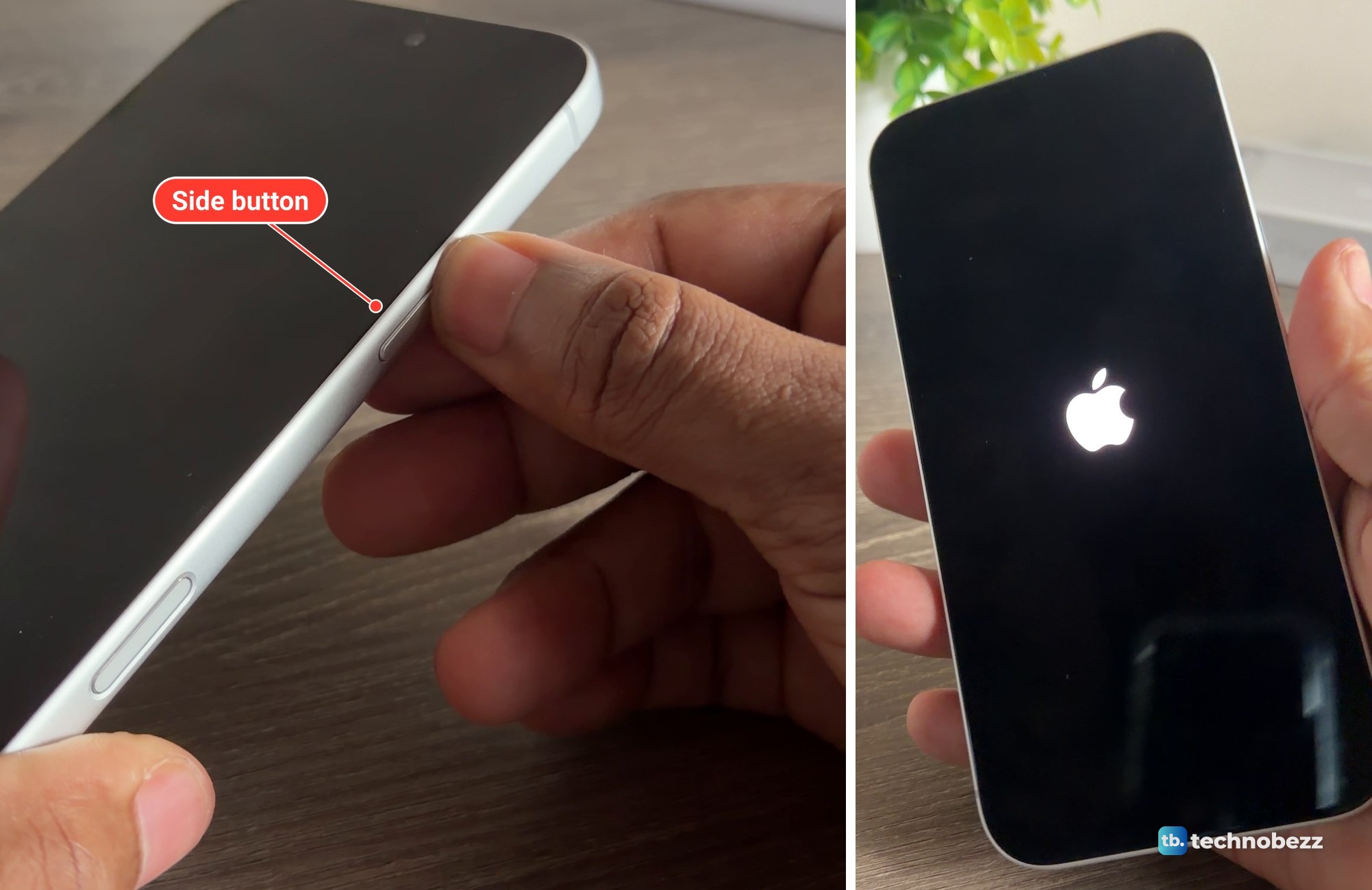
Press and hold the side button until the Apple logo appears. On a Face ID iPhone it is the button on the right edge. My iPhone 18 Pro Max also has the Camera Control on that edge, and the side button is the upper of the two. The logo came up white on a black screen.
If nothing happens, Apple says the battery may need charging. Charge it for an hour and try again. If it shows a low-charge battery icon, Apple suggests checking your iPhone hardware and charging for 30 minutes or until it starts. If it still won't turn on, it may need service. Apple's article If your iPhone won't turn on or the screen is black has the full steps.
What to do if the slider does not appear or iPhone will not turn off
If the iPhone is frozen or not responding, Apple's answer is a force restart.
- 1.Press and quickly release the volume up button.
- 2.Press and quickly release the volume down button.
- 3.Press and hold the side button.
- 4.When the Apple logo appears, release the side button.
Our guide to force restart an iPhone covers older models. If a button is broken, the Settings and Control Center routes above do not need it.
How to turn off an iPhone with a Home button
Apple's steps for the iPhone SE (2nd or 3rd generation) and the iPhone 6, 7 and 8 are to press and hold the side button until the power-off slider appears, then drag the slider. On the iPhone SE (1st generation), iPhone 5 and earlier, it is the top button instead. To turn the phone back on, press and hold the same button until you see the Apple logo. To be sure which kind you have, check which iPhone you have in Settings.
Is restarting the same as turning off and on?
Yes. Apple describes a restart as turning the iPhone off, then turning it back on, and suggests a force restart if that does not fix the problem.
Can you find an iPhone that is turned off?
Often, yes. Apple says that on a supported iPhone, the Find My network lets you locate it for up to 24 hours after it is turned off, or up to 5 hours in power reserve mode. That matches the iPhone Findable After Power Off line on the slider screen. The Find My network switch is under Settings > your name > Find My > Find My iPhone. See how to track an iPhone with Find My, or how to turn off Find My iPhone.
How long does an iPhone take to turn off?
Apple says to wait 30 seconds after dragging the slider. On my iPhone 18 Pro Max, the screen was black about three seconds after the slider reached the end of its track.