
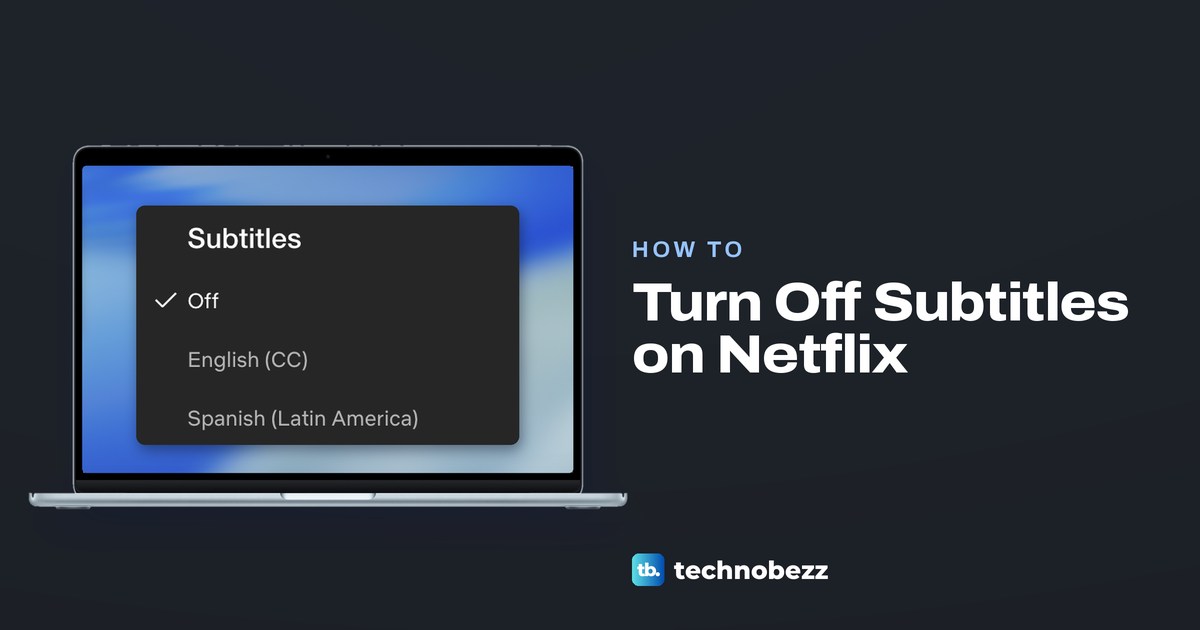
To turn off subtitles on Netflix, start playing a show or movie, bring up the player controls, select Audio & Subtitles and choose Off under Subtitles. Netflix's help calls the same choice None for some older TVs. Closed captions live in that same Subtitles list, so choosing Off or None turns closed captions off too, and the same panel turns subtitles back on whenever you want them.
Netflix saves the choice for later viewing, but its help names a few cases where text stays or returns. Dialogue in a language other than the title's original one can keep its subtitles with subtitles off, a title made in another region may not let you turn them off, and most Kids titles played from an adult profile do not save the change. Each one has its own fix below.
The short version
- The switch: play a title, open Audio & Subtitles and choose Off (or None) under Subtitles.
- Bring up the controls: tap or click on a phone or computer, press Up or Down on a TV remote, or swipe up or press Up on an Apple TV remote.
- Closed captions: in the web player they sit in the same Subtitles list, marked CC.
- Still there? Lines for dialogue in another language can stay, and most Kids titles on an adult profile do not save the change.
- Not the switch: Subtitle appearance only changes how text looks, and Roku and Samsung say their TV caption menus do not control Netflix.
Turn off subtitles on Netflix on any device
Netflix's help gives one basic route for every device, but the first move differs and on TVs the language options can sit in a different place. Start playing a show or movie, then bring up the controls: tap or click the screen on a phone, tablet or computer, press the up or down arrow on the remote of a smart TV, streaming player, Blu-ray player, cable box or game console, or swipe up or press the up arrow on an Apple TV remote.
Then select Audio & Subtitles at the top or bottom of the screen. Netflix says that on TVs the language options may appear along the bottom without the icon, and Other shows every language a title has. Under Subtitles, choose Off, or None if that is the word your player uses.
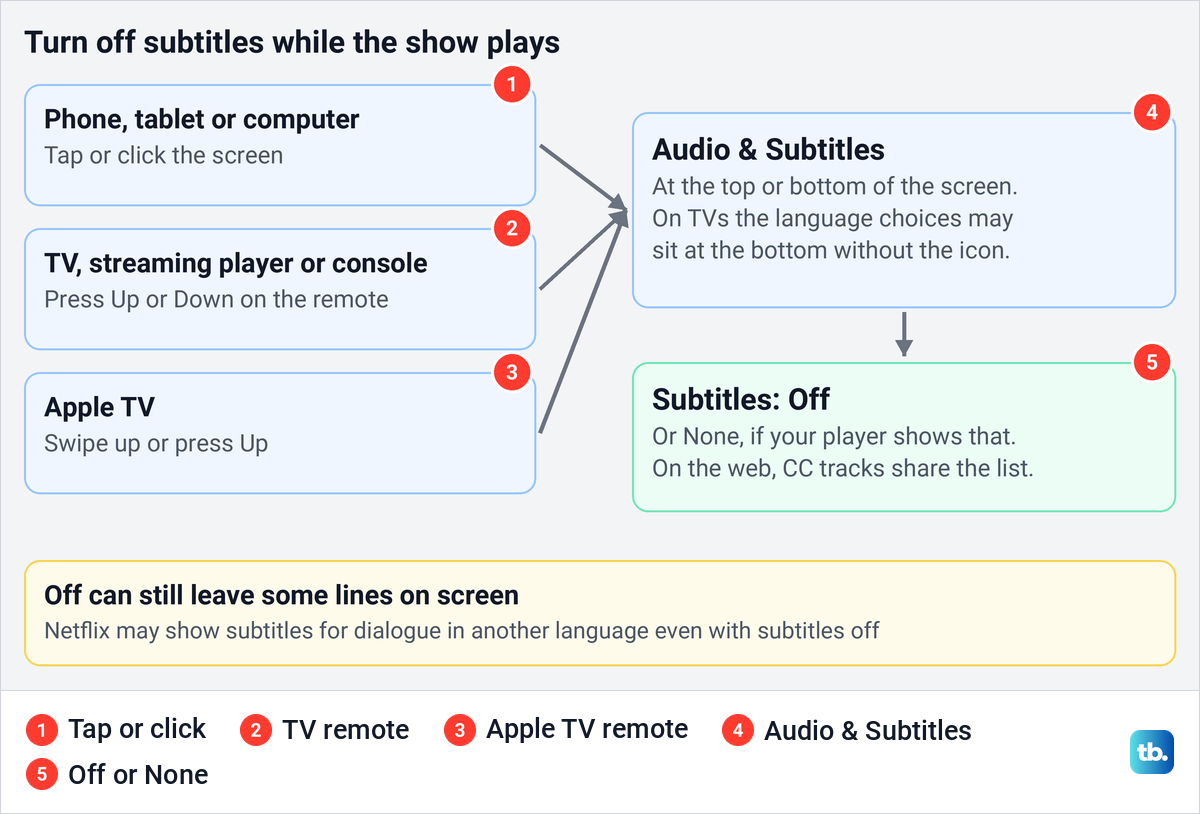
The table puts each kind of screen side by side, and its last two rows are the two cases where Off does not behave as expected. The last column is the first thing to check if text is still there after you choose Off.
| Where you watch | Bring up the controls | Then choose | If text stays on |
|---|---|---|---|
| Computer, in a browser | Click the screen; the speech-bubble button sits at the bottom right | Audio & Subtitles, then Off under Subtitles | If it also shows on other sites, Chrome's Live Caption or Windows Live captions |
| iPhone, iPad or Android | Tap the screen | Audio & Subtitles, then Off | If it sits in a movable box or shows in other apps, the phone's Live Captions or Live Caption |
| Smart TV, Roku, Fire TV, Google TV, Blu-ray or cable box | Press Up or Down on the remote | Audio & Subtitles, or the language row at the bottom, then Off or None | The TV's caption menu is not the Netflix switch |
| Apple TV | Swipe up or press Up on the remote | Audio & Subtitles, then Off | If subtitles appear after you mute or skip back, Apple TV's Automatic Subtitles; if captions show in other apps, Closed Captions and SDH |
| Xbox or PlayStation | Press Up or Down | Audio & Subtitles, then Off or None | On an Xbox, the console's Closed Captioning setting |
| A title with lines in another language | The same as your device | Off leaves those lines in place | Netflix may show them even with Off |
| A Kids title on an adult profile | The same as your device | Set Off while a Teens or above title plays | Or watch children's shows from a Kids profile |
Turn off subtitles in a web browser
On the web in Chrome, the button we needed was a speech-bubble icon at the bottom right of the player's control bar, just left of the playback speed and full screen buttons. If the controls are hidden, click the screen, which is Netflix's step for computers.

Pointing at the speech bubble opened a panel with two columns, Audio on the left and Subtitles on the right. On our screen the Subtitles list began with Off, already ticked, followed by the languages that title offers. Select Off to turn subtitles off, or a language in the same column to turn them on.
Closed captions did not have a menu of their own. Entries such as English (CC) sat in the same Subtitles list as the plain subtitles, so one Off choice covers both. The panel we opened had no Save or Apply button either, and Netflix's own steps end at choosing the entry.
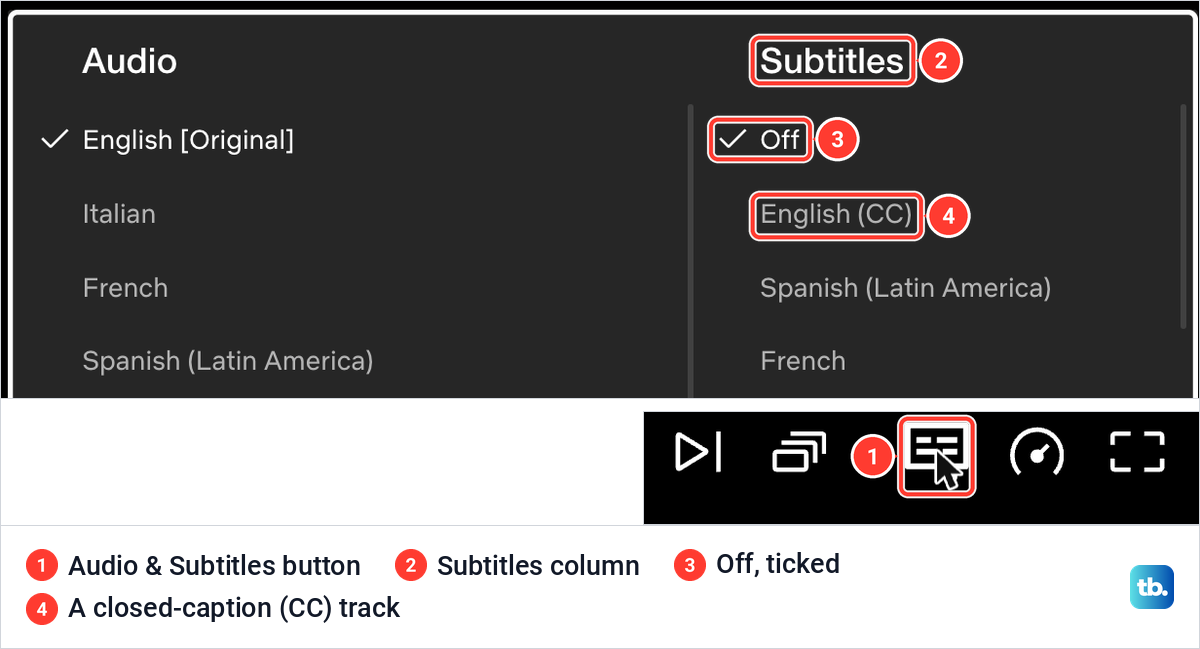
Leave the Audio column alone unless the sound is wrong. On our screen it also listed audio description tracks, which narrate what happens on screen, so if you hear a narrator rather than see text, the fix is a different audio track in that left column.
Turn off subtitles on a phone or tablet
Netflix gives the same player route for the Android app and the iPhone and iPad app. Start playing the title, tap the screen once so the controls appear, tap Audio & Subtitles, then choose Off under Subtitles.
Phones have caption features of their own that sit outside Netflix. If text is still on screen after Off, and it sits in a box you can drag or it also appears in other apps, the phone is probably writing it. The section on captions from your device gives the Android and iPhone switches.
Turn off subtitles on a smart TV or streaming player
Netflix gives one instruction for smart TVs, Blu-ray players, cable boxes and streaming players such as Roku, Fire TV and Google TV. Play the title, press the up or down arrow on the remote, select Audio & Subtitles, then choose Off or None under Subtitles. If you cannot find the icon, look along the bottom of the screen, where Netflix says the language options may sit on a TV.
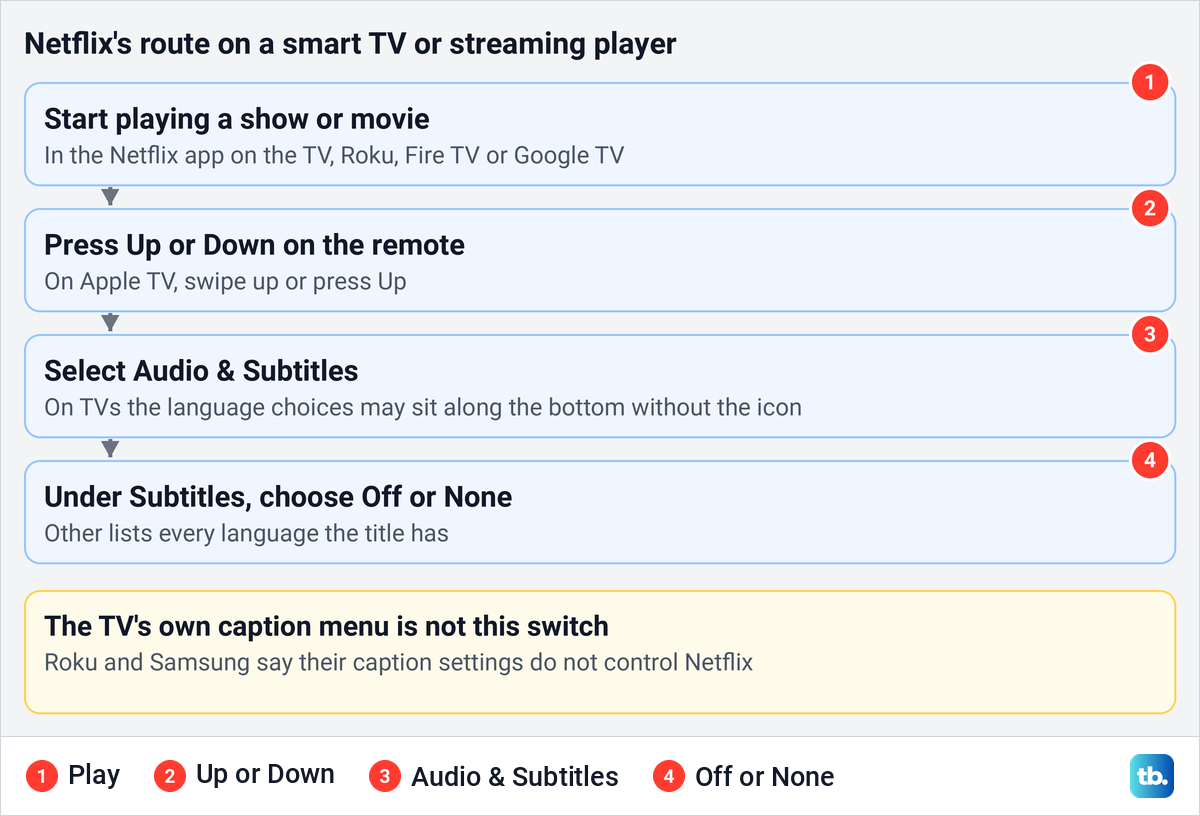
Do not reach for the TV's own caption menu first. Roku says the caption settings on its devices have no effect on content from apps that handle captions themselves, and it lists Netflix among them. Samsung says apps like Netflix have their own caption settings and the TV menu does not matter for them, while LG describes its Closed Caption setting for an antenna on the Live TV input.
If the controls on a Roku will not appear or the app behaves oddly, check how to update Netflix on Roku before you try again. When the Netflix app freezes or will not open the player at all, the steps to reset Netflix on a smart TV deal with that separate problem.
Turn off subtitles on Apple TV
On Apple TV, Netflix's step is to swipe up or press the up arrow on the remote while the title plays. Then select Audio & Subtitles and choose Off under Subtitles, exactly as on other devices.
Apple TV 4K also has subtitle behavior of its own. Apple says that by default it chooses the subtitle language automatically and turns subtitles on when you mute or skip back, and the switches are under Settings > Video and Audio > Automatic Subtitles: Show for Different Languages, Show When Muted and Show on Skip Back. Apple does not say whether the Netflix app follows them, so check them if subtitles appear right after you mute or jump back.
A second Apple TV setting, Closed Captions and SDH under Settings > Accessibility > Subtitles and Captioning, shows accessible captions where a video has them, and Apple describes it with the Apple TV app. Check it if captions turn up in other apps on the Apple TV; in Netflix, the step is still Off in Audio & Subtitles.
Turn off subtitles on a game console
Netflix lists gaming systems with TVs, so the route is the same: press the up or down arrow, select Audio & Subtitles and choose Off or None. For Xbox, Netflix's help adds that subtitles which stay on after you turned them off in the Netflix app are probably set on the console itself.
On an Xbox One, Netflix's route is Settings > Ease of access > Closed Captioning > Closed Captioning Off. On an Xbox 360 it is Settings > System > Console Settings > Display > Closed Captioning > Off. Netflix then says to save the setting, exit and try the title again. Its help names only those two consoles, so on a newer Xbox, look for the closed caption switch in the console's own settings.
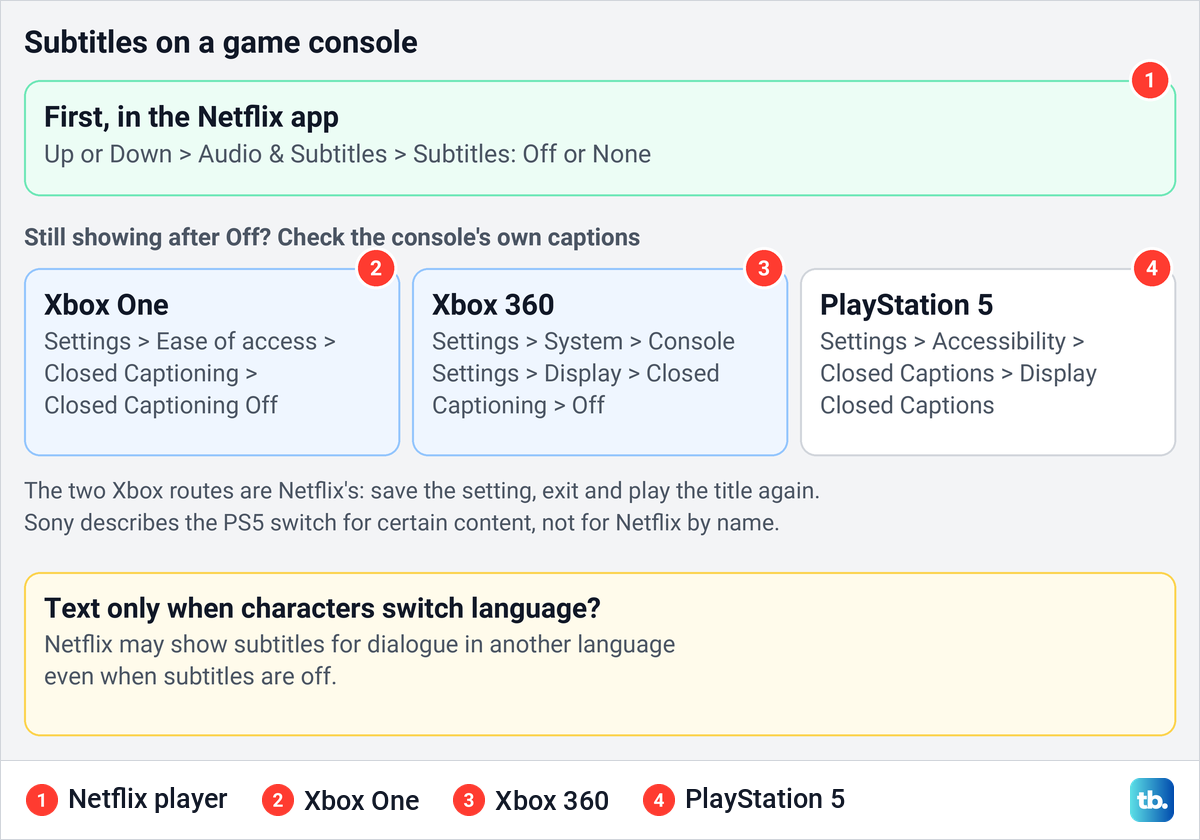
On a PlayStation 5, Sony puts Display Closed Captions under Settings > Accessibility > Closed Captions. Sony describes it for certain content and does not name Netflix, so treat it as a second check after Off in the Netflix player.
Why Netflix subtitles keep coming back
If Off is ticked and text still appears, look at when it appears, because the pattern points to the cause. Netflix's help documents four cases, and a fifth comes from your device rather than the app.
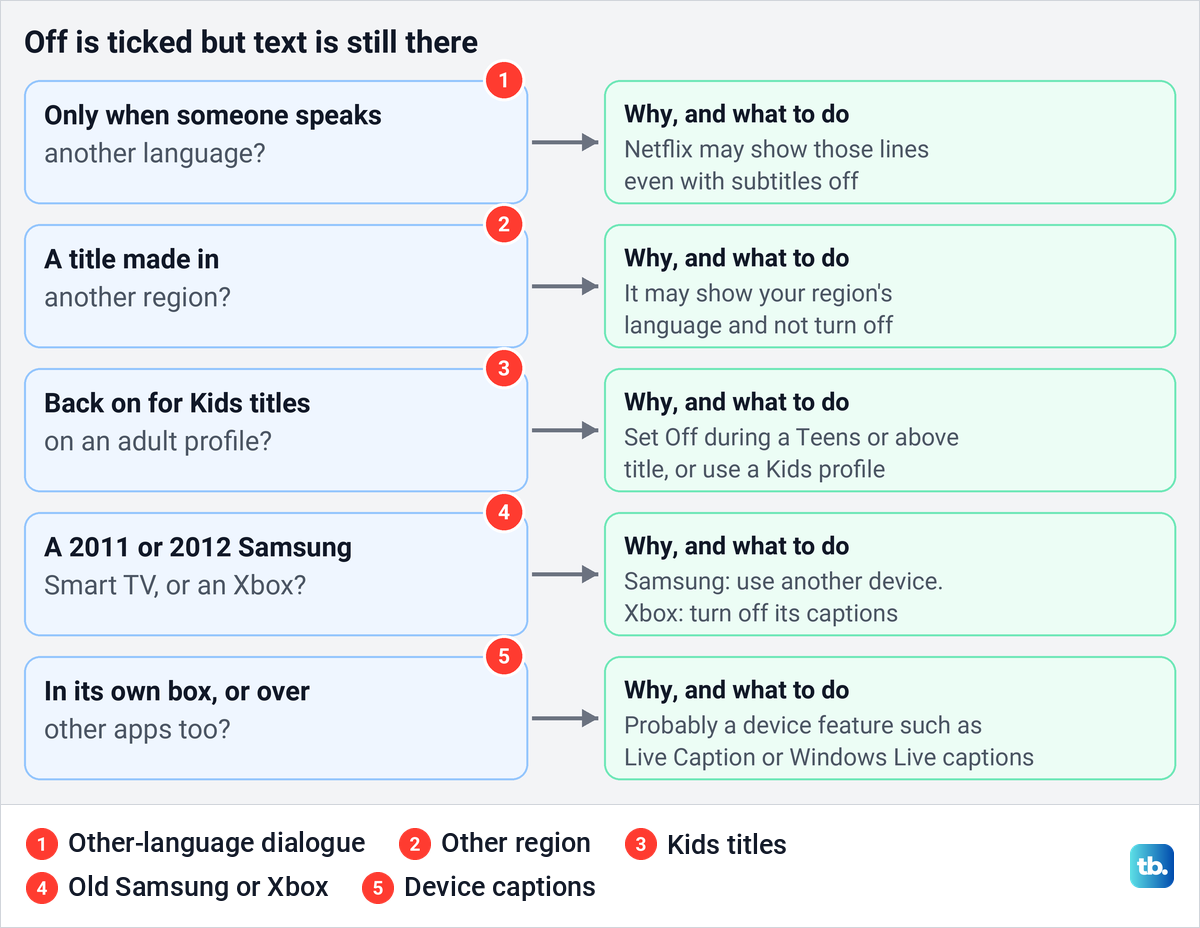
Lines that show up only when a character speaks another language are the first case. Netflix says you may see subtitles even when your subtitle settings are off, while watching titles with dialogue in a language other than the title's original language. Off does not hide those lines.
A whole title subtitled in your region's main language is the second. Netflix says a show or movie produced in another region may show subtitles in your region's primary language by default, and you may not be able to turn them off. If Off is there but will not stick on other titles, the checks below are the next step.
Kids titles are the third. Netflix says subtitle and audio preferences are not saved when you watch most Kids titles from an adult profile, though they are saved on a Kids profile. Its fix is to play a title rated Teens or above with your preferred subtitle setting, which saves it for future viewing.
Moving children's viewing to a Kids profile avoids the reset altogether. If you also want to limit what a child can watch there, you can set up Netflix parental controls with maturity ratings and blocked titles.
The fourth case is older hardware. Netflix says that if choosing None on a 2011 or 2012 Samsung Smart TV does not turn subtitles off, the issue sits in older versions of its app and you should watch on another device. On an Xbox, Netflix says the console's own captions are the likely cause, as the console section explains.
The last case is a caption box that is not Netflix's at all. If the text sits in its own box, looks different from Netflix's subtitles or also appears in other apps, a device feature is writing it.
Captions that come from your device, not Netflix
Some phones and computers have live caption features of their own that can add captions over media, apart from Netflix's player. Google says Android's Live Caption automatically captions speech on your device, though captions might be unavailable for some media apps. Turn it off under the volume controls with More > Live Caption, or in Settings > Accessibility > Live Caption; Google adds that dragging the caption box off the bottom of the screen hides it and turns it off.
On an iPhone, Apple's Live Captions gives a real-time transcription of spoken audio in apps, and its switch is under Settings > Accessibility > Live Captions. Apple also lists Automatic Subtitles under Settings > Accessibility > Subtitles & Captioning, which can show subtitles in supported apps when the phone is muted, when you skip back or when a video is in another language. The same screen holds Closed Captions + SDH, which asks for captions when they are available.
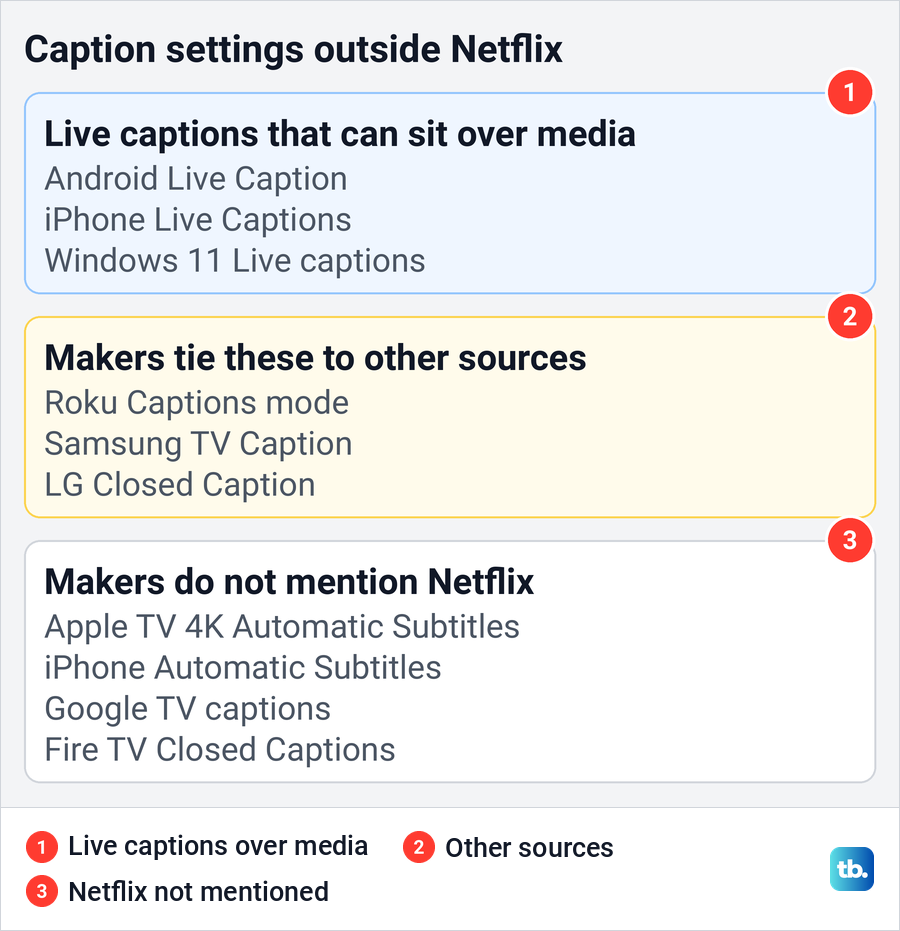
On a Windows 11 PC, Microsoft says Live captions turns audio that passes through the PC into captions. To stop it, switch off the Live captions toggle under Settings > Accessibility > Captions. If the box only appears in Chrome, the guide to turn off Live Caption in Chrome covers the browser's own setting.
Streaming player menus are a different story. Google says Google TV caption preferences might not apply to certain apps, and Amazon lists Closed Captions under Fire TV's Settings > Accessibility without tying it to Netflix. Turn those off if they bother you elsewhere, but for Netflix text the switch is still Off in Audio & Subtitles.
Check the profile's audio and subtitle languages
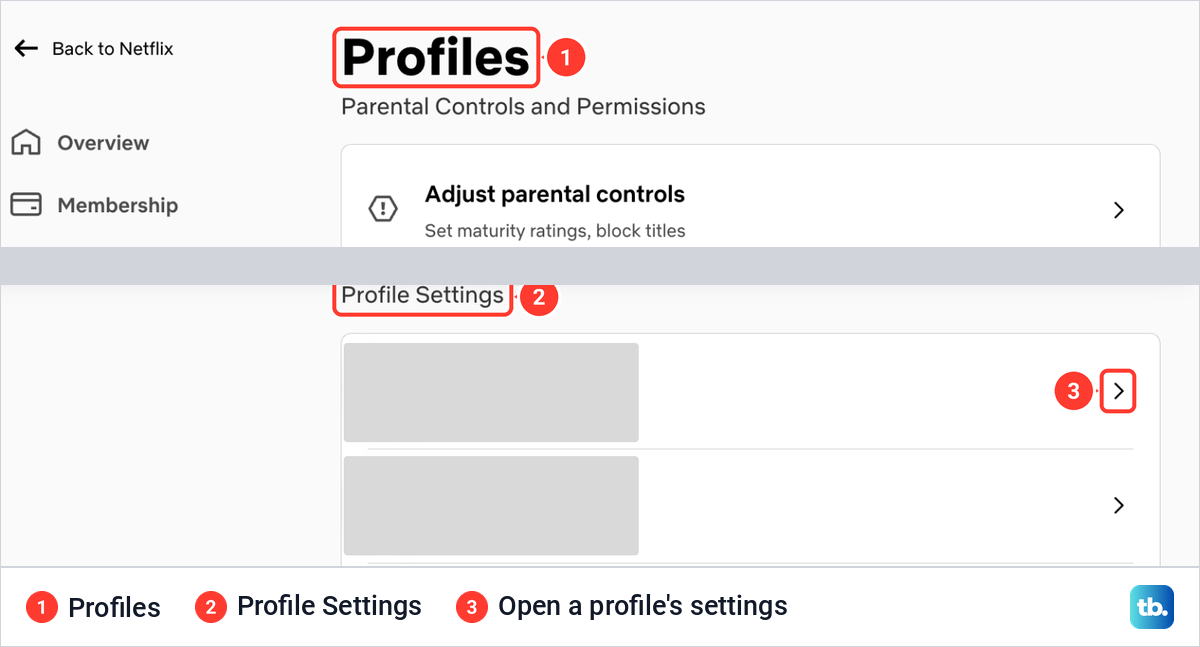
This check is for subtitles in a language you did not expect. Each profile keeps a list of preferred languages for audio and subtitles, and Netflix says the subtitles you are offered can depend on it, but the list picks languages, not whether subtitles show. If subtitles keep turning back on, go back to the player and the Kids-title check above instead. In a browser, Netflix's route is your Account page, then Profiles, a profile and Languages.
On the Profiles page we opened in Chrome, a Parental Controls and Permissions card came first, and a Profile Settings list below it showed one row per profile with an arrow on the right. Select the arrow beside the profile that keeps showing subtitles.
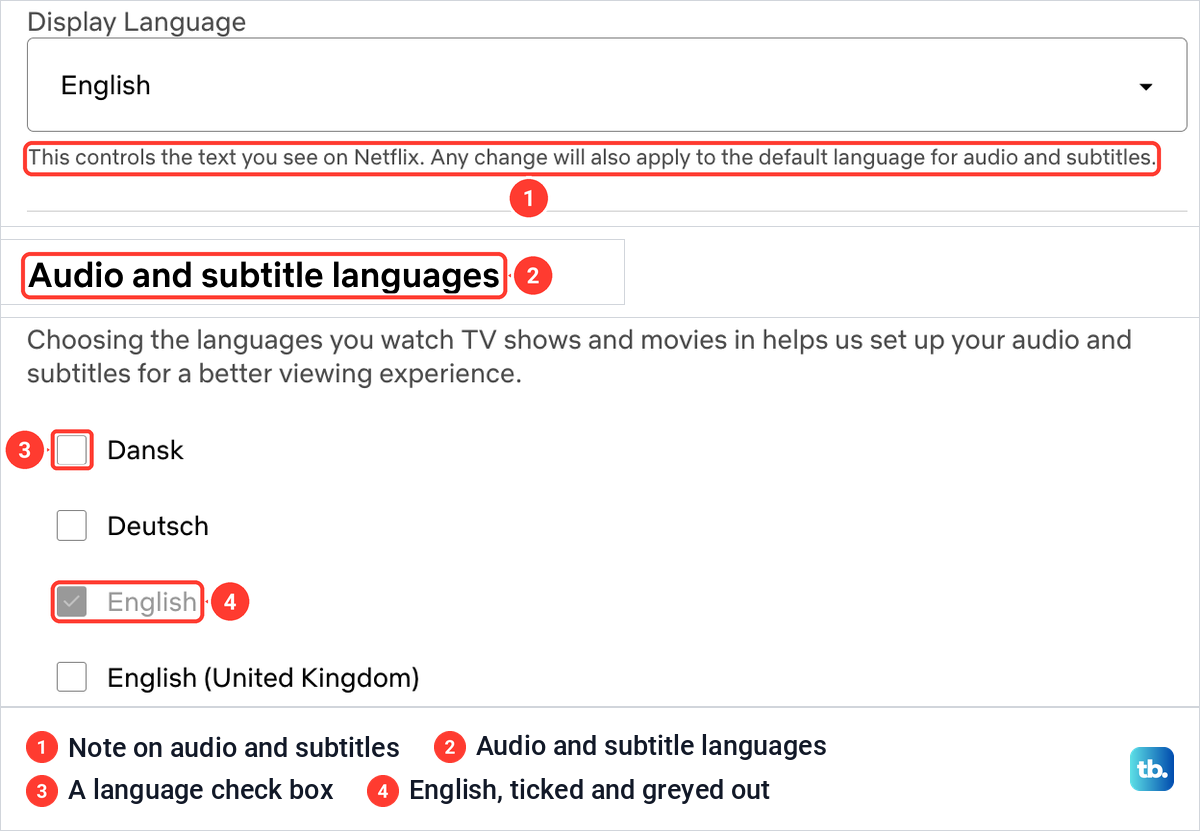
The language page we saw opened with a Display Language box and this note under it: "This controls the text you see on Netflix. Any change will also apply to the default language for audio and subtitles." Below it, the Audio and subtitle languages section was a list of check boxes, one per language, with English ticked and greyed out. Tick the languages you watch in and select Save, which is Netflix's last step on that page.
In the phone app, Netflix's route is My Netflix, the profile name, Manage Profiles, the profile, then Audio & Subtitles, and Netflix says the new languages save automatically. If the menus themselves are in the wrong language, you can change your Netflix language for the profile before checking the player again.
Change how subtitles look instead of turning them off
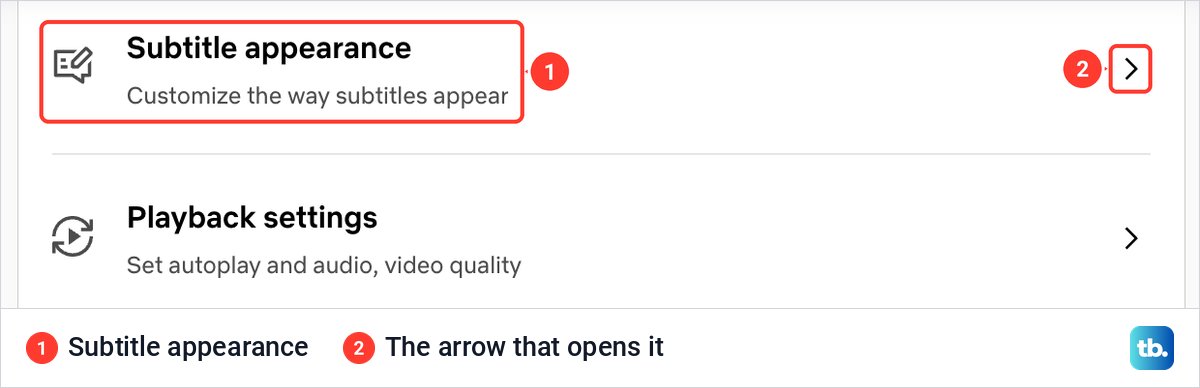
If you are happy to keep subtitles but find them hard to read, Subtitle appearance is the setting you want, and it does not turn anything off. On a profile's settings page we found Subtitle appearance with the line Customize the way subtitles appear, just above Playback settings.
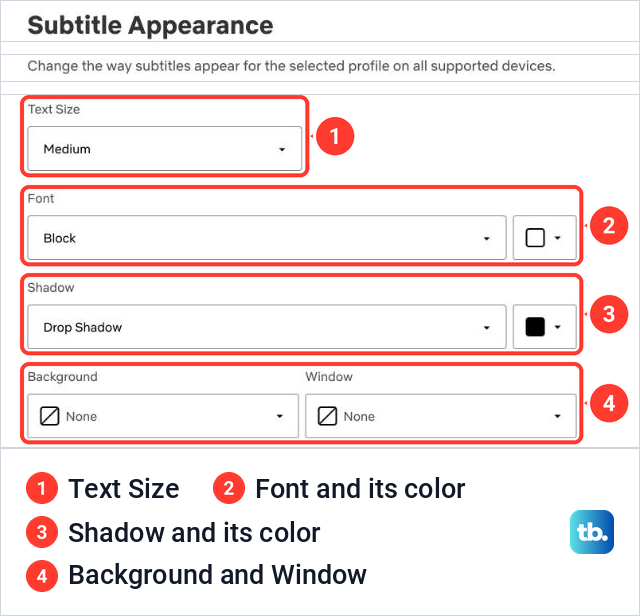
The Subtitle Appearance page we opened in Chrome said "Change the way subtitles appear for the selected profile on all supported devices." Below a preview it had Text Size, Font and Shadow menus, the last two with a color box beside them, and Background and Window menus side by side. Netflix says to choose your settings and select Save.
Netflix's help notes a few differences on other devices. On a TV or streaming device, appearance is changed in the player under Settings, with fewer options than a browser, and Netflix says to use Get Help, then Reload Netflix, if a change made on the web does not show. In the Android app, Subtitle Appearance under Manage Profiles saves automatically but applies only to titles played on that Android device.
Check that subtitles stayed off
Open Audio & Subtitles again on the device that bothered you and look at the Subtitles column: Off or None should carry the tick. Then play a different title, ideally one rated Teens or above, and check the same panel there. If the next episode starts before you can look, you can turn off Netflix autoplay while you check.
Text that appears on one title only, when characters switch language, is the Netflix text described above, not a setting you missed. Subtitle settings can only be checked while a title plays, so if Netflix will not play anything even though other sites load, first fix Netflix when the internet works, then come back to Audio & Subtitles.
How we tested this guide
We tested this on Netflix on the web in Chrome, opening the player's Audio and Subtitles panel and a profile's language and Subtitle Appearance pages.
Frequently Asked Questions
How do I turn off Netflix subtitles on my TV?
Play a title, press the up or down arrow on the remote, open Audio & Subtitles or the language row at the bottom, and choose Off or None under Subtitles. The TV's own caption menu is not the switch for Netflix.
Are closed captions a separate setting on Netflix?
No. In the web player, closed-caption tracks such as English (CC) sit in the same Subtitles list as ordinary subtitles. Choosing Off turns off both.
Why are subtitles still showing when Off is selected?
Netflix may show subtitles for dialogue in another language, and some titles made in another region keep subtitles in your region's language. If the text sits in its own box or appears over other apps, a device feature such as Live Caption is probably on.
Why do Netflix subtitles turn back on for Kids shows?
Netflix does not save subtitle preferences for most Kids titles played from an adult profile. Set your choice while a title rated Teens or above plays, or watch children's shows from a Kids profile, which does save it.
Can I turn subtitles off everywhere with one account setting?
Netflix's help documents the choice in the player and the profile's language preferences, not a single account-wide switch. Choose Off on the profile you watch with, then check the exceptions above if text returns.
Does changing Subtitle appearance remove subtitles?
No. That page changes text size, font, shadow, background and window. Turning subtitles off happens in the player's Audio & Subtitles panel.
Why does Roku's caption switch not remove Netflix subtitles?
Roku says its closed caption settings have no effect on apps that handle captions themselves, and it lists Netflix among them. Use Netflix's Audio & Subtitles panel instead.