To fix an ARRIS modem that is not working, check its power and cable connections, rule out a provider outage, then restart it using the procedure for your model. On G18/G20, G34/G36, G54, or SB8200, test another connected device before changing settings. Follow the matching model instructions because ARRIS devices use different lights, restart procedures, and reset timings.
The short version
- Start with connections: Check the supplied power adapter and, on S33/S34, hand-tighten the coaxial connectors.
- Check the service: An outage or activation problem needs attention from your internet provider.
- Separate the symptoms: On G18/G20, G34/G36, G54, or SB8200, test another device to distinguish a client problem from a wider connection failure.
- Reset last: A factory reset erases settings, and its procedure depends on the model.
| Check or fix | When to use it | Model or condition |
|---|---|---|
| Power adapter and outlet | No power or unreliable operation | S33/S34, G18/G20, G34/G36, G54 |
| Coaxial connections | Blinking connection indicator | S33/S34 |
| Modem lights | Identify connection status | S33/S34 or SB8200 |
| Another connected device | Find whether one client is affected | G18/G20, G34/G36, G54, SB8200 |
| Outage check | Service is unavailable | Xfinity customers |
| Activation | Modem needs provider registration | Supported SURFboard cable modems |
| SURFboard Central setup | Get the companion app | Select a supported device model |
| S33/S34 power cycle | Connection remains unavailable | Disconnect power for one minute |
| G18/G20 power cycle | Connection remains unavailable | Shut down clients first |
| G54 restart | Gateway or wireless functions fail | Power or browser controls |
| Ethernet topology | Multiple devices connect directly | S33/S34 |
| Ethernet cable and client isolation | Wired connections drop | G54 |
| Wi-Fi credentials | Cannot join the wireless network | G34/G36 |
| Gateway placement | Weak signal or interference | G34/G36 |
| Wi-Fi channel selection | Wireless interference persists | G34/G36 |
| Browser credential recovery | Need gateway settings access | App-configured G18/G20, G34/G36, G54 |
| Automatic DNS | Invalid custom DNS interrupts access | G18/G20, G34/G36, G54 |
| Bridge mode correction | Accidental loss of routing and Wi-Fi | G34/G36 |
| Scheduled restriction check | Particular devices lose access | G34/G36 or SBG8300 |
| Cable signal readings | Connection problems persist | G18/G20 |
| Event logs | Collect details for support | SB8200 |
| App association removal | Prepare for a hardware reset | App-configured G34/G36 or G54 |
| S33/S34 factory reset | Last resort | Hold Reset for 20 seconds |
| SB8200 factory reset | Last resort | Hold Reset for 10 seconds |
| G34/G36 factory reset | Last resort | Hold Reset for at least 20 seconds |
| G18/G20 factory reset | Last resort | Hold Reset for at least 20 seconds |
| G54 factory reset | Last resort | Hold Reset until white flashes begin |
Check power connections and modem lights
For S33/S34, G18/G20, G34/G36, and G54, inspect the power adapter for damage and use the adapter supplied with the device. Reseat its connections, check any wall switch controlling the outlet, and try a known-working outlet. ARRIS warns that an incorrect adapter can power the modem while preventing successful firmware updates.
On an S33/S34, hand-tighten the coaxial connectors at both ends. If you also subscribe to cable television, check whether that service has failed too. A blinking connection indicator can point to a cable-signal or activation problem.
Read the lights for your particular model. Solid green on an S33/S34 means DOCSIS 3.0 connectivity, while solid blue means DOCSIS 3.1 connectivity. An SB8200 has separate power, receive, send, and online indicators, so do not apply the S33/S34 color meanings to it.
Rule out an outage or activation problem
On G18/G20, G34/G36, G54, or SB8200, test another connected device. If it can access the internet, reconnect the failing device to its Wi-Fi or Ethernet connection and troubleshoot that device. One failing client does not establish that the modem has lost its internet connection.
Sign in only through Xfinity’s own app or website, and never share a code, password, or remote access with someone who contacts you. If you have Xfinity service, sign in to the Xfinity app and select View outage details when displayed.
On the Xfinity website, open Support > View Outage Map, then enter the service address or select the house icon. Select Report an outage if service is failing without a listed outage.
If your supported SURFboard cable modem needs activation, have its HFC MAC address and serial number ready. In the SURFboard Central cable-modem setup flow, select your provider, then select Contact Service Provider or Self Activate and follow the provider’s process. Wait for the online indicator before you select I'm Online.
SURFboard Central supports cable-modem setup for models including S33/S34 and SB8200. If you need the app, get it through the official SURFboard Central download page and select your supported model during setup. Its controls differ by device.
Restart your ARRIS model
For an S33/S34, disconnect power for one minute, reconnect it, and wait for a solid green or blue light. Allow up to 15 minutes for startup and registration. Restart the computer afterward and test the connection again.
With a G18/G20, shut down connected clients, unplug the gateway for one minute, and reconnect it. Wait for solid green or blue; ARRIS estimates approximately four minutes for full operation. Restart the clients and retest.
For a G54, unplug power and wait before reconnecting it: ARRIS’s G54 restart steps specify 10 seconds, while its G54 troubleshooting steps specify one minute. Reconnect power and wait for a solid front LED. You can also sign in at http://192.168.0.1 and open Troubleshooting > Restart/Restore. Choose Restart Gateway for the gateway, Restart Wi-Fi Module to preserve wired internet, or Restart Wi-Fi & Router to preserve the modem’s cable connection.
Check Ethernet connections and your router setup
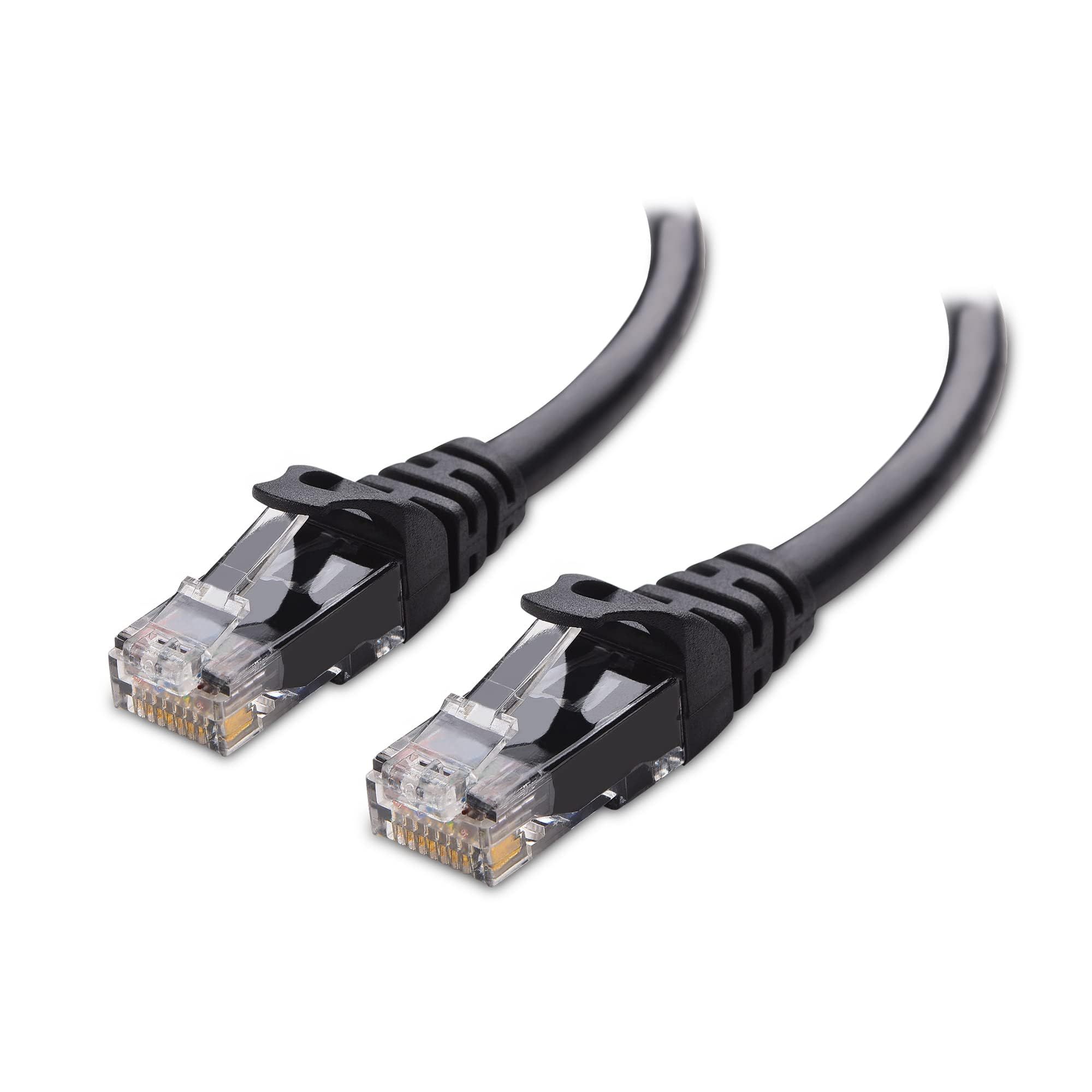
S33/S34 models provide neither Wi-Fi nor routing. For ordinary internet service, connect one computer or a router to the modem, then connect additional household devices through the router. Using both modem Ethernet ports for separate internet connections requires a second IP-address subscription where your provider offers it.
For intermittent wired connections on a G54, reseat the Ethernet connections and substitute a known-working cable. Disconnect other clients and test one Ethernet-connected device, then another. If connectivity returns, reconnect devices individually to identify which one triggers the failure. When failures happen during heavy usage, compare household demand with your subscribed bandwidth.
Fix wireless connection problems
On a G34/G36, start by confirming the Wi-Fi name and password. If the defaults are unchanged, read 2.4GHz SSID, 5GHz SSID, and Wi-Fi Security Key on the bottom label. For customized credentials, sign in at http://192.168.0.1, open Gateway > Summary, and select Show under Primary Home for the relevant SSID.
To fix a weak Wi-Fi signal on a G34/G36, move the gateway into an open, elevated location instead of a cabinet or closet. Test away from cordless phones, baby monitors, microwaves, and other interference sources. Move or switch off a nearby interfering device to see whether the dropouts stop.
If interference persists, sign in to the G34/G36 browser interface and open Troubleshooting > Wi-Fi Spectrum Analyzer, select Start Scan, then select OK. Review congestion, then open Gateway > Connection > Wi-Fi and select 2.4 GHz Radio or 5 GHz Radio. For Channel Selection, select Manual, choose a Channel, and select Save Settings.
ARRIS recommends channels 1, 6, or 11 for manual 2.4 GHz selection on G34/G36. Alternatively, retain Auto and restart so the gateway selects a channel. These changes address wireless interference, not a failed coaxial connection.
Correct settings that interrupted the connection
If you need browser access to a G18/G20, G34/G36, or G54 configured through SURFboard Central, open the top-left Menu > Access Web Interface in the app. Select Copy beside the displayed password, then select Launch Web GUI. Enter the displayed credentials and select Login or Apply, matching your model. App-configured gateways may use an email address and generated password.
Invalid custom DNS addresses can interrupt internet access on G18/G20, G34/G36, and G54. In SURFboard Central, open My Network, then select Network Management > Network Settings > WAN Settings > DNS Configuration. Select Automatic, then Save Changes, and select OK in both the alert and success dialogs. The gateway reboots.
For a G34/G36 accidentally placed in bridge mode, connect a computer by Ethernet and open http://192.168.100.1. Select Proceed if redirected, sign in, then open Gateway > Summary. Select Disable for Bridge Mode, select OK, and allow several minutes for routing and Wi-Fi to return.
Scheduled restrictions can also explain why particular devices lose access. On G34/G36 or SBG8300, open Home, then open My Experiences and select Parental Control > Currently Blocked. To turn off an unwanted scheduled restriction, open the affected profile and turn off Associated Rules.
Check diagnostics before contacting support
On a G18/G20, sign in at http://192.168.0.1 and open Connection > WAN. Review Downstream QAM and Upstream QAM, including power, modulation, SNR, and every channel page. Refresh twice and compare the readings with ARRIS’s signal tables for your model; ask your provider to correct out-of-range signals.
For an SB8200, open http://192.168.100.1, sign in when prompted, and select Event Log. Record the incident time, priority, and description for your provider or ARRIS support.
If an S33/S34 still has a blinking connection indicator after the cable checks and restart, ask the provider to check the signal and activate or reactivate the modem if necessary. Leave a factory reset until after these simpler checks.
Factory reset only as a last resort
A factory reset erases configuration changes and resets the administrator password on S33/S34. Insert a paperclip into the recessed Reset button on the bottom, hold it for 20 seconds, then release. Afterward, open http://192.168.100.1, enter admin in Username, and enter password or the last eight serial-number digits in Password, then select Apply. Follow the first-login prompts to create a unique password, and select Ask me later if registration appears.
On an SB8200 running firmware 1.01.009.47 or later, a factory reset returns the administrator password to the last eight serial-number digits. Press the recessed Reset button with a paperclip for 10 seconds, then release. The LEDs flash, and the power indicator may take up to one minute to return.
Removing a gateway from SURFboard Central removes its app association. Before resetting a G34/G36 set up through the app, open the top-left Menu > Remove Device, select the gateway, then select Next and Yes. Continue with the hardware reset afterward.
A G34/G36 factory reset erases custom Wi-Fi and administrator settings. Hold the recessed Reset button for at least 20 seconds, release it, and allow approximately four minutes. Reconfigure through SURFboard Central or the Home Network Wizard at http://192.168.0.1, then reconnect your devices.
A G18/G20 factory reset erases custom settings. Hold the recessed Reset button for at least 20 seconds, then release it. Allow approximately four minutes for operation to resume, then reconfigure the gateway.
Removing a G54 from SURFboard Central removes its app association. If you used the app for setup, open Menu > Remove Device, select the gateway, then select Next and Yes before performing the hardware reset.
A G54 factory reset erases settings. Hold the recessed Reset button until the LED begins a series of white flashes. Let the gateway reboot, then reconfigure it and reconnect your devices.
Frequently Asked Questions
Can you update ARRIS modem firmware yourself?
You cannot install firmware on ARRIS DOCSIS cable modems and gateways yourself. ARRIS supplies firmware to cable providers, which qualify and distribute it. Ask your provider to check the firmware for your device.
Why does an SB8200 ask for a password when older instructions skip it?
Your SB8200 requires an administrator login on firmware 1.01.009.47 and later. Connect a computer by Ethernet, open http://192.168.100.1, enter admin and your configured password, then select Login. Initial passwords can be password or the last eight serial-number digits. After repeated invalid attempts, wait five minutes before retrying.
Can Xfinity restart an ARRIS gateway remotely?
If your ARRIS equipment is an eligible rented Xfinity gateway, open the Xfinity app and select WiFi > Troubleshoot > Restart your Gateway. Allow up to 12 minutes. You can also use Xfinity Assistant for guided troubleshooting, which can offer a technician appointment when remote troubleshooting cannot resolve the problem.
How can you save diagnostic logs from a G34 or G36?
Sign in at http://192.168.0.1 and open Troubleshooting > Logs. Choose Log Type and Time Frame, select Show Logs, then select OK. Use Print or Download to retain the results; categories include System Logs, Event Logs, and Firewall Logs.