Your modem may flash green while searching for a connection, starting up or carrying normal traffic, so check its model and the blinking light’s label before choosing a fix. On an ARRIS S33 or S34, a flashing green front light means channel searching, while flashing green rear Ethernet lights mean traffic. Normal activity needs no repair.
The short version
- Identify the indicator: Your modem model and the light’s location determine what flashing green means.
- Allow startup time: Xfinity gateways can take approximately 15 minutes to complete their connection cycle.
- Check service and cables: Persistent searching calls for outage, connection and activation checks.
- Restart before resetting: Follow your equipment’s restart procedure before considering a factory reset that erases settings.
| Check or fix | Equipment or service | When to use it |
|---|---|---|
| Identify the indicator | Your exact modem model | Before treating blinking as a fault |
| Allow connection activity to finish | Xfinity, CenturyLink DSL or Virgin Media Hub 3 | During startup or synchronization |
| Check the outage notice | Xfinity app | When service is unavailable |
| Check outages and run Troubleshooter | CenturyLink | When an outage or line fault may explain the failure |
| Check account status | CenturyLink | When a missed payment or account problem may have suspended service |
| Check coaxial connections and power | ARRIS S33 or S34 | When channel searching persists |
| Remove cable splitters and retest | NETGEAR cable equipment | When signal quality may be reduced |
| Check filtering and another active jack | CenturyLink tower DSL gateways | When DSL will not synchronize |
| Restart through the app | Rented Xfinity gateways | After initial checks fail |
| Disconnect and reconnect power | Xfinity equipment | After online restart methods fail |
| Disconnect and reconnect power | ARRIS S33 or S34 | When the modem keeps searching |
| Restart through Smart Home Manager | Compatible AT&T gateways | When a restart is needed |
| Disconnect and reconnect power | CenturyLink gateways | When connection problems persist |
| Check cables, restart and run the connection test | Virgin Media Hub 3 | When problems remain after startup |
| Verify activation and registration | NETGEAR cable equipment | When service or modem registration needs checking |
| Complete app activation | Xfinity gateways and approved owned modems | When setting up new or replacement equipment |
| Run automated network diagnostics | Xfinity | When simpler checks fail |
| Inspect cable connection status | Listed NETGEAR models | When initialization or synchronization stalls |
| Collect event logs and request signal checks | ARRIS S33 or S34 | When provider diagnosis is needed |
| Factory reset with the hardware button | ARRIS S33 or S34 | As a last resort after simpler checks |
| Back up settings and reset through the browser | CenturyLink gateways with these utilities | With technical-support guidance |
| Arrange equipment replacement | CenturyLink | When repair support determines it is needed |
Match the flashing light to your modem
Read the model number and the label beside the blinking indicator. On NETGEAR CM1100, CM1150V, CM1200, CM2000 and CM2050V modems, blinking Downstream or Upstream indicates channel scanning, while blinking Internet or Online indicates synchronization. A blinking LAN light indicates traffic, and a blinking Tel light can indicate a call or an off-hook phone.
For an ARRIS SURFboard S33 or S34, check whether the flashing comes from the front or the rear Ethernet connection. Green flashing at the front means downstream or upstream channel searching; green flashing at the rear means Ethernet traffic. A solid green front light means DOCSIS 3.0 operation, and solid blue means DOCSIS 3.1 operation.
On an AT&T BGW530, fast green flashing on Service during initial setup means activation is needed. Slow green flashing on WPS with solid white Service means pairing is underway, so complete pairing on the client device. Fast green flashing on WPS means a factory reset is underway, so allow startup to finish.
Let startup and connection activity finish
On Xfinity gateways, allow approximately 15 minutes for the connection cycle before troubleshooting persistent connectivity failure. Xfinity identifies green and other unspecified color combinations as connection activity with its systems. Blinking blue indicates WPS on these gateways; these meanings do not apply to standalone modems.
On a CenturyLink tower or box-style DSL gateway, wait up to five minutes for synchronization. Slowly blinking green DSL means searching, while rapid green flashing means the network was detected and the connection is underway. For a pair-bonded connection, check both DSL indicators. If blinking continues, check the installation and restart using the steps below.
A Virgin Media Hub 3 can flash green during startup, pairing or updating. Its WiFi light can flash green during startup or WPS, and its Internet light can flash green during a software update. Allow startup to finish before treating the light as a fault.
Check for an outage before changing settings
Sign in only through Xfinity’s own app or website, and never share a code, password, or remote access with someone who contacts you. Sign in to the Xfinity app and look for an outage notice, which appears when your address is affected. Tap View outage details to see the cause, repair status and estimated restoration time.
For CenturyLink, open My CenturyLink in the app or browser, sign in and inspect any outage alert. If an area outage does not explain the failure, select Open Troubleshooter on the support page. The tool tests equipment and the line, can resolve some faults remotely, and offers repair scheduling or chat when needed.
Account status can also explain lost CenturyLink service, though suspension is not a universal meaning of a green light. Open My CenturyLink, select Services, then open Troubleshooter. If a missed payment or account problem has suspended your service, settle the account with CenturyLink to have service turned back on.
Check the cable or DSL connection
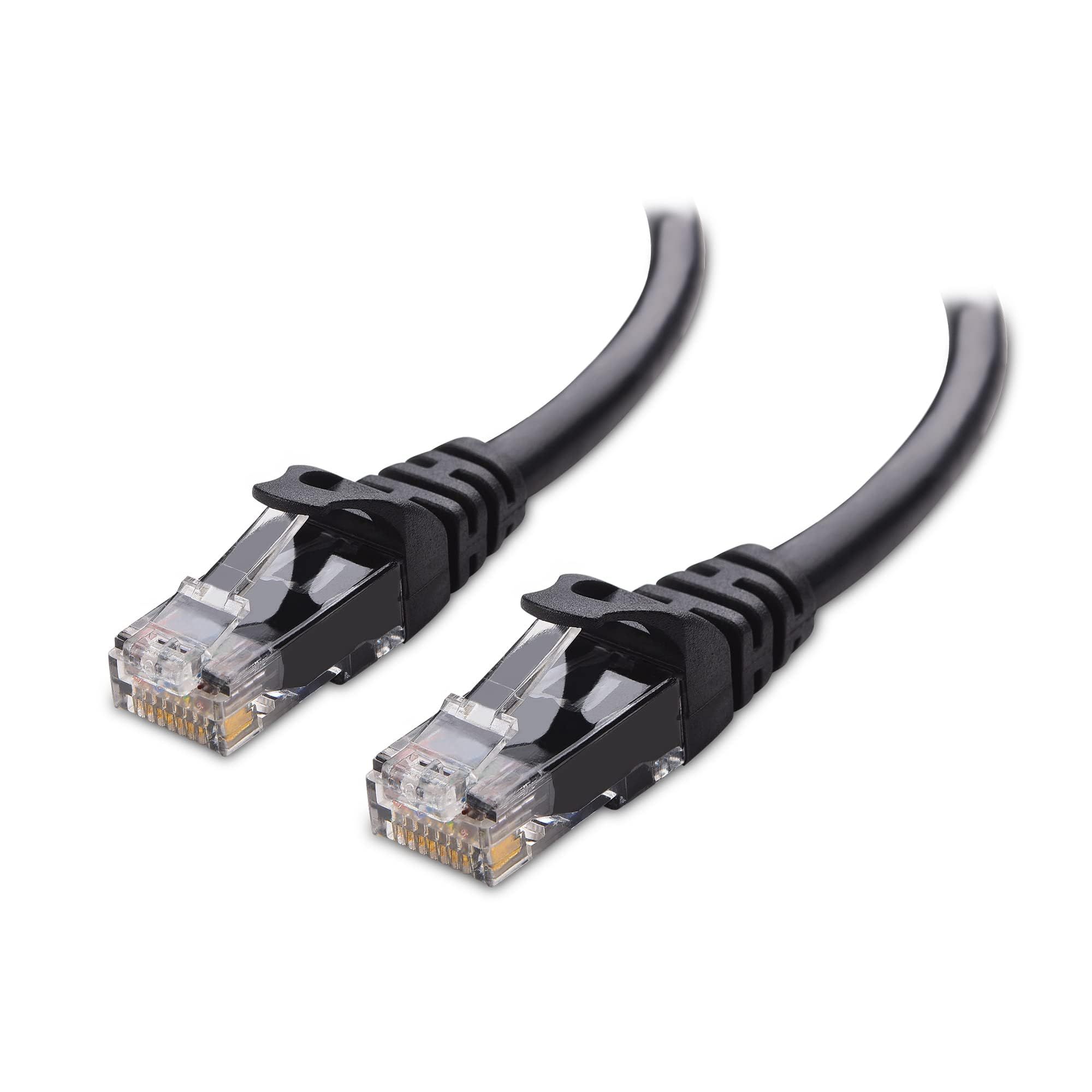
With an ARRIS S33 or S34, hand-tighten the coaxial connectors at both ends. Use the supplied power adapter, inspect it for damage and try a working electrical outlet. If cable television also fails, report that detail to your provider.
For NETGEAR cable modems and modem routers covered by its connectivity troubleshooting instructions, remove splitters between the incoming cable connection and the modem, then retest. NETGEAR recommends this because splitters reduce signal quality. If channel scanning continues, proceed to the restart and activation checks.
On a CenturyLink tower DSL gateway, check that the modem’s DSL connection is not filtered. Try another telephone jack connected to your internet service; an inactive socket will not provide that connection. If synchronization still fails, contact CenturyLink technical support for a line investigation.
Restart using the procedure for your equipment
Restarting temporarily interrupts internet and gateway-based telephone service. For a rented Xfinity gateway, sign in to the Xfinity app and open WiFi > Troubleshoot > Restart your Gateway. Allow up to 12 minutes for the restart.
If Xfinity’s online restart methods fail, disconnect the equipment’s power cable, wait one minute and reconnect it. Xfinity recommends this procedure for its gateways and most third-party modems or routers on its service. Allow the connection cycle to finish before checking the result.
For an ARRIS S33 or S34, disconnect power for one minute and reconnect it. Allow up to 15 minutes for a solid green or blue light, then restart your computer. If the modem continues searching, proceed to activation and line checks.
On compatible AT&T equipment, including the BGW530, open Smart Home Manager > Network > Restart Wi-Fi, then select Restart. If you need the app, use the app-store links on the official Smart Home Manager page and sign in with the AT&T account associated with your gateway.
For CenturyLink gateways, including the C4000 family, disconnect power and check that the lights go out. Wait 30 to 60 seconds, reconnect power and allow three to five minutes for startup. If you use a Virgin Media Hub 3, check cable seating and restart the Hub, then use Virgin Media’s broadband connection test if problems persist.
Complete activation for new or replacement equipment
A NETGEAR cable modem that cannot connect may need activation or a correction to its registration. Ask your internet provider to verify that the modem is activated, its MAC address is registered correctly and internet service is active. For a new modem, complete the provider’s activation process.
To activate an Xfinity gateway or approved customer-owned modem, sign in to the Xfinity app as the Primary user or a Manager. Select Get Started when offered. For replacement equipment, open Account > Set up equipment or devices, then select Xfinity Gateway or Modem under Internet.
Complete the equipment setup screens and check the WiFi details. Select Confirm and Finish Up, then allow activation and network setup to finish. This process excludes communities where members activate their own Ethernet routers on fiber service.
Run diagnostics and get the line checked
For Xfinity, use the full-network-test link on its official restart and troubleshooting page to run diagnostics in the app, or open Xfinity Assistant through that page. Follow the diagnostic prompts. If the system finds a fault it cannot resolve online, it offers technician scheduling; available actions depend on your account and equipment.
For NETGEAR CM1000, CM1000v2, CM1100, CM1150V, CM1200, CM2000 and CM2050V modems, open http://192.168.100.1 from a connected device. Sign in with admin and your configured password; NETGEAR lists password as the original default. On BASIC Home, select Cable Connection to inspect initialization and connection information.
For an ARRIS S33 or S34, connect a computer directly by Ethernet and open http://192.168.100.1. Sign in with admin and the modem password, then select Apply. First-time defaults vary between password and the serial number’s last eight digits, with a unique password required afterward.
If registration appears, select Ask me later, then select Event Log. Record relevant Date/Time, Event Level and Description entries for the technician. Ask your cable provider to investigate signal levels and correct readings outside the S33 or S34’s required range.
If your modem still cannot synchronize, use your provider’s official support options for diagnosis. CenturyLink’s troubleshooting tool offers line testing and repair scheduling, while Virgin Media’s broadband connection test can diagnose faults or arrange an engineer.
Keep a factory reset as the last resort
A factory reset on an ARRIS S33 or S34 erases configuration changes and restores default administrator credentials. After simpler checks fail, use a paperclip or pen tip to hold the bottom Reset button for 20 seconds, then release it.
For CenturyLink, get technical-support guidance before resetting. On gateways offering configuration backup, open http://192.168.0.1 from the home network, sign in with administrator credentials and open Utilities > Configuration Save. Select Download and save the configuration file.
A CenturyLink factory reset erases custom settings, so save the configuration first on models offering that utility. On gateways with these controls, follow support guidance to open Utilities > Restore Defaults > Restore Modem to Factory Default State. Allow three to five minutes, then reactivate service and reconnect your devices.
For other equipment, get reset instructions matched to the exact model through the maker’s or provider’s official support. If CenturyLink repair support determines that replacement is needed, an agent can arrange it.
Frequently Asked Questions
Can updating firmware help when a NETGEAR modem keeps flashing green?
If your NETGEAR cable modem’s firmware is outdated, contact your internet provider after comparing it with NETGEAR’s ISP-specific firmware listing. NETGEAR supplies cable firmware to the provider, and you cannot install it yourself. CAX and CBR devices have separately updateable router firmware, but their cable firmware remains provider-controlled.
Can you turn off the front light on an ARRIS S33 or S34?
Yes, open http://192.168.100.1, sign in and select Apply; if registration appears, select Ask me later. Open Configuration > Front Panel Lights and select Always OFF or Off under normal conditions. This changes illumination only and does not repair a connection fault.
Why would an older Xfinity modem suddenly stop reconnecting?
Some older devices listed by Xfinity can lose service because their DOCSIS certificates have expired. Compare your exact model with Xfinity’s affected-device lists; if it is affected and has lost service, replace and activate it. For rented equipment, follow the provider’s replacement notice; for owned equipment, check Xfinity compatibility before purchasing.
Does alternating blue and green mean the same thing as flashing green on ARRIS?
On an ARRIS S33 or S34, alternating blue and green indicates an error requiring cable checks and potentially a reset. Flashing green alone indicates downstream or upstream channel searching. Check the full color pattern before choosing a fix.