To troubleshoot modem connection problems, check the power and cables, check for an outage, restart your equipment, then test a computer connected directly to the modem if you have a separate router. Follow the restart timing and diagnostic steps for your equipment, because light meanings and administration settings vary by model. If the direct connection still fails, ask your internet provider to investigate the incoming service and modem activation.
The short version
- Start with connections: Reseat power and network cords and check that the outlet works.
- Check the service: Use your provider’s troubleshooting tools to investigate outages and line faults.
- Restart correctly: Follow your provider’s waiting time before reconnecting power.
- Isolate the fault: Test Ethernet directly from a separate modem to a computer to distinguish modem trouble from router trouble.
- Save reset for last: A factory reset erases custom settings, so complete simpler checks first.
| Check or fix | Where it applies | What to do |
|---|---|---|
| Power and network cords | Home modems and gateways | Reseat connections and check the outlet |
| Coaxial connectors | Xfinity cable equipment | Tighten connectors with your fingers |
| Coaxial splitters | Covered NETGEAR cable models | Remove splitters and retest |
| Service and repair checks | CenturyLink residential service | Run Troubleshooter and follow its repair options |
| Assisted troubleshooting | Xfinity internet service | Complete browser or Assistant checks |
| Full network test | Rented Xfinity gateways | Check outages, gateway speed, and device connections |
| Manual restart | CenturyLink, AT&T, and Xfinity equipment | Use the provider’s power and waiting sequence |
| Account portal restart | Compatible CenturyLink modems | Select the modem under Equipment |
| App restart | Compatible AT&T and rented Xfinity gateways | Use the provider’s app restart controls |
| Device comparison | A phone or other device that cannot connect | Compare other devices and another Wi-Fi network |
| Direct Ethernet test | Separate modem and router installations | Connect a computer directly to the modem |
| Router administration check | NETGEAR routers behind a working modem | Check whether router administration opens |
| Gateway or router placement | Wi-Fi coverage trouble | Move equipment centrally and above floor level |
| DSL synchronization | CenturyLink tower gateways | Check installation, filtering, and another phone jack |
| Power and Internet lights | CenturyLink tower gateways | Distinguish startup trouble from activation or traffic |
| Activation check | NETGEAR cable modems and modem routers | Ask the provider to confirm activation |
| Cable signal levels | Covered NETGEAR cable models | Report readings outside the model’s ranges |
| Local diagnostics and logs | Compatible CenturyLink gateways | Open Utilities and select an available test |
| Cable modem firmware | NETGEAR cable modems | Ask the provider about an outdated version |
| Factory reset | Covered AT&T hubs and gateways | Record custom settings before resetting |
Check the power and physical connections
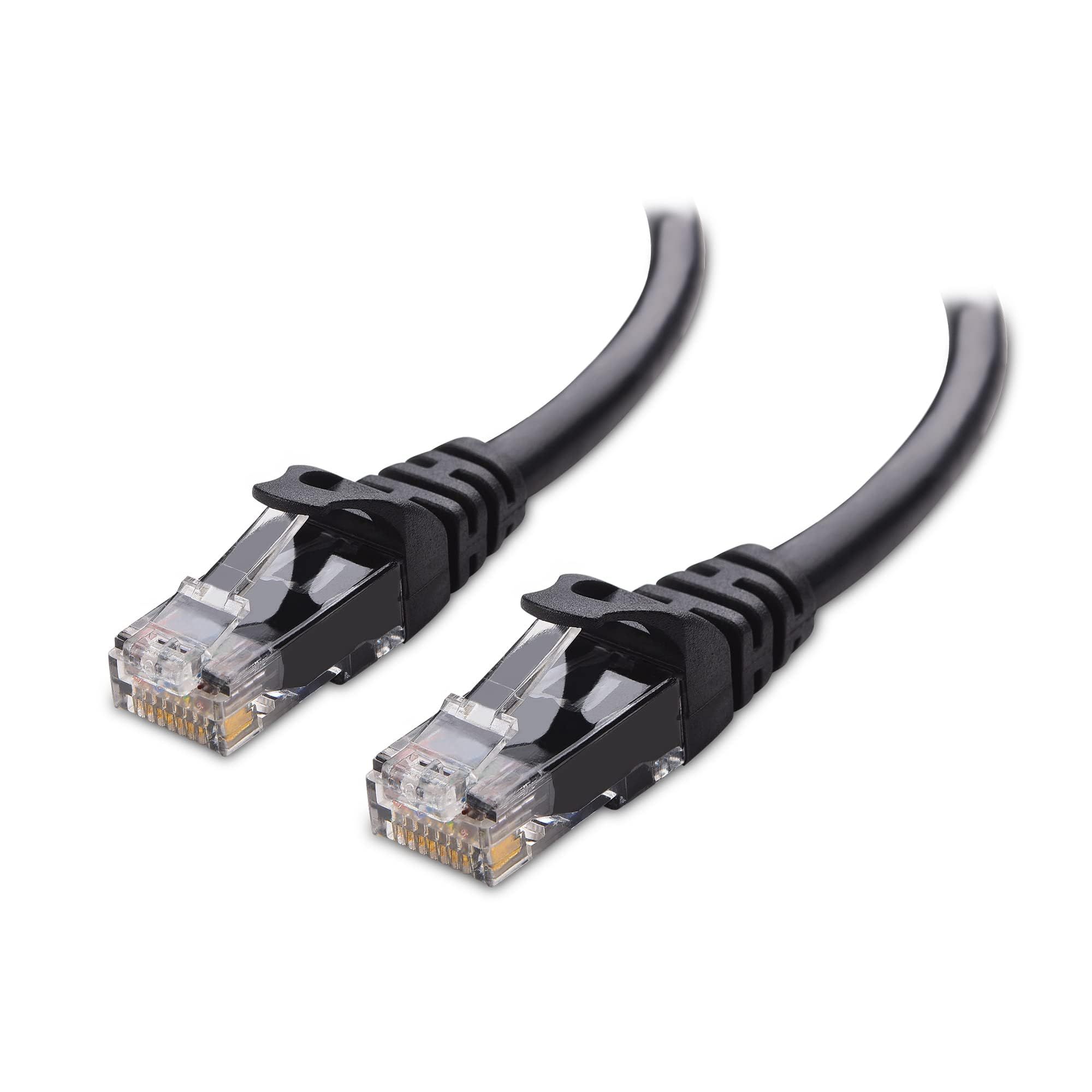
Reseat the power and network cords at both ends, including the wall jack and outlet. Check that the outlet works before assuming the modem has failed. CenturyLink recommends these checks for home modems and gateways.
For Xfinity cable equipment, check the coaxial connectors at the modem, wall, and any splitters. Tighten them with your fingers only; do not use tools.
On NETGEAR cable models covered by its splitter troubleshooting procedure, including CM2000, CM2050V, CAX30, CAX80, and CBR750, remove splitters between the incoming cable connection and modem, then retest. This checks whether a splitter is contributing to signal loss. If the connection still fails, continue with the service and restart checks.
Check for an outage or a line fault
For CenturyLink residential service, open My CenturyLink and sign in, select Services, then open Troubleshooter. It checks area outages and individual line or equipment faults. If it finds no fault, select Internet Problems and choose the relevant symptom.
Sign in only through CenturyLink’s own app or website, and never share a code, password, or remote access with someone who contacts you. Also check whether an account suspension or missed payment explains the lost service. After the line test, use the repair appointment or chat options if you still need help; a detected individual fault can lead to a repair order and appointment.
For Xfinity service, use browser troubleshooting through xfinity.com or open Xfinity Assistant from its gateway troubleshooting support page. Complete the symptom-based checks, which may offer technician scheduling if the fault remains unresolved. If you rent an Xfinity Gateway, use the full network test link or QR code on Xfinity’s wireless troubleshooting support page to open the test in the app. It checks outages, speed to the gateway, and device connection strength.
Restart your modem using the correct timing
For a CenturyLink gateway, disconnect power and confirm that the lights go out. Wait 30 to 60 seconds, reconnect power, then allow 3 to 5 minutes for startup. Look for green power and internet indicators on tower models, or a green status light on the C4000.
For a CenturyLink modem that supports account portal restart, open My CenturyLink, sign in, and select Services > Equipment. Select your modem, select Restart Modem, and complete the confirmation. If portal restart is unavailable for your modem, use the manual power procedure.
For an AT&T All-Fi Hub or Wi-Fi gateway, unplug power at both the gateway and wall, and remove the internal backup battery if one is present. Wait 20 seconds, reinstall the battery, and reconnect power. Allow up to five minutes for the gateway to restart.
With a compatible AT&T gateway, get Smart Home Manager if needed, then open it and select Network > Restart Wi-Fi > Restart. Supported models include BGW720, BGW620, BGW320, BGW210, BGW830, BGW530, and CGW450. Use the manual procedure if your equipment does not support app restart.
Restarting Xfinity equipment interrupts internet and gateway-based telephone service. Unplug the power cable, wait one minute, and reconnect it. For a rented Xfinity gateway, you can instead get the Xfinity app if needed, sign in with your Xfinity ID, and open WiFi > Troubleshoot > Restart your Gateway. Allow up to 12 minutes for the app restart.
Separate modem trouble from router or device trouble
Test another device on your home network before changing more settings. If other devices work, that points toward a problem with the affected device. For an affected phone, also test another Wi-Fi network; failure only at home points toward the home network.
If you have a separate modem and router, connect a computer directly to the modem with Ethernet and try opening a website. NETGEAR recommends this test for separate installations, including CM2000, CM2050V, CM2500, and CM3000 modems. If the website loads, reconnect the router and power-cycle both devices. If it fails, contact your provider to investigate the service or incoming cable.
When the modem works but a NETGEAR router connection does not, reconnect to the router and open routerlogin.net. Sign in, then follow NETGEAR’s router troubleshooting branch for accessible administration. If you cannot open or sign in to router administration, follow its inaccessible-administration branch instead.
For a Wi-Fi coverage problem, move the gateway or router to a central, open location above floor level, then retest the affected device. Placement is one way to fix a weak Wi-Fi signal, but it does not repair an incoming provider line failure.
Read the lights and check activation
On CenturyLink tower-style DSL gateways, a DSL light that stays off, red, or blinking after startup calls for a synchronization check. Check the installation, make sure the modem connection is not filtered, and restart the gateway. Try another internet-enabled phone jack, then contact support if synchronization still fails.
A persistent red or orange power light on those tower gateways indicates a startup problem. Restart the gateway and contact support if the condition continues. An orange Internet light can indicate incomplete activation, while a flickering green Internet light can reflect normal traffic.
These tower light meanings do not apply universally; for a CenturyLink C4000, use CenturyLink’s separate single-status-light instructions. For a NETGEAR cable modem or modem router, ask your provider to confirm activation. If the modem is not activated, complete the provider’s self-activation procedure.
Check local diagnostics on supported modems
For NETGEAR models covered by its power-level guidelines, including CM1000, CM1100, CM1200, CM2000, CM2050V, and CAX80, open http://192.168.100.1 from a connected device. Sign in with the modem’s administrator credentials and select Cable Connection. NETGEAR lists good downstream power as minus 7 to plus 7 dBmV and upstream power as 38 to 48 dBmV for these models. Report readings outside those ranges to your provider, and do not apply these thresholds to other modems.
On CenturyLink gateways with the Utilities interface, connect locally and open http://192.168.0.1. Sign in using Admin Username and Admin Password, then open Utilities. Depending on the model, you can select Ping test, Traceroute, Diagnostic test, System log, or Firewall log.
The CenturyLink Diagnostic test checks WAN Ethernet, DSL, encapsulation, PPP, and DNS. If your gateway does not offer the relevant tool, use CenturyLink’s account-based Troubleshooter to check the service. Follow its repair options if the line test identifies an individual fault.
Ask your provider about cable modem firmware
For NETGEAR cable modems, compare your modem’s firmware version with NETGEAR’s ISP-specific firmware table and contact your provider about an outdated version. NETGEAR supplies cable firmware to the provider, and you cannot manually flash the cable modem component. This includes models such as CM2500 and CM3000.
CAX and CBR gateways have separately updatable router firmware. If you need to update that component, follow NETGEAR’s router update procedure for your exact model. Send requests about cable modem firmware to your provider.
Use a factory reset only after simpler checks
Leave a factory reset until after connection checks, service troubleshooting, and a restart. On AT&T All-Fi Hubs and Wi-Fi gateways covered by its reset procedure, a factory reset erases custom settings, so record those settings before proceeding. Hold the red Reset button for at least 15 seconds, then allow up to ten minutes for recovery.
If the connection still fails, return to your provider’s troubleshooting or repair options. CenturyLink’s line test can lead to a repair order and appointment, while unresolved Xfinity troubleshooting can offer technician scheduling. If a computer connected directly to a separate modem still cannot open a website, ask your provider to investigate the incoming service.
Frequently Asked Questions
Could an Xfinity device pause look like a modem problem?
Yes, check the pause controls when the affected device belongs to a household profile you control. In the Xfinity app, open Home > Family Settings, select the person or profile, open Devices, select the device, then select Unpause device. If your interface lists devices under WiFi, select the device there and select Unpause Device. For a paused person, select Unpause All Devices; for a scheduled pause, select the person and choose Wake Up.
How can you diagnose Wi-Fi trouble on a Mac?
Hold Option while clicking Wi-Fi in Control Center or the menu bar, then select Open Wireless Diagnostics. Use this Mac diagnostic option when your connection checks point toward the computer’s Wi-Fi connection.
Can you save CenturyLink gateway settings before resetting them?
Yes, on gateways with the Utilities interface, connect locally, open http://192.168.0.1, and sign in. Open Utilities > Configuration Save and select Download before performing a reset.
Why do older Xfinity instructions show a different app?
The app named My Account was retired on April 26, 2023. Use the Xfinity app for current troubleshooting instead of following those older mobile app menus.