


Windows 11 installs recommended drivers through Windows Update, while Device Manager lets you roll back a recently updated driver or uninstall a device and restart so Windows attempts to reinstall it. To reset drivers in Windows 11, restart Windows to reload them, or use Device Manager to roll back or reinstall the affected device's driver. For graphics problems, press Windows + Ctrl + Shift + B to reset the graphics driver without reinstalling it. These steps use Windows 11 menus.
Windows has no universal control to reset all drivers. Reloading a driver, restoring its previous version, and installing a replacement produce different results, so start with the method that matches your problem.
The short version
- Quick reset: Restart Windows to reload drivers without changing their versions.
- After an update: Select Roll Back Driver to restore a retained previous driver.
- Reinstallation: Uninstall the affected device in Device Manager, then restart so Windows attempts to reinstall its driver.
- Missing replacement: Check Windows Update or install a compatible package from the device manufacturer.
- Broader recovery: Use System Restore when individual driver fixes fail and you have a suitable restore point.
| Method | When to use it | Main limitation |
|---|---|---|
| Restart Windows | Reload installed drivers | Keeps the same versions |
| Graphics shortcut | Reset the graphics driver | Graphics troubleshooting only |
| Enable or cycle a device | Restore its enabled state | Does not replace its driver |
| Driver rollback | Undo a recent driver update | Needs a retained previous driver |
| Uninstall and restart | Reinstall a device driver | Needs an available compatible driver |
| Hardware scan | Rediscover missing hardware | May require a driver folder |
| Reconnect a USB device | Trigger driver discovery | Cannot guarantee an older version |
| Remove an audio driver package | Replace the package during reinstallation | Obtain a replacement first |
| Recommended Windows updates | Install available recommended drivers | Depends on matching driver availability |
| Optional driver updates | Install an offered optional driver | Requires manual selection |
| Automatic driver search | Find a replacement in Device Manager | Does not offer every older version |
| Manufacturer installer | Install a downloaded driver package | Must match your hardware and Windows architecture |
| Driver folder or backup | Install extracted driver files | A higher-ranked installed driver may remain |
| Bluetooth reinstallation | Restore the Bluetooth adapter | Includes shutdown and power-on |
| Bluetooth troubleshooter | Diagnose and attempt Bluetooth repairs | Does not provide general driver rollback |
| Network reset | Reinstall network adapters | Also resets network settings |
| Printer reinstallation | Remove and add a printer | May require manual addition |
| System Restore | Reverse driver and system changes | Needs an existing restore point |
| System Restore from recovery | Restore when Windows cannot start normally | May require your BitLocker recovery key |
| Windows reset | Attempt recovery after other methods fail | Removes apps and settings |
Reload the installed driver first
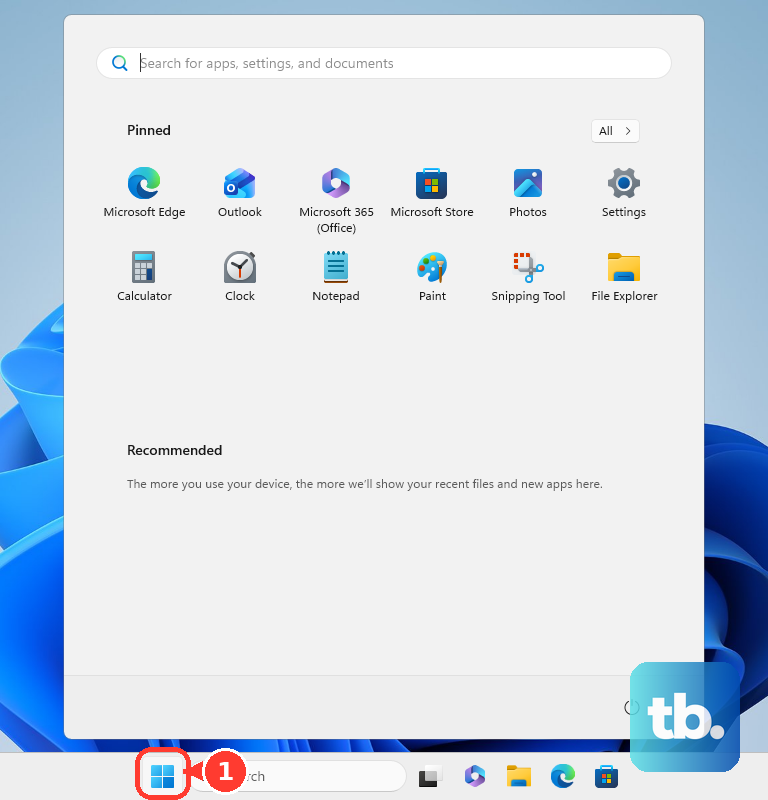
Save your work, select Start > Power > Restart, then check the affected device after Windows starts. This reloads drivers without restoring an earlier version. If the problem began after a driver update, try rollback next.
For graphics troubleshooting, press Windows + Ctrl + Shift + B. The shortcut resets the graphics driver without reinstalling its package or changing its version. If you also need to correct display settings, follow the steps to restore display settings in Windows 11.
Enable or restart the affected device
Right-click Start, select Device Manager, and expand the category containing the affected hardware. Right-click the device and select Enable device if it is disabled. This enables the device without replacing its driver.
To cycle an enabled device that offers these commands, select Disable device, then right-click it again and select Enable device. Microsoft's touchscreen instructions use Human Interface Devices > HID-compliant touch screen for this procedure. If cycling your device does not help, continue with rollback or reinstallation.
Restore the previous driver version
Use rollback to return to the driver installed before a recent update. In Device Manager, expand the device category, right-click the affected device, and select Properties. Open the Driver tab and select Roll Back Driver.
Choose the applicable reason, select Yes, and restart if prompted. You need administrator permissions and a retained previous driver. If Roll Back Driver is unavailable, install a compatible downloaded package or use System Restore with a suitable restore point.
Uninstall the device and reinstall its driver
Try reinstallation when rollback is unavailable or does not resolve the problem. Open Device Manager, expand the relevant category, right-click the device, and select Uninstall device. Select Uninstall, then restart Windows.
Microsoft says Windows attempts to reinstall the driver after restarting, but a compatible driver must be available. If the device remains missing, open Device Manager and select Action > Scan for hardware changes. Supply the compatible manufacturer driver folder if Windows requests a location.
For a removable USB device, disconnect it, uninstall its entry in Device Manager if necessary, then reconnect it so Windows can rediscover it. Windows can install an available matching driver, but reconnection does not guarantee a particular older version. For a keyboard problem, follow the steps to update or reinstall keyboard drivers.
Removing the driver package is a separate option during device uninstallation. For audio, obtain a replacement driver first, then open Device Manager and expand Sound, video and game controllers. Right-click the audio device and select Uninstall device.
If the dialog offers Attempt to remove the driver for this device, select that checkbox, select Uninstall, and restart Windows. If the package-removal option is absent, sign in with an account that has administrative privileges before trying to remove the package. Install your replacement package if Windows does not restore working audio. If Windows Driver Policy blocks the driver, check Optional updates for a matching driver or ask the manufacturer for a WHCP-signed version. The checkbox's availability depends on the device and driver package.
Find a replacement through Windows Update
Open Settings > Windows Update and select Check for updates. Install available updates and restart when required. Windows Update distributes recommended drivers automatically when they are available for your device.
For optional drivers, open Settings > Windows Update > Advanced options. Turn on Receive updates for other Microsoft products, as Microsoft instructs, then select Optional updates under Additional options. Select the required available driver updates, choose Download and install, and restart.
You can also right-click the device in Device Manager and select Update driver > Search automatically for drivers. This searches the local computer. If it finds nothing, select Search for updated drivers on Windows Update, then check available driver updates there. If the update process itself needs troubleshooting, see the steps to use the Windows Update troubleshooter.
Install a downloaded or backed up driver
Download the Windows 11 driver for your exact PC or peripheral model from its manufacturer's official support site. Choose a package that matches your hardware and Windows architecture. If the download is an executable installer, double-click it and complete the manufacturer's installation process.
For a driver folder or backup, extract the compatible files, then right-click the device in Device Manager and select Update driver. Select Browse my computer for drivers, choose Browse..., and select the driver folder. Select OK, then Next, then Close.
Windows can retain an already installed driver with a higher ranking, so selecting a folder does not guarantee installation of an older version. For graphics hardware, follow the steps to find and update your graphics card driver with a matching package. If Windows retains the current driver and your previous version is still available, use Roll Back Driver.
Fix Bluetooth network and printer drivers
For Bluetooth, open Device Manager, expand Bluetooth, and right-click the adapter. Select Uninstall device, then select Uninstall. Select Start > Power > Shut down, wait a few seconds after shutdown, and turn the PC on.
If the Bluetooth adapter remains missing, select Action > Scan for hardware changes in Device Manager. To run Bluetooth diagnostics, open Settings > System > Troubleshoot > Other troubleshooters, select Run beside Bluetooth, and complete the diagnostic workflow. For continuing connection trouble, follow the additional steps to fix Bluetooth on Windows 11.
For network adapters, open Settings > Network & internet > Advanced network settings > Network reset. Select Reset now, select Yes, and allow the PC to restart. This reinstalls network adapters and resets their settings, so VPN software and virtual switches may need reconfiguration afterward.
For a printer, open Settings > Bluetooth & devices > Printers & scanners. Select the printer, select Remove, and select Yes. Turn on and connect the printer, select Add device, then select Add device beside the detected printer or Add manually if it is absent.
Restore Windows when individual driver fixes fail
System Restore can reverse driver and system changes while preserving personal files, provided you have a suitable restore point. Open Control Panel > Recovery > Open System Restore. Select Next and choose a point from before the driver problem began.
If needed, select Show more restore points, and select Scan for affected programs to review the impact. Select Next, then Finish to begin restoration. Once your device works again, you can create a Windows restore point for future recovery.
If Windows cannot start normally, access the Windows Recovery Environment and select Troubleshoot > Advanced options > System Restore. Supply your BitLocker recovery key if prompted, choose a suitable restore point, and optionally select Scan for affected programs. Select Next, then Finish, and select Restart after restoration completes.
A Windows reset is a last resort and cannot guarantee restoration of a specific driver version. To start it, open Settings > System > Recovery and select Reset PC. If your device is encrypted, make sure you have its BitLocker recovery key before proceeding. Select Keep my files to preserve personal files while removing apps and settings, or select Remove everything to remove personal files too.
Choose Cloud download or Local reinstall, review the reset configuration, and complete the wizard. Install compatible manufacturer drivers afterward if your hardware still needs them.
Frequently Asked Questions
Can Safe Mode restore drivers automatically?
No, Safe Mode gives you access to troubleshooting tools without restoring drivers itself. In Windows Recovery Environment, select Troubleshoot > Advanced options > Startup Settings > Restart, then press 4 or F4 for Enable Safe Mode. You can then perform the applicable driver rollback, removal, or restoration procedure.
Can an external webcam use a built-in Windows driver?
Yes, a UVC-compatible external USB webcam can use the built-in USB Video Device driver, though some camera features may be unavailable. With administrator permissions, open Device Manager, expand Cameras or Imaging devices, right-click the webcam, and select Update driver. Select Browse my computer for drivers, select Let me pick from a list of available drivers on my computer, choose USB Video Device, and select Next.
Can the NVIDIA app reinstall a previous driver?
Yes, if the previous driver was installed through NVIDIA app and remains available there. Open NVIDIA app, select Drivers, and locate the previously installed driver beneath the newest driver's details. Open its three-dot menu and select Reinstall.
Does resetting AMD Software settings restore an older driver?
No, resetting AMD Software settings restores settings rather than an older driver version. The AMD installer's separate Factory Reset (Optional) option removes previous AMD Software packages and prevents rollback to those removed drivers.
Will System File Checker restore a third-party driver?
System File Checker repairs protected Windows system files rather than selecting or rolling back arbitrary third-party drivers. It can help when damaged Windows components affect driver operation, but you still need a device-specific method to restore a particular driver.
Can you back up drivers without backing up manufacturer apps?
Yes, PnPUtil can export INF driver packages for later restoration without including complete manufacturer applications. Restoring matching packages from that backup does not force a lower-ranked driver over an already installed higher-ranked driver.