


If your screen looks the wrong size or blurry, choose the recommended resolution and scale in Settings > System > Display. To reset display settings in Windows 11, open Settings > System > Display and restore the recommended resolution and scaling for each screen. Restore orientation, brightness, color, and monitor layout separately as needed.
The short version
- Size and sharpness: Choose the recommended resolution and scaling for the affected display.
- Multiple screens: Restore projection mode, monitor arrangement, and the main display separately.
- Color and brightness: Check Brightness, Night light, Color filters, and HDR before changing calibration.
- Driver refresh: Press Windows + Ctrl + Shift + B to reset the graphics driver when the screen goes blank or flickers.
| What you need to restore | Control or action |
|---|---|
| Screen resolution | Display resolution, choose Recommended |
| Display scaling | Scale, choose Recommended |
| Scaling with a custom override | Turn off custom scaling and sign out |
| Screen orientation | Display orientation |
| Text size or magnification | Text size or Windows + Esc |
| Text rendering | Adjust ClearType text |
| Projection mode | Windows + P |
| Monitor arrangement | Identify, then drag the display rectangles |
| Main monitor | Check Make this my main display |
| Missing display connection | Detect or Windows + K |
| Window placement after docking | Remember window locations based on monitor connection |
| Windows brightness controls | Brightness and Change brightness based on content |
| External monitor brightness | Monitor buttons or joystick |
| Warm screen tint | Night light and Schedule night light |
| Accessibility color filtering | Color filters |
| High contrast appearance | Contrast themes, choose None |
| Fixed refresh rate | Advanced display > Choose a refresh rate |
| Automatic refresh rate | Dynamic refresh rate |
| HDR state | HDR |
| Brightness balance with HDR enabled | SDR content brightness or HDR content brightness |
| Built-in HDR-video calibration | Display calibration for HDR video > Restore default |
| Color profiles or replacement calibration | Color profile |
| Unwanted HDR Calibration profile | Color Management > All Profiles |
| Blank or flickering output | Windows + Ctrl + Shift + B |
| Persistent connection or output trouble | Restart Windows and check display cables |
| Driver trouble after an update | Roll Back Driver |
| Available graphics-driver updates | Windows Update or Update driver |
| Unusable display mode | Enable low-resolution video |
Restore recommended resolution and scaling
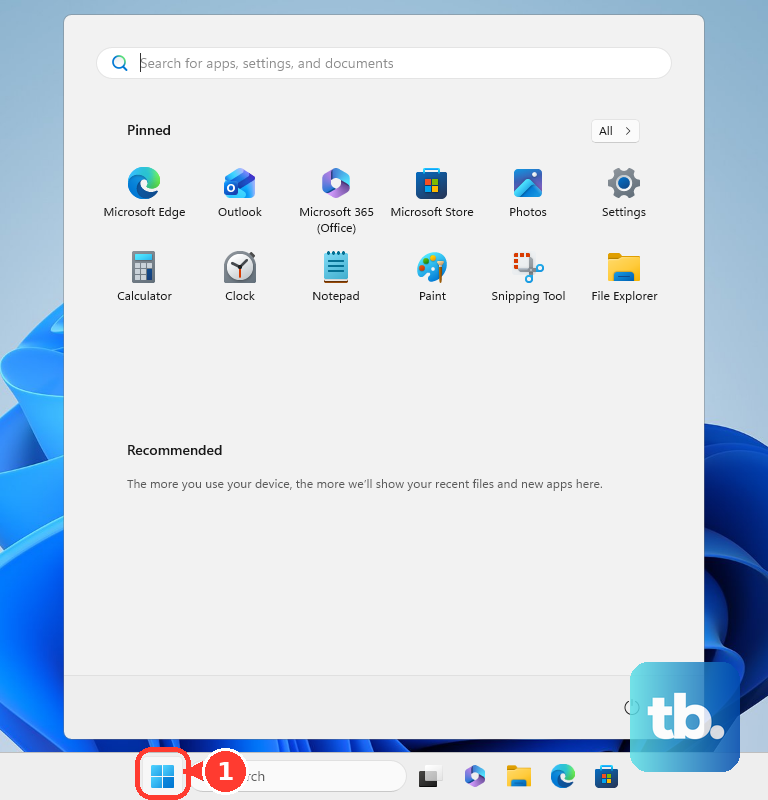
Right-click the desktop and select Display settings, or open Settings > System > Display. Select the affected display before making changes. Under Scale & layout, open Display resolution and choose the option marked Recommended.
Select Keep changes when the picture looks usable. If the new picture is unreadable, leave the confirmation unanswered, and Windows restores the previous setting after 15 seconds. Repeat the process for each connected screen that needs adjustment. In Duplicate mode, the screens share a resolution limited to one both support, so press Windows + P and choose Extend to set each screen's recommended resolution independently.
Next, open Scale and choose the percentage marked Recommended. The recommended scaling depends on the display, so 100% is not a universal default. If the picture remains soft after restoring both settings, continue with the steps to fix a blurry computer screen.
When custom scaling is active, save your open work and select Turn off custom scaling and sign out. Sign in again, return to Display, and choose the recommended Scale. This removes the custom override before you restore the recommended setting.
Restore orientation and text size
On the same Display page, select the affected screen and open Display orientation. Choose the orientation that matches the monitor's physical position, normally Landscape for an upright laptop or conventional monitor. For a sideways or upside-down picture, you can rotate the screen in Windows using that control.
If the entire screen is magnified, press Windows + Esc to close Magnifier. When only text needs adjusting, open Settings > Accessibility > Text size, move the slider to the desired size, and select Apply. Magnifier and text size are separate from display scaling, so changing resolution alone does not restore them.
For text that still looks uneven, open Start, search for ClearType, and select Adjust ClearType text. Check Turn on ClearType, select Next, and choose the monitor when requested. Choose the clearest text samples through the wizard, then select Finish.
Put multiple monitors back in order
Press Windows + P and choose the intended projection mode. Select Duplicate to show the same picture on both screens or Extend to spread the desktop across them. Choose PC screen only or Second screen only when you want just one screen active.
Return to Settings > System > Display and select Identify. Drag the numbered display rectangles to match the monitors on your desk, then select Apply. Select the monitor you want as the primary screen, expand Multiple displays, and check Make this my main display.
For a missing wired monitor, expand Multiple displays and select Detect. For a compatible wireless display, press Windows + K and select the display. If a wired screen remains missing, secure the cable, disconnect unnecessary docks or adapters, and try another cable or output port.
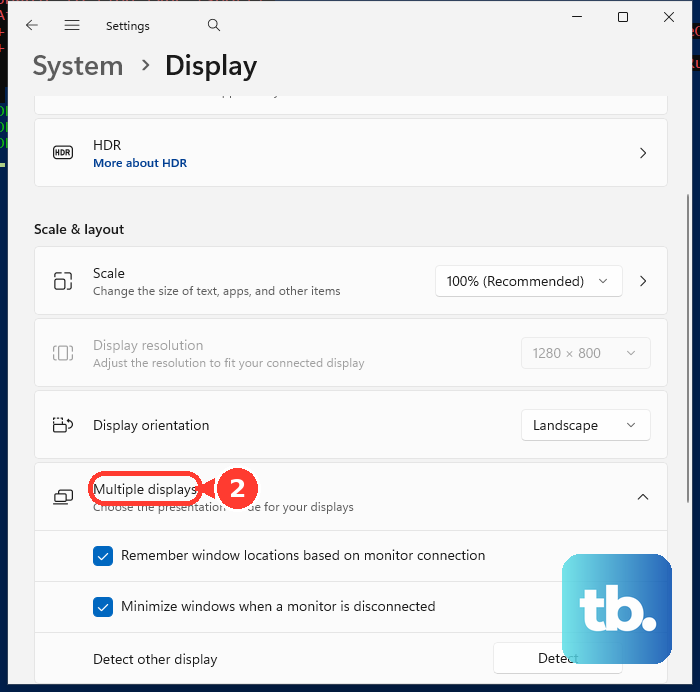
To restore window placement after reconnecting a monitor, open Multiple displays and check Remember window locations based on monitor connection. You can also check Minimize windows when a monitor is disconnected. These controls handle window behavior separately from the arrangement of the screens.
Restore brightness and remove unwanted tint
Open Settings > System > Display and adjust Brightness to a comfortable level. To stop content-driven brightness changes on compatible hardware, set Change brightness based on content to Off. If brightness still changes with room lighting, select Brightness and turn off brightness automatically when lighting changes if your PC offers it. For more detail on these controls, follow the steps to change brightness on Windows 11.
An external monitor may require its physical buttons or joystick to adjust brightness. Follow the model's user guide for its exact menu sequence. There is no single brightness percentage that restores every display to its factory appearance.
For an unwanted warm tint, open Night light from the Display page. Turn off Night light and Schedule night light so the tint does not return on a schedule. If the screen instead has a persistent green cast, continue with the steps to fix a green monitor tint.
Check accessibility settings when the entire desktop has unusual colors or strong contrast. Open Settings > Accessibility > Color filters and turn off Color filters. Then open Contrast themes, select None, and select Apply. If a tint remains, open Settings > Accessibility > Screen Tint and turn off Screen Tint.
Restore refresh rate and HDR settings
Open Settings > System > Display > Advanced display and select the monitor. Under Choose a refresh rate, choose an appropriate supported value. Available rates depend on the monitor, connection, and driver, and an asterisk marks rates that also require a resolution change.
On compatible displays, turn off Dynamic refresh rate to stop Windows from changing the rate automatically. Turn it on when you want automatic operation instead. A fixed 60 Hz setting is not a universal factory default.
Return to Display, select the screen, and open HDR to restore its intended state. On older Windows 11 builds, the toggle may be labeled Use HDR. With HDR enabled, adjust SDR content brightness for an external display or HDR content brightness for a built-in display, then restart affected apps if their appearance does not update.
For a supported built-in screen whose HDR-video calibration was changed, open HDR > Display calibration for HDR video and select Restore default. This restores built-in HDR-video calibration and does not calibrate external monitors.
Remove unwanted color calibration
Open Settings > System > Display > Color profile and select the affected screen. Expand an unwanted profile and select Remove, or choose a preferred profile with Set profile. Older Windows 11 builds may label this area Color management.
Remove only a profile you intend to discard. To create replacement calibration, select Calibrate display. The available color-profile controls depend on your hardware.
For an unwanted profile created by Windows HDR Calibration, search Start for color management and open Color Management. Open All Profiles, select the unwanted calibration profile, and select Remove.
Fix blank or flickering output
For a blank or flickering screen, press Windows + Ctrl + Shift + B. A beep or brief flicker may occur as the graphics driver resets.
If the display still malfunctions, select Start > Power > Restart. When the computer does not respond normally, follow the steps to restart an unresponsive computer. Recheck the display after Windows restarts.
When the problem began immediately after a graphics-driver update, open Device Manager and expand Display adapters. Right-click the adapter, select Properties, open Driver, and select Roll Back Driver. Select Yes and restart Windows. You need administrator access, and a disabled Roll Back Driver button means rollback is unavailable.
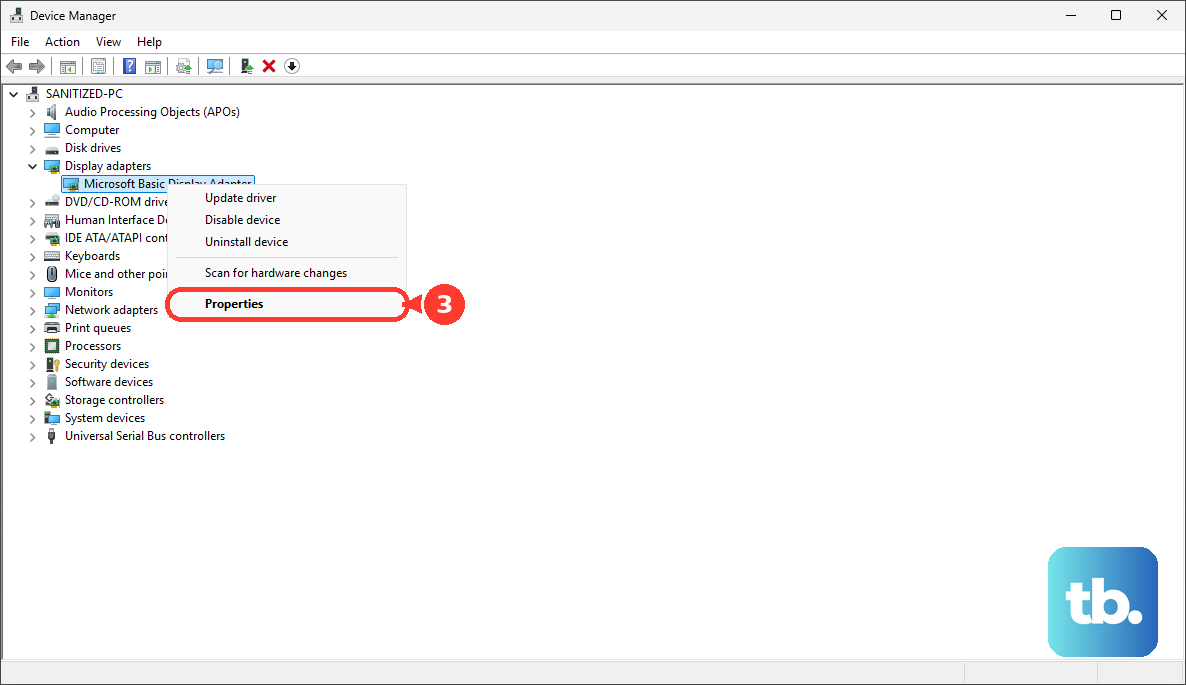
For an available driver update, open Settings > Windows Update and select Check for updates. Alternatively, right-click the adapter in Device Manager and select Update driver > Search automatically for drivers. Updating a driver does not necessarily erase custom display preferences.
Recover an unreadable display
To correct an unusable display mode, hold Shift while selecting Power > Restart to enter Windows Recovery Environment. Select Troubleshoot > Advanced options > Startup Settings > Restart. An encrypted device may require its BitLocker recovery key.
Press 3 or F3 to select Enable low-resolution video. Windows uses the current video driver with a low resolution and refresh rate, letting you correct the display settings once the screen is readable. Restore the recommended settings, then restart normally.
A whole-PC reset is much broader than restoring display preferences. If you choose Keep my files, Windows still removes apps and settings. Reserve that option for broader recovery needs after backing up your files.
Frequently Asked Questions
Why do appearance settings return after you change them?
Microsoft-account preference synchronization can reapply eligible appearance settings. Open Settings > Accounts > Windows backup and turn off Remember my preferences, or expand it and uncheck Personalization. Then restore your local appearance settings again.
What should you reset when only a browser page looks too large?
In Microsoft Edge, press Ctrl + 0 to restore the current page's default zoom. In Chrome, open More > Settings > Appearance > Page zoom and choose 100%. Browser zoom affects browser content rather than Windows display scaling.
Can you restore the Windows theme without changing monitor settings?
Yes, open Settings > Personalization > Themes and select a built-in Windows theme. This reapplies its appearance settings. For light or dark appearance separately, open Personalization > Colors and choose the intended option under Choose your mode.
Does resetting a monitor also reset Windows display settings?
A monitor factory reset changes the monitor's own settings independently of Windows. On supported ASUS ROG models, use the physical buttons or joystick to open System Setup > All Reset, then select Yes. If prompted to change power operation, select Standard Mode or High Performance Mode. Other models use different menu paths, so follow the instructions for your exact monitor.