
To run the Windows Update troubleshooter, open Get Help, enter windows update troubleshooter in its Search bar, and follow the prompts. On Windows 11, you can also go to Settings > System > Troubleshoot > Other troubleshooters and select Run beside Windows Update.
The short version
- Search for windows update troubleshooter inside Get Help.
- Windows 11 Settings has a Run button under System > Troubleshoot > Other troubleshooters.
- Windows 10 uses Update & Security > Troubleshoot > Additional troubleshooters.
- After troubleshooting, restart and select Check for updates.
| Method | What it does | Time | Use it when |
|---|---|---|---|
| Get Help | Starts guided update diagnostics | Under a minute to open | You want to start in the app |
| Windows 11 Settings | Opens the update troubleshooter | Under a minute to open | You are already in Settings |
| Microsoft Support | Launches Get Help from a web page | Under a minute to launch | You prefer a direct support link |
| Windows 10 Settings | Starts the older Settings route | Under a minute to open | Your PC runs Windows 10 |
| Restore Get Help | Looks for the missing app in Store | A few minutes to find the listing | Get Help is missing |
| Restart and retry | Checks for updates after repairs | Under a minute to start the scan after restarting | The troubleshooter has finished |
| Ask IT | Requests help with restricted access | A few minutes to send a request | A work or school PC blocks access |
These estimates cover opening the tool or starting the listed action. Allow diagnostics, installations and restarts to finish before moving on.
Run the troubleshooter in Get Help
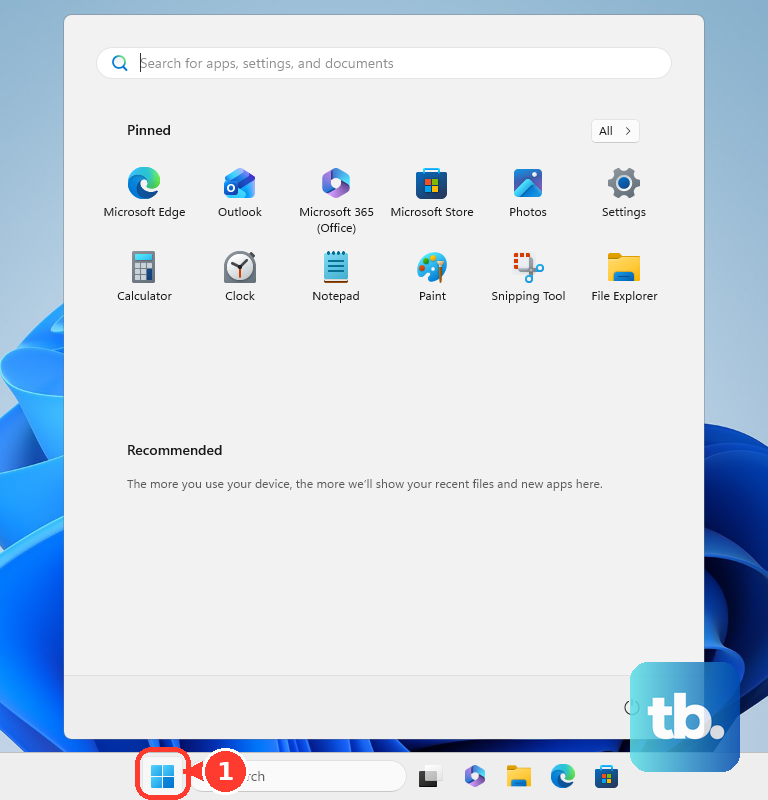
Select Start, type get help into the search box, and select Get Help from the results. The update search belongs inside that app, so open it before entering the troubleshooting phrase.
In the app's Search bar, enter windows update troubleshooter and follow the steps provided. Select Start if the app offers it to begin troubleshooting. If it asks for consent to run diagnostics, select Yes to proceed.
The diagnostic tests check your system configuration for possible problems. Read the findings and suggested remedies when the checks finish, then complete the steps that address your update issue.
Run it from Windows 11 Settings
Select Start > Settings > System > Troubleshoot > Other troubleshooters. Under Most frequent, select Run next to Windows Update and follow the instructions that appear.
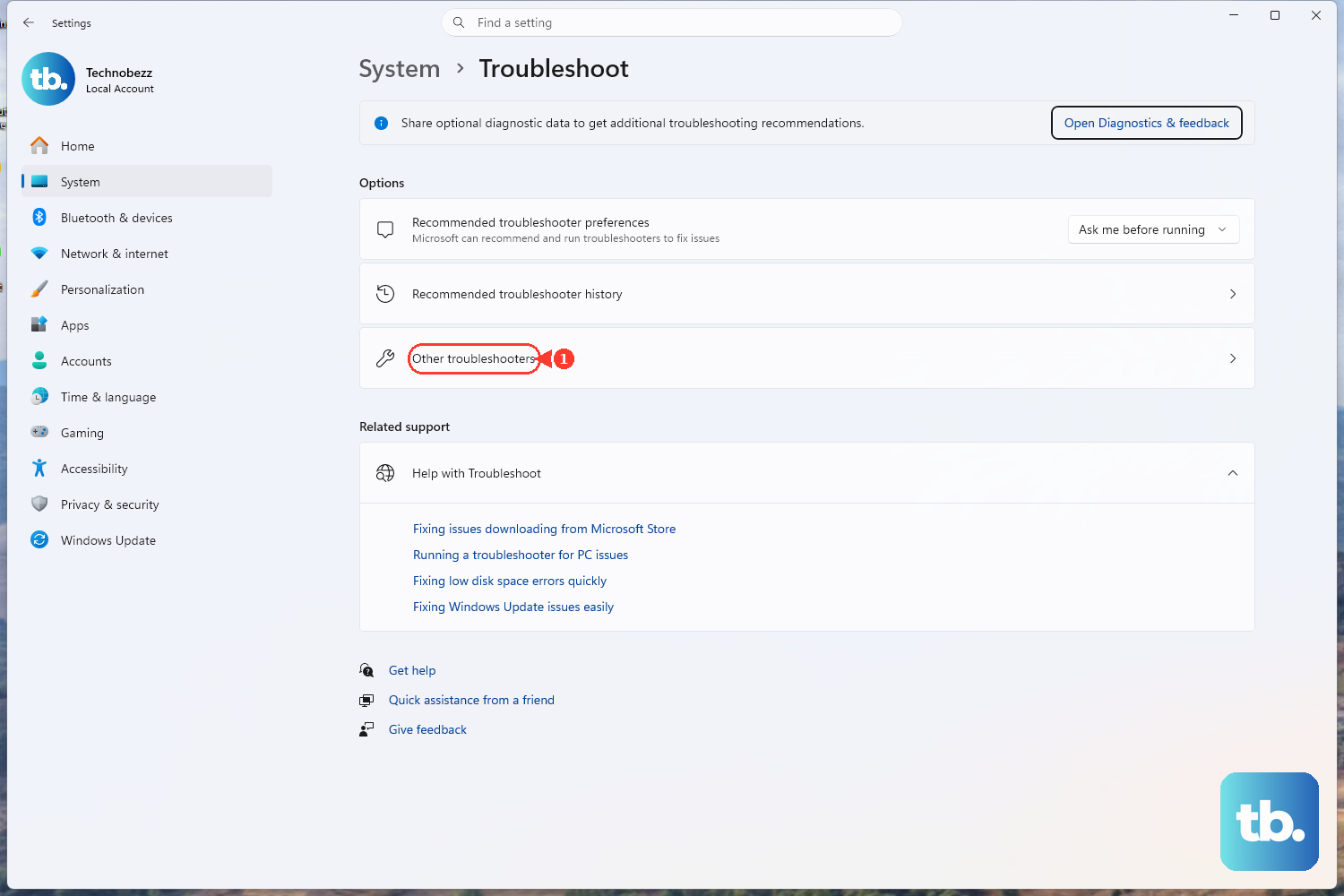
You can open Settings with Windows logo key + I instead of using Start. Continue through the same System and Troubleshoot menus; the shortcut changes how you enter Settings, not which troubleshooter you run.
If this route opens Get Help, continue with the update troubleshooting prompts there. When the troubleshooter finishes, restart the device and check for updates using the steps below.
Launch it from Microsoft Support
Open Microsoft's Windows Update troubleshooter support page on the PC with the update problem. Select Run the troubleshooter in Get Help to start the app from the page.
If your browser asks permission to open Get Help, allow the handoff and follow the app's prompts. If nothing opens, use the Start search described above; if the app is missing, check the installation options below.
Use the Settings path on Windows 10
On Windows 10, select Start > Settings > Update & Security > Troubleshoot > Additional troubleshooters. Under Get up and running, choose Windows Update > Run the troubleshooter and follow the prompts.
The Windows 11 System path is different, so use the menus for your operating system. If you need another way to reach the controls, the steps for opening Settings in Windows 10 cover the available shortcuts.
You can also use the update search inside Get Help on Windows 10. Standard Windows 10 support ended on October 14, 2025, but that does not remove the troubleshooting routes from your PC.
Restore Get Help if it is missing
Search Start for Get Help before trying to reinstall it. If you cannot find it, open Microsoft Store from Start and search for Get Help there, then follow the download or installation prompts if the app is available.
The steps for downloading and installing apps on a Windows laptop explain the Store installation process. Once Get Help opens, enter windows update troubleshooter in its Search bar and follow the troubleshooting prompts.
If Store does not offer the app, availability may be affected by your region, family settings or device compatibility. On a work device, ask your administrator if Microsoft Store has been disabled before trying another installation route.
Restart and check for updates again
Restart your device when the troubleshooter finishes. On Windows 11, open Start > Settings > Windows Update and select Check for updates to see whether the problem is resolved.
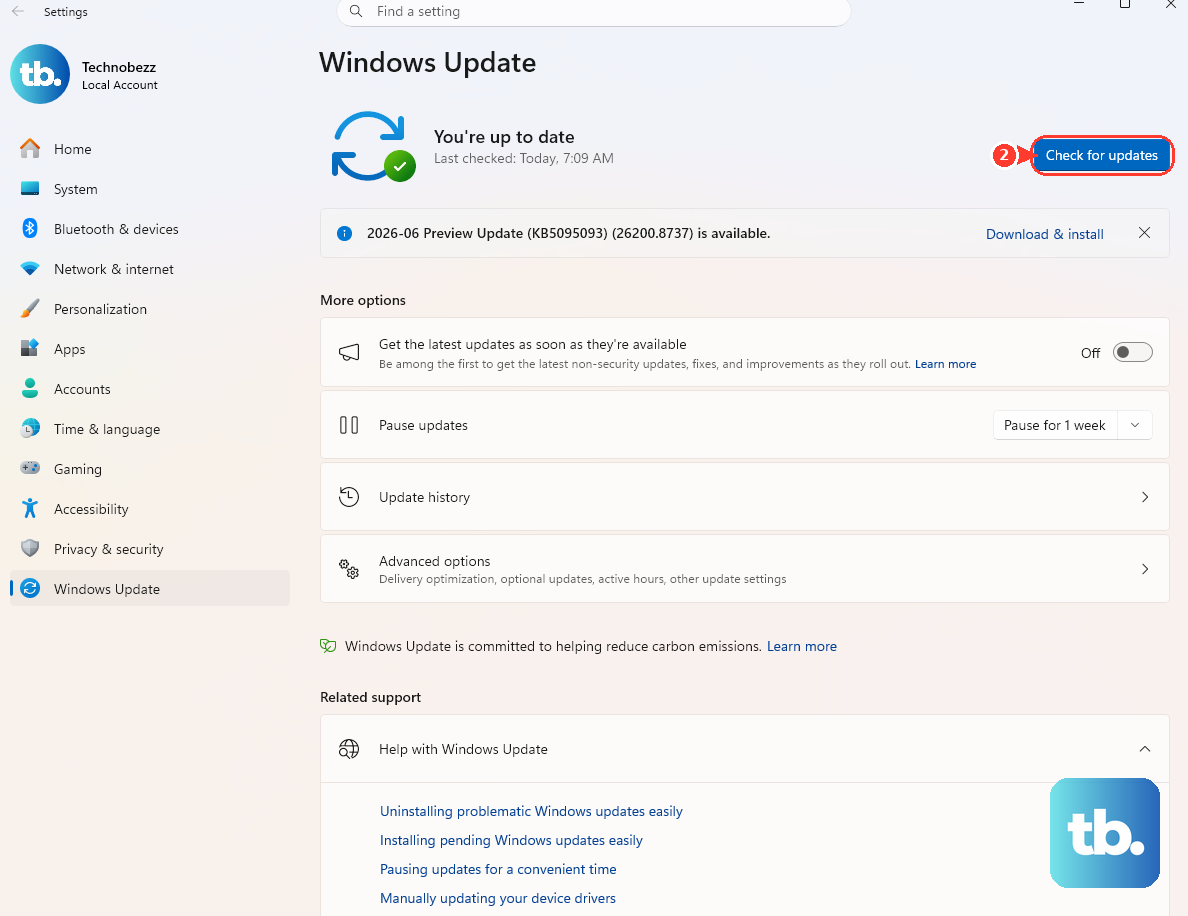
On Windows 10, use Start > Settings > Update & Security > Windows Update > Check for updates. Install any available updates, selecting Download & install if offered, and restart again if prompted.
If the same error returns, run the troubleshooter again to check for additional errors. If it still cannot resolve the problem, follow Microsoft's steps for troubleshooting update problems for the error or symptom you see.
Ask IT about a managed PC
If a work or school PC blocks access to Get Help or Windows Update troubleshooting, contact your IT administrator. Describe which app or button failed and include the message you saw so they can review the restriction.
Administrators can control recommended troubleshooting through policy, and Microsoft Store can also be disabled on work devices. Ask IT to check both troubleshooting permissions and access to the app or Store, rather than treating a missing app as an update repair result.
What happened to the MSDT troubleshooters
MSDT is deprecated, and legacy troubleshooters are being redirected to Get Help or removed on newer Windows releases. Use the current app or Settings routes rather than searching for an old repair download.
There is an older version exception: Windows 11 version 22H2 and earlier, and Windows 10, are outside the retirement scope described in Microsoft's documentation. Those systems can still run legacy inbox troubleshooters, so an older troubleshooting window is not automatically a fault.
Frequently Asked Questions
What is the fastest way to open the Windows Update troubleshooter in Windows 11?
A direct keyboard route is Windows logo key + I, then System > Troubleshoot > Other troubleshooters. Select Run next to Windows Update and follow the prompts.
Do I need Get Help for the Windows Update troubleshooter?
Get Help provides the current app route, and Windows 11 Settings can lead you into it. If Settings opens Get Help, continue there rather than looking for a separate repair wizard.
What should I do after the Windows Update troubleshooter finishes?
Restart the PC, then open Windows Update in Settings and select Check for updates. Install available updates and complete another restart if Windows asks for one.
Can I use MSDT for Windows Update problems?
Use Get Help or Settings first on current Windows 11 releases because MSDT is deprecated. Older Windows 11 version 22H2 and earlier systems, and Windows 10, can still have working legacy troubleshooters.
Can I run the Windows Update troubleshooter on Windows 10?
Yes, use Get Help or Settings > Update & Security > Troubleshoot > Additional troubleshooters. Select Windows Update > Run the troubleshooter, then follow the instructions.
What if Get Help is missing?
Look for Get Help in Microsoft Store and install it if it is available for your device. If a work or school PC restricts Store access, ask your administrator for help restoring the app.