Windows can break after a change, and System Restore is the main Windows 11 tool for rolling it back to an earlier date. It only works when a restore point already exists.
Start with the fastest restore path, then use the recovery option that matches the problem: Windows will not start, no restore point is available, or the issue came from a Windows update.
1. Open System Restore Quickly
Press Windows logo key + R, type rstrui.exe, then press Enter. That opens the System Restore wizard directly, without digging through Control Panel.
- 1.Select Next.
- 2.Choose the restore point you want.
- 3.Select Scan for affected programs.
- 4.Select Next.
- 5.Select Finish.
Windows restarts after applying the restore point.
2. Use System Restore from Control Panel
- 1.Open Control Panel.
- 2.Select Recovery.
- 3.Select Open System Restore.
- 4.Select Next.
- 5.Choose the restore point.
- 6.Select Scan for affected programs.
- 7.Select Next.
- 8.Select Finish.
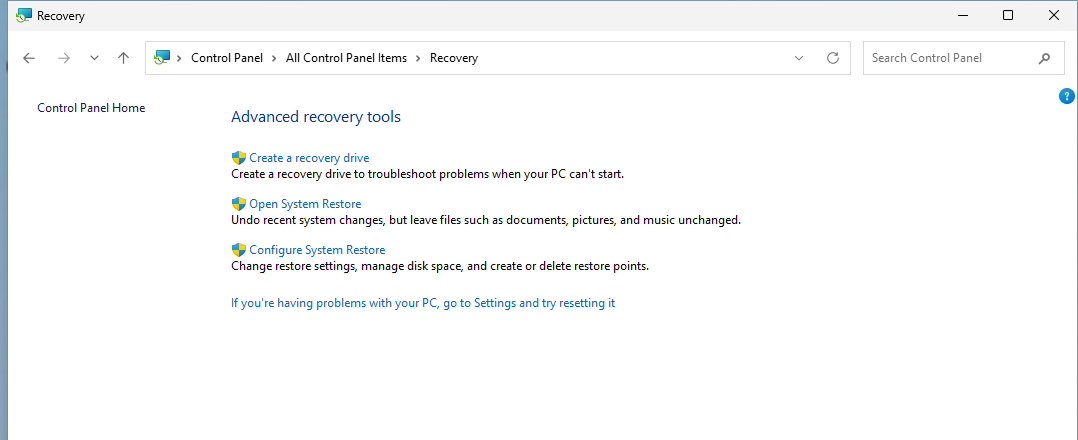
This is the standard consumer path when Windows still starts normally. It restores Windows system files and settings from an existing restore point.
System Restore requires System Protection and an existing restore point. Without one, use the sections below instead.
3. Run System Restore When Windows Will Not Start
If Windows will not boot, use Windows Recovery Environment. This gives you the same System Restore tool before Windows fully loads.
When the PC still reaches the sign-in screen, hold Shift while selecting Power, then Restart. When it will not start at all, force a shutdown by holding the power button during startup and repeat until Windows opens the recovery screen, or boot from a recovery drive or Windows installation media.
- 1.Select Troubleshoot.
- 2.Select Advanced options.
- 3.Select System Restore.
- 4.Choose a restore point and follow the wizard.
BitLocker-protected PCs can ask for the BitLocker recovery key.
4. Use Point-in-Time Restore on Windows 11
On Windows 11 PCs with the June 2026 non-security update or later, Point-in-time restore may also be available. Microsoft marks restoration as preview and WinRE-only, so restore from Windows Recovery Environment when the option appears on your PC.
- 1.Go to Settings.
- 2.Select System.
- 3.Select Recovery.
- 4.Select Point-in-time restore.
- 5.Select View or edit.
- 6.Select Yes.
- 7.Turn the restore toggle On.
To restore, go to Settings, then System, then Recovery, then Advanced startup. In Windows Recovery Environment, select Troubleshoot, then Point-in-time restore, enter the BitLocker recovery key when prompted, choose a restore point, select Continue, then select Restore.
5. Turn On System Protection for Next Time
No restore point means System Restore has nothing to roll back to. Turn on System Protection now so future restore points can be created.
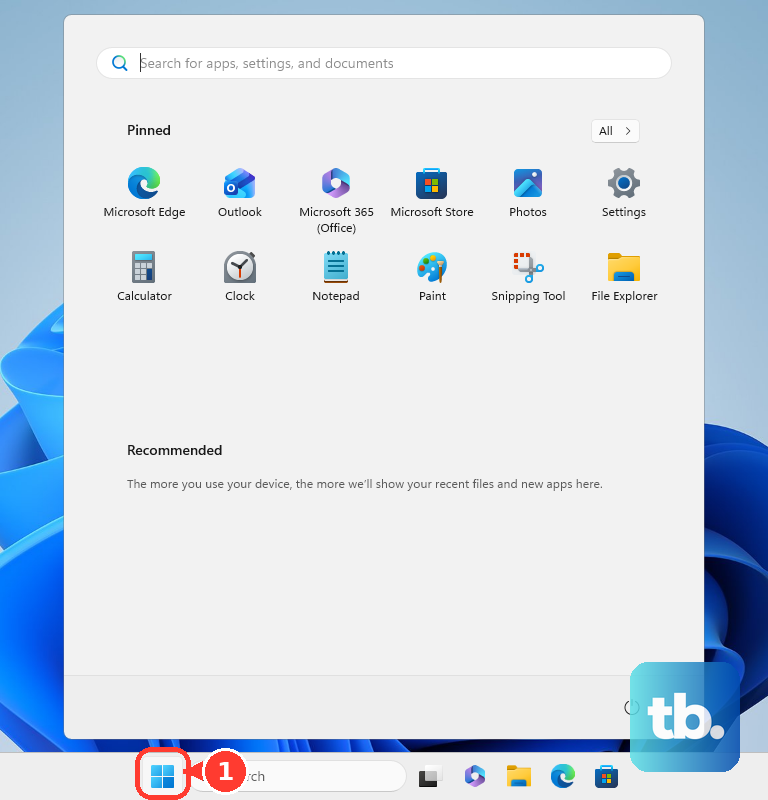
- 1.Open Start.
- 2.Type Create a restore point.
- 3.Select Create a restore point.
- 4.Select the System Protection tab.
- 5.Select Configure....
- 6.Select Turn on system protection.
- 7.Adjust the disk-space slider.
- 8.Select Apply.
To create a restore point manually, stay on the System Protection tab, select Create..., enter a description, then select Create.
6. Undo a Windows Update Instead
- 1.Open Start.
- 2.Select Settings.
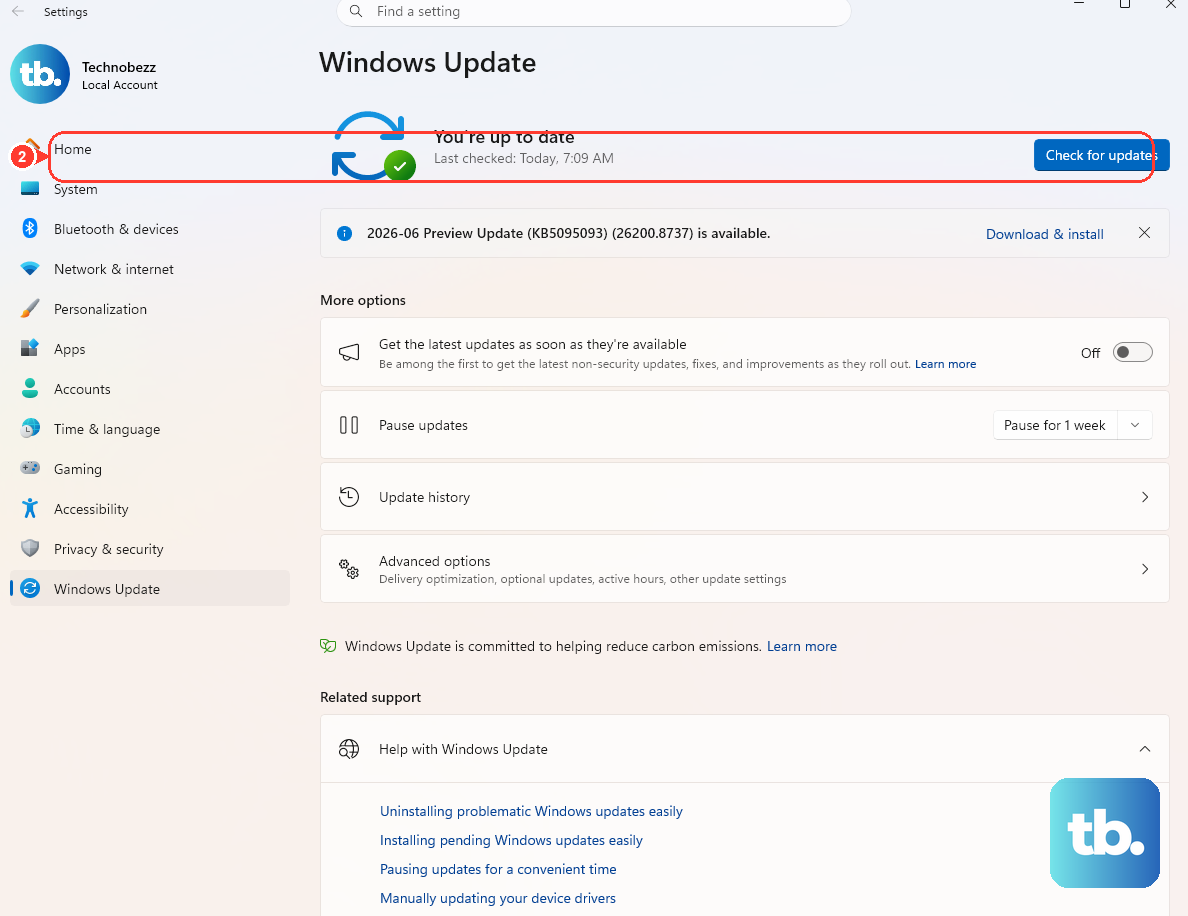
- 3.Select Windows Update.
- 4.Select Update history.
- 5.Select Uninstall updates.
- 6.Select the update.
- 7.Select Uninstall if the option is available. Some updates cannot be removed.
If the problem started right after a Windows update, uninstall that update instead of restoring the whole PC.
When Windows cannot start after an update, open Windows Recovery Environment, then select Troubleshoot, Advanced options, and Uninstall Updates. Choose Uninstall latest quality update or Uninstall latest feature update.
7. Go Back After a Windows Upgrade
After a recent Windows version change, use Go back to return to the previous Windows version or build. Microsoft says this option is available within 10 days after upgrading and requires rollback files such as windows.old and $windows.~bt.
- 1.Go to Settings.
- 2.Select System.
- 3.Select Recovery.
- 4.Select Go back.
- 5.Follow the prompts.
This is different from System Restore. It rolls back a recent Windows version change, not the whole PC to any date you choose.
8. Repair or Reset Windows When Restore Fails
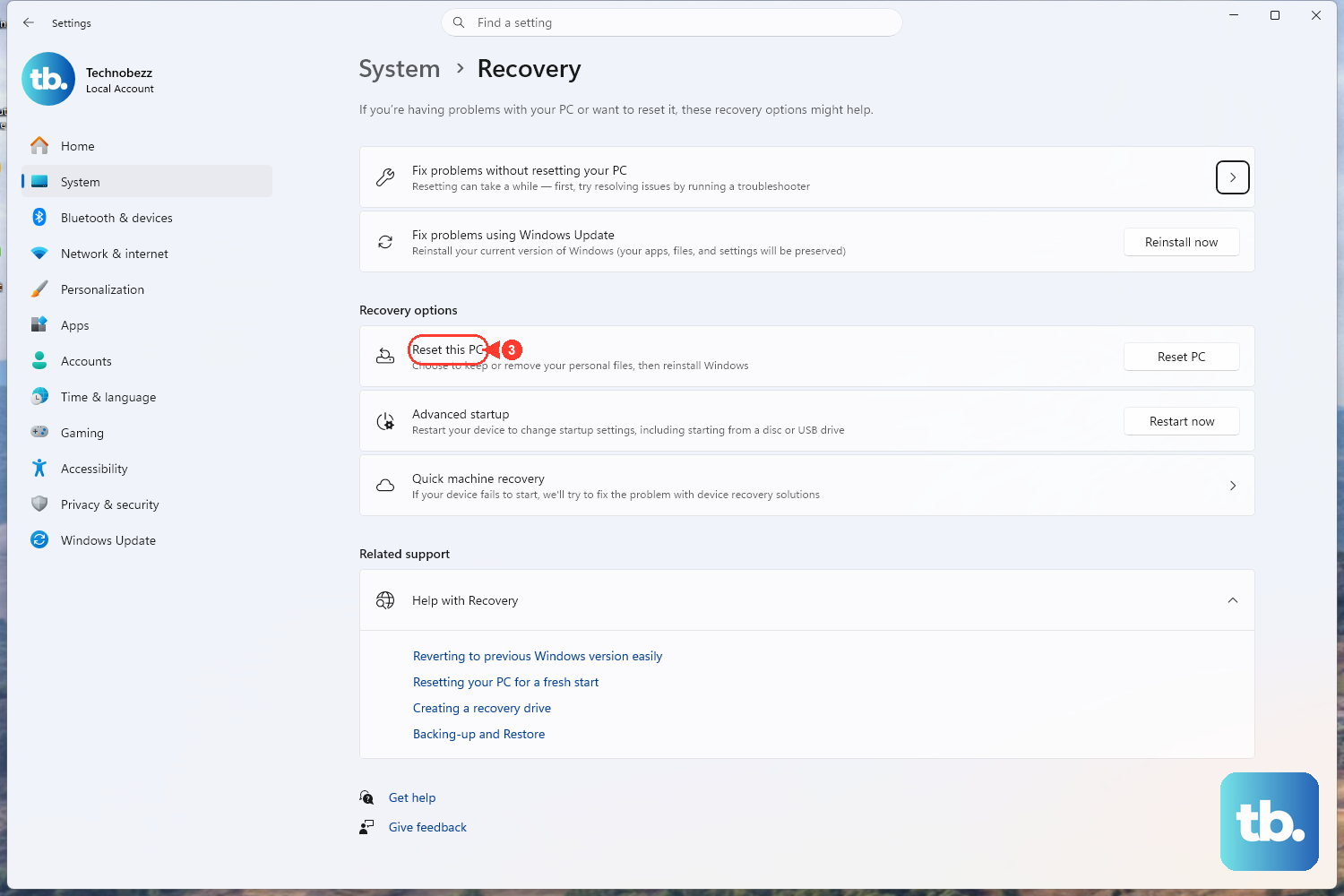
When System Restore is not available or does not fix the problem, use Windows repair options before wiping the PC. Fix problems using Windows Update reinstalls the current Windows version while preserving apps, files, and settings. This option requires Windows 11 with the 2022 annual update plus the February 2024 optional update or later, and it does not appear on work or school PCs whose updates are managed.
Use Start, then Settings, then System, then Recovery, then Fix problems using Windows Update. Select Reinstall now, choose the automatic restart option, then select OK.
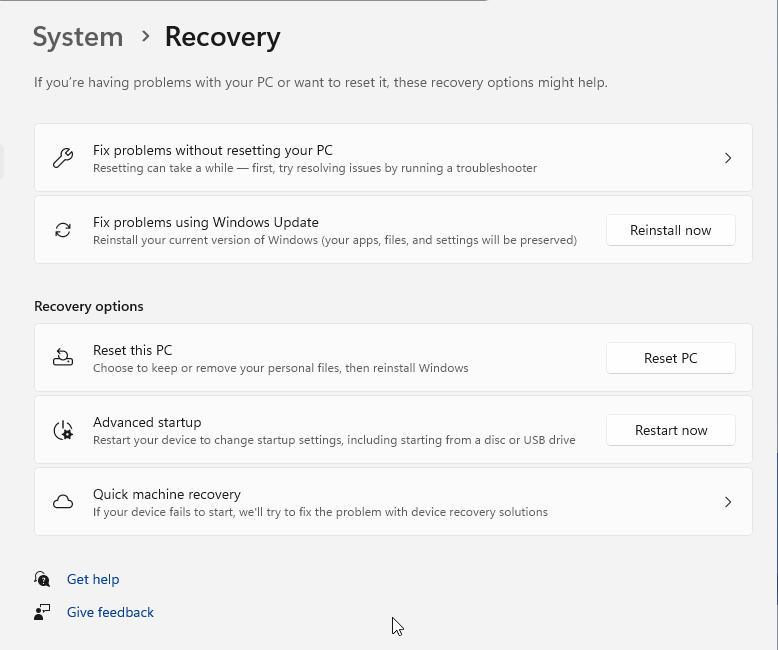
For a deeper reinstall, go to Settings, then System, then Recovery, then Reset PC. Choose Keep my files or Remove everything, then choose Cloud download or Local reinstall.
On a work or school PC, your organization can control whether System Restore and recovery settings are available. Contact your IT admin for managed recovery options.
Frequently Asked Questions
Does System Restore restore my personal files?
No. System Restore is for Windows system files and settings. For personal files, use File History, Windows Backup, or OneDrive restore options when those backups already exist.
Why is there no restore point on my PC?
System Restore needs System Protection and an existing restore point. Turn on System Protection now so Windows can create future restore points.
Can I restore Windows to any date I choose?
No. You can restore only to an existing restore point. Update uninstall and Go back also depend on the update or upgrade rollback option still being available.
Can OneDrive restore Windows to an earlier date?
No. OneDrive restore tools apply to OneDrive files. They do not restore Windows system state.