


Your wireless headphones connect everywhere except the one machine you actually need them on, or your mouse stutters across the screen like the battery is dying when it is fully charged. Bluetooth problems on Windows 11 rarely announce a cause, so the smart move is to work through the simplest checks first and only touch drivers once the quick toggles fail. The fixes below are ordered from the safest, fastest options to the deeper driver work, and almost every one applies to Windows 10 too. Just keep in mind that Microsoft ended Windows 10 support on October 14, 2025, so the steps here center on Windows 11 with Windows 10 paths noted alongside.
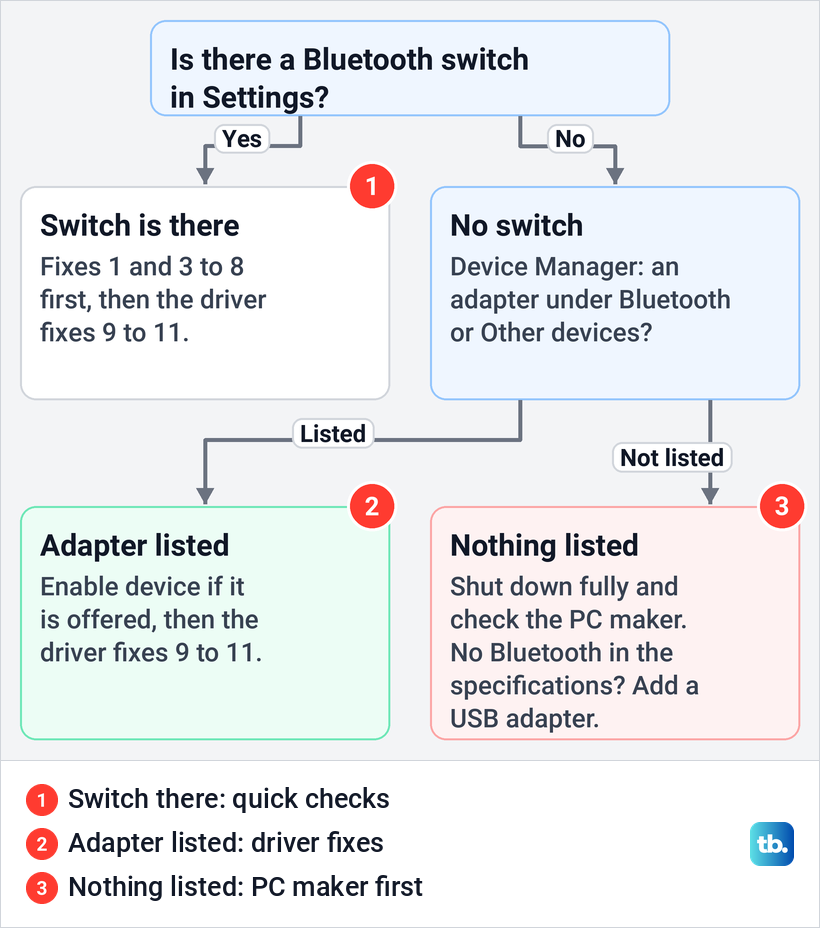
Start with Windows + A: make sure Airplane mode is off and the Bluetooth tile is on, or set the switch to On in Settings > Bluetooth & devices. If there is no Bluetooth switch at all, Windows cannot detect or turn on a Bluetooth adapter, and the fix moves to Device Manager and the PC maker's drivers. If the switch is there but a device will not pair or keeps dropping, check the device, pair it again and work down to the driver fixes.
On Windows 11, version 25H2, we went through the screens Windows shows when it finds no Bluetooth adapter: Settings, quick settings, Device Manager and the Bluetooth Support Service, which still read Running. On the same PC, the Bluetooth troubleshooter's Run button opened a page of help answers instead of guided steps.
The short version
- First check: press Windows + A, turn Airplane mode off and the Bluetooth tile on.
- No switch anywhere: open Device Manager, turn on View > Show hidden devices and look under Bluetooth and Other devices.
- Device will not pair: charge it, put it in pairing mode, set discovery to Advanced if Settings offers it, and remove it and add it again if it is listed but will not connect.
- Connection keeps dropping: turn off Energy saver and the adapter's power saving, then restart the Bluetooth Support Service.
- Still broken: update the driver, roll it back after a bad update, or uninstall the adapter and shut down.
Which fix matches what you see
| Fix | Try it when | Where to start |
|---|---|---|
| 1. Airplane mode off, Bluetooth on | Nothing connects, or the switch is off | Windows + A, or Settings > Bluetooth & devices |
| 2. Find out why the switch is missing | Settings has no Bluetooth switch at all | Device Manager, with View > Show hidden devices |
| 3. Check the device itself | The device does not show up or respond | The device: power, charge, pairing mode and distance |
| 4. Set discovery to Advanced | The device is in pairing mode but never appears | Bluetooth & devices > Devices > Bluetooth devices discovery, if listed |
| 5. Remove the device and pair it again | The device is listed but will not connect | More options > Remove device, then Add device |
| 6. Bluetooth troubleshooter | The quick checks did not help | Settings > System > Troubleshoot > Other troubleshooters |
| 7. Restart the Bluetooth Support Service | Connections keep dropping | Windows + R, then services.msc |
| 8. Turn off power saving | A device connects, then drops | Energy saver, and the adapter's Power Management tab |
| 9. Update the driver and Windows | Bluetooth broke after an upgrade or update | Device Manager, Windows Update, the PC maker's site |
| 10. Roll back the driver | Trouble began right after a driver or Windows update | Adapter Properties > Driver > Roll Back Driver |
| 11. Uninstall and reinstall the adapter | The adapter is listed but Bluetooth still fails | Device Manager > Uninstall device, then Shut down |
Work down the list in order unless a row matches your problem exactly. Fixes 1 and 3 to 5 only touch settings and the accessory. Fix 2 can end in a full shutdown and the last three change the Bluetooth driver, so save your work before those. The chart below puts the same order into two questions.
Start with the switch that is often off
Airplane mode can switch Bluetooth off, so check it before anything technical. Press Windows + A to open quick settings, make sure the Airplane mode tile is off, and select the Bluetooth tile so it is highlighted. A highlighted tile that reads Not connected means Bluetooth is on but no device is connected yet.
Settings has the same switch. Open Start > Settings > Bluetooth & devices and set Bluetooth to On. If it is already on, turn it off, wait a few seconds and turn it back on, which resets Bluetooth and can clear a stuck connection. Our guide shows how to turn on Bluetooth in Windows 11 from either place.
A laptop with a physical Bluetooth switch on its body needs that switch on as well. On Windows 10, the Bluetooth switch is in Settings > Devices > Bluetooth & other devices, and Airplane mode is in Settings > Network & Internet > Airplane mode.
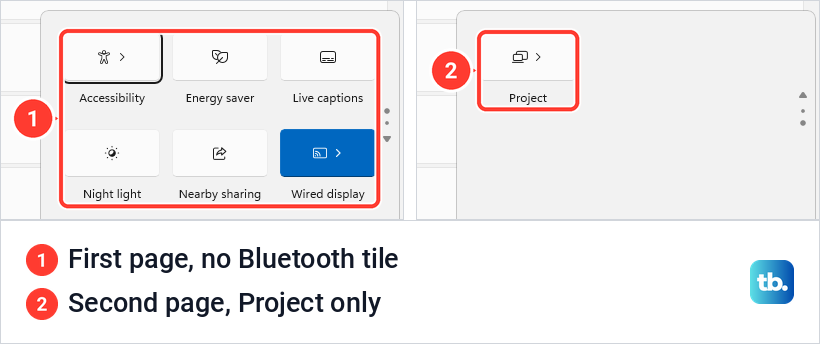
A missing tile on its own is not proof of a problem, so check the other page of quick settings and use the switch in Settings instead. If Settings does have the switch, the Bluetooth tile may simply need to be added back to quick settings. On our PC neither page of quick settings had a Bluetooth tile, and Settings had no Bluetooth switch either. When both are missing, the next fix applies.
Find out why the Bluetooth switch is missing
A missing switch means Windows cannot detect or turn on a Bluetooth adapter. Some PCs have no Bluetooth at all. On others the adapter's driver is not installed, or the hardware has hit an error, which usually comes from the PC maker's drivers or firmware.
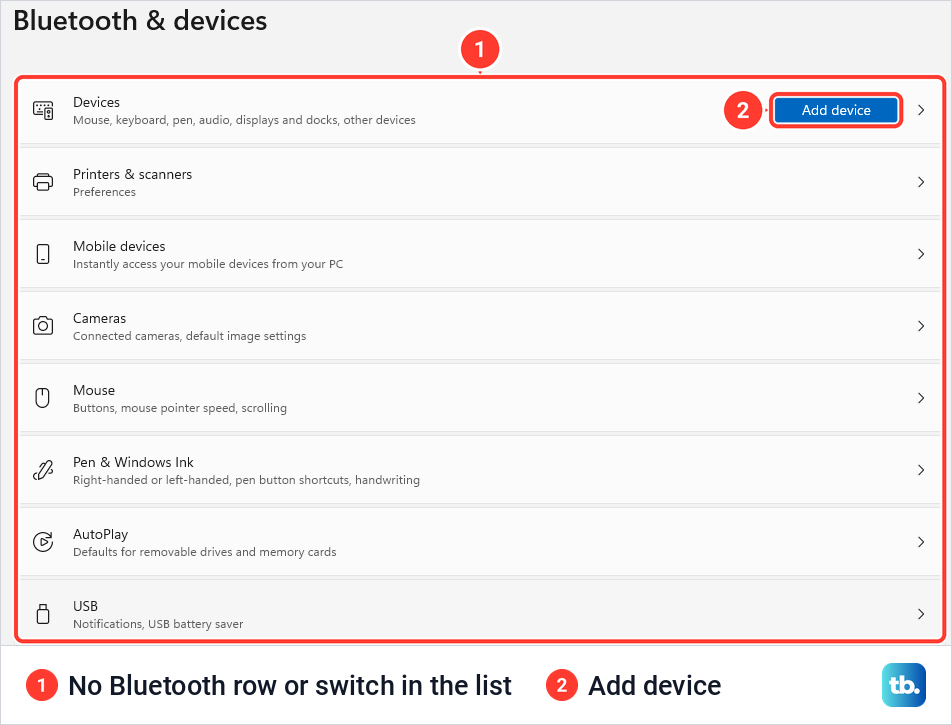
Check the PC's specifications on the maker's site first, because a PC without Bluetooth hardware needs an adapter, not a fix. Then look at what Windows shows. On our PC, Settings > Bluetooth & devices opened with Devices and its Add device button at the top, followed by Printers & scanners, Mobile devices, Cameras, Mouse, Pen & Windows Ink, AutoPlay and USB. There was no Bluetooth row and no On or Off switch anywhere on the page.
Next, open Device Manager: right-click Start or press Windows + X, then select Device Manager. A working adapter sits under a Bluetooth class, and its name may include the word radio. The classes are listed in alphabetical order, and on our PC the list went straight from Audio Processing Objects (APOs) to Computer, with no Bluetooth entry.
Then select View > Show hidden devices. On our PC this added Other devices and Storage volumes but still no Bluetooth class, greyed out or otherwise. A missing Bluetooth class does not settle it, because an adapter without its driver can sit under Other devices instead. Check that list and the PC's specifications before you decide there is no adapter.
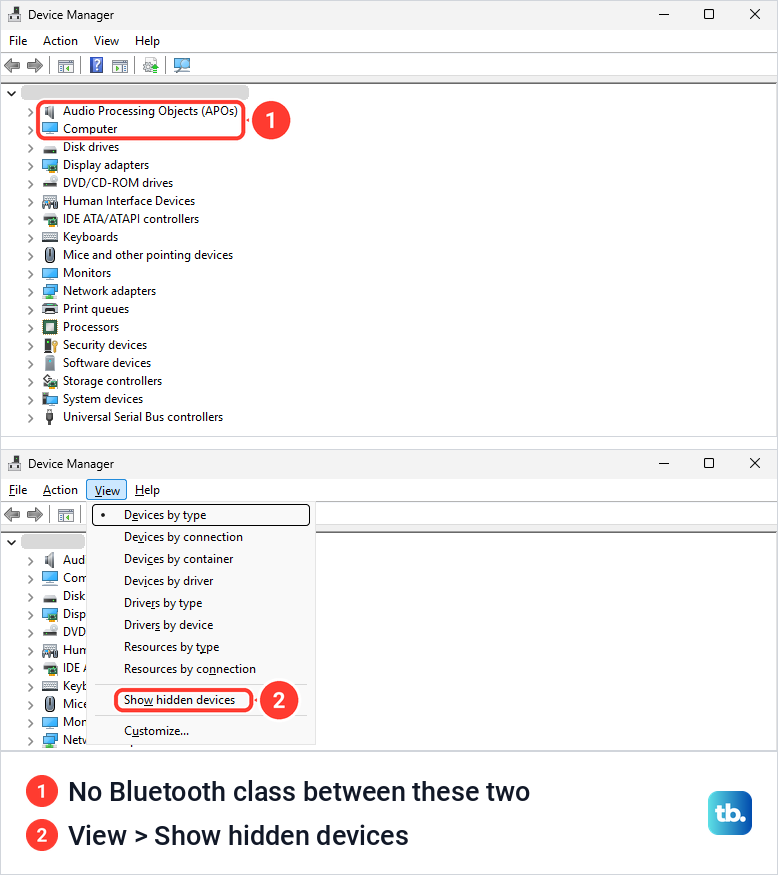
Read a hidden entry with care. Device Manager also keeps entries for devices that were removed from the PC, so a greyed-out Bluetooth adapter does not prove one is connected. If the adapter is listed and its right-click menu offers Enable device, select it. If it is listed but Bluetooth still fails, the driver fixes further down apply.
If neither list shows a Bluetooth adapter, save your work and power the PC off completely. Hold Shift while you select Start > Power > Shut down, wait one minute, then turn the PC on and look for the switch again. Choose Shut down rather than Restart, so the PC and its Bluetooth hardware power off completely.
Still no switch? Open the PC maker's support page for your model, which may list Bluetooth steps specific to that PC, or contact the maker. If those steps take you into the firmware settings, our guide shows how to open BIOS on a Windows PC. A PC with no Bluetooth hardware can get it from a USB Bluetooth adapter plugged into a USB port.
Rule out the device itself
When the switch is there and on, look at the accessory. Make sure it is turned on, charged or fitted with fresh batteries, and within range of the PC. Some devices will not enter pairing mode or hold a connection on a low battery, so charge it fully, and keep rechargeable headphones or speakers on power while you pair them.
Turn the device off, wait a few seconds and turn it back on. Pairing mode works differently on every product, so check the device's manual or its maker's site for how to make it discoverable. If the device responds slowly, keep it away from USB devices plugged into a USB 3.0 port, because unshielded USB devices can interfere with Bluetooth connections.
Set Bluetooth discovery to Advanced
If the device is in pairing mode but never shows up in the list, the discovery setting may be hiding it. Open Start > Settings > Bluetooth & devices > Devices and look under Device settings. If Bluetooth devices discovery is there, change it from Default, which shows common Bluetooth devices, to Advanced, which shows all types, then search for the device again.
On Windows 10, open Settings > Devices > Bluetooth & other devices, select More Bluetooth options, open the Options tab and tick Allow Bluetooth devices to find this PC, which makes the PC discoverable. Then put the device in pairing mode and search again with Add Bluetooth or other device > Bluetooth.
If the device still does not appear, go back over its pairing mode, charge and distance with the maker's instructions, then try the troubleshooter further down. The next fix, removing the device and pairing it again, is only for a device Windows already lists.
Forget the device and pair it fresh
If a device appears in the list but will not connect, remove it and pair it again. Open Start > Settings > Bluetooth & devices > Devices, select More options (the three dots) beside the problem device, then Remove device and Yes. Remove only the device that fails, because each one you remove has to be paired again.
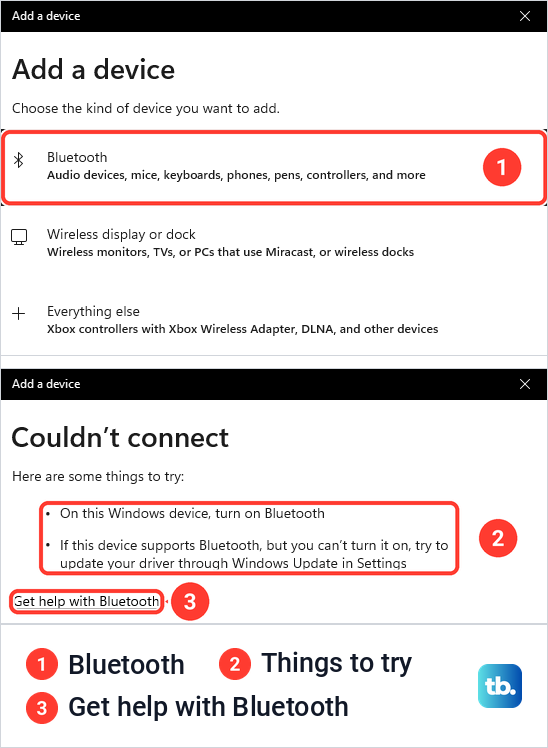
Put the device back in pairing mode, select Add device at the top of Bluetooth & devices, choose Bluetooth and select the device when it appears. Follow any extra instructions on screen, then select Done. A device that supports Swift Pair can skip this, because Windows shows a notification when it is nearby and in pairing mode, and selecting Connect pairs it.
Add device also tells you when there is nothing to pair with. When we chose Bluetooth in the Add a device box on a PC where Windows found no adapter, it answered "Couldn't connect" with two things to try: "On this Windows device, turn on Bluetooth" and "If this device supports Bluetooth, but you can't turn it on, try to update your driver through Windows Update in Settings". That points back to the switch and the driver, not the accessory.
On Windows 10, remove the device in Settings > Devices > Bluetooth & other devices, then select Add Bluetooth or other device. Choose Bluetooth and select your device when it appears.
Run the built-in Bluetooth troubleshooter
Windows 11 has an automated Bluetooth troubleshooter that runs diagnostics and tries to fix the problem. Open Start > Settings > System > Troubleshoot > Other troubleshooters, find Bluetooth under Other and select Run beside it. On Windows 10 it is under Settings > Update & Security > Troubleshoot, where you select Bluetooth and then Run the troubleshooter.
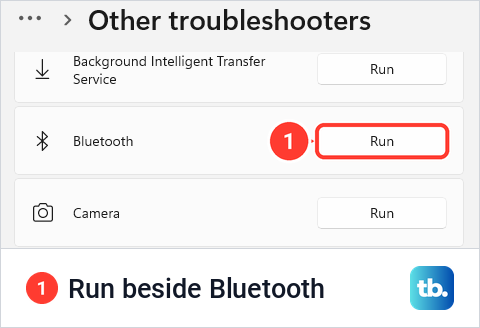
On our PC, Run opened the Get Help app with "Run the Windows Bluetooth troubleshooter" already typed in its search box. No consent question and no guided steps followed. The page showed a Recommended solution card, a Microsoft Q&A answer titled Bluetooth related issue, and under More help two entries titled How to fix bluetooth, and it stayed that way.
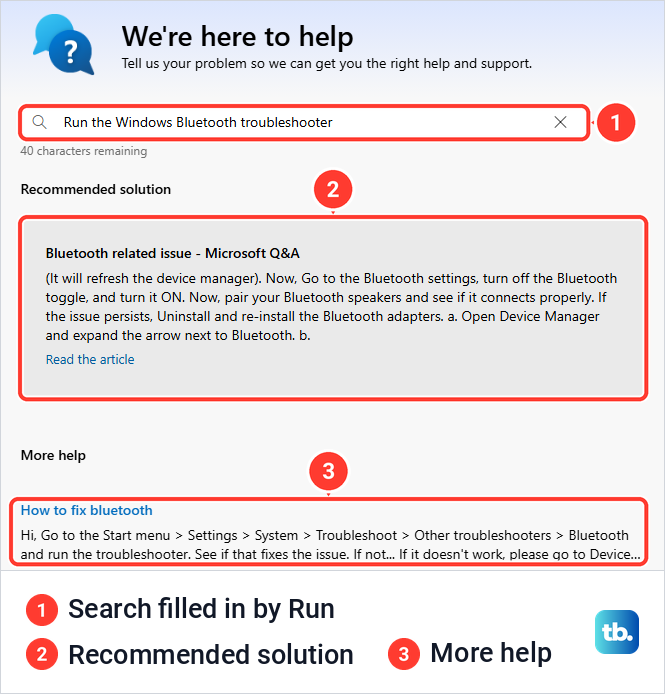
If you get the same page of answers, or the troubleshooter runs and cannot fix the problem, carry on with the fixes below. When the guided troubleshooter does start, follow its prompts to the end and test the device before you change anything else.
Give the Bluetooth Support Service a restart
Windows runs a background service for Bluetooth, and restarting it is one of the steps for connections that keep dropping. Press Windows + R, type services.msc and select OK. Scroll down to Bluetooth Support Service, right-click it and select Restart.
On our PC, where Windows found no Bluetooth adapter, the service still read Running with the startup type Manual (Trigger Start), between Bluetooth Audio Gateway Service and Bluetooth User Support Service. Its description begins "The Bluetooth service supports discovery and association of remote Bluetooth devices." A running service therefore does not prove that Bluetooth hardware is present.
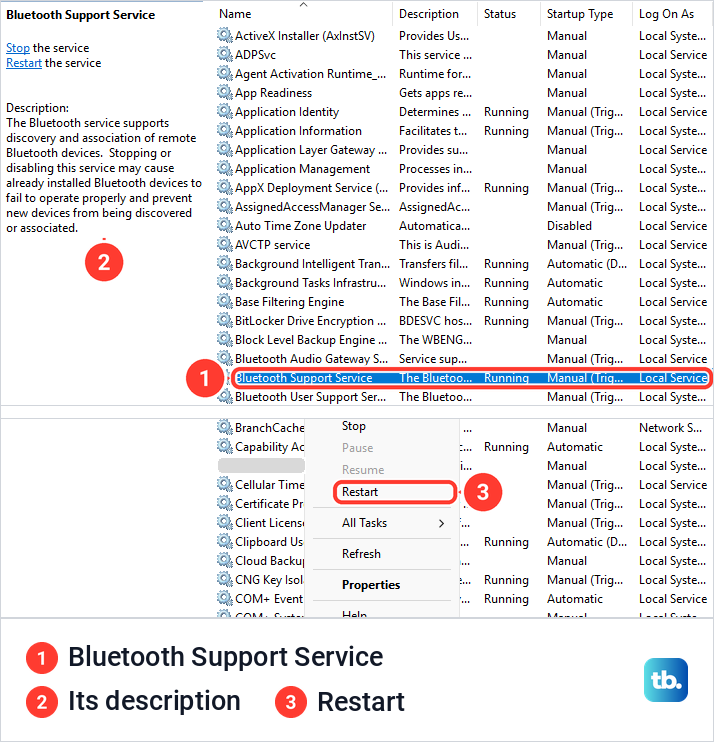
Restart ran with no prompt on our PC, and afterwards the row read Running and Manual (Trigger Start) again. Then try your device again.
Stop Windows from powering down your adapter
When a device connects and then drops, power saving is one of the causes to rule out, along with outdated drivers and temporary glitches. If the taskbar shows a battery icon, select it, check whether Energy saver is on and turn it off while you use Bluetooth. With no battery icon, look for the Energy saver tile in quick settings, where it was on our PC, or go straight to the adapter check below. On Windows 10 the same setting is called Battery saver.
Windows can also turn the adapter itself off to save power. In Device Manager, expand Bluetooth, right-click the adapter and select Properties. On the Power Management tab, clear Allow the computer to turn off this device to save power and select OK. If the adapter has no Power Management tab, skip this step.
Neither change is certain to stop the drops. If the connection still falls over, update the driver next.
Update the Bluetooth driver and Windows
An outdated or incompatible driver is one of the most common causes of Bluetooth connection problems, and an upgrade or a Windows update can leave a driver made for an earlier version. In Device Manager, expand Bluetooth, right-click your adapter and select Update driver > Search automatically for drivers. Follow the steps, select Close, and restart the PC if Windows asks.
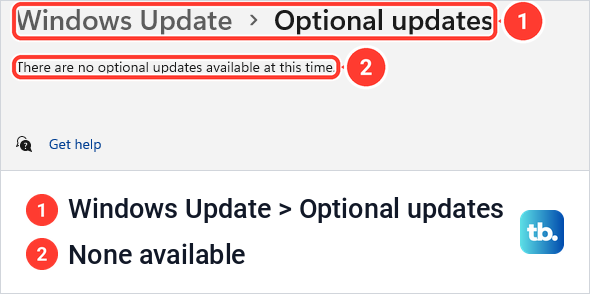
Windows Update delivers some Bluetooth drivers too. Open Start > Settings > Windows Update, select Check for updates and install what it finds. Then open Advanced options > Optional updates, where driver and firmware updates can wait under Driver updates, tick the ones offered for your PC and select Download & install. If Windows Update itself fails, run the Windows Update troubleshooter in Windows 11 before you try again.
On our PC, Optional updates read "There are no optional updates available at this time", with no Driver updates group listed. An empty page like this means Windows Update has nothing extra for the PC right now, so the PC maker's site is the next place to look.
If Windows reports that the best driver is already installed, the PC maker's support site may still have a newer one. Search it with your PC's model number, download the latest Bluetooth driver for Windows 11, install it and restart. The same page may list newer BIOS, UEFI or firmware updates for your model, which matter because some Bluetooth problems come from firmware. Use the maker's own site rather than a general driver download site.
Roll the driver back if the trouble started recently
If Bluetooth worked until a recent driver or Windows update, going back to the previous driver might fix it. In Device Manager, expand Bluetooth, right-click the adapter and select Properties. On the Driver tab, select Roll Back Driver and follow the prompts. You need to be signed in with administrator permissions.
If Roll Back Driver is greyed out, you cannot use that option for this adapter. In that case, install the maker's latest driver as described above, or reinstall the adapter as described next.
Reinstall the driver by uninstalling the adapter
When the adapter shows in Device Manager but Bluetooth still fails, or the switch is missing while the adapter is listed, reinstall its driver. Save your work and close your apps first, and if one refuses to close, force quit it on Windows. In Device Manager, expand Bluetooth, right-click the adapter, select Uninstall device and confirm with Uninstall.
Then select Start > Power > Shut down, wait a few seconds after the PC turns off and turn it back on. If the PC freezes instead of shutting down, follow the steps to fix a frozen computer and restart it. Windows tries to reinstall the driver as it starts, but that is not guaranteed. If Bluetooth is still missing, open Device Manager and select Action > Scan for hardware changes.
If the adapter still does not come back, install the maker's driver from its support site or contact the PC maker. Reinstalling Windows is not one of these eleven fixes, so treat it as a separate decision for wider problems, and read how to reinstall Windows 11 and choose what to keep before you go that far.
How we tested this guide
We tested this on a PC running Windows 11, version 25H2, where we opened Bluetooth & devices, quick settings, Device Manager, the Bluetooth Support Service and the Bluetooth troubleshooter, and restarted the service.
Frequently Asked Questions
What is the fastest fix to try first?
Fix 1: Airplane mode off, then Bluetooth off and on again. If Settings has no Bluetooth switch at all, go straight to fix 2.
Why is the Bluetooth switch missing in Windows 11?
Windows cannot detect or turn on a Bluetooth adapter. The PC may have no Bluetooth hardware, the adapter's driver may not be installed, or the hardware may have hit an error. Check the PC's specifications, then look in Device Manager, with View > Show hidden devices turned on, under Bluetooth and under Other devices.
My Bluetooth device will not pair. What should I check first?
Check that the device is on, charged, close to the PC and in pairing mode, which works differently on every product. If Windows still does not list it, set Bluetooth devices discovery to Advanced, if Settings offers it, and search again. Remove it and add it again only if it is listed but will not connect.
Why does my Bluetooth keep disconnecting on Windows 11?
Power-saving settings, outdated drivers and temporary glitches are frequent causes, and no single one can be assumed. Turn off Energy saver, clear the adapter's power-saving option on its Power Management tab, restart the Bluetooth Support Service and update the driver.
What if the Bluetooth troubleshooter only shows help articles?
On our PC, Run opened Get Help with a Recommended solution card and More help entries rather than a guided troubleshooter. Read the card if it fits your problem, then carry on with the remaining fixes in order.
Do these Bluetooth fixes work on Windows 10?
Most of them do, with different paths: Bluetooth is under Settings > Devices > Bluetooth & other devices, and the troubleshooter under Settings > Update & Security > Troubleshoot. Microsoft ended Windows 10 support on October 14, 2025, so read what Windows 10 end of life means for that PC.