The No command screen means your phone is paused at the hidden Android Recovery entry point. It is not a separate repair app; the next move is to open Android Recovery and choose a command.
Start with fixes that do not erase anything. A normal recovery reboot or a force restart gets many phones out of No command safely.
If the phone keeps returning to No command, move to official software repair, Safe mode checks, or a reset. Save factory reset for the point where Android will not recover.
Open Android Recovery and reboot
This fixes a phone that is paused on No command and only needs a clean restart.
At the No command screen, press and hold Power.
While holding Power, press Volume up.
Release both buttons quickly.
When Android Recovery appears, use the Volume buttons to highlight Reboot system now.
Press Power to select Reboot system now.
Force restart a frozen phone
The most common cause is that the phone entered recovery by accident or froze before you could choose Reboot system now.
On a Google Pixel, press and hold Power for up to 60 seconds.
Release Power when the phone starts rebooting and the G logo appears.
On a Samsung Galaxy phone or tablet, charge the battery to at least 5%.
Hold Volume down and Power for about 10 seconds.
If the Power menu appears, keep holding until the Samsung logo appears.
If Maintenance mode opens, use the Volume buttons to select Normal Boot, then press Power.
Use the phone maker’s repair tool
Repair tools fit when the phone keeps landing in recovery or cannot finish starting Android. Use the official repair tool from the phone maker instead of a third-party repair download.
For a Pixel 4a or later, including Fold, connect the phone to a computer with a USB cable, open Google’s Update and Software Repair tool page, and follow the on-screen flow. Google lists this tool for Pixel 4a and later, including Fold, so an older Pixel needs a different route. The tool updates the phone without a factory reset when that route is offered, or resets and reinstalls the most recent Android version when the guided flow requires it.
For a Motorola phone, open Motorola Software Fix, choose Download, install the Windows PC client, and connect the phone by USB. Motorola uses Software Fix for software fixes, reflashing, hardware testing, and backup or restore options shown by the tool.
Factory reset only when Android will not recover
This fixes a phone that keeps returning to recovery or will not boot, but it erases the phone.
On Pixel 6 and later, turn off the phone.
Hold Volume down and Power for up to 30 seconds until Fastboot mode appears.
Use the Volume buttons to select Recovery Mode, then press Power.
At No command, hold Power, press Volume up, and release both buttons quickly.
Under Android Recovery, choose Wipe data/factory reset.
Choose Factory data reset.
Choose Reboot system now.
For Motorola, charge the battery to at least 30% and turn off the phone.
Hold Volume Down and Power until the phone turns on.
Press Volume Down until Recovery mode appears, then press Power.
At the Android robot screen, hold Power, then press and release Volume Up.
Choose Wipe data/factory reset, choose the reset option shown on your model, then choose Reboot system now.
Update Android when the phone still opens
If the phone can boot, use Android’s normal menus before touching recovery again. On Pixel and other Android phones, open Settings > System > Software updates, review the update status, and follow the on-screen instructions.
On Samsung, open Settings > Software update or Settings > System updates, then choose Download and install, Check for system updates, or Check for software updates. Some models show Download now instead, because Samsung’s label varies by model and carrier. Samsung also supports update checks through Smart Switch.
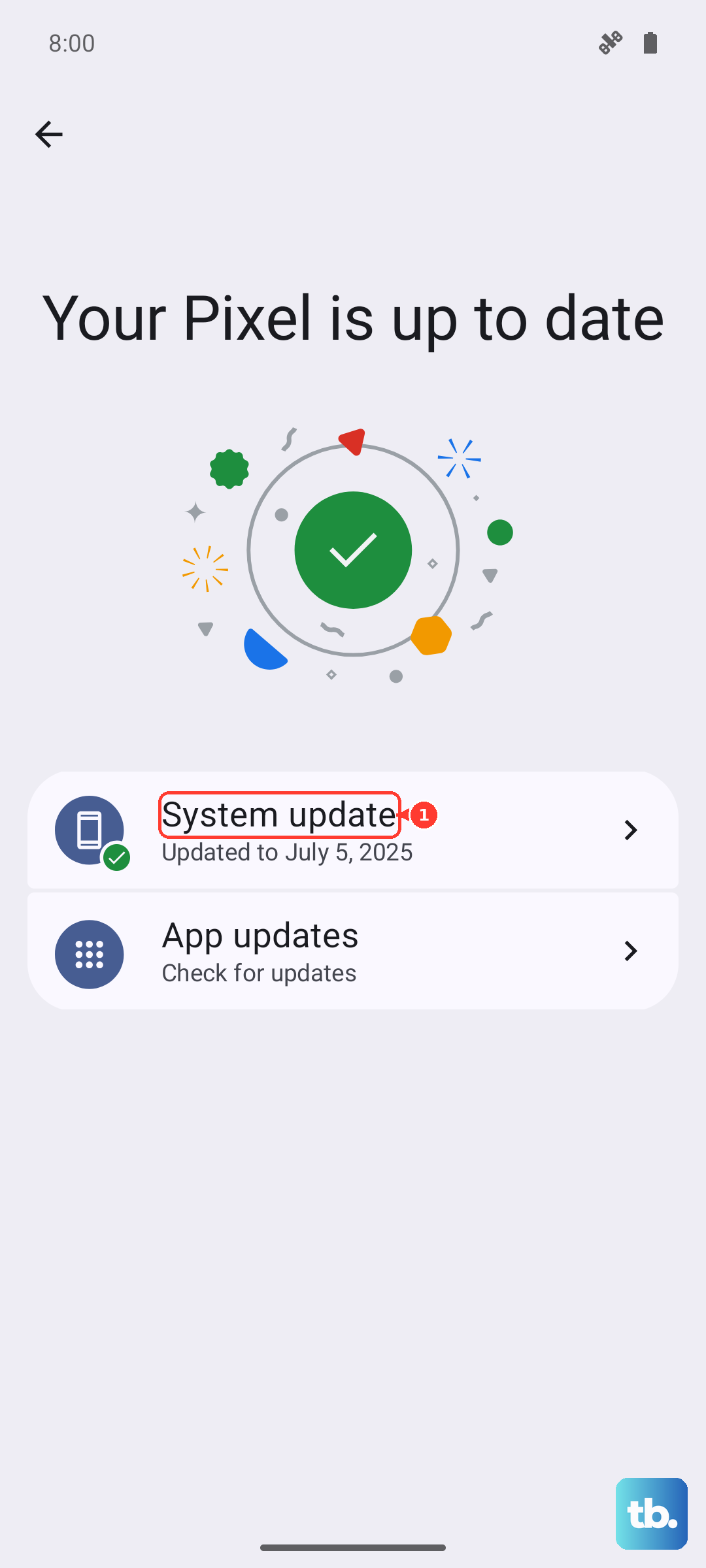
If the update path does not stop the phone from returning to recovery, use the official repair tool for your model or move to a factory reset.
Remove problem apps in Safe mode
Safe mode helps when recent app installs caused crashes or reboots before No command appeared.
On Samsung, turn on the device and hold Volume down when the Samsung logo appears until Safe mode appears. From the power menu, press Side and Volume down, or open Quick panel > Power icon, touch and hold Power off, then tap Safe mode.
On Motorola, press and hold Power and Volume up, touch and hold Power off, then touch OK to restart in Safe mode.
If the problem stops in Safe mode, restart normally and remove recently installed apps one by one. If Safe mode does not point to an app, use the manufacturer’s repair tool or reset the phone.
Prepare before you erase the phone
Check these before any reset from recovery, Settings, or Find Hub.
- 1.Confirm the Google Account already on the phone.
- 2.Confirm that Google Account password.
- 3.Confirm the previous screen lock, PIN, pattern, or password.
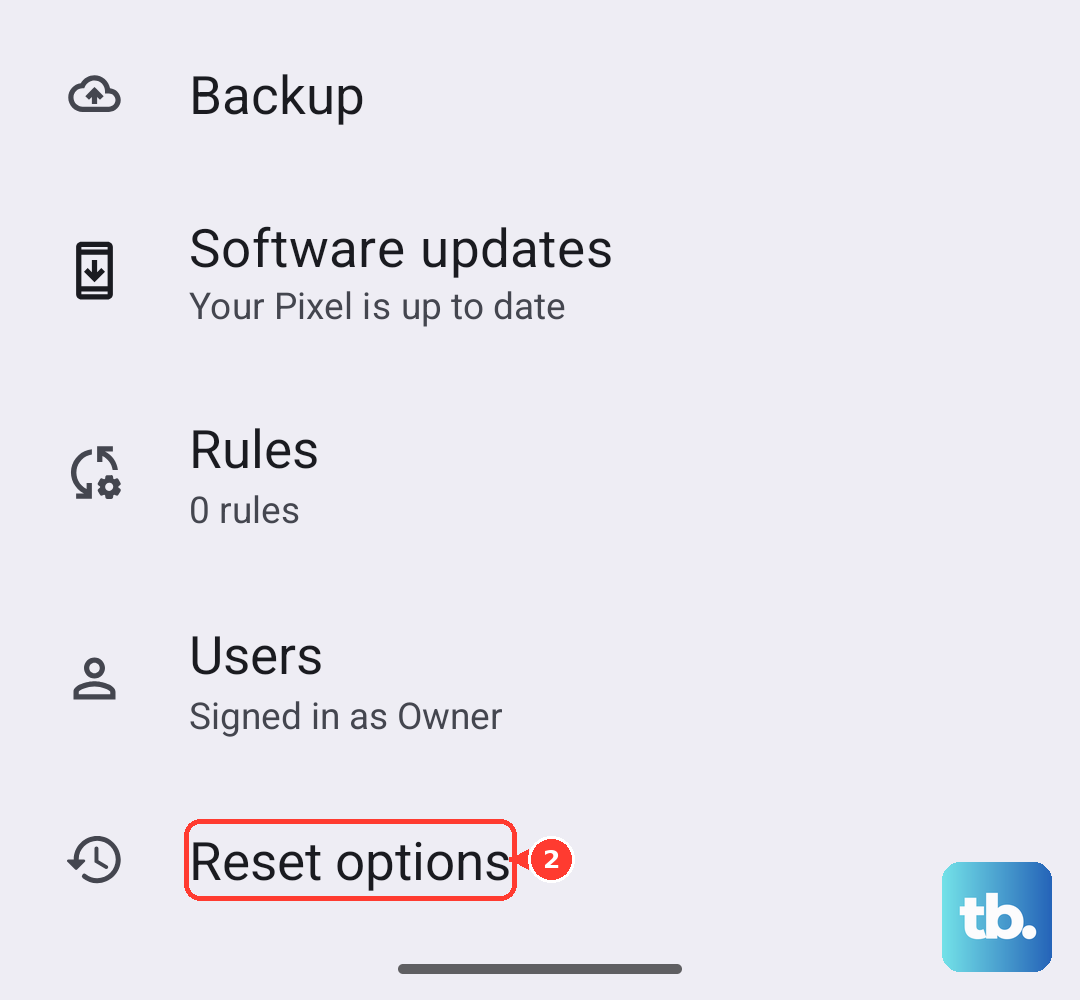
- 4.Use Settings reset when Android still opens; on Pixel, go to Settings > System > Reset options > Erase all data (factory reset) > Erase all data.
- 5.After a button or recovery reset, sign in with the prior screen lock or a Google Account previously added and synced on the device.
Reset remotely with Find Hub
This method applies when the device has power, is connected to mobile data or Wi-Fi, is signed in to a Google Account, has Find Hub turned on, and is visible on Google Play.
Use the Find Hub app on another Android device, or go to android.com/find in a browser.
Sign in, select the device, then choose Settings > Factory reset.
On Android 9 and later, enter the device lock-screen PIN during Find Hub access when prompted. After a remote reset, Android device protection requires a Google Account username and password already associated with the device. The previous screen lock is not an alternative on this path, unlike a button or recovery reset.
Handle work or school devices
For a phone with a work profile, the recovery problem is still local, but work data is managed separately from personal data. On a Pixel running Android 8.0 or later with Google Workspace, remove the work profile from Settings > Passwords, Passkeys & Accounts by choosing Remove work profile > Delete. Google scopes that exact path to Pixel devices, so on other Android phones the steps can vary and you look for the same account and work profile entries in Settings.
If Remove work profile is not shown, tap the account, then choose Remove account > Remove account > OK. Enter the PIN, pattern, or password when Android asks.
If the whole phone belongs to a company or school, use the organization’s supported device page or contact the admin before wiping it yourself. Managed devices have user or admin reset options that regular personal phones do not expose.
Skip outdated recovery shortcuts
Older Android advice points people toward broad recovery shortcuts and cache-wipe fixes. Do not use older Samsung Home or Bixby button combinations as your main fix on modern no-Home, no-Bixby Galaxy phones.
Samsung still documents Wipe cache partition for Galaxy devices whose recovery menu includes that option. If your Galaxy recovery menu shows Wipe cache partition, select it with the Volume buttons, press Power, choose Yes, then choose Reboot device.
For everyday Samsung stability fixes, use Settings > Device care > Optimize now. If Optimize now is unavailable, the device is already optimal.
Frequently Asked Questions
Does No command mean my Android phone is broken?
No. It is the placeholder screen before Android Recovery options are revealed. Open Android Recovery and choose Reboot system now first.
Will rebooting from Android Recovery erase my data?
No. Reboot system now restarts the phone without wiping it. Wipe data/factory reset, Factory data reset, and Find Hub Factory reset erase the phone.
Why does Android ask for my old Google Account after a reset?
After a button or recovery reset, Android device protection accepts the previous screen lock or a Google Account that was already added and synced on the phone. After a Find Hub remote reset, it requires a Google Account username and password already associated with the device.
Can I fix No command with ADB?
Yes, on supported Pixel and Nexus devices listed on Google’s Full OTA Images page. In Android Recovery, choose Apply update from ADB, then use adb sideload with the matching full OTA package.