Cached files make apps and websites open faster, until stale data leaves a page broken, keeps old sign-in data in place, or takes up storage. Clear cache where the problem starts: the browser for website trouble, the app settings for a phone app, or storage tools for computer cleanup. Start with the most common paths below, then use the narrower fixes when only one site or app is acting up.
Clear Chrome cache first
Use this when a website looks outdated, loads broken images, or keeps acting strangely in Chrome.
- 1.Open Chrome and select More at the top right on a computer, or tap More beside the address bar on Android or iPhone.
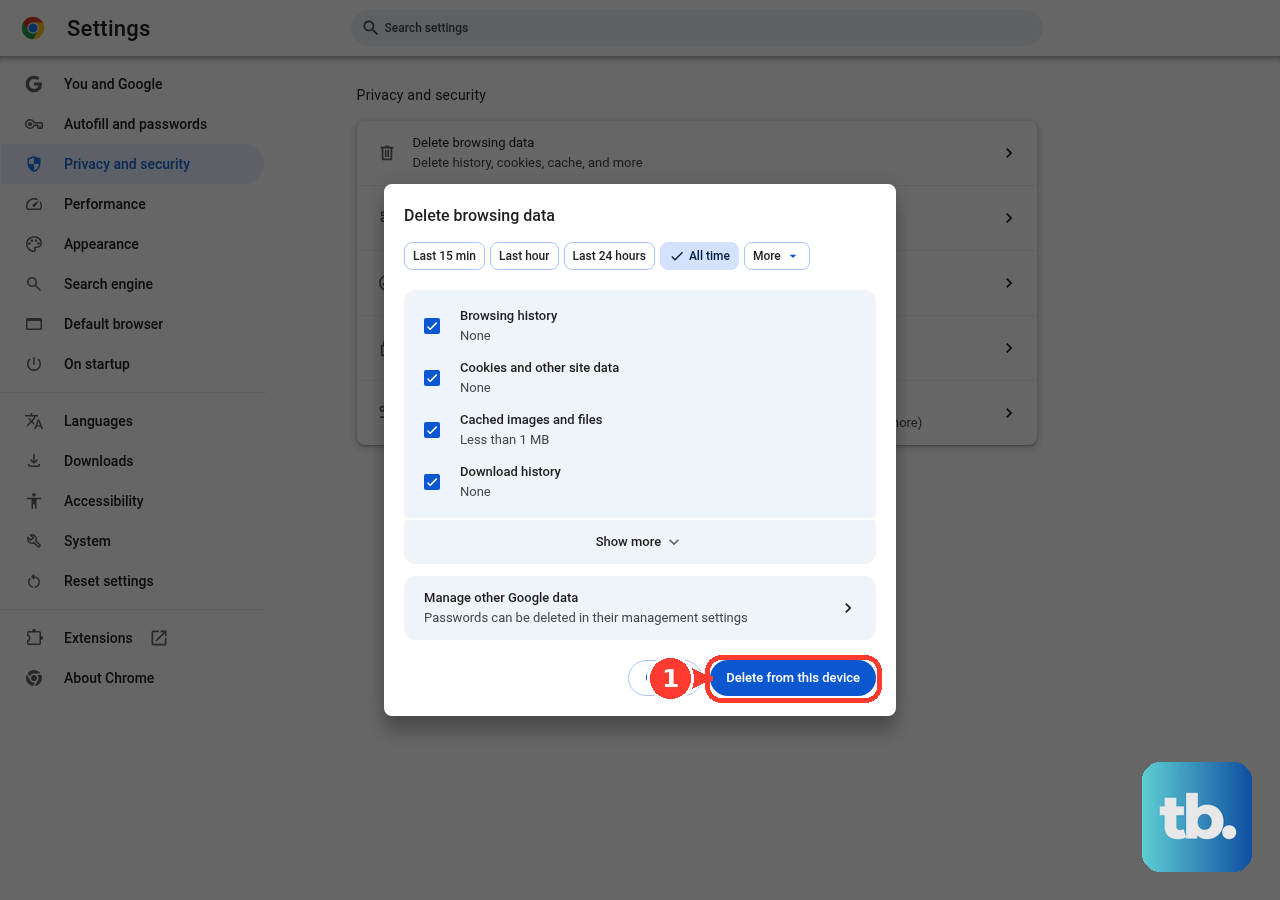
- 2.Choose Delete browsing data. On desktop, the same control is under Settings > Privacy and security > Delete browsing data.
- 3.Open the full options. On a computer they are already on screen. On Android, tap More options. On iPhone or iPad, tap Browsing Data in the pop-up.
- 4.Choose a time range, such as Last hour for a recent issue or All time for a full cache clear.
- 5.Select Cached images and files or Cached Images and Files, plus any other data types you want to remove.
- 6.Select Delete data. On iPhone or iPad, finish with Confirm and Delete Browsing Data.
Wipe Safari data on iPhone or iPad
For a full Safari cleanup on iPhone or iPad, open Settings > Apps > Safari, then tap Clear History and Website Data. Choose a timeframe and tap Clear History.
That removes Safari history, cache, and cookies for the selected timeframe. When Clear History and Website Data is grayed out, either there is no history or website data left to clear, or Screen Time web content restrictions are blocking the control.
To remove Safari website data while keeping browsing history, use Settings > Apps > Safari > Advanced > Website Data. Tap Remove All Website Data, then tap Remove Now.
Fix one website without wiping everything
This fixes one stuck or broken site while leaving most of your browser alone.
In Chrome on a computer, open More > Settings.
Go to Privacy and security > Third-party cookies.
Open See all site data and permissions.
Search for the website.
Select Delete next to the site, then confirm with Delete.
In Firefox, open the problem website and click the address-bar padlock or shield icon.
Choose Clear cookies and site data.
Clear an Android app cache
Modern Android cache clearing is handled app by app, including on Samsung Galaxy phones and tablets.
- 1.Open Settings.
- 2.Tap Apps.
- 3.Select or search for the app that is slow, glitching, or using too much storage.
- 4.Tap Storage. On Pixel phones the panel is Storage & cache instead, and the Apps screen may need See all apps before the app is listed.
- 5.Tap Clear cache.
- 6.Use Clear storage or Clear data only when you want to reset that selected app's stored data, not just its cache.
Reset iPhone app cache without a clear button
For non-Safari apps on iPhone or iPad, use the app's own cache-clear setting when the app provides one. When it does not, Apple's phone-level reset is to remove the app and reinstall it.
Touch and hold the app, then tap Remove App > Delete App > Delete. Reinstall the app from the App Store when you need it again.
Offload Unused Apps is different. Settings > Apps > App Store > Offload Unused Apps removes unused apps when storage is low but keeps documents and data, so it is not a full app cache or data reset.
Remove cached temporary files in Windows
Open Start > Settings.
Select System > Storage.
Open Temporary files.
Select the file categories you want to remove.
Select Remove files.
For automatic cleanup, open Storage Sense from Storage and choose when it runs.
For Disk Cleanup, search the taskbar for disk cleanup, open Disk Cleanup, choose a drive, select categories such as Temporary Internet Files or Thumbnails, then select OK.
Keep browser cache cleanup separate from Windows storage cleanup, because Chrome, Edge, Firefox, and Safari each have their own browsing-data controls.
Clear Safari and system cache on a Mac
The usual Mac browser cache problem is Safari holding old website data for a specific site.
Open Safari and choose Safari > Settings > Privacy. Click Manage Website Data, select one or more websites, then click Remove or Remove All.
To clear Safari history and related saved browsing data, choose History > Clear History, then choose how far back to clear from the pop-up menu.
For certain Mac system caches, restart in Safe Mode. On Apple silicon, shut down, hold the power button until Loading startup options appears, select a volume, hold Shift, and click Continue in Safe Mode; on an Intel Mac, turn on or restart and immediately hold Shift until the login window appears.
Clear Edge Firefox and Samsung Internet
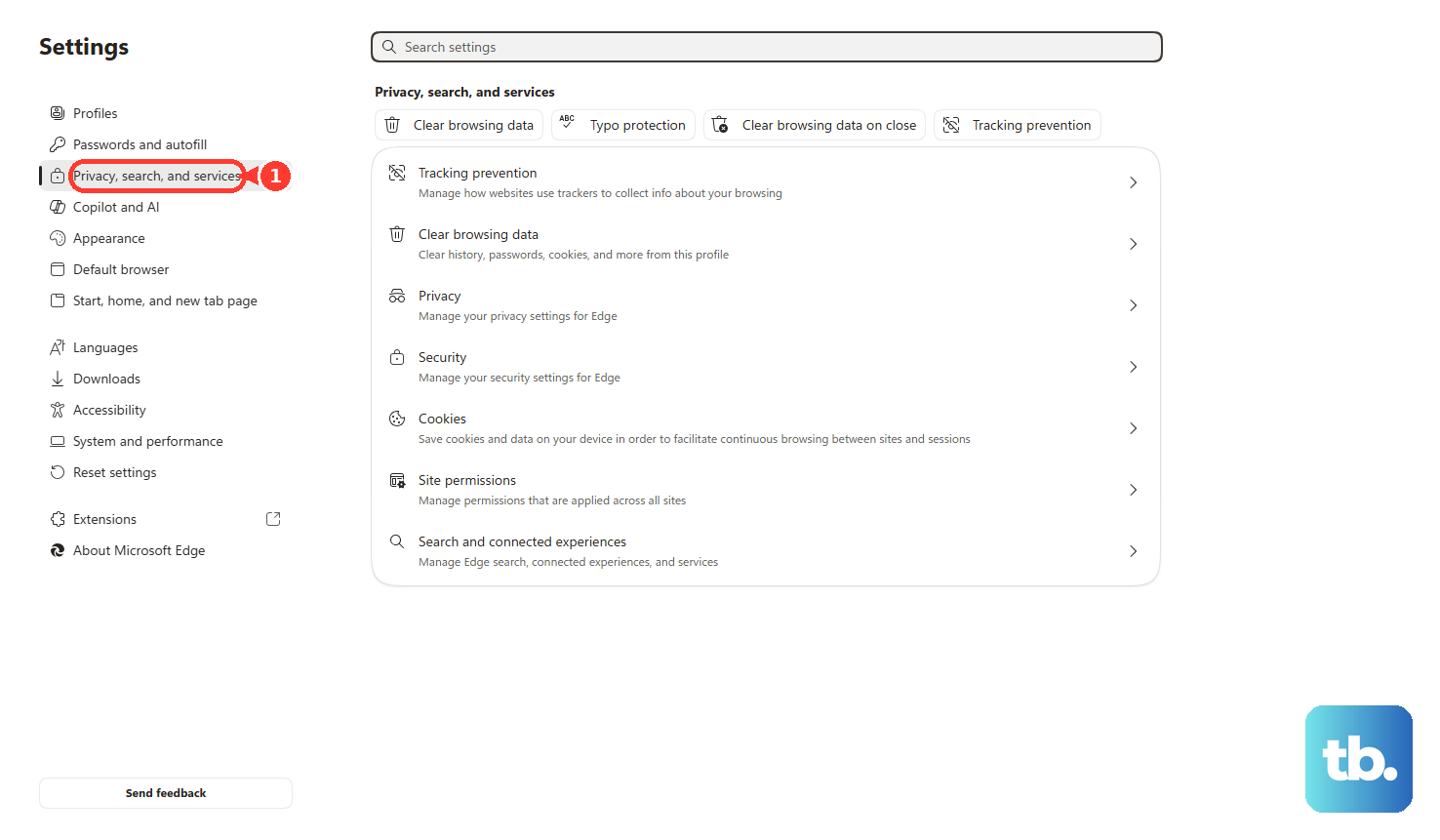
In Microsoft Edge on desktop, open Settings and more > Settings > Privacy, search, and services. Under Clear browsing data, choose Choose what to clear, select Cached images and files, choose the Time range, and select Clear now.
In Firefox on desktop, open menu > Settings > Privacy & Security. Under Cookies and Site Data or Browsing data, use Clear Data or Clear browsing data, set When to Everything, select Temporary cached files and pages, and click Clear.
On Samsung Internet, open More options > Settings > Personal browsing data > Delete browsing data. Select Cached images and files and delete the selected data.
If this method fails, clear cookies and site data for the problem site, then repeat the browser cache clear with the broadest time range.
Handle managed cache controls
The most common reason cache controls are missing or keep reversing on a work or school device is that the browser or computer is managed by an organization.
Managed Chrome, ChromeOS, and Microsoft Edge setups support administrator rules that delete browsing data automatically or remotely. On that kind of device, use the normal consumer cache controls when they are available, and contact your organization when the setting is locked.
Older Android's one-tap global cached-data cleanup is not the current consumer path. Current fixes are per-app cache clearing, browser browsing-data controls, and Windows or macOS cleanup tools.
Hard refresh shortcuts reload a page but do not clear the stored browser cache.
Frequently Asked Questions
Will clearing cache delete my photos, documents, or apps?
Browser cache clearing removes stored website files such as cached images and files. Android Clear cache affects the selected app's cache. On iPhone, Delete App removes that app and its local data.
Should I clear cache for all time or just the last hour?
Use Last hour for a problem that just started. Use All time in Chrome, Everything in Firefox, or the broadest available range when the same site or browser keeps misbehaving.
What is the difference between clear cache and clear data on Android?
Clear cache removes the selected app's cached files. Clear storage or Clear data resets the selected app's stored data, so use it only for a deeper app reset.
How do I clear the Microsoft Store cache on Windows?
Press Windows logo key + R, type wsreset.exe, and select OK. A blank Command Prompt opens briefly, then Microsoft Store opens.











