Lag turns normal use into waiting: typing trails behind, apps freeze, pages stutter, and games or video stop moving cleanly. Start with the fixes that remove the most common pressure first, then move into updates, storage, power settings, browser controls, health checks, safe mode, and reset options only when the basics fail.
1. Restart and close what is slowing the device
This fixes short-term lag caused by stuck apps, overloaded tabs, and background work using memory or processor time.
On Windows 11, press Ctrl + Shift + Esc, open Processes, right-click apps you are not using, and close them. Then review Performance and Startup apps for heavy resource use.
On Mac, open Activity Monitor, choose Memory or CPU, select the app or process, click the Stop button, then choose Quit or Force Quit.
On iPhone or iPad, force close only an app that is not responding. Swipe up from the bottom, or double-click the Home button on older models, then swipe up on the app preview.
On Pixel phones, open Settings > Apps > See all apps, choose the problem app, tap Force stop, then tap OK. Google notes that Settings can vary by phone, so on other Android devices check your manufacturer's app-management instructions for the same force stop step.
On Chromebook, press Shift + Esc, select apps or windows you are not using, and close them.
Restart after closing heavy apps. On Windows 11, use Start > Power > Restart; on most Android phones, press the power button for about 30 seconds or tap Restart when it appears.
2. Free storage before deeper fixes
Low storage makes everyday actions slower when apps need room for updates, caches, photos, downloads, and temporary files.
On iPhone and iPad, check Settings > General > [Device] Storage and keep at least 1 GB free; tap an app to use Offload App or Delete App.
On Mac, use Apple menu > System Settings > General > Storage to review recommendations and remove files or apps you no longer need.
On Android 14 and later, use Settings > Storage > Free up space, scroll to the category you want, tap Select files, choose the files, then tap Move files to Trash.
On earlier Android versions some of those options are missing, so open Settings > Storage, select a category, and clear what you can from there.
3. Update the system and apps
On Windows 11, go to Start > Settings > Windows Update > Check for updates. When updates are available, select Download & install.
For Windows optional driver updates, open Start > Settings > Windows Update > Advanced options > Optional updates, select the updates, then choose Download & install.
On iPhone or iPad, open Settings > General > Software Update. For automatic updates, use Settings > General > Software Update > Automatic Updates.
On Android, open Settings > System > Software update or Settings > Software update, then install available updates.
Update Android apps from Google Play Store > profile icon > Manage apps & devices > Updates available, then update all apps or the specific slow app.
On Samsung Galaxy, update Google Play system components through Settings > About phone or About tablet > Software information > Google Play system update, then follow the prompts.
On Chromebook, check for system updates and install any available ChromeOS updates.
4. Switch performance settings for speed
Battery-saving modes reduce performance during gaming, editing, video, and other demanding work.
On Windows 11, set Start > Settings > System > Power & battery > Power mode > Best performance when that option appears on your PC.
On iPhone 15 and later, turn off Settings > Battery > Power Mode > Low Power Mode; on iPhone 14 and earlier and on iPad, turn off Settings > Battery > Low Power Mode for performance-sensitive use.
On supported high-end Macs, use Apple menu > System Settings > Battery or Energy, then choose High Power Mode from the energy mode menu.
5. Stop startup and background apps
On Windows 11, press Ctrl + Shift + Esc, open Task Manager > Startup apps, right-click an app you do not need at startup, and select Disable.
To stop a Windows app from running in the background, open Start > Settings > Apps > Installed apps, choose the app's More options menu, open Advanced options, and set Background app permissions > Let this app run in the background to Never.
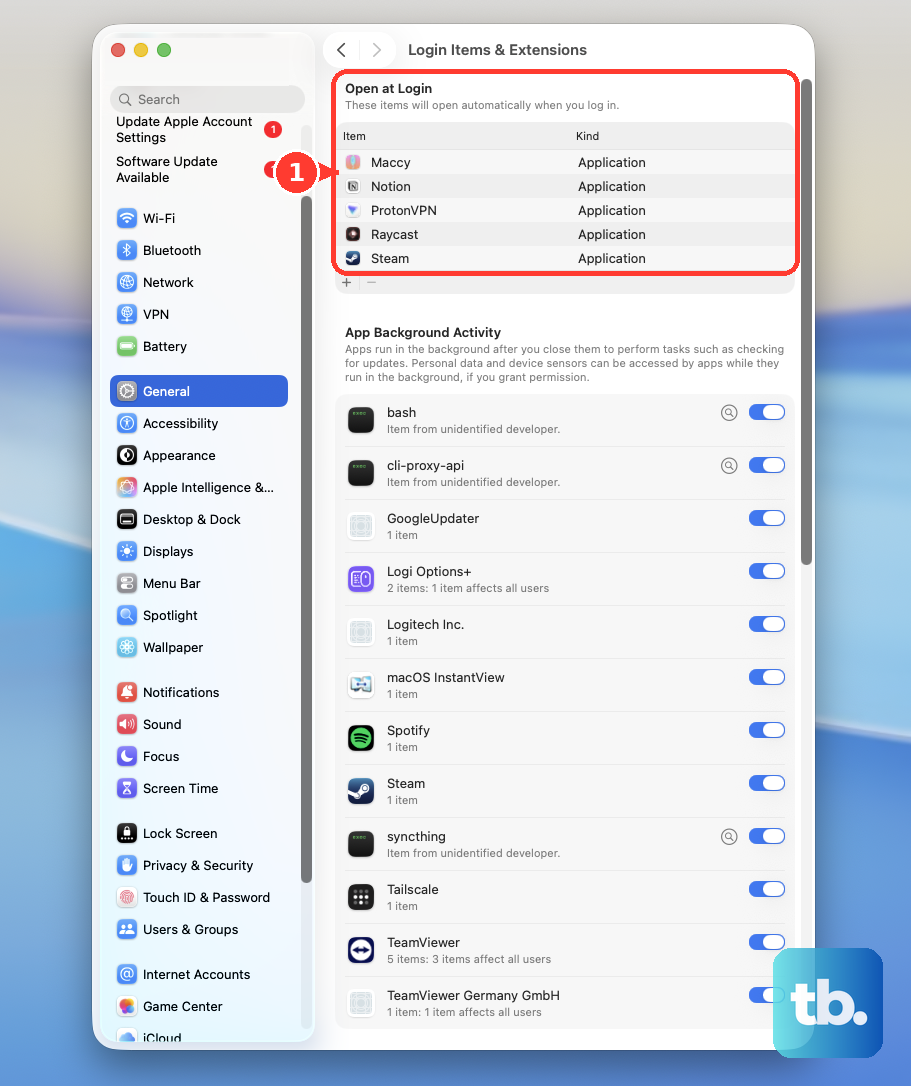
On Mac, open Apple menu > System Settings > General > Login Items & Extensions, select items under Open at Login, and click the Remove button.
On Chromebook, turn off extensions you do not need in Chrome > More > More tools > Extensions.
On Chrome desktop, open Chrome > More > Extensions > Manage Extensions, then turn off or remove unwanted extensions.
Keep startup apps and extensions limited to the ones you actually use every day.
6. Clean up Windows and Galaxy tools
Windows and Samsung include built-in maintenance controls for clutter and memory, so use those before installing a cleaner app.
On Windows 11, run Storage Sense from Start > Settings > System > Storage > Storage Sense > Run Storage sense now, or remove temporary files from Start > Settings > System > Storage > Temporary files > Remove files.
On Samsung Galaxy, use Settings > Device care > Optimize now, then use Device care > Memory > Clean now when you need to free memory.
Galaxy models with RAM Plus can use Device care > Memory > RAM Plus, turn it on, choose a GB amount, and restart when prompted.
7. Fix browser lag in Chrome, Edge, and Safari
In Chrome desktop, close unused tabs with the tab's Close button, Ctrl + w on Windows, Linux, and ChromeOS, or Command + w on Mac.
Turn on Chrome Memory Saver from Chrome > More > Settings > Performance > Memory Saver > On, then choose Balanced.
Keep important Chrome sites active through Chrome > More > Settings > Performance > Always keep these sites active > Add.
Turn off Chrome Energy Saver for performance-sensitive browsing, gaming, or video from Chrome > More > Settings > Performance > Energy Saver > Off.
In Microsoft Edge, turn on Sleeping tabs from Microsoft Edge > Settings > System and performance > Performance > Automatically put tabs to sleep.
Use Edge Performance detector from Settings and more > More tools > Performance, then choose Sleep tab or Close for a listed tab when a problem is detected.
On iPhone or iPad Safari, clear website data from Settings > Apps > Safari > Clear History and Website Data > Clear History.
Browser lag usually starts with tab pressure, so fix the browser before resetting the whole device.
8. Check malware, heat, battery, and health warnings
Lag can come from unwanted software, heat, battery condition, weak network conditions, or a device health warning.
On Windows 11, run a scan from Start > Settings > Privacy & security > Windows Security > Virus & threat protection > Quick scan, and review Windows Security > Device performance & health for yellow-marked recommendations.
On iPhone 15 and later, check Settings > Battery > Battery Health; on iPhone 14 and earlier, check Settings > Battery > Battery Health & Charging, and move an iPhone or iPad to a moderate temperature when it feels slow because it is too hot or too cold.
For slow apps on iPhone or iPad, try a different location or Wi-Fi network, and contact the carrier when cellular data problems continue across multiple locations.
9. Use safe mode or reset last
On Android, restart in safe mode using your manufacturer's steps. When lag disappears in safe mode, restart normally and remove recently downloaded apps one by one, restarting after each removal.
On Pixel 6 or later, press and hold Power + Volume Up, touch and hold Power off or Restart, then tap OK to enter safe mode.
On Samsung Galaxy, open the power menu, touch and hold Power off, then choose Safe mode. You can also power off, turn the device on, hold Volume down when the Samsung logo appears, and release when safe mode appears.
On Mac, start in safe mode to clear temporary system caches. On Apple silicon, shut down, press and hold the power button until startup options appear, select a volume, hold Shift, then choose Continue in Safe Mode; on Intel Mac, restart and hold Shift during startup.
On iPhone or iPad, erase only after you have a backup: Settings > General > Transfer or Reset [device] > Erase All Content and Settings > Continue. Then choose whether to keep or delete the eSIM, enter the device passcode, enter the Apple Account password, and wait for erase.
On Android, back up data, charge the phone to at least 70%, connect to Wi-Fi or mobile network, then reset through the Settings app.
On Samsung Galaxy, back up first, then use Settings, search Factory data reset, choose Factory data reset, tap Reset, and follow the prompts.
On Chromebook, after updates, restarts, and app or extension removal fail, use Reset your Chromebook. That factory reset is a Powerwash: it erases all user data on the drive, including everything in Downloads, so back up to Google Drive or external storage first. If problems continue, use Recover your Chromebook, which permanently erases everything on the drive before it reinstalls ChromeOS. Work or school Chromebooks cannot be reset this way, so contact your administrator instead.
Skip ReadyBoost, iPhone RAM-clearing tricks, Apple silicon SMC resets, and Android recovery cache wipes; current vendor guidance points to updates, storage cleanup, targeted app fixes, safe mode, and reset or restore instead.
Frequently Asked Questions
Why is my device still lagging after a restart?
Restart clears short-term problems, but lag returns when storage is low, updates are missing, startup apps keep loading, browser tabs stay heavy, or a downloaded app is causing the slowdown.
Should I force close every app on iPhone or iPad to make it faster?
No. Apple says to force close only a nonresponding app. Closing every app can slow reopening because the device has to load those apps again.
How much free storage should I keep on iPhone or iPad?
Keep at least 1 GB free. Check it in Settings > General > [Device] Storage, then offload or delete apps you no longer need.
When should I factory reset a slow device?
Use a factory reset after updates, restart, storage cleanup, app fixes, and safe mode troubleshooting fail. Back up first because reset and restore paths erase device data.