An Android app that freezes or shows Application Not Responding has stopped responding while it is open. Start by closing the stuck app, then work through the fixes below in order.
The fastest fixes are simple: close the app, restart the phone, clear temporary app files, update the app, and check the settings that control permissions and unused apps. If one app keeps failing, reinstall it; if many apps freeze, move to device-wide fixes.
Close the frozen app first
When Android shows the Application Not Responding dialog, tap the dialog's close or force-quit action.
Open the app again from the Home screen or App drawer.
If the app is still stuck, swipe up from the bottom of the screen, hold, then let go to open recent apps.
Swipe up on the frozen app.
To close every app in the recents list at once, open recent apps again, swipe from left to right, and tap Clear all. On Android Go with 3-button navigation, use Recent apps instead of the swipe gesture. Google notes that you will not run out of memory or battery even if you never close apps, because Android manages both automatically, so use Clear all to clear a stuck app out of the list rather than as a speed fix.
Restart your phone
Press your phone's Power button for about 30 seconds or until the phone restarts.
If the power menu appears, tap Restart.
Tap Restart again when prompted.
After the phone turns back on, open the problem app.
On Samsung Galaxy, you can also open the Quick panel, tap the Power icon, tap Restart, then tap Restart again.
If the screen is frozen on a Samsung Galaxy device, press and hold Volume down and Side or Power together until the device turns off and turns back on.
Try the app again before moving to settings changes.
Force stop the problem app
Use force stop when the same app keeps freezing after you close it from recent apps.
- 1.Open Settings.
- 2.Tap Apps.
- 3.Select the app that is not responding.
- 4.Tap Force stop.
- 5.Tap OK when prompted, then open the app again.
Clear cache or app data
Use this when the app opens but keeps freezing, crashing, or getting stuck on the same screen. Clearing cache removes temporary files; clearing storage or data resets the app and deletes app data.
Open Settings, tap Apps, and select the problem app.
Open Storage or Storage & cache.
Tap Clear cache first.
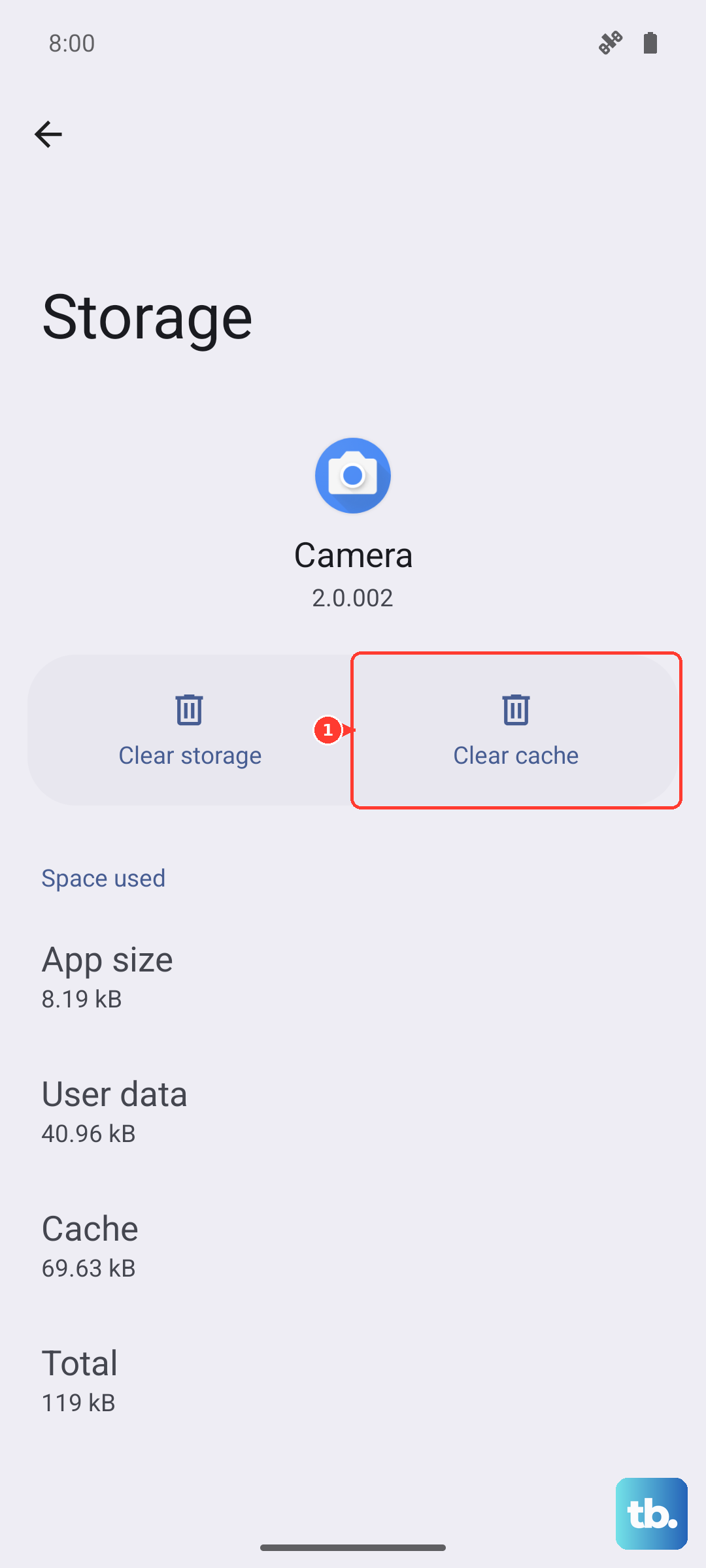
Open the app again and test it.
If it still fails, return to Storage or Storage & cache, then use Clear data, Clear storage, or Delete only when you are ready to reset the app.
Update Android and the app
Open the Google Play Store.
Tap your Profile icon.
Tap Manage apps & device.
Under Updates available, tap See details.
Tap Update next to the problem app, or tap Update all.
To update Android, open Settings, tap System, tap Software updates, then follow the on-screen instructions.
Turn on per-app auto updates from the app's Details page by tapping More and enabling Enable auto update.
Fix permissions and unused app settings
Use this when the app stopped working after permissions changed, after it sat unused, or after Android paused its activity. Missing permissions and unused-app optimization make an app look broken even when the app itself still opens.
Open Settings, tap Apps, then choose the app.
If you do not see it, tap See all apps and select it there.
Tap Permissions.
Choose the permission the app needs, then select Allow, Allow only while using the app, Ask every time, or another allow option shown on your phone.
Go back to the app's settings page, open Unused app settings, and turn off Pause app activity if unused.
Reinstall the app
A damaged install or bad app update is the cleanest next target when one app keeps freezing after restart, cache, updates, and permission fixes.
Open the Google Play Store.
Tap the Profile icon, then tap Manage apps & device.
Tap Manage.
Select the app and tap Uninstall.
Search for the app in Google Play, open its listing, and tap Install.
If the app was disabled instead of removed, open Manage apps & device, select the app, and tap Enable.
Repair wider app problems
If several apps freeze, update the Google components and clean up device resources before resetting anything.
- 1.Open Google Play Store, tap your Profile icon, tap Settings, tap About, then tap Update Play Store.
- 2.Open Settings, tap your Profile picture, tap All services, tap System services under Privacy & Security, tap Google Play services, then tap Update or Install.
- 3.Free storage by opening Google Play Store, tapping Profile icon, tapping Manage apps & device, tapping Manage, selecting unused apps, and tapping Uninstall.
- 4.Delete unneeded downloads and media in Files or the relevant media app.
- 5.On Samsung Galaxy, open Settings, tap Device care, tap Optimize now, then tap Memory and Clean now.
Use Safe mode or reset only as a last resort
How you restart in Safe mode varies by phone, so check your manufacturer’s support site if these steps do not match your device.
On Samsung Galaxy, open the Power menu, touch and hold Power off until the Safe mode icon appears, then tap Safe mode. Safe mode appears in the bottom-left corner of the screen.
On Pixel 6 and later, press and hold Power and Volume up for a few seconds, touch and hold Power off or Restart, then tap OK.
If the freezing stops in Safe mode, remove recently downloaded apps one at a time: open the App drawer, touch and hold a recently downloaded app, tap Uninstall, then tap OK. After each removal, restart the phone normally and check whether that app was the problem. Stop as soon as the freezing is gone, then reinstall any unrelated apps you removed.
Exit Safe mode by restarting the phone, or swipe down, tap the Safe mode is on notification, then tap Turn off.
Factory reset only after you back up your data, confirm your Google Account and password, know your screen lock, charge the phone to at least 70%, and connect to Wi-Fi or mobile data.
On Samsung Galaxy, open Settings, search for Factory data reset, tap Factory data reset, tap Reset, then follow the prompts.
A factory reset erases all data and uninstalls apps and app data, so use it after the app-level and device-level fixes fail.
Frequently Asked Questions
Why does Android say an app isn't responding?
Android shows an Application Not Responding dialog when a foreground app stops responding long enough for Android to offer a close or force-quit action.
Will clearing cache delete my app data?
No. Clearing cache removes temporary files. Clearing storage or app data is stronger and deletes app data, which can also sign you out.
What should I do if only one app keeps freezing?
Force stop it, clear its cache, update it in Google Play, check permissions and unused app settings, then reinstall it. If it still fails, contact the developer from the app's Google Play listing.
What if Google Play will not update the broken app?
Update the Play Store itself. If updates or downloads still fail, clear the Google Play Store cache and storage from its app info screen.











