


If your phone won't charge when plugged in, test it on a wall outlet you know works, with a compatible power adapter and a cable that charges another phone, changing one part at a time. Then look into the charging port with a light, without putting anything inside it. A completely flat phone may need 30 minutes on the charger before it shows any sign of life.
A liquid alert, a Charging On Hold message or a charge that halts near 80 percent usually means the phone is protecting itself, and each needs a different response from a broken cable. This guide covers iPhone and Android, with the steps Apple, Samsung and Google give for their phones.
The short version
- Power first: try a working wall outlet, a compatible adapter and a cable you trust, changing one at a time.
- Port: look inside with a light, but never push a pin, toothpick or swab into it.
- Dead phone: give it 30 minutes on wall power, then force restart. On an iPhone, press Volume Up, then Volume Down, then hold Side.
- Protective stops: a liquid alert, Charging On Hold and a stop near 80 percent each have their own fix.
- Repair: book one for a burned or corroded port, or no charge with parts you know are good.
Phone not charging at a glance
Match what you see to the first check, then read its section below. The table points to the part to test first, not to a diagnosis.
| What you see | First check | Next action |
|---|---|---|
| No charging sign at all | The wall outlet and adapter, then a cable you trust | Leave it 30 minutes on wall power, then force restart |
| Charges only when you hold the cable at an angle | Both cable ends and the port | Replace the cable; if a new one does the same, have the port checked |
| Charges slowly | A wall adapter instead of a computer port, and heat | Use a compatible wall adapter and let a warm phone cool |
| Charges on a pad but not on a cable | The cable, the adapter and the port | Swap the cable and adapter before you suspect the port |
| Charges on a cable but not on a pad | Placement, the case and anything between phone and pad | Center the phone, take off a thick or metal case, unplug USB |
| Liquid or debris alert | Unplug both ends of the cable | Let it dry and wait at least 30 minutes on an iPhone |
| Charging On Hold or a temperature warning | Sun, heat and the case | Let it return to normal temperature; charging resumes by itself |
| Stops around 80 percent | Charge Limit, Battery protection or Charging optimization | Raise or turn off the limit if you want 100 percent |
| Still dead after 30 minutes and a force restart | Another half hour on a known-good charger | Book a repair |
Check the outlet and power adapter
Start at the wall, because it is the easiest link to rule out. Apple's first step is to use a wall power outlet, check for firm connections between the cable, the USB wall adapter and the outlet, or try a different outlet. Google adds a quick test: try to charge another device with the same adapter and cable.
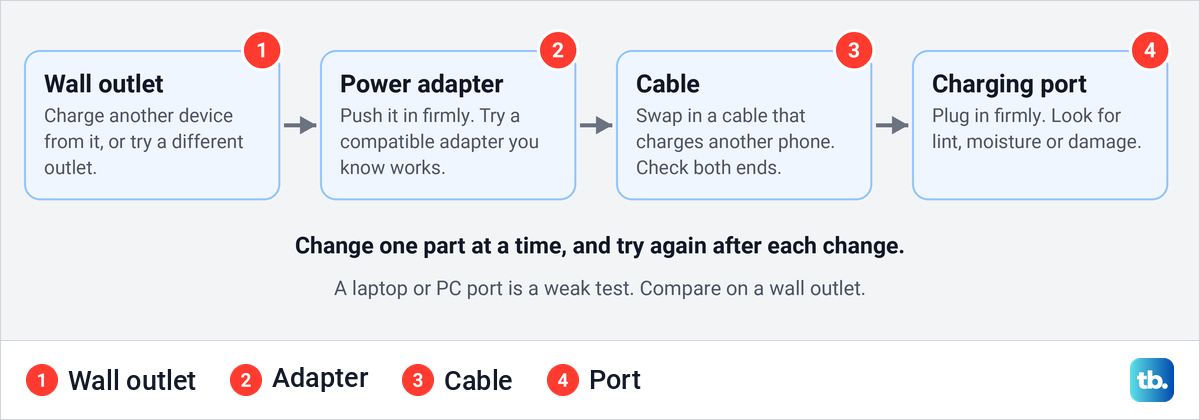
Treat the setup as a chain of four links and change only one at a time, so you know which part made the difference. If a second phone charges from the same outlet and adapter, the wall and the adapter are fine, and the cable or the phone is next.
Use a wall outlet rather than a computer for this test. A laptop port can charge slowly, as the section on charging from a computer explains, so it is a weak test of the phone.
Try another cable and check both ends
Swap your cable for one that you know charges another phone. Google's advice is to try another cable or power adapter, and changing the cable on its own tells you whether it was the weak link.
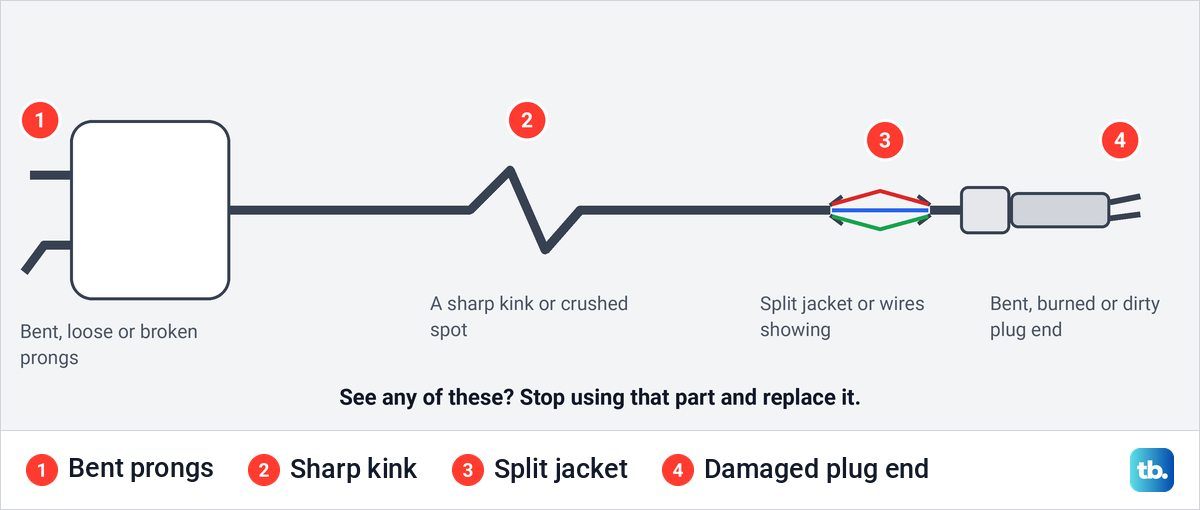
Apple says to check for signs of damage, like breakage or bent prongs, and not to use damaged accessories. Look for a split or frayed jacket near either plug, a sharp kink, a burned or bent plug end, and loose or bent prongs on the adapter.
If a cable only charges while you hold it at a certain angle, stop using it and try a different one. When every cable you try does the same, the port is the next thing to check.
Look inside the charging port
Samsung notes that debris in the charging port can prevent proper contact between the cable and the device. Shine a light into the port and look for fluff at the opening, a grey layer packed at the back, moisture, or contacts that look bent, burned or green.
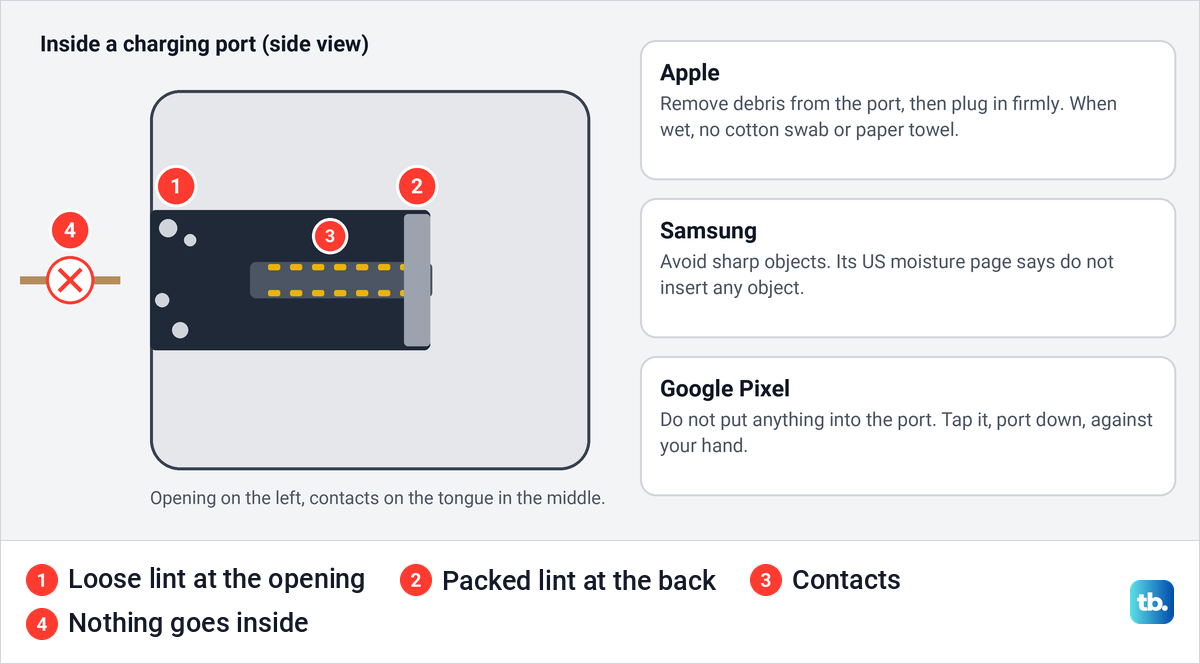
The makers do not agree on cleaning, so follow the one that made your phone. Apple says to remove any debris from the charging port, then firmly plug the cable in, and its liquid guidance warns against inserting a foreign object such as a cotton swab or a paper towel. Google tells Pixel owners not to put anything into the port or cable, and to tap the phone gently against your hand with the port facing down.
Samsung is split. One of its regional pages allows compressed air or a soft brush and warns against sharp objects, while its US moisture page says not to insert any object into the charging port at all. The safe common ground is to turn the phone off, tap it port down, and brush only loose fluff at the opening without pushing anything in.
If lint is packed hard or a contact looks bent, stop and leave it to a repair service. The same goes for a port that looks burned, melted or corroded, which Google treats as a repair case.
Give a flat battery 30 minutes
A phone that has run completely flat can look dead even while it charges. Apple's steps are to let the device charge for half an hour, and Google says a long-drained Pixel may show no charging icon, no vibration and no display response for up to 25 minutes after you plug it in.
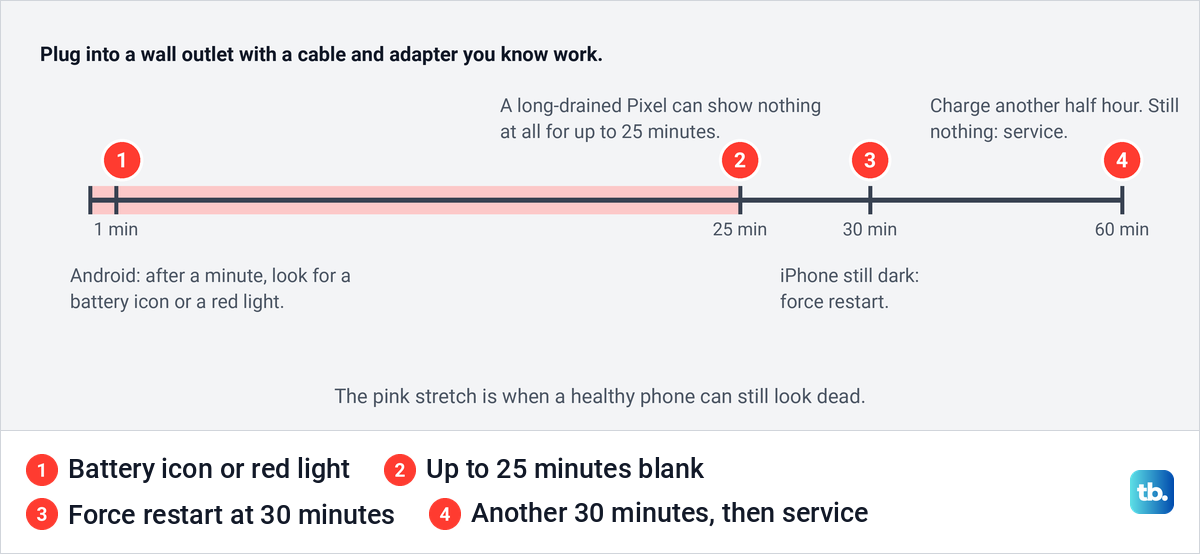
On Android phones, Google says to wait one minute and look for a battery icon, which means the phone is off but charging. A red light means the battery is fully discharged, and Google says to charge for at least 30 minutes before you restart.
If an iPhone is still dark after half an hour, or shows only a battery icon, Apple's next step is a force restart and then another half hour on the charger. If the battery charged but the screen stays black, the problem may not be charging at all, and our guide to a phone that won't turn on after charging covers that case.
Restart the phone
Apple lists a restart among its charging checks. If the screen responds, use the normal steps to restart your phone safely before you plug the cable in again.
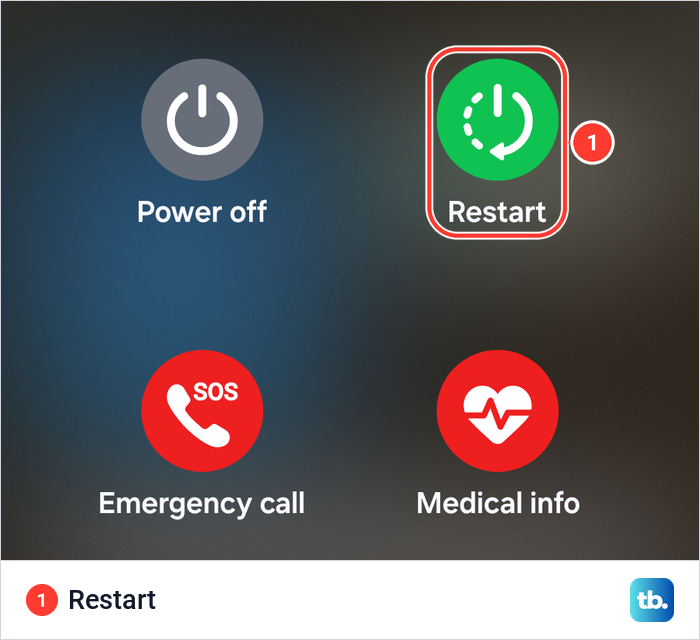
On a Galaxy, the power menu holds the Restart button. On a Galaxy S25 Ultra with One UI 7, it sat next to Power off, above Emergency call and Medical info, and Samsung's own way in is the Power off icon in the Quick panel.
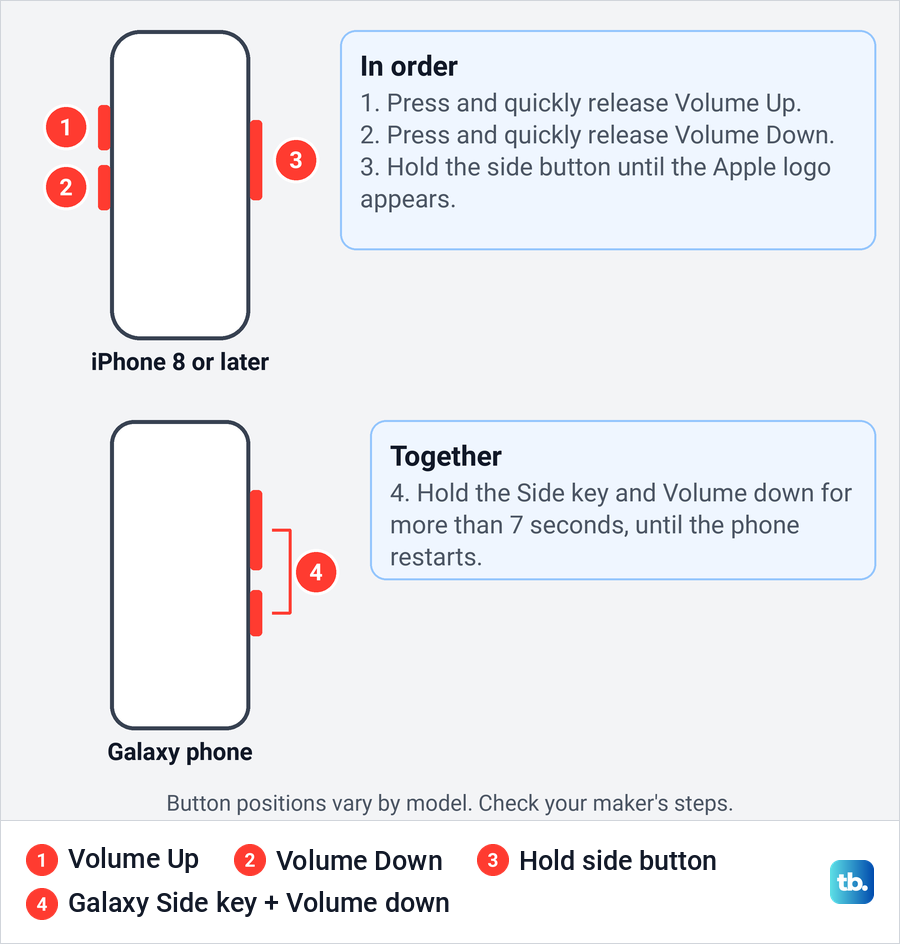
A phone that ignores the screen needs a force restart with the buttons. On an iPhone 8 or later, Apple's sequence is to press and quickly release Volume Up, press and quickly release Volume Down, then press and hold the Side button until the Apple logo appears. Our guide to force restart an iPhone covers older models.
On a Galaxy, Samsung says to press and hold the Side key and Volume Down together for more than 7 seconds until the device restarts. Other Android makers use different combinations, so check the guide to force restart an Android phone for yours.
Test wireless charging and take off the case
If your phone supports wireless charging, a pad gives you a second route for power that skips the cable and the port. Google lists trying a wireless charger as its own check, and Samsung's moisture page notes that wireless charging still works on supported devices while the port is wet.
Place the phone face up in the center of the pad, as Apple describes. Apple says an iPhone won't charge wirelessly while it is connected to USB, so unplug the cable first. Take off a thick case, a metal case or a battery case, and remove cards, magnetic mounts or ring holders that sit between the phone and the pad.
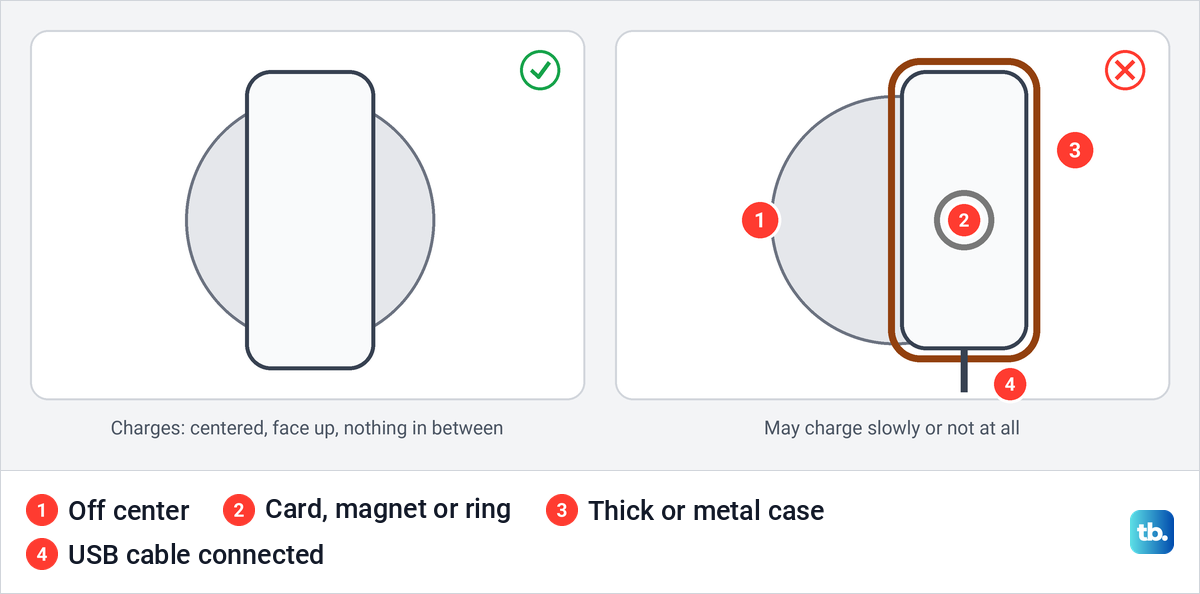
If the pad works and the cable does not, the cable, the adapter or the port is the likely suspect, so swap those before you blame the phone. If neither works, the pad itself can be at fault, and heat can pause charging on either route. Take off a thick or metal case, let a warm phone cool, and retest each route before you book a repair.
Apple also says a vibrating iPhone can shift on the mat and stop charging, so a phone that buzzes all night may end up off center. An Apple Watch charging puck is not a phone pad, and our guide on how to charge an Apple Watch covers that device.
Respond to a liquid or debris alert
A liquid or debris alert pauses wired charging on purpose. Apple says it means liquid was detected in the connector or on the cable or accessory, and charging stays off until the connector, the cable ends and the accessory are dry. Charging while the connector is wet can corrode the pins and cause permanent damage, and an alert that keeps returning once everything is dry is covered in the repair section.
Each maker uses its own words. An iPhone shows Charging not available or Liquid Detected in USB-C Connector, a Galaxy shows a warning that reads Don't use charging/USB port, and a Pixel shows Liquid or debris in USB port.
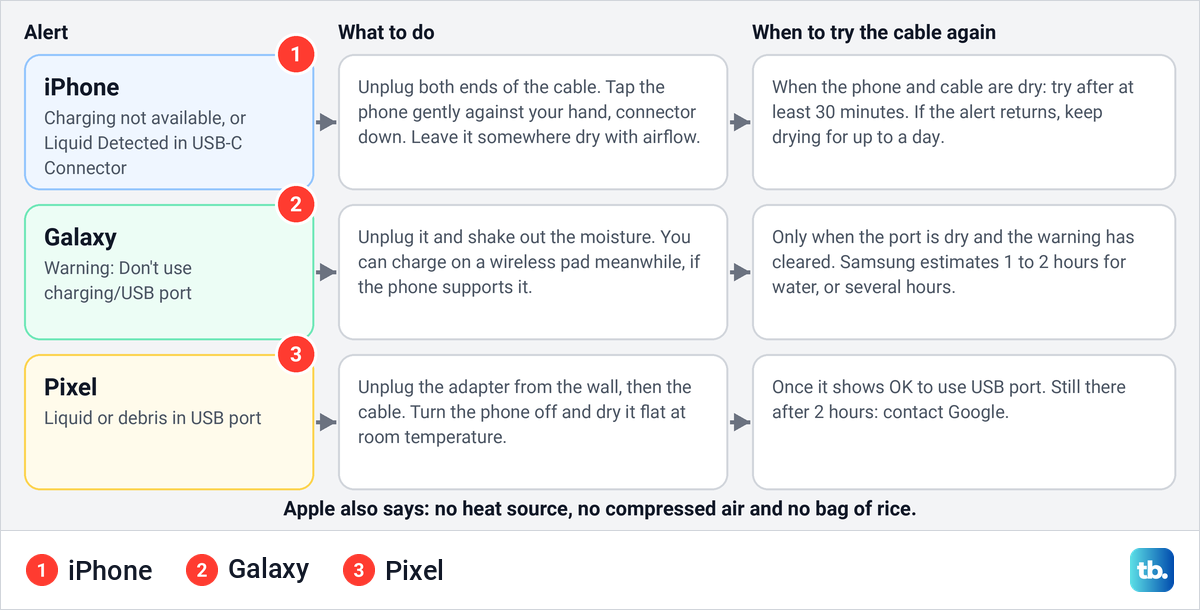
On an iPhone, Apple's steps are to unplug the cable from the phone and from the adapter, tap the phone gently against your hand with the connector facing down, and leave it in a dry area with some airflow. After at least 30 minutes, try the cable again. If the alert comes back, Apple says it might take up to 24 hours to fully dry.
On a Galaxy, Samsung says not to plug anything in until the port is clean, the moisture is gone and the notification is cleared. Its estimates are approximately 1 to 2 hours for water to evaporate, or several hours in its alert guide, and you can charge on a wireless pad in the meantime.
On a Pixel, Google says to dry the phone flat at room temperature and wait for the message OK to use USB port. Because the alert also covers debris, check the unplugged port and cable with a light first, and tap the phone port down rather than putting anything inside. If the Pixel message stays for two hours or more, Google asks you to contact it.
Do not hurry the drying. Apple warns against an external heat source, compressed air and a bag of rice. Apple does let you override the alert in an emergency, but its warning about corroded pins is the reason to wait if you can.
Let a hot or cold phone return to normal temperature
Heat and cold can slow charging as well as stop it. Apple says that when an iPhone becomes too warm or too cold, iOS may slow down or pause charging, and the Lock Screen can show Charging On Hold with a note that charging will resume when the iPhone returns to normal temperature. Samsung describes the same for Galaxy phones: charging may stop temporarily or slow down until the phone cools.
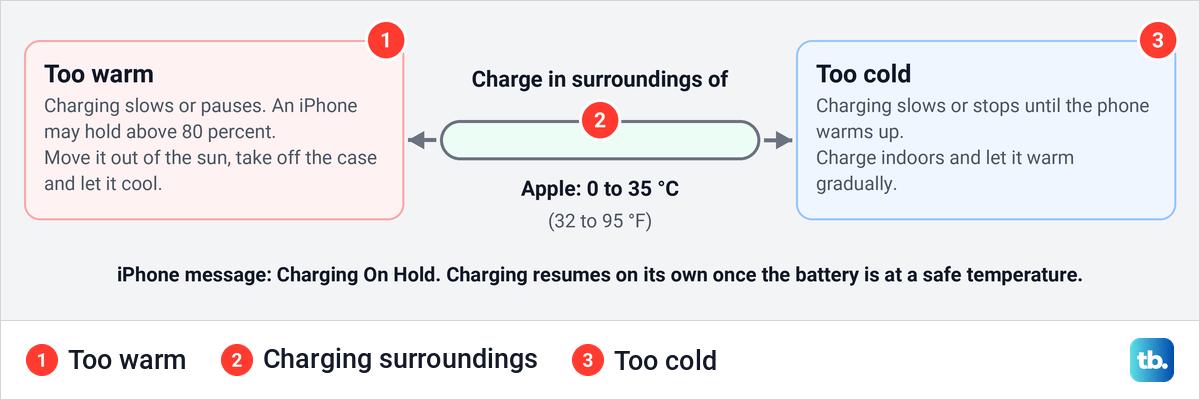
Apple's advice is to charge in surroundings between 0 and 35 °C (32 and 95 °F), keep the phone out of direct sunlight and hot cars, and take the case off if it tends to heat up while charging. In the cold, charge indoors and let the phone warm up gradually. Charging resumes by itself once the battery returns to a safe temperature, so there is nothing to reset.
Warmth can also look like a charge limit. Apple says an iPhone that gets too warm might limit charging above 80 percent and charge again when the temperature drops, so check the temperature before you change any setting.
Check a charge that stops at 80 percent
A phone that stops at or near 80 percent may be doing exactly what a setting tells it to. iPhone, Galaxy and Pixel phones all have settings that can cap or delay the charge to protect the battery, and they can be on without you noticing. Check the setting before you treat it as a fault.
On an iPhone, everything starts at Settings > Battery. On our iPhone 17 Pro with iOS 26.6, the top of that page showed the charge level with a green line reading Fully Charged under it, and the Battery Health row further down read Normal.
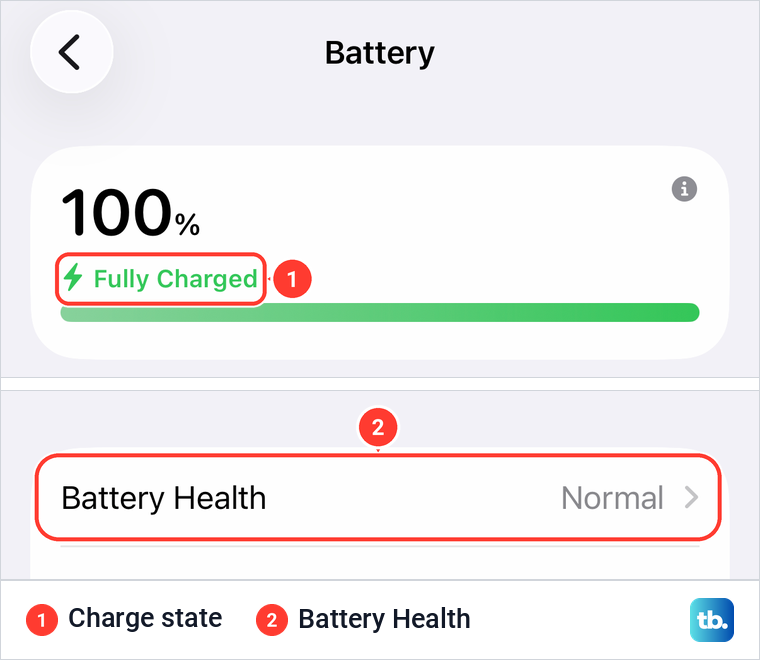
Apple's path for an iPhone 15 or later continues to Charging, where you can choose a charge limit between 80 and 100 percent in 5 percent steps. Apple says the iPhone charges to within a few percentage points of that limit and then stops, so a limit of 80 is not a fault. Optimized Battery Charging, which is on by default, works only when the limit is 100 percent and can delay charging past 80 percent in certain situations.
When Optimized Battery Charging is holding the charge, Apple says a Lock Screen notification tells you when the iPhone will be fully charged. Touch and hold that notification, then tap Charge Now for a full charge sooner. On an iPhone 14 or earlier, the switch is in Settings > Battery > Battery Health & Charging.
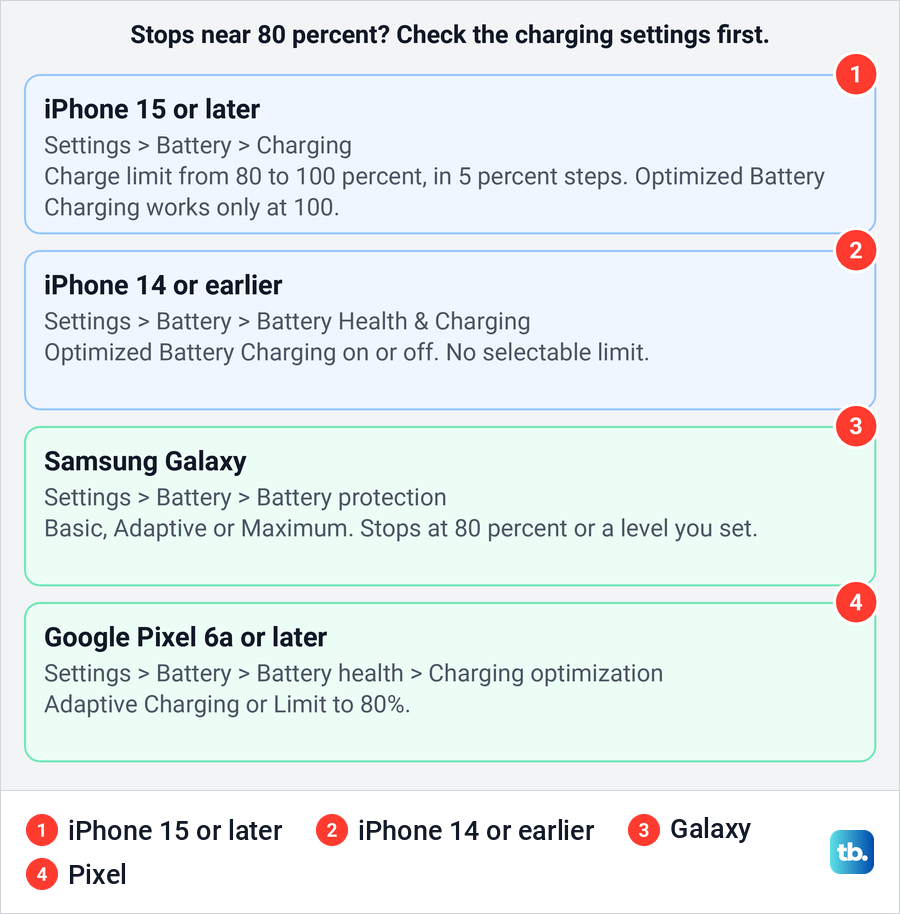
On a Galaxy, Samsung puts the cap in Settings > Battery > Battery protection. Since One UI 6.1 it offers Basic, Adaptive and Maximum. Samsung's current US page says Battery protection limits charging to 80 percent or a set level, its older guides give Maximum as 80 or 85 percent, and older software called it Protect battery with an 85 percent cap. Tap Battery protection to see which option and level your phone uses, then pick another or turn it off.
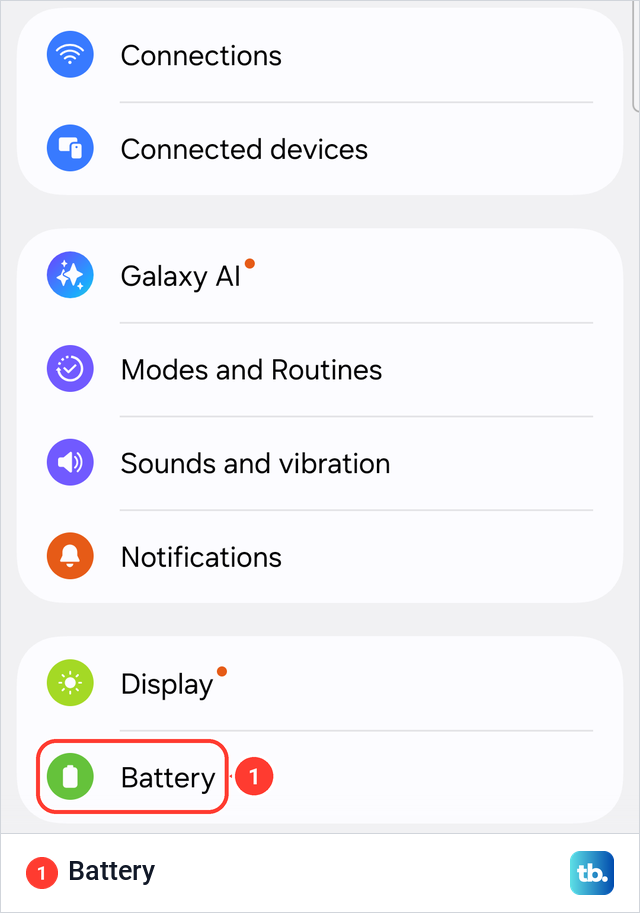
Battery sits on the main Settings list, so the path is short. On a Galaxy S26 Ultra with One UI 8.5, Settings opened onto a list with Battery right below Display, with no submenu to open first.
On a Pixel 6a or later, Google's path is Settings > Battery > Battery health > Charging optimization, where Limit to 80% caps the charge and Adaptive Charging still charges to 100 percent while it protects battery health. Google also notes that slow charging over 80 percent is expected while Adaptive Charging is active. Whichever phone you have, you can put a limit back after a full charge if you prefer the longer battery lifespan it is meant to give.
Fix slow charging from a computer
A phone that crawls on a laptop may not be faulty at all. Samsung says that charging from a computer's USB port supplies a lower voltage than its own charger, resulting in a slow charge, and that fast charging may not work when the phone is connected to a PC. Google says the same for Pixel phones and points you to a proper power outlet.
For a fair speed test, use a wall adapter that your phone maker lists as compatible and a cable in good condition. Heat and a charge limit can also slow things down, so check both before you judge the speed.
Check software updates and battery health
Once the hardware checks are done, install any waiting update. Apple's path is Settings > General > Software Update, and on our iPhone 17 Pro, Software Update sat second in the General list, just under About. Its page showed Automatic Updates set to On above the waiting update, with Update Now and Update Tonight buttons.
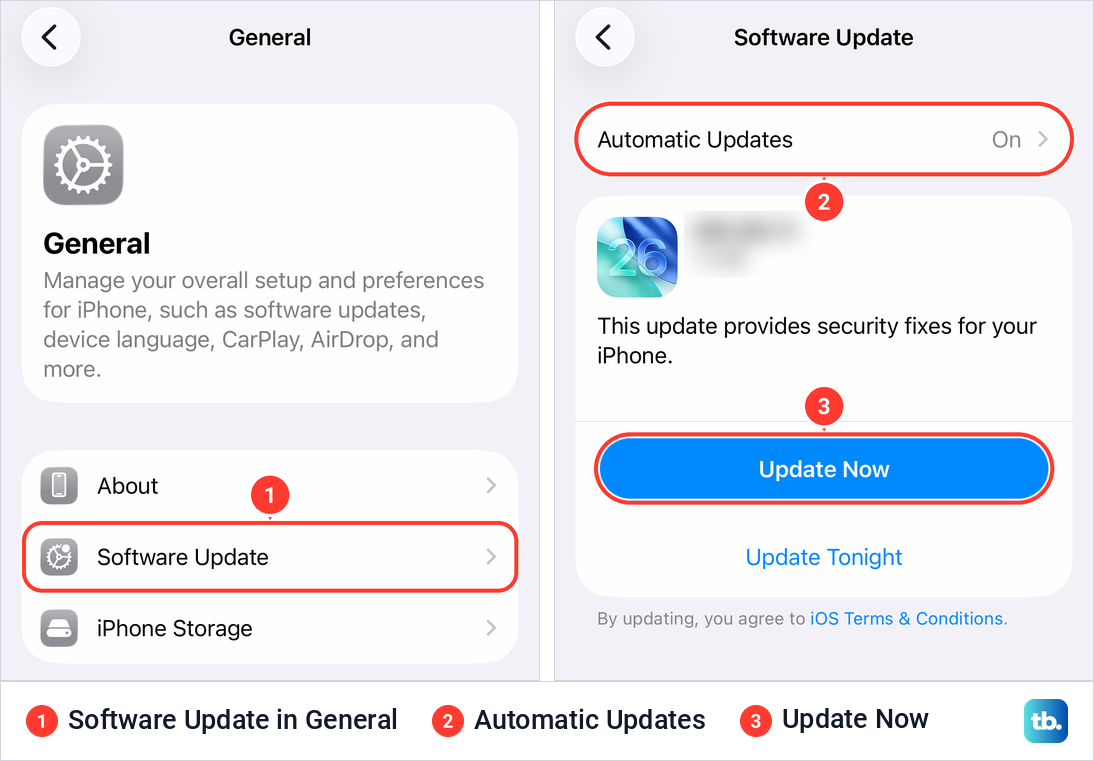
On a Galaxy, open Settings > Software update, then tap Check for updates on One UI 8.5 or later, or Download and install on One UI 8.0 or earlier. On a Pixel, Google's path is Settings > System > Software updates, and other Android makers may word it differently. Apple also lists the latest iOS among its fixes when an alert says a charging accessory is not supported or certified.
An update is a check, not a promised fix. If the phone charges but the battery fades fast, look at its health. On an iPhone 15 or later, Apple's path is Settings > Battery > Battery Health, and on an iPhone 14 or earlier it is Battery Health & Charging. When the battery needs attention, see how to get your iPhone battery replaced.
Galaxy owners can run Samsung's own tests. In the Samsung Members app, tap Diagnostics on the Discover tab, or open the Support tab, then Phone diagnostics, and run Cable charging, Wireless charging or Battery status. Samsung says the tests on offer vary by model, and a failed test can come with suggestions in the app.
Know when to book a repair
Some signs mean you should stop troubleshooting. A port that looks burned, melted or corroded is a repair job, as Google advises, and a cable that looks damaged should be replaced. A liquid alert that appears every time you connect an Apple cable, when the iPhone is dry, is a sign Apple says you might need service.
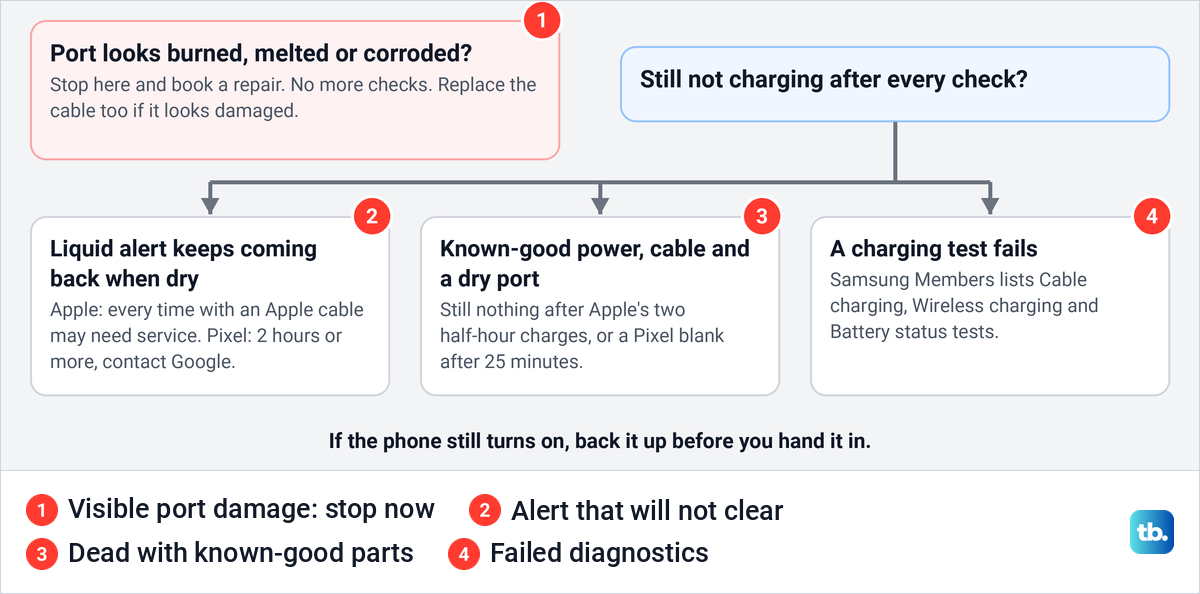
The other case is a phone that stays dead with parts you know are good. Apple says that if the device still won't power on or charge after its checks, you might need service, and Google sends a Pixel that shows no response after 25 minutes on the charger to repair.
If the phone still turns on, back up your iPhone or Android phone before you hand it in. Book through Apple's iPhone repair page, Samsung's service page or Google's Pixel repair page, depending on who made your phone.
How we tested this guide
We tested this on an iPhone 17 Pro with iOS 26.6, going through the Battery page and its Battery Health row.
Frequently Asked Questions
Why is my phone not charging when plugged in?
Start with the parts outside the phone: a working wall outlet, a compatible adapter and a cable that charges another phone, changed one at a time. Then check the port for lint or moisture and look for a liquid, temperature or charge limit message.
Why does my phone show it is charging but the percentage does not go up?
A weak source such as a laptop port, heat or a charge limit can hold the number still. Try a wall adapter, let a warm phone cool, and check the battery settings for a limit.
Why does my phone stop charging at 80 percent?
Check Charge Limit or Optimized Battery Charging on an iPhone, Battery protection on a Galaxy or Charging optimization on a Pixel. A warm iPhone can also hold above 80 percent until it cools.
How long should I wait after a liquid detected alert?
Apple says to try again after at least 30 minutes and allow up to 24 hours to dry fully. Samsung says to wait until the port is dry and its warning has cleared, which it puts at about 1 to 2 hours for water, and a Pixel tells you when it is OK to use the USB port.
If wireless charging works, is my charging port broken?
Not necessarily. It points to the cable, the adapter or the port, so swap the cable and adapter before you blame the port.
Can I clean my charging port with a toothpick?
No. Google and Samsung's US page say not to put anything into the port, and Apple warns against inserting objects when the port is wet. Tap the phone port down, brush only loose fluff at the opening, and leave packed lint or bent contacts to a repair service.
How long should a dead phone charge before it turns on?
Give it 30 minutes on a wall outlet with a cable you trust. Apple says half an hour, and a drained Pixel can show nothing for up to 25 minutes.