Windows 11 shows There was a problem resetting your PC when the reset process cannot rebuild Windows cleanly. Start with the fixes that keep your files and apps intact, then move into recovery options only when the normal reset path keeps failing.
The steps below follow Microsoft's current Windows 11 recovery paths and skip old Windows 10-era reset tricks that no longer apply.
1. Install Windows updates before trying Reset PC again
Start here because Windows Update can deliver recovery fixes before you retry the reset. Select Start, then open Settings. Go to Windows Update, select Check for updates, and if updates appear, select Download & install.
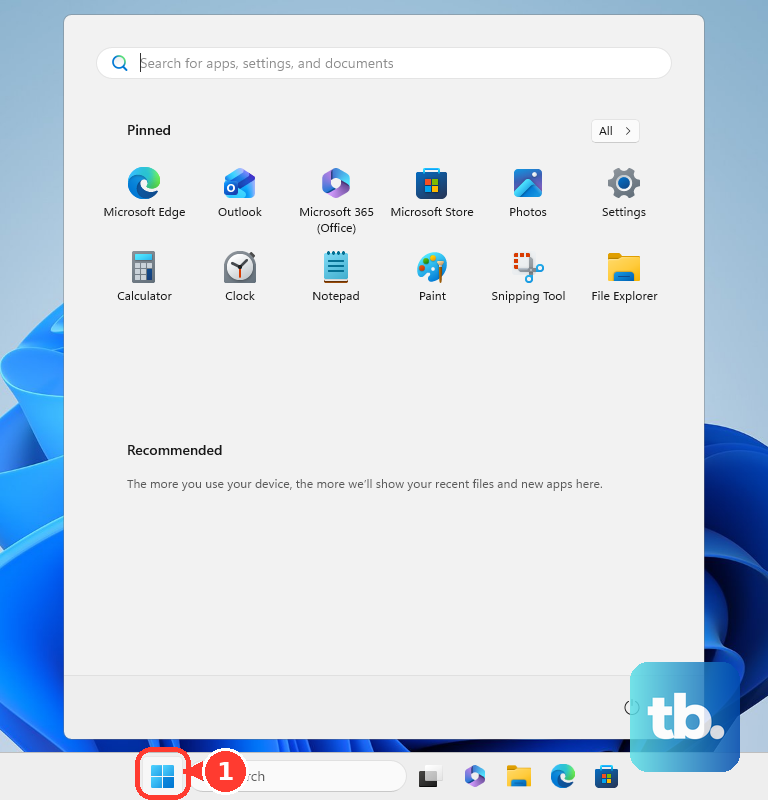
Restart the PC when Windows asks. After that, open Start > Settings > System > Recovery. Under Recovery options, select Reset PC.
2. Switch from Cloud download to Local reinstall
Open Start > Settings > System > Recovery. Under Recovery options, select Reset PC. Choose Keep my files to preserve personal files, or choose Remove everything to remove them.
If Cloud download failed, choose Local reinstall. If Local reinstall failed, choose Cloud download. Follow the on-screen instructions.
If Reset this PC already failed once, changing the reset source avoids repeating the same path. Keep my files is the better first reset choice when you need your personal files left in place. Use Remove everything only when you are ready to erase files as part of the reset.
3. Repair Windows with Windows Update
Use this repair reinstall option before wiping the PC because it preserves apps, files, and settings. Open Start > Settings > System > Recovery. Under Fix problems using Windows Update, select Reinstall now.
In the Fix problems using Windows Update window, choose whether to allow an automatic restart 15 minutes after installation completes. Select OK. Restart when Windows finishes, then try Reset PC again if you still need to reset.
This option requires Windows 11 with the 2022 annual update plus the February 2024 optional update or later. Work or school policies can hide it on managed PCs.
4. Rebuild damaged system files with DISM and SFC
Select Search and type cmd. Right-click Command Prompt, then select Run as administrator. Run DISM.exe /Online /Cleanup-image /Restorehealth.
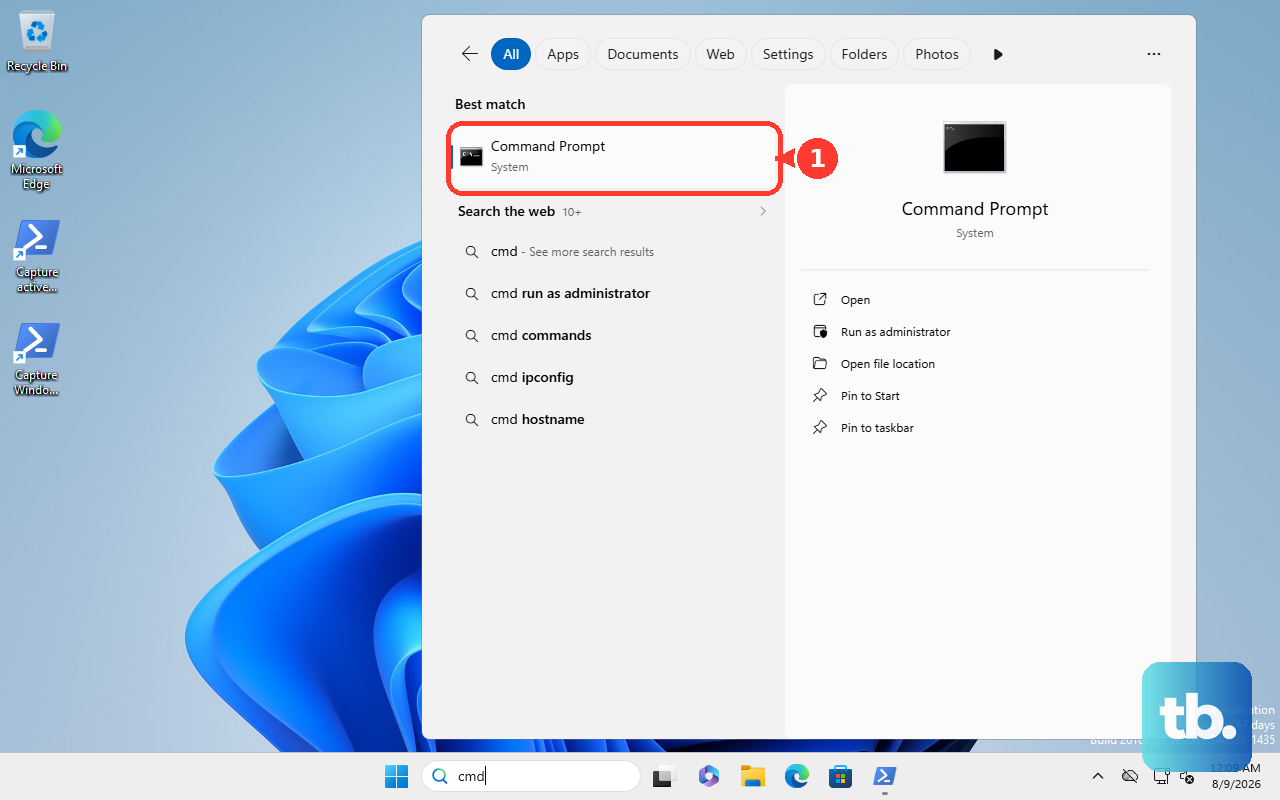
When DISM finishes, run sfc /scannow. Restart the PC, then open Start > Settings > System > Recovery > Reset PC and try again.
Corrupted Windows components can block Reset this PC, so run the repair commands in the right order: DISM first, then System File Checker.
5. Start the reset from Windows Recovery Environment
When the Settings reset fails, launch Reset this PC from Windows Recovery Environment instead. Use one of these entry points.
Settings: open Start > Settings > System > Recovery > Advanced startup, then select Restart now. Power menu: hold Shift while selecting Power > Restart. Recovery drive: start the PC from a recovery drive.
Installation media: start the PC from Windows installation media, enter your language and other preferences, select Next, select Repair my PC, then select Next to open Windows Recovery Environment. OEM recovery button: use the recovery button or button combination for your PC.
Once Windows Recovery Environment opens, select Troubleshoot > Reset this PC, choose your reset options, and follow the prompts.
If BitLocker asks for a recovery key, use another device to open https://aka.ms/myrecoverykey, sign in with your Microsoft account, match the key ID, and enter the recovery key on the locked PC. For a work or school device, open https://aka.ms/aadrecoverykey, sign in, select Devices, expand the device, select View BitLocker Keys, and use the matching key.
6. Re-enable Windows Recovery Environment
Select Search and type cmd. Right-click Command Prompt, then select Run as administrator. Run reagentc /info.
If Windows RE is disabled or broken, run reagentc /disable. Then run reagentc /enable. Restart the PC and try Reset PC again.
If WinRE is disabled or misconfigured, Reset this PC and Advanced startup can fail before the reset really starts. If the PC also has startup, driver, registry, or boot-file problems, enter Windows Recovery Environment and select Troubleshoot > Advanced options > Startup Repair > Restart.
Do not use reagentc /setosimage as a Windows 11 reset repair. Microsoft's current REAgentC documentation says that setting is not used in Windows 10 or later.
7. Undo the update or restore point that triggered it
Roll back the change first if the reset error started after a Windows update, driver change, or app change.
System Restore from Windows: open Control Panel > Recovery > Open System Restore, select Next, choose a restore point, select Next, then select Finish. System Restore with Run: press Windows logo key + R, type rstrui.exe, press Enter, choose a restore point, select Next, then select Finish.
System Restore from WinRE: select Troubleshoot > Advanced options > System Restore, choose a restore point, select Next > Finish, then select Restart. Uninstall an update from Settings: open Start > Settings > Windows Update > Update history > Uninstall updates, select the update, then select Uninstall.
Uninstall an update from WinRE: select Troubleshoot > Advanced options > Uninstall Updates, then choose Uninstall latest quality update or Uninstall latest feature update. System Restore does not affect personal files. It removes apps, drivers, and settings changes made after the restore point.
8. Reinstall Windows from installation media
- 1.On a working PC, open Microsoft's Download Windows 11 page.
- 2.Under Create Windows 11 Installation Media, select Download Now.
- 3.Run MediaCreationTool.exe.
- 4.Follow the prompts to create a USB flash drive or ISO/DVD installation media.
Use installation media when Reset this PC still will not complete. If Windows still opens, run Setup from inside Windows first so Windows can offer the available keep options.
To reinstall while Windows still opens, open the media inside Windows, run setup.exe, follow the prompts, choose what to keep, then select Install. Windows shows Keep personal files and apps, Keep personal files only, or Keep nothing based on edition, language, and version compatibility.
For a clean install, start the problem PC from the installation media, choose language and keyboard settings, select Install Windows 11, select I agree everything will be deleted including files, apps, and settings, then continue through Setup.
USB installation media needs reliable internet and a blank USB flash drive with at least 8 GB. The Media Creation Tool creates x64 media only; Arm devices use Microsoft's Arm64 ISO page.
9. Hand managed Hotpatch PCs to IT
Work and school PCs can fail reset because of managed update policy, encryption, or organization-controlled recovery settings. Do not change recovery policy or encryption settings yourself on a managed device.
Microsoft documented a March 2026 Hotpatch issue for certain Windows Autopatch-managed commercial devices where Reset this PC failed with There was a problem resetting your PC. No changes were made. For those devices, the organization installs the Microsoft fixing update, KB5083769, through its normal Windows Update or Autopatch process, then retries Reset this PC.
Frequently Asked Questions
Does Keep my files remove apps in Windows 11?
Keep my files preserves personal files, but Reset this PC still rebuilds Windows and does not preserve everything. If you need to preserve apps, use Fix problems using Windows Update or run setup.exe from installation media when Windows offers Keep personal files and apps.
Where do I get the BitLocker recovery key for a reset?
For a personal PC, open https://aka.ms/myrecoverykey on another device, sign in with the Microsoft account, match the key ID, and enter the recovery key. For a work or school PC, use https://aka.ms/aadrecoverykey or contact your IT admin.
Should I pick Cloud download or Local reinstall?
Pick the reset source you did not already use. Choose Cloud download after Local reinstall fails, or choose Local reinstall after Cloud download fails.
What fixes Reset this PC when Windows will not boot?
Enter Windows Recovery Environment, then use Troubleshoot > Reset this PC. If that still fails, use Startup Repair, System Restore, Uninstall Updates, a recovery drive, or Windows 11 installation media.
Is reagentc setosimage a Windows 11 fix?
No. Do not use reagentc /setosimage as a Windows 11 reset repair. Microsoft says that setting is not used in Windows 10 or later.











