

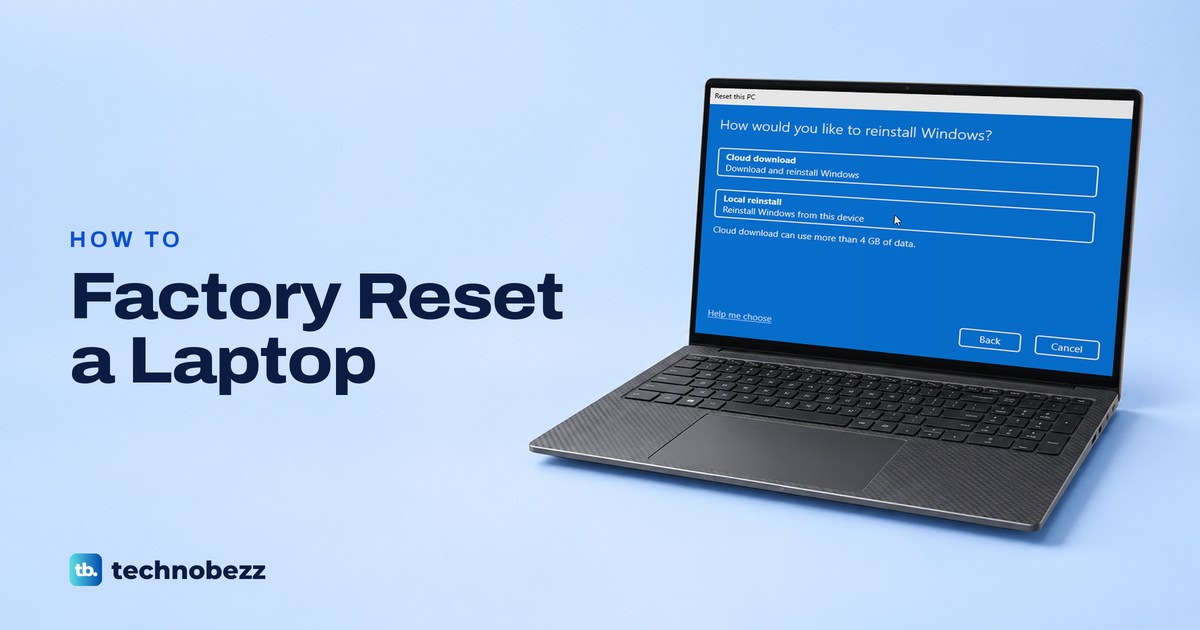
To factory reset a Windows laptop, open Settings > System > Recovery, select Reset PC and choose Remove everything, which deletes your files and apps and reinstalls Windows, the reset Microsoft describes as returning a PC to its factory settings. If you are selling it, select Change settings and turn on Clean data first. Locked out? Hold Shift on the sign-in screen while you select Power > Restart, then choose Troubleshoot > Reset this PC.
Microsoft's documentation says Remove everything goes ahead without a password by default, while Keep my files asks for an administrator's password. If the drive is encrypted, have the BitLocker recovery key ready. A MacBook uses Erase All Content and Settings and a Chromebook uses Powerwash, both covered further down.
On Windows 11, version 25H2, we went through Reset this PC screen by screen for both choices, with Clean data off and on. Two things there catch people out. Clean data is off by default, and the Reset button appears exactly where Next was one click earlier.
The short version
- Selling it: choose Remove everything, then Change settings and turn on Clean data.
- Locked out: on the sign-in screen hold Shift, select Power > Restart, then Troubleshoot > Reset this PC.
- No password: Remove everything still works by default, but Keep my files asks for an administrator's password.
- BitLocker: find the recovery key first, because Microsoft says that if Windows asks for it and you cannot find it, a reset will remove all your files.
- Afterwards: remove the laptop from your Microsoft account at account.microsoft.com/devices.
Which factory reset you need
| Your situation | What to choose | Where to start | What to know |
|---|---|---|---|
| Selling or giving the laptop away | Remove everything, then turn on Clean data | Settings > System > Recovery > Reset PC | Clean data is off by default |
| Starting over but keeping your documents | Keep my files | Settings > System > Recovery > Reset PC | Your installed apps are removed |
| Locked out and the files do not matter | Remove everything | Sign-in screen, hold Shift, Power > Restart, then Troubleshoot > Reset this PC | No password by default, but an encrypted drive needs its BitLocker key |
| Locked out and you need the files | Keep my files | The same sign-in screen route | An administrator's password, plus the BitLocker key if the drive is encrypted |
| Windows will not start | Reset this PC from the recovery screen | Two interrupted starts, or your laptop maker's key | The BitLocker key if the drive is encrypted |
| You want the Windows it shipped with | Your laptop maker's recovery tool | Dell SupportAssist OS Recovery, ASUS Recovery or HP Cloud Recovery | Offered on some models only |
| A MacBook | Erase All Content and Settings | System Settings > General > Transfer or Reset | Your Mac login and Apple Account passwords |
| A Chromebook | Powerwash | Sign out, then Ctrl + Alt + Shift + R | A work or school Chromebook cannot be reset by you |
Whichever row is yours, find the BitLocker recovery key first if the drive is encrypted. A full reset may also be more than you need. If you only want to undo a recent driver or app change, use System Restore to an earlier date instead, which Microsoft says keeps your personal files.
Before you wipe a laptop you are selling or giving away
Remove everything deletes your files, apps and settings, so copy what you want to keep first. Microsoft's checklist for selling a PC starts with a backup, and our guide shows how to back up your files in Windows 11. If you are replacing the laptop, move your files to the new computer and open a few of them there before you wipe the old one.
Next, find out whether the drive is encrypted. Microsoft says you need the BitLocker recovery key for most options on the recovery screen, and that if you cannot find it, resetting "will remove all of your files". Open Settings > Privacy & security and look for Device encryption under Security.
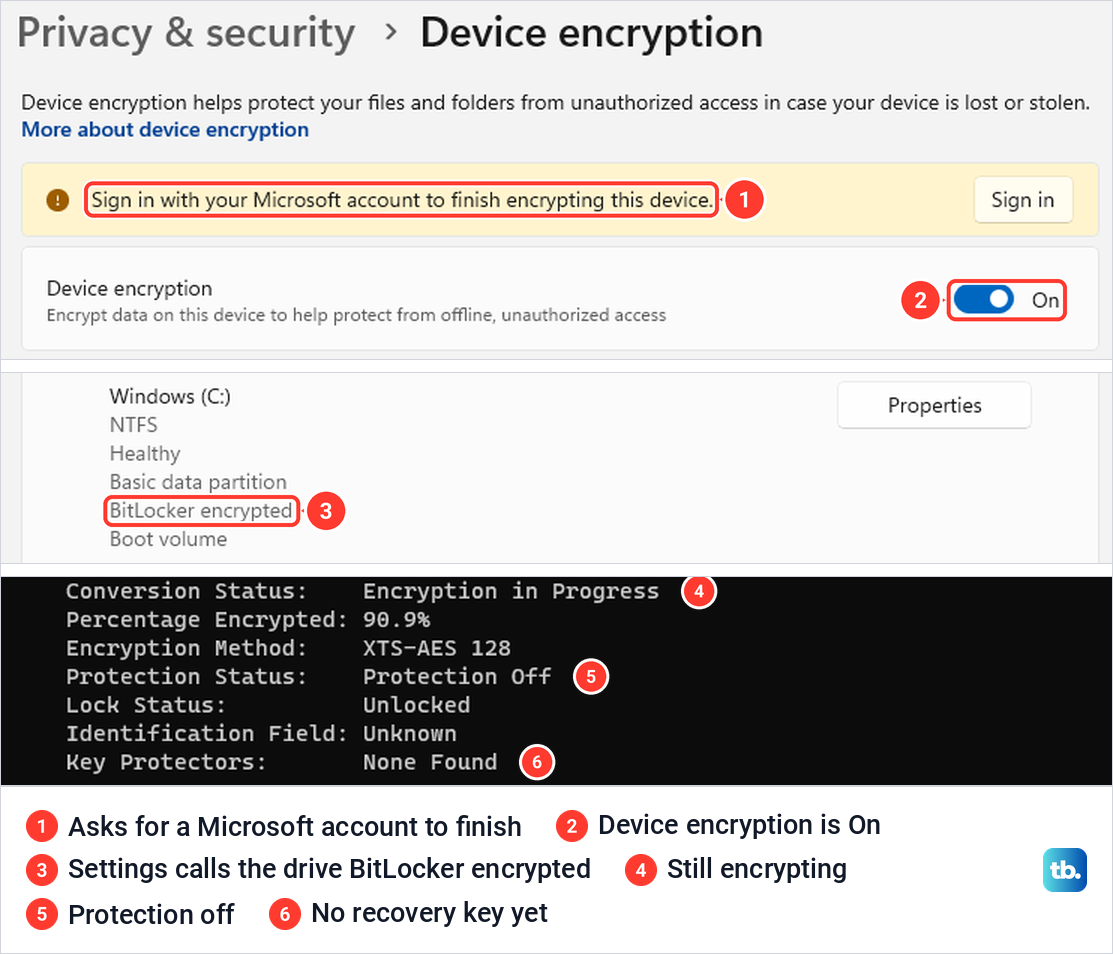
What that page showed on our PC matters if you sign in without a Microsoft account. Microsoft says Device Encryption is not turned on automatically with a local account, yet our PC, which uses one, showed the switch On with the banner "Sign in with your Microsoft account to finish encrypting this device." The Disks & volumes page in Settings even labelled the Windows drive "BitLocker encrypted".
The full picture came from the command line. We pressed Windows + X, chose Terminal (Admin), accepted the User Account Control prompt and ran this command.
manage-bde -status C:It reported "Encryption in Progress" and "Protection Off", and its Key Protectors line read "None Found". So the drive was being encrypted while no recovery key existed yet. Check the same lines on your laptop, and if Protection Status reads "Protection On", find your key before you reset.
Microsoft says a laptop that supports Device Encryption turns it on when it is set up with a Microsoft account, and attaches the 48-digit recovery key to that account. You can look it up from another device at aka.ms/myrecoverykey, and if someone else set the laptop up, the key may be in their account. Microsoft Support cannot recreate a lost key.
Factory reset a Windows laptop from Settings
This is the route for a laptop that still starts and lets you sign in. Here are the steps as Windows 11, version 25H2 showed them to us.
- 1.Press Windows + I to open Settings, select System in the sidebar, then Recovery.
- 2.Next to Reset this PC, select Reset PC.
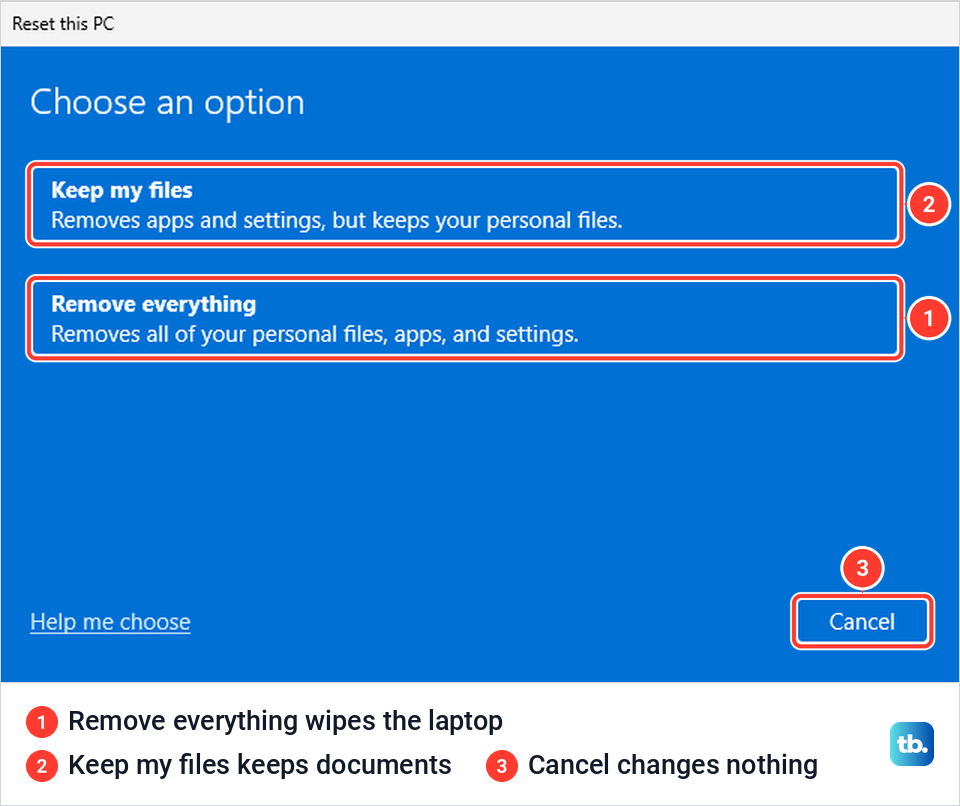
- 3.Choose Remove everything to wipe the laptop, or Keep my files to keep your documents.
- 4.Wait for "Getting things ready" to finish, then choose Cloud download or Local reinstall.
- 5.On Additional settings, select Change settings, turn on Clean data if the laptop is leaving your hands, and select Confirm.
- 6.Select Next once, read Ready to reset this PC, then select Reset.
Typing reset this pc into Start search is a quicker way in. On our PC the best match, Reset this PC, opened the Recovery page with the keyboard focus already on Reset PC.
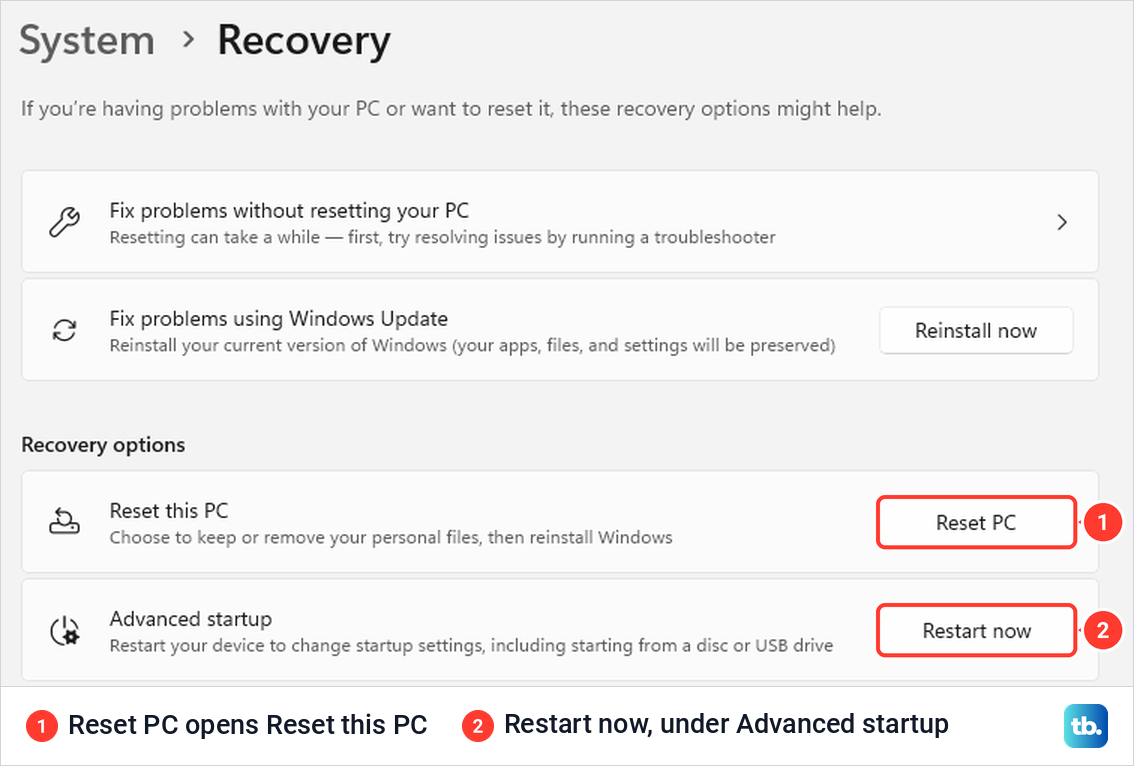
Reset PC opened a window with two choices. Keep my files reads "Removes apps and settings, but keeps your personal files." and Remove everything reads "Removes all of your personal files, apps, and settings." Microsoft calls Remove everything the option for a fresh start or for giving away or selling a PC.
After we chose Remove everything, a screen reading "Getting things ready" stayed up for about three minutes on one run and about one minute on another. Leave the window alone until the next question appears.
That question is "How would you like to reinstall Windows?" Microsoft says Cloud download fetches a fresh copy with the latest updates, while Local reinstall uses the files already on the laptop and is faster on a slow connection. Our screen added that "Cloud download can use more than 4 GB of data." Neither choice changes what happens to your files.
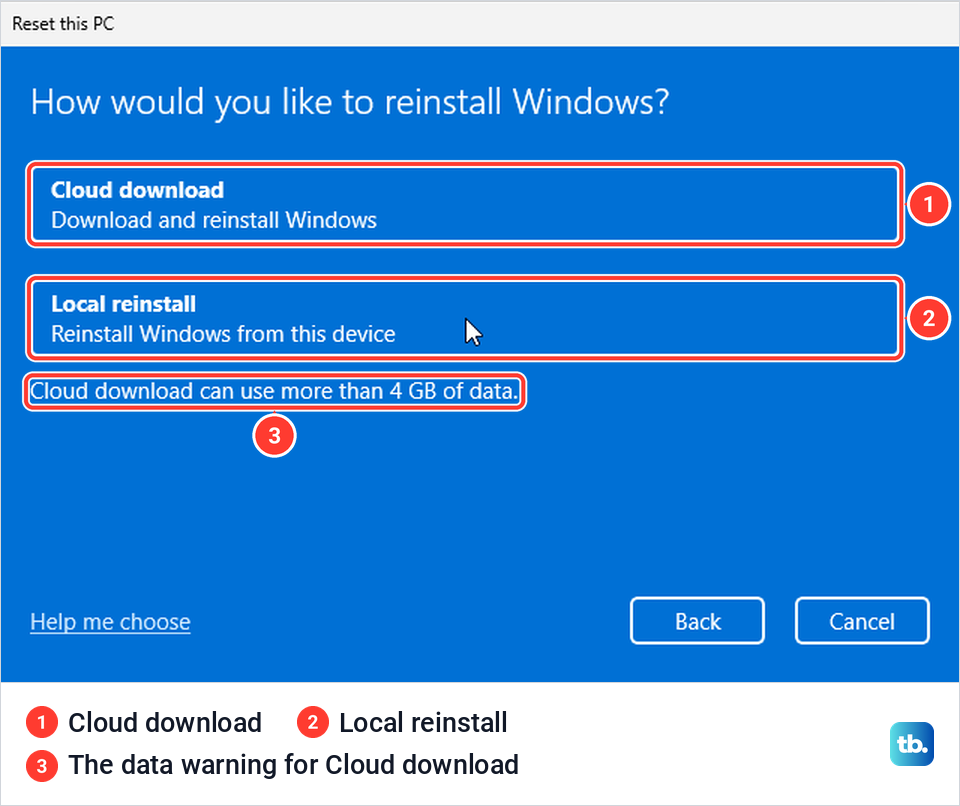
Keep my files goes through the same screens and offers a list of the apps it will remove, which the screen says is saved to the desktop after the reset. It still removes every app you installed, so if you want them back as they are, reinstall Windows 11 and keep your apps instead.
Turn on Clean data before the laptop leaves your hands
Clean data is off by default, and the wizard says so in one short line. With Remove everything and Local reinstall chosen, our Additional settings screen read "Remove apps and files. Do not clean the drive". Select Change settings to reach the switch.
At No, the Clean data switch reads "Just remove your files. This is quicker, but less secure". Set it to Yes and the text changes to "Clean the drive. This may take hours, but will make it harder to recover files".
Select Confirm, and Additional settings now reads "Remove apps and files. Clean the drive". The choice is not remembered, because when we started the wizard again it was back to "Do not clean the drive".
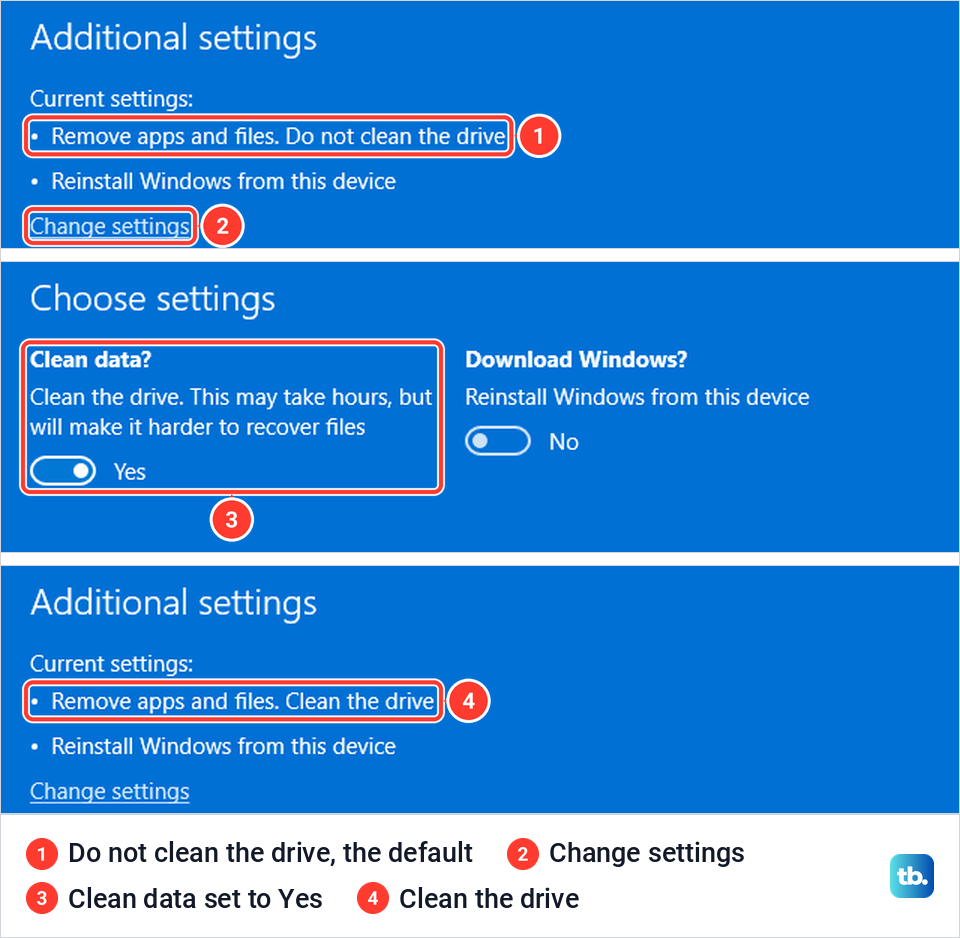
Microsoft says Clean data makes it harder for other people to recover files you've removed, and that this erasure "does not meet government and industry data erasure standards". It is the right switch for a laptop you sell or give away, but it is not a certified wipe.
A laptop with a second drive, or one drive split into several lettered drives, can show one more choice. Microsoft says Windows then lets you remove data from all drives or only the Windows drive. Our PC had a single disk, and its Choose settings screen showed only Clean data and Download Windows.
Check the last screen before you select Reset
Select Next once and stop. The last screen, Ready to reset this PC, listed "Remove all the personal files and user accounts on this PC", "Remove any changes made to settings", "Remove all apps and programs" and "Reinstall Windows from this device", with the note "This will take a while and your PC will restart." That list was word for word the same with Clean data on as with it off.
So this screen will not remind you about cleaning, and the Additional settings line is the one to check. The Reset button also sits exactly where Next was a moment earlier, so a quick second click on Next would land on Reset.
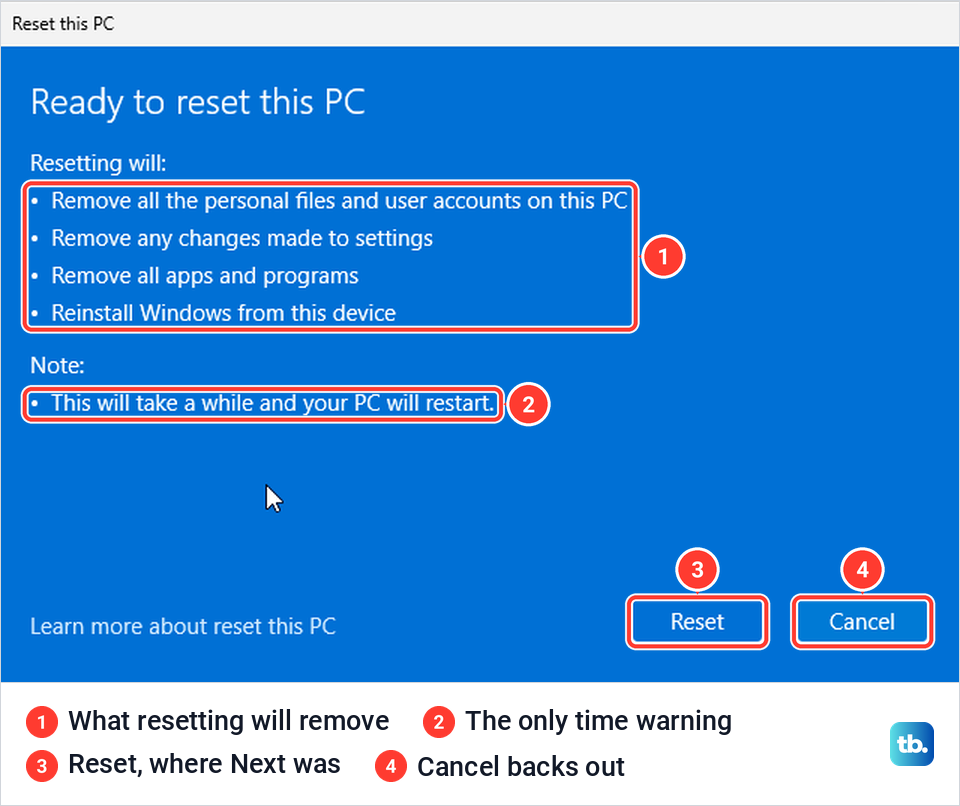
Cancel on this screen took us back to the Recovery page with nothing started. The steps after you select Reset follow Microsoft's instructions. Microsoft says the screen can go black for a long time, occasionally upwards of 15 minutes, and the laptop may try to restart itself, but restarting it yourself could make the reset fail.
Keep the charger plugged in throughout. Lenovo's steps say to click Reset "with the AC adapter connected", and HP names interruption as the most common cause of recovery problems. If Windows stops with "There was a problem resetting your PC", our fix guide covers what to try next.
Factory reset a laptop without the password
Try to get the password back before you wipe anything, because by default Remove everything is the only Reset this PC choice that works without it. If the sign-in screen shows an email address, reset your Microsoft account password from any browser and you keep everything. For a local account, Microsoft says a wrong password brings up a Reset password link that asks your security questions.
Before you give up, work through the fixes for a Windows login that won't accept your password. With no administrator account left to change the password, Microsoft says you will need to reset the device.
The reset starts from the sign-in screen, and these steps follow Microsoft's instructions. If the lock screen shows, dismiss it to reach the sign-in screen. Hold Shift while you select Power > Restart in the lower-right corner.
HP's version adds that you keep pressing Shift until the Choose an option screen appears. There, select Troubleshoot > Reset this PC and pick one of the two choices.
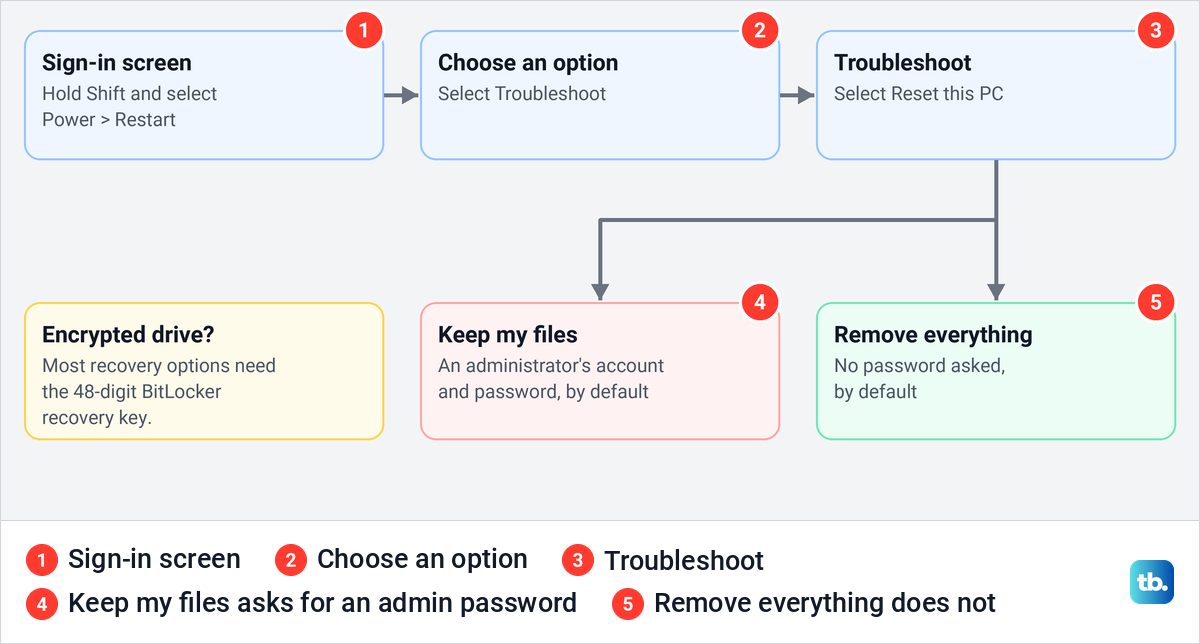
What happens next depends on that choice. Microsoft's documentation says that by default Remove everything needs no sign-in in the recovery environment, while Keep my files "prompts for authentication". Lenovo's steps describe the same prompt: "Choose the user, then key in the password."
So by default a locked-out owner can wipe the laptop but cannot keep the files without an administrator's password. A work or school that manages the laptop can set Windows to ask for an administrator for both choices. If the drive is protected by BitLocker, Microsoft says most options on the recovery screen need the recovery key, and that if Windows asks for it and you cannot find it, a reset will remove all of your files.
Reset a laptop that will not start
Windows opens its recovery screen by itself after it fails to start several times, and Microsoft says you can force it. As soon as the Windows logo appears, hold the power button until the laptop shuts down. After two of these interrupted starts, Windows should show Automatic Repair on the third, where you select Advanced options, then Troubleshoot > Reset this PC.
If the laptop keeps coming back to the same screen, it may be stuck in an Automatic Repair loop rather than ready to reset. When Windows does start, Microsoft says Restart now under Advanced startup on the Recovery page opens the same recovery screen. There are more ways to open Advanced startup when Windows won't boot, including from installation media.
While Windows still works, you can check that its recovery tools are in place. In Terminal (Admin) we ran the command below, and it reported "Windows RE status: Enabled".
reagentc /info

A recovery drive, made in advance, is the other way in, and Microsoft says starting from one takes you straight to the recovery environment. To make one, we typed Recovery Drive into Start search and accepted the User Account Control prompt. Its first page had "Back up system files to the recovery drive." ticked, and Microsoft says to keep it ticked and make a new drive every year.
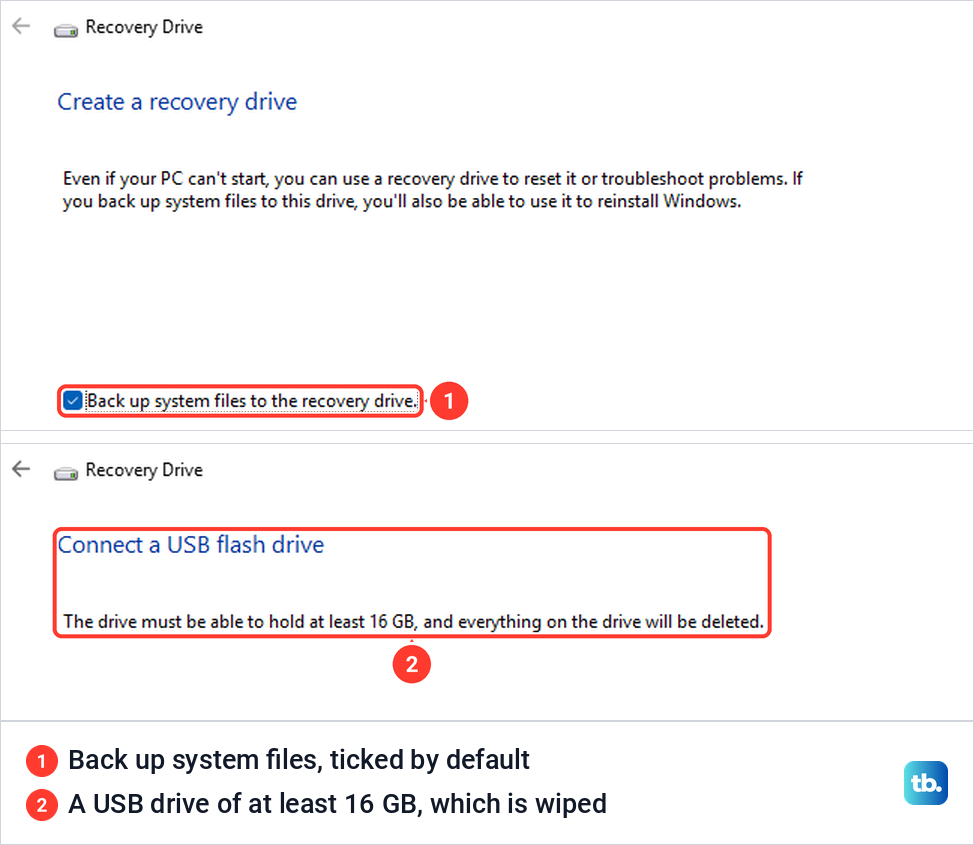
Select Next only with the USB drive plugged in. Without one, our PC showed "Please wait" for nearly five minutes before asking for a USB flash drive that can "hold at least 16 GB", adding that "everything on the drive will be deleted." Microsoft says the recovery drive does not include your personal files.
Starting from it is a different kind of reset. Microsoft says Keep my files and Remove everything are not offered from recovery media, so you select Recover from a drive, then Just remove my files or Fully clean the drive, and your files, apps and settings are removed.
Use your laptop maker's recovery key
Microsoft says some laptops have a recovery button or key combination set up by the maker. Each paragraph below follows that maker's own instructions.
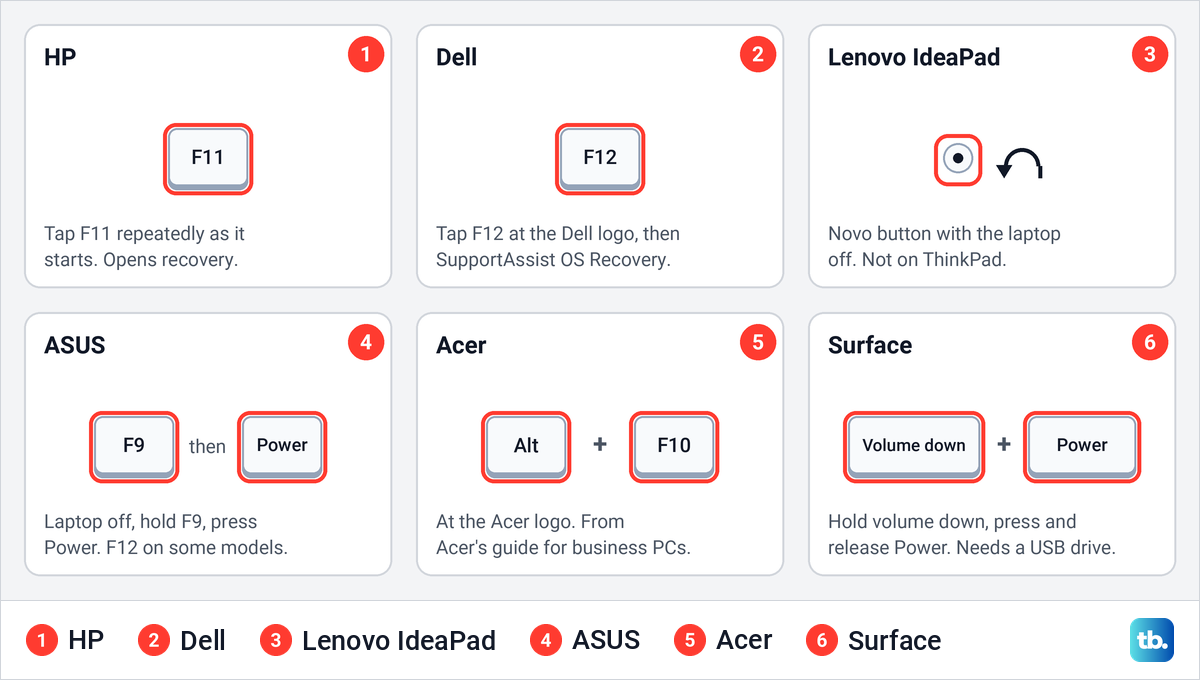
HP says to restart and immediately press F11 repeatedly to open the recovery screen, and it recommends HP Sure Recover instead on a laptop that has it turned on. To use the Windows reset on such a laptop, HP says you must first turn off HP Sure Recover in the BIOS. HP owners will find HP Cloud Recovery and Sure Recover step by step in our guide to factory reset an HP laptop.
Dell's steps are to tap F12 at the Dell logo for the One Time Boot Menu, then open SupportAssist OS Recovery, which Dell offers on certain models. Our guide to reset a Dell laptop covers SupportAssist OS Recovery step by step.
Lenovo's IdeaPad models have a Novo button, which Lenovo describes as a small button or pinhole with a backwards arrow, pressed with the laptop off. ThinkPad, ThinkCentre and Lenovo tablets do not have one. Lenovo owners will find the Novo menu and the ThinkPad route in our guide to factory reset a Lenovo laptop.
ASUS says to hold F9 and then press the power button while the laptop is off, or use F12 on some models. Acer's guide for its business PCs uses Alt + F10 when the Acer logo appears, and our guide shows how to reset an Acer laptop step by step.
For a Surface that will not start, Microsoft's recovery route uses a USB recovery drive. Its steps are to hold the volume-down button while you press and release the power button, then select Recover from a drive, and choose Skip this drive if it asks for a recovery key.
What a factory reset brings back
A factory reset does not take the laptop back to the day it shipped. Microsoft's technical documentation says Reset this PC restores Windows "to an updated state rather than to the factory-preinstalled state", with the installed updates and the latest drivers. You get a current Windows back, not the one in the box.
Microsoft's reset page describes a Restore preinstalled apps switch that applies the maker's customizations when it is on, and ASUS calls its version "Restore apps and settings which came with this PC". Our PC's Choose settings screen did not show this switch.
Only the makers' own tools put back the Windows version the laptop shipped with. Dell says Reset to factory settings returns the laptop to the state it left the Dell factory in, ASUS says ASUS Recovery restores the pre-installed Windows on some models, and HP says HP Cloud Recovery, for HP PCs made in 2016 and later, restores the original operating system from HP.
Microsoft says a laptop with a digital license can reinstall the same edition of Windows 11 without a product key and activates online once installation is complete. If it does not, see our guide to Windows 11 activation problems.
After the reset
HP says the Windows welcome screen appears when the reset is complete. If you kept your files, the reset screen says the list of removed apps is saved to the desktop, so you can reinstall the ones you need.
If you are selling the laptop, Microsoft says to remove it from your Microsoft account once it is backed up and reset. Sign in at account.microsoft.com/devices, select Show details for the laptop, then More actions > Remove, tick the box that confirms you are ready and select Remove. Microsoft adds that you can then unlink it, so it no longer counts toward your Microsoft Store device limit.
Factory reset a MacBook
Apple's steps use Erase All Content and Settings, which erases your data, settings and apps but keeps macOS installed. Choose Apple menu > System Settings, click General, then Transfer or Reset, and click Erase All Content and Settings. Apple says it needs macOS Monterey 12 or later on a Mac with Apple silicon or the Apple T2 Security Chip. On Monterey, the route is Apple menu > System Preferences, then Erase All Content and Settings from the System Preferences menu in the menu bar.
It asks for your Mac login password and then your Apple Account password, because erasing signs you out of Apple services. If you forgot your MacBook login password, reset that first, and back up a MacBook before you start. To leave a Mac you are selling in an out-of-box state, Apple says to hold the power button until it turns off instead of using the setup assistant.
Older Macs without the feature are erased from Recovery. Apple's steps are to sign out of iCloud and iMessage, erase the Mac with Disk Utility, reinstall macOS, and press Command + Q to shut down instead of continuing setup.
Factory reset a Chromebook
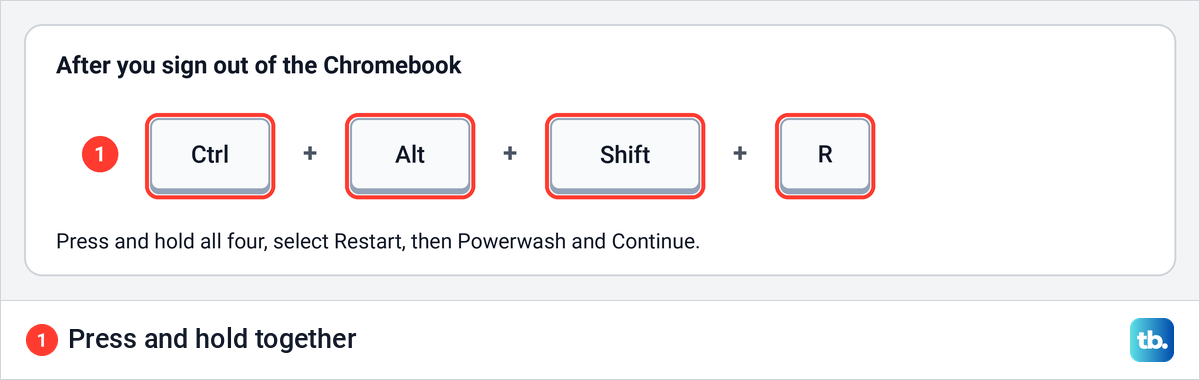
Google's steps are to sign out, press and hold Ctrl + Alt + Shift + R, select Restart, then Powerwash and Continue. Google says it erases all user data on the Chromebook's drive, including the Downloads folder, but not your files on Google Drive. The first account to sign in afterwards becomes the owner account.
Google says you cannot reset a Chromebook you use at work or school, so ask the organization that manages it. If you cannot get past the sign-in screen on your own Chromebook, here is how to factory reset a Chromebook without a password.
How we tested this guide
We tested this on Windows 11, version 25H2, taking Reset this PC with Clean data off and on up to the Reset button.
Frequently Asked Questions
How do I factory reset a laptop if I am locked out?
On the sign-in screen, hold Shift while you select Power > Restart, then choose Troubleshoot > Reset this PC > Remove everything. By default it needs no password, but an encrypted drive needs its BitLocker recovery key.
Can I keep my files if I forgot my password?
Only with an administrator's password, because Keep my files asks for one in recovery by default, plus the BitLocker key if the drive is encrypted. Otherwise, get the password back first.
Why does the reset say Do not clean the drive?
That is the default for Remove everything. Select Change settings, set Clean data to Yes and select Confirm, and the line changes to "Clean the drive".
Does a factory reset wipe my second drive?
If Windows offers the choice, pick all drives to clear them too. Otherwise only the Windows drive is reset, and Microsoft says Keep my files leaves other partitions alone.
Does a factory reset bring back the Windows my laptop came with?
No. Reset this PC keeps a current Windows with its updates, while Dell's Reset to factory settings, ASUS Recovery on some models and HP Cloud Recovery put back the Windows the laptop shipped with.
Why is my account still there after a factory reset?
Microsoft says Keep my files keeps user accounts, so a reset with that choice leaves yours in place. Run it again with Remove everything, whose last screen says it will "Remove all the personal files and user accounts on this PC".
How long does a factory reset take?
There is no single figure, and with Clean data on the switch itself warns "This may take hours". Microsoft puts a fully cleaned Surface at an hour or two, Dell says 45 minutes or more for its own reset, and ASUS says 30 minutes to several hours.
Do I need a product key after a factory reset?
Not if Windows was activated with a digital license. Microsoft says it activates online on the same laptop once installation is complete.