Windows 11 activation can fail when the PC is offline, signed into the wrong Microsoft account, using the wrong edition, or missing a valid 25-character product key. Start with Activation settings, then move through the license, key, troubleshooter, reinstall, hardware-change, and phone options that Microsoft currently supports.
1. Check Your Windows 11 Activation Status
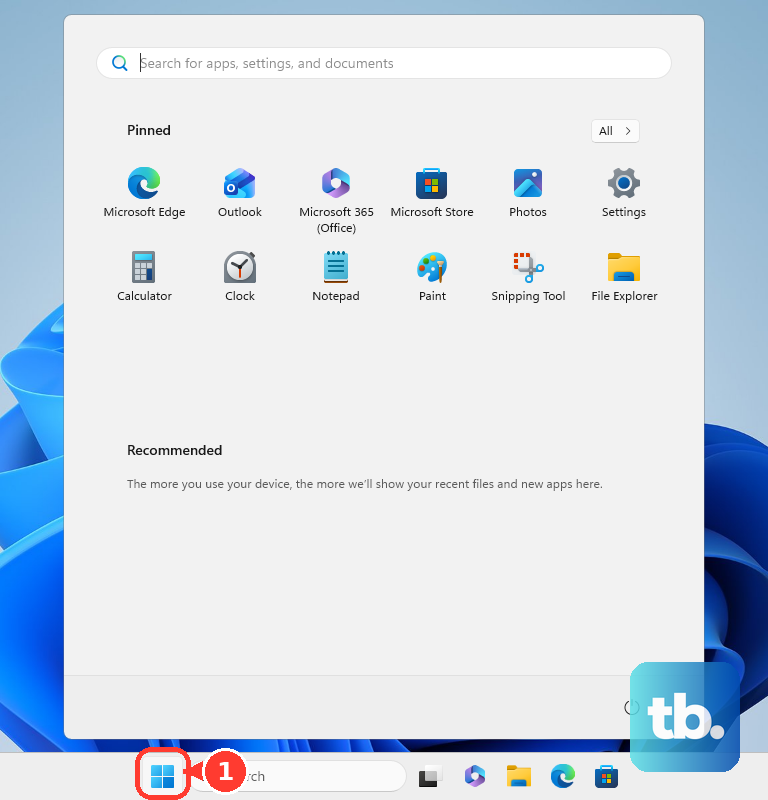
This fixes guesswork by showing the current activation state first. Select Start, open Settings, select System, then select Activation. Review Activation state.
2. Let a Digital License Activate Windows
Connect the PC to the internet and sign in with the Microsoft account linked to the digital license. Open Start > Settings > System > Activation, then confirm the installed edition is activated. Use this after reinstalling the same Windows 11 edition on the same hardware.
3. Enter Your Windows 11 Product Key
Select Start, open Settings, select System, then select Activation. Select Change product key, then type the 25-character key in Product key.
During a clean install, enter the key on the Product key page. Use a key that matches the Windows 11 edition being installed.
4. Run the Activation Troubleshooter
This fixes unactivated Windows 11 copies that need Microsoft’s built-in activation check. Microsoft’s current Windows 11 guidance says to start with the automated Windows Activation troubleshooter in the Get Help app. Then fall back to the Settings path below.
Sign in with an administrator account and connect the PC to the internet. Select Start, open Settings, select System, then select Activation. Select Troubleshoot.
5. Reactivate After Changing Hardware
Sign in as an administrator, then open Start > Settings > System > Activation. Select Troubleshoot, select I changed hardware on this device recently, then select Next. Enter your connected Microsoft account and password, then select Sign in.
In the list of devices linked to your Microsoft account, select the check box next to This is the device I’m using right now. Select Activate. This works when the digital license was linked to your Microsoft account before the hardware change and the Windows 11 edition still matches.
6. Correct the Wrong Windows 11 Edition
If Activation shows an edition mismatch, open Start > Settings > System > Activation. Select Troubleshoot. When the troubleshooter finds a valid digital license for a different Windows 11 edition, follow its instructions to install the correct edition. The installed edition and license edition must match before activation succeeds.
7. Restore Activation After Reinstalling Windows 11
When Windows Setup asks for a key, select I don't have a product key. Choose the same Windows 11 edition that already has the license, then finish installation. Connect the PC to the internet and sign in with the Microsoft account linked to the digital license. Open Start > Settings > System > Activation and confirm activation.
On an OEM PC that shipped with Windows 11, Setup can use the license stored in firmware and skip the product-key prompt.
8. Buy a New Windows 11 License
This fixes activation when the PC has no valid digital license or product key. Select Start, open Settings, select System, then select Activation. Select Go to Store or Open Store, then follow the Microsoft Store prompts to purchase a Windows 11 digital license.
9. Use Phone Activation or Work Licensing
Open Start > Settings > System > Activation. Under Activate Windows Now, select Activate by Phone, select your location or nearest location, then select Next. Windows shows your activation information and a phone number.
Instead of calling that number, open the Microsoft Product Activation Portal. Use the information from that screen to finish the activation attempt. If your request needs assisted review, the portal supplies support options.
For taskbar search phone activation, type SLUI 04. Select SLUI 04. Follow the on-screen instructions.
For a Windows Enterprise or Education subscription license, the device must be running Windows 11 Pro (or Pro Education for the Education step-up). The device must be Microsoft Entra joined or Microsoft Entra hybrid joined, and workgroup-joined and Microsoft Entra registered devices are not supported.
Open Settings > Accounts > Access work or school > Connect. Select the option to join the device to Microsoft Entra ID (shown as Join this device to Azure Active Directory on some builds). Finish sign-in, then select Join. The step-up happens when a user with an assigned qualifying license signs in.
Phone activation is not supported for Windows 11 Pro EDU or Windows 11 Pro for Workstations; those editions activate over the internet.
Frequently Asked Questions
Does a Microsoft Store Windows 11 Pro upgrade include a product key?
No. Microsoft Store Pro upgrades use a digital license, so activate with the Microsoft account used for the purchase instead of looking for a product key.
Can I open Activation without clicking through Settings first?
Yes. Press Windows key + I to open Settings, then select System and Activation, or use taskbar Search for activation settings.
Can organizations activate Windows 11 without individual Store purchases?
Yes. Organization-managed Windows 11 activation can use KMS, Active Directory-based activation, MAK activation, VAMT, or Enterprise and Education subscription activation.
Which older activation methods should I skip?
Skip old Control Panel activation paths for Windows 11 consumer activation. Also skip slmgr.vbs /stao and /ctao, which Microsoft says were removed after older Windows versions.