BitLocker is useful until you need the drive decrypted again, especially before selling a PC, changing drive security, or removing encryption from a removable drive. Windows gives you several supported ways to turn it off, and the right one depends on whether your PC shows Device encryption or the full BitLocker Drive Encryption page.
Use the quickest path your PC offers, then leave the device powered on while Windows finishes decrypting in the background.
Turn Off Device Encryption In Settings
Use this method when your PC shows Device encryption in Settings, including Windows Home devices where Device Encryption is available. This turns encryption off and starts decryption instead of only pausing protection.
Sign in with an administrator account.
Open Settings > Privacy & security > Device encryption.
Switch Device encryption to Off.
Confirm the prompt.
Keep the PC running while Windows decrypts the device in the background.
Use Start Search For Manage BitLocker
This fixes the standard Windows Pro, Pro Education/SE, Enterprise, or Education setup where a system drive, fixed data drive, or removable drive appears in BitLocker.
Sign in with an administrator account.
Open Start and type BitLocker.
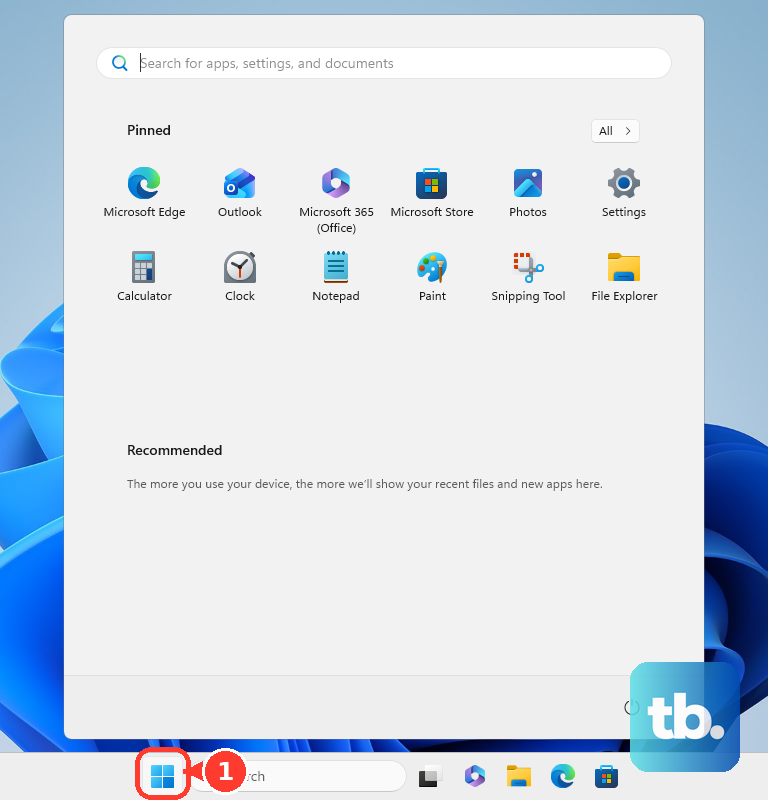
Select Manage BitLocker.
In BitLocker Drive Encryption, expand the drive you want to decrypt.
Select Turn off BitLocker.
Confirm the dialog to begin decryption.
Check Why Device Encryption Is Missing
The most common cause is simple: Windows does not offer Device Encryption on that device, or the signed-in account cannot manage it.
Sign in with an administrator account.
Open Settings > Privacy & security > Device encryption.
If Device encryption still does not appear, open Start, type BitLocker, and select Manage BitLocker on Windows Pro, Pro Education/SE, Enterprise, or Education.
If Manage BitLocker is not available either, open Control Panel > System and Security > BitLocker Drive Encryption and check whether any protected drive is listed.
If neither Device encryption nor BitLocker Drive Encryption appears, that PC has no Device Encryption switch to turn off.
Open The Control Panel BitLocker Page
Use the classic BitLocker page when you want a drive-by-drive view of what Windows can decrypt.
- 1.Open Control Panel.
- 2.Go to System and Security > BitLocker Drive Encryption.
- 3.Next to the encrypted drive, select Turn off BitLocker.
- 4.Confirm the prompt.
- 5.Wait until the drive status shows decryption is complete.
Unlock With Your Microsoft Account Recovery Key
Use this when Windows or a data drive asks for a BitLocker recovery key before you can get back in. Unlocking the drive comes first; turning BitLocker off comes after Windows is accessible again.
Write down the first 8 digits of the recovery key ID shown on the recovery screen.
From another device, open https://aka.ms/myrecoverykey.
Sign in with the Microsoft account used on the PC.
Match the recovery key ID.
Use the recovery key to unlock the drive.
After Windows opens, turn off BitLocker through Settings, Control Panel, Windows PowerShell, or manage-bde.
On Windows 11 version 24H2, the recovery screen shows a hint for the associated Microsoft account.
Run manage-bde From An Admin Window
Use manage-bde when the encrypted drive has a letter and you want the direct Microsoft command-line path.
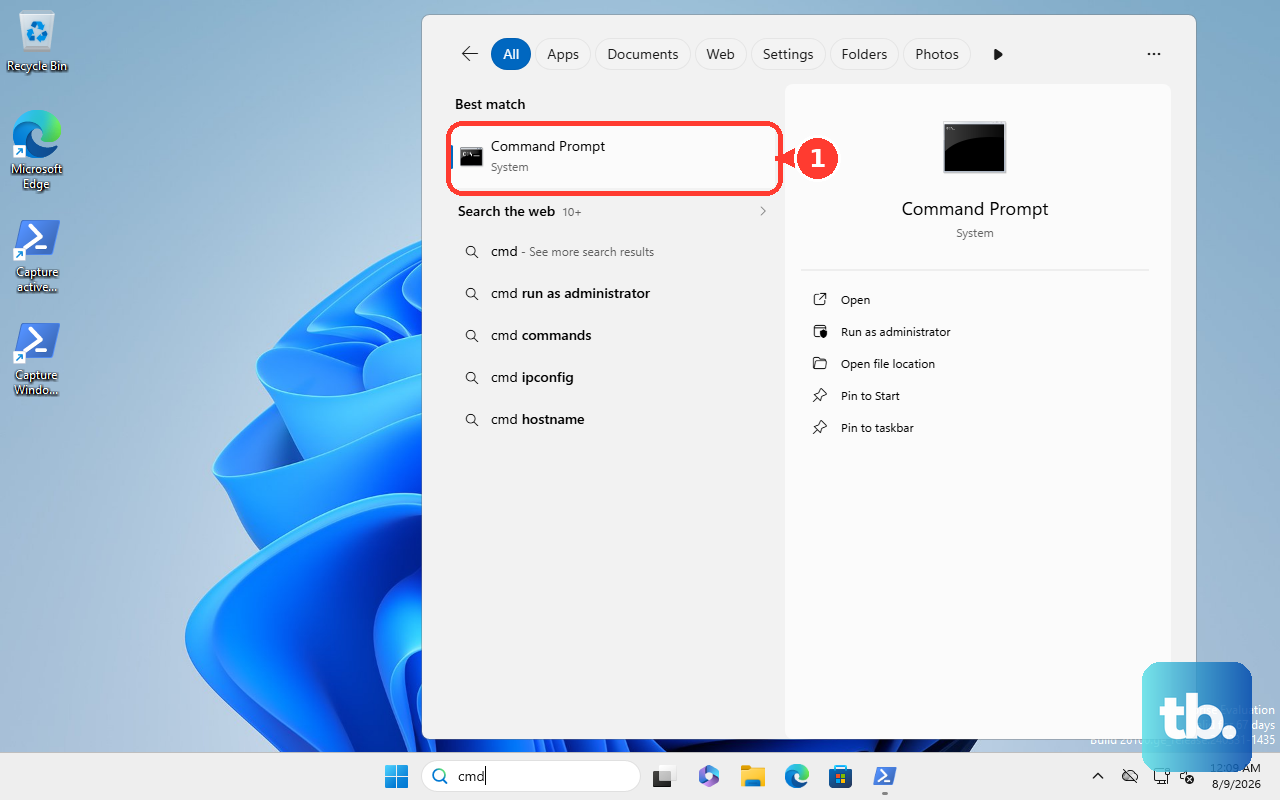
- 1.Open Command Prompt, Windows PowerShell, or Terminal as administrator.
- 2.Run manage-bde.exe -off C: and replace C: with the encrypted drive letter.
- 3.Keep the PC powered on while Windows decrypts that drive.
- 4.Run manage-bde.exe -status to check progress.
Decrypt One Drive Or All Volumes With PowerShell
Use PowerShell when you want BitLocker-specific commands, especially for more than one BitLocker volume. This applies on Windows editions with BitLocker management support and the BitLocker PowerShell module.
Open Windows PowerShell or Terminal as administrator.
For one drive, run Disable-BitLocker -MountPoint "C:" and replace C: with the correct drive letter.
For every BitLocker volume, run $BLV = Get-BitLockerVolume to store the volumes in the $BLV variable, then run Disable-BitLocker -MountPoint $BLV.
If the operating system volume contains automatic unlocking keys and the command does not proceed, run Clear-BitLockerAutoUnlock.
Run Disable-BitLocker again after clearing automatic unlocking keys.
Handle A Work Or School Managed PC
Use this route when the PC is tied to a work or school account and the recovery key is stored with the organization. From another device, open https://aka.ms/aadrecoverykey and sign in with the work or school account.
Select Devices, expand the device, choose View BitLocker Keys, and match the key ID before unlocking the drive.
After the drive is unlocked, turn off BitLocker locally with Settings, Control Panel, Windows PowerShell, or manage-bde. If the key is unavailable, contact the organization's IT support.
When the organization enforces encryption, IT has to remove or change the policy assignment before local decryption will stay available.
Suspend Protection Instead Of Decrypting
The most common cause for choosing suspend is temporary firmware, hardware, or update work where the drive should stay encrypted.
To suspend from Control Panel, open Control Panel > System and Security > BitLocker Drive Encryption.
Select Suspend protection.
Choose Yes.
To suspend from PowerShell, open Windows PowerShell as administrator and run Suspend-BitLocker -MountPoint "C:" -RebootCount 0.
Resume later from Control Panel > System and Security > BitLocker Drive Encryption > Resume protection, or run Resume-BitLocker -MountPoint "C:".
Suspending BitLocker does not decrypt the drive; it only pauses protection until you resume it.
Frequently Asked Questions
Does turning off BitLocker delete my files?
No. Turning it off starts decryption, and Windows decrypts the device or drive in the background. Reset or reinstall Windows is different and removes files in the recovery scenarios Microsoft describes.
Do I need an administrator account to turn off BitLocker?
Yes. Use an administrator account for the normal Settings, Manage BitLocker, Control Panel, Command Prompt, and PowerShell paths.
Is suspending BitLocker the same as turning it off?
No. Suspending BitLocker temporarily pauses protection for firmware, hardware, or update work. It does not decrypt the drive.
What if I cannot find the BitLocker recovery key?
If the recovery key cannot be found and the change that triggered recovery cannot be undone, Microsoft points to Windows recovery options such as Reset or Reinstall Windows. Resetting removes files, and reinstalling from installation media usually removes files, apps, and settings.