Your PC powers on, flashes the manufacturer logo, then drops you onto a blue "Automatic Repair" or "Preparing Automatic Repair" screen. It spins for a while, restarts, and lands you right back where you started. That cycle is the Automatic Repair loop, and it usually means Windows tried to start several times, failed, and handed control to its own recovery layer instead of your desktop. The good news is that the same recovery layer holds the tools to break the loop, and you almost never need anything beyond what Microsoft already ships in Windows.
Below are nine fixes ordered from the safest and simplest to the most drastic. Work through them in order, and stop as soon as one gets you back into Windows. Everything here uses built-in Windows 11 and Windows 10 tools only. Note that Microsoft ended Windows 10 support on October 14, 2025, though the recovery tools still function on both versions.
Fix 1: Get Into the Windows Recovery Environment
Almost every fix here runs from the Windows Recovery Environment (WinRE), also called Advanced startup. An Automatic Repair loop means Windows failed to start correctly several times, so it hands control to WinRE instead of loading your desktop. That means you may already be looking at the door you need to open: from the recovery screen, select Advanced options.
If the PC reaches the sign-in screen but won't go further, hold the Shift key while you select Power > Restart. From within Windows you can also go to Start > Settings > System > Recovery and, under Advanced startup, select Restart now.
If the machine never reaches Windows at all, you can force WinRE manually.
Power on the device.
As soon as Windows starts to load, press and hold the power button until it shuts down.
Do this twice.
On the third power-on, Windows should display the Automatic Repair / recovery screen.
Select Advanced options.
Fix 2: Let Quick Machine Recovery or Startup Repair Do the Work
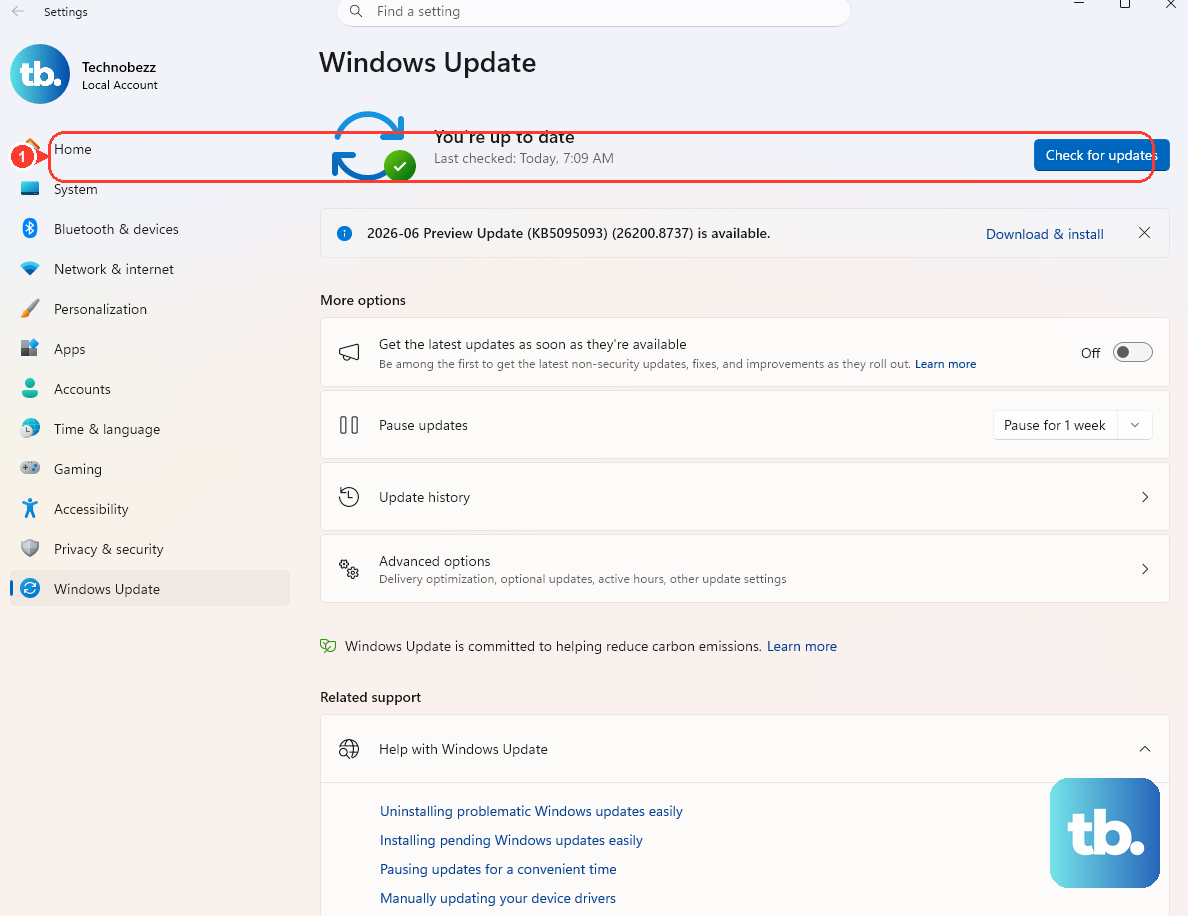
Start with the automatic tools before you touch a command line. On Windows 11, Quick Machine Recovery can pull a fix directly from Microsoft through Windows Update while the device sits in WinRE after several failed boot attempts. You can also launch it yourself from Troubleshoot > Advanced options > Quick machine recovery.
The core repair tool on both Windows 10 and Windows 11 is Startup Repair. It automatically diagnoses and fixes problems such as missing or damaged system files, corrupted boot configuration data, or a damaged master boot record. Run it from Troubleshoot > Advanced options > Startup Repair > Restart.
One thing to have ready first: if your device is BitLocker-encrypted, you will need your BitLocker recovery key to proceed.
Fix 3: Boot Into Safe Mode to Isolate a Bad Driver or App
If a recently installed driver or program is what breaks startup, Safe Mode lets you reach a usable desktop and remove it. Safe Mode starts Windows with only the essential drivers and services, so a faulty add-on never gets the chance to crash the boot.
From WinRE, go to Troubleshoot > Advanced options > Startup Settings > Restart. When the Startup Settings list appears, press one of these.
Press 4 or F4 for Safe Mode.
Press 5 or F5 for Safe Mode with Networking.
Press 6 or F6 for Safe Mode with Command Prompt.
Once you reach the Safe Mode desktop, uninstall the driver or app you suspect, then restart normally to see whether the loop is gone.
Fix 4: Uninstall the Update That Started It
If the loop began right after a Windows update installed, removing that update is often the fastest cure. WinRE can do this even though you can't boot into Windows normally.
Go to Troubleshoot > Advanced options > Uninstall Updates, then choose either Uninstall latest quality update or Uninstall latest feature update. Quality updates are the routine monthly patches; feature updates are the larger version upgrades. Pick the one whose timing lines up with when the trouble started.
Fix 5: Roll Back the Whole System With System Restore
If a restore point already exists on your PC, System Restore can undo a recent change that caused the boot failure. It reverts system files, registry settings, and installed programs to an earlier point in time, and it does this without affecting your personal files.
From WinRE, open Troubleshoot > Advanced options > System Restore and choose a restore point dated before the loop began. Let the process run fully and avoid interrupting it.
Fix 6: Repair Corrupted System Files With DISM and SFC
When the boot files themselves are damaged, two command-line repair tools can rebuild them. Open Troubleshoot > Advanced options > Command Prompt, or, if you reached a desktop through Safe Mode, open an elevated Command Prompt using Run as administrator.
Microsoft says to run DISM before SFC. First run this command, note the space before each slash.
Run DISM.exe /Online /Cleanup-image /Restorehealth and wait for it to report "The operation completed successfully."
Then run sfc /scannow and do not close the window until verification reaches 100%.
DISM repairs the Windows component store, and SFC then scans protected system files and replaces any that are corrupted. If you want a lighter check before committing to the full repair, Dism /Online /Cleanup-Image /ScanHealth scans the image for corruption and Dism /Online /Cleanup-Image /CheckHealth reports whether corruption was detected and whether the image is repairable.
When Windows can't boot at all, you can run SFC offline from the WinRE Command Prompt with SFC /Scannow /OffBootDir=C:\ /OffWinDir=C:\Windows.
Fix 7: Scan the Drive for Errors With chkdsk
A failing or corrupted disk can keep Windows from starting no matter how clean the system files are. From the WinRE Command Prompt, chkdsk checks the drive for both file-system and physical errors.
Microsoft's offline boot-troubleshooting guidance documents chkdsk /f /r for disk corruption. The /f switch fixes file-system errors and requires the volume to be locked, while /r locates bad sectors, recovers readable data, and includes the functionality of /f. To target one specific drive, the basic form is chkdsk d: /f, where you replace d: with the letter of the drive you want to check.
Fix 8: Rebuild Boot Files With bootrec
If the screen is black with a blinking cursor, or you see BCD or boot errors, the boot records themselves may be broken. For this you boot from Windows installation media, press Shift+F10 to open a Command Prompt, and use the bootrec set of commands. These boot commands do not affect your personal files.
Run BOOTREC /FIXMBR to write a Windows-compatible master boot record to the system partition.
Run BOOTREC /FIXBOOT to write a new boot sector to the system partition.
Run Bootrec /ScanOS to find Windows installations missing from the BCD store.
If the BCD store is the problem, Microsoft documents this exact sequence before rebuilding it:
- 1.
bcdedit /export c:\bcdbackup - 2.
attrib c:\boot\bcd -r -s -h - 3.
ren c:\boot\bcd bcd.old - 4.
bootrec /rebuildbcd
One more situation has its own documented fix: if the PC keeps stopping on the recovery-options screen and won't move past it, Microsoft documents Bcdedit /set {default} recoveryenabled no to break that cycle.
Fix 9: Reset This PC as a Last Resort
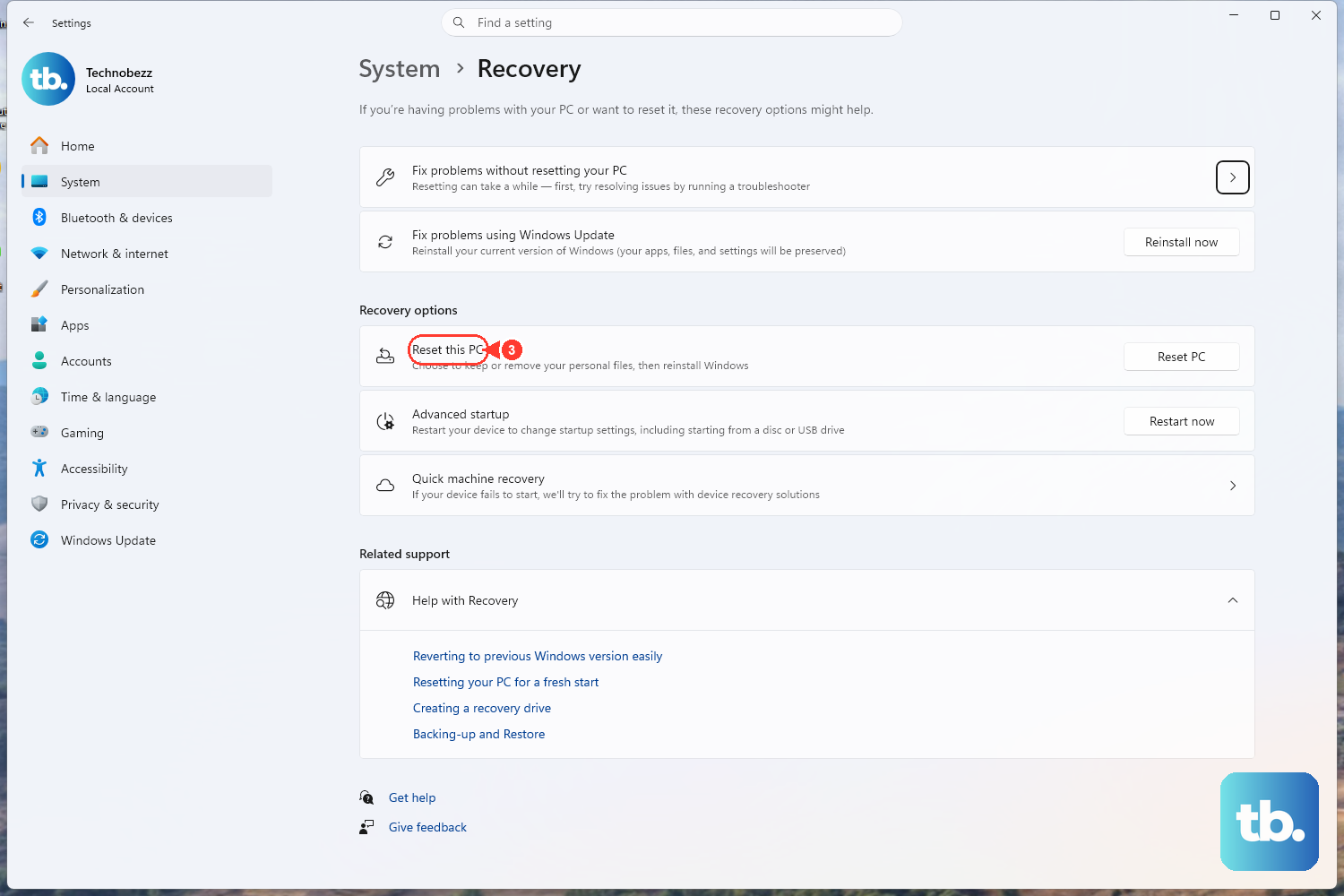
If every repair above fails, WinRE offers Reset this PC, which Microsoft lists among the Advanced options recovery tools. It reinstalls Windows and gives you the option to keep or remove your files. Because this is a reinstall, treat it as the final step and choose the "keep my files" option if you want to preserve your personal data, though backing up anything irreplaceable first is always the safer move when a drive has been misbehaving.
Frequently Asked Questions
What does the Automatic Repair loop actually mean?
It means Windows failed to start correctly several times, so it keeps launching the Windows Recovery Environment instead of loading your desktop. WinRE is designed to start automatically after repeated failed boot attempts, which is why the screen keeps reappearing.
Will fixing the loop erase my files?
Most of these fixes do not touch your personal files. System Restore reverts system files, registry settings, and programs without affecting personal files, and the bootrec boot commands do not affect them either. Reset this PC is the only step that can remove files, and it gives you an explicit option to keep them.
How do I reach the recovery tools if Windows never starts?
Power the device on, and as Windows starts to load, hold the power button until it shuts down. Repeat that twice, and on the third power-on Windows should display the Automatic Repair / recovery screen, where you select Advanced options to reach the tools.
Do I need my BitLocker recovery key?
If your device is BitLocker-encrypted, yes. You will need the BitLocker recovery key to run Startup Repair and other recovery steps on an encrypted device, so locate it before you begin.
Is Quick Machine Recovery available on Windows 10?
No. Quick Machine Recovery applies to Windows 11 only. On Windows 10 you rely on Startup Repair and the other tools, which work on both versions.











