

A Dell laptop that won't turn on is usually stuck at one of three places: no power, no display, or no startup after power reaches the board. Start with the outside connections first, then use Dell's built-in checks when the laptop shows lights, keys, or the Dell logo.
Here are the fixes to try before booking a repair.
Start with the power source
Use this first when pressing Power gives you no lights, no fan noise, no keyboard response, and no Dell logo. A dead outlet or inactive surge protector looks exactly like a dead laptop.
Plug another device into the same wall outlet and confirm it turns on.
When your charger is connected through a power strip or surge protector, make sure the strip is switched on and working.
Bypass the strip and plug the Dell AC adapter directly into the wall outlet. Press Power again after the adapter is firmly connected.
Check the Dell charger and power port
The most common fix after the outlet is a loose, damaged, or unsupported charger connection.
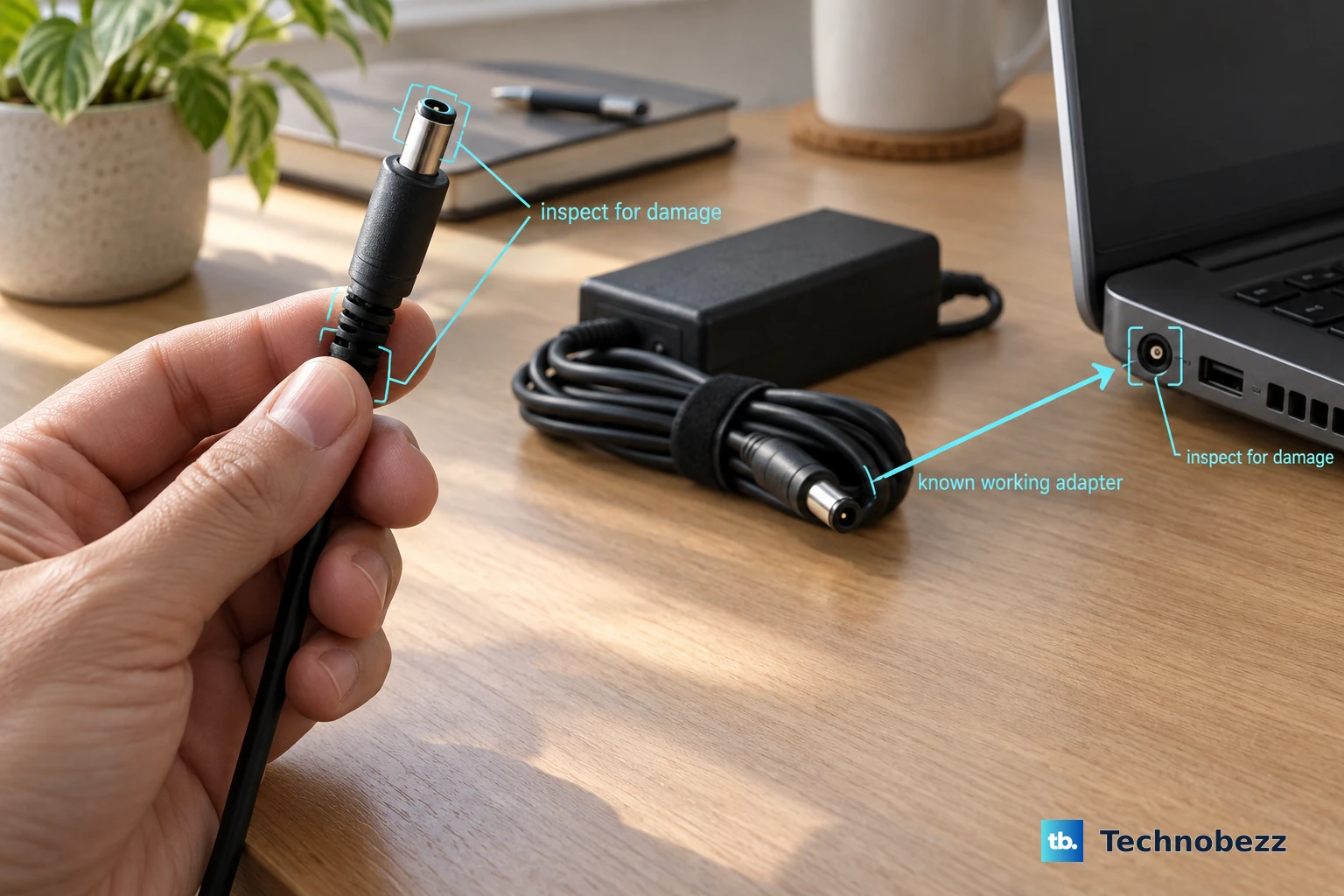
Look closely at the AC adapter, cable, and laptop power port. Stop using the laptop when you see fraying, broken plastic, bent parts, or other visible damage.
Reconnect the adapter securely at the wall side and the laptop side. Use a Dell-provided or Dell-approved adapter or charger.
Test with a known working Dell adapter that matches the laptop. When the laptop turns on with that adapter, replace the original charger.
Remove docks and external devices
A bad peripheral stops a Dell laptop from starting or completing POST. Disconnect external monitors, docking stations, printers, USB drives, external hard drives, and every other attached device.
Try turning on the laptop with only the power adapter connected. When it starts normally, reconnect one device at a time.
When the problem returns after reconnecting one device, leave that device disconnected and troubleshoot it separately.
Drain leftover power with a hard reset
This fixes startup or charging states caused by residual electrical charge.
Turn off the laptop.
Disconnect the power adapter.
Remove the battery only on Dell laptops with a user-removable battery.
Disconnect all peripherals, including external monitors and docking stations.
Press and hold Power for 15 to 20 seconds.
Reconnect the battery when you removed it, reconnect the power adapter, and press Power.
Try AC power without the battery
The most common sign of a battery issue is a Dell laptop that works from the charger but refuses to start correctly with the battery installed.
This applies only to Dell laptops with user-removable batteries. Do not open a sealed internal-battery model unless the model's Dell service manual gives service access steps.
Remove the battery, connect only the AC adapter, and press Power. When the laptop turns on without the battery, contact Dell Technical Support for repair options.
Check whether the screen is just black
A black display makes a working laptop look dead. Press Power, check whether the power button LED glows steadily, and press Caps Lock to see whether the keyboard responds.
Raise the display brightness by repeatedly pressing Increase Brightness. When nothing changes, hold Function while repeatedly pressing Increase Brightness.
Connect an external monitor to check whether the computer is running while the built-in screen is not displaying.
If this method fails, run the LCD built-in self-test next or continue with power and POST diagnostics.
Run Dell screen and board checks
For a blank-screen problem, shut down the laptop completely and wait for all lights to turn off. Disconnect external monitors, USB devices, docking stations, and headphones, then connect the power adapter.
Hold D and press Power. Keep holding D until colors appear, then release it; press Esc or hold Power for 10 seconds to stop the test.
For a system-board check on supported Dell laptops, power the computer off, then hold M and Power together to start M-BIST. A battery indicator LED that stays off means no system-board fault was detected; amber and white indicates a system-board problem.
When you see blink patterns, beep codes, or an M-BIST error code, check the laptop's user manual for that code and contact Dell Technical Support.
Recover the BIOS on supported Dell laptops
Make sure no USB drives are plugged in.
Confirm the laptop battery is charged to at least 25%.
Unplug the power cable.
Press and hold Ctrl and Esc together on the laptop's built-in keyboard.
While holding the keys, plug in the power cable. On Alienware laptops, press Power once.
Release the keys when the recovery screen appears.
Select Recover BIOS or Recover the BIOS, then select Continue or press Enter. Wait while the computer recovers and restarts.
When hard-drive recovery fails or no recovery image is found, use Dell's official Drivers & Downloads page on a working computer to download the latest BIOS for your model, rename it to BIOS_IMG.rcv, copy it to the root of a FAT32 USB drive, and repeat the recovery steps with that USB drive connected.
Do not use jumper-style CMOS or RTC reset as a general Dell laptop fix; use power-button RTC reset, BIOS Recovery, or Dell service.
Power-button RTC reset is available on select Alienware, Inspiron, Latitude, Precision, Vostro, and XPS laptops only. On a supported model, turn the computer off, connect the AC adapter, then press and hold Power for about 30 to 35 seconds until the power LED blinks three times, and release. Holding for less than 25 seconds or more than 40 seconds, or disconnecting the adapter during the hold, aborts the reset.
Know what it changes before you run it: an RTC reset returns the BIOS to factory default settings, resets the computer date and time, and unprovisions Intel vPro. Effective June 2025, Dell disabled manual RTC reset on affected Latitude and Precision models when a BIOS administrator password is set, so on a managed work laptop the reset may simply refuse to start with no error message.
Use Dell diagnostics and service options
If the laptop reaches the Dell logo, use Dell's built-in diagnostics before arranging repair.
Turn on the computer and press F12 several times at the Dell logo until the One Time Boot Menu appears.
Select Diagnostics.
For advanced testing, press Esc, select Advanced test, clear Select all when testing specific hardware, choose Thorough mode, and select RUN TEST.
Record any error code, validation code, and Service Tag.
When Windows still opens, use SupportAssist to run hardware scans and check updates. Open SupportAssist, select Scan hardware, then select Start; for a specific component, select Support, choose Get started under Test my hardware, then select the part you want to test.
For charging problems on a laptop that boots, right-click Start, open Device Manager, expand Batteries, right-click Microsoft ACPI-Compliant Control Method Battery, select Uninstall device, and restart so Windows reinstalls the driver.
Contact Dell support when diagnostics report hardware failure, the laptop has suspected liquid or impact damage, the battery looks swollen, or it still shows no power after the charger, hard reset, screen, RTC, and BIOS recovery checks.
Frequently Asked Questions
Why won't my Dell laptop turn on even when plugged in?
The usual causes are a dead outlet, faulty surge protector, loose adapter connection, damaged charger, battery issue, residual power state, or hardware failure. Start with the outlet and charger before opening the laptop or seeking repair.
How long should I hold the power button for a Dell hard reset?
Dell's hard reset process uses a 15 to 20 second power-button hold after disconnecting the adapter, removable battery if applicable, and peripherals.
What does amber and white mean during Dell M-BIST?
Amber and white during M-BIST indicates a system-board problem. Check the model's user manual for the code and contact Dell Technical Support.
Can I recover the BIOS if my Dell laptop will not start Windows?
Yes, on supported Dell laptops. Use the built-in keyboard shortcut with Ctrl plus Esc, then choose Recover BIOS or Recover the BIOS when the recovery screen appears.