
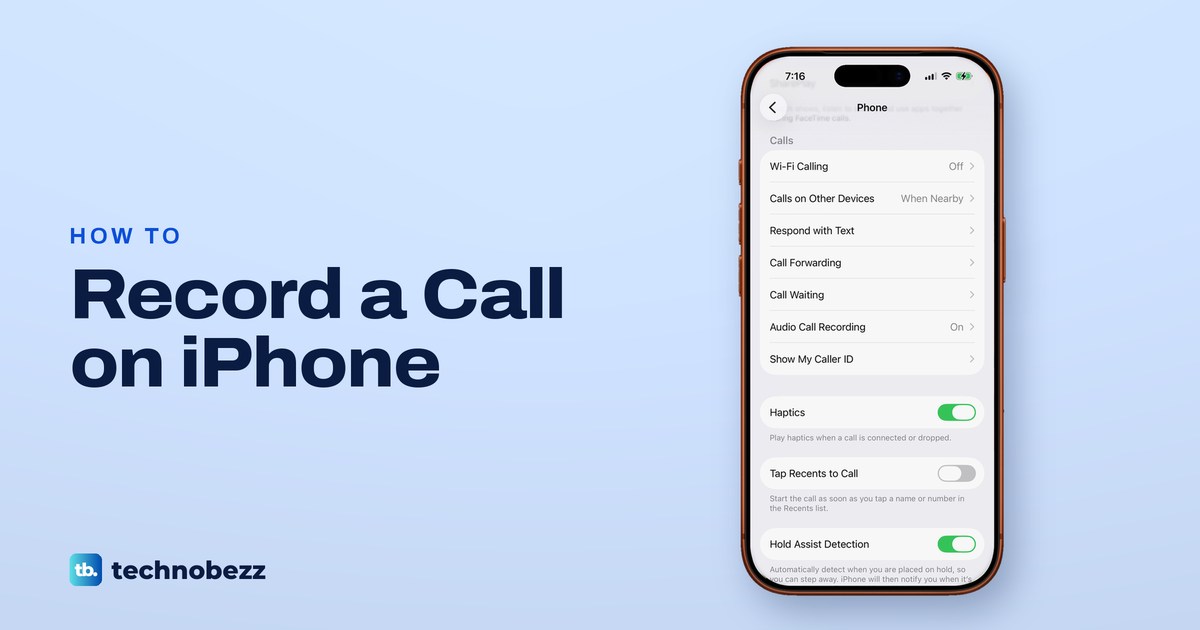
To record a phone call on an iPhone running iOS 26 or later, tap More during the call, then tap Call Recording. Both of you hear an audio notice that the call is being recorded. When you tap Stop or hang up, your iPhone saves the recording to the Call Recordings folder in the Notes app, with a transcript in the languages Apple supports.
On iOS 18.1 and later versions of iOS 18, Apple puts a Start Call Recording button on the call screen instead of the More menu. Either way, recording works only with one other person on the call, and Apple does not offer it in the European Union and 18 other countries. A work or school iPhone can also have it switched off by the organization that manages it.
Ask before you record. Apple asks you to make sure the other person is willing to be recorded, and the law where each of you is decides what is allowed. On our iPhone 17 Pro on iOS 26.6, the switch behind the feature, Audio Call Recording, was already on in Settings > Apps > Phone.
The short version
- iOS 26 or later: during the call, tap More, then Call Recording.
- iOS 18 (from 18.1): tap the Start Call Recording button instead.
- Both people hear it: the notice repeats during the call, and the other person can stop it only by hanging up.
- Transcripts and summaries: transcripts in select languages, summaries only with Apple Intelligence.
- Option missing: check Apple's country list, keep the call to one other person, and look for Audio Call Recording in Settings > Apps > Phone.
Ways to record a call on iPhone at a glance
| The call | What to tap | Who is told | Where it is saved |
|---|---|---|---|
| A Phone call on iOS 26 or later | More, then Call Recording | Both people hear a notice, and it repeats | Notes, Call Recordings folder |
| A Phone call on iOS 18 (18.1 or later) | The Start Call Recording button | Both people hear a notice | Notes, Call Recordings folder |
| A FaceTime audio call | More, then Call Recording | Both people hear a notice | Notes |
| An incoming call to a Google Voice number you already have (personal account, US only) | 4 on the keypad, and 4 again to stop | Everyone hears an announcement | The Calls tab in the Voice app |
| Any call on speaker | Record in Voice Memos on a second device | Nobody, unless you say so | Voice Memos on that device |
The first three rows are Apple's own feature, which is free and announces itself. The Google Voice row follows Google's help pages and covers only incoming calls to a Google Voice number on a personal Google account, which Google offers only in the US.
How to record a phone call on iPhone
Apple's steps for iOS 26 and later are short. Open the Phone app and make a call. During the call, tap More, then tap Call Recording, and both of you hear an audio notice that the call is being recorded.
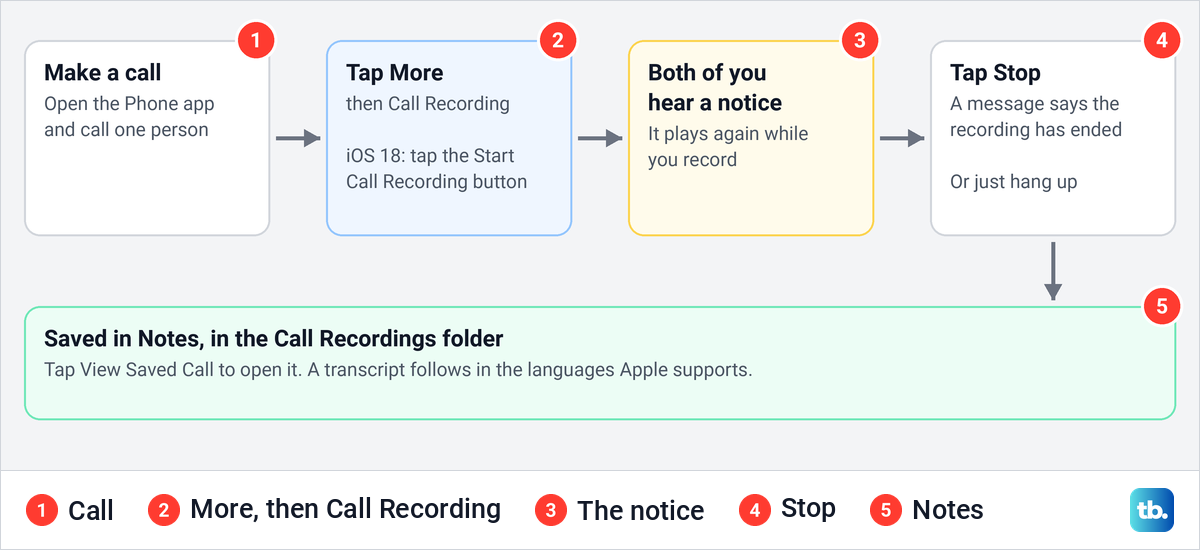
To stop, tap Stop or just hang up. Your iPhone saves the recording automatically to the Call Recordings folder in Notes, and View Saved Call opens it straight away. Apple's guide for iOS 27 prints the same steps, so the upgrade does not change them. Each recording starts by hand this way, during the call.
On iOS 18, from iOS 18.1 on, the control is different. Apple's instruction there is to tap the Start Call Recording button during the call, with no More menu in between, and recordings go to the same Call Recordings folder. Much of the advice online still describes that iOS 18 button, so on iOS 26 and later look under More instead.
What your iPhone needs before you can record
Call recording arrived with iOS 18.1, so that is the minimum. To see your version, open Settings > General > About and read the iOS Version row, or check which iOS version you have with our step-by-step guide.
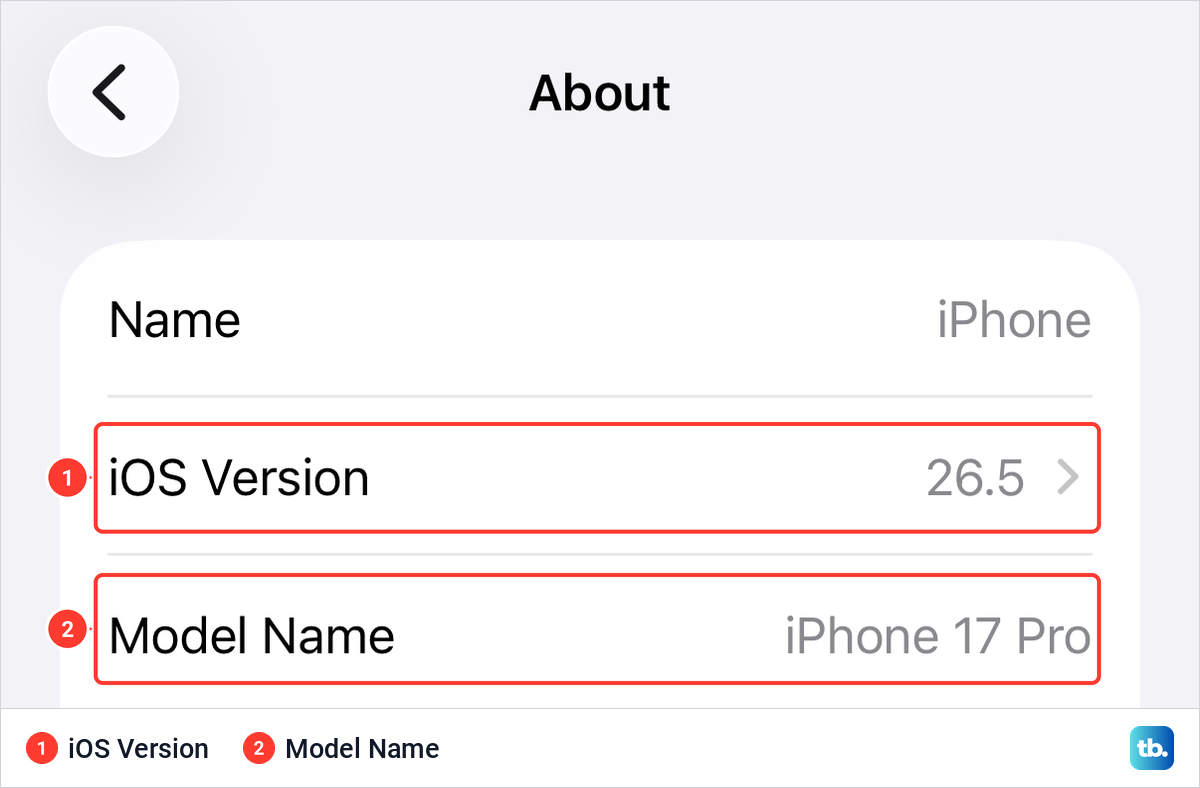
On our iPhone 17 Pro, About and Software Update are the first two rows under Settings > General. If your version is older than iOS 18.1, update your iPhone's software from Software Update first, where Update Now starts the update on offer.
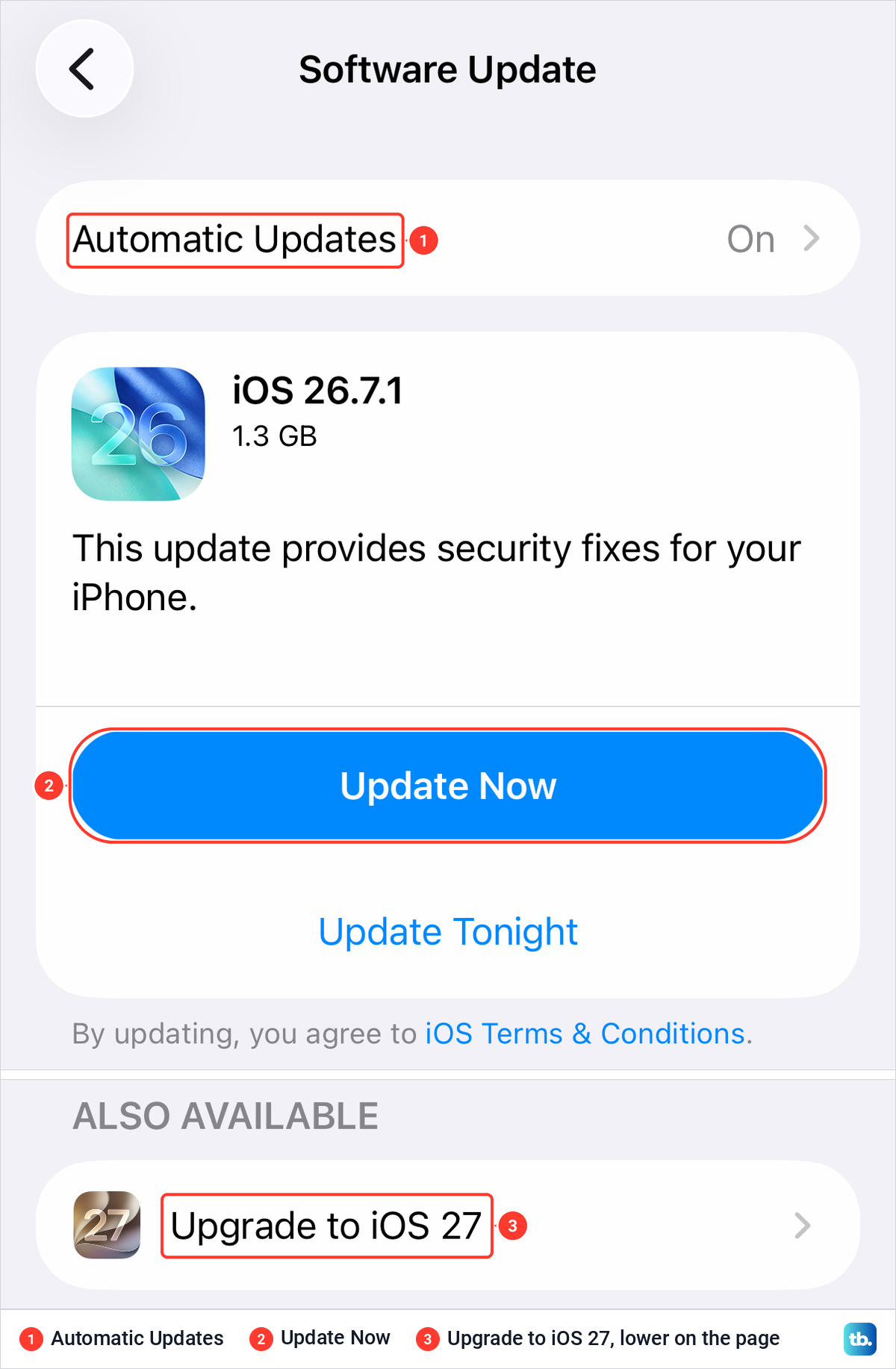
If your iPhone can run iOS 26 or later, the update puts Call Recording under More. Apple's iOS 26 list starts at the iPhone 11, so an iPhone XS or XR stops at iOS 18 and uses the Start Call Recording button, and Apple's iOS 18 list does not include the iPhone X or older models, so they cannot get iOS 18.1.
Three more things decide whether the option appears. Only one other person can be on the call, your country or region has to be one where Apple offers it, and your language has to be on Apple's list for call recording, which runs to 32 languages including English, Spanish, French, German, Hindi and Japanese. Apple ties transcripts to language and region, and only summaries to Apple Intelligence.
What the other person hears
Apple's call recording is never silent. Apple says both people on the call hear an audio notice that the call is being recorded, and that the notice replays periodically while the recording runs. The person who started the recording can stop it with the Stop button, and Apple says a message then plays to say the recording has ended.
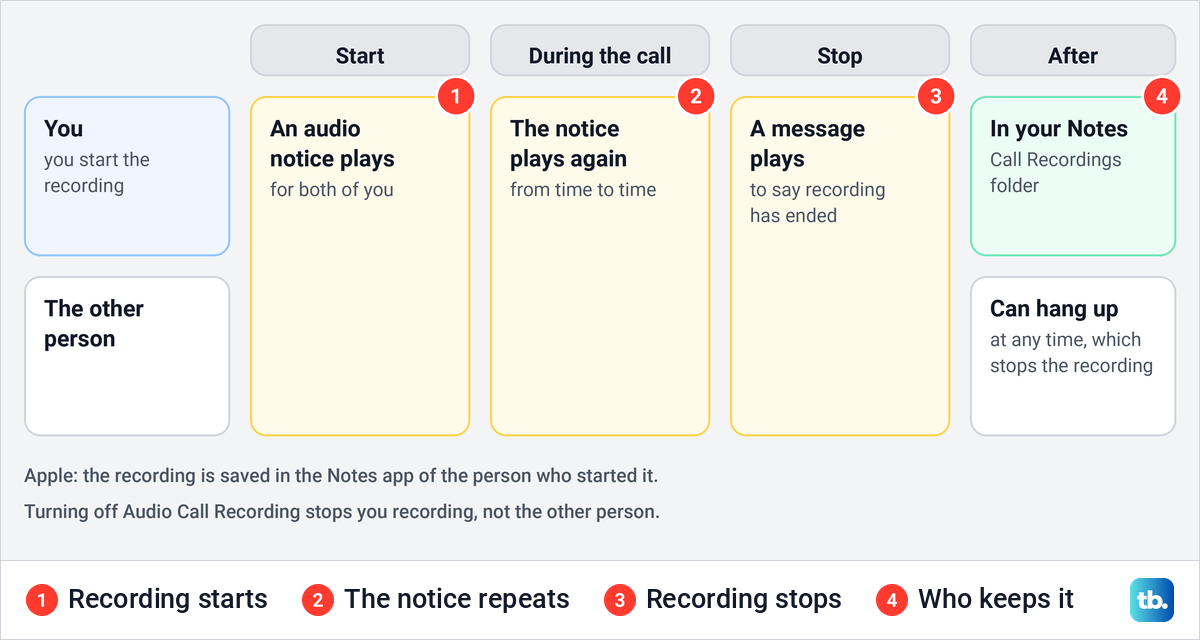
The other person cannot switch your recording off from their side. Apple's Personal Safety guide puts it plainly: "You can't prevent someone from turning on call recording, but you can stop it by ending the call." Either of you can hang up at any time.
Apple says anything recorded is saved in the Notes app of the person who initiated the recording. If someone records you, the file is on their iPhone, and turning off Audio Call Recording on yours does not stop them, because Apple says the switch only removes the option for you.
Apple also warns that some third-party apps can record a call and may not provide a warning. So the notice tells you about a recording made with Apple's feature, not about every recording.
Where iPhone call recordings are saved
Recorded calls go to the Notes app, in a folder called Call Recordings that your iPhone fills automatically. To play one, open Notes, tap a note in the Call Recordings folder, then tap the Play button. Right after a call, View Saved Call takes you to the same note.
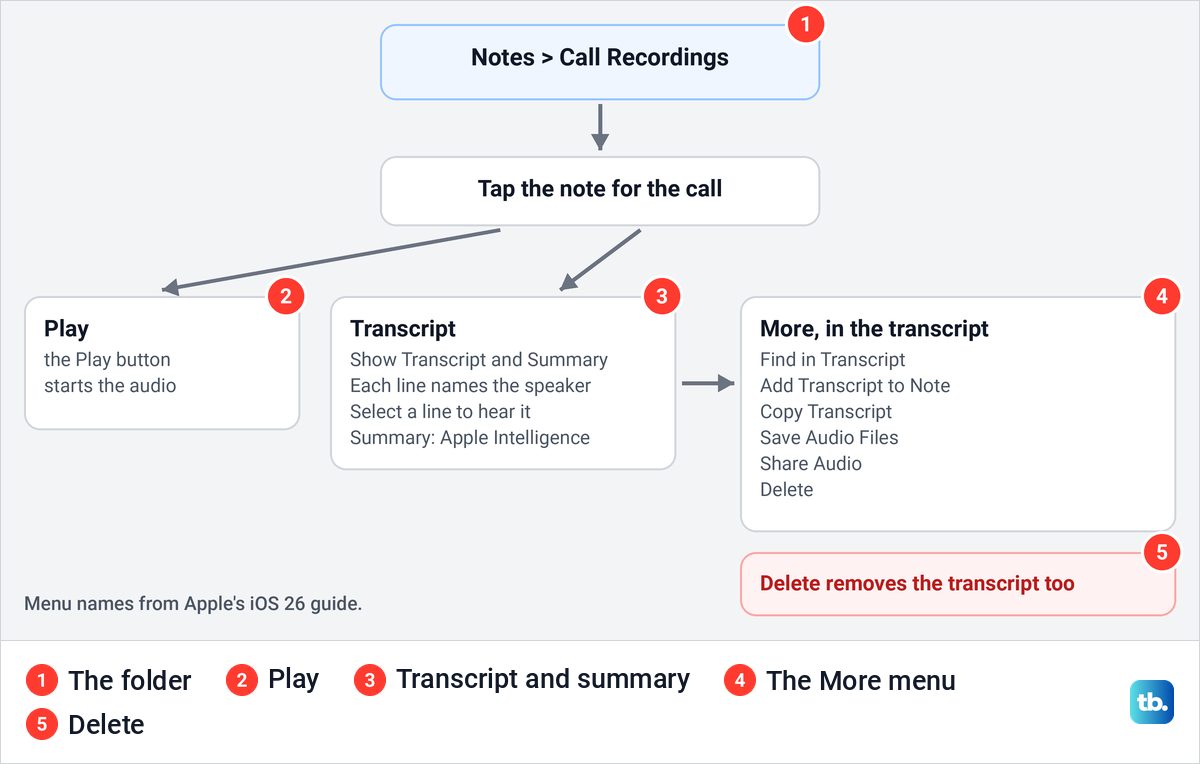
Apple's iOS 26 guide names two controls in that note, the Play button and a Show Transcript and Summary button, and once the transcript is open, a More menu with six items. In the iOS 27 guide, Apple says you tap the recording itself to open the transcript.
Read, search and copy the transcript
In select languages and regions, Notes adds a written transcript of the call. Apple says it may not be ready right away, and you may see a message that transcription is in progress. In the transcript each statement is labeled with its speaker, and selecting a line plays the audio from that point.
Apple's transcript list is short: Cantonese (Hong Kong), English (Australia, Canada, India, New Zealand, Singapore, the United Kingdom and the United States), Japanese, Korean, Mandarin Chinese (China mainland and Taiwan), Portuguese (Brazil) and Spanish (Mexico and the United States). If you don't see a transcript, Apple gives two reasons: your iPhone doesn't meet the minimum requirements, or it didn't detect a supported language.
To jump to a name or a number, tap More, then Find in Transcript. The same menu has Add Transcript to Note and Copy Transcript, which puts the text on the clipboard on your iPhone, ready to paste into a message or an email.
Apple asks you to verify a transcript before relying on it, because it might not be a perfect representation of the conversation. Names, numbers and addresses are worth checking against the audio before you pass them on.
Get a summary of the call
With Apple Intelligence turned on, Notes can also summarize a recorded call. Apple's steps are to open the recording in the Call Recordings folder, tap the recording, then tap Summary. To copy or share it, tap More at the top of the summary, then Copy Summary or Share Summary.
Summaries need an iPhone with Apple Intelligence: an iPhone 15 Pro, iPhone 15 Pro Max, iPhone Air or an iPhone 16 model or later, with the device language and Siri language set to the same supported language. If you are not sure whether yours qualifies, find out which iPhone you have before you look for the Summary button.
Apple lists call summaries for fewer languages than transcripts, and says Apple Intelligence is not available in all languages or regions. So you can have a transcript and still get no summary, and that is not a fault.
Save, share or delete a call recording
The audio lives inside the note, but you can take a copy out. In the transcript view, tap More, then Save Audio Files and pick a location, or Share Audio and pick how to send it. If you save long recordings to iCloud Drive, check how much iCloud storage you have first.
To delete a recording, open Notes, tap the note in the Call Recordings folder, tap More, then tap Delete. Apple notes that deleting the audio recording also deletes the transcript, so copy the text out first if you want to keep it.
Record a FaceTime audio call
FaceTime audio calls record the same way. Apple's steps are to tap More during a one-to-one audio call in the FaceTime app, then Call Recording, and both of you hear a notice that the call is being recorded. The transcript is in the Notes app afterwards, just like a phone call.
To stop, tap Stop. If the Stop button doesn't appear, Apple says to tap More, then Stop next to Call Recording, and ending the call stops the recording too. Apple documents this for FaceTime audio calls, not video calls.
Turn Audio Call Recording on or off
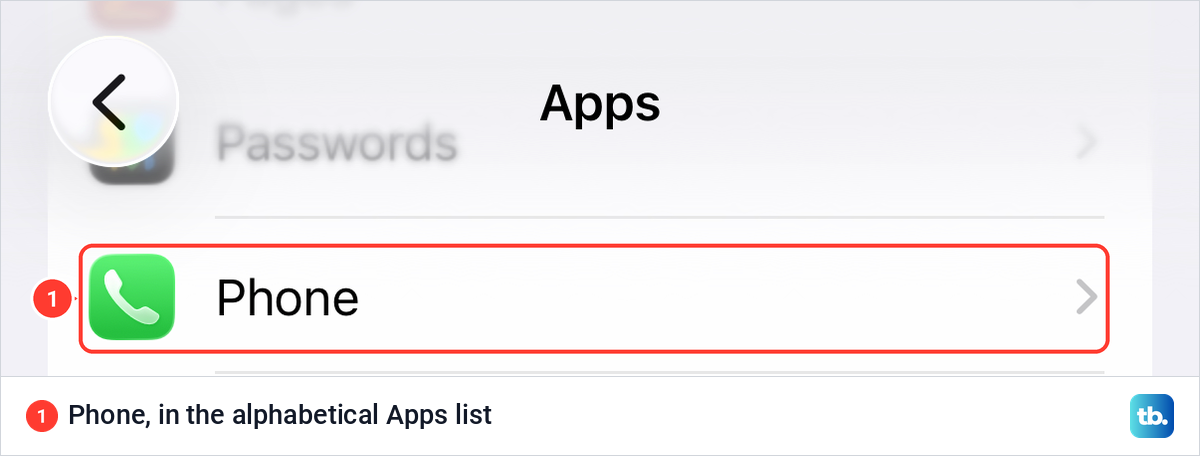
One switch controls the feature, and Apple says it is on by default. Open Settings, tap Apps, then tap Phone. On our iPhone the Apps list is alphabetical, with a Search Apps field at the bottom.
On the Phone settings page, scroll to the Calls group. On our iPhone 17 Pro on iOS 26.6 the row is called Audio Call Recording and it showed On, a few rows below Wi-Fi Calling and Call Forwarding.
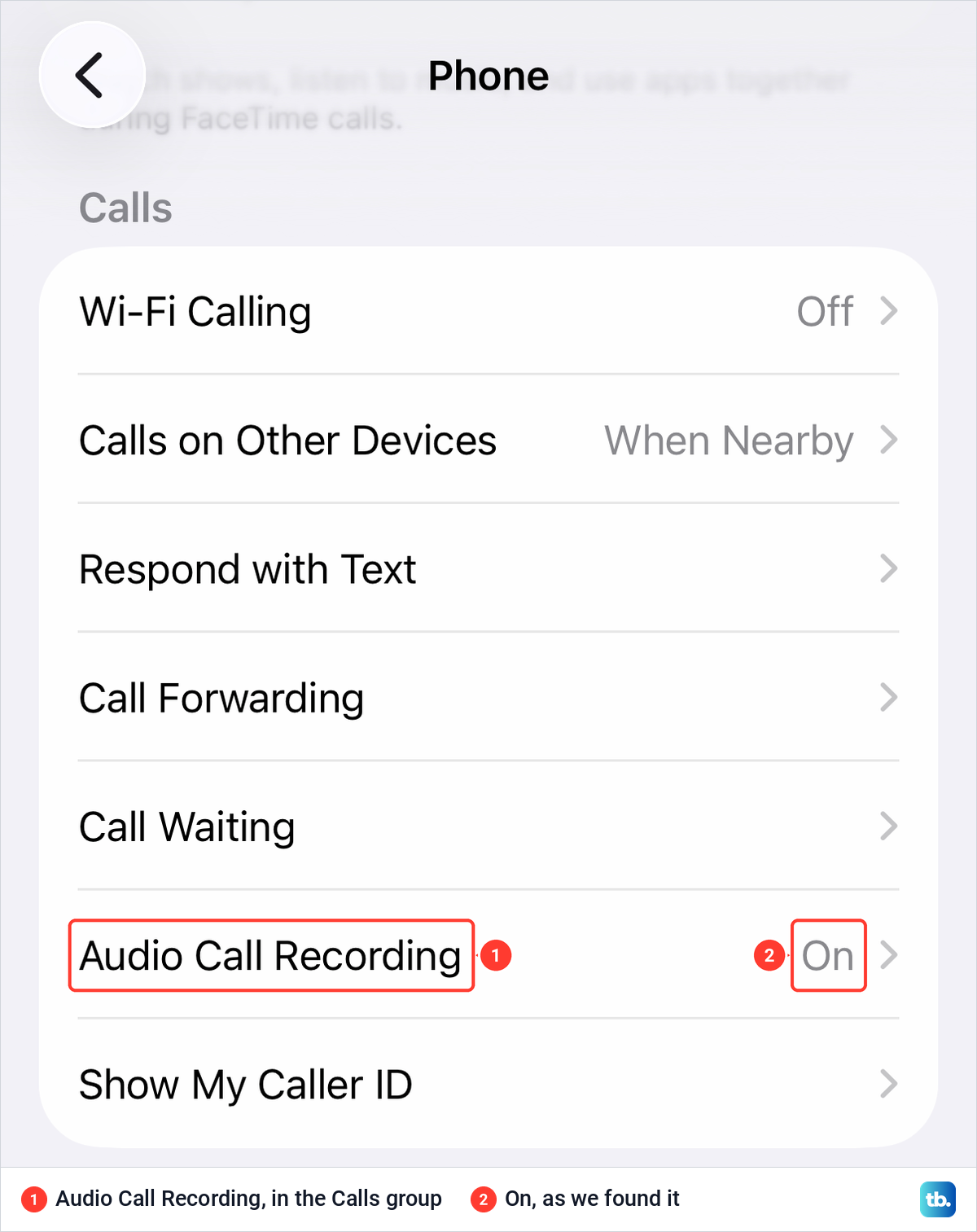
To turn it off, Apple's steps are to tap Audio Call Recording, then turn off Audio Call Recording, and you turn it back on the same way. Apple says switching it off prevents you from recording calls, but it doesn't prevent someone else from recording a call with you.
Apple's own pages disagree on the name. Its iOS 26 Phone guide still says Call Recording, while its FaceTime guide, its Personal Safety guide and the screen on our iPhone say Audio Call Recording, so look for either. Further down the same page are Screen Unknown Callers and Call Filtering, the settings that stop spam calls on your iPhone.
When the Call Recording option is missing
If you tap More during a call and see no Call Recording, work through these checks in order. Each one is a reason Apple gives, and the first one that fails is usually your answer.
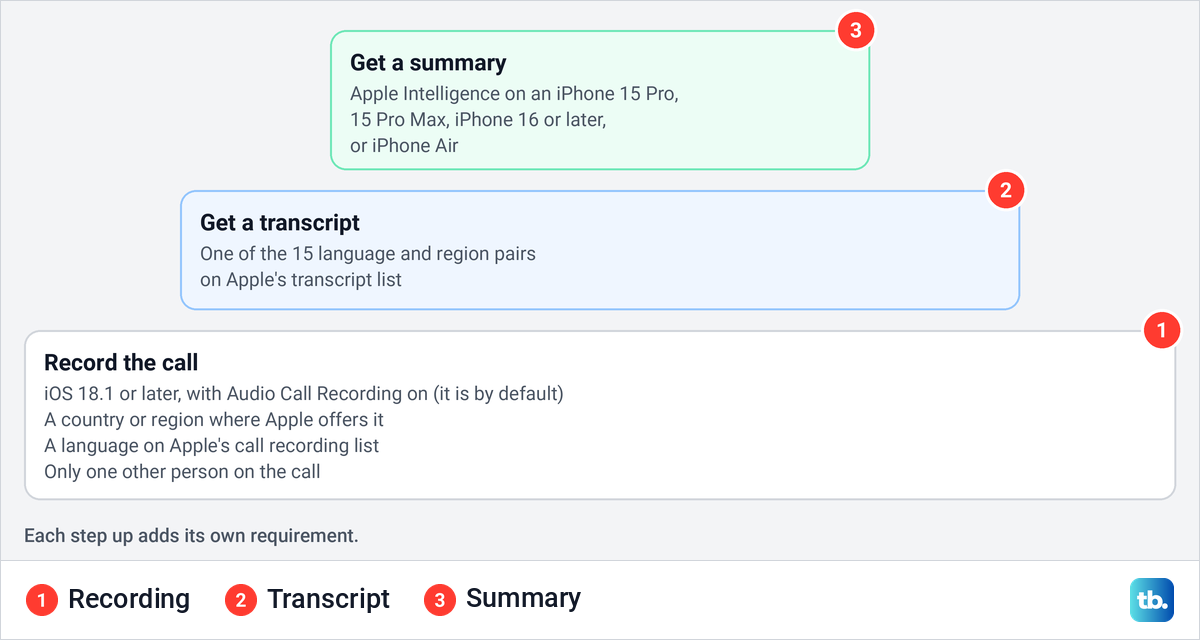
First, the version. You need iOS 18.1 or later, and on iOS 26 or later the option sits under More rather than as its own button on the call screen. Second, the place: Apple says call recording isn't currently available in Azerbaijan, Bahrain, Egypt, the European Union, Iran, Iraq, Jordan, Kuwait, Morocco, Nigeria, Oman, Pakistan, Qatar, Russia, Saudi Arabia, South Africa, Turkey, United Arab Emirates and Yemen.
Third, the language. Apple keeps a separate language list, and a language on it does not bring the feature to a country on the list above. Fourth, the call itself: Apple offers recording when you are talking to one other person, so a conference call does not qualify.
Fifth, the switch. Check that Audio Call Recording shows On in Settings > Apps > Phone. Sixth, who manages the phone: Apple gives organizations that supervise work or school iPhones a restriction that disables call recording, so if your iPhone came from an employer or a school, ask its IT team.
Changing your iPhone's region to make the option appear is not a fix we recommend. Apple says the feature is not offered in those places, and the people on your call are still covered by the law where they are.
Other ways to record a call on iPhone
Apple's feature is not the only way to record a call, though each of the other routes has limits of its own. If you already have a Google Voice number on a personal Google account, Google Voice can record incoming calls to that number. Google says its personal plans are only available in the US, so this route does not help in the countries Apple leaves out.
Google's steps are to open the Voice app, tap Menu, then Settings, and turn on Incoming call options under Calls. Then answer a call to your Voice number and press 4.
Everyone on the call hears an announcement that recording has begun, and pressing 4 again or hanging up stops it. Google says all participants must be on the call before you start, and recordings appear in the Calls tab of the Voice app.
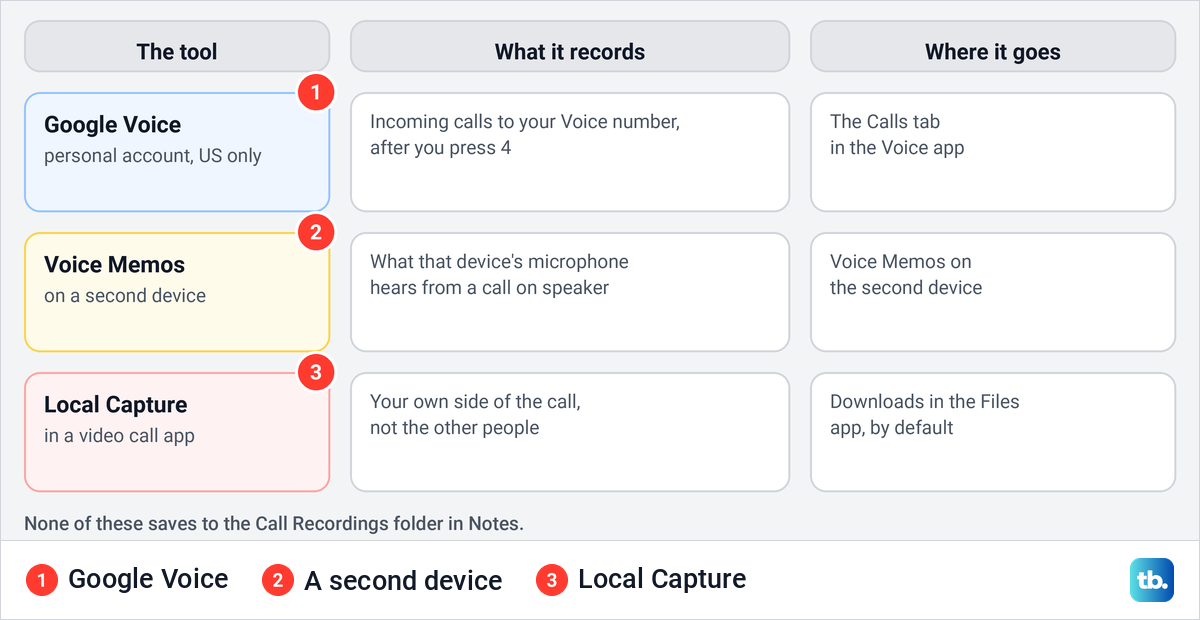
The simplest fallback is a second device. Put the call on speaker and record it with Voice Memos on another iPhone, an iPad or a Mac, and tell the other person first, because nothing announces this kind of recording.
Many recorder apps in the App Store work by merging a recording line into your call, which needs Add People and Merge. Apple says whether you can add and merge callers depends on your carrier, and warns that some third-party apps can record a call without giving a warning.
For video calls in other apps, iOS 26 has Local Capture in Control Center (add the control first if you don't see it). Apple describes it as capturing your side of a videoconference, to be combined later with the other participants' own recordings, so it is not a way to record the whole call.
By default it saves to the Downloads folder in the Files app, and Settings > General > Local Capture can change that. Here is how to find downloads on iPhone if the file seems to be missing.
Screen recording is a different feature again. If you wanted a video of what is on your screen rather than the call audio, here is how to record your screen on an iPhone.
Recording calls and the law
Ask before you record, every time. Apple asks you to make sure the other person is willing and gives explicit consent, and Google says recording calls without the consent of all participants may not be legal in some jurisdictions.
Rules differ between countries, and in some countries between states, and one call can cross both. The automatic notice tells the other person a recording is running, but Apple asks for consent as well, so do not treat the notice as permission. This is general information, not legal advice.
How we tested this guide
We went through Settings on our iPhone 17 Pro on iOS 26.6: the Apps list, the Phone settings page, where Audio Call Recording was on in the Calls group, and Settings > General > Software Update. The About screen shown here is from iOS 26.5.
The steps on the call screen, the notice, the Call Recordings folder, transcripts, summaries, FaceTime audio calls and Local Capture follow Apple's iPhone User Guide and its Personal Safety guide. The Google Voice steps follow Google's help page.
Frequently Asked Questions
Does the other person know when you record a call on iPhone?
Yes. Both of you hear an audio notice when recording starts, Apple says it replays periodically during the call, and a message plays when it stops.
Where are recorded calls saved on iPhone?
In the Notes app, in the Call Recordings folder. Apple says they are saved on the iPhone of the person who started the recording.
Why can't I see the call recording option on my iPhone?
Check that you have iOS 18.1 or later, that you are in a country and language where Apple offers it, and that only one other person is on the call. Then check that Audio Call Recording is on in Settings > Apps > Phone, and ask your IT team if your work or school manages the iPhone.
Can I record a call on iPhone without the other person knowing?
Not with Apple's feature, because the notice plays automatically. Apple warns that some third-party apps may record without a warning, and the law where each person is decides whether you need consent.
How do I stop someone from recording my call on iPhone?
You cannot block it, but you can end the call, which stops the recording. Turning off Audio Call Recording only removes the option for you.
Can iPhone record WhatsApp calls?
Not with Apple's Call Recording, which Apple documents for calls in the Phone app and FaceTime audio calls with one other person. Apple's Local Capture is a different tool, which Apple describes as recording your own side of a videoconference, not the whole call.
Can I record a call I received on iPhone?
Apple's steps describe a call you make, with recording started during the call. During any call, look under More for Call Recording. Each recording starts by hand, and Apple documents no option that records every call automatically.
Which iPhones can record phone calls?
An iPhone running iOS 18.1 or later, in a country and language where Apple offers the feature, which rules out the iPhone X and older models. Summaries need Apple Intelligence on an iPhone 15 Pro, 15 Pro Max, iPhone Air or an iPhone 16 model or later.