
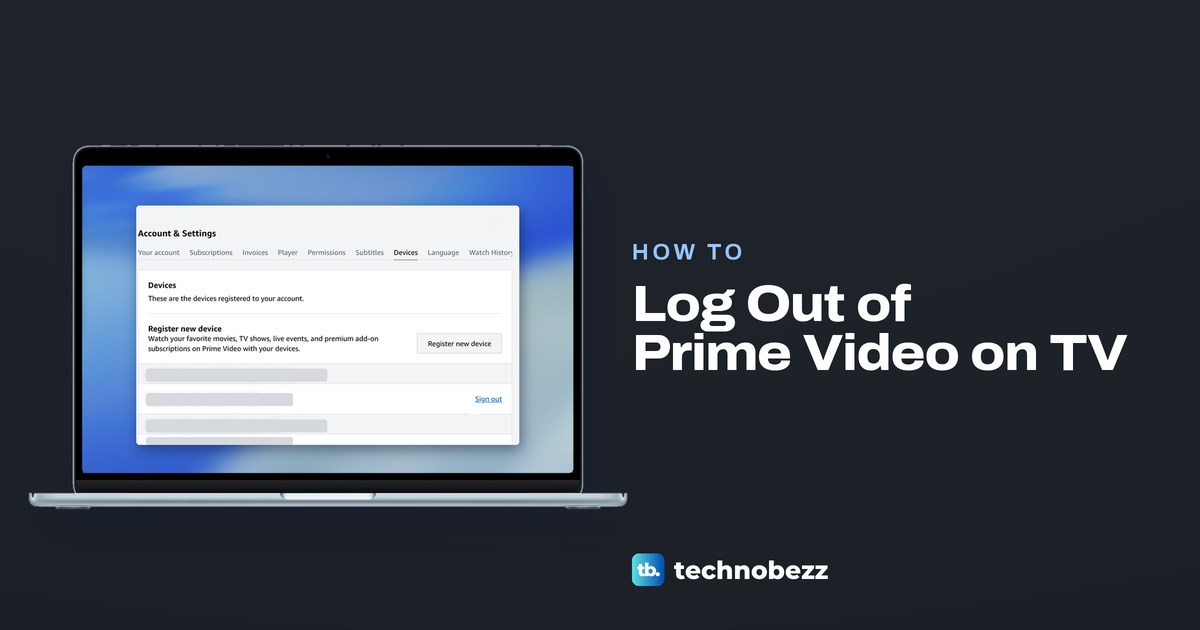
To log out of Prime Video on a TV other than a Fire TV, open the app's Settings and select Sign Out, or Deregister on some TVs, if the app shows one. If neither is there, or the TV is somewhere else, open Account & Settings on Prime Video's website in a browser, choose the Devices tab and select Sign out beside that TV. Neither route cancels your Prime membership or any channel.
On a Fire TV, Amazon's route is different: you deregister the Fire TV itself in its own settings, and Amazon says that disconnects the device from all your digital content and Amazon Services, not just Prime Video. Read the Fire TV section before you press anything on one.
The short version
- At a TV other than a Fire TV: open Prime Video's Settings and select Sign Out or Deregister if the app shows one.
- Away from the TV, or no Sign Out in the app: Account & Settings > Devices on Prime Video's website, then Sign out beside it.
- Fire TV: Settings > Account & Profile Settings > Amazon Account > Deregister removes it from your Amazon account.
- Every device: sign out each one listed on the Devices tab, and deregister a Fire TV or Fire tablet at amazon.com/mydevices.
- Someone else has your login: change your Amazon password and turn on two-step verification as well.
Choose the right way to sign out
| Your situation | Open this path | What it removes |
|---|---|---|
| A TV, player or console in front of you, not a Fire TV | Prime Video app > Settings > Sign Out if it is there, otherwise Account & Settings > Devices | Your account from the Prime Video app on that TV |
| A Roku or Samsung TV | Prime Video > your profile > Settings > Sign Out or Deregister | Your account from the Prime Video app on that TV |
| An LG TV | Sign Out in the Prime Video app's settings if it is offered, otherwise Account & Settings > Devices | Your account from the Prime Video app on that TV |
| A Fire TV you are selling or giving away | Fire TV Settings > Account & Profile Settings > Amazon Account > Deregister | That Fire TV from your Amazon account, until you register it again |
| The TV is somewhere else | Account & Settings > Devices > Sign out beside it | That one device, from a phone or computer browser |
| Every device listed on Prime Video's Devices tab | Devices tab > Sign out on each row in turn | Each listed device you sign out, one at a time |
| Keep your own profile private on a shared TV | Turn on Profile lock for your profile | Nothing, the TV stays signed in and your profile asks for a PIN |
If the TV is in front of you, start with the first three rows. If it is not, use the row for a TV somewhere else, which works for a hotel TV, a friend's console or a TV you have already sold, because nothing on the TV has to be touched. The Fire TV row is the heavy one, and the last row keeps your own profile private without signing anyone out.
Sign out in the Prime Video app on your TV
Amazon's support answers describe the same basic route on Roku, Samsung, Apple TV and Xbox. Open Prime Video on the TV, choose a profile if the app opens on the profile picker, then open Settings. Scroll down to Sign Out, select it and confirm.
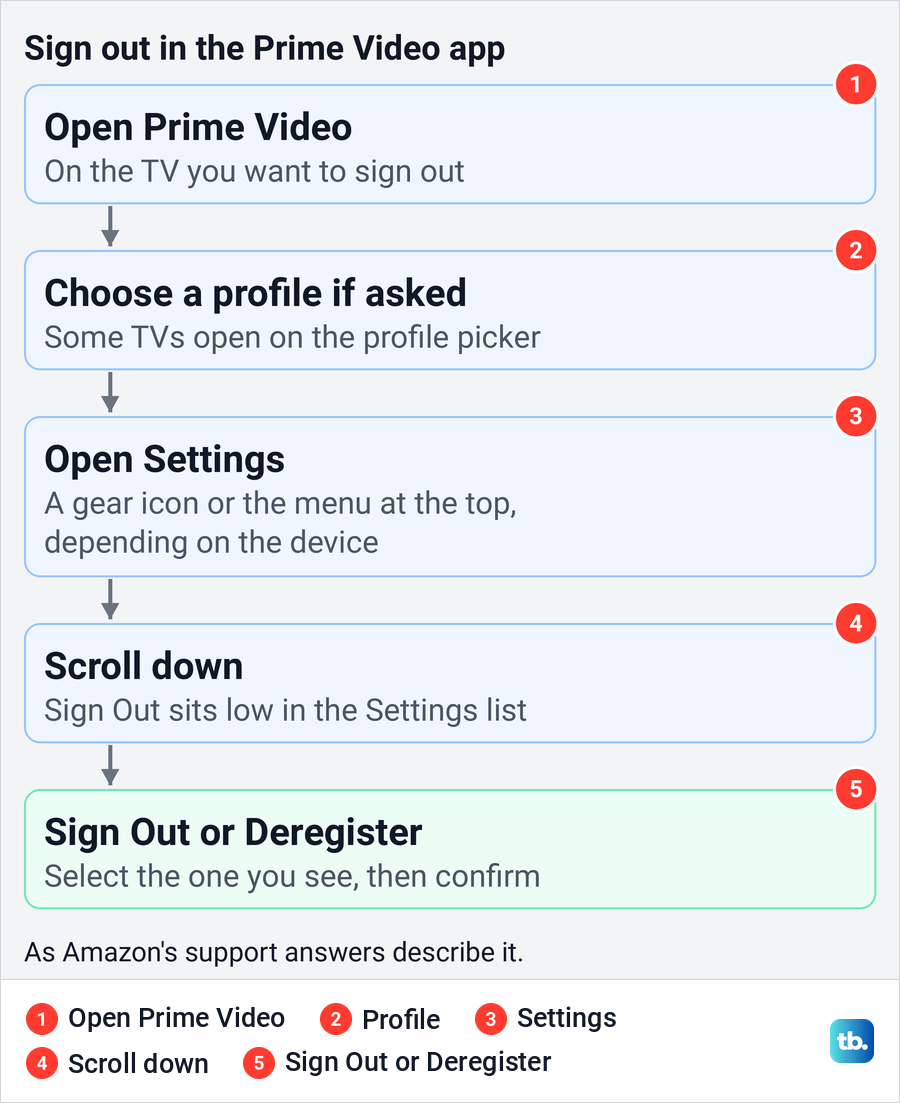
Amazon's support answers put Settings behind a gear icon on Roku and in the menu along the top of the app on Apple TV and Xbox. If yours looks different, look for Settings or a gear icon elsewhere in the app's menus. On some Samsung TVs the item reads Deregister instead of Sign Out, so select whichever of the two your TV shows.
Follow whatever confirmation the app shows after that. If the app will not open far enough to show Settings, fix Prime Video when it will not open, or skip the TV entirely and use the web route further down.
Find Sign Out on Roku, Samsung and LG TVs
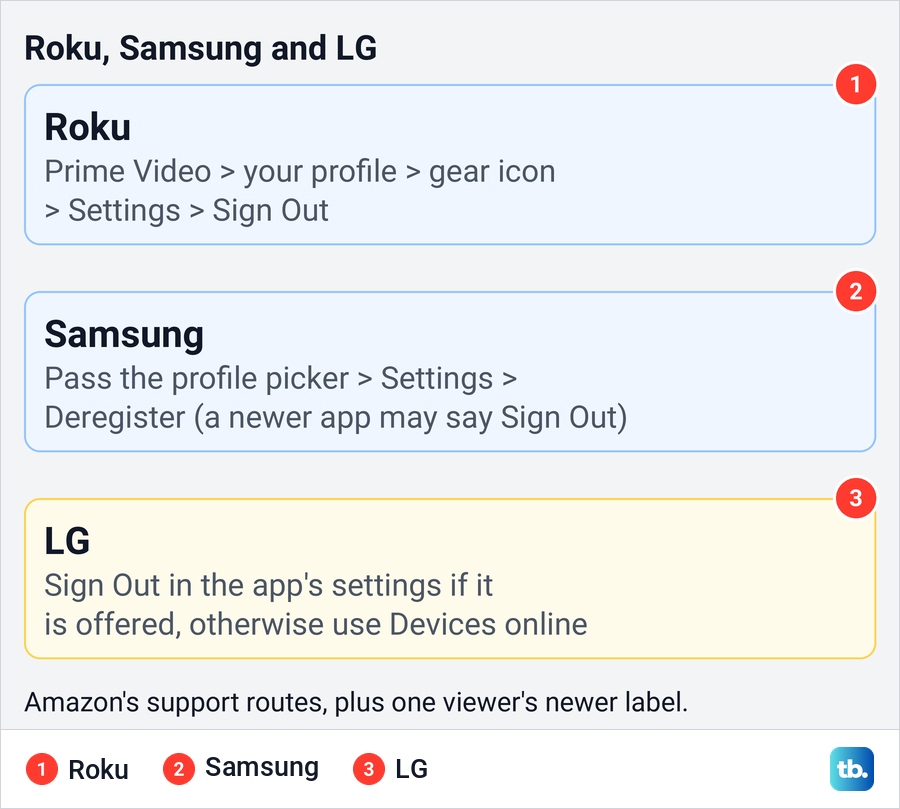
On Roku, Amazon's support team gives this route: open the Prime Video channel, select your profile, then select the gear icon to go to Settings. Scroll down to Sign Out and select it.
On a Samsung TV, Amazon's older support answer says to get past the profile picker first, then go to Settings > Deregister. One viewer reported in late 2025 that the app now calls the same item Sign Out and puts it at the bottom of the Settings list. Choose a profile, open Settings and look for either word.
If the Samsung app freezes before its menu appears, you can clear an app cache on a Samsung TV and try again. When that does not help, use the web route instead, because it does not need the TV at all.
LG is the least certain of the three. Amazon's support team says that if the Prime Video app on an LG TV offers the option, you can sign out in the app's settings, and that removing the TV from your account online is the answer when it does not. So check the app's Settings once, and go to a browser if Sign Out is not there.
Sign out on Apple TV, Xbox, Google TV and PlayStation
For Apple TV, Amazon's support team says to select Settings from the Prime Video menu at the top of the screen, then select Sign Out and confirm. The Xbox route reads almost the same: Settings from the menu at the top of the Prime Video home screen, then Sign Out, then confirm.
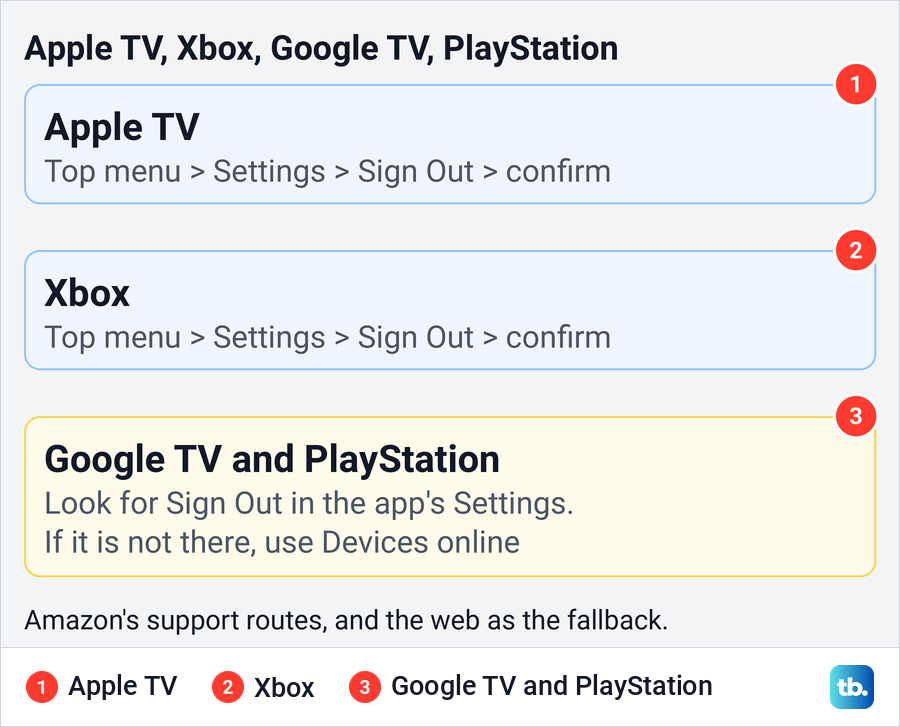
For Google TV and PlayStation, the safest route is the general one. Open the Prime Video app's Settings and look for Sign Out or Deregister there. If neither appears, sign the device out from the Devices tab on the website instead. On a console, use Prime Video's own Settings, not the console's account menu.
Sign out on a Fire TV and what it removes
A Fire TV is not like the other devices on this page. Amazon describes the Account & Profile Settings section of a Fire TV's settings as the place to manage the registered account on your Fire TV. Its support team gives the route as Settings > Account & Profile Settings > Amazon Account > Deregister, then confirm.
Older guides call that section My Account, and Amazon notes that menus differ on some Fire TV devices. Account & Profile Settings is the name its current Fire TV help uses, so look for whichever of the two your Fire TV shows.
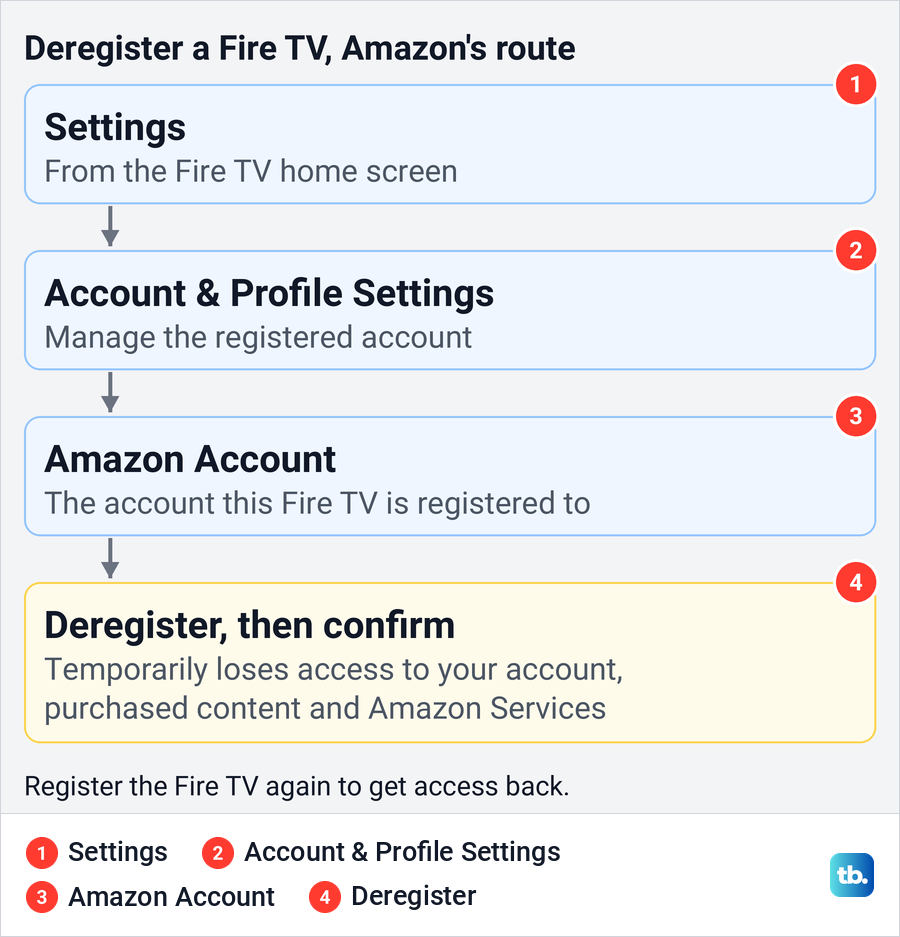
Read what that does before you press it. Amazon says deregistering removes a device from your Amazon account and disconnects it from all your digital content and Amazon Services. It adds that the device temporarily loses access to your account, purchased content and Amazon Services until you register it again with your Amazon account details.
So deregister a Fire TV when you are selling it, giving it away or moving it to another Amazon account, which are among the reasons Amazon lists. The route Amazon gives for a Fire TV is this device step, not a Sign Out inside Prime Video, so if you only want a different profile on the screen, switch profiles instead. Prime Video's help says the Fire TV app lets you pick or edit profiles from the profile icon at the top of the menu.
A Fire TV you no longer have can be deregistered from a browser too. Amazon's steps are to sign in and visit the Devices page of your Amazon account at amazon.com/mydevices, choose the device from the list and select Deregister.
Sign out a TV you cannot reach
Prime Video's help gives this route for any device you cannot sign out of: go to Account & Settings > Devices on the Prime Video website and remove the device from there. It works from a phone or computer browser, so the TV can be in a hotel room or another house.
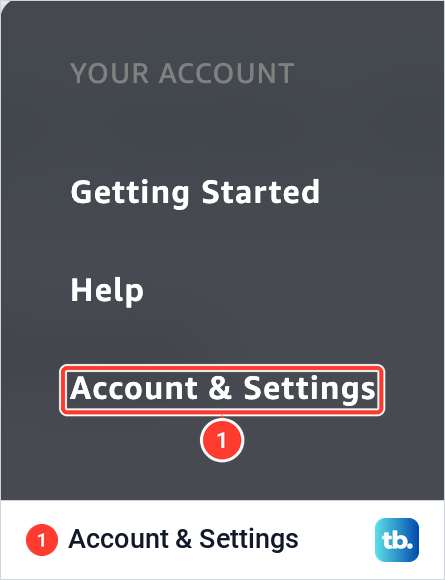
On Prime Video's website, select your profile icon at the top right. The menu splits into Your Account and Profiles, and Account & Settings sits in the Your Account column under Getting Started and Help.
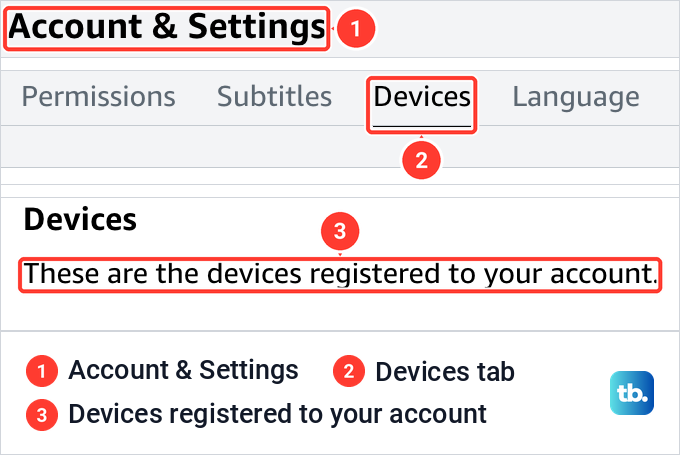
Account & Settings opens with a row of tabs, from Your account and Subscriptions through to Watch History. When we opened the Devices tab in Chrome, its card read "These are the devices registered to your account." with a Register new device button under that line. On Amazon's US site you can also go straight there at amazon.com/gp/video/settings/your-devices.
Below that button, each registered device has its own block. We saw the device's name on a grey bar, its registration date under it and a Sign out link at the right end of the row. Match the name and the date to the TV you mean before you select Sign out, because two TVs of the same brand can look alike.
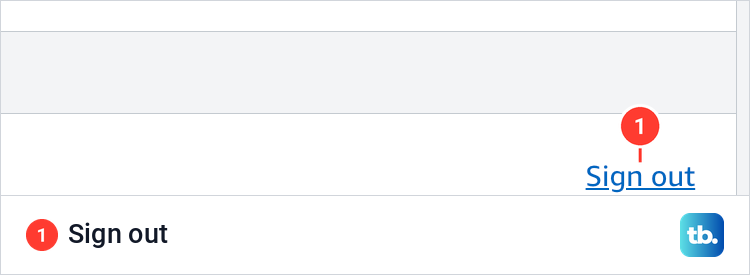
Prime Video's help calls this same step Deregister, and older guides use that word too. The page we opened labels it Sign out, so look for either. The help describes the step as removing the device, but it does not say what the page shows next or how soon the TV notices.
Sign out of Prime Video on every device
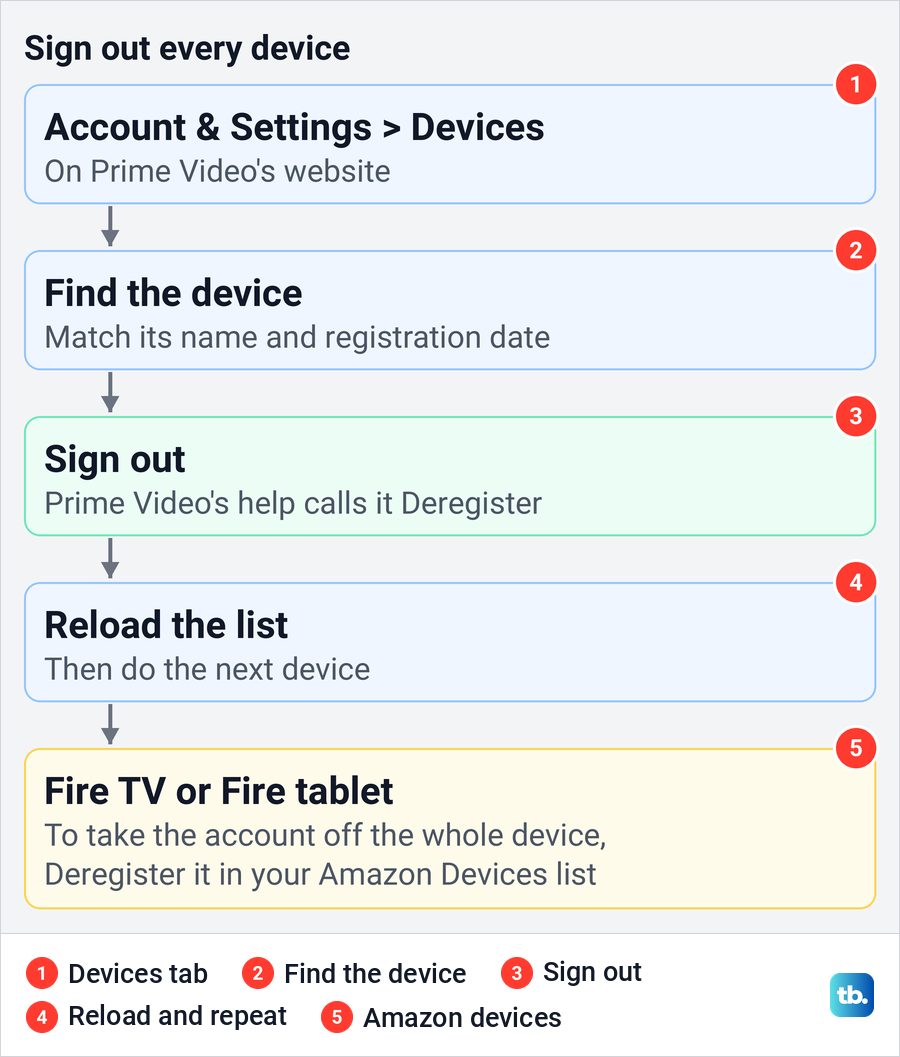
The Devices tab gives every listed device its own Sign out link, so signing out everywhere means working down the list. Amazon's support answer to the question of signing an account out of all devices describes the same thing, with a Deregister option in front of every device.
Sign out one device, reload the page, then move on to the next. To keep a TV you still use, skip its row, and sign it back in later if you remove it by mistake.
Amazon's own hardware has a second list. Amazon's deregister steps for Fire TV devices and Fire tablets start on the Devices page of your Amazon account, and deregistering there takes the account off the whole device, as the Fire TV section explains.
Changing your password is not a shortcut for this. Amazon's help does not describe a new password as signing TVs out, so sign the devices out on the list as well. The password section below covers when to do both.
What happens after you remove a device
Prime Video's help describes the Devices step only as removing the device. Neither it nor Amazon's device help gives a time for a faraway TV to drop out, or describes the screen the TV shows afterwards. Expect the TV to need registering again before anyone can watch on it with your account, and check the result as the last section describes.
You do not need to cancel anything to sign a TV out, and signing out leaves your subscriptions alone. Your Prime membership and any channels keep billing as before, so if you want to stop an add-on, cancel a Prime Video add-on subscription as a separate step.
Handle a hotel TV or a TV you sold
For a hotel or rental TV, use the app's Sign Out before you check out if you can. Once you have left, open the Devices tab on your phone and sign out the row that matches that TV's name and registration date. If you cannot tell which row it is, sign out every device you do not recognize, then change your password.
For a TV you sold or gave away, sign it out from the Devices tab, and change your password if the new owner could know it. A Fire TV needs more, since Amazon lists selling or giving away a device as a reason to deregister. Deregister one still in your hands in its own settings, then factory reset a Fire TV Stick before it leaves the house. If it has already gone, deregister it at amazon.com/mydevices.
Change your password if someone else knows it
An unfamiliar TV on the Devices list can mean someone else has your Amazon login. Sign it out first, then change your Amazon password, because Amazon warns that sharing your password can compromise the security of your account. If you also see orders or changes you did not make, follow the steps to secure an Amazon account that may be hacked.
Then turn on two-step verification for Amazon. Amazon says it sends you a unique security code and that you then need both the code and your password to log in, so a password alone is no longer enough. Go back to the Devices tab afterwards and sign out anything else you do not recognize.
Use a profile or PIN instead of signing out
Sometimes the problem is who is watching, not which TV. Prime Video allows up to six profiles on a single Amazon account, so switching profiles changes whose profile is open while the TV stays signed in. Removing a profile does not sign the TV out either.
To keep your own profile private on a shared TV, use Profile lock, which Prime Video's help says restricts access to your profile with a PIN. On the website, choose Manage profiles from the profile menu, then Edit profile and the profile, then Manage beside Profile / Account PIN and locks.
Prime Video may ask for your Amazon password, then your Profile / Account PIN and Continue, before you switch Profile lock on and select Save. If you have no PIN yet, its help points to a separate page for setting up an Account PIN first.
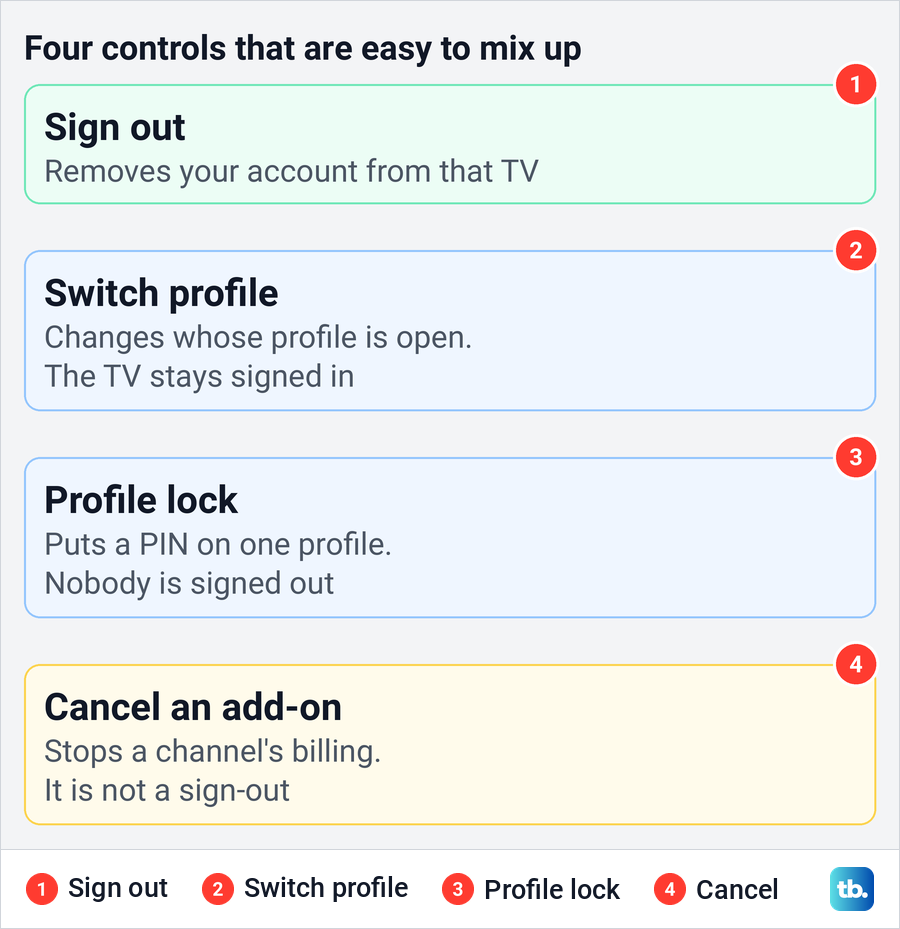
Neither choice signs anyone out, and a profile lock only guards the profile it is set on. For anything stronger, go back to the Devices tab.
Sign back in with a code or QR code
Prime Video's help lists several ways to register a TV again, and which ones you get depends on the device. Some TVs show a QR code, some show a code to enter on the Register a Device page at primevideo.com/mytv, and some offer Sign in and Start Watching with your Amazon account details.
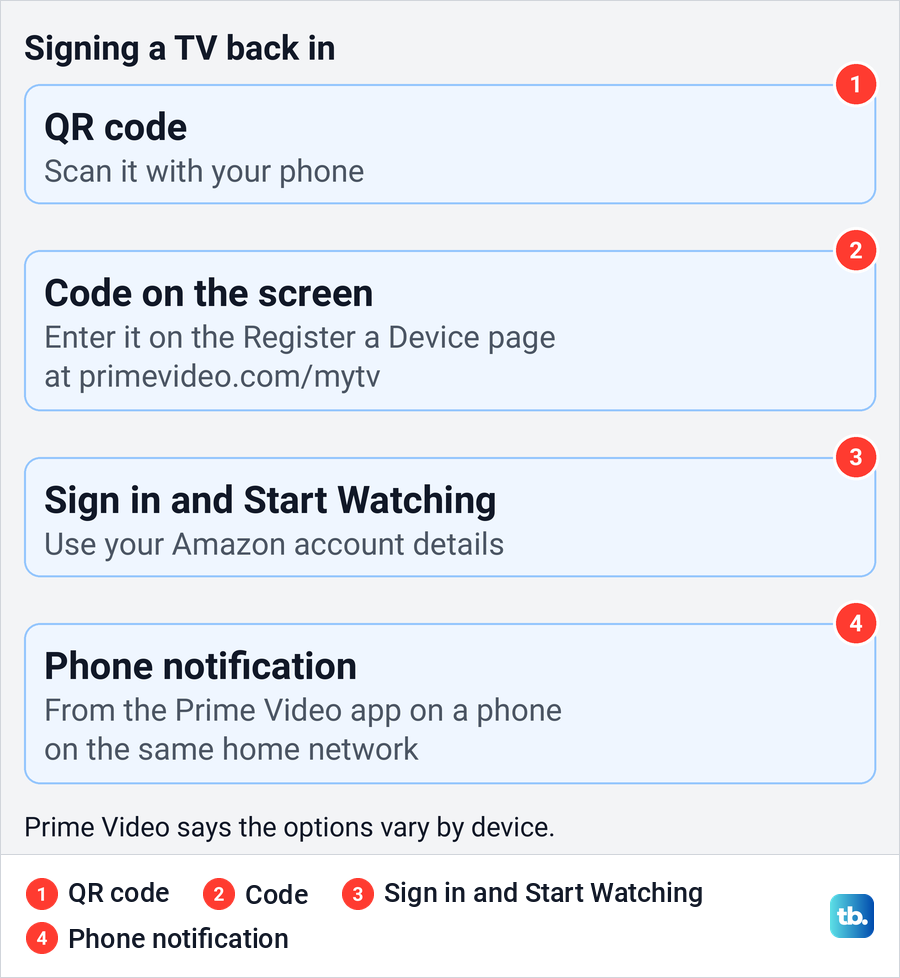
If the TV shows a QR option, scan the QR code with your phone and follow the Prime Video page it opens. If the Prime Video app is on a phone on the same home network, Prime Video says you may get a notification to sign the TV in from the app.
If the sign-in screen asks for a password you cannot remember, reset a forgotten Amazon password before trying the TV again. Prime Video's help also points to Forgot your password? on the sign-in page, and it says temporary connection issues cause some sign-in problems, so a second try can work.
Check that it worked and fix a stuck menu
For a TV in front of you, close Prime Video and open it again. A sign-in or registration screen confirms it is signed out. If it opens on a profile picker or your home screen instead, try to play a title, and if it plays, sign the TV out from the Devices tab.
For a TV somewhere else, reload the Devices tab and check that the device has gone from the list. If it is still listed, or someone tells you it still plays, sign it out again and change your Amazon password.
If you cannot get into the browser account page at all, recover an Amazon account you cannot access before trying remote removal. If only the TV app is stuck, sign the TV out from the Devices tab first and fix the app afterwards.
How we tested this guide
We tested this on Prime Video on the web in Chrome, going from Account & Settings to the Devices tab, up to the Sign out link beside a registered device.
Frequently Asked Questions
How do I log out of Prime Video on a TV without the remote?
Use a phone or computer browser. Open Account & Settings on Prime Video's website, choose the Devices tab and select Sign out beside that TV, a step Prime Video's help calls Deregister.
Can I sign out of Prime Video on all devices at once?
The Devices tab gives each listed device its own Sign out link, so sign them out one at a time and reload the list between them. Deregister a Fire TV or Fire tablet at amazon.com/mydevices as well. Amazon's support answers describe the same one-by-one route.
Does signing out of Prime Video cancel my subscription?
No. Signing a TV out only removes your account from that device. Your Prime membership and any channels keep billing until you cancel them separately.
Why can I not find Sign Out on my Samsung or Roku TV?
Choose a profile first if the app opens on the profile picker, then open Settings and scroll to the bottom. Samsung's app may say Deregister instead. If neither appears, sign the TV out from the Devices tab in a browser.
Does changing my Amazon password sign out every TV?
Amazon's help does not say it does. Sign the devices out from the Devices tab as well, then change the password and turn on two-step verification.
Will deleting a Prime Video profile log out the TV?
No. Profiles sit inside one Amazon account, so the TV stays signed in. To disconnect the TV, use Sign Out in the app or the Devices tab.
How do I sign back in after removing a TV?
Open Prime Video on the TV and use the option it shows, such as a QR code, a code for the Register a Device page, or Sign in and Start Watching. Prime Video says the options vary by device.