
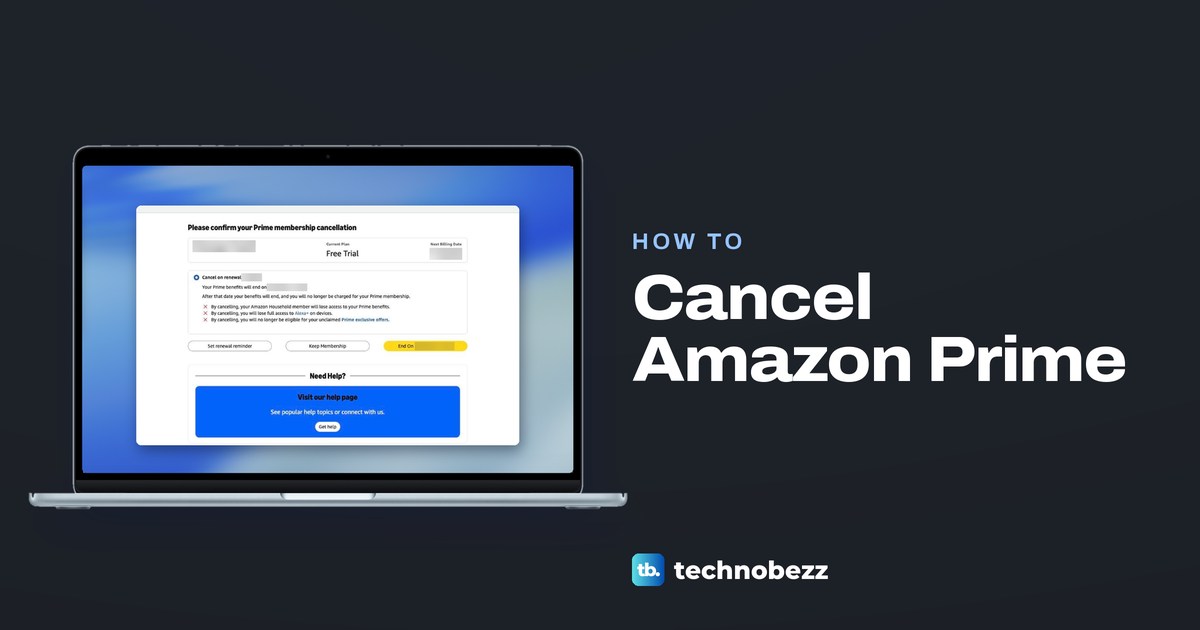
To cancel Amazon Prime, sign in at Amazon.com, open Account & Lists > Prime Membership, click Update, cancel and more, choose Cancel membership, click Continue to cancel and press the yellow End On button, which carries the date your benefits end. Cancel membership alone does not end anything. A channel you added inside Prime Video is canceled separately, under Prime Video's Account & Settings > Subscriptions.
We walked this flow on the web in Chrome, on a Prime free trial, right up to that last button. A benefits page and a confirmation page follow Cancel membership, and until you press End On you can still back out with Keep Membership. On a paid membership the last page may offer more than one option, so pick the one you want and check its date first.
The short version
- Amazon bills you: Account & Lists > Prime Membership > Update, cancel and more > Cancel membership > Continue to cancel > End On.
- Free trial: the same steps, and press End On before the renewal date.
- A Prime Video channel: Prime Video > Account & Settings > Subscriptions > Unsubscribe.
- Prime Video without Prime: Account & Settings > Your account > End Subscription.
- Apple or Google Play bills you: cancel in that store's subscription list, not on Amazon.
Where to cancel depends on what you pay for
Prime membership, Prime Video on its own and Prime Video channels are three different subscriptions, and each has its own off switch. Find the row that matches the company and the item on your receipt or statement.
| What you pay for, or who bills you | Where to cancel | The button that ends it | How to check |
|---|---|---|---|
| Amazon Prime, paid or a free trial, billed by Amazon | Account & Lists > Prime Membership > Update, cancel and more | Cancel membership, Continue to cancel, then End On and your date | The date on the End On button, then the Prime Membership page |
| Prime Video on its own, without Prime | Prime Video > Account & Settings > Your account | End Subscription | The Your account tab in Account & Settings |
| A Prime Video channel (add-on) | Prime Video > Account & Settings > Subscriptions | Unsubscribe, or Withdraw, then confirm | The end date on the confirmation screen |
| Apple | Settings > your name > Subscriptions on an iPhone or iPad | Cancel Subscription | No Cancel button, or an expiration message in red |
| Google Play | Subscriptions in Google Play, signed in to the account that pays | Cancel subscription, then a reason and Continue | The subscription's status in Google Play |
| Roku, only if Roku lists the charge | my.roku.com/subscriptions | Turn off auto-renew | Roku's subscription list |
| A phone carrier or other partner | That company's account or customer support | Whatever the provider asks for | The charge gone from that company's bill |
Find out who bills you
Start with the receipt. An Amazon receipt or an Amazon line on your card statement means you cancel on Amazon, while a receipt from Apple or Google Play means that store holds the cancel button. If nothing names a company you recognize, find recurring subscriptions on your bank statement and read the merchant name on the charge.
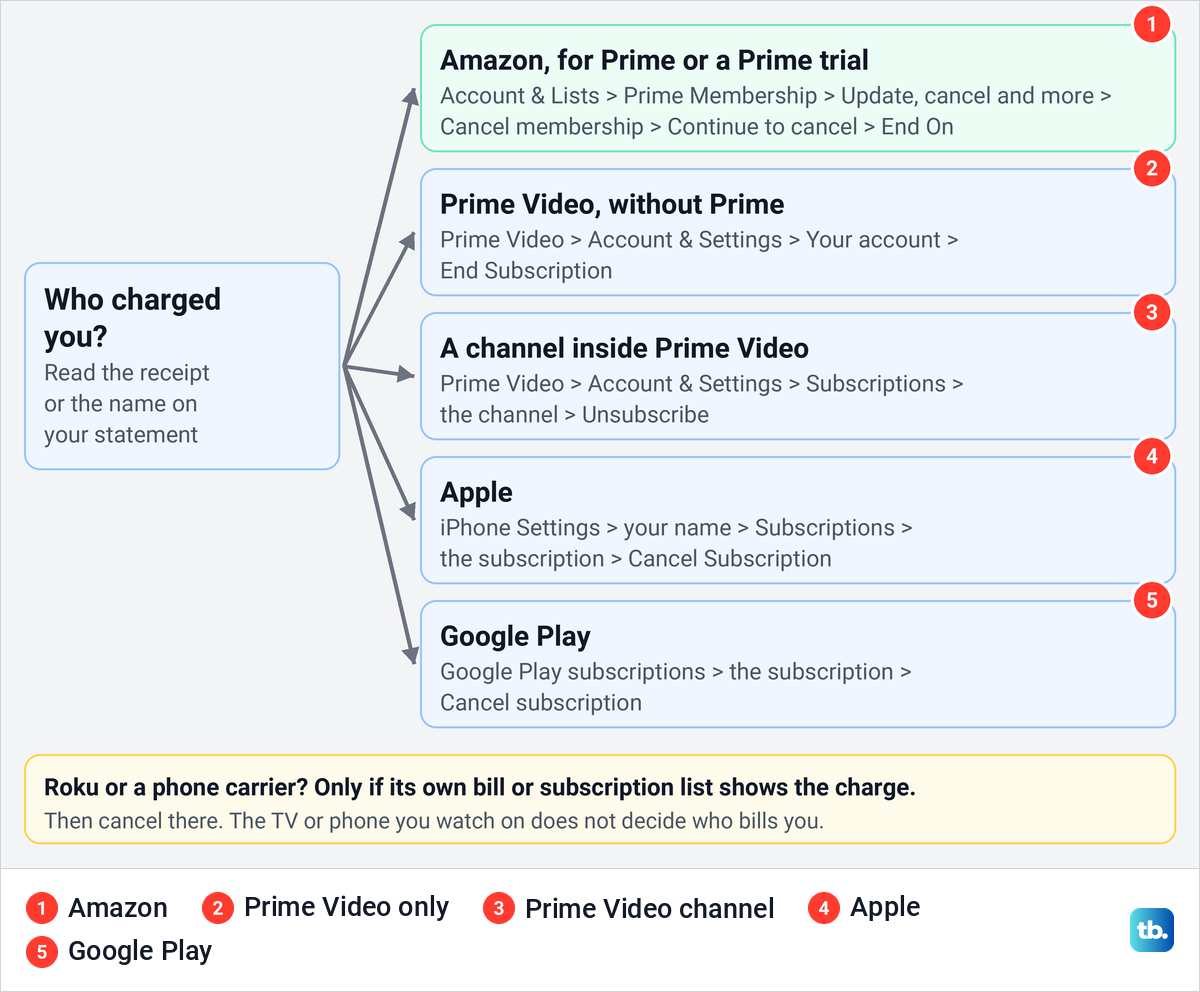
The device you watch on is a common trap. Watching Prime Video on a Roku, a smart TV or a games console does not make that company your biller, so look for the charge before you look for a button. Amazon's help also says that if you signed up for Prime through Google Play on Android, you cancel it through Google's subscriptions, so let the receipt, not the phone you joined on, decide where you go.
Cancel Amazon Prime on the website
This is the route for anyone Amazon bills directly, paid or on a trial. Sign in at Amazon.com in a browser, point at Account & Lists at the top right, and choose Prime Membership in the Your Account column.
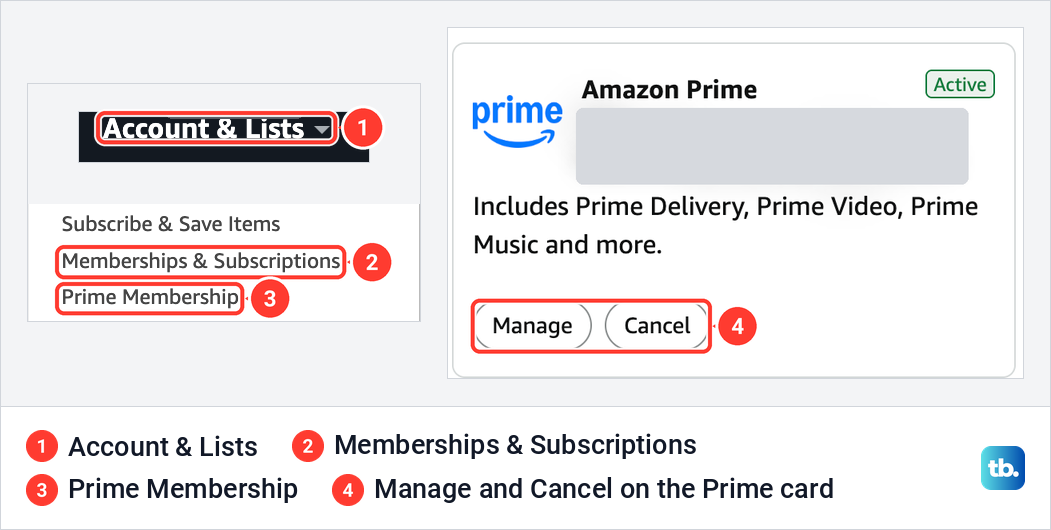
The menu has a second way in. Memberships & Subscriptions, just above Prime Membership, opened a Your subscriptions page where Amazon Prime had its own card with Manage and Cancel buttons. We used Prime Membership because it is the route Amazon's help describes, and its panel also holds the renewal reminder.
If you cannot get into the account at all, recover an Amazon account you cannot sign into before anything else. When only the password stands in the way, reset a forgotten Amazon password and come back to Prime Membership.
The Prime Membership page opens with a strip of four blocks: your account, Prime Plan, Renewal Date and Manage Membership. In the last block, under the word Membership, click Update, cancel and more.
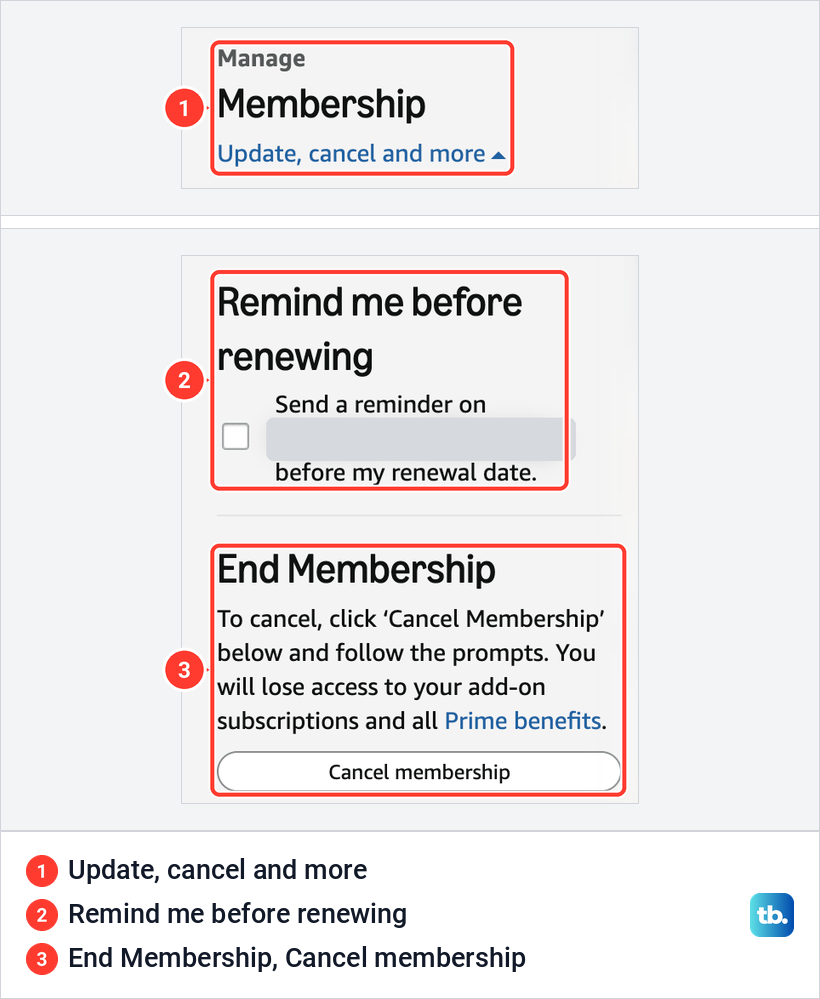
A panel drops down with three parts: Share your benefits, Remind me before renewing and End Membership. The End Membership part warns that you will lose access to your add-on subscriptions and all Prime benefits, and its button reads Cancel membership. Amazon's help calls these controls Manage Membership and End Membership, so older instructions that use those words mean the same place.
Cancel membership opens a benefits page first
Clicking Cancel membership did not cancel anything. It opened a page that told us how many days of Prime benefits were left on the trial, above six tiles for benefits such as Prime Delivery, Prime Video, Amazon Music and Amazon Luna.
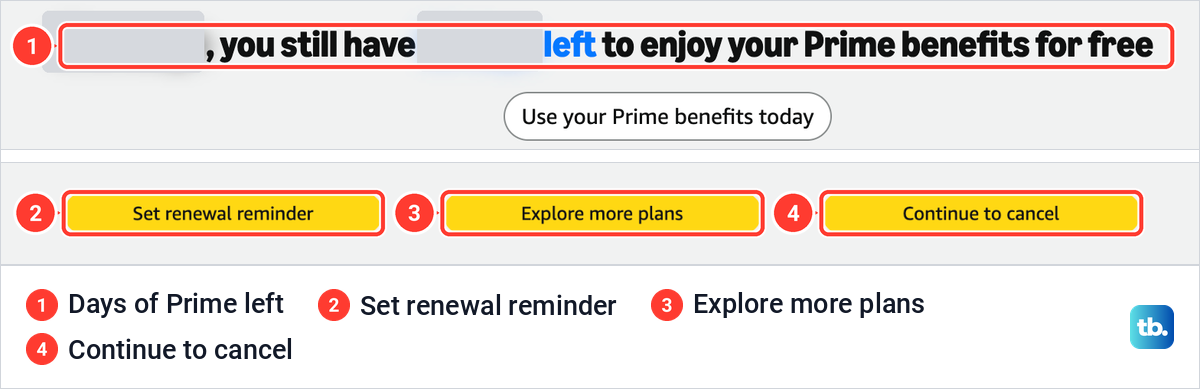
Three yellow buttons sit at the bottom: Set renewal reminder, Explore more plans and Continue to cancel. Continue to cancel is the one that carries on with the cancellation, and the Manage membership link at the top left goes back.
The last page and the End On button
Continue to cancel opened Please confirm your Prime membership cancellation. A box at the top showed the Current Plan, Free Trial on ours, and the Next Billing Date. Below it sat one selected option, Cancel on renewal, followed by the date.
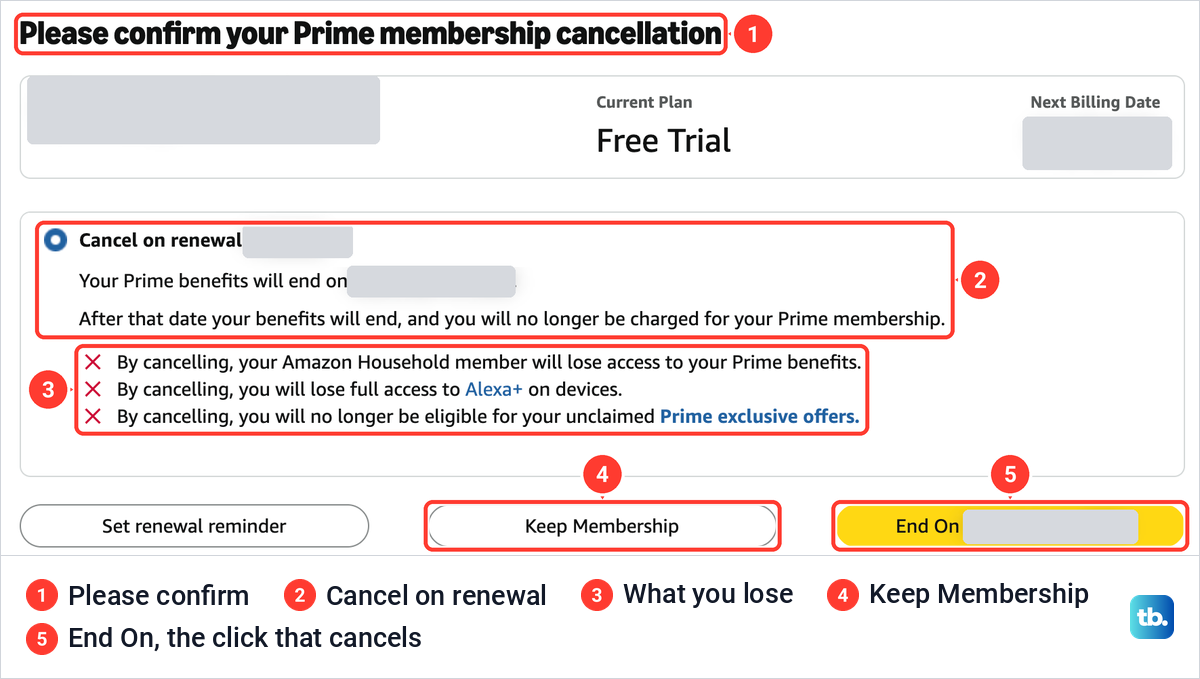
The option said your Prime benefits will end on that date, and that after it your benefits end and you will no longer be charged for your Prime membership. Three warnings followed: an Amazon Household member loses access to your Prime benefits, you lose full access to Alexa+ on devices, and unclaimed Prime exclusive offers are lost.
The yellow button is labeled End On plus that date, and it is the click that ends the membership. Next to it, Keep Membership took us back to the Prime Membership page, still on the free trial with the same renewal date.
On our trial, ending on the renewal date was the only choice. On a paid membership, Amazon may offer more than one option on this page, such as ending right away with a refund where you qualify, or ending on the renewal date. Read the date next to each option before you choose, because the date on the button is the one that counts.
Cancel Prime in the Amazon Shopping app
Amazon's steps for its Shopping app start at the Profile icon, a silhouette of a person, at the bottom of the screen. Scroll down to Manage Prime Membership, open the Manage Membership drop-down and press Manage Membership in it, then press End Membership.
After End Membership, follow Amazon's on-screen instructions to finish, and review any effective date or refund choice shown before you confirm. If Apple or Google Play bills you, use that store's subscription list instead.
End a Prime free trial before you are charged
To avoid being charged, press End On before the Renewal Date shown on your Prime Membership page. Amazon's trial advice is to cancel before the trial ends to avoid charges.
The Renewal Date block on the Prime Membership page shows when the trial renews. Its Update your payment method link opened a panel that said You have not been charged for this free trial.

Not ready to decide? The Remind me before renewing checkbox in the Update, cancel and more panel offers to send a reminder three days before your renewal date, and Set renewal reminder appears on both later pages too. The trial keeps running either way, so a reminder only helps if you act on it.
Change your plan or pause Prime instead
If cost is the reason, the benefits page has an Explore more plans button next to Continue to cancel. The Prime Plan block on the membership page also advertised a saving with an annual plan, which is worth comparing before you leave.
Amazon also lets eligible paid members pause Prime from the Membership Management section of the Prime Membership page. The pause starts after the current billing cycle, and while it lasts Amazon stops billing, Prime benefits stop and subscriptions tied to Prime end. A monthly plan can pause for one month and resume on its own, or a monthly or annual plan can pause for up to a year and resume at any time, at the then-current price.
Amazon says a membership paused for more than 365 days in a row is canceled automatically. Free trials, discounted offers, Prime Video only, Student and Prime Business memberships, the shipping-only plan and memberships started through a third party cannot be paused, which fits what we saw, since no pause option appeared on our trial.
Cancel Prime Video on its own
If you have Prime, Prime Video is included in it, so there is no separate Prime Video membership to stop and you end Prime itself. A Prime Video membership without the rest of Prime is a different subscription with its own button.
In Prime Video, click your profile icon at the top right and choose Account & Settings. The menu lists it under Your Account, with Getting Started and Help.
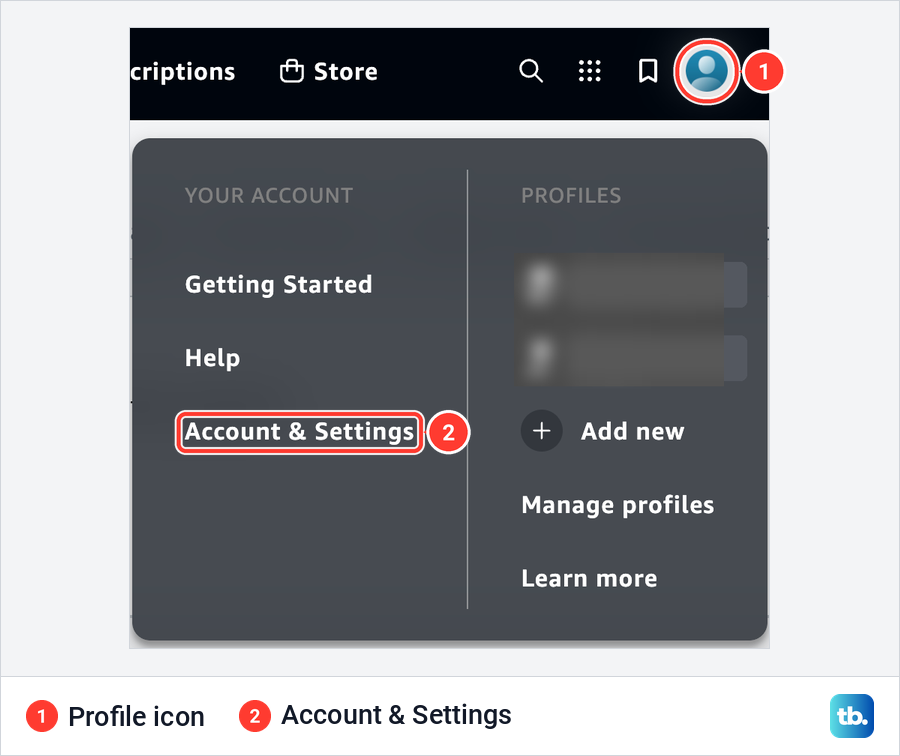
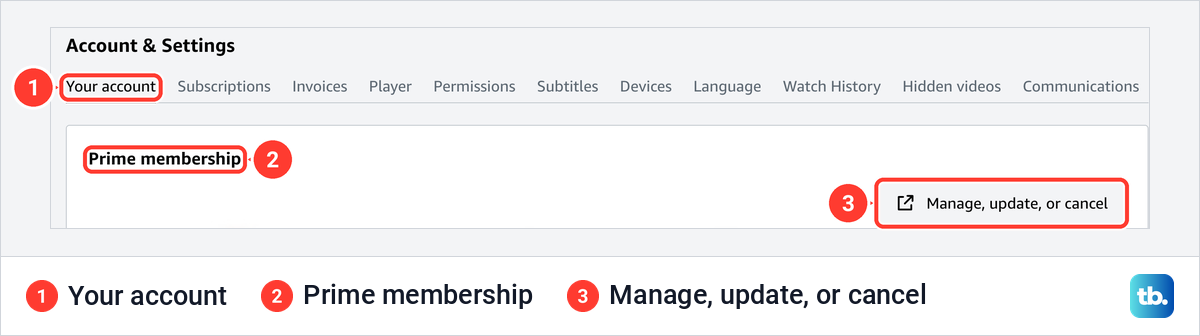
Account & Settings opens on the Your account tab. For a Prime Video-only membership, Amazon's help says to select End Subscription on that tab.
On our Prime account, the same tab showed a Prime membership section with a Manage, update, or cancel button that opens Amazon. Amazon's help calls this button Edit on Amazon. Either way, Prime itself is ended on Amazon with the website steps above.
If Prime Video stopped playing and that is the real reason you want out, try the steps to fix Prime Video when it stops working first. Check the error message before you decide whether to cancel.
Cancel a Prime Video channel
Channels are the add-on subscriptions you start inside Prime Video, such as a premium movie or sports service, and each is charged on its own. To find them, open Account & Settings and click the Subscriptions tab.
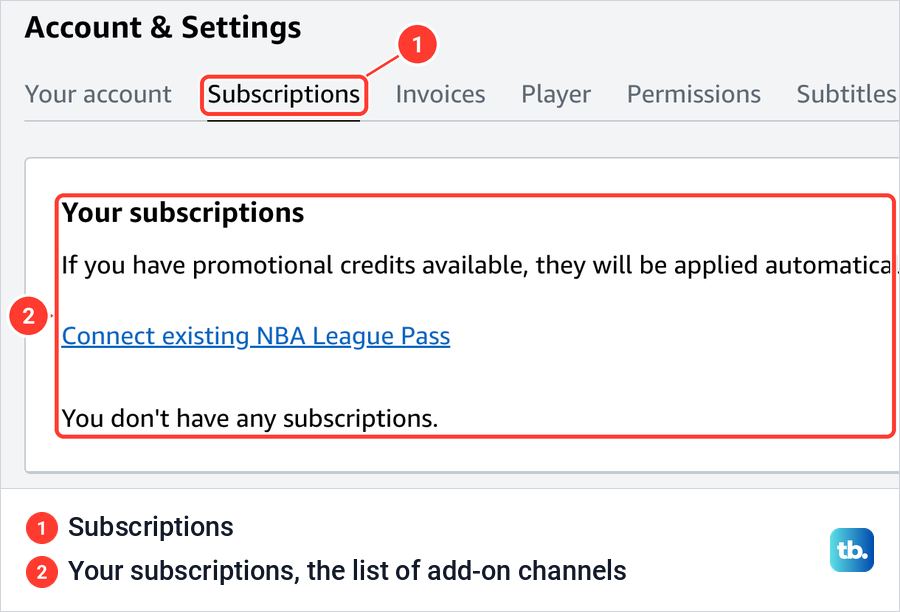
The tab opens Your subscriptions, the list of channels on the account. The account we used had none, so the page said You don't have any subscriptions.
Amazon's steps are to find the channel in that list, select Unsubscribe and confirm, and the button may also appear as Withdraw. The confirmation screen shows the channel's end date, and Amazon says you can reverse the cancellation until then. After that date you are not charged for the channel and lose access to its content.
Canceling a channel does not refund earlier charges, Amazon says. If Apple bills you for a channel, Amazon says to cancel at least 24 hours before it renews, or you may be charged, and Apple's steps are in the next section.
This tab shows the add-ons linked to your Prime Video account, so check the receipt for each one to see who bills it. If you subscribed to a service such as Paramount+ on its own website rather than inside Prime Video, cancel it on that service's website.
When Apple, Google Play, Roku or a carrier bills you
On an iPhone or iPad, Apple's steps are to open Settings, tap your name, tap Subscriptions, tap the subscription and tap Cancel Subscription. Apple says that if there is no Cancel button, or you see an expiration message in red text, the subscription is already canceled. Our walkthrough to cancel subscriptions on your iPhone covers that screen and Apple free trials in detail.
Google's steps on the web are to open your subscriptions in Google Play, choose Manage, select Cancel subscription, pick a reason in the pop-up and click Continue. On an Android phone you go to subscriptions in Google Play, select the subscription and tap Cancel subscription. If you cannot find it, Google says to check that you are signed in to the right Google account.
Roku's steps apply only when Roku's own list shows the charge: go to my.roku.com/subscriptions, choose the subscription and select Turn off auto-renew. Roku itself says a subscription bought directly from a streaming service is managed with that service, and it names Amazon Prime Video as an example.
For a phone carrier or other partner, cancel through that company. Amazon's Prime Video help says a subscription created through a third party, such as a mobile service provider, is handled by that provider.
What happens to your benefits, channels and refunds
On our trial the confirmation page was plain about timing. Prime benefits end on the date on the button, and after that date Amazon stops charging for Prime. Until then, the benefits keep working.
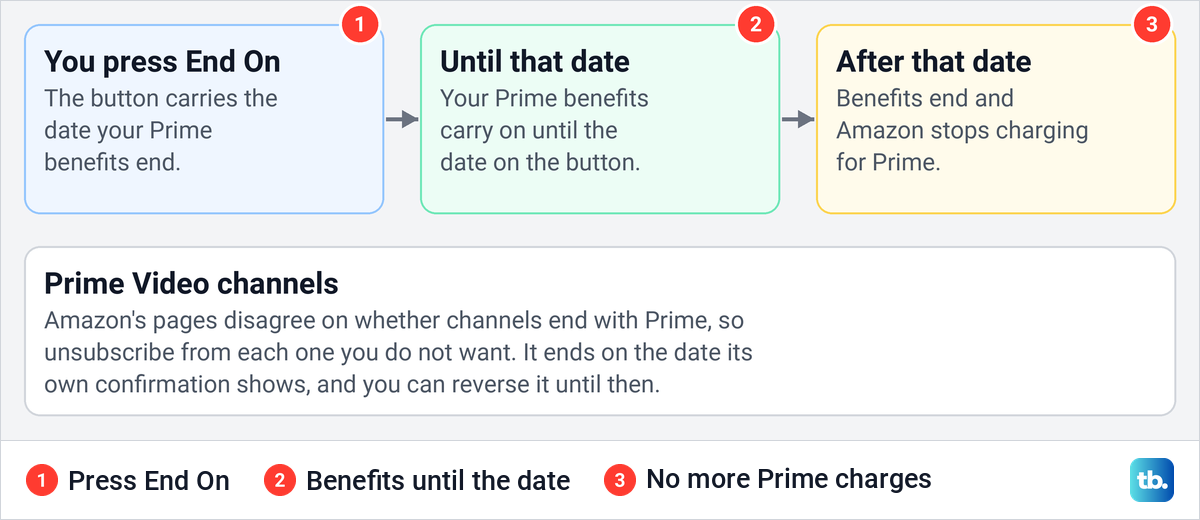
Do not count on channels ending with Prime, because Amazon's own pages disagree. Prime Video's help says add-ons tied to your Prime or Prime Video membership do not renew once Prime ends, and the membership panel warns that you lose access to add-on subscriptions, but Amazon's cancellation help says Prime Video subscriptions such as Paramount+ continue once Prime ends. Unsubscribe from each channel you no longer want, and it ends on the date its confirmation shows.
Refunds depend on the membership, the country and what has been used. Amazon's help says paid members who have not used their benefits are eligible for a full refund of the current membership period. Go by what the confirmation page offers, and ask Amazon's customer service if you believe you qualify.
A Prime Video membership without Prime, bought directly from Amazon, has its own terms. They promise a refund of the fee if you cancel within 3 business days of signing up or of a free trial turning paid, or within 14 days of the confirmation for customers in the UK and European Union, although Amazon may keep back the value of the service used in that time.
Those windows do not apply to full Prime. If another company bills you, cancel through that company and check its terms.
Check that your Prime cancellation worked
Note the date on the End On button before you press it. Afterwards, open Prime Membership again and read what the page says about that date, and keep any email Amazon sends. The next card statement after that date is the last check, not the first.
Memberships & Subscriptions is a second place to look. Prime's card there carries a status badge, which said Active on the account we used.
A Prime charge you do not remember starting is a different problem. If the account shows orders, sign-ins or a membership you did not set up, secure an Amazon account that was hacked before you change anything else.
Check other Amazon charges separately
Ending Prime is not the same as stopping every Amazon charge. Under the heading Additional subscriptions and plans, the Your subscriptions page listed Subscribe & Save, Audible audiobooks, One Medical, Prime Video and Amazon Pay as places to check. A listing is not a charge, so use your receipts and the cards marked Active on that page to see which ones actually bill you.
If you have recurring product deliveries, cancel an Amazon Subscribe and Save order on its own, since it is separate from Prime. If you have Kindle Unlimited, it is billed separately too, so cancel your Kindle Unlimited subscription if you no longer read with it.
Do not close your Amazon account to get rid of Prime. Amazon says a closed account is no longer accessible, and you lose your order history and the ability to print a proof of purchase or an invoice. If you are cutting several bills at once, our guide to cancel unwanted subscriptions and recurring charges helps you find the rest.
How we tested this guide
We tested this on an Amazon Prime free trial on the web in Chrome, going through the cancel flow up to the End On button.
Frequently Asked Questions
How do I cancel Amazon Prime on my phone?
In the Amazon Shopping app, tap Profile, then Manage Prime Membership, open Manage Membership and press End Membership, then follow Amazon's on-screen instructions to finish. If Apple or Google Play bills you, cancel in that store's subscription list instead.
How do I cancel my Prime free trial without being charged?
Use the same steps as for a paid membership and press End On before the trial's renewal date. On our trial the page said the benefits would end on that date and no Prime charge would follow.
Does canceling Prime cancel my Prime Video channels?
Not reliably, because Amazon's pages disagree. Prime Video's help says add-ons tied to Prime do not renew once Prime ends, while Amazon's cancellation help says Prime Video subscriptions such as Paramount+ continue. Unsubscribe from each channel you do not want under Prime Video's Account & Settings > Subscriptions, whether or not you keep Prime.
Can I cancel Prime Video but keep Amazon Prime?
Not on its own, because Prime Video is part of Prime and has no separate membership while Prime runs. A Prime Video membership without Prime, and every channel, has its own cancel button in Account & Settings.
Will I lose Prime benefits right away?
Not with the option our trial offered, which said benefits end on the date on the End On button. A paid membership may be offered other choices, such as ending now with a refund, so read the date next to each option before you choose.
Will Amazon refund my Prime membership?
Only in some cases. Amazon's help says paid members who have not used their benefits are eligible for a full refund of the current membership period, the rules vary by country, and canceling a Prime Video channel does not refund earlier charges.
Why can't I find Prime in my Apple, Google Play or Roku subscriptions?
Those lists only show what that company bills, so a Prime charge from Amazon is canceled on Amazon's Prime Membership page. If your receipt says Google Play but Prime is missing, Google says to check that you are signed in to the right Google account.