You sat down to place an order, typed in your usual password, and Amazon would not let you in. Maybe you genuinely forgot it, maybe it stopped working out of nowhere, or maybe Amazon itself flagged suspicious activity and locked things down.
Make the new password count. A free random password generator produces a long random string or a memorable passphrase locally in your browser, which beats any reused or predictable choice.
Whatever the trigger, resetting an Amazon password is fast once you know which path applies to your situation. The quickest route uses Amazon's Password Assistance flow and a one-time code sent to the email or phone number on file.
This guide walks through the password reset process, then covers the harder cases: changing a password while you are still signed in, and recovering an account when two-step verification is tied to a phone you no longer have.
Reset a Forgotten Password on the Desktop Website
This is the most common situation and the quickest fix. You do not need to be signed in. The flow sends a one-time password (OTP) to the email or phone number on file, then lets you set a new password.
- 1.Go to the Amazon Password Assistance page at amazon.com/ap/forgotpassword. You can also reach it from the Sign-In page by clicking 'Account & Lists' or 'Sign in', then choosing 'Forgot password' under the 'Need help?' menu on the sign-in screen.
- 2.Enter the email address or mobile phone number associated with your account and select 'Continue'.
- 3.Amazon sends an OTP to your email or by SMS, depending on the verification method you have chosen. Open it and read the code.
- 4.Enter the OTP in the field and select 'Continue'.
- 5.Create a new password. You will be prompted to type it twice.
- 6.Click to save (the button reads along the lines of 'Save changes and sign in'). The new password is active immediately.
That is it. As soon as the password saves, you are signed in.
Reset a Forgotten Password in the Amazon Mobile App
The same OTP flow works directly from the app's login screen on iOS and Android, so you do not need a computer.
Open the Amazon Shopping app and go to the sign-in page, but do not enter your credentials.
Tap 'Forgot password' on the login page. It appears under the 'Need help?' menu.
Next, enter the email address or mobile phone number linked to your account and tap 'Continue'.
Check your email or SMS for the six-digit OTP and enter it in the app.
Create a new password and save. You are typically signed in automatically once it completes.
Use the 'Need Help?' Prompt on Any Amazon or Prime Page
If you are on a Prime page or the main Amazon.com homepage rather than a dedicated sign-in screen, the recovery prompt is built into the sign-in widget. This works in a browser or in the app.
Navigate to the Prime page or Amazon.com in your browser, or open the Amazon app, and find the sign-in prompt (top-right in a browser, or the sign-in page on app launch).
Click the 'Need help?' button on the login page, then select 'Forgot your password' from the dropdown.
After that, enter the email address or phone number associated with your account and click 'Continue'.
Amazon sends an OTP to your email or phone. Return to the browser or app and enter the code in the verification field.
Create a new password. A strong mix of letters, numbers, and special characters is recommended.
On completion you are logged in automatically and can access all your benefits.
If your email or phone number on the account needs updating before you can receive the code, you will need to contact customer service to restore access (covered below).
Change the Password While Signed In on the Web
If you already have access and simply want to set a new password (for security, or because you are unsure which one is correct), do it from Login and Security rather than the reset flow.
Click 'Account & Lists' > 'Your Account' in the upper-right corner.
Click 'Login and Security'.
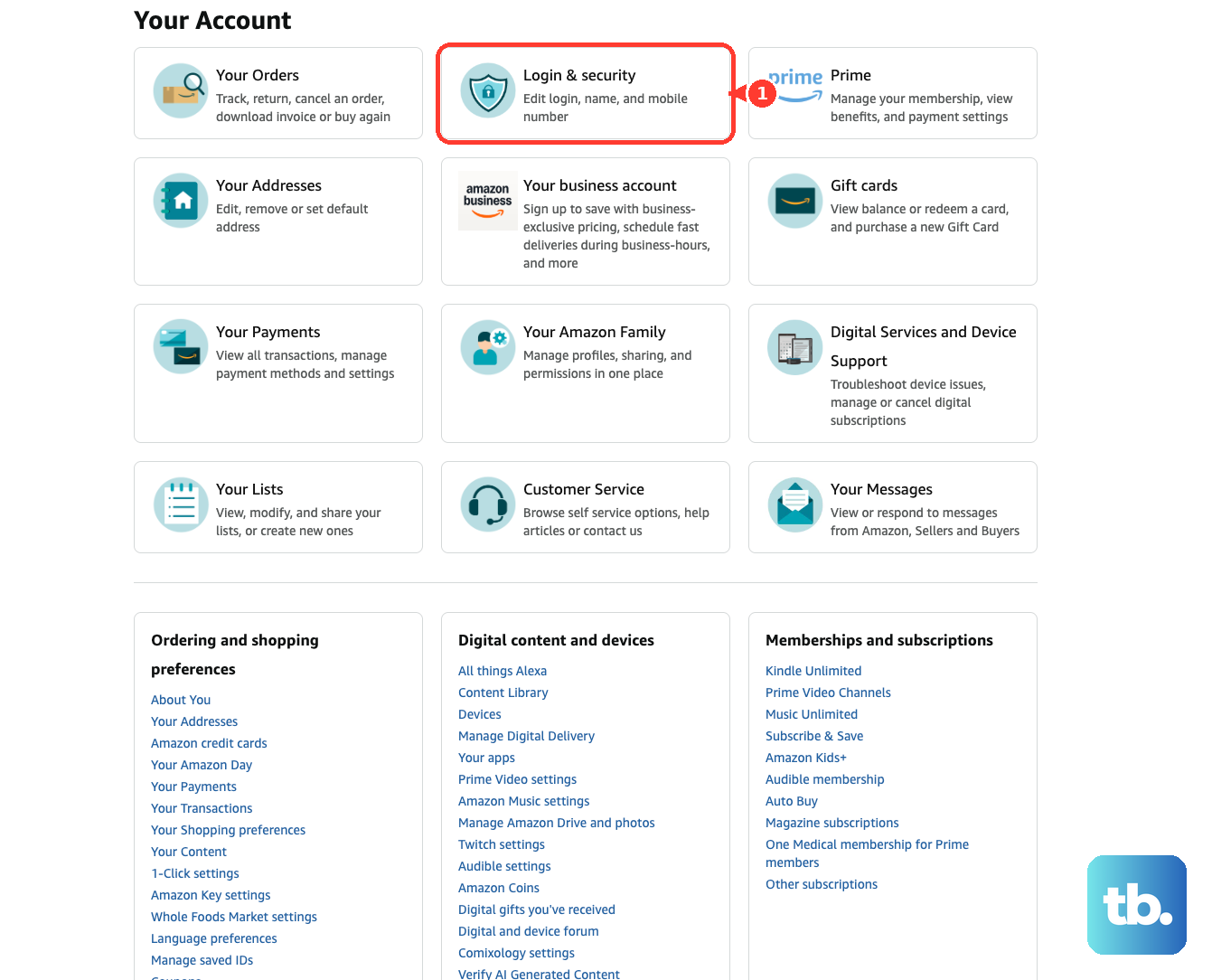
Then click 'Edit' next to 'Password'.
Enter your current password, then your new password.
Click 'Save Changes', then select 'Done' after completing your updates.
Change the Password While Signed In on the App
The mobile app exposes the same Login & security controls under your profile.
Open the Amazon Shopping app and tap 'Profile' (the person icon at the bottom of the screen, between Home and Cart).
Tap 'Account'.
Tap 'Login & security' under Account settings.
Re-enter your login credentials if prompted, and enter the verification code sent via text or email.
Tap 'Edit' next to 'Password'.
Enter your current password, then your new password.
Follow the on-screen instructions to save your new password.
Recover Your Account When Two-Step Verification Fails
If two-step verification (2SV) is tied to a phone or device you no longer have, first try signing in with a registered backup method or from a trusted device. If you still cannot sign in, use account recovery to verify your identity before changing your 2SV settings.
Select 'Sign in with Amazon' and enter your account's phone number or email address. Enter your Amazon password, or use Passkeys or Sign-in with a code. At the 2SV code screen, select 'Didn’t Receive the Code', then 'Two-Step Verification Account Recovery', and follow the on-screen instructions.
Upload a scan or photo of a government-issued identity document. Make sure your name, address, and the issuing authority (such as the state or country) are visible, and cover or conceal sensitive data such as account or ID numbers.
Follow the on-screen verification instructions. Once signed in, manage your Two-Step Verification method from 'Your Account' > 'Login & security'.
If you cannot complete recovery, contact Amazon Customer Service for help.
What to Do If You Cannot Receive the Code
The reset depends on you being able to read the OTP from the email or phone number on file. If you no longer have access to either, the simple reset will not work.
Contact Amazon Customer Service for account-access help. If Two-Step Verification is blocking sign-in, follow the recovery instructions above.
A Few Things to Expect
Resetting or changing your password logs you out of all Amazon apps and websites on your non-Kindle devices, so you will need to sign in again everywhere. Kindle devices are the exception.
The OTP arrives by email or SMS depending on the verification method on your account. If 2SV is enabled, you may need that second factor too.
Button wording varies slightly across surfaces and over time (you may see 'Save changes', 'Save Changes', 'Save changes and sign in', or 'Submit Code'). Treat the exact label as approximate; the action is the same.
Frequently Asked Questions
How long does it take for the reset code to arrive?
The OTP is sent to your email or phone as soon as you submit your account identifier and continue. Enter it in the verification field to move on. If it does not arrive, confirm you are using the exact email or phone number tied to the account.
Will resetting my password sign me out of my other devices?
Yes. Changing or resetting the password logs you out of all Amazon apps and websites on non-Kindle devices, so you will need to sign in again on each one. Kindle devices are excepted.
I no longer have the phone or email on my account. Can I still reset?
The standard reset requires the OTP. Contact Amazon Customer Service if you cannot receive it. If Two-Step Verification blocks sign-in, follow its account-recovery instructions.
What happens if two-step verification is locked to a device I lost?
First try signing in with a registered backup method or from a trusted device. If you still cannot sign in, select 'Didn’t Receive the Code' at the 2SV code screen, then 'Two-Step Verification Account Recovery'. Follow the on-screen verification instructions. Once signed in, manage your Two-Step Verification method from 'Your Account' > 'Login & security'.
Do I need to be signed in to reset a forgotten password?
No. The Password Assistance flow on the web and the 'Forgot password' option in the app both work from the sign-in screen without entering credentials. You only need to be signed in if you are changing the password through Login & Security rather than resetting it.
Does Amazon send a reset link or a code?
In the current flow you receive a one-time code that you type into the verification field. Read the code from your email or SMS and enter it to proceed to setting a new password.