You just got an email about a sign-in from a country you have never visited, or a package you did not order is on its way, or your password suddenly stopped working. Any one of these can mean someone else is inside your Amazon account.
The good news: if you can still sign in, you can lock the intruder out in minutes. If you are already locked out, Amazon has a verification path to get you back. This guide shows how to confirm a takeover and then take the account back, starting with the quickest and most common steps.
Work top to bottom. Do not stop at the password. An attacker who got in once will have left changes behind that you need to undo.
Confirm Your Account Was Actually Hacked
Before you do anything, compare what you are seeing with the real warning signs of an account takeover. Any one of these is enough to act on.
You cannot log in, or your password no longer works. This is the clearest sign, because it usually means the attacker changed the password to lock you out.
An order confirmation or package arrives for something you did not buy, or unrecognized purchases show up in Your Orders.
Your contact details changed on their own: a new shipping address, a different email, or a new phone number on the account.
You receive notifications you never started, such as password-reset requests, "two-step verification turned on or off", or "account details changed" messages.
You get an email, text, or app notification about a sign-in from a device or location you do not recognize.
New payment methods appear in Your Payments, or product reviews are posted under your name.
If you still have access, you may have caught a takeover in progress, so secure the account immediately using the steps below. If you are locked out, jump to the locked-out recovery sections.
Respond to the Security Alert First
Amazon sends a security alert when it spots important changes or new activity it wants you to confirm. These arrive by email, by SMS, and as push notifications in the Amazon shopping app. Responding to one is often the fastest way to shut the intruder out.
Open the alert, then click or tap the link in the genuine email or SMS, or respond to the push notification in the app.
Select Deny, or otherwise indicate it was not you, if you do not recognize the activity.
Selecting Deny helps reset your Amazon password immediately to secure your account. One important caution: many fake "sign-in attempt" alerts are themselves the scam. Only act on an alert you open inside the real email, SMS, or app, and never on a link in a message you are unsure about.
Use Secure Your Account to Deny Suspicious Sign-Ins
If you can still sign in, Amazon's built-in sign-in monitor lets you shut out sessions you do not recognize.
Sign in at Amazon.com, open Account & Lists, then go to Your Account.
Open the Login & security settings page.
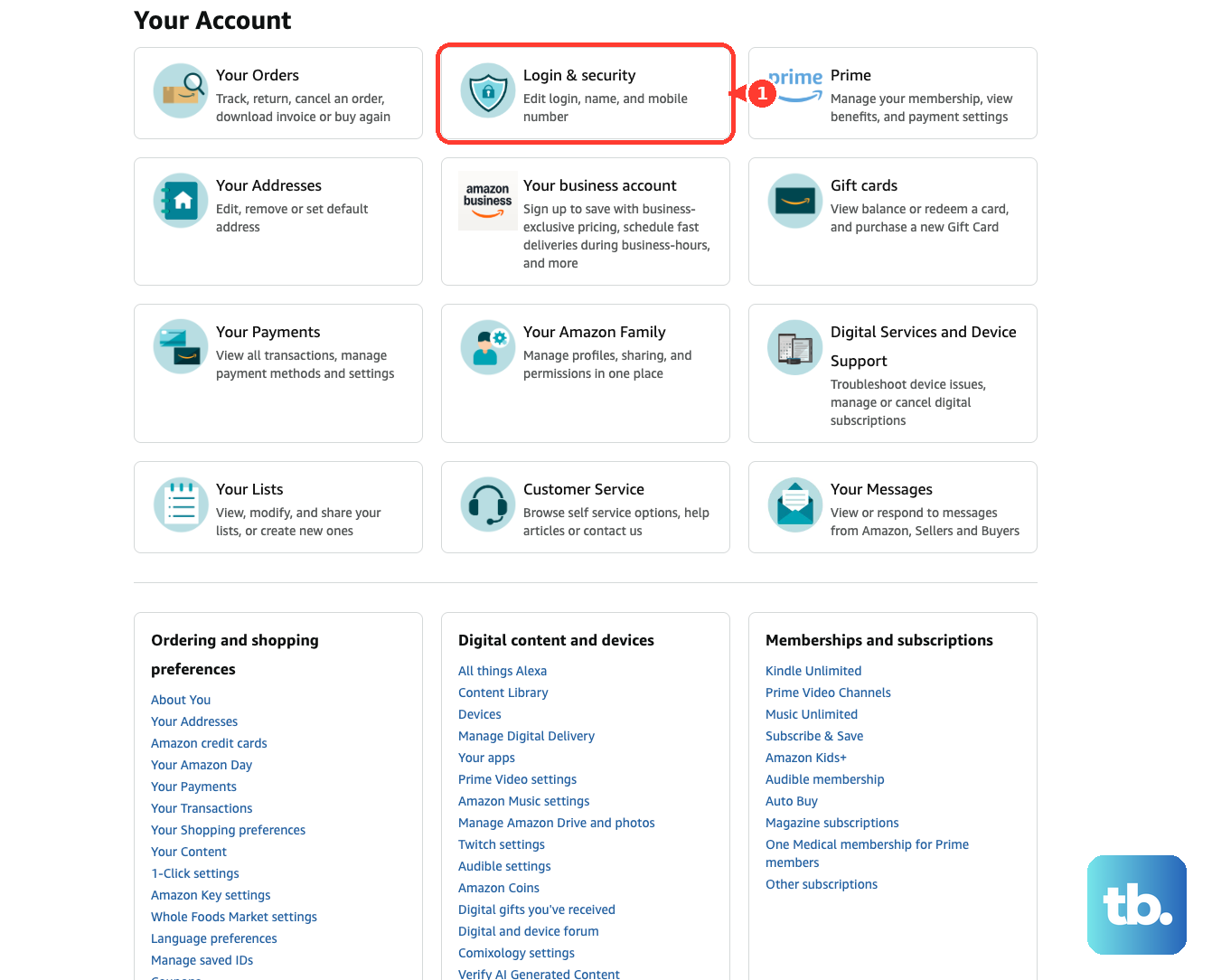
Use the Secure Your Account option to monitor sign-in attempts. If you see suspicious sign-in activity, deny access, which immediately signs those sessions out of your account.
Then check that the email address and mobile number on the account are still yours.
Change Your Password to Something New and Unique
Whether or not you used the deny option, set a fresh password now.
If you can still sign in: go to Your Account > Login & security, find Password, and select Edit to set a new one.
If you cannot sign in: use the password-assistance link on the Amazon sign-in page, enter the email address or mobile number tied to your account, and select Continue.
Amazon sends a one-time password (OTP) by email or SMS. Enter it, then create your new password.
Make the password long, hard to guess, and different from anything you have used before. A free password generator produces a long random string or a memorable passphrase locally in your browser, which beats any reused or predictable choice. If you used this same password on other sites, those accounts are now exposed too, so change them as well.
Turn On Two-Step Verification
Two-Step Verification (2SV) means a stolen password alone is no longer enough to get in. After this is on, every sign-in needs both your password and a current code.
Sign in, open Account & Lists > Your Account, then open Login & security.
Find the Two-Step Verification (2SV) Settings entry and select the option to turn it on or start setup.
Choose how you want to receive the code: by text message, by phone call, or through an authenticator app.
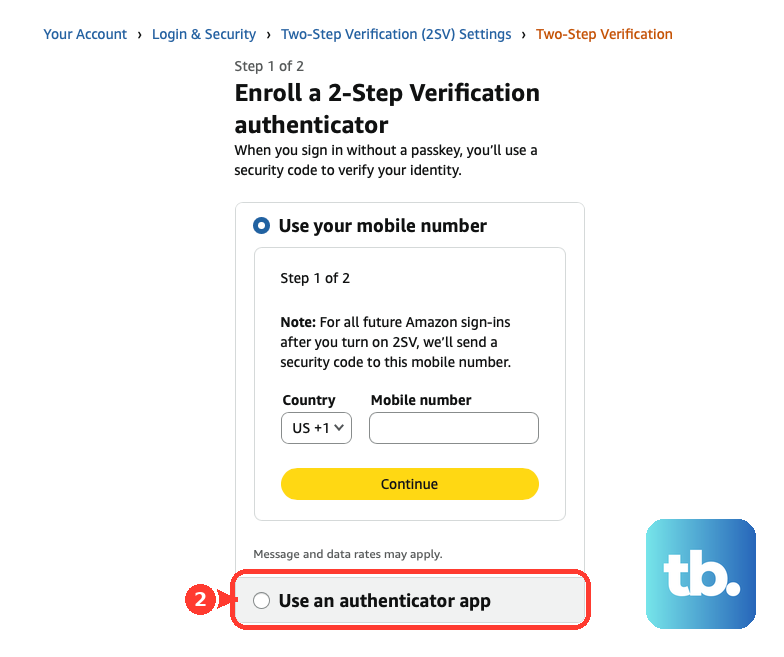
For an authenticator app, scan the on-screen barcode with your app (such as Google Authenticator or Microsoft Authenticator). If you cannot scan it, use the option to enter the setup key manually.
Enter the code and click Verify code and continue.
Add a backup method, which Amazon requires before 2SV can be turned on. It can be a phone number for text or voice codes, or another authenticator app. Enter its code and verify again.
On the final screen, click Got it. Turn on Two-Step Verification.
To manage or switch it off later, return to Your Account > Login & security.
Audit Devices, Addresses, Payments, and Hidden Orders
An attacker who got in will have left traces. Remove them so the attacker cannot get back in or keep spending.
Devices: open Manage Your Content and Devices, go to the Devices tab, select anything you do not recognize, and choose Deregister.
Addresses: open Your Addresses and delete any shipping address that is not yours.
Payments: open Your Payments, edit each card, and remove anything unfamiliar from your wallet. Also turn off 1-Click under your ordering and shopping preferences.
Orders: check Your Orders and Your Payments > Transactions. Amazon no longer lets anyone archive new orders, but older archived orders still appear in Your Orders when you search for them or filter by the date range they were placed, so check every recent date range.
Report anything unauthorized you find using the steps further below.
Recover an Account Locked by Two-Step Verification
If 2SV is failing and you cannot get in, use Amazon's recovery path.
First try signing in with a registered backup method or from a trusted device.
If that fails, sign in with your email or phone number and password. When the 2SV code prompt appears, select Didn't receive the code, then choose Two-Step Verification Account Recovery and follow the on-screen instructions.
Upload a scan or photo of a government-issued ID that clearly shows your name, your address, and the issuing authority (for example, the state or country).
Cover or remove sensitive information, such as account or identification numbers, before uploading.
Verification can take one to two days. Amazon emails you once 2SV has been turned off, and you can then sign in with your password. Amazon may still ask for a one-time code sent to the email or primary phone number on the account, so make sure you can reach those. Set up 2SV again right away using devices you control.
Regain Access to an Account on Hold
Amazon may place an account "on hold" as a security action after unusual payment activity, so it can review the account with you. During the hold, the restriction also covers digital services such as Prime, Amazon Music, and Kindle, and devices like Alexa and Ring.
- 1.Check your email or texts for an "Account on hold" notification from Amazon.
- 2.Sign in to your Amazon account.
- 3.Complete the requested form and include the necessary attachments. Submitting the requested details yourself through Amazon's secure sign-in portal is the fastest way to unlock.
The exact documents required vary by case, so follow the specifics in your own notification rather than assuming a fixed list.
Report and Reverse Unauthorized Charges
For unauthorized spending, reporting it to Amazon is not enough on its own. Your bank has to be involved to get money back.
For Amazon Pay, sign in, open the Activity tab, find the charge, click Details & Support, and from the dropdown choose File an A-to-Z Guarantee claim or Report fraud or misuse.
For a regular Amazon retail order, find it in Your Orders and use the report or return support options to flag it as unauthorized. Some regular Amazon purchases show up as Amazon Pay on a bank statement, so check Your Orders too if the charge is not in your Amazon Pay activity.
Contact your bank or card issuer as soon as possible to block the card and file a chargeback. The bank may ask for supporting documents such as a police report.
After reporting, change your password and turn on Two-Step Verification if you have not already.
Escalate the Compromise to Amazon
To report the takeover itself or the scam behind it, use Amazon's official channels.
Go to the Report a scam help page and pick the option that matches your situation: I have shared Amazon account information, I have not shared any information, I have shared Banking information, I have given remote access to my computer/devices, or I have shared other information.
Forward suspicious communications to [email protected]. Sending the message as an attachment is best, because it helps Amazon track it. You will not get a personal reply, though you may receive an automatic confirmation.
For suspicious calls or texts, Amazon directs you to the FTC at reportfraud.ftc.gov.
You can also pick Report Something Suspicious under "Help with something else" on the Customer Service page.
Avoid the Phishing Trap That Caused It
Most takeovers start with credentials handed to a fake page. Knowing what Amazon will never do keeps it from happening again.
Amazon will never ask you to share your password or a sign-in one-time password (OTP) over the phone, so treat any caller who asks for either as a scammer.
Be suspicious of false urgency, unexpected delivery notifications, requests to pay with gift cards, or requests to pay outside Amazon by a third-party site or wire transfer.
Do not click links or reply to suspicious emails, calls, texts, or pop-ups. Instead, go directly to Amazon.com or the app and sign in there to check. For order emails, you can also check the Message Center under Your Account, where Amazon keeps legitimate messages it has sent you.
If an order notice worries you, open Your Orders in the app or on the website to see your real order history.
For Amazon Pay, the only legitimate domains are pay.amazon.com, payments.amazon.com, and authorize.payments.amazon.com. Senders like [email protected] or [email protected] are scams.
Frequently Asked Questions
How do I know if an "Amazon sign-in attempt" alert is real or a scam?
Genuine alerts come through your real email, SMS inbox, or the Amazon shopping app, and you respond to them there. Many fake versions exist purely to harvest your login on a copycat page. Never click a link in a message you are unsure about; open Amazon.com or the app directly and check your account instead.
I clicked Deny on a security alert. Do I still need to change my password?
Selecting Deny helps reset your Amazon password immediately to lock the intruder out. Even so, set a fresh, strong, unique password yourself, turn on Two-Step Verification, and audit your devices, addresses, payments, and orders to be sure nothing else was changed.
I am completely locked out and 2SV is not working. How do I get back in?
At the 2SV code prompt, select Didn't receive the code, then Two-Step Verification Account Recovery, and upload a government-issued ID showing your name, address, and issuing authority, with sensitive numbers covered. Approval can take one to two days. Amazon may still ask for a one-time code sent to your email or primary phone when you sign in afterward.
Reporting the fraudulent charge to Amazon got my money back, right?
Not by itself. After you report it to Amazon, contact your bank or card issuer to block the payment method and file a chargeback. That bank step is what actually recovers the funds.
Where do attackers hide their activity so I can check those spots?
They commonly add extra shipping addresses, payment cards, and devices. Amazon has removed the option to archive new orders, but any older archived orders still turn up in Your Orders when you search or filter by date range. Audit Your Addresses, Your Payments, your registered devices, and every recent date range in Your Orders.
What likely caused my account to be hacked?
Common causes include entering your login on a phishing page, reusing a password that leaked from another site, using a weak password, having no Two-Step Verification, keeping an email-only account with no phone on file, malware on your device, or granting a fake "Amazon support" caller remote access. Closing those gaps prevents a repeat.