
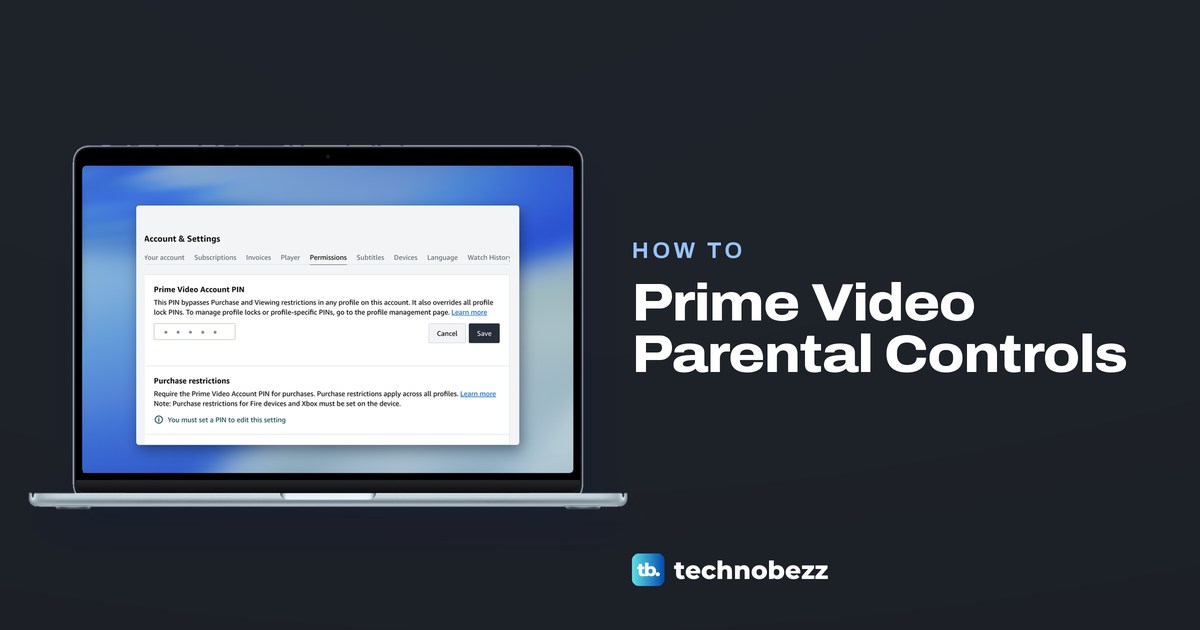
To set up Prime Video parental controls, open Account & Settings on the Prime Video website, choose the Permissions tab and create a Prime Video Account PIN. Then turn on Purchase restrictions and pick an age level and the devices under Viewing restrictions, because the PIN on its own restricts nothing. For a young child, add a Kids profile and lock the adult profiles so the child cannot switch to one.
Amazon's help still calls this area Parental Controls in places, but the tab on the website reads Permissions. Fire TV needs one more step. Amazon says Fire TV devices have their own parental controls for viewing and purchases, and you manage those on the device itself.
The short version
- Start on the web: Account & Settings, then Permissions, then create the Prime Video Account PIN.
- Purchases: turn on Purchase restrictions once the PIN exists, because the PIN alone blocks nothing.
- Viewing: choose an age level and tick every device the child watches on.
- Profiles: a Kids profile for a young child, Profile lock on adult profiles and the Creation and removal lock.
- Fire TV: Settings, Preferences, Parental Controls, on the Fire TV itself.
What each Prime Video control does
Prime Video splits parental controls into several small pieces, and each one closes a different gap. The Account PIN is the key that gets past the restrictions and opens any locked profile. Purchase and viewing restrictions decide when that PIN is asked for, while the profile controls stop a child from walking around the limits by switching profiles.
| What you want | Control | Where to set it | The catch |
|---|---|---|---|
| Ask for a PIN before anything is bought | Purchase restrictions | Account & Settings > Permissions, after creating the Account PIN | Covers every profile, but not purchases on Fire devices or an Xbox |
| Ask for a PIN above an age level | Viewing restrictions | Permissions on the web or in the phone app | Reaches only the devices you tick |
| Give a young child a filtered space | Kids profile | Profile menu > Add new | Downloads from adult profiles still show in it |
| Keep a child out of your profile | Profile lock | Your Profiles > Edit profile > PIN and locks | The Account PIN still opens it |
| Stop a child making a new profile | Creation and removal lock | The account holder's profile > Account PIN and locks | Needs the Account PIN to set up |
| Limit a Fire TV | Fire TV Parental Controls | Fire TV Settings > Preferences > Parental Controls | Its viewing and purchase controls are not set on the web |
Most families need four of these at once. Turn on the two restrictions on the web, give a young child a Kids profile, and lock every adult profile so the limits cannot be skipped. Add the Fire TV settings if a Fire TV is in the house.
Find Permissions on the web
Use a computer for the first setup, since the website shows every restriction on one page. On the Prime Video website, the profile icon at the top right opens a menu with two columns. Account & Settings sits under Your Account, next to Getting Started and Help, while Add new and Manage profiles sit under Profiles.
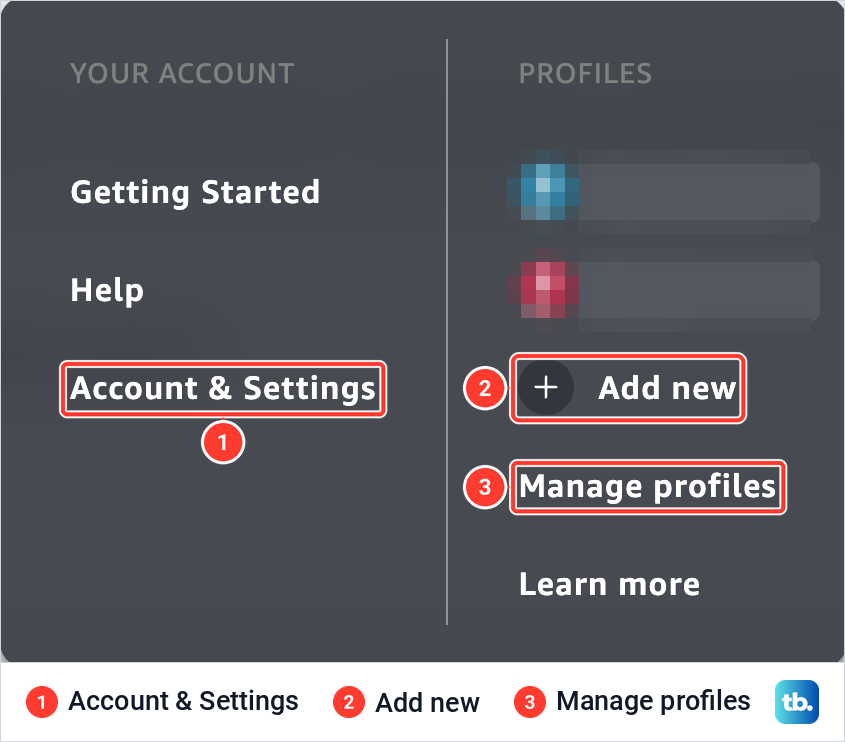
Account & Settings opens on a row of tabs that runs from Your account through Subscriptions, Invoices and Player. Permissions comes next, before Subtitles, Devices, Language and Watch History. The page's own web address still ends in parental-controls, the name that older advice and parts of Amazon's help still use. Amazon's web steps give the same route, Account & Settings and then Permissions.
Create your Prime Video Account PIN
On the web in Chrome, we opened Account & Settings and found the Prime Video Account PIN card under Permissions. Its text read "This PIN bypasses Purchase and Viewing restrictions in any profile on this account. It also overrides all profile lock PINs." Below that sat an empty PIN box with five dots, a Cancel button and Save.
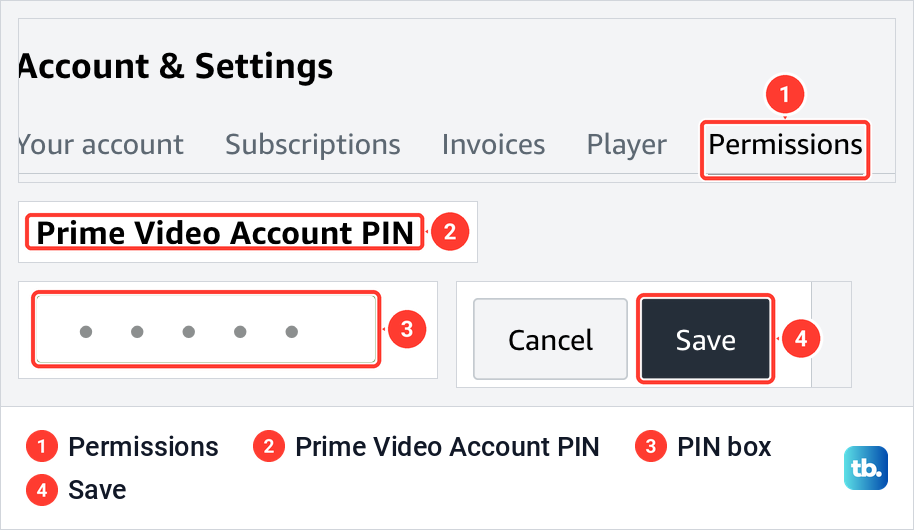
Type the PIN you want into the box and select Save. The five dots point to a five-digit PIN, not the four digits that some older advice mentions. Pick digits a child will not guess, and do not use the same code as your bank card or your phone.
Amazon's own help describes a second way to create the same Account PIN. Open Manage profiles from the profile menu, select Edit profile and choose the account holder's profile. Then select Manage next to Account PIN and locks, enter your Amazon account details if asked, select Create next to Prime Video Account PIN, type the PIN and select Continue.
Treat this PIN like a key to the whole account. Amazon says it bypasses purchase and viewing restrictions on any profile and overrides every profile lock PIN. Amazon's help also says that once they are set up, Account and Profile PINs apply across all devices.
Turn on purchase restrictions
The Purchase restrictions card we saw said we had to set a PIN before we could edit it. Its line read "Require the Prime Video Account PIN for purchases. Purchase restrictions apply across all profiles." Under it, a note read "Purchase restrictions for Fire devices and Xbox must be set on the device."
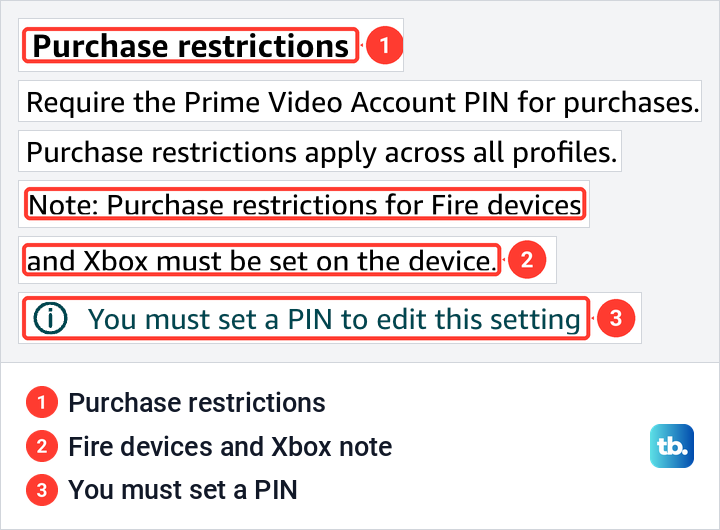
Once the PIN exists, go back to Permissions and turn Purchase restrictions on. Amazon's app help is blunt about why this step matters, saying that setting or changing the PIN does not automatically switch on restrictions. Amazon's parental controls page says the Account PIN is then needed to buy or to start subscriptions, so a child cannot rent a film or add a channel without it.
Kids profiles cannot buy anything in the first place, so this setting matters most when a child uses an adult profile. Amazon's app help says it covers every device registered to the account, but the card itself makes an exception for Fire devices and Xbox.
On a Fire TV, the device's own Parental Controls cover purchases, as the Fire TV section below explains. Amazon's help gives no Xbox steps for this, so the settings above do not protect Prime Video purchases made on an Xbox. Microsoft's Ask a parent setting, covered further down, stops Microsoft Store purchases only, but it is still worth turning on. For Prime Video itself, look for a purchase PIN in the Prime Video app's settings on the console before a child uses it.
A purchase PIN only stops new spending. It does not end a subscription you already pay for, so if a channel or Prime itself is the problem, read how to cancel Amazon Prime or a Prime Video channel instead.
Choose a viewing rating and devices
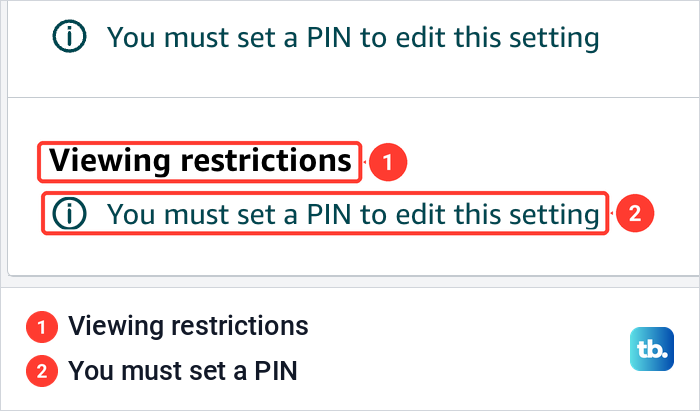
Viewing restrictions showed the same PIN prerequisite on our web screen. The section held only its heading and the line "You must set a PIN to edit this setting", with no age levels or device list on show while the account had no PIN.
Amazon's web steps for the next part are short. With the PIN in place, go to Account & Settings, select Permissions, choose an age restriction and the devices you want it to apply to, then select Save. From then on, on those devices, a title above that age level should ask for the Account PIN before it plays. In a Kids profile such a title may not appear at all, because Amazon says a Kids profile shows only titles rated 12 and under.
Amazon's maturity ratings page groups films and TV into five levels in most countries: Kids (All), Older Kids (7+), Teens (13+), Young Adults (16+) and Adults (18+). Each country's own ratings sit under those levels, so the same page shows which local ratings fall where. Pick the highest level you are happy for the child to watch without asking you.
The device list is the part people miss. Amazon's restriction pages note that viewing restrictions apply only to the device that set them up, while its iPhone help says they apply only to the devices you have selected. Either way, the rule follows devices rather than people, so tick every device the child watches on, including a computer's web browser if the list shows one.
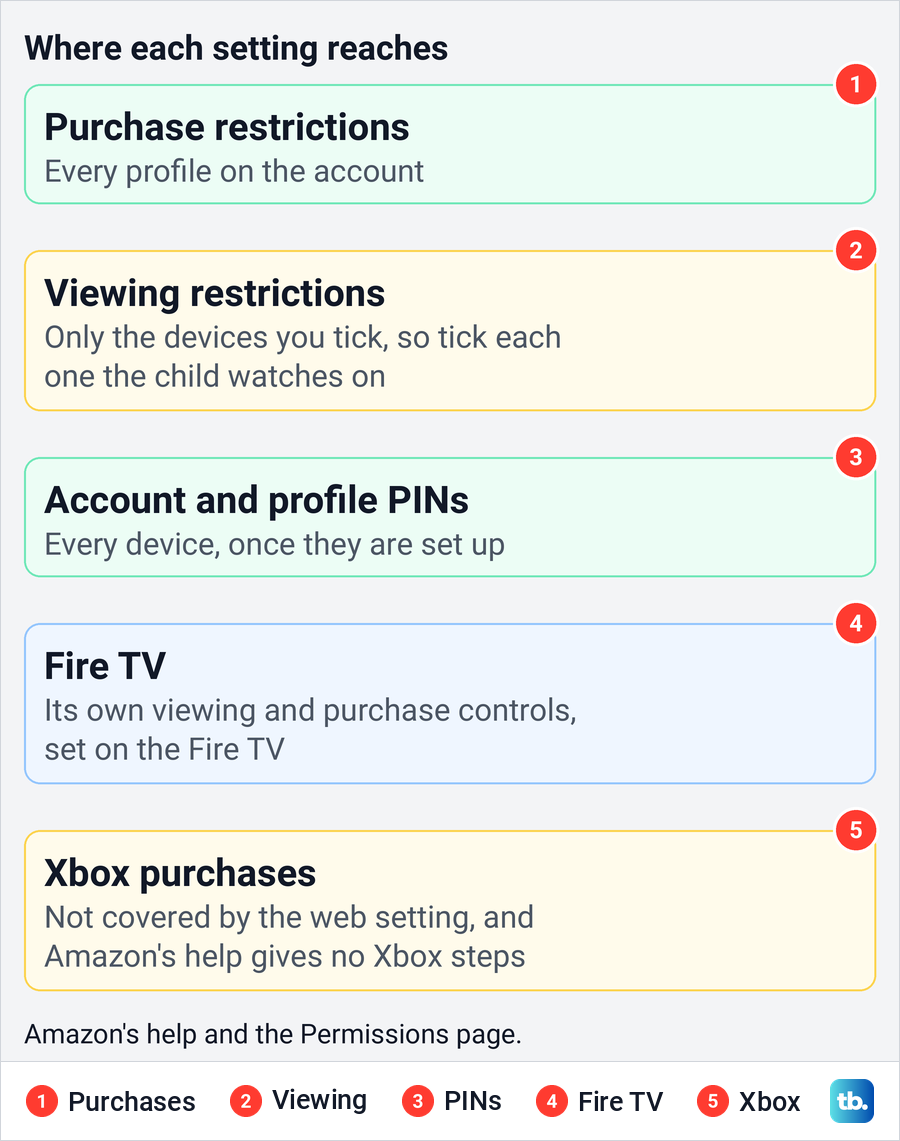
On a shared living room TV, that cuts both ways. If you tick it, adults on that TV may meet the PIN prompt too, since the Account PIN is what gets past a viewing restriction. If you leave it unticked, nothing on that TV is held back by the age level, so only a Kids profile limits what the child sees there.
Set controls in the phone app
The Prime Video phone app has the same Permissions section, so you can set the PIN and the viewing limit without a computer. Amazon's Android route is the Profiles icon at the bottom of the screen, then the Settings icon, Permissions and Change Prime Video PIN. Enter your Amazon password, select Change, type the PIN and tap Save.
On an iPhone, Amazon's route starts at the Profile icon at the top of the screen. Tap the Settings icon, then Permissions and Prime Video PIN, enter your Amazon password when asked, type the PIN and tap Save.
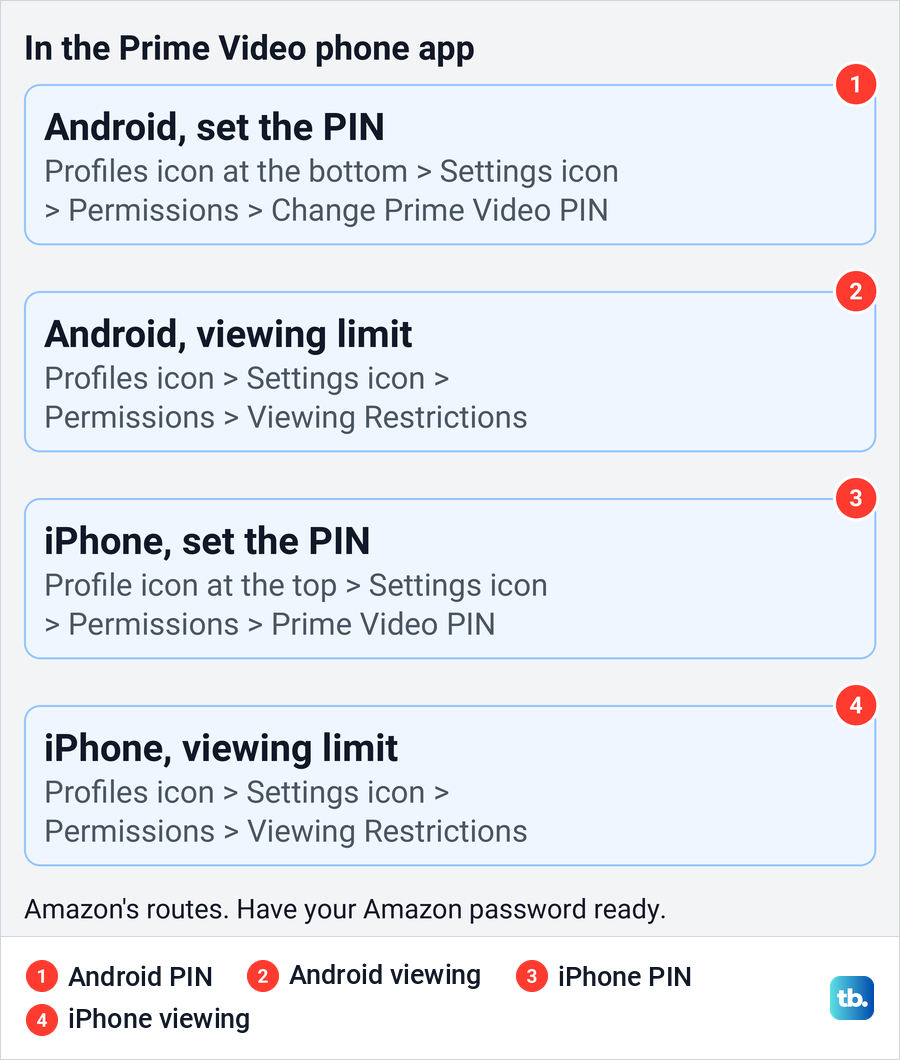
For the viewing limit, both apps follow the PIN route until the last step. Go to the Profiles icon, the Settings icon and Permissions, then Viewing Restrictions, and choose an age restriction and the devices, then Save. Amazon's Android steps ask for your Amazon password on the way in.
The notes on both of Amazon's app PIN pages still send you to Parental Controls to switch the restrictions on, and they call the viewing setting Access Restrictions. The steps above those notes say Permissions, which matches the tab on the website. If you see either older name, it is the same setting.
Add a Kids profile
A Kids profile gives a young child a filtered Prime Video. Amazon says only TV shows and films with a maturity rating of 12 and under are visible in it, and that search results and search suggestions are filtered too. Purchases are not allowed in Kids profiles at all.
On the website, Amazon's profile help says to hover over the profile icon on the Prime Video home page and select +Add new, then give the profile a name before saving it. Each account can have up to six profiles, the default one plus five more, and Amazon says each extra profile can be an adult or a Kids profile, so make it a Kids profile as you create it.
In the phone app, Amazon's route is the Profile icon at the top of the screen, then the profile name and +New. On supported TVs and consoles, select the profiles icon on the top menu and choose New.
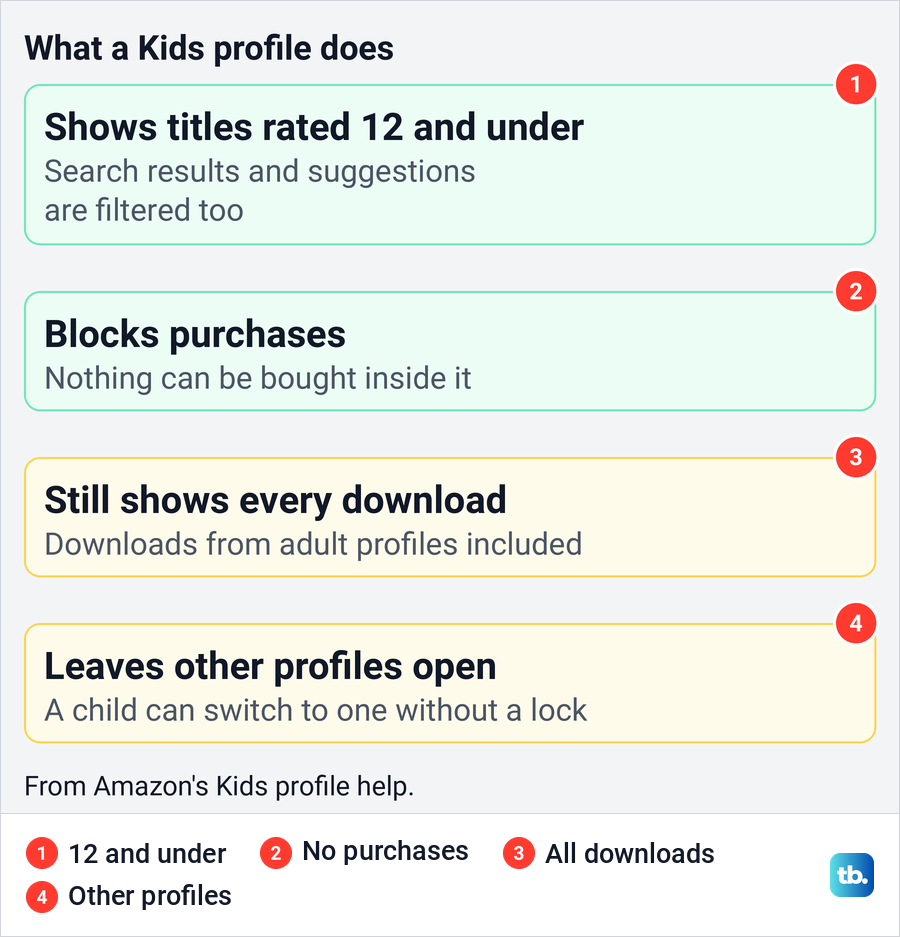
Downloads are the gap Amazon itself points out. All downloads, including those from an adult's profile, stay available and can be opened from a Kids profile. On a tablet or phone a child uses, delete any adult downloads before you hand it over.
Lock adult profiles and new profile creation
A Kids profile is only a limit while the child stays in it. Amazon's Kids profile help suggests PIN-locking adult profiles to stop a child switching to one, and locking profile creation so a new profile cannot be set up to get around the restrictions. The PIN card we saw pointed the same way, with the line "To manage profile locks or profile-specific PINs, go to the profile management page."
To lock a profile, Amazon's steps start at Your Profiles, which Manage profiles in the profile menu opens. Select Edit profile, choose the profile, then select Manage next to Profile / Account PIN and locks. Enter your Amazon password if asked and then the PIN, select Continue, switch Profile lock on and select Save.
Do this for every adult profile, not only your own. Amazon says profile PINs are never shared with the account holder, but the account holder can open any locked profile with the Account PIN. A teenager can keep a private profile that way, while you keep the master key.
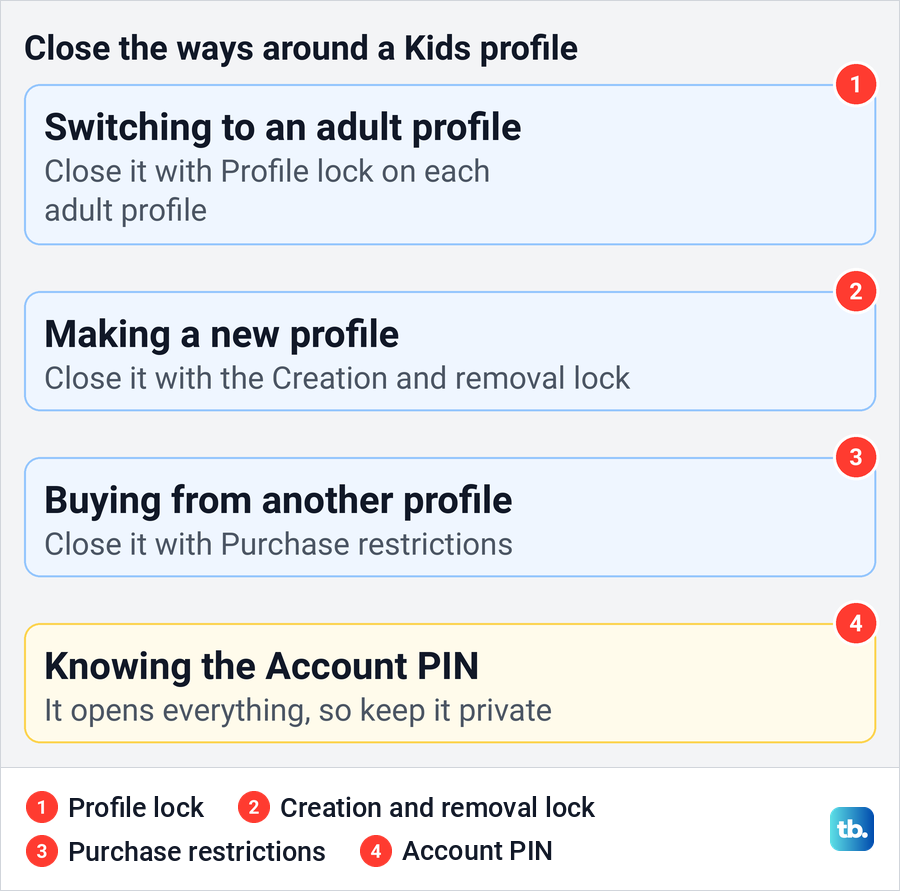
The Creation and removal lock lives on the account holder's profile. Amazon's steps are Edit profile, the account holder's profile, then Manage next to Account PIN and locks. Enter your password if asked and the Account PIN, select Continue, switch Creation and removal lock on and select Save.
Amazon says profiles then need the Account PIN to create or remove a profile. That closes the last easy way around the rules, because a child can no longer make a fresh adult profile or delete their Kids profile.
Set Fire TV controls separately
Amazon's parental controls page says Fire TV devices have their own parental control settings, managed directly on the device. A limit you set on the website does not replace them, so set up every Fire TV in the house on its own.
Amazon's route is to go to Settings from the Fire TV menu, select Preferences and then Parental Controls. Select the Parental Controls option and enter your PIN to turn them on, then choose the options you want to PIN protect. Amazon's steps do not say whether this is your Prime Video PIN. Depending on what you turn on, the Fire TV asks for the PIN before restricted videos, purchases or opening apps.
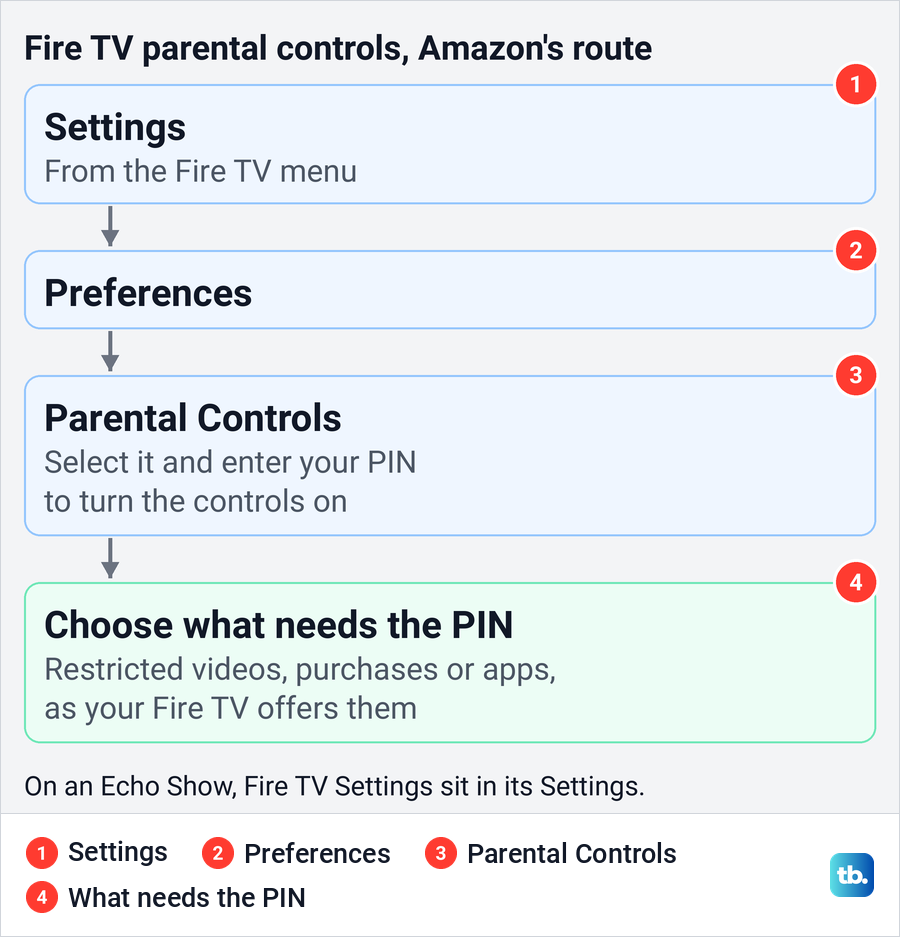
The options on offer vary by device, and on an Echo Show the Fire TV settings sit inside the Echo Show's own Settings. Amazon's steps name the menus rather than show the screens, so look for Preferences and Parental Controls by name if the layout on your Fire TV differs.
Check other TVs and consoles
Prime Video profiles work on many TVs and consoles, and Amazon lists PlayStation, Xbox, Roku, Samsung, Sony and LG among them. The TV's own parental controls often do not reach into Prime Video, though, so Prime Video's Permissions settings still do the real work.
Roku is the clearest case. Roku says its parental controls only apply to The Roku Channel and Howdy, not to other streaming services. On a Roku, an age limit for Prime Video has to come from Prime Video's own Viewing restrictions.
Samsung and LG TVs can lock an app, but that locks all of Prime Video, not single titles. Samsung's route is APPS, then Settings, the app and Lock/Unlock. On newer LG sets it is Settings, All Settings, General, Usage Care, Family Care, Locks Control and App Locks, and older models use a different route.
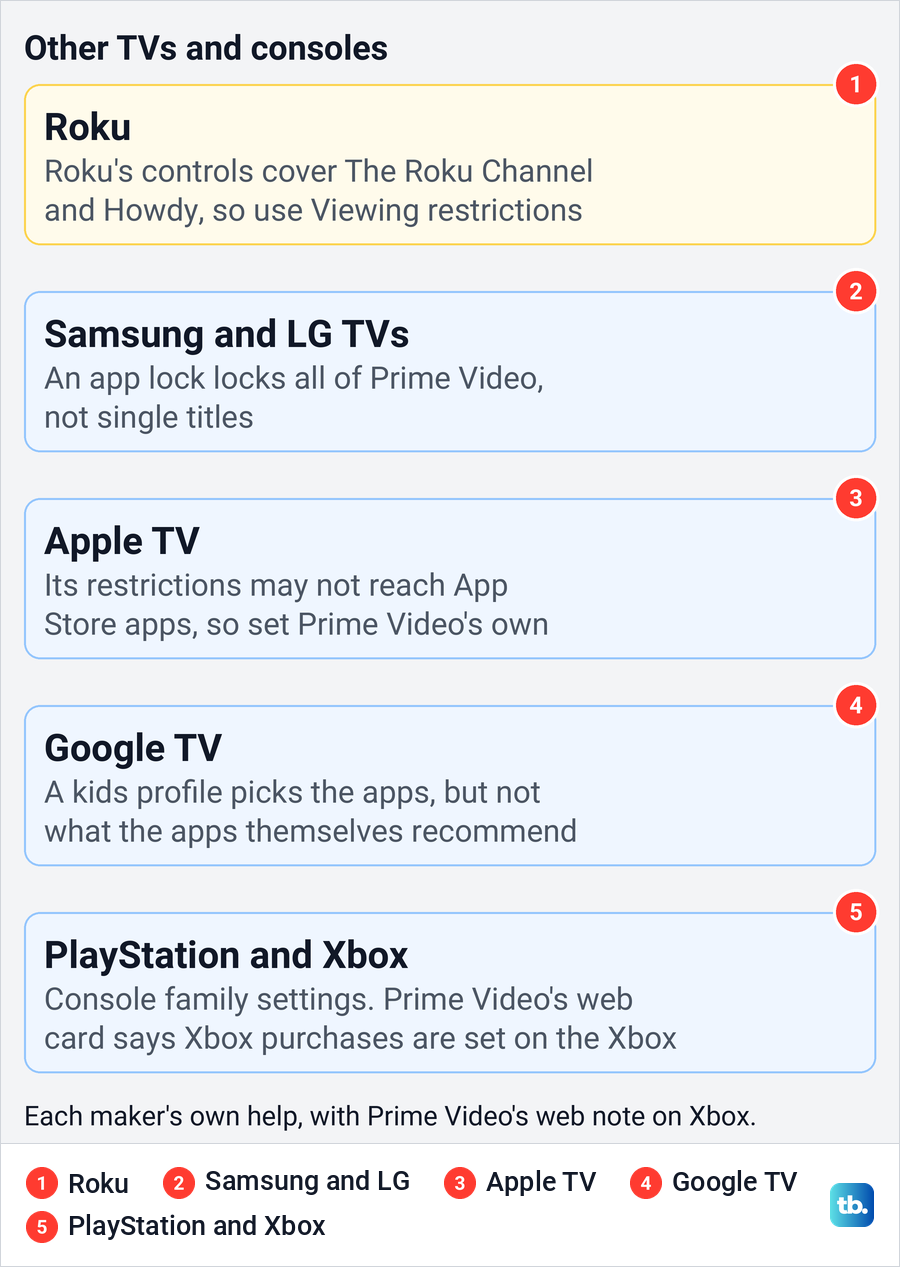
Apple TV has restrictions under Settings, General and Restrictions, but Apple says they may not apply to apps from the App Store, so set Prime Video's own controls as well. Google TV lets a kids profile choose which apps a child can open, and Google says its content limits do not cover recommendations and search results that apps provide themselves.
PlayStation keeps child controls under Settings and Family and Parental Controls on a PS5. On Xbox, Microsoft's route is Profile & system, Settings, Account, Family settings and Manage family members, then the child, Privacy & online safety, Xbox Live privacy, View details & customize and Buy & download, where you turn on Ask a parent.
Ask a parent covers Microsoft Store purchases only, so for Prime Video purchases on an Xbox, see the purchase restrictions section above. Neither console setting replaces the viewing limit and profile locks above, so keep those in place for every console.
Fix a missing setting or forgotten PIN
If Purchase restrictions or Viewing restrictions show only "You must set a PIN to edit this setting", the account has no Account PIN yet. Create it in the card at the top of Permissions, save it, then come back to the two restriction sections.
If you forget a PIN, Amazon's steps start at Your Profiles. Select Edit profile and choose the account holder's profile for the Account PIN, or the locked profile for its profile PIN, then select Forgot PIN? on the Enter Profile PIN screen and select Continue. Enter your Amazon password if asked, then create a new PIN on the next screen and select Continue.
Amazon may ask for your account password before it changes a PIN, so if you no longer know it, reset a forgotten Amazon password first. If you cannot sign in to Amazon at all, recover access to your Amazon account before you go back to Permissions.
A PIN or a setting that changed without you is a warning sign, because the Account PIN unlocks everything here. In that case, check whether your Amazon account was hacked and change the password. Then turn on two-step verification for Amazon, so a password alone is no longer enough to change these controls.
A PIN prompt is not a fault. If you enter the right PIN and a title still will not play, check any controls on the device itself first, such as a Fire TV's Parental Controls. If those are not the cause, fix Prime Video when it stops working on that device.
Check the controls before handing over a device
A short test shows whether the settings took. Go back to Permissions on the web and confirm that Purchase restrictions is on, that the age level is the one you meant, and that the child's devices are ticked. Then check that each adult profile is locked and the Creation and removal lock is on.
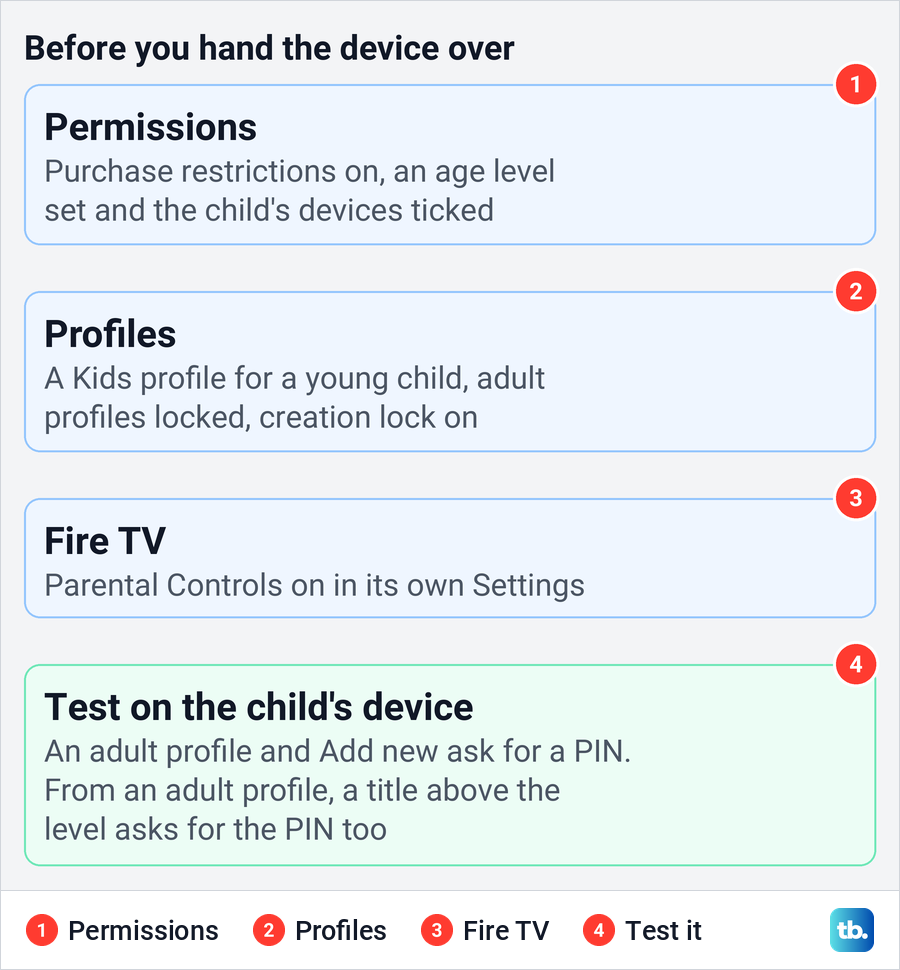
On the child's own device, try switching to an adult profile and adding a new one, both of which should ask for a PIN. Then, from an adult profile on that device, open a title above the age level, which should stop at a PIN prompt, and back out. In a Kids profile that title may not show at all, which is the Kids filter working rather than a fault.
For purchases, rely on the Purchase restrictions setting in Permissions rather than starting a real purchase. A purchase could go through if the setting had not taken.
None of these controls limits how long a child watches. To keep an eye on time on a child's Android phone, check screen time on Android to see how long Prime Video is open. For an iPhone or iPad, set up Family Sharing on iPhone and manage the child's Apple account from there.
How we tested this guide
We tested this on Prime Video on the web in Chrome, going from Account & Settings to the Permissions tab up to the Account PIN box and its Save button.
Frequently Asked Questions
Is a Prime Video PIN enough to block purchases?
No. Amazon says setting the PIN does not switch on restrictions by itself. After you create it, turn on Purchase restrictions under Account & Settings and Permissions.
Does a Prime Video viewing restriction apply to every device?
No. Viewing restrictions follow the devices you select, so tick every device the child uses. Fire TV has its own parental controls, set on the Fire TV.
Can a Kids profile see downloads from an adult profile?
Yes. Amazon says all downloads, including those from an adult's profile, can be opened from a Kids profile. Delete adult downloads on a device the child uses.
Can a child switch out of a Kids profile on Prime Video?
Yes, unless the other profiles are locked. Turn on Profile lock for every adult profile and the Creation and removal lock, so a new profile also needs the Account PIN.
What if I forgot my Prime Video PIN?
In Your Profiles, select Edit profile and the account holder's profile for the Account PIN, or the locked profile for its own PIN, then Forgot PIN? on the Enter Profile PIN screen. Amazon may ask for your account password before you set a new PIN.
Why can I not edit purchase or viewing restrictions?
The account needs an Account PIN first. Until one exists, both sections show "You must set a PIN to edit this setting".
Where did the Parental Controls tab go on Prime Video?
On the website it is now the Permissions tab in Account & Settings. Some of Amazon's help pages, including the notes on its phone app PIN pages, still use the old name.