You go to sign in to Amazon and something blocks you. Maybe the password no longer works, maybe the verification code never arrives, or maybe you have lost the phone that holds your second factor. Whatever the symptom, you want back into your account without losing your orders, payment methods, or settings.
The good news: Amazon has a recovery path for every common lockout, and most of them take only a few minutes. This guide walks through all of them in order, starting with the fastest fix and ending with the slower identity-verification route you use only when nothing else works.
Work through the sections top to bottom. Stop as soon as one gets you back in.
Reset Your Forgotten Password
If you remember the email or phone number on the account but not the password, this is your fix. It works in any desktop or mobile browser.
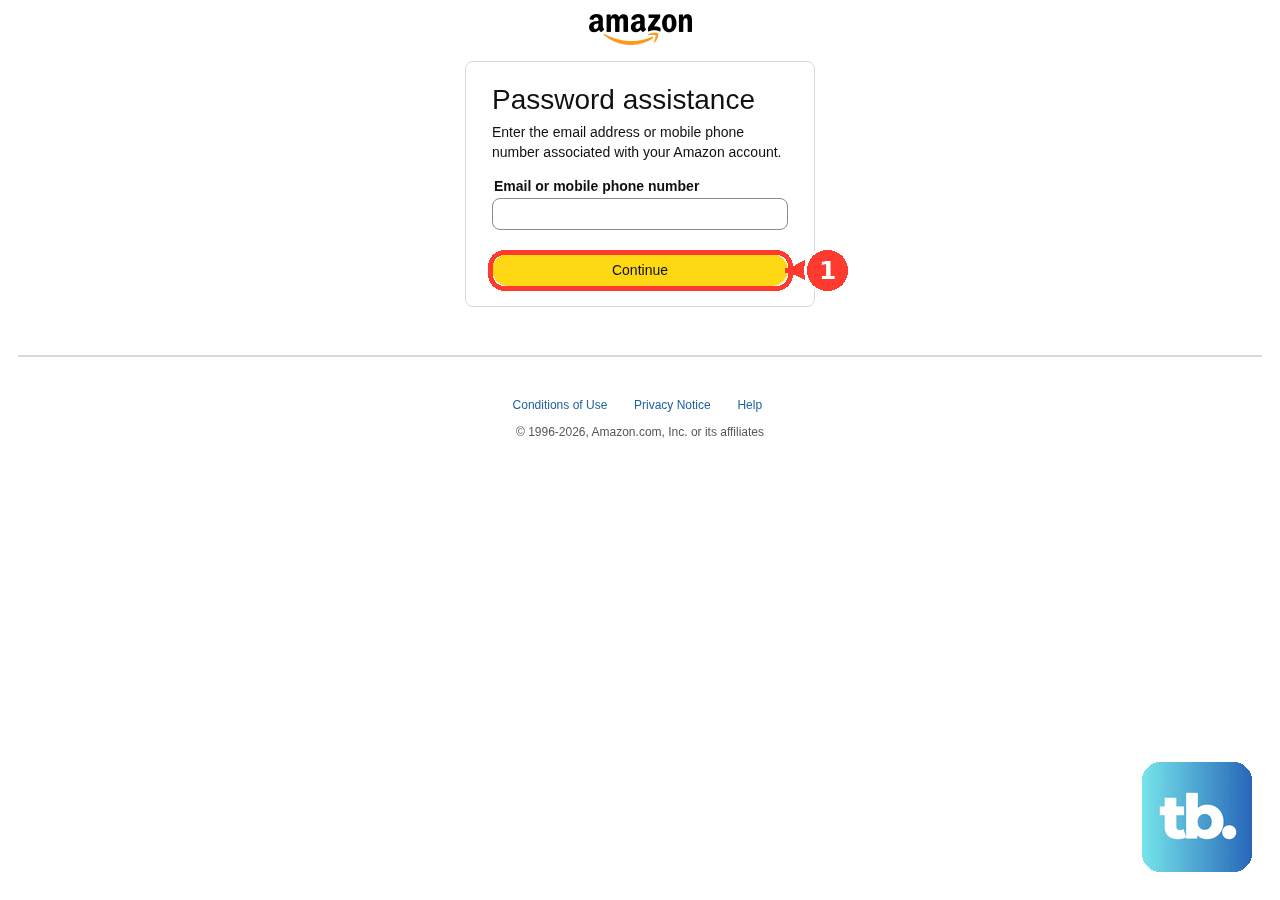
- 1.Go to the Amazon Password Assistance page. You can also reach it from the sign-in page by selecting Forgot password (on some screens it sits under a Need help? drop-down).
- 2.Enter the email address or mobile phone number tied to your account, then select Continue. If you created the account with a phone number, use that number and include your country code.
- 3.If prompted, enter the zip code or postcode on the account.
- 4.Amazon sends a One Time Password (OTP) by email or text message, depending on the method you choose. Check your inbox, including the spam or junk folder.
- 5.Enter the OTP and select Continue.
- 6.Create a new password. It works immediately and applies to all Amazon accounts that use the same email address.
Before resetting, rule out a simple typo. Passwords are case-sensitive, so check that Caps Lock and Num Lock are off.
Reset Your Password From the Amazon App
You can do the same reset inside the Amazon Shopping app on iPhone or Android. On the sign-in screen (tap Already a customer? Sign in first if you see it), enter your email or phone number, then tap Forgot password.
Enter the email address or phone number on your account and tap Continue. Enter the OTP Amazon sends you, then create a new password to finish.
If you get stuck on a particular screen in the app, switch to the browser method above. The reset works the same way there.
Some Amazon accounts have no password at all. If yours is one of them, you sign in by entering your email or phone number and then the security code Amazon sends you, or with a passkey saved on your device.
Get a Missing OTP or Verification Code to Arrive
If the reset or sign-in stalls because the code never shows up, the problem is usually delivery, not your account. Start with your phone's network connection, and confirm the phone number and email on the account are still correct.
Clear out your message inbox and restart your phone, then resend the code with Resend OTP. Also make sure Amazon's number or short codes are not blocked on your phone.
Switch the delivery method if you can. Depending on your account and region, you can get the code by text, email, voice call, or WhatsApp, so pick whichever you did not just try. If you set up an authenticator app as a two-step verification method, open it and use the code it shows.
Do not request code after code. Wait a few minutes before you ask for another. When a code does arrive, use it promptly, because a one-time password is only valid for 10 minutes.
If none of this works, clear your browser cache and cookies or try a different browser or device, then move to the identity-verification recovery below.
Use Alternate Sign-In When No Code Screen Appears
Some devices and apps never prompt for a security code, and you may see an error message instead. Amazon's fix, called Alternate Sign-In, combines the code with your password.
Enter your email and password and select Submit. After the error appears, get your security code by text message, voice call, or authenticator app.
Then type your password followed immediately by the code, with no spaces between them, and submit again. For example, password "amazon123" plus code "45678" is entered as "amazon12345678".
You cannot save the device as trusted when Alternate Sign-In is required, so you will enter a code each time on that device.
Recover the Account With a Government ID
If you have lost access to your registered phone, lost your two-step device, or the code will not arrive by any method, Amazon verifies your identity with a government-issued ID. First, try signing in with a backup method you registered or from a device you previously marked as trusted, since that skips the code entirely.
If that is not possible, start recovery from the Amazon sign-in page itself:
- 1.Go to the Amazon sign-in page and enter the email address or phone number on your account.
- 2.Enter your password (or sign in with your passkey or a sign-in code).
- 3.When the two-step verification code screen appears, select Didn't Receive the Code.
- 4.Select Two-Step Verification Account Recovery.
- 5.Follow the on-screen steps to upload a scan or photo of a government-issued ID, such as a driver's license or state ID. Make sure your name, your address, and the issuing authority (for example, the state or country) are clearly visible.
- 6.Cover or remove sensitive details such as account numbers or ID numbers before you upload, then submit.
Verification takes one to two days. Amazon emails you once Two-Step Verification has been disabled, and you can then sign in with your password alone. Amazon cannot change your two-step settings until your identity is verified, so a clean, fully legible image the first time is the fastest route.
Once you are back in, set up your two-step methods again under Your Account > Login & security, and add a backup method so this does not happen again.
Regain Access to an Account on Hold
Amazon may place an account on hold and block sign-in after unusual payment or sign-in activity. In this case you are not locked out by a forgotten password; access is paused until you verify your identity.
Start the process only from Amazon's own sign-in and help pages. This is the moment scammers exploit most: fake "account on hold" or "confirm your account" texts and emails carry links to lookalike sites that steal your login. Never begin recovery from a link in an unsolicited message, even one that looks official. Type amazon.com into your browser yourself and sign in there instead.
Once you are verified, change your password and turn on two-step verification, especially if you suspect the hold followed someone else's access to your account.
When to Contact Amazon Customer Service
If you have worked through every method above and still cannot get in, contact Amazon Customer Service as a last resort. Reach support through the Help or Customer Service section of Amazon's own website or app rather than a phone number from an outside source, since unofficial contact numbers can route you to scammers.
A note on passkeys: adding a passkey does not remove your password. If your account has a password, you can still sign in with it, so a lost passkey device does not bar you from the recovery methods in this guide.
Frequently Asked Questions
How long does Amazon's identity-document recovery take?
Plan for one to two days. You regain access once Amazon emails you that Two-Step Verification has been disabled, at which point you sign in with your password alone. A clear ID image with your name, address, and issuing authority visible keeps it from dragging on.
My verification code never arrives. What should I do first?
Check your connection and spam folder, confirm the email and phone on the account are correct, and make sure Amazon's number is not blocked on your phone. Then tap Resend OTP or switch the delivery channel (text, email, voice call, or WhatsApp where offered). Avoid requesting codes over and over; wait a few minutes before you ask for another.
Why is there no place to enter my two-step code?
Some devices and apps do not show a separate code screen. Use Alternate Sign-In: type your password immediately followed by the code with no spaces between them. You will not be able to mark that device as trusted, so expect to enter a code each time.
I got a text saying my account is on hold with a link to fix it. Is it real?
Treat it as suspicious. Scammers spoof Amazon "account on hold" and "confirm your account" messages with fake links. Do not tap the link. Open Amazon's sign-in or help pages directly and start any verification from there.
Can I still get in if I set up passkeys and lost the device?
Yes. A passkey does not delete your password, so if your account has one you can sign in with it. If you have also forgotten the password, reset it, and if you cannot receive a code, use Didn't Receive the Code to start the government-ID recovery.