You want to lock down your Amazon account so a stolen password alone cannot get anyone in. Two-Step Verification (2SV) is Amazon's name for this; it is functionally the same as two-factor authentication (2FA). When a sign-in requires a security code, enter your password plus a One Time Password (OTP) sent to your phone or generated by an authenticator app.
The whole process takes a few minutes. You will pick a primary way to receive codes (text message, voice call, or authenticator app), add a mandatory backup method, and confirm. Amazon will not let you finish without a backup, by design, so you always have a fallback if you lose your main device.
This guide covers every surface in order of how most people do it: the desktop browser first, then the mobile app, then Seller/Amazon Pay business accounts. It also covers editing, disabling, and recovering access if a code never arrives.
What You Need Before You Start
Gather these first so the flow does not stall partway through.
Have your Amazon login email and password ready. You must re-authenticate to open the security settings.
Use a phone that can receive SMS text messages or voice calls, OR an authenticator app (Google Authenticator, Microsoft Authenticator, Authy) installed on a mobile device.
Keep a second contact method for the required backup: an additional phone number or an authenticator app. Amazon will not turn on 2SV without one.
Remember the vocabulary: "Two-Step Verification" is the feature's name, also called 2FA, and "One Time Password" (OTP) means the security code.
Open Login and Security on the Desktop Web
This is the most common path and the foundation for the methods below.
- 1.Sign in to amazon.com in a desktop browser.
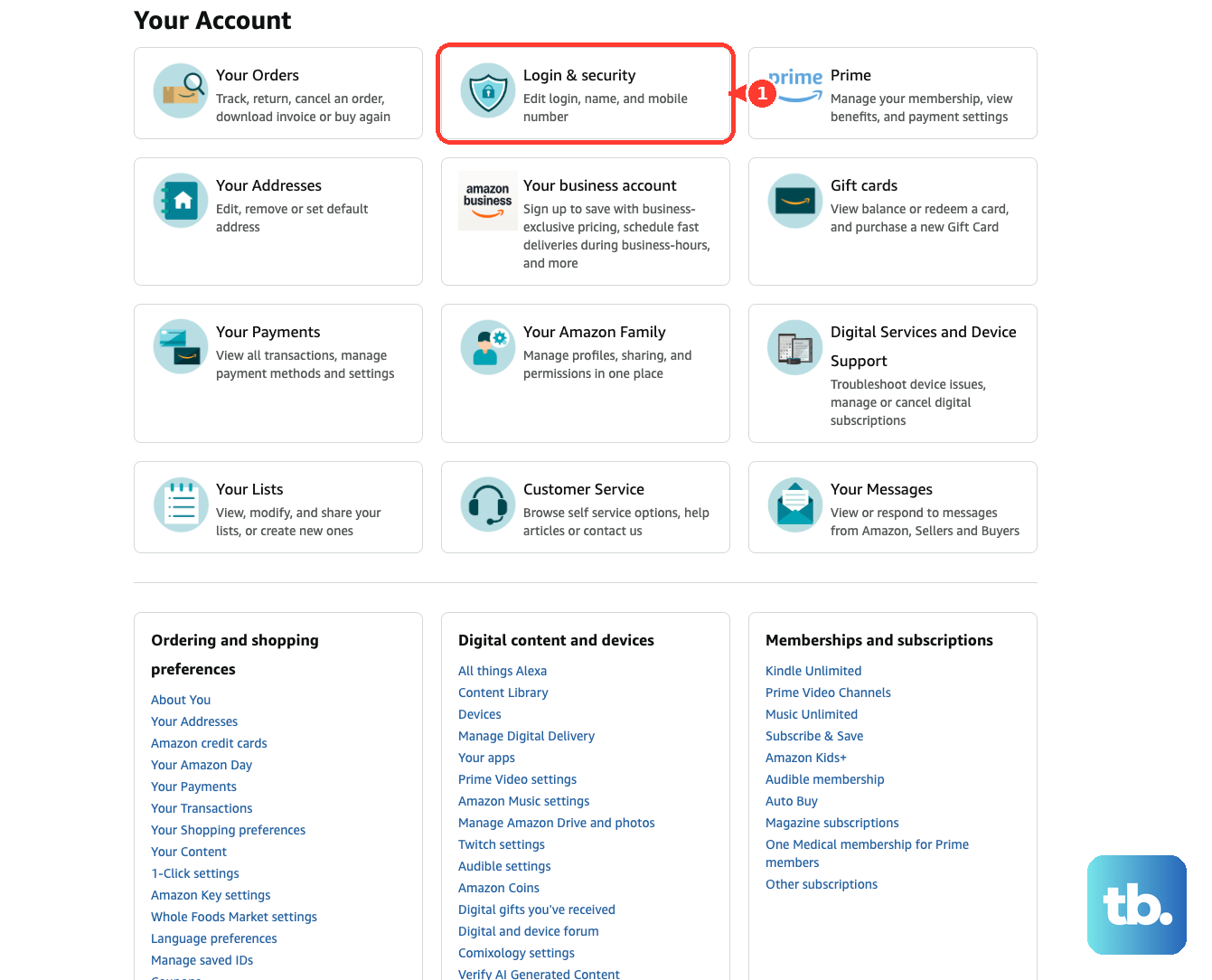
- 2.Hover over "Account & Lists" in the upper-right corner and select "Account" (also labeled "Your Account").
- 3.In the Your Account section, click "Login & security".
- 4.Re-enter your password if prompted.
- 5.Find the "Two-Step Verification (2SV) Settings" row and click "Edit". Some account layouts instead show a "2-step verification" heading with a "Turn on" button beneath your password.
- 6.If this is your first authentication preference, click "Get Started".
Set Up Codes by Text Message or Voice Call
The fastest method for most people, since it needs no extra app.
Choose the phone option, select your country code, and enter the phone number you want to use.
Next, click "Send code", or use the voice-call option to have the code read to you.
Enter the OTP you receive, then click "Continue" (or "Verify code and continue").
After that, add a backup method when prompted (a second phone number or an authenticator app) and verify it the same way.
On the "Almost done" screen, review the alternate sign-in information. Optionally check "Don't require codes on this device" (also worded "Don't require OTP on this browser") to skip codes on your own trusted computer.
Click "Got it. Turn on Two-Step Verification" to finish. Amazon confirms 2SV is now active.
Set Up Codes With an Authenticator App
This is more resilient than SMS because it works even with no cell signal. Use it from the desktop web with your phone in hand.
From "Login & security", click "Edit" next to "Two-Step Verification (2SV) Settings", then "Get Started".
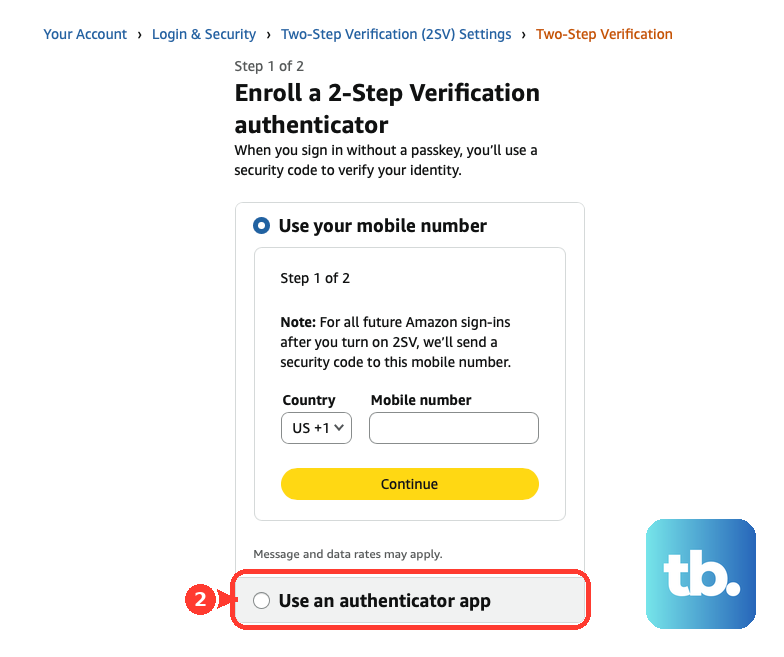
Then select the radio button next to "Authenticator App".
Open your authenticator app on your phone, tap the Plus (+) button, and choose "Scan a QR code".
Point your phone's camera at the QR code on the Amazon web page. The app adds an Amazon entry and starts generating 6-digit codes.
Type the current code into the "Enter OTP" box and click "Verify OTP and continue".
When prompted, add a backup phone number in the "Back-up methods" section and verify it with the SMS code. A backup is required.
Click "Got it. Turn on Two-Step Verification" to complete setup.
Turn On 2SV From the Amazon Shopping App or Mobile Browser
Open Your Account, select Login & security, and follow the on-screen instructions.
Tap "Edit" next to "Two-Step Verification (2SV) Settings" (or "Turn on" in the 2-step verification section), then "Get Started".
Choose to receive the code by text message (enter country code and phone number, tap "Send code") or by authenticator app.
For the authenticator app on the same phone, you usually cannot scan the on-screen QR code with that phone's own screen. Instead, copy the displayed setup code/key and paste it manually into your authenticator app to add the Amazon account. The app then generates a code you re-enter on the enrollment screen.
Enter the code and tap "Verify code and continue".
Finally, add the required backup method, then tap "Got it. Turn on Two-Step Verification".
Set Up 2SV on a Seller or Amazon Pay Account
Business accounts use a different path. Do not look for "Login & Security" here.
Sign in to Seller Central, then go to "Settings" > "Login Settings".
Under "Advanced Security Settings", click "Edit".
Click the yellow "Get Started" button.
Now choose a primary method: "Text message (SMS)" (enter your mobile number, click "Send code") or "Authentication App" (scan the QR code with an app from the App Store or Play Store).
Enter the test code from your primary method and click "Verify code and continue".
Select a required backup method ("Text message (SMS)", "Voice call", or "Authentication App"), enter its test code, and click "Verify code and continue".
On the "Almost done" screen, optionally check "Don't require codes on this device".
Click "Got it. Turn on Two-Step Verification".
Change, Add, or Disable Two-Step Verification
You can adjust your setup later from the same desktop page.
Go to "Account & Lists" > "Account" > "Login & security" and click "Edit" next to "Two-Step Verification (2SV) Settings".
To add another phone or app, find the "Enrolled 2SV Authenticators" section and click "Add new phone or Authenticator App". You can add up to 2 phone numbers as backups.
To change the default, adjust the "Preferred method" setting.
To turn it off, select Disable beside Two-Step Verification and follow any on-screen prompts.
One exception: Two-Step Verification cannot be disabled for the "Your Account" page in Amazon KDP. Even if you turn 2SV off on your main customer account, KDP still requires it there.
Tips and Gotchas
The "Don't require codes on this device" option relies on a browser cookie. If your browser clears cookies on close, or you use private/incognito mode, the device will keep asking for a code. Use it only on a private, trusted computer.
Button labels vary by account layout. Some show "Edit" next to "Two-Step Verification (2SV) Settings"; others show a "Turn on" button under the 2-step verification heading. Both lead to the same flow.
Repeated wrong code attempts can lock you out temporarily. Amazon may impose roughly a 10-minute wait, and in some cases up to a 12-hour wait, before you can try again.
Adding a backup method up front is the cheapest insurance. Losing access to all your verification methods forces an ID-based recovery that takes days.
If a Code Never Arrives or You Lose Your Device
Work through these in order.
First, try signing in with a registered backup method or from a trusted device. On the sign-in code screen, click "Didn’t Receive the Code" to request a new code via a different phone number or method.
If needed, ask your mobile carrier whether any restrictions are blocking the SMS or voice code. If texts and calls keep failing, switch to an authenticator app (Google Authenticator, Microsoft Authenticator).
If you have lost the phone or device entirely and cannot get any code, select "Sign in with Amazon" and enter your account phone number or email. Enter your Amazon password, or use Passkeys or Sign-in with a code. When prompted for a 2SV code, select "Didn’t Receive the Code", then "Two-Step Verification Account Recovery". Follow the on-screen instructions to complete identity verification.
Recovery verification typically takes 1 to 2 days. Amazon emails you once it disables Two-Step Verification, after which you can sign in with just your password and set 2SV up again.
Frequently Asked Questions
Is Two-Step Verification the same as two-factor authentication?
Yes. "Two-Step Verification" (2SV) is simply Amazon's name for the feature, and it is functionally the same as two-factor authentication (2FA). The code it sends or that your app generates is called a One Time Password (OTP).
Do I really need a backup method?
Yes, it is mandatory. Amazon will not let you turn on 2SV without adding a second phone number or an authenticator app, so you always have a fallback if you lose your primary device.
Why can't I scan the QR code on my phone during mobile setup?
When you set up the authenticator app on the same phone you are reading the screen on, the camera cannot capture that phone's own display. Copy the displayed setup code or key and paste it manually into your authenticator app instead, then re-enter the generated code.
Can I avoid entering a code on my own computer every time?
Yes. During setup, check "Don't require codes on this device" (also worded "Don't require OTP on this browser"). It uses a browser cookie, so it only works on a private machine where cookies are not cleared on close and you are not in incognito mode.
What happens if I enter the wrong code too many times?
Amazon may require you to wait before trying again, typically around 10 minutes and in some cases up to 12 hours. Wait out the cooldown rather than continuing to retry.
I lost access to all my verification methods. How do I get back in?
Go to Two-Step Verification Account Recovery and upload a government-issued ID showing your name, address, and issuing authority. Verification usually takes 1 to 2 days, after which Amazon emails you, disables 2SV, and lets you sign in with your password alone so you can set it up again.