


To fix a computer stuck on restarting, let any active installation or reset finish, then use your manufacturer's forced restart procedure if the computer remains unresponsive. If Windows still will not start, open Windows Recovery Environment and run Startup Repair. Once Windows becomes usable, investigate recent app, driver, or update changes before considering a reset.
A frozen Restarting screen needs a different approach from a computer that repeatedly crashes and starts again. These steps cover Windows 11 and Windows 10 where applicable, with version-specific Settings paths.
The short version
- Protect active recovery: Keep power connected and avoid interrupting a Windows installation or reset.
- Restart frozen hardware: Follow the forced restart procedure for your computer's manufacturer and model.
- Recover startup: Use Windows Recovery Environment when the computer cannot reach Windows.
- Fix recurring hangs: Investigate recent software, driver, and update changes after Windows becomes usable.
- Reset last: Back up important files before resetting Windows, even when choosing to keep personal files.
| Approach | When to use it | Main limitation |
|---|---|---|
| Wait with power connected | Installation or reset is active | Reset timing is not a restart deadline |
| End an unresponsive app | Windows still responds | Requires an interactive session |
| Dell forced shutdown | A supported Dell is unresponsive | Unsaved work can be lost |
| Surface forced restart | A supported Surface is unresponsive | Use the procedure for your model |
| Dell power reset | Supported Dell hardware remains stuck | Battery design determines the procedure |
| Automatic Repair entry | Windows cannot start | Requires working built-in recovery |
| Shift and Restart | The Windows interface still responds | Opens recovery without repairing the fault |
| Recovery or installation USB | Built-in recovery does not open | Media must suit the device |
| BitLocker key retrieval | Recovery requests an encryption key | Unlocks access without fixing the fault |
| Startup Repair | Windows no longer starts | Targets startup problems |
| Safe Mode | Normal startup prevents troubleshooting | Provides a diagnostic session |
| Disable automatic crash restarting | The computer crashes and restarts repeatedly | Reveals an error without repairing it |
| Disable a startup app | A startup application is implicated | Affects subsequent sign-ins |
| Uninstall an app | The problem follows a software change | Requires an operational session |
| Roll back a driver | The problem follows a driver change | Requires an available previous driver |
| Clean boot | A background service or app may conflict | Requires administrator access |
| Windows Update troubleshooter | Updates trigger the problem | Requires a working Windows 11 session |
| Remove a recent update | A recent update is implicated | Only removable updates can be uninstalled |
| DISM and SFC | Windows system files need repair | The commands below require running Windows |
| System Restore | Earlier system changes need undoing | Requires an existing restore point |
| Windows Update reinstallation | Supported Windows 11 remains usable | Managed update policies can limit availability |
| Reset Windows | Earlier repairs have failed | Removes apps and settings |
Let an active installation or reset finish
Keep the computer connected to power if the restart is part of installing Windows or resetting the PC. Windows installation can restart the computer several times. Microsoft says a reset can also leave the screen black for more than 15 minutes, and manually restarting during that process can make it fail.
That 15-minute example is not a deadline for forcing the computer off. Establish whether an installation or reset is underway before moving to a forced restart.
Restart an unresponsive computer safely
If Windows still responds, press Ctrl + Shift + Esc to open Task Manager. Select the unresponsive application, select End Task, and retry restarting. You can close a frozen Windows app this way while Windows still has an interactive session.
For an unresponsive Dell desktop or laptop covered by Dell's shutdown procedure, hold the Power button until it turns off, which Dell specifies as 15 to 30 seconds. Wait at least 30 seconds, then press the Power button to start it. A forced shutdown can lose unsaved work.
On a Surface Pro 5th Gen or later, Pro X, Laptop, Laptop Studio, Laptop Go, Go, Studio, or Book 2 or later, hold the Power button until the Surface shuts down, restarts, and displays the Windows logo. This takes approximately 20 seconds; release the button at the logo. For another brand or model, follow its manufacturer's timing to restart an unresponsive computer.
A Dell desktop or removable-battery laptop can also use Dell's power reset procedure. Turn it off, disconnect AC power, remove the battery if the laptop has a removable one, and disconnect USB drives, printers, webcams, and memory cards. Hold the Power button for 15 to 20 seconds, reconnect power and the removable battery, then start the computer. Dell directs owners of nonremovable-battery laptops to model-specific RTC-reset instructions.
Open recovery when Windows will not start
If the computer still cannot start Windows, open Windows Recovery Environment to reach its repair tools. Turn the computer on and, at the Windows or manufacturer logo, hold the Power button until it shuts down. Repeat that interruption once, then start the computer a third time. At Automatic Repair, select Advanced options.
This sequence opens recovery on Windows 11 and Windows 10 computers with a working recovery environment; it does not repair the fault itself. Use it when Windows will not start, and avoid interrupting an active installation or reset. If the Windows interface still responds, hold Shift while selecting Power > Restart instead.
Encrypted computers can request a BitLocker recovery key before allowing recovery tools to proceed. Record the recovery-key ID, open your Microsoft recovery key account page on another device, and sign in. Match the ID to its 48-digit key and enter that key on the affected computer. A saved printout or USB copy is another possible source.
If built-in recovery does not open, you can access recovery using a USB drive with suitable recovery or installation media. For a compatible Windows 11 x64 computer, use another working PC to open the Windows 11 download page and select Download Now under Create Windows 11 Installation Media. Create the installation media on that working PC.
Boot the affected computer from the completed media, choose language preferences, select Next, select Repair my PC, then select Next. Media must match the device and architecture; this creation tool does not create Arm installation media.
Repair a startup failure or enter Safe Mode
When the restart hang becomes a failure to start Windows, select Troubleshoot > Advanced options > Startup Repair > Restart in recovery. Supply the BitLocker key if requested and let Windows attempt repairs. Use Startup Repair for boot problems when the computer cannot load Windows.
If startup still fails, return to Troubleshoot > Advanced options > Startup Settings > Restart. Press 4 or F4 for Enable Safe Mode. Use the resulting session to investigate recently changed drivers or software.
If the computer crashes and automatically restarts, use the same startup menu and press 9 or F9 for Disable automatic restart on system failure. Record the error shown for diagnosis. This exposes a crash error; it does not repair a computer frozen on Restarting.
Undo recent app and driver changes
Once Windows is usable, start with software or drivers changed just before the problem began. On Windows 11 or Windows 10, open Settings > Apps > Startup and turn the suspect app off to stop it opening on startup. This change affects subsequent sign-ins.
To remove an implicated app on Windows 11, open Settings > Apps > Installed apps, open the app's More menu, and select Uninstall. On Windows 10, open Control Panel > Programs > Programs and Features, select the program, then select Uninstall or Uninstall/Change. Follow the app's uninstall prompts.
For a recently changed driver, right-click Start and open Device Manager. Expand the device category, right-click the affected device, then select Properties > Driver > Roll Back Driver. Choose the applicable reason, select Yes, and restart if requested. Rollback requires administrator permissions and an available previous driver.
If no single app stands out, use a clean boot to isolate conflicting services. Sign in as an administrator, search for msconfig, open System Configuration, and select Services. Check Hide all Microsoft services before selecting Disable all > Apply.
Next, select Startup > Open Task Manager, record the enabled startup items, and disable them. Close Task Manager, select OK in System Configuration, then restart and check whether the problem recurs. Reenable items in groups to isolate the cause, then restore normal startup. Organizational policies can restrict these changes on managed computers.
Address a restart problem triggered by updates
If updates trigger the hang and Windows 11 still starts, open Settings > System > Troubleshoot > Other troubleshooters. Beside Windows Update, select Run and complete the interactive diagnostics.
When a recent update is implicated and Windows cannot start, open recovery and select Troubleshoot > Advanced options > Uninstall Updates > Uninstall latest quality update. Only removable updates can be uninstalled. If removing the update does not resolve startup, continue with System Restore.
From a working Windows 11 desktop, open Settings > Windows Update > Update history > Uninstall updates, choose the update, and select Uninstall. On Windows 10, open Settings > Update & Security > Windows Update > View your update history > Uninstall updates. Target the recent update associated with the problem.
Repair Windows system files
With Windows running, you can repair Windows using Command Prompt when missing or corrupted system files are involved. Search for cmd, right-click Command Prompt, and select Run as administrator. Run this command and wait for it to complete:
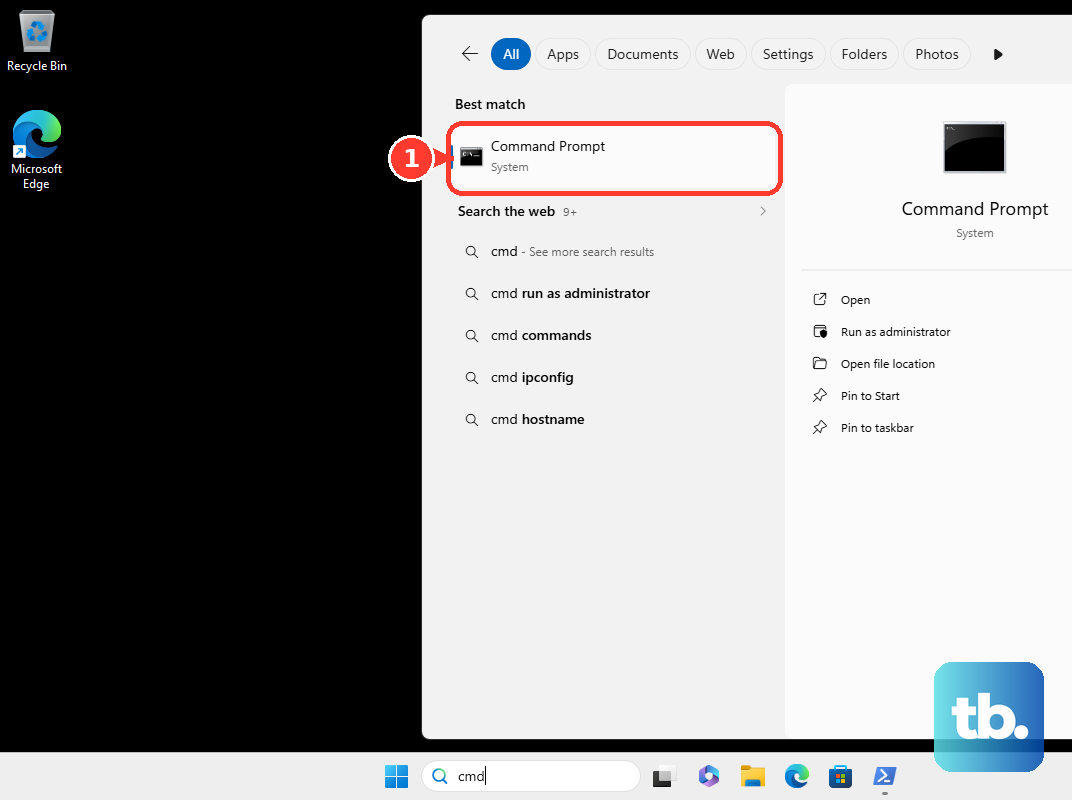
DISM.exe /Online /Cleanup-Image /RestoreHealthNext, run System File Checker with the command below. Wait until verification reaches 100% before closing the window.
sfc /scannowThese commands apply to the running Windows 11 or Windows 10 installation. The /Online option does not target an offline Windows installation from recovery. If you cannot get a working Windows session, continue with the recovery options.
Restore an earlier state or reinstall Windows
System Restore can undo later system changes while preserving personal files, provided an earlier restore point exists. In recovery, select Troubleshoot > Advanced options > System Restore. Choose a restore point from before the restart problem, using Show more restore points if needed.
Select Scan for affected programs to review what the restoration affects, then select Next > Finish. Select Restart when recovery completes. If there is no suitable restore point or the problem remains, move to reinstallation or reset.
Windows 11 offers a reinstallation through Windows Update when you have the 2022 annual update or later plus the February 2024 optional update or later. This requires a working Windows session and can be unavailable on devices with managed update policies. The repair retains your apps, files, and settings.
On Windows 11, open Settings > System > Recovery, then under Fix problems using Windows Update, select Reinstall now. Leave the optional automatic restart choice unchanged and select OK. Keep power and internet connected, then restart when installation finishes.
Reset Windows after the other repairs fail
Back up important data before resetting Windows. To reset Windows while keeping personal files, open recovery and select Troubleshoot > Reset this PC. This route applies to Windows 11 and Windows 10.
Select Keep my files, then choose Cloud download or Local reinstall and complete the reset prompts. Cloud download needs internet access. Keeping personal files still removes apps and settings.
Keep the computer connected to power throughout the reset and allow its restarts and black screens to finish. If the Windows PC will not reset, troubleshoot that failure or seek model-specific manufacturer support. Avoid repeatedly interrupting the reset.
Frequently Asked Questions
Should you disable Fast Startup to fix a restart hang?
Disabling Fast Startup is not an established fix for an ordinary restart hang. Microsoft distinguishes restarting Windows from the shutdown behavior that uses Fast Startup.
Can Quick machine recovery fix a restart loop?
Quick machine recovery can help with known widespread boot failures on Windows 11 version 24H2 or later when the feature is available and enabled. In recovery, select Troubleshoot > Advanced options > Quick machine recovery and connect through Ethernet or supported WPA/WPA2 Wi-Fi. Windows searches for a Microsoft remediation and applies one when available.
Is Point-in-time restore the same as System Restore?
Point-in-time restore also restores personal files, so you can lose file changes made after the selected snapshot. It applies to Windows 11 version 24H2 or later on devices offering the feature with a retained snapshot. Snapshots normally last up to 72 hours.
How can you check whether a Dell computer has a hardware fault?
On supported Dell models shipped with factory-installed Windows 11 or Windows 10 and SupportAssist OS Recovery, repeatedly press F12 at the Dell logo and select SupportAssist OS Recovery. Select APPROVE, then under Scan Hardware select Scan > Start Scan. Record any error and validation codes for service.
Will recovering from a previously created Recovery Drive keep your files?
Choosing Recover from a drive reinstalls Windows and removes your personal data. Back up your files before proceeding and use recovery media appropriate to the computer.