


To recover Windows from a USB drive, boot your PC from a Windows installation USB, select Repair my PC, and run Startup Repair from the recovery menu. If that does not fix startup, you can try a restore point or remove a recent quality update before reinstalling. If Windows still starts, launch Setup from the USB inside Windows to reinstall while keeping personal files and apps.
These instructions focus on Windows 11. Choose your recovery route based on whether you have a Microsoft installation USB, a Recovery Drive created for your PC, or manufacturer recovery media.
The short version
- Create the USB: Use a working Windows PC and an empty USB drive with at least 8 GB for Microsoft x64 installation media.
- Try repair first: Boot the installation USB and select Repair my PC to reach recovery tools.
- Keep apps when possible: Start Setup inside running Windows and choose Keep personal files and apps.
- Prepare for data loss: Recovery Drive reinstalls and clean installations remove personal files, so back up before proceeding.
| Recovery method | When to choose it | What to expect |
|---|---|---|
| Startup Repair | Windows will not start | Repairs supported startup problems without reinstalling |
| System Restore | You have a restore point from before the problem | Reverses system changes and retains personal files |
| Uninstall latest quality update | The failure followed a quality update | Removes the update if removal is available |
| Repair reinstall inside Windows | Windows starts and installation media is compatible | Can retain personal files and installed apps |
| Recovery Drive reinstall | You have this PC’s recovery USB with system files | Reinstalls Windows and removes personal files |
| Clean installation | You are ready to replace the Windows installation | Removes files, apps, settings, and manufacturer customizations |
| Manufacturer factory recovery | You need factory software for a supported model | Restores the matching factory image and erases existing data |
Choose your USB and back up your files
A Microsoft installation USB gives you Windows Setup and repair tools. You can create one on another working Windows PC when the affected computer will not start. A Recovery Drive containing system files is intended to reinstall the computer on which it was created, including after disk replacement or erasure.
Back up personal files separately before any reinstall that removes data. Creating recovery or installation media also erases the USB, so copy anything you need off that drive first. A Recovery Drive does not back up your personal files.
Have your BitLocker recovery key ready because an encrypted device can request it during recovery. Record the recovery key ID, open your Microsoft account recovery keys on another device, sign in, and find the matching key. A saved key on a USB lets you unlock an encrypted drive; it does not contain Windows recovery media.
Create a Windows installation USB
For a compatible Intel or AMD x64 PC, connect an empty USB drive with at least 8 GB to a working Windows computer. Open the Windows 11 download page and, under Create Windows 11 Installation Media, select Download Now. Run Media Creation Tool as an administrator and select Accept.
Choose Create installation media for another PC, then select Next. Choose the required Windows language, edition, and architecture, select USB flash drive, and choose the destination USB. Let the tool finish creating the installation media before moving it to the affected PC.
To prepare a device-specific Recovery Drive instead, search for Recovery Drive in Start and open it on the computer you want to protect. Check Back up system files to the recovery drive, select Next, then connect and select an empty USB. Select Next, then Create, and keep a separate backup of your files.
Start your PC from the USB
When Windows still opens, insert the bootable USB and open Settings > System > Recovery. Under Advanced startup, select Restart now. On the Choose an option screen, select the USB boot option if your PC offers one; on Surface, select Use a device > USB Storage.
You can also hold Shift while selecting Power > Restart to reach the installed recovery environment, then choose the USB boot option if available. If the computer has stopped responding before you can restart it, follow the steps to restart a computer that is frozen, then begin the USB boot process.
For a PC that cannot start Windows, connect the USB and fully shut down the computer. Turn it on and press the manufacturer’s documented boot menu key, then choose the USB’s UEFI boot entry. Microsoft lists F2, F12, Delete, and Esc as common firmware access keys, but the correct key depends on your model.
If you need to change the boot order, open your PC BIOS settings and use its boot controls to select the USB. On Surface, shut down, insert the USB, hold Volume Down, and press and release Power. Keep holding Volume Down until spinning dots appear beneath the logo, then release it.
Run repair tools before reinstalling
After booting a Windows installation USB, enter the language and other requested preferences, then select Next. Select Repair my PC, then Next to enter Windows Recovery Environment. A Recovery Drive starts directly into the recovery environment.
For startup problems, select Troubleshoot > Advanced options > Startup Repair > Restart. Enter your BitLocker recovery key when prompted. Startup Repair addresses supported startup problems without reinstalling Windows.
If Startup Repair does not resolve the problem and a restore point exists, select Troubleshoot > Advanced options > System Restore. Choose a restore point, select Show more restore points if needed, and optionally select Scan for affected programs to review the impact. Select Next > Finish, then select Restart after restoration. System Restore retains your personal files.
When the failure followed a Windows quality update, select Troubleshoot > Advanced options > Uninstall Updates > Uninstall latest quality update. Complete the removal prompts, then try starting Windows again. Some updates cannot be uninstalled, so continue to a suitable reinstall route if removal is unavailable or does not help.
Reinstall while keeping files and apps
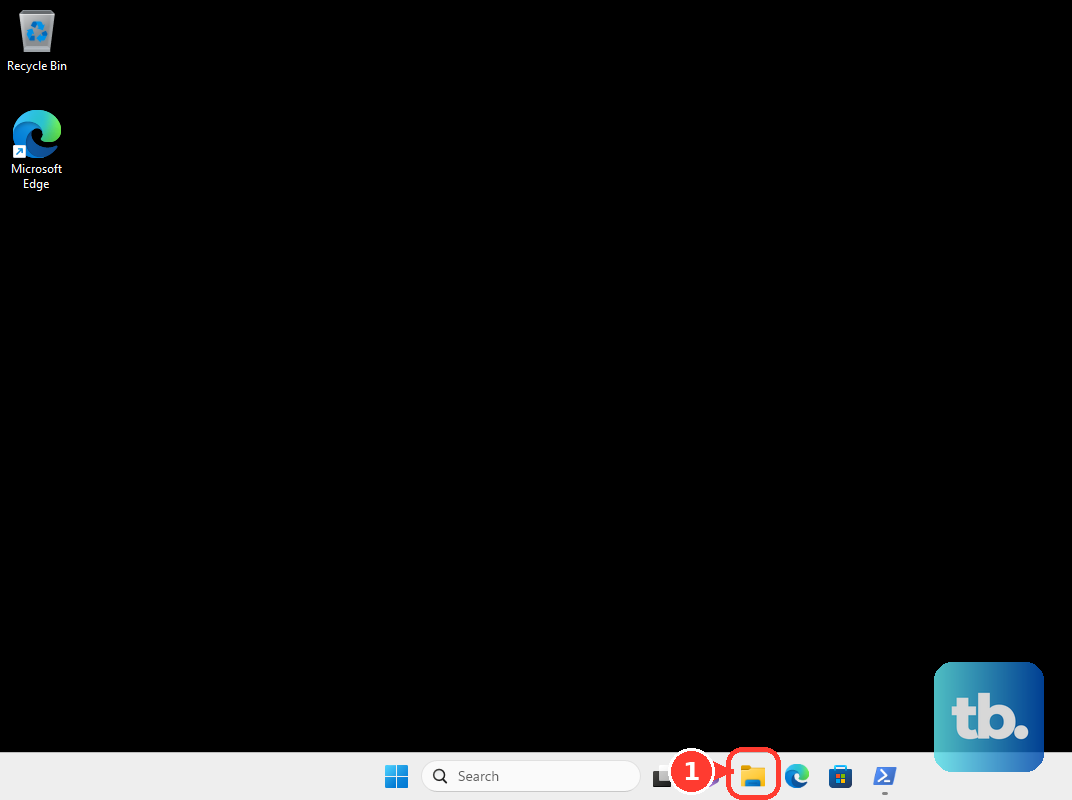
Choose this route when Windows still starts and you want to preserve installed applications. Sign into Windows, connect the installation USB, and open File Explorer. Open the USB and run its root-level setup.exe, then select Yes.
Select Change what to keep, then choose Keep personal files and apps. Select Next > Install to begin the reinstall. Keeping applications requires compatible installation media and starting Setup inside running Windows; booting from the USB does not provide the same option.
For different retention choices, choose Keep personal files only to retain personal data or choose Keep nothing to retain neither files nor apps. Review the choice before selecting Install. If Setup cannot offer the retention option you need, confirm that the installation media is compatible before proceeding.
Restore from a Recovery Drive
Use a previously created Recovery Drive with system files when repairs fail and you are ready to reinstall its originating PC. Boot from that USB and select Recover from a drive. This reinstalls Windows and removes personal files.
Choose Just remove my files or choose Fully clean the drive, then select Recover once your separate file backup is ready. If you want to compare this with other ways to factory reset a laptop, make that choice before starting recovery.
Manufacturer recovery media is another route when you need the PC’s factory software. Obtain media matched to your exact model and follow the manufacturer’s recovery instructions, because eligibility, USB size, and recovery controls differ. Confirm that your files are backed up before restoring the factory image, which erases existing data.
Perform a clean Windows installation
A clean installation removes files, applications, settings, and manufacturer customizations. Boot from the installation USB, complete Select language settings > Next, then Select keyboard settings > Next. Select Install Windows 11, check I agree everything will be deleted including files, apps, and settings, then select Next.
Supply the product key and licensed Windows edition as requested, or select I don't have a product key when an existing license permits it. Select Accept to continue. Keep the installed edition consistent with your license.
At Select location to install Windows 11, identify the intended Windows disk before deleting anything. Delete partitions only on that disk, select its Unallocated Space, then select Next > Install. If you cannot confidently identify the target disk, stop before deleting partitions.
Fix USB boot and missing drive problems
When the USB will not start, confirm that its architecture and boot files match the PC. Older recovery or installation media can stop booting on a PC that has Microsoft’s Secure Boot revocations applied, and Microsoft says such media must be updated before it will work on that PC. Check the manufacturer’s USB boot instructions as well, because the USB entry and boot order controls vary by model.
If Windows Setup cannot find the internal drive on an affected ASUS Intel VMD system, obtain the model-specific Intel Rapid Storage Technology package. Run it, select Next, accept the ASUS software license agreement, and select Next. Choose Extract > Next, select Next after the important information, choose the USB destination, and complete extraction.
At Setup’s drive selection screen, select Load driver > Browse, choose the extracted RST folder, and select OK. Select Intel RST VMD Controller, then Next to load the driver. Continue with disk selection only after the intended Windows drive is visible and identifiable.
Frequently Asked Questions
Can you create an Arm recovery USB with Media Creation Tool?
Microsoft’s Media Creation Tool does not create Arm64 media. Use the separate Windows 11 Arm64 ISO and the manufacturer’s required drivers. Earlier Snapdragon generations require driver injection before booting generic installation media; Snapdragon X Series devices can obtain remaining drivers through Windows Update using an Ethernet dongle or dock after installation.
Can a Recovery Drive without system files reinstall Windows?
A tools-only Recovery Drive does not contain a Windows reinstallation image. It provides access to recovery tools, so you need installation media or another suitable recovery image to reinstall Windows.
Can a newly created rescue USB restore your old apps and settings?
A third-party rescue USB requires a compatible existing system backup to restore that earlier state. Creating rescue media with Macrium, Acronis, or Veeam does not create a backup of the failed computer’s previous installation.
Should you use Windows To Go or the older Windows system image backup feature?
Windows To Go was removed, so choose installation, recovery, or supported rescue media instead. Microsoft has deprecated System Image Backup, associated with Backup and Restore (Windows 7), and directs users seeking full-disk backup to another software publisher.
Can you still download Windows 10 installation media?
Microsoft still offers Windows 10 installation media, but ordinary Windows 10 support ended on October 14, 2025. Special servicing arrangements have separate lifecycles, so the availability of a download does not mean ordinary support continues.