
To fix a frozen computer, press Ctrl + Shift + Esc on Windows to open Task Manager, or Option + Command + Esc on Mac to open Force Quit, and close the unresponsive app. If the whole computer ignores input, try its restart controls before forcing it off with the physical power button.
The short version
- Close the frozen app first if other controls still respond.
- Use the normal Restart menu whenever you can.
- Try keyboard controls before holding the power button.
- Forced shutdowns can lose unsaved work.
- Surface and Chromebook hardware resets need their own button sequences.
- Use recovery tools when restarting does not resolve the problem.
| Method | What it does | Time | Use it when |
|---|---|---|---|
| Close a frozen app | Stops the stuck app | Under a minute | Other controls respond |
| Normal restart menu | Restarts the operating system | Under a minute to select | The menu opens |
| Keyboard restart controls | Opens restart choices | Under a minute to select | The pointer or taskbar is stuck |
| Forced shutdown | Turns off an unresponsive computer | 5 to 20 seconds | Restart controls fail |
| Surface button sequence | Restarts a frozen Surface | About 20 to 30 seconds | Your Surface ignores input |
| Chromebook hardware reset | Restarts hardware controls | Under a minute to initiate | Normal restart fails |
| Command line restart | Requests restart from a shell | Under a minute to enter | A command window still works |
| Recovery or admin tools | Opens troubleshooting or remote restart | A few minutes to open controls | Freezes repeat or IT manages the device |
The table estimates the time to use the controls or hold the buttons. Allow additional time for the computer to shut down, start up, or install a pending update.
Close a frozen app first
If just one app is stuck, try closing that app before restarting the whole computer. Save work in any other windows that still respond, because ending an app can lose its unsaved changes.
On Windows, press Ctrl + Shift + Esc to open Task Manager. If Task Manager shows a compact app list, select More details first. Select Processes, right-click the unresponsive app, and choose End task; for example, use this on Microsoft Edge if the browser is stuck.
On Mac, press Option + Command + Esc, select the unresponsive app, and click Force Quit. The same shortcut is the Mac equivalent of Control Alt Delete for frozen apps; if the Mac still will not respond, move on to restarting it.
Use the normal restart menu
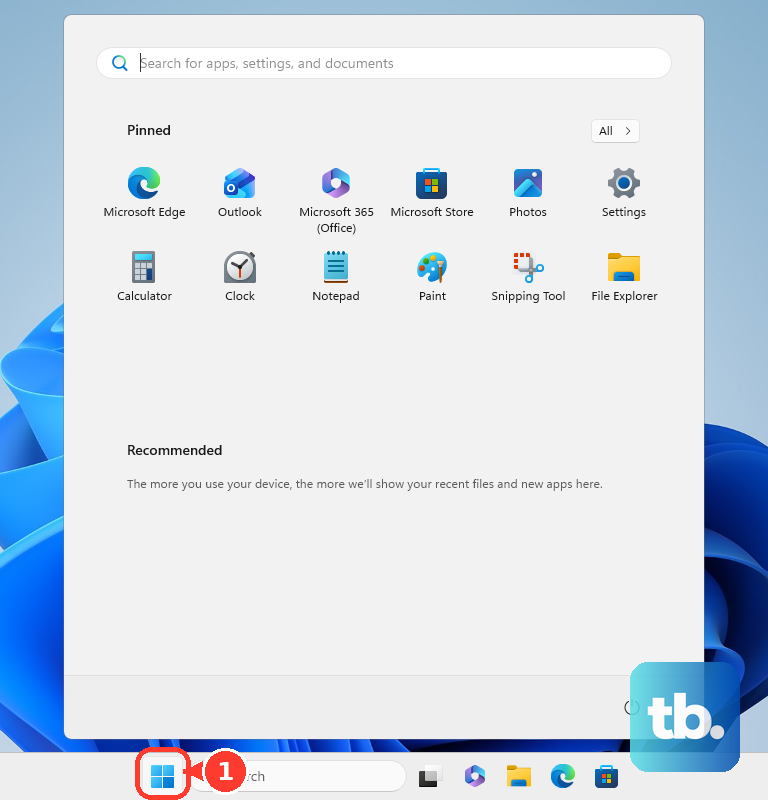
On Windows 11 and Windows 10, select Start > Power > Restart. Save any open work that you can before selecting the restart option.
On Mac, choose Apple menu > Restart, then click Restart in the confirmation dialog. Deselect Reopen windows when logging back in if you do not want those app windows to return.
On Chromebook, select the time at the bottom right, choose Power, then select Restart. If a downloaded update is waiting, you can instead select Restart in the Update device notification next to the date.
On Ubuntu's GNOME desktop, open the system menu on the right side of the top bar. Click the Shutdown button and choose Restart. Try this while the desktop still responds, and use the keyboard route below if the pointer has stopped working.
Use keyboard restart controls
On Windows, press Ctrl + Alt + Delete, select Power in the lower-right corner, and choose Restart. If Start still responds, another route is to right-click it and choose Shut down or sign out > Restart.
On a built-in Mac keyboard without Touch ID, press Control + Power to open the restart, sleep, or shutdown dialog. Choose Restart there; keep this shortcut for keyboards without Touch ID rather than treating it as a shortcut for every Mac.
On Ubuntu's GNOME desktop, Ctrl + Alt + Delete opens the Power Off dialog by default. If these controls do not respond, use the applicable power-button instructions below instead of repeatedly pressing the same shortcut.
Force an unresponsive computer to turn off
Windows PCs
Use a forced shutdown only after the restart menus and keyboard controls fail. For an unresponsive Windows PC with a blank screen, hold the physical Power button for 20 seconds, then release it and turn the PC back on.
For other Windows freezes, follow your PC maker's power-button instructions, and use the separate Surface sequence below if applicable. A forced shutdown can lose unsaved work, so save anything that still responds before using it.
Mac computers
If the Mac will not restart, hold its Power button for up to 10 seconds until it turns off. On a Mac laptop with Touch ID, hold Touch ID instead, then press and release the power button to turn the Mac back on.
You may lose unsaved changes in open documents when you force the Mac off. Use this after Force Quit and Apple menu > Restart have failed.
For a built-in keyboard without Touch ID, Control + Command + Power forces a restart. It skips save prompts, so unsaved edits can be lost. Use it only as a last resort.
Ubuntu computers
If Ubuntu's GNOME desktop will not wake after suspend, first press a key or click the mouse, then try a single press of Power. Check that the monitor is on and try a key again before forcing the computer off.
As a last resort in that situation, hold Power for 5 to 10 seconds, then turn the computer on again. You will lose unsaved work; for a freeze outside suspend, check your computer maker's shutdown instructions rather than assuming the same hold time.
Use the correct Surface button sequence
Check your model in Microsoft's Surface restart instructions before choosing a sequence. For Surface Pro (5th Gen) and later, Surface Pro X, Surface Laptop, Surface Laptop Studio, Surface Laptop Go, Surface Go, Surface Studio, and Surface Book 2 and later, hold Power until the device shuts down, restarts, and shows the Windows logo, about 20 seconds, then release it.
For Surface Pro, Pro 2, Pro 3, Pro 4, the original Surface Book, Surface 2, Surface 3, and Surface RT, hold Volume Up + Power together until the screen turns off, about 15 seconds, then release both. Keep holding for at least 15 seconds even if the Surface logo flashes. Wait 10 seconds after releasing, then press and release Power to turn it on.
Reset Chromebook hardware when restart fails
Try turning the Chromebook off and on before a hardware reset. Hold Power for 3 seconds, or hold the physical power button until a menu appears and choose Power off, then turn it back on.
For most Chromebooks, turn the device off, hold Refresh, and tap Power. Release Refresh when the Chromebook starts up; the hardware reset restarts components such as the keyboard and touchpad and can delete files in Downloads.
The alternative keyboard sequence is to hold Back + Refresh + Power for at least 10 seconds. On a ChromeOS tablet, hold Volume Up + Power for at least 10 seconds, then release both.
Some models require a different procedure, so check Google's Chromebook hardware reset instructions if those keys do not match your device. Keep Powerwash for a deliberate factory reset, because it erases local user data.
Restart from a command window
Use commands only when the desktop is partly responsive and a command window or existing remote connection still works. Save what you can first, and choose the command for the operating system you are restarting.
Windows
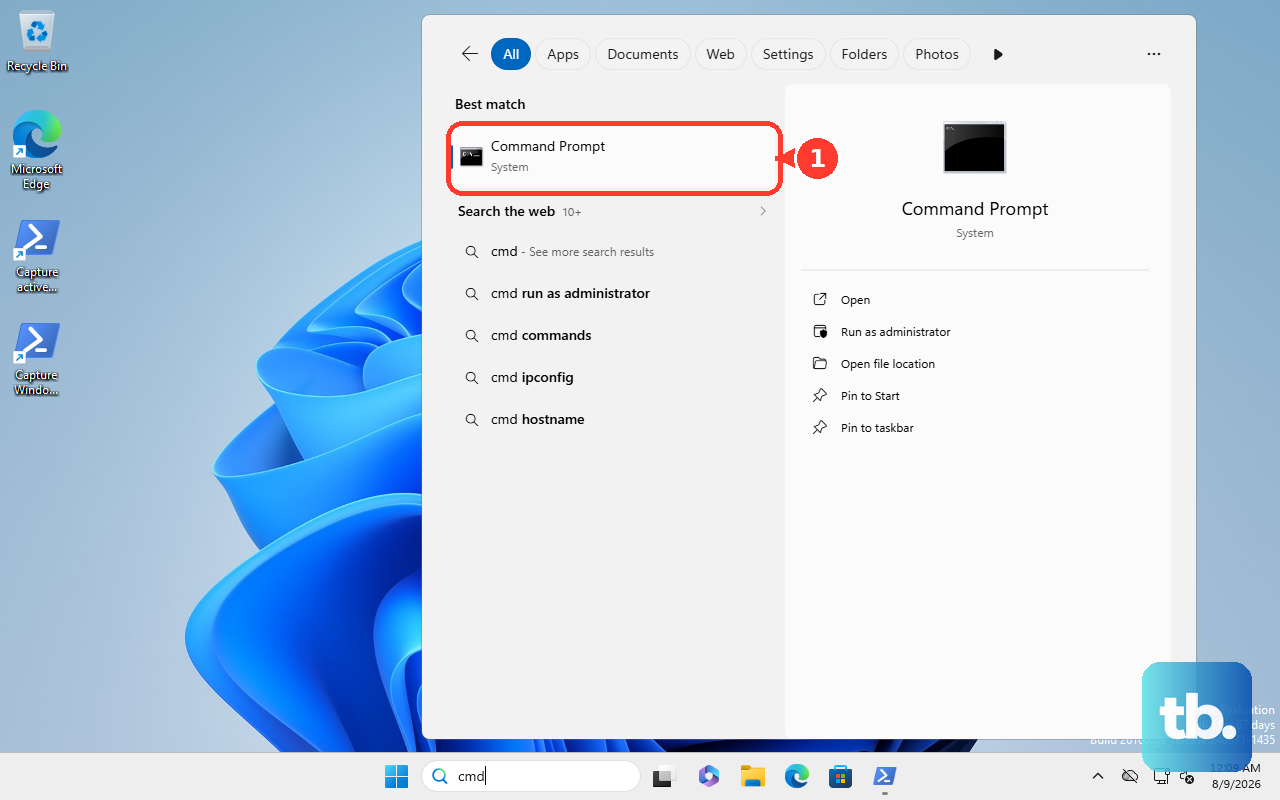
On Windows, open Command Prompt from Search by typing command prompt in the taskbar search box and choosing Command Prompt. Type shutdown /r /t 0 and press Enter; /r requests restart and /t 0 sets a zero-second delay.
In Windows PowerShell, you can instead enter Restart-Computer to restart the local PC. Restart-Computer -Force forces an immediate restart, so reserve it for cases where you intend to force the restart.
Mac
On Mac, open Terminal and run sudo shutdown -r now using an administrator account. For a remote Mac with Remote Login already enabled, connect with ssh admin@computer, replacing admin with the account's short name and computer with its IP address or host name, then run the shutdown command.
Ubuntu
On Ubuntu, open Terminal and run sudo shutdown -r now or sudo reboot. Your account needs permission to use sudo, and you may be asked to authenticate before the command runs.
When recovery or an administrator is needed
Windows recovery
Use Windows startup troubleshooting when the PC keeps failing after a restart. To enter the Windows Recovery Environment from a working restart menu, hold Shift while selecting Power > Restart.
In recovery, select Troubleshoot > Advanced options > Startup Settings > Restart. If the device is encrypted, have its BitLocker recovery key ready before using these tools.
After the PC restarts, choose a startup option such as Safe Mode, or press Enter to start Windows normally. This route is for troubleshooting startup behavior, so use the ordinary restart menu for a one-off freeze.
Apple Remote Desktop
An administrator using Apple Remote Desktop can select a computer list, select the affected Mac, and choose Manage > Restart. Select the restart type and click Restart; the client normally needs an Available status unless it supports lights-out management.
Managed Chromebooks
Managed Chromebooks can receive administrator-controlled restart prompts to apply pending updates. If a work or school device blocks the options you need, contact your IT team rather than changing its management settings.
Frequently Asked Questions
Will a forced restart delete my files?
You can lose unsaved work when you force a computer off. A Chromebook hardware reset can also delete files in Downloads, so do not treat every restart or reset procedure as having the same effect on files.
What should I try before holding the power button?
Close the unresponsive app first if the rest of the computer still works, then try the normal restart menu. On Windows, try Ctrl + Alt + Delete and Power > Restart; on a built-in Mac keyboard without Touch ID, try Control + Power.
Can I restart a computer from Terminal or PowerShell?
Yes, if a command window still responds and you have the required permissions. Windows supports shutdown /r /t 0 and Restart-Computer, while Mac and Ubuntu support sudo shutdown -r now.
Should I use Powerwash to restart a Chromebook?
Use the normal restart or hardware reset steps first, because Powerwash is a factory reset. It erases local user data, and a Chromebook used at work or school needs its administrator for a factory reset.
What if the computer freezes again after restarting?
For a Mac app that keeps freezing, check for software updates and compatibility with your macOS version. On Chromebook, close unused apps and browser windows, and uninstall recently added apps or extensions if the freezing started after you installed them.