


To fix a Windows PC that won’t reset, retry with Cloud download, repair Windows system files, then try Reset this PC from the recovery environment. If those options fail, reinstall Windows using Windows Update or official installation media.
Back up your personal files before starting another recovery attempt. When you select Keep my files, Windows retains personal files but removes installed apps and settings. A clean installation or factory recovery can erase the selected disk.
The short version
- Wait during an active reset: A black screen can last more than 15 minutes, and manually restarting can cause the reset to fail.
- Change the installation source: Where it is offered, choose Cloud download when local Windows installation files are damaged or missing.
- Repair before retrying: Free storage and run DISM followed by System File Checker while Windows still opens.
- Use recovery or installation media: Try the recovery environment before moving to a repair reinstall or destructive clean installation.
| Option | When to use it | Main catch |
|---|---|---|
| Wait for the reset | A reset is already running | A long black screen does not prove failure |
| Switch installation source | The reset fails using local files | Cloud download needs internet access |
| Free storage | Space is limited | Review deletions before confirming |
| DISM and System File Checker | Windows opens but components may be damaged | Requires administrator access |
| Reset from recovery | Settings or normal startup is unavailable | May require a BitLocker recovery key |
| Startup Repair | Windows also fails to start | Addresses boot problems |
| Enable Windows RE | The recovery environment is disabled | Requires a valid recovery image |
| Windows Update repair | You want to retain files, apps, and settings | Availability depends on Windows version and management policies |
| System Restore | The trouble followed a system change | Requires a suitable restore point |
| Feature upgrade rollback | The trouble followed a Windows upgrade | Normally available within 10 days |
| Repair reinstall from media | Built-in repair fails but Windows opens | Keeping apps requires compatible media |
| Recovery tools on installation media | Installed recovery tools are unavailable | Ordinary reset choices may be unavailable |
| Clean installation | Reset and repair options fail | Erases the selected installation disk |
Let an active reset finish
Leave the PC powered on while a reset is running, even when the screen goes black. Microsoft says a black screen can last more than 15 minutes and the PC might attempt to restart itself. Manually restarting during that process can cause failure.
Try the following fixes after Windows reports a failure or returns you to the desktop without completing the reset. Use the startup interruptions described below only when Windows cannot boot and no reset is running.
Retry with a different installation source
In Windows 11, open Start > Settings > System > Recovery, then select Reset PC. To retain personal files, select Keep my files; to remove them, choose Remove everything. Continue to the installation source screen.
Where Windows offers it, choose Cloud download if the previous attempt used Local reinstall, particularly when local installation files are damaged or missing. Cloud download isn’t supported on LTSC editions, so on those PCs use Local reinstall or the installation media routes below. Choose Local reinstall instead when downloading is impractical. Review the final file removal choices, then complete the reset wizard.
For the broader reset workflow, follow the steps to factory reset a laptop. If the reset fails again, try repairing the existing installation before repeating the attempt.
Free storage and repair Windows files
Open Settings > System > Storage > Cleanup recommendations. Review Temporary files, Large or unused files, Files synced to the cloud, and Unused apps, then select Clean up for the appropriate section. Required free space depends on the recovery operation, so follow any space requirement Windows displays.
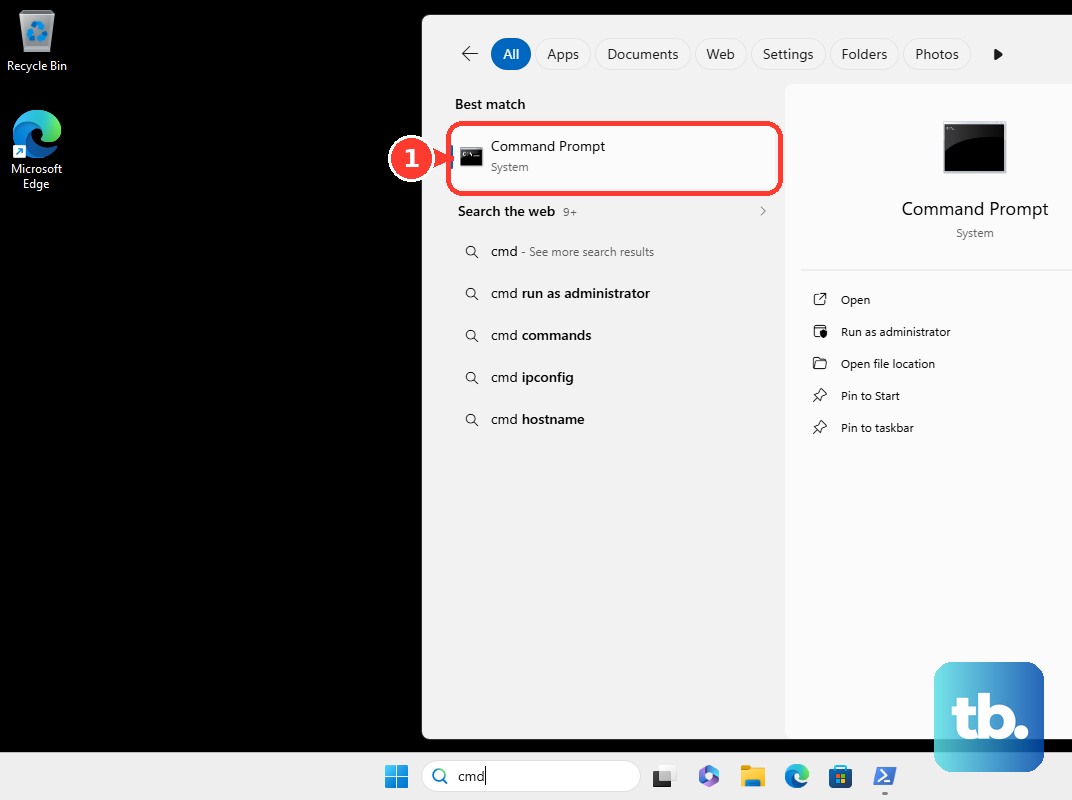
Install available Windows updates and restart before repairing system files. Search for Command Prompt, right-click it, select Run as administrator, then select Yes. Run this command to repair Windows components:
DISM.exe /Online /Cleanup-image /RestorehealthAfter DISM succeeds, run System File Checker with the command below. Let verification finish before retrying the reset.
sfc /scannowIf DISM cannot obtain the files it needs, try a repair reinstall using Windows Update or installation media. An advanced DISM repair with an explicit source requires compatible Windows files and confirmed folder locations.
Try resetting from Windows recovery
At Start or the sign-in screen, hold Shift while selecting Power > Restart. After the recovery screen opens, select Troubleshoot > Reset this PC, then follow the on-screen options to keep or remove your personal files and complete the reset.
You can also enter recovery through Settings > System > Recovery. Under Advanced startup, select Restart now, then select Troubleshoot.
When Windows cannot start and no reset is running, turn the PC on and wait for the Windows or manufacturer logo. Hold the power button until it switches off, repeat that interruption once, then start the PC a third time. On the Automatic Repair screen, select Advanced options to enter recovery.
An encrypted PC may request its BitLocker recovery key. Record the recovery key ID, open your Microsoft account recovery keys on another device, and match the ID to its 48-digit key. Enter that key to continue, or check a saved printout or USB drive for it.
If Windows also has startup problems, select Troubleshoot > Advanced options > Startup Repair > Restart. Supply the BitLocker key if requested, then let Windows diagnose and repair startup before attempting recovery again. This addresses boot failures; if resetting still fails, check the recovery environment next.
Check whether Windows recovery is disabled
Check the installed recovery environment if you cannot access its tools. While Windows is running, open Command Prompt with Run as administrator and run this status command:
reagentc /infoIf the status is disabled, run the following command to enable it. This needs a valid recovery image and cannot rebuild a missing image by itself.
reagentc /enableRun the status command again to confirm the result. Once Windows RE is enabled, retry resetting from recovery.
reagentc /infoIf enabling fails because recovery files are missing or damaged, proceed to installation media. Correcting a registered recovery-image location requires locating a valid image and using its actual folder. Avoid guessing drive letters or changing recovery paths without that information.
Repair Windows while keeping apps
Windows 11 offers a repair reinstall that preserves files, apps, and settings. Open Settings > System > Recovery. Under Fix problems using Windows Update, select Reinstall now, then select OK.
Keep power and internet connected until installation finishes, then restart. This option requires Windows 11 version 22H2 or later with the February 2024 optional update or a later update. If it is missing on a managed PC, contact IT because management policies can affect availability. Otherwise, try the installation media repair route below.
When the trouble began after a recent system change, try System Restore if you have a suitable restore point. In recovery, select Troubleshoot > Advanced options > System Restore, then choose an earlier restore point, selecting Show more restore points if needed. Review Scan for affected programs before selecting Next > Finish. Your personal files stay, but later system changes can be undone.
After an eligible feature upgrade, you can also revert to a previous Windows version through Settings > System > Recovery > Go back, then complete the rollback wizard. This is normally available within 10 days and retains personal files while removing subsequent apps, drivers, and settings changes. Keep the windows.old and $windows.~bt folders and any installation USB used for the upgrade until rollback is complete.
Reinstall from official installation media
If built-in repair continues to fail, get installation files from the official Windows 11 download page. For an x64 PC, under Create Windows 11 Installation Media, select Download Now and run the tool as administrator. Select Accept, choose the required language and media options, and create installation media using a blank USB drive with at least 8 GB.
Use a working PC to create the USB if the affected computer cannot run the tool. Arm PCs require an Arm64 image rather than the x64 Media Creation Tool image. Match the installation media to the affected PC’s architecture, language, and edition.
To preserve apps, start the reinstall while signed in to Windows. Connect compatible installation media, open it in File Explorer, and run setup.exe, then select Yes. Select Change what to keep, choose Keep personal files and apps, then select Next > Install.
Review what Setup will retain before proceeding. Keeping apps requires compatible media and launching Setup inside running Windows. If Windows cannot start, booting the USB provides recovery or installation options instead.
To access repair tools from current Windows 11 media, boot from the USB and complete the language and keyboard screens. Select Repair my PC, then Next. Ordinary Reset this PC choices may be unavailable when you boot from installation media, so use the available repair tools or proceed to a clean installation.
Use a clean installation as the last resort
A clean installation replaces Windows and removes files, apps, settings, and manufacturer customizations from the selected installation disk. Back up your files before proceeding. If you need to change how the computer boots, follow the steps to get to BIOS on Windows and use your model’s boot controls to start from the installation USB.
Complete the language and keyboard selection, then select Install Windows 11. Select I agree everything will be deleted including files, apps, and settings, then select Next. Supply the appropriate license information and select Accept.
Identify the Windows target disk before deleting anything. Use Delete Partition only for the intended partitions on that disk, select its Unallocated Space, then select Next > Install. Do not modify other disks; stop before deletion if you cannot confidently identify the installation disk.
Frequently Asked Questions
Does Clean data make a reset more likely to work?
Clean data controls drive cleaning, so it is not a repair option for damaged Windows installation files. Restore preinstalled apps controls manufacturer customizations. Choose these settings for the reset result you want.
Can a recovery USB made earlier replace a failed reset?
Yes, a suitable recovery drive created for your PC provides another recovery route. Boot from it and select Recover from a drive, then choose Just remove my files or choose Fully clean the drive and select Recover. This removes personal files, applications, and settings, and another PC’s recovery drive is not a guaranteed substitute.
Is there a manufacturer shortcut for opening recovery?
On supported HP PCs, press F11 repeatedly at startup; on supported Acer PCs, press Alt + F10 at the Acer logo. On some Lenovo ideaPad models, you can press the Novo button while the PC is off, then select System Recovery. These entry points depend on your model and its recovery components.
Should you use old registry rename tricks or reset commands?
Do not use the registry-hive rename workaround as a Windows 11 reset fix; Microsoft documents it for a specific Windows 8 failure. Microsoft also states that reagentc /setosimage is not used in Windows 10 or later. Recovery-environment registration uses /setreimage, which requires a valid recovery image and its actual folder.