


To repair Windows using Command Prompt, open it as administrator, run DISM.exe /Online /Cleanup-Image /RestoreHealth, then run sfc /scannow. This repairs the Windows component store first, then checks and repairs protected system files.
Use that sequence when Windows still opens. If Windows cannot start, open recovery Command Prompt and target the installed Windows drive with offline commands. These tools work on Windows 11 and Windows 10, but they cannot fix every app, setting, or hardware problem.
The short version
- Start here: Open Command Prompt as administrator and run DISM before SFC.
- Let repairs finish: Wait for DISM to complete successfully and SFC verification to reach 100%.
- For startup failures: Open Windows recovery and identify the installed Windows drive before using offline commands.
- Match the repair: Use CHKDSK for file-system errors and boot repair for startup configuration problems.
| Repair | What it addresses | When to use it |
|---|---|---|
| DISM | Windows component-store corruption | Before SFC, with a suitable repair source if needed |
| SFC | Damaged protected system files | After successful DISM repair |
| Offline DISM | Component-store corruption in an offline installation | From recovery, with a suitable source |
| Offline SFC | Protected files in an offline installation | After identifying the boot and Windows directories |
| Revert pending actions | Startup failure after servicing | Against the offline Windows installation only |
CHKDSK with /f | File-system errors | When the affected volume needs repair |
CHKDSK with /r | Bad sectors and readable-data recovery | For relevant storage problems |
| Startup Repair | Some system-file and boot-configuration failures | Before manual boot repair |
| BCDBoot | Windows boot files and boot configuration | For diagnosed boot problems |
| System Restore | System configuration problems | When a usable restore point exists |
| Windows Update reinstall | Windows problems that persist after repairs | On eligible Windows 11 PCs |
| Reset this PC | Problems requiring Windows reinstallation | When other repairs fail, with apps and settings removed |
Open Command Prompt as administrator
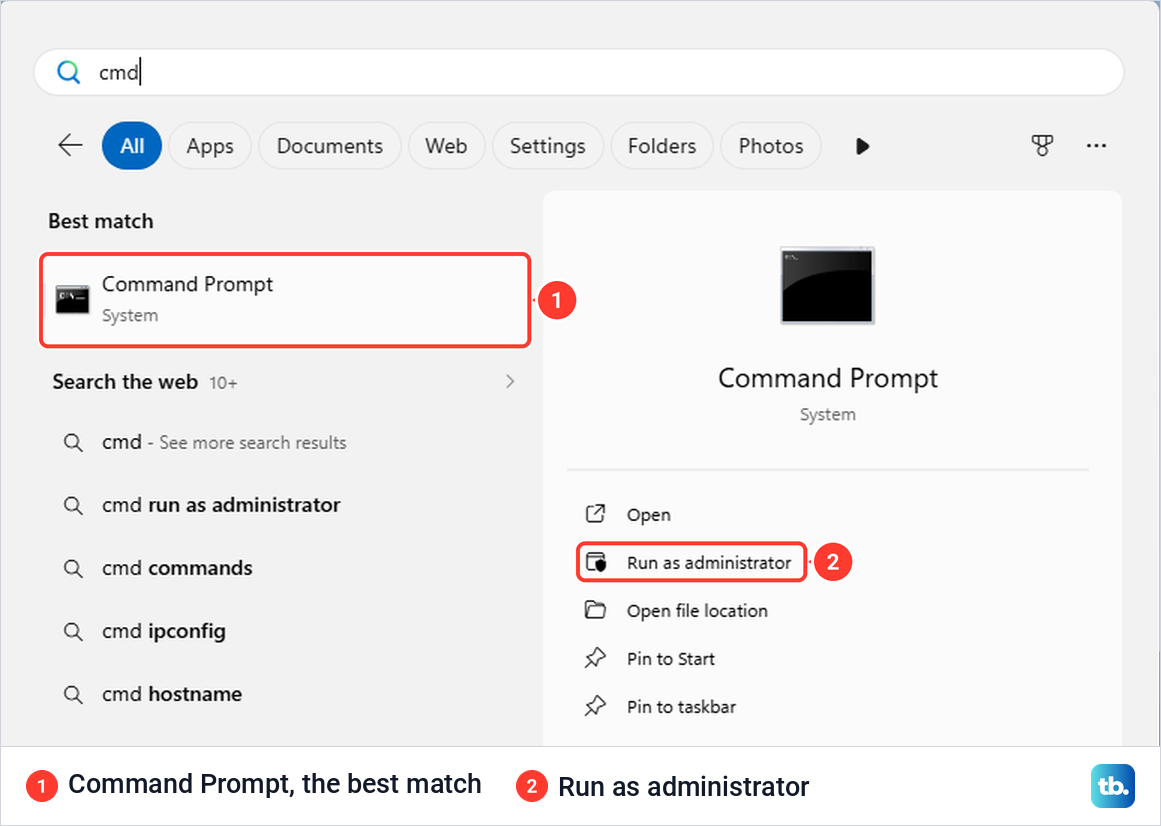
Search Windows for Command Prompt, right-click Command Prompt, and select Run as administrator. Select Yes and supply administrator credentials if requested. Run the desktop repair commands in that window.
Save your work before repairs that require a restart, and back up recoverable files before operations that change disks or reinstall Windows. If the desktop is unresponsive, follow the steps to restart a computer that is unresponsive, then choose the desktop or recovery route based on whether Windows starts.
Repair the Windows component store with DISM
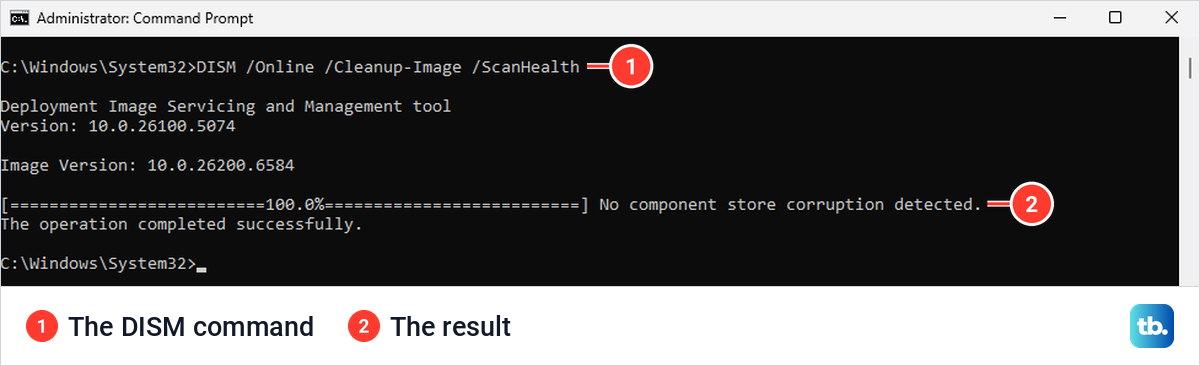
Begin with DISM to repair the Windows component store. In administrator Command Prompt, enter the following command and press Enter.
DISM.exe /Online /Cleanup-Image /RestoreHealthWait for successful completion before moving on to SFC. Windows Update supplies repair files by default. The /Online switch targets the operating system currently running, so it will not target your installed Windows system when you run it from recovery Command Prompt.
If DISM cannot obtain repair files, provide a suitable repair source. Its version, servicing level, architecture, edition, and required languages must be appropriate for your Windows installation. Replace the example folder below with the actual source location, then run the command.
DISM /Online /Cleanup-Image /RestoreHealth /Source:C:\RepairSource\Windows /LimitAccessThe /LimitAccess switch prevents DISM from falling back to Windows Update. A source older than your installation's servicing level can fail. If you cannot supply a suitable source, use the repair reinstall option below.
Scan and repair system files with SFC
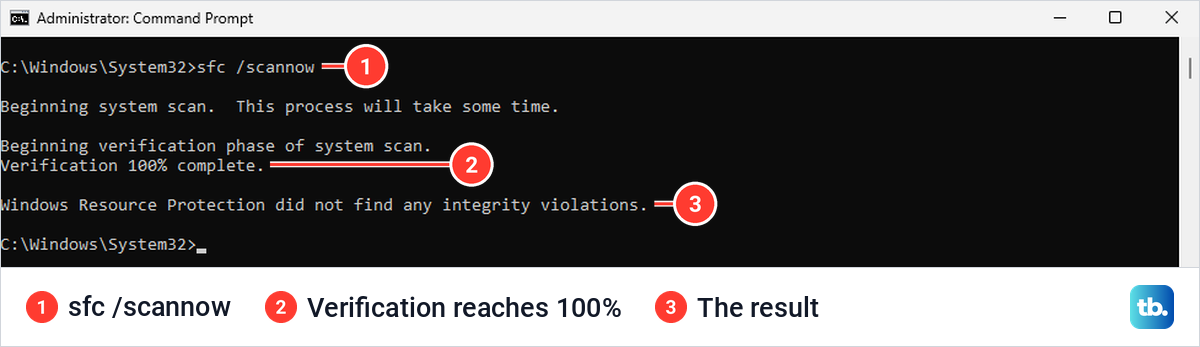
After DISM completes successfully, run System File Checker in the same administrator Command Prompt. Enter the following command and press Enter.
sfc /scannowLeave the window open until verification reaches 100%, then check whether the original problem is resolved. SFC repairs protected Windows system files, so an unresolved problem may need a different repair. Use CHKDSK for file-system errors or the recovery options below when system-file repairs are insufficient.
When SFC cannot perform the requested operation, Microsoft recommends running it in Safe Mode. Enter recovery using the steps below, then select Troubleshoot > Advanced options > Startup Settings > Restart. Press 6 or F6 for Safe Mode with Command Prompt, sign in, and run sfc /scannow again.
Open recovery when Windows cannot start
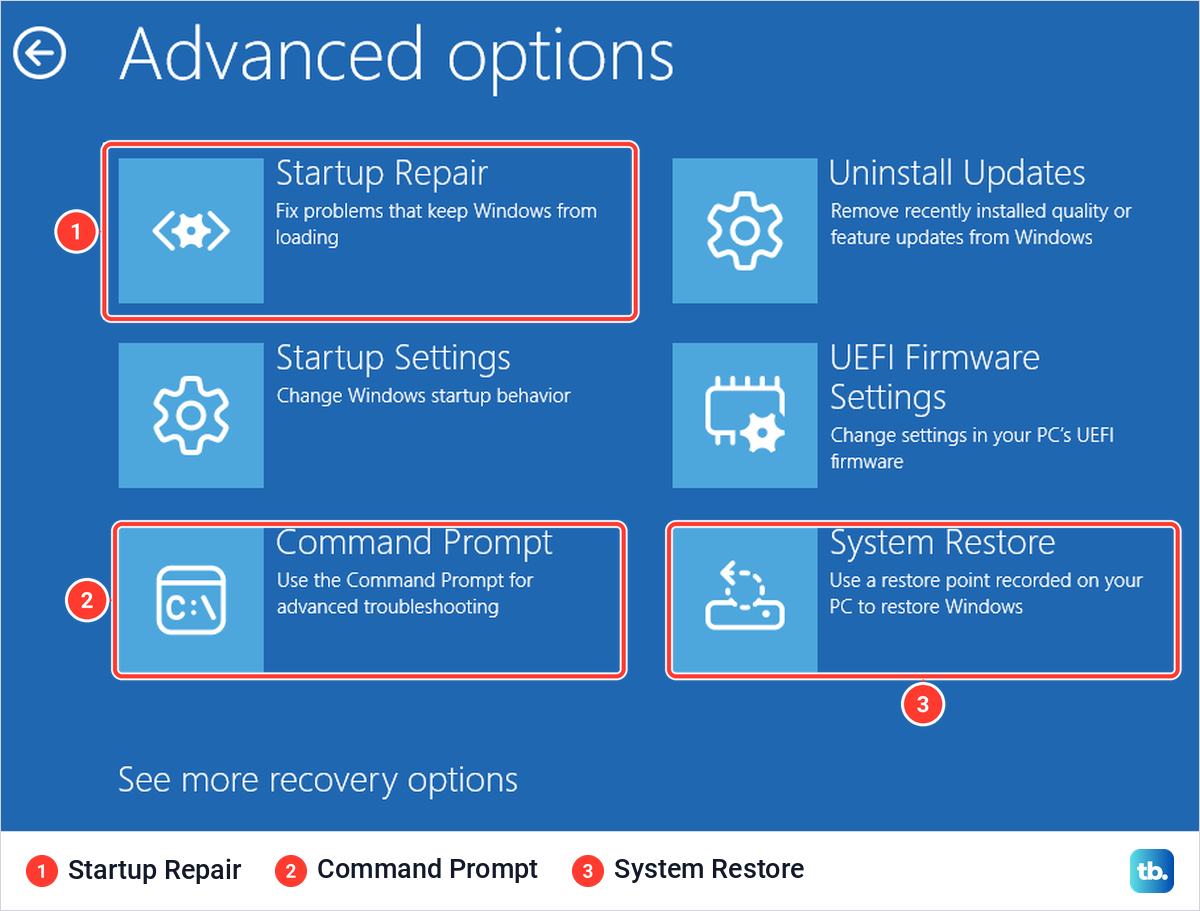
From the sign-in screen, hold Shift while selecting Power > Restart. Once recovery opens, select Troubleshoot > Advanced options > Command Prompt. This opens a separate recovery environment rather than your normal Windows desktop.
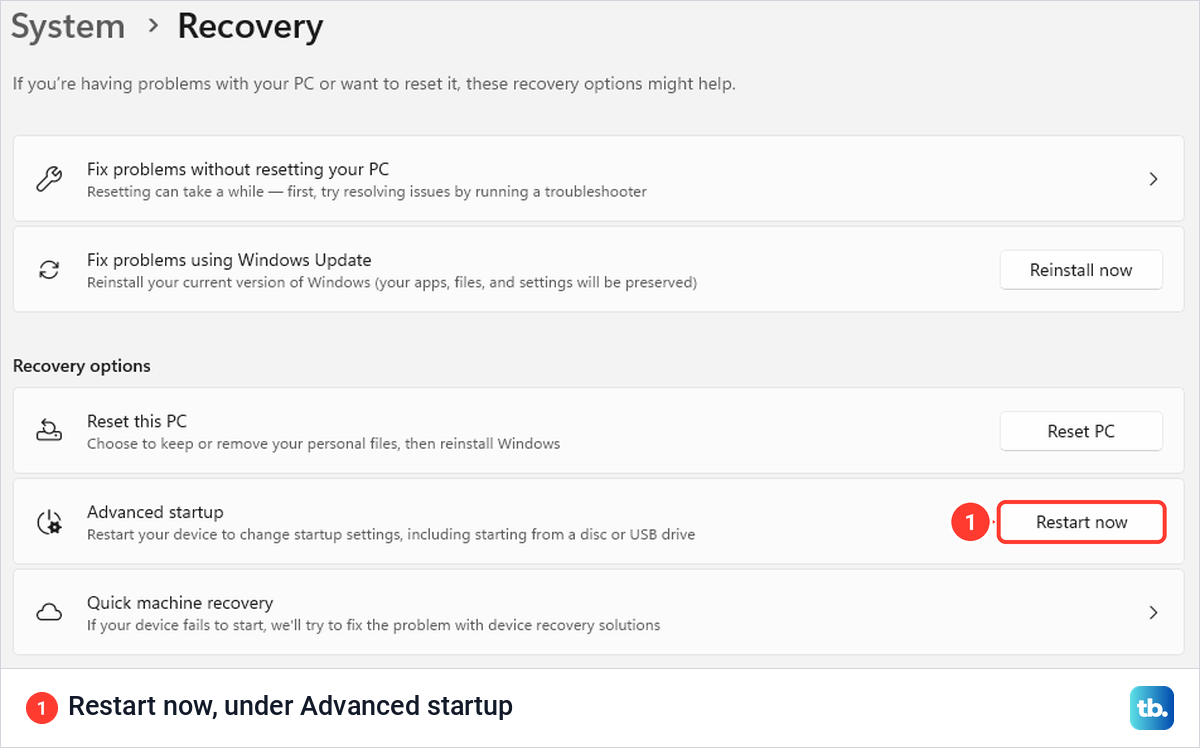
You can also reach recovery from Windows 11 through Settings > System > Recovery, then select Restart now under Advanced startup. On Windows 10, open Settings > Update & Security > Recovery, then select Restart now under Advanced startup. Follow the same recovery path to Command Prompt.
Recovery can open automatically after repeated startup failures. To trigger it manually, hold the power button until the PC shuts down when the Windows or manufacturer logo appears, repeat once, then start the PC a third time. Select Advanced options, then select Troubleshoot > Advanced options > Command Prompt.
If local recovery does not work, boot compatible Windows installation media. Complete the language and keyboard screens, select Next, then select Repair my PC and Next to enter recovery. Older installation media may show Repair your computer instead. Select Troubleshoot > Advanced options > Command Prompt.
An encrypted PC may request its BitLocker recovery key before you can proceed. On another device, open your Microsoft account recovery keys, sign in, and match the displayed key ID. Enter the matching recovery key on the PC you are repairing. A printed or USB-saved recovery key is another option.
Repair the installed Windows system offline
Drive letters can change in recovery, so never assume your Windows installation is on C:. To inspect the volumes, run the following commands one at a time, pressing Enter after each; the last command leaves DiskPart.
diskpartlist volexitIdentify the installed Windows volume and confirm which volume contains its Windows directory before continuing. To confirm it, run bcdedit at the same prompt and read its Windows Boot Loader section, where osdevice names the partition that holds Windows. The examples below use D: for that installation, but you must substitute its actual path. Do not target X:, which belongs to the recovery environment.
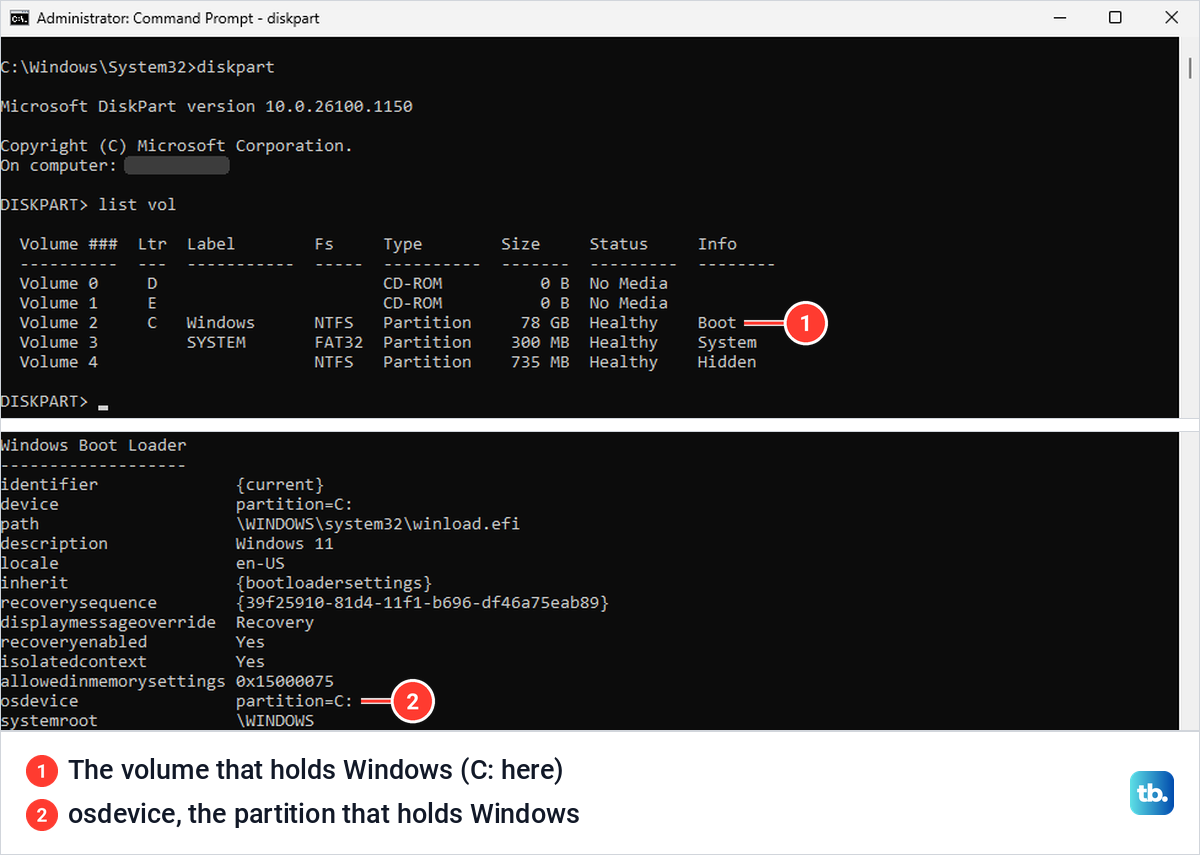
For offline DISM repair, you also need a suitable repair source. Replace both the Windows image path and the source path in this example before running it.
DISM /Image:D:\ /Cleanup-Image /RestoreHealth /Source:E:\RepairSource\WindowsWait for DISM to complete successfully, then run offline SFC using the actual offline boot directory and Windows directory. Those directories can be on different partitions, so confirm both locations. The following example assumes both are on D:.
sfc /scannow /offbootdir=D:\ /offwindir=D:\WindowsIf Windows stopped starting immediately after servicing, reverting pending servicing actions is a separate recovery option. Use this only against the installed offline Windows system, never the running operating system or the recovery environment itself. Replace D: with the installed Windows volume's actual letter, run the following command, then restart.
DISM /Image:D:\ /Cleanup-Image /RevertPendingActionsRepair file system errors with CHKDSK
Use CHKDSK when the problem involves file-system errors rather than damaged Windows components. In administrator Command Prompt, run the following against the affected volume, replacing C: when checking a different drive or using its recovery-environment letter.
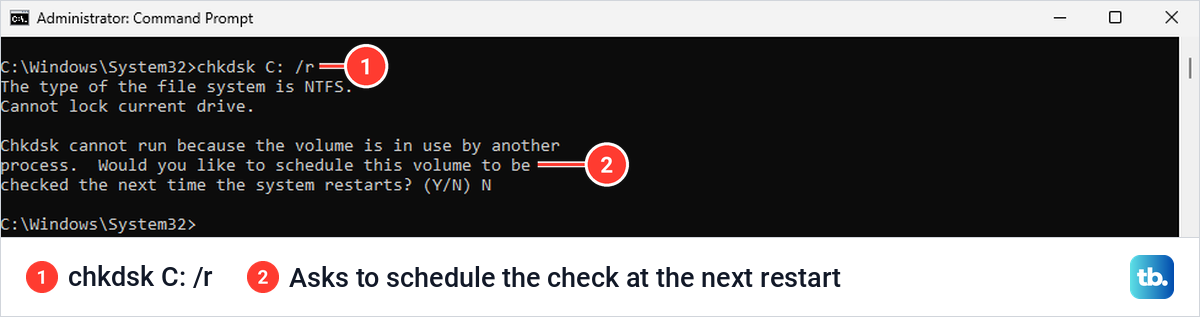
chkdsk C: /fIf Windows asks to schedule the check at the next restart, press Y, press Enter, and restart the PC. CHKDSK repairs file-system errors; it does not replace the Windows components handled by DISM and SFC.
For storage problems involving bad sectors or unreadable data, use the following command to check bad sectors and attempt readable-data recovery. It includes the repairs performed by /f and takes substantially longer, so reserve it for relevant storage problems. Back up recoverable files before you run it.
chkdsk C: /rIf asked to schedule the check, press Y, press Enter, and restart. Neither CHKDSK option can physically repair failing storage hardware. If the underlying problem is hardware failure, further Windows file repairs cannot fix it.
Repair boot files for startup problems
For a PC that cannot start, try automatic Startup Repair before manually rebuilding boot files. In recovery, select Troubleshoot > Advanced options > Startup Repair > Restart. Supply the BitLocker recovery key if requested.
If the problem involves damaged Windows boot files or boot configuration, BCDBoot can recreate them. Open recovery Command Prompt, identify the volumes using DiskPart as described above, and confirm the installed Windows directory. Run the following with its actual drive letter, then restart.
bcdboot D:\WindowsThe basic BCDBoot repair does not require formatting a partition. Its optional /s switch changes firmware-entry behavior and requires a confirmed target system partition. Leave partition formatting and extra partition switches out of a routine repair.
Bootrec remains available for targeted boot repairs, but its master boot record and boot-sector operations mainly concern BIOS/MBR configurations. Commands such as bootrec /fixmbr and bootrec /fixboot are not a universal Windows 11 UEFI repair sequence. If BCDBoot does not resolve the failure, choose a recovery option suited to the problem.
Choose a recovery option when commands fail
System Restore can restore system configuration without rolling back personal files, provided you have an existing usable restore point. From running Windows, enter the following command to open it.
rstrui.exeSelect Next and choose a restore point, selecting Show more restore points if needed. Optionally select Scan for affected programs, then select Next > Finish. When Windows cannot start, open System Restore through Troubleshoot > Advanced options > System Restore in recovery.
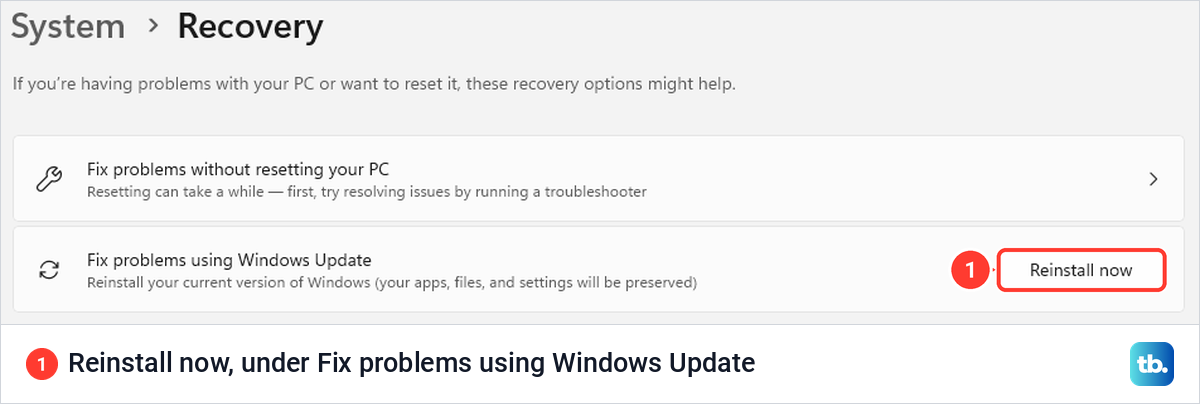
On eligible Windows 11 PCs, open Settings > System > Recovery, then select Reinstall now under Fix problems using Windows Update. Select OK, keep power and internet connected, and restart when installation finishes. This reinstalls the current Windows version while preserving apps, files, and settings. The option requires the relevant Windows updates and may be unavailable on PCs whose updates your organization manages. On Windows 10, or when Reinstall now is unavailable, you can reinstall in place from Windows installation media while signed in: open setup.exe on the media, select Change what to keep, choose Keep personal files and apps, then select Next and Install.
A reset is a further fallback when repairs fail. To reset a laptop through Windows recovery, select Troubleshoot > Reset this PC. Choose Keep my files to retain personal files, while understanding that apps and settings are removed. Choose Cloud download when local installation files are damaged, then review the offered settings and complete the displayed reset steps. Have your BitLocker recovery key ready, because recovery may ask for it.
Frequently Asked Questions
Can you run Windows repair commands in Windows Terminal?
Yes, Terminal can host an administrator Command Prompt tab. Right-click the Windows Terminal icon, right-click its application title, and select Run as administrator. Open the arrow beside the plus button and select Command Prompt; Terminal does not use a separate repair engine.
Do DISM CheckHealth and ScanHealth repair Windows?
No, DISM /Online /Cleanup-Image /CheckHealth checks recorded corruption status, while DISM /Online /Cleanup-Image /ScanHealth performs a corruption scan. Neither repairs the component store; /RestoreHealth performs that repair.
Can SFC check files without changing them?
Yes, sfc /verifyonly checks protected system files without repairing them. For a single file, sfc /verifyfile=FULL-PATH performs verification, while sfc /scanfile=FULL-PATH attempts repair. Replace FULL-PATH with the actual file path.
Should you restore the registry from the RegBack folder?
Do not assume that folder contains usable automatic backups. Microsoft stopped creating them by default beginning with Windows 10 version 1803. Microsoft recommends System Restore for a corrupt registry hive.
Can you prepare a recovery USB from Command Prompt?
Yes, run recoverydrive.exe while Windows works to open the Recovery Drive tool. Select Back up system files to the recovery drive, then select Next. Connect and select an empty USB drive, select Next, then select Create. Creation erases that USB, and the recovery media is intended for the device it was created for.