
A damaged Windows install can leave you choosing between living with errors and wiping the PC. You can reset Windows without losing files by backing up first, choosing Keep my files, and using Microsoft’s current Windows 11 recovery paths. Start with the repair options that preserve more, then move to Reset this PC when Windows needs a reinstall.
1. Back up your important folders first
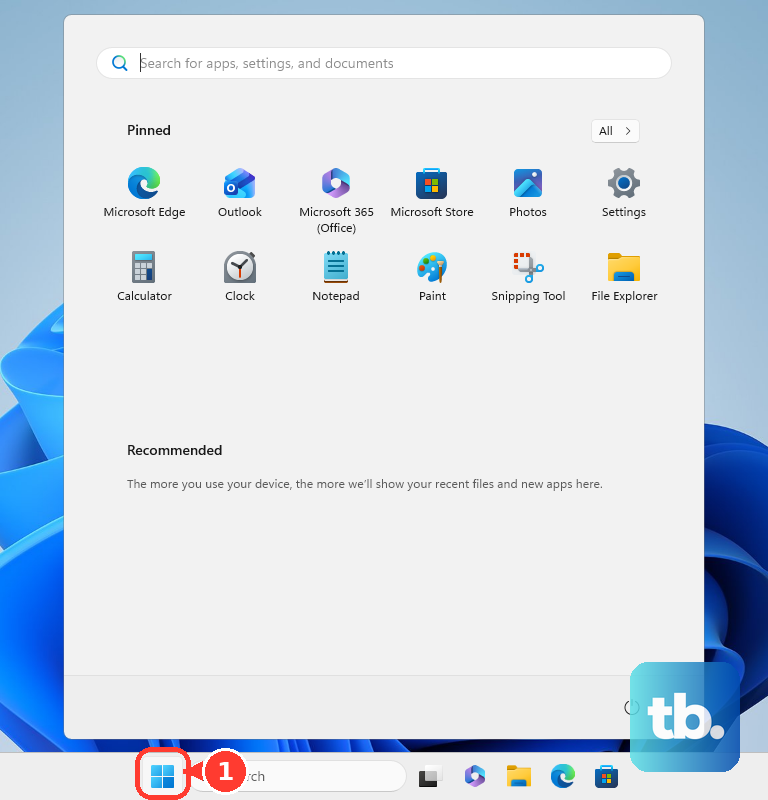
Select Start, open Windows Backup, and sign in with a consumer Microsoft account. Expand Folders, then turn on the folders you want backed up, including Desktop, Documents, Pictures, Videos, and Music. Select Back up.
To use the Settings route instead, open Settings > Accounts > Windows backup. Then select Manage sync settings under OneDrive folder synching.
2. Confirm what Keep my files preserves
The main Windows 11 reset path is Settings > System > Recovery > Recovery options > Reset PC. Choose Keep my files to reinstall Windows while preserving personal files. Microsoft says this removes apps and settings, so complete the folder backup before you reset.
3. Reset Windows from Settings
This fixes Windows problems when the PC still starts normally. Open Settings, select System, and select Recovery. Under Recovery options, select Reset PC.
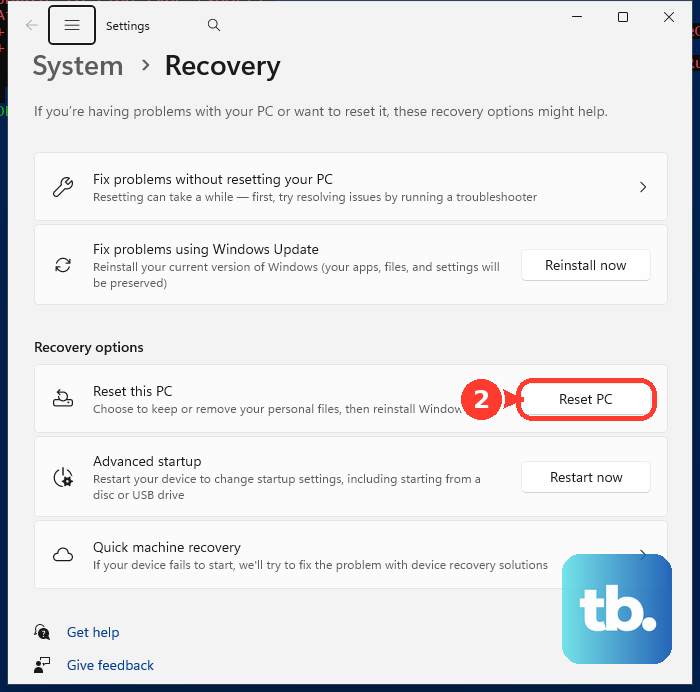
Choose Keep my files, then choose Cloud download or Local reinstall. Follow the on-screen instructions to finish the reset.
4. Enter recovery when Windows still opens
Open Settings > System > Recovery. Under Recovery options, select Advanced startup, then select Restart now. In Windows Recovery Environment, select Troubleshoot.
Select Reset this PC, choose Keep my files, and choose Cloud download or Local reinstall when offered. Follow the on-screen instructions. If the device is encrypted, have the BitLocker recovery key ready before you start.
5. Reach recovery from the sign in screen
This fixes a PC that reaches the lock screen but will not let you get into Windows. Hold Shift, and while holding it, select Power. Select Restart.
In Windows Recovery Environment, select Troubleshoot. Select Reset this PC, then choose Keep my files.
6. Force recovery after failed boots
Start the device, then wait for the Windows or manufacturer logo. Hold the power button until the PC shuts down, and turn it on again. Repeat the shutdown, then turn it on a third time.
Select Advanced options. Select Troubleshoot > Reset this PC, then choose Keep my files. Use this path only when Windows will not boot normally.
7. Repair Windows with Windows Update
For eligible Windows 11 PCs, use Start > Settings > System > Recovery > Fix problems using Windows Update > Reinstall now. Microsoft says this repair preserves apps, files, and settings. It applies to Windows 11 devices with the 2022 annual update plus the February 2024 optional update or later, and it is unavailable on some work or school managed devices.
8. Run setup from installation media
On a working PC, go to Microsoft’s Download Windows 11 page. Under Create Windows 11 Installation Media, select Download Now. Run MediaCreationTool.exe, then follow the tool to create USB or ISO media.
Microsoft notes the Windows 11 media creation tool only builds installation media for x64 processors, not Arm-based PCs, so on an Arm PC wait for the upgrade to be offered through Windows Update instead. On the problem PC, open File Explorer from inside the existing Windows installation. Select This PC.

Under Devices and drives, right-click the Windows 11 installation media. Select Install or run program from your media, then step through Windows 11 Setup. At Ready to install, keep Keep personal files and apps.
If you select Change what to keep, choose Keep personal files and apps or Keep personal files only. Finish setup. Do not boot from the media for this method, because Microsoft warns that a fresh install from bootable media wipes the drive.
9. Skip old Fresh Start advice
Older Windows guides point to Windows Security > Device performance & health > Fresh start. For current consumer Windows 11 recovery, Microsoft points reset help back to Settings > System > Recovery. Windows 10 reset paths are legacy now, because Windows 10 support ended on October 14, 2025.
Frequently Asked Questions
Will Reset this PC delete my personal files?
Choose Keep my files to reinstall Windows while preserving personal files. Microsoft says apps and settings are removed, so back up important folders before starting.
What should I try before Reset this PC?
Use Fix problems using Windows Update from Settings > System > Recovery when it appears. Microsoft says that repair reinstall preserves apps, files, and settings.
Can I reset from recovery if Windows will not start?
Yes. Enter Windows Recovery Environment, select Troubleshoot > Reset this PC, then choose Keep my files. Have the BitLocker recovery key ready if the device is encrypted.
Should I boot from a Windows 11 USB to keep my files?
No. For a keep-files setup repair, open the media from inside Windows and use Windows 11 Setup. Microsoft warns that booting from media for a fresh install wipes the drive.